
Product sections let you highlight a hand-picked group of products, such as "11.11 Deals", at the top of your microsite home. Customers see them before your full product list.
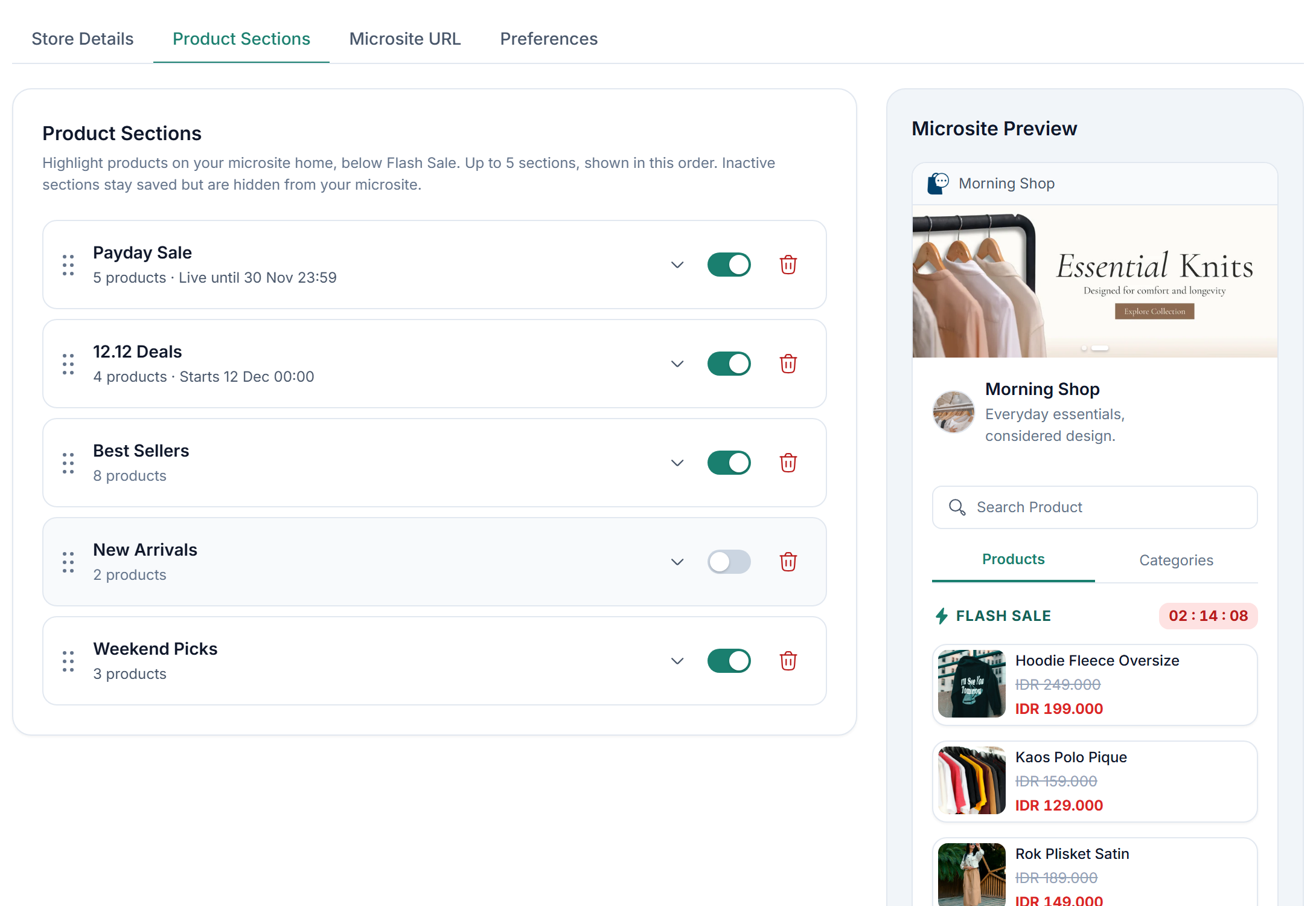
Create a product section
Go to Settings ▸ Store ▸ General ▸ Product Sections.
Click Add section.
Enter a title (up to 30 characters) and, if you like, a subtitle (up to 50 characters).
Click Add Product and pick 1 to 20 products. Use the category filter or search to find them.
Drag the products into the order you want customers to see.
To show the section only for a period, turn on Show only during a set period and set Start and End.
Click Save Changes.
The Microsite Preview next to the form updates as you edit, before you save. It shows every section that is turned on, even one scheduled for later, so you can check it before it goes live.
Manage your sections
Order: drag a section to move it. Your microsite shows sections in the same order.
Show or hide: use the section's toggle to hide it without deleting it.
Delete: click the trash icon.
Status: a scheduled section shows Starts, Live until, or Ended with its date.
Changes to order, toggles, and deletions apply only after you click Save Changes.
Keep in mind:
You can have up to 5 sections.
A product can be in more than one section, and it still appears in your full product list.
Archived products can't be picked.
A deleted product leaves the section automatically. An inactive product stays in the section but is hidden from customers.
A section that is on but has nothing to show gets a warning, for example when all its products are inactive.
What customers see
Sections appear on the Products tab, below Flash Sale, as a row customers can swipe through.
Each row shows the first 6 products that are still in stock, in your order.
View All appears when a section has more than 6 in-stock products. It opens a page with every product in the section, which customers can sort like any other product list. Sold out products are listed last.
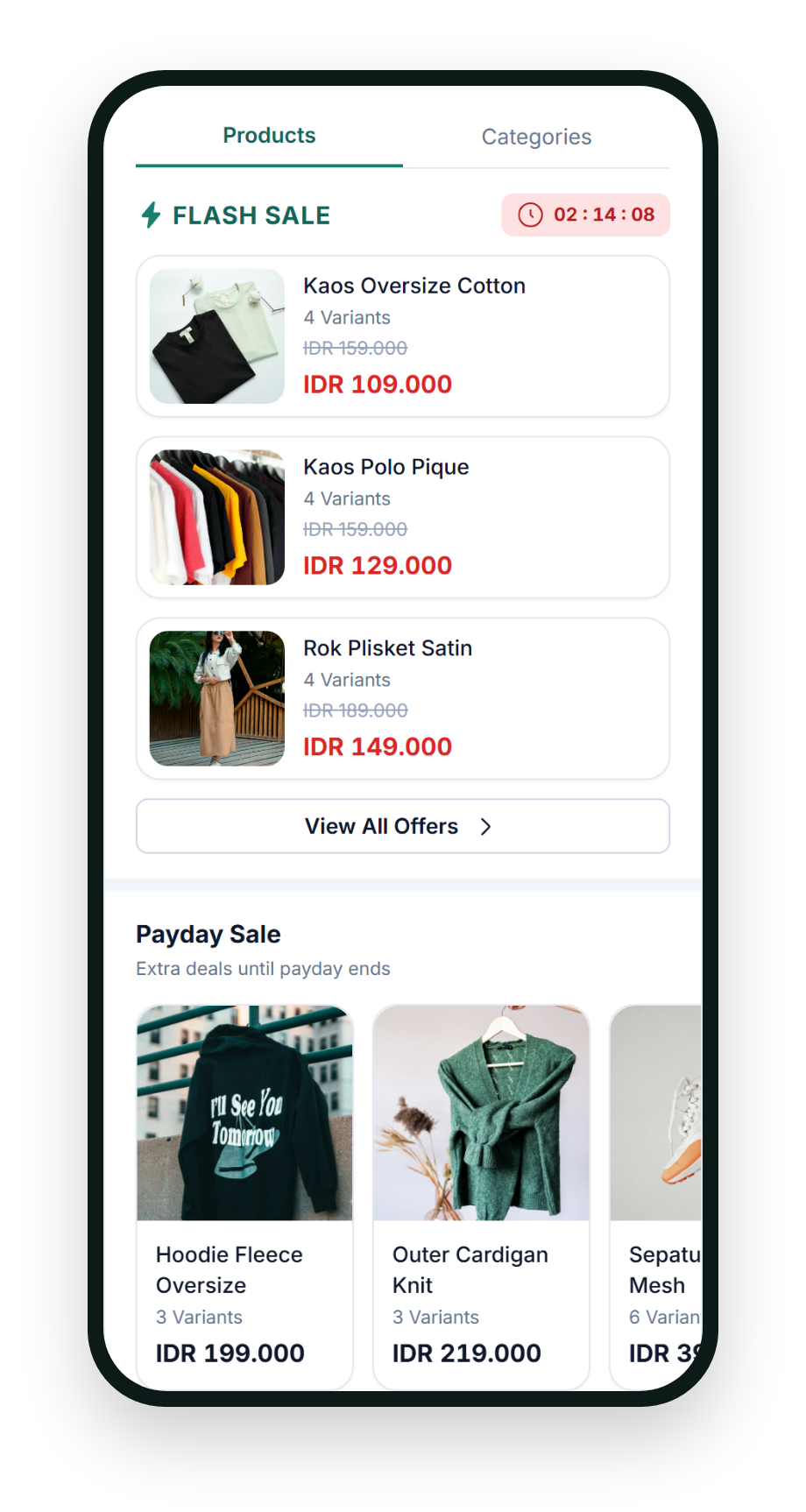
A section is hidden from customers when it is outside its schedule or has no in-stock products. Sections are also hidden while customers search or browse a category.
Link a banner to a section
In Store Details, set a banner's Link to to Product Section and pick the section. Tapping the banner opens that section's page. See Store banners.
If the section is turned off, deleted, outside its schedule, or has no active products, the banner stays on your microsite but can't be tapped, and you see a warning on the banner row.
Key Takeaways
Show up to 5 hand-picked product groups at the top of your microsite home.
Each section holds 1 to 20 products in the order you choose, with an optional schedule.
Customers see the first 6 in-stock products and can open View All for the rest.
A banner can link straight to a section.