
Your microsite is the online store your customers open from a chat link. They can browse your products, search, and place an order without leaving the conversation.
To manage what appears on it, go to Products and Categories.
Homepage
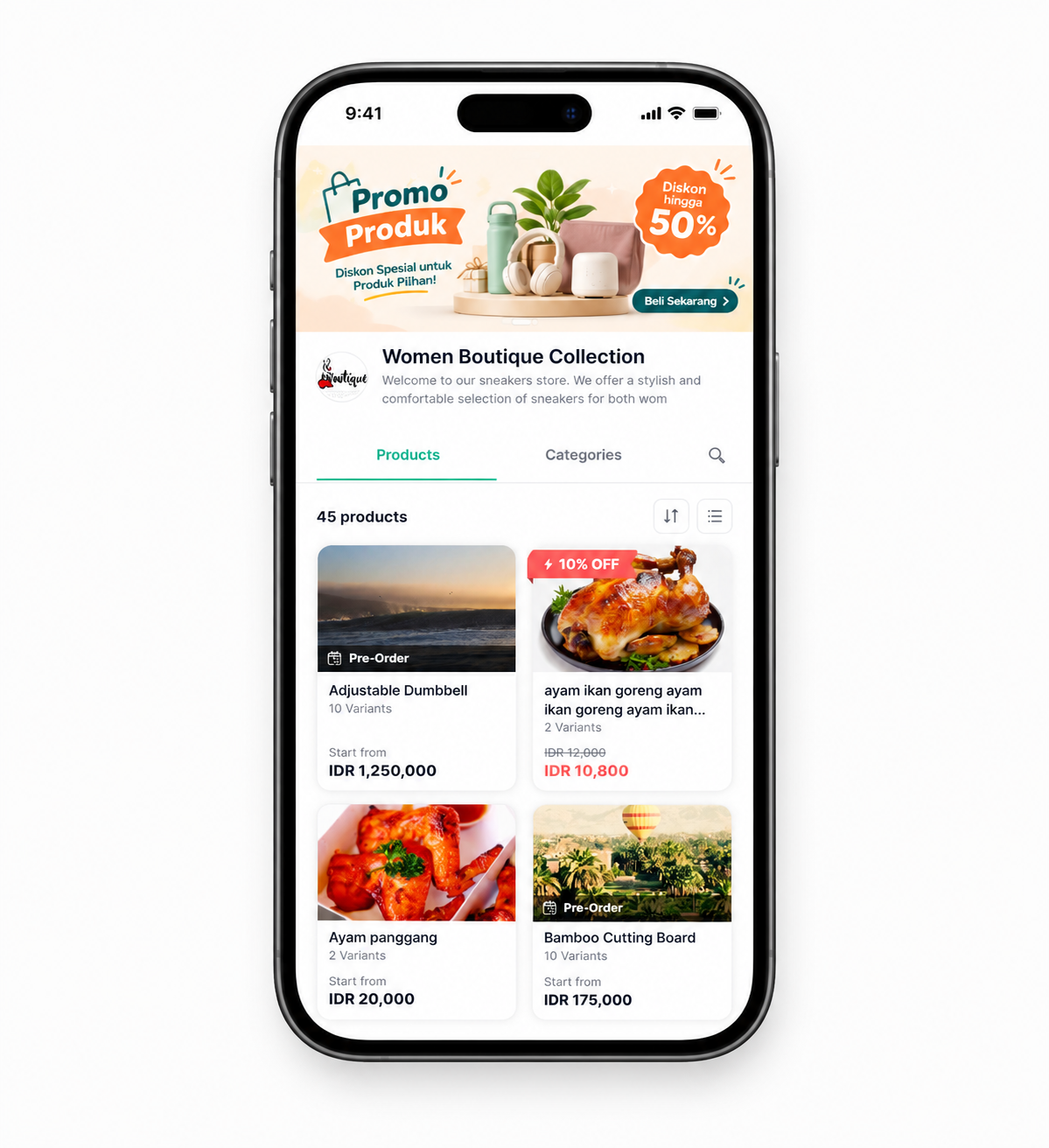
When customers open your microsite, they see your store banners, your logo, store name, and description, and two tabs, Products and Categories, with a search icon next to them. The Products tab opens first, and customers can swipe left or right to switch tabs.
Tapping a banner opens the product, category, or flash sale you linked to it. See Store banners.
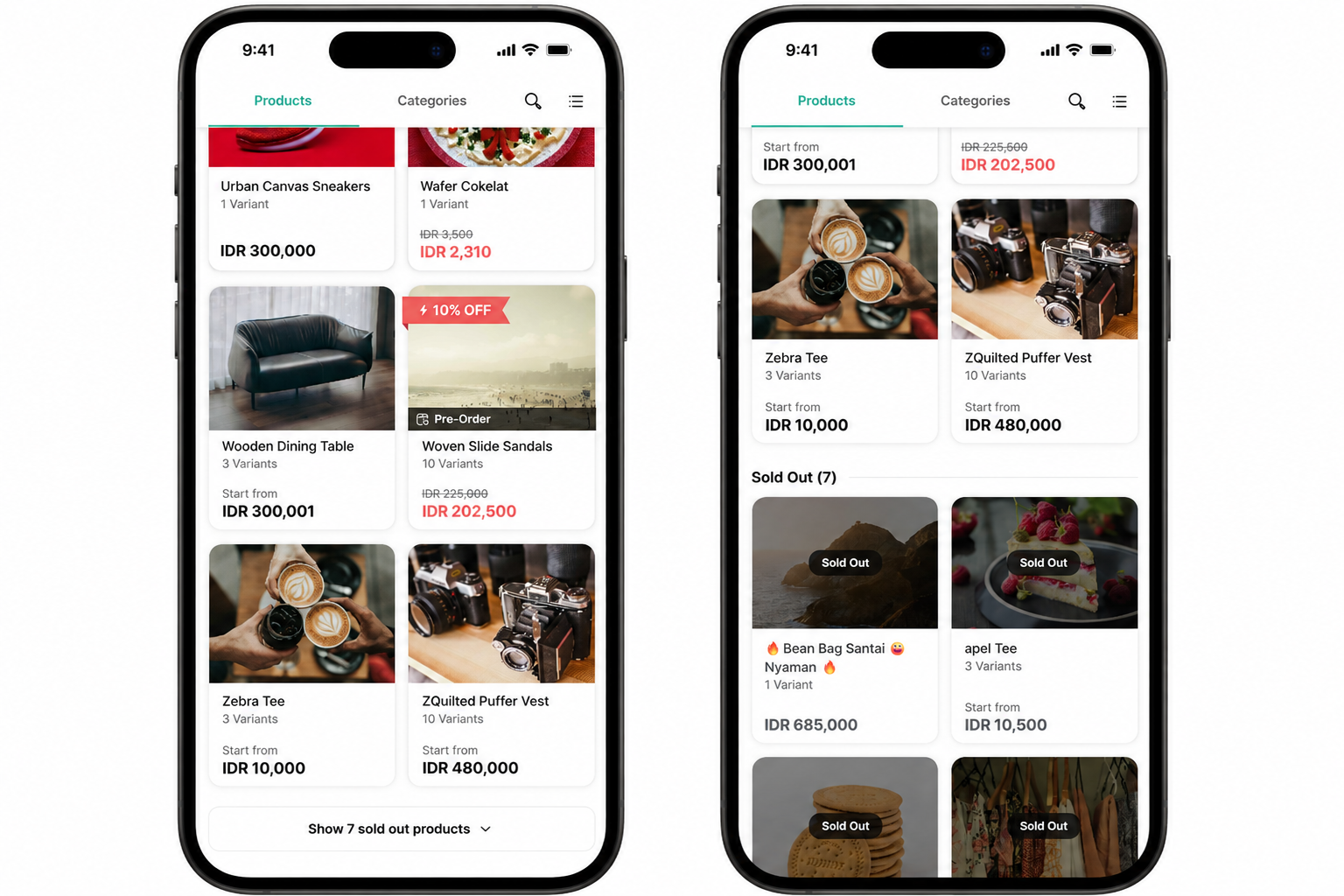
The Products tab shows all your active products, sorted by name from A to Z. Sold out products are placed last, behind a button that shows how many there are.
Customers can switch between grid view and list view with the button next to the product count. Next to it, the sort button lets them reorder products by Default (name), Price: Low to High, Price: High to Low, or Discount: High to Low. Sorting also works on category pages, search results, and the Flash Sale page.
Categories
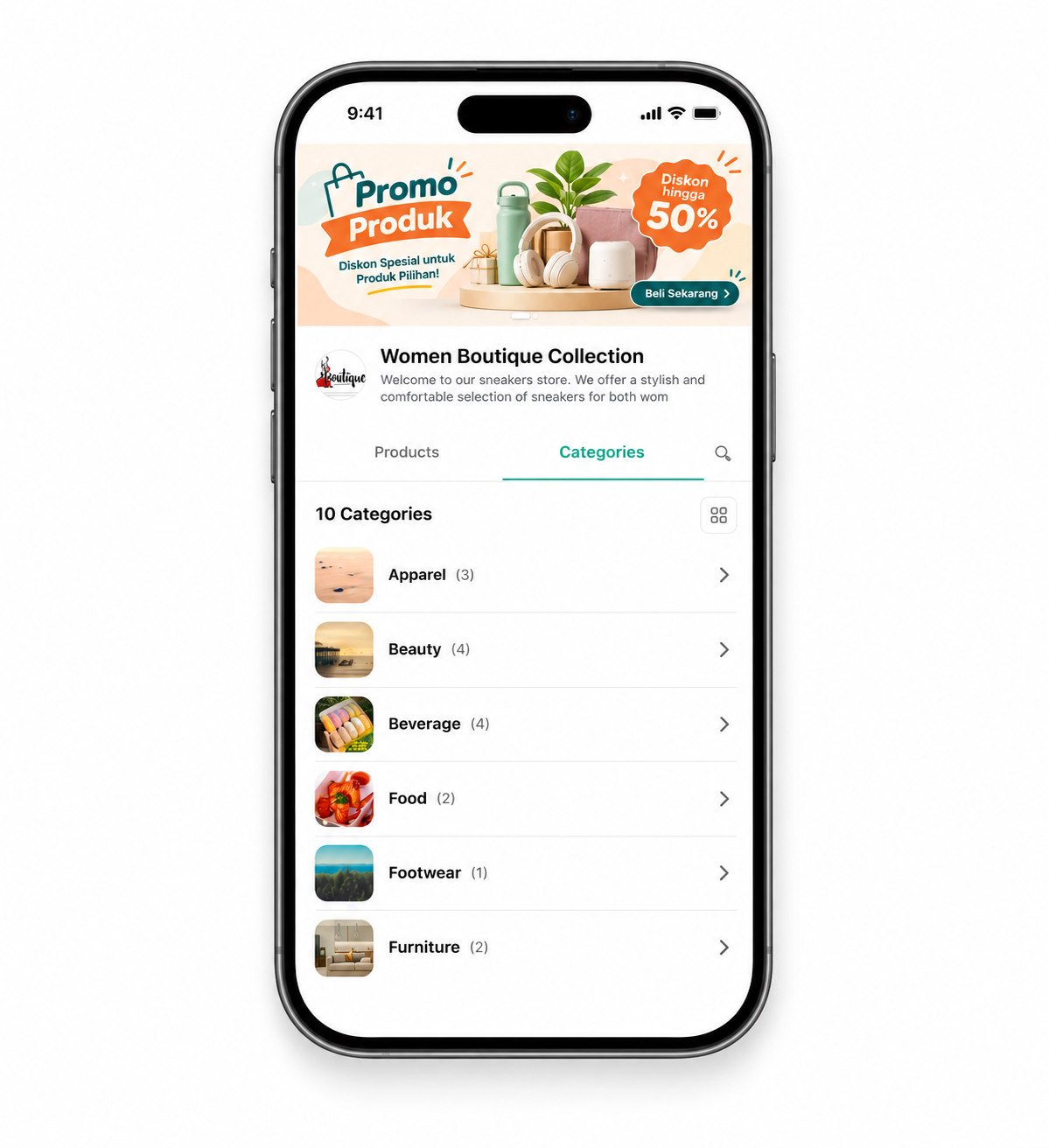
The Categories tab shows each category with its image, its name, and how many products it has. Customers can switch between grid view and list view here too. Tapping a category opens its products.
Keep in mind:
Empty categories are hidden. A category with no products does not appear on your microsite. It stays in your admin, so nothing is deleted.
No categorized products, no tabs. If none of your products has a category, your microsite skips the tabs and shows a Search Product field above your products.
Products without a category appear under Others, at the bottom of the list. In your admin, the same products are listed under Uncategorized. If you delete a category, its products move to Others.
Others and Uncategorized cannot be used as category names.
Category images
You can upload an image for each category in Categories. If you do not, your microsite uses a photo from one of the products in that category.
Your admin only shows images you uploaded yourself. So a category can look empty in your admin but still show a photo on your microsite.
Search
Tapping the search icon (or Search Product, when there are no tabs) opens a search screen, and results appear as customers type. Customers can switch between grid view and list view here as well.
Search looks through all your products, not just the tab or category the customer is on.
Customers can search by product name only.
Sold out products also appear in the results, under a Sold Out label.
What product cards show
Sold out. A product is sold out when all of its variants have no stock left. Customers can still open it to see its details. Discount and Pre-Order labels are hidden on sold out products.
Start from price. For a product with several variants, the card shows the price of the cheapest variant that is still in stock. When that variant sells out, the price moves up to the next cheapest one.
Pre-Order label. The label stays as long as at least one Pre-Order variant still has stock. See Pre-Order for how Pre-Order works.
Flash Sale
Running Flash Sale campaigns appear in a Flash Sale section on the Products tab. See Flash Sale for details.
Checkout
After adding products to their cart, customers choose a delivery option and pay. See Payments, Delivery, and Scheduled Delivery.
Saved delivery addresses
If your store uses delivery, customers can save up to 5 addresses in your store and pick one on Select Address at their next order, even from another phone or browser.
A new address is saved once the order is placed, unless the customer unticks Save this address for my next order. It gets a label such as Home, Office, or a name of their own.
The address used in the last order is marked Last used and selected first.
When the list is full, the customer can still use another address, but it won't be saved.
If your store requires a map pin, an address without one is marked Pin location needed until the customer sets it.
Anyone holding an active microsite link can see and change that customer's saved addresses, including someone the link was forwarded to. Links that never expire carry this risk the longest.
You can't see or manage customers' saved addresses from the dashboard.
Key Takeaways
Customers can browse by product or by category, in grid or list view, and search all your products by name.
Empty categories are hidden, and products without a category appear under Others.
Upload a category image to choose the photo customers see for that category.
Sold out products are placed last, and customers can still open them.
The Start from price only counts variants that are still in stock.