
Team lists everyone who can reach your account, with the role and stores each of them has. It's also where you change someone's access.
Team is limited to the account owner and to admins who have access to all stores. If you don't see it in Account Settings, your role doesn't include it — ask your owner or an admin.
Opening Team
Click the store name at the top of any store to open the store dropdown.
Select Account Settings.
Under Account, select Team.
Reading the list
Each row shows one person:
Column | What it shows |
|---|---|
Name | Their name, and the email their account is tied to. |
Role | Owner, Admin, Fulfillment, or Marketing. |
Access | The stores their role applies to. |
The list is sorted by name by default, and you can sort by Role or Access instead. Use the search bar to find someone by name or email.
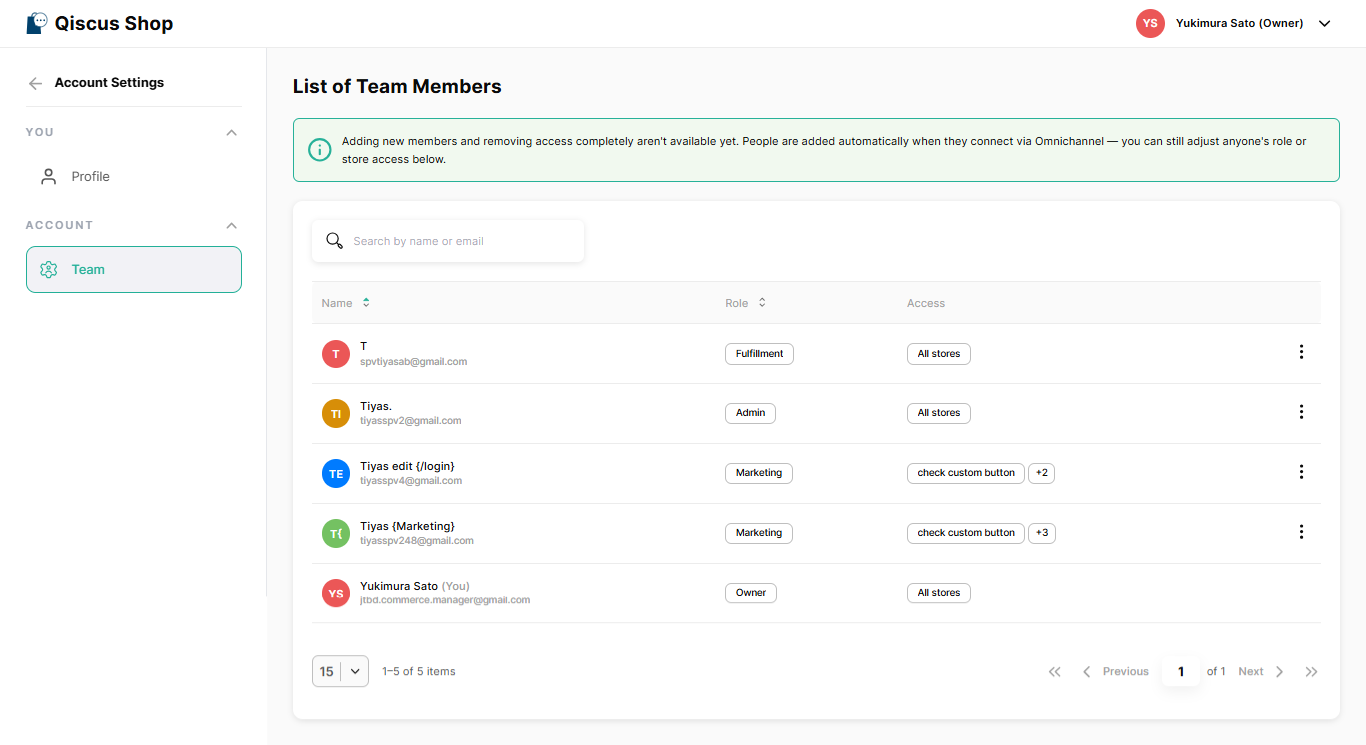
Adding new members and removing access completely aren't available yet. People are added automatically when they connect via Omnichannel. You can still adjust anyone's role or store access below.
Adjusting someone's access
Click the actions menu (⋯) on that person's row.
Select Adjust Access.
In the Adjust [Name]'s access popup, pick a Role. Each option shows what it covers:
Admin — Full access to everything in Shop.
Fulfillment — Manage orders. View-only elsewhere.
Marketing — Manage products, promotions & store settings. View-only on orders.
Pick a Store access:
All stores — access to every store in this account, including ones added later.
Specific store(s) — access only to the stores you pick.
Confirm the change.
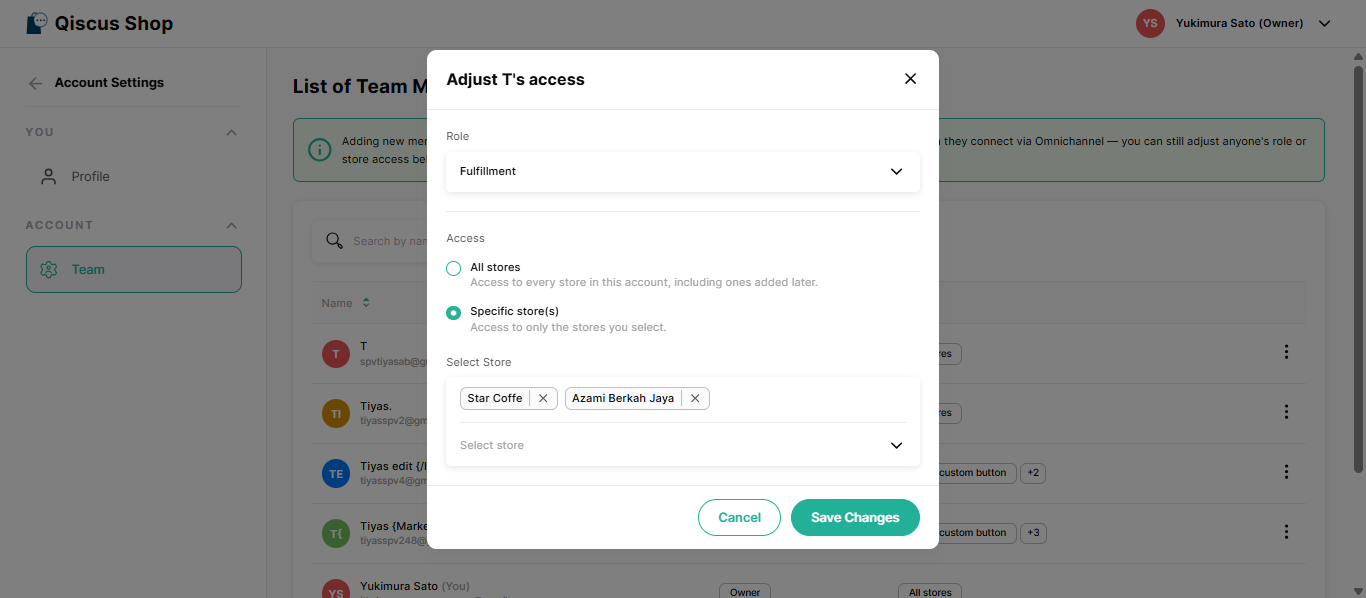
Role and store access are picked separately, so you can pair any role with any scope. The change takes effect straight away and the person doesn't need to be invited again.
For what each role can reach, see Roles and Permissions.
Key Takeaways
People appear here automatically on their first sign-in; invites and removals aren't available yet.
Adjust Access changes role and store access separately, and takes effect straight away.