
Fulfillment can't open this page. See Roles and Permissions.
Product Discount is a flexible price-cut tool for individual products and variants. Unlike Flash Sale, it isn't built around urgency or a countdown — there's no banner, no forced short duration, and no stock quota requirement. Use it for anything from a one-off markdown to a month-long promotional price, on as few or as many products as you like.
Flash Sale | Product Discount | |
|---|---|---|
Best for | Short, urgency-driven campaigns | Flexible, longer-running pricing |
Duration | Short (fixed short window) | 10 minutes up to 365 days |
Orientation | Campaign-based, usually with a banner | Product-based, no banner |
A variant can only be part of one of Flash Sale or Product Discount at a time for a given period. A product with multiple variants can freely split them between the two — for example, one variant in a Flash Sale while another variant of the same product sits in a Product Discount — as long as it's not the same variant in both.
Setting Up a Product Discount
There are two ways to start a Product Discount:
Option 1 — Set Discount from the product list
From Products, click the ⋮ menu on a product row and select Set Discount. You can also select multiple products first and apply Set Discount in bulk.
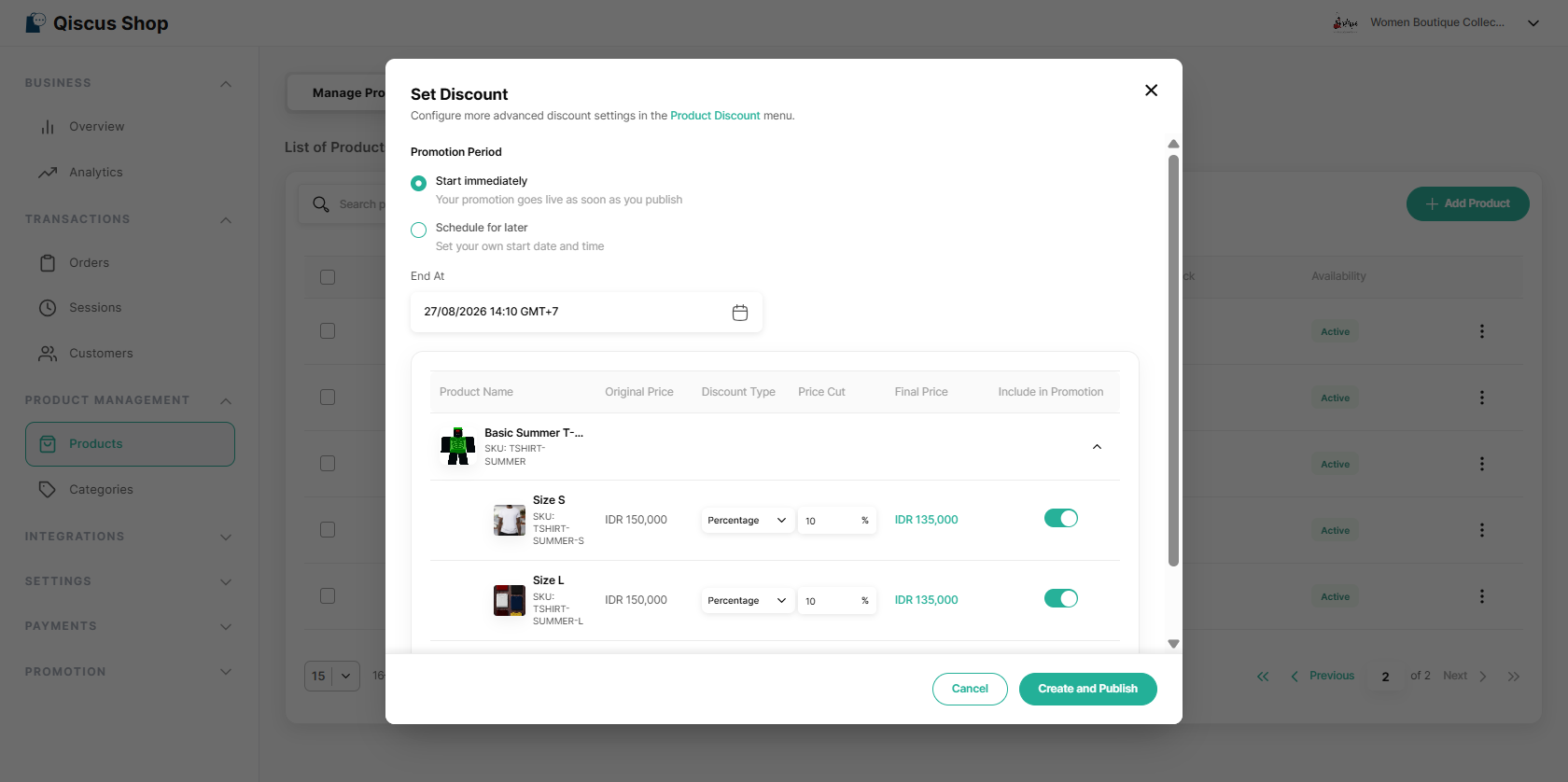
In the Set Discount popup, choose the Promotion Period (see below), then set the discount for each variant listed — discount type (Nominal or Percentage, default Nominal), the price cut, and the resulting final price.
Toggle individual variants off if you don't want them included (at least one variant must stay enabled).
Click Publish to save and go live.
The popup also includes a link to the full Product Discount page, opening in a new tab — it's just a shortcut to that page and doesn't carry over what you've already entered in the popup.
Option 2 — Create from the Product Discount page
Navigation — Go to the Qiscus Shop Dashboard, navigate to the Promotions group, click Product Discount, then click Add Product Discount. (If you don't have any products yet, you'll be prompted to add one first.)
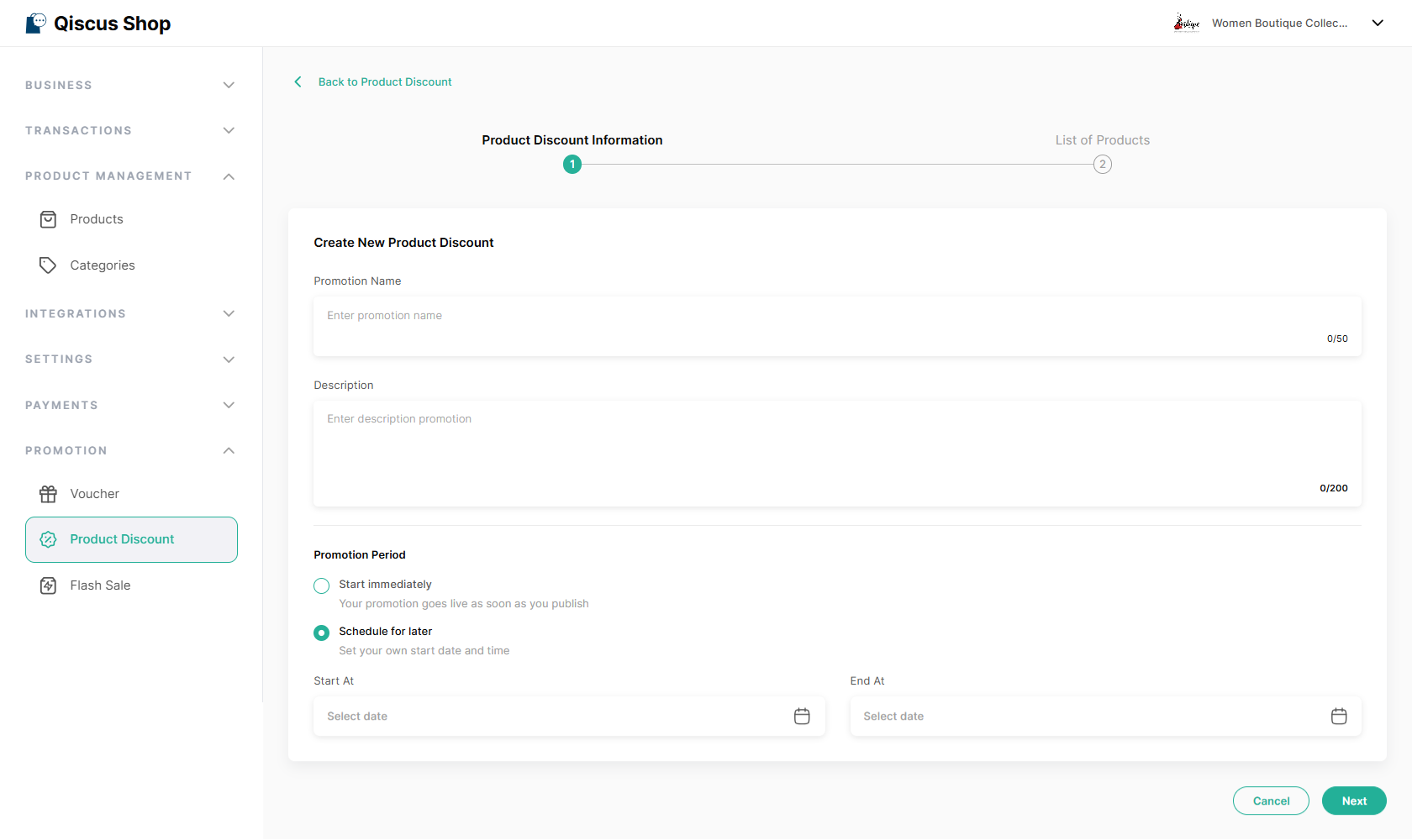
Step 1 — Product Discount Information — Fill in the following:
Promotion Name (max 50 characters),
Description (max 200 characters), and
Promotion Period (see below).
Step 2 — List of Products
Click Add Product to open the product selection popup.
From the popup, browse and select eligible products to include in the campaign. You may use filters or search for specific products.
Then set the discount type and price cut per variant (Nominal or Percentage, between 1% and 99% of the original price), or select several rows and use Bulk Update to apply the same type and value at once. Rows can be removed individually or in bulk.
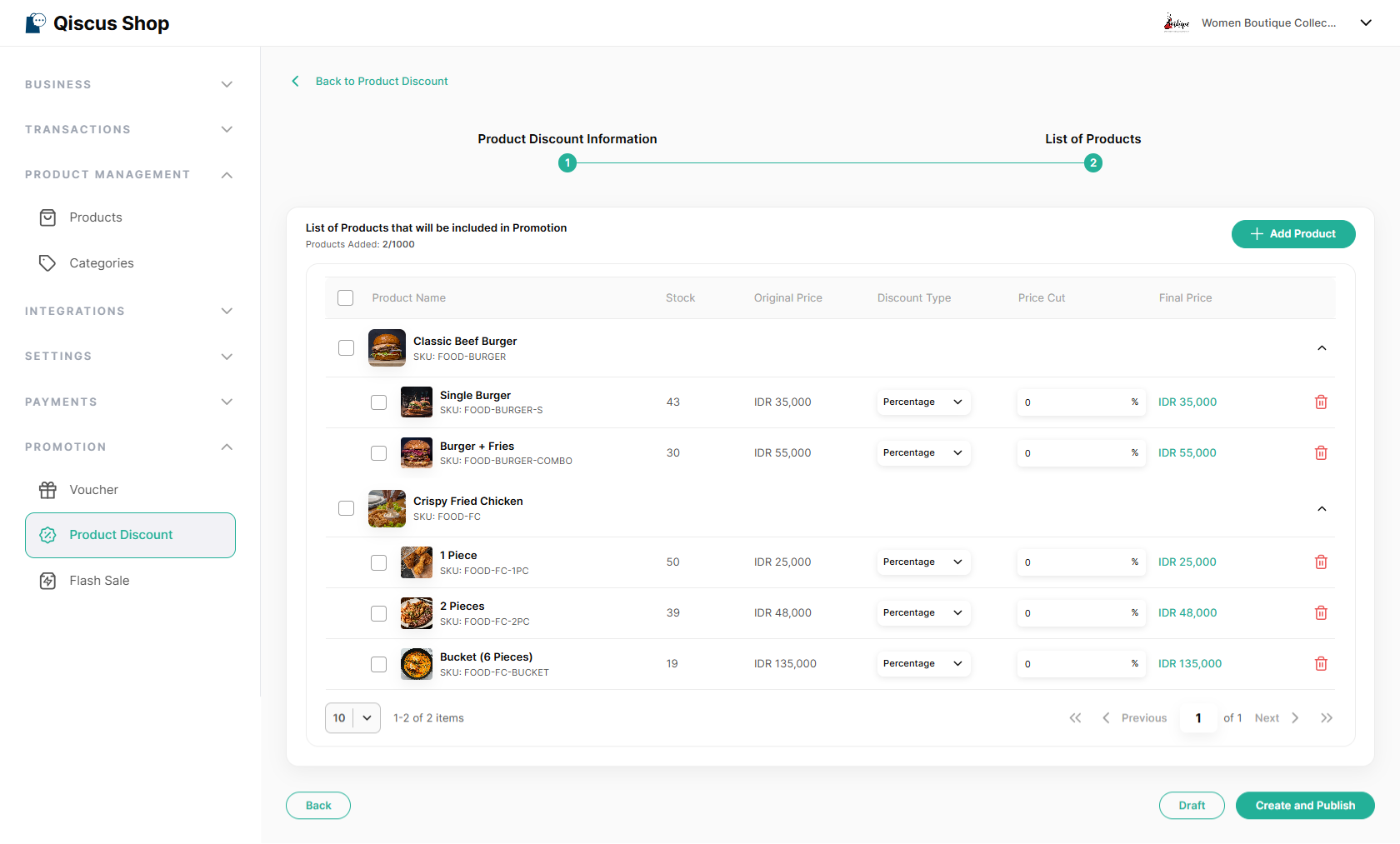
Once ready, click Draft or Create and Publish.
Notes:
A campaign can hold up to 1,000 products.
Any product priced below the store's minimum eligible price is shown but disabled, with a tooltip explaining why.
Products already included in another promotion (another Product Discount or Flash Sale) still appear and can still be added to this campaign. Overlap is only checked when you Publish — if a selected variant conflicts with another promotion during the same period, it’s flagged so you can review and adjust it before publishing.
Promotion Period: choosing when it starts
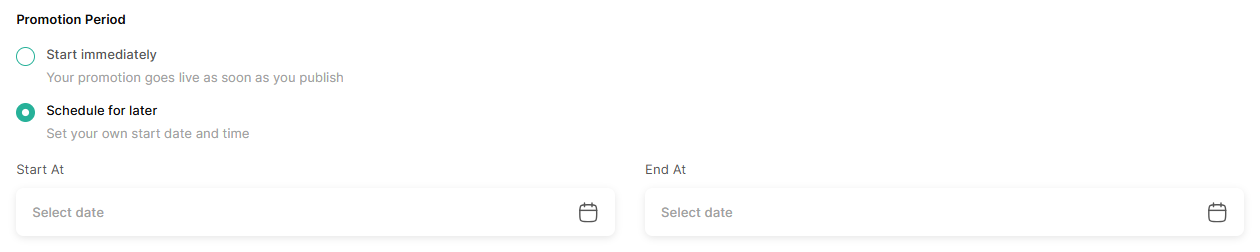
Every Product Discount picks one of two start modes:
Start immediately — the promotion goes live the moment you publish. Its status jumps straight to Ongoing, skipping Upcoming. Only an End At date/time is needed.
Schedule for later — pick a Start At date/time (must be later than the current time) and an End At date/time. The promotion stays Upcoming until the start time arrives.
A promotion must run for at least 10 minutes and no more than 365 days, measured from Start to End. All period displays and validations use your store's timezone (Store Settings ▸ Localization).
Managing a Product Discount
Open Promotions ▸ Product Discount to see every campaign, or search by name. Click a row to open its detail page. What you can still edit depends on its status — see Product Discount Status below.
Each campaign's ⋮ menu offers different actions depending on status:
Status | Available actions |
|---|---|
Draft | Duplicate, Publish, Delete |
Upcoming | Duplicate, Cancel |
Ongoing | Duplicate, Cancel |
Ended | Duplicate |
Cancelled | Duplicate |
Duplicate opens a new campaign pre-filled from the original (named "Copy of {name}"), including its start mode. You can freely change any field before saving — the original campaign is unaffected. If the duplicated period has already passed, pick a new one (or switch to Start immediately) before publishing.
Delete (Draft only) permanently removes a draft that was never published.
Cancel (Upcoming/Ongoing only) permanently stops a promotion that's already live or about to go live; it can't be reactivated and disappears from the storefront immediately.
You can search the list by campaign name, and filter it by date period range and by status (Draft, Upcoming, Ongoing, Ended, or Cancelled) — same as Flash Sale.
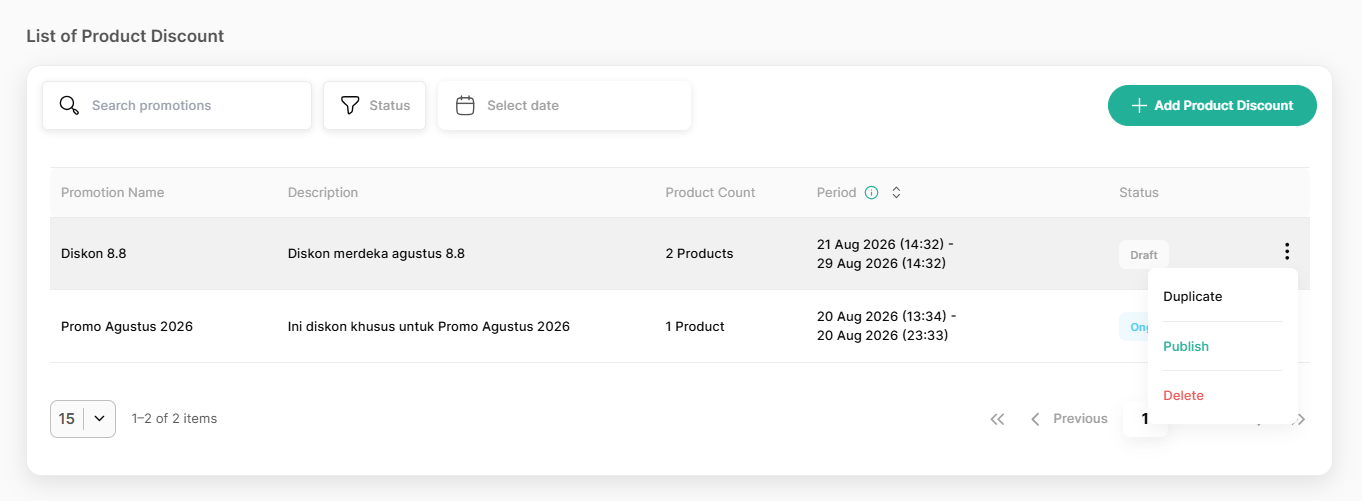
Product Discount Status
Status | Name & Description | Promotion Period | Discount type & value | Products in campaign |
|---|---|---|---|---|
Draft | Editable | Editable, including start mode | Editable | Add/remove freely |
Upcoming (Schedule for later only) | Editable | Editable, including switching start mode | Locked | Locked — no add/remove |
Ongoing | Editable | Only End At editable (must stay later than now and within 365 days of Start) | Locked | Locked — no add/remove |
Ended | Read-only | Read-only | Read-only | Read-only |
Cancelled | Read-only | Read-only | Read-only | Read-only |
Because Start immediately promotions go live the moment they're published, they skip Upcoming entirely — the Upcoming window only applies to Schedule for later promotions.
What Customers Will See
Once a promotion has started (including the instant a Start immediately promotion is published), discounted products show a percentage-off badge and a strikethrough original price — on the product list, the product detail page, and throughout checkout (order confirmation, order summary, and order details).
The badge always shows a percentage, even for nominal discounts — a nominal cut is converted to its equivalent percentage of the original price for display. Customers can still apply vouchers on top of a discounted price.
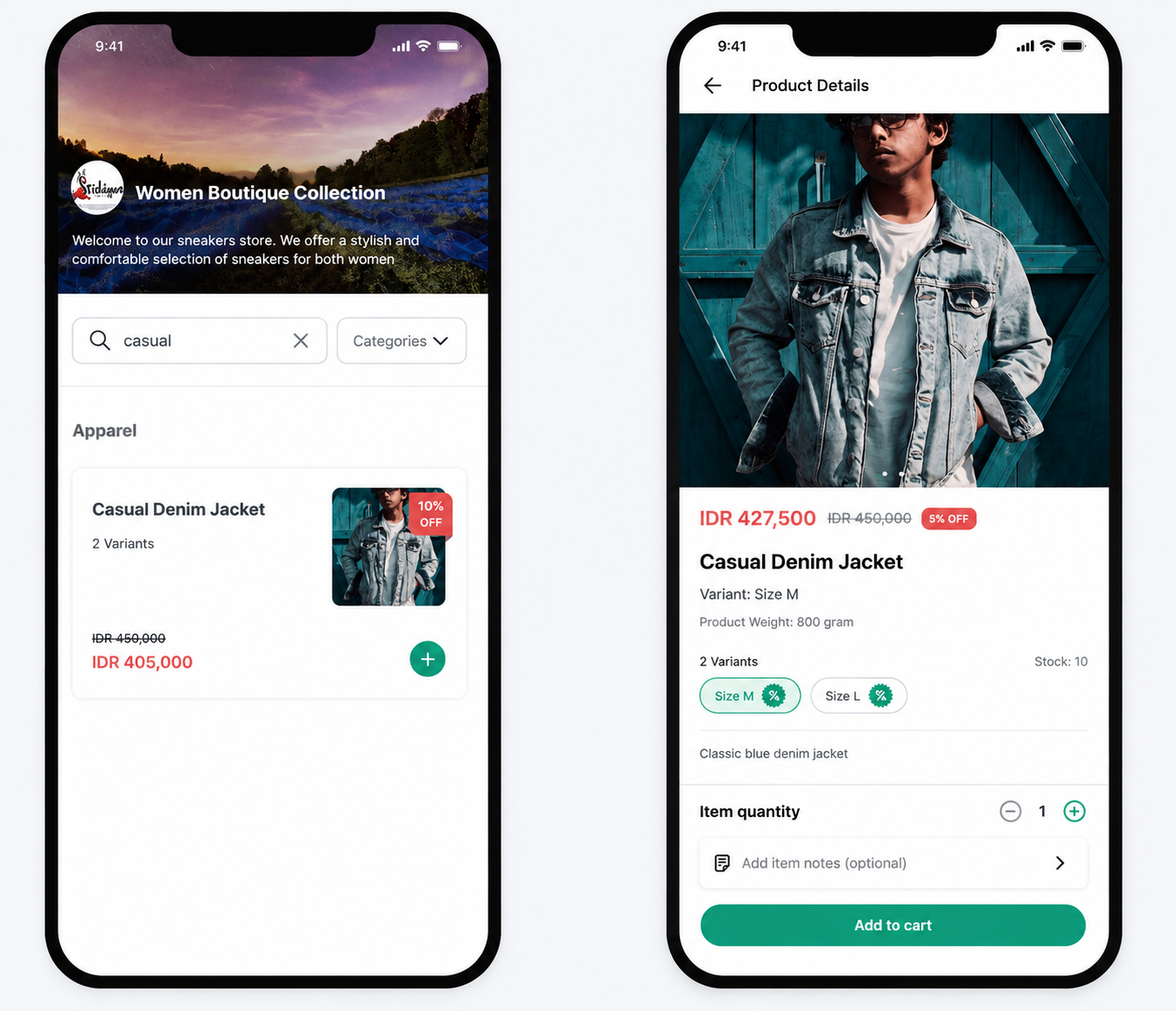
How Product Discount Appears After Purchase
The discount badge and strikethrough price also appear on Order Details and the Order Receipt for orders that included a discounted product.
WhatsApp Catalog
If your store syncs with WhatsApp Catalog, the next sync after a promotion starts pushes the discounted price to the catalog; the next sync after it ends restores the normal price.
Key Takeaways
Product Discount is a lighter, longer-running alternative to Flash Sale — no banner, no minimum urgency mechanics, up to 365 days and 1,000 products per campaign.
Choose Start immediately or Schedule for later; Start immediately skips the Upcoming status entirely.
Once Ongoing, only the promotion's name, description, and end time can still be changed — the product list and discount values are locked until the campaign ends or is cancelled.
A variant can't be in a Flash Sale and a Product Discount at the same time.
Discount badges always display as a percentage, even when the discount was set as a nominal amount.