
Custom Domain lets your microsite open on a domain you own, such as shop.yourbrand.com, instead of the default Qiscus Shop address. Customers see your brand in every link they receive, from the first microsite link to the receipt.
Only the pages your customers see move to your domain. Your Qiscus Shop dashboard stays where it is, and you keep signing in from Qiscus Omnichannel as usual.
Before you start
A domain you own, with access to its DNS settings. A subdomain such as
shop.yourbrand.comworks with any DNS provider.A root domain such as
yourbrand.comworks only if your DNS provider can point a root domain to another domain. Providers call this CNAME flattening, ALIAS, or ANAME. If yours can't, use a subdomain instead.One domain per store. A domain saved in another store can't be used, even if it's turned off there. Each of your stores can have its own domain, for example
skincare.yourbrand.comandmakeup.yourbrand.com.
Set up your domain
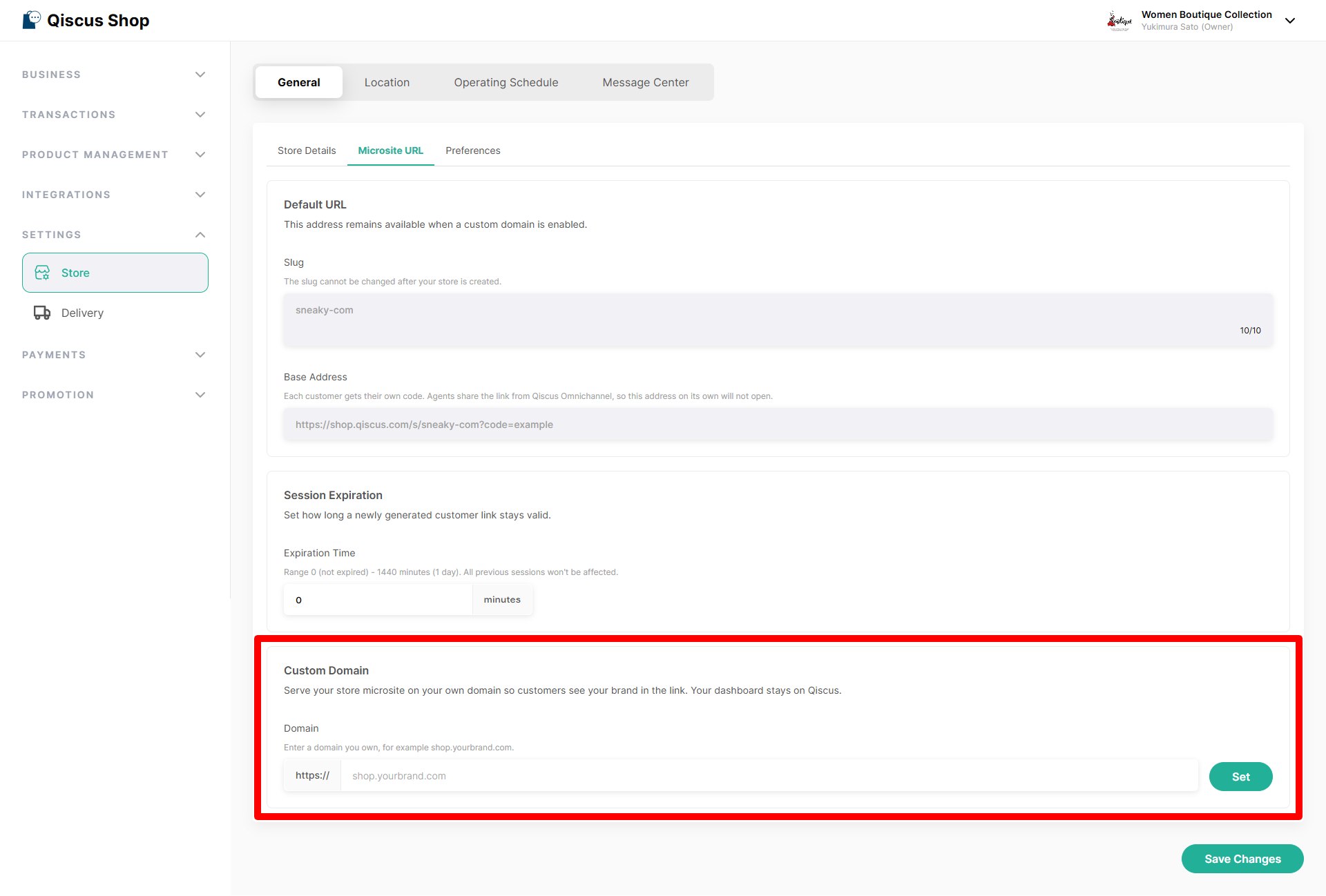
Go to Settings ▸ Store ▸ General, then open the Microsite URL subtab. Custom Domain is the last section, below Default URL and Session Expiration.
In Domain, type your domain without
https://, for exampleshop.yourbrand.com.Click Set to get the CNAME record, then click Save Changes to keep the domain in your store. Leave Enable Custom Domain off for now.
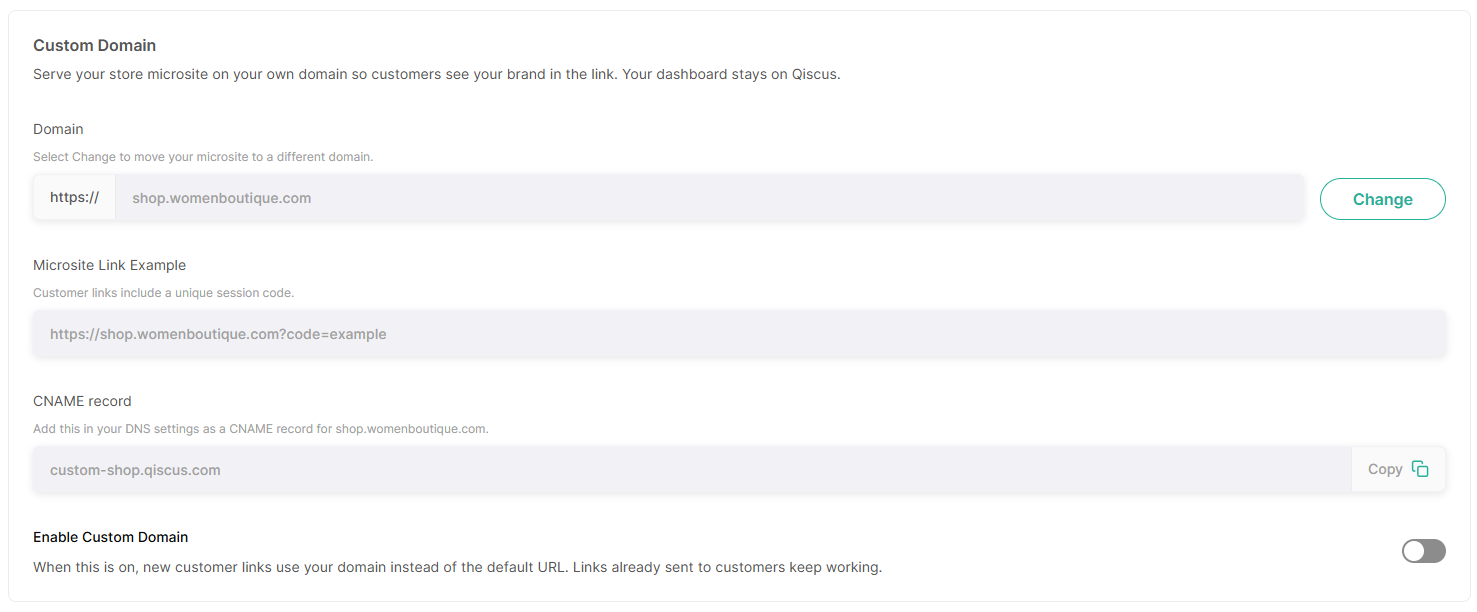
In your domain provider's DNS settings, add a CNAME record for your domain that points to that value. DNS changes can take a while to take effect.
Back in Qiscus Shop, turn on Enable Custom Domain and click Save Changes. Qiscus Shop checks your domain before saving (see below).
Nothing changes for your customers until you turn on Enable Custom Domain and save.
Domain checks when you save
When you turn on Enable Custom Domain and save, Qiscus Shop checks your domain:
Check | Popup you see | What to do |
|---|---|---|
The domain is saved in another store | Domain Already in Use | Use a different domain, or remove it from the other store first. |
The domain can't be found | Domain Resolution Error | Check that the CNAME record is in place, or wait for your DNS changes to take effect. |
The domain doesn't point to your store | CNAME Record Error | Check the CNAME record in your DNS settings. It must use the value shown under CNAME record. |
The domain doesn't have a valid certificate yet | Invalid SSL Certificate | Wait a few minutes and save again. |
For every problem except Domain Already in Use, you can click Turn on anyway. Use it only if you're sure your setup is correct. Customer links won't open until the domain actually works.
You don't need to buy or upload a certificate. Qiscus issues one for your domain once the CNAME record is in place.
What changes for your customers
Once your domain is on, new links open your store at the root of your domain, without the /s/your-slug part:
Default URL:
https://shop.qiscus.com/s/your-slug?code=ee22afCustom domain:
https://shop.yourbrand.com?code=ee22af
Your domain is used in:
Microsite links shared from Qiscus Omnichannel and in Message Center messages.
Order links, invoices, and receipts.
The page customers return to after paying, for every payment gateway except Faspay. The payment page itself stays on the gateway's domain.
WhatsApp Catalog item links for variants without their own Website URL.
Token Link on the Sessions page, and order links from the Admin API and session API.
Your default URL keeps working. Links you sent before turning the domain on still open there.
Buttons in WhatsApp Fallback templates still open your default URL. WhatsApp fixes the start of a button link when it approves the template, so only the rest of the link can change. The buttons still open your store.
Turn off, change, or remove your domain
Turn off your domain
Switch off Enable Custom Domain and click Save Changes. New customer links use your default URL again. Your domain stays saved, so you can turn it back on anytime.
Change or remove your domain
Turn off your domain and save.
Click Change. Type the new domain and click Set, or clear the field to remove it.
If you set a new domain, add its CNAME record in your DNS settings.
Click Save Changes.
Links already sent on the old domain stop working. If you only turn the domain off, they still open on your default URL.
To move a domain to another store, remove it from the first store. Turning it off isn't enough.
Key Takeaways
Set up your domain from Settings ▸ Store ▸ General ▸ Microsite URL, then add the CNAME record in your DNS settings.
Nothing changes for customers until you turn on Enable Custom Domain and save.
Changing or removing a domain breaks links already sent on it. Turning it off doesn't.