
Ticket Template lets you save a Ticket Form together with pre-filled field values, so agents can create tickets for recurring scenarios by picking a template instead of typing the same Title, Summary, Tags, and Priority every time. A template is tied to one Ticket Form and stores initial values for the fields on that form. When an agent selects the template while creating a ticket, the form is selected automatically and its fields are filled in, leaving the agent to adjust only what is different about that ticket.
Ticket Template uses the same access model as Reply Template. Each template has one of three access levels under Who has access: All Agents, Agents in specific divisions, or Only me.
Every role can create Ticket Templates, but the access levels you can choose depend on your role. Owner and Admin can choose any of the three levels. Supervisor can choose Agents in specific divisions (limited to their own divisions) and Only me. Agent can only choose Only me.
A. Benefits of Using Ticket Template
Faster ticket creation for recurring cases. Complaints about a delivery, refund requests, or any scenario that happens every day can be captured once as a template. Agents pick it and get a form that is already filled in.
Consistent ticket data across agents. Ticket Form decides which fields appear, but until now the content was retyped by each agent. Templates standardise the content itself, so tickets for the same scenario look the same regardless of who created them.
Controlled distribution. Share a template with the whole workspace, with specific divisions, or keep it to yourself. The three levels work exactly like Reply Template, so there is no second permission model to learn.
Templates respect existing permissions. A template cannot be used to bypass the Division and Assignee restrictions that already apply to an agent when creating a ticket.
Bulk management through the API. Teams that maintain many templates can create, update, and delete them programmatically instead of one at a time in the dashboard.
B. Setting Up Ticket Template
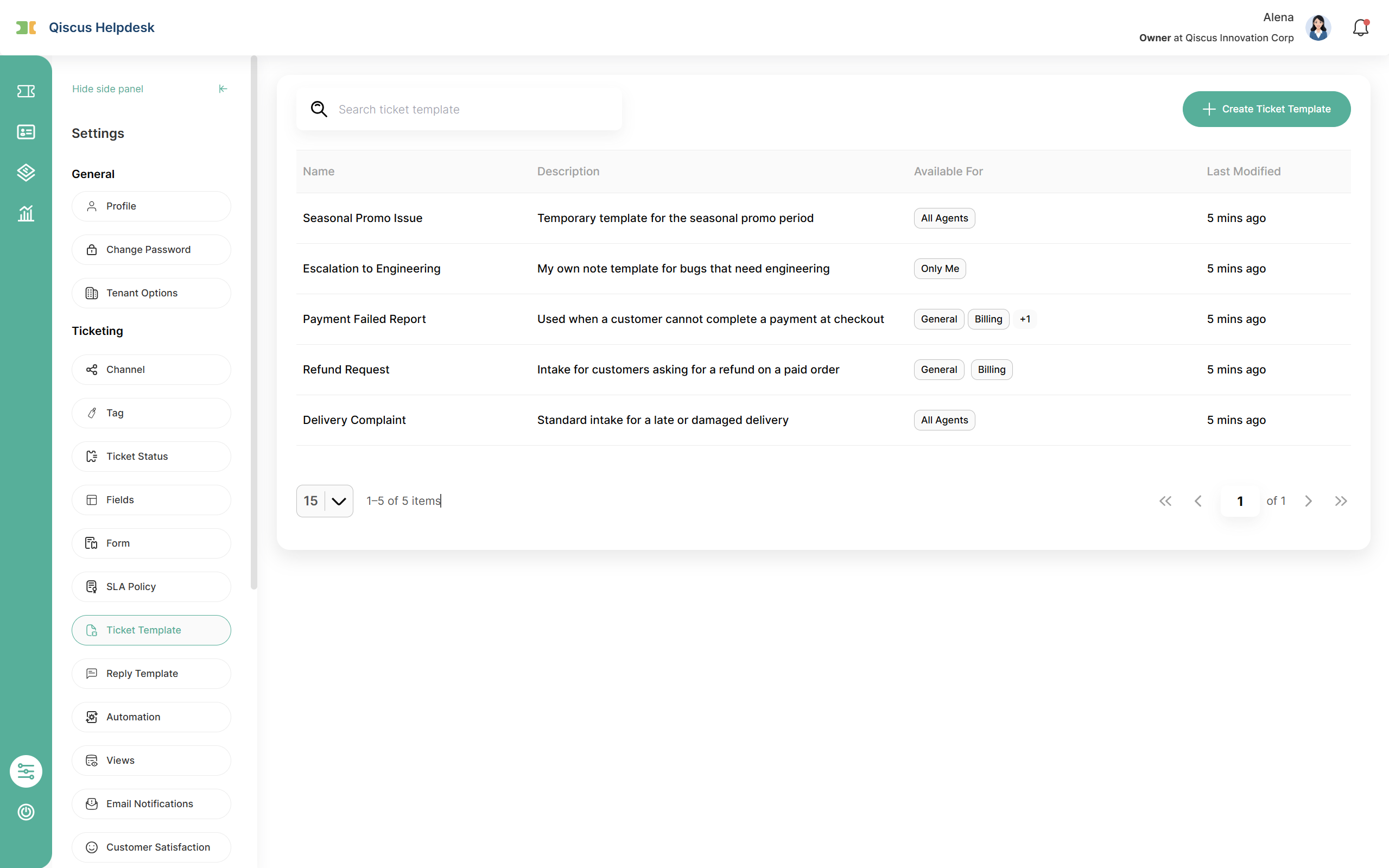
Ticket Templates are managed from Settings → Ticketing → Ticket Template. The menu sits between SLA Policies and Reply Template.
The list shows each template's Name, Description, Available For, and Last Modified. Available For shows the template's access level; when a template is shared with more divisions than fit in the column, the rest collapse into a count that you can hover to see the full list. Use the search box above the table to find a template by name, and the pagination controls below it to browse.
This page lists only the templates you are allowed to manage, not every template you can use. For example, an Agent will not see All Agents templates here, but will still be able to pick them when creating a ticket.
1. Step 1: General Information
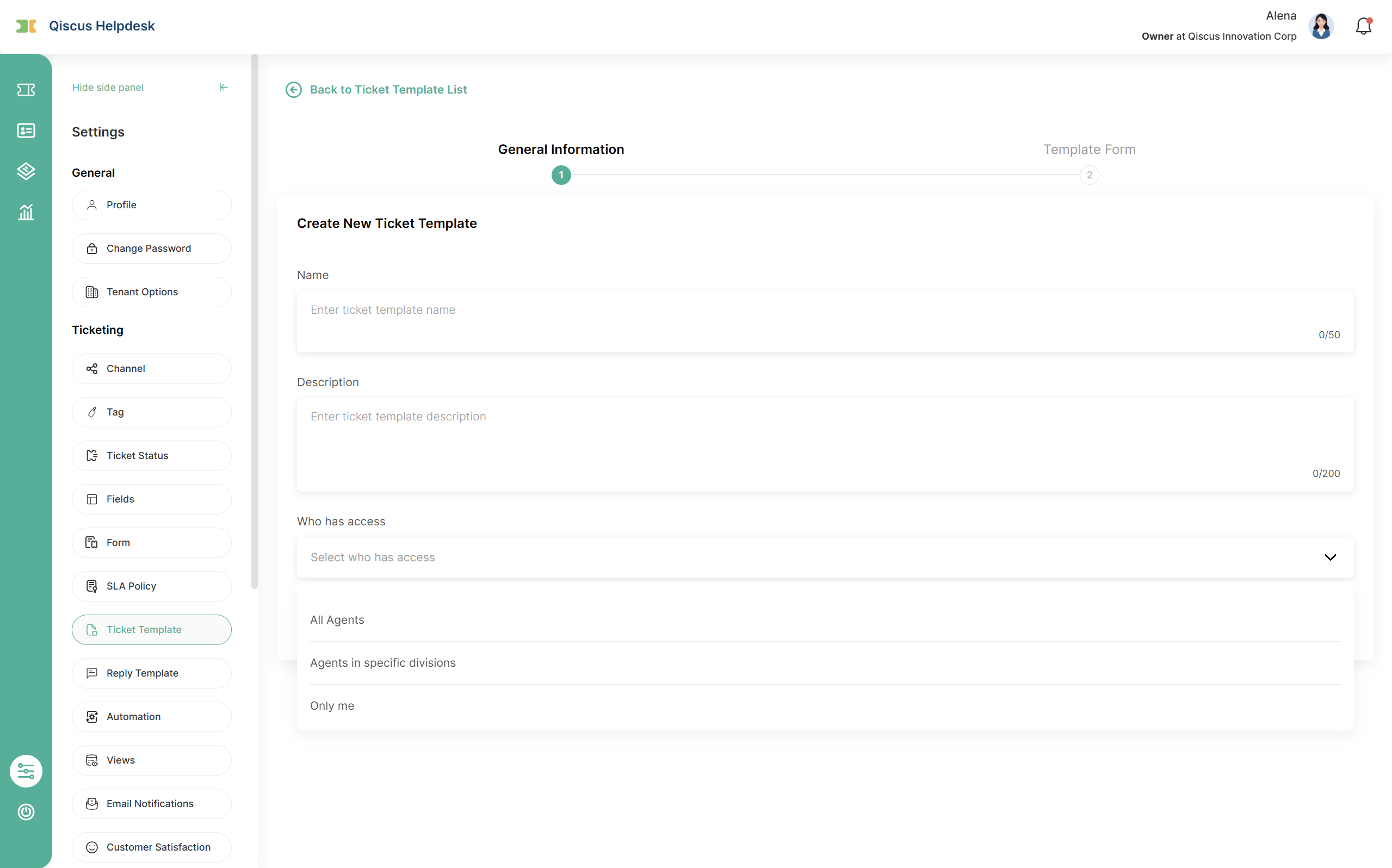
Click Create Ticket Template to open the two-step wizard.
Fill in the template's identity and access:
Name (required, up to 50 characters). Names do not have to be unique.
Description (required, up to 200 characters).
Who has access (required). Choose one of:
All Agents: everyone in the workspace can use the template.
Agents in specific divisions: only members of the divisions you pick can use it. A searchable multi-select appears so you can choose one or more divisions.
Only me: only you can use and manage it.
The options shown depend on your role, as described in the note at the top of this page.
Each user can have at most 20 templates set to Only me. Templates set to All Agents or Agents in specific divisions are not limited. When you reach the limit, the Only me option in the Who has access dropdown is disabled and shows a tooltip explaining why. Because an Agent can only create Only me templates, the Create Ticket Template button is hidden for an Agent who has reached the limit. The limit is also enforced when you save, so if you open two wizards with one slot left and save both, the second save is rejected with a Template limit reached message and your input is kept so you can change the access level or delete another template first.
2. Step 2: Template Form
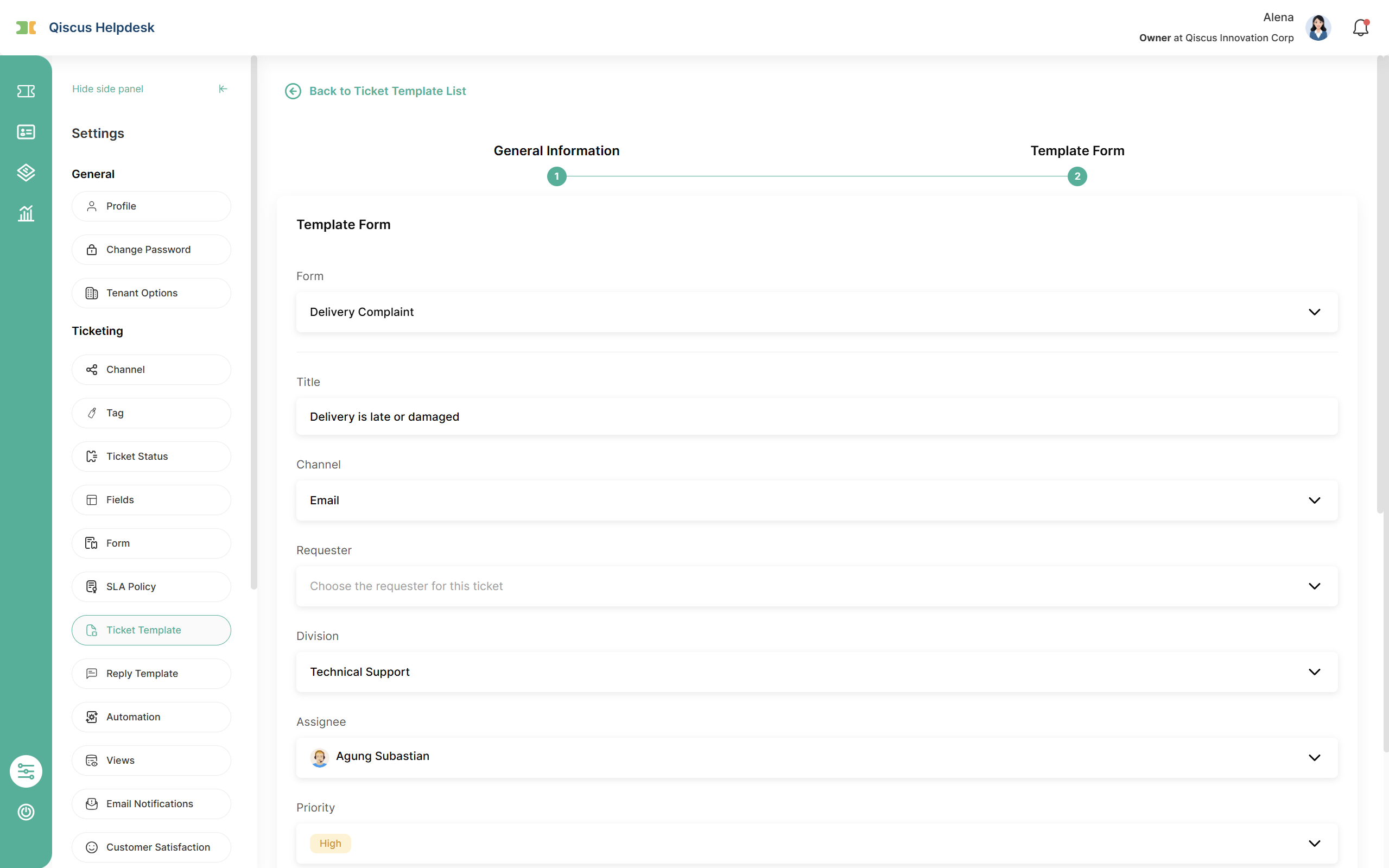
Select the Ticket Form the template is built on, then fill in the initial values for its fields.
How the form selection behaves depends on your workspace:
If the workspace has no active Ticket Form, the ticket fields are shown directly and there is nothing to select.
If there is exactly one active Ticket Form, it is selected automatically.
If there is more than one, a dropdown appears. A search box is added when there are more than five forms.
Selecting a form is required whenever your workspace has at least one active Ticket Form. Forms that are inactive or deleted are not offered in the list.
You can pre-fill any of the default fields (Title, Channel, Requester, Division, Assignee, Priority, Tags, Summary) and any custom fields on that form. All values are optional; a template can fill in just the fields that are always the same and leave the rest to the agent.
Every dropdown field has Fill in at ticket creation as its first option. Choosing it means the template leaves that field empty and the agent fills it in when creating the ticket. Tags do not have this option because you remove a tag by clearing its chip.
Division and Assignee are linked. You choose the Division first, and the Assignee list is limited to members of that division, so you cannot set an Assignee before a Division. The divisions and agents you can choose follow your role: Owner and Admin can choose any division and any agent in it, Supervisor only their own divisions, and Agent only their own division with themselves as the only possible Assignee.
Attachments are not part of a template.
When you save, a success confirmation appears and you return to the list.
3. Managing Ticket Templates After Creation
Each row in the list has an action menu with Edit, Duplicate, and Delete. The menu appears only on templates you are allowed to manage.
Edit opens the same two-step wizard with every value filled in, including the form and field values. Changing a template does not change tickets that were already created from it; a template only supplies starting values.
Duplicate opens the Create wizard with all values copied and the Name marked as a copy. If that name is already taken, a number is added, and the name is shortened if it would exceed 50 characters. A duplicate inherits the access level of the original, so duplicating an Only me template counts toward your Only me limit. Click Create to save the copy.
Delete asks for confirmation and then removes the template permanently. Deleted templates cannot be restored. Tickets already created from the template are not affected.
A template set to Only me can only be seen and managed by the person who created it. Owner and Admin cannot view, edit, or delete another user's Only me templates.
The Only me limit applies to these actions too. When you have reached the limit, Duplicate is disabled with a tooltip on rows that are set to Only me (an Agent will not see the Duplicate option at all), and the Only me option is disabled when you edit a template's access level.
C. Ticket Template Implementation
Applying a template when creating a ticket
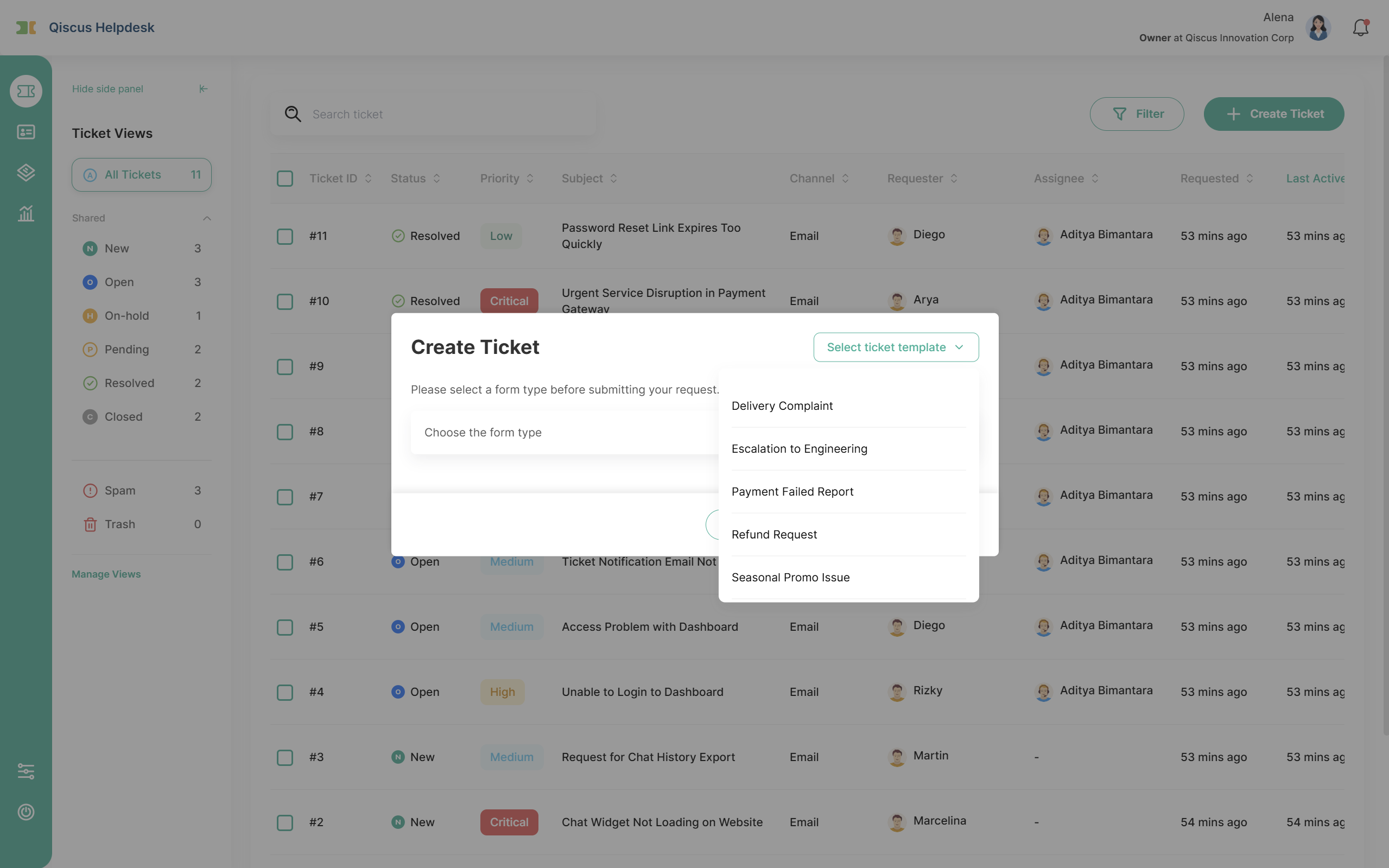
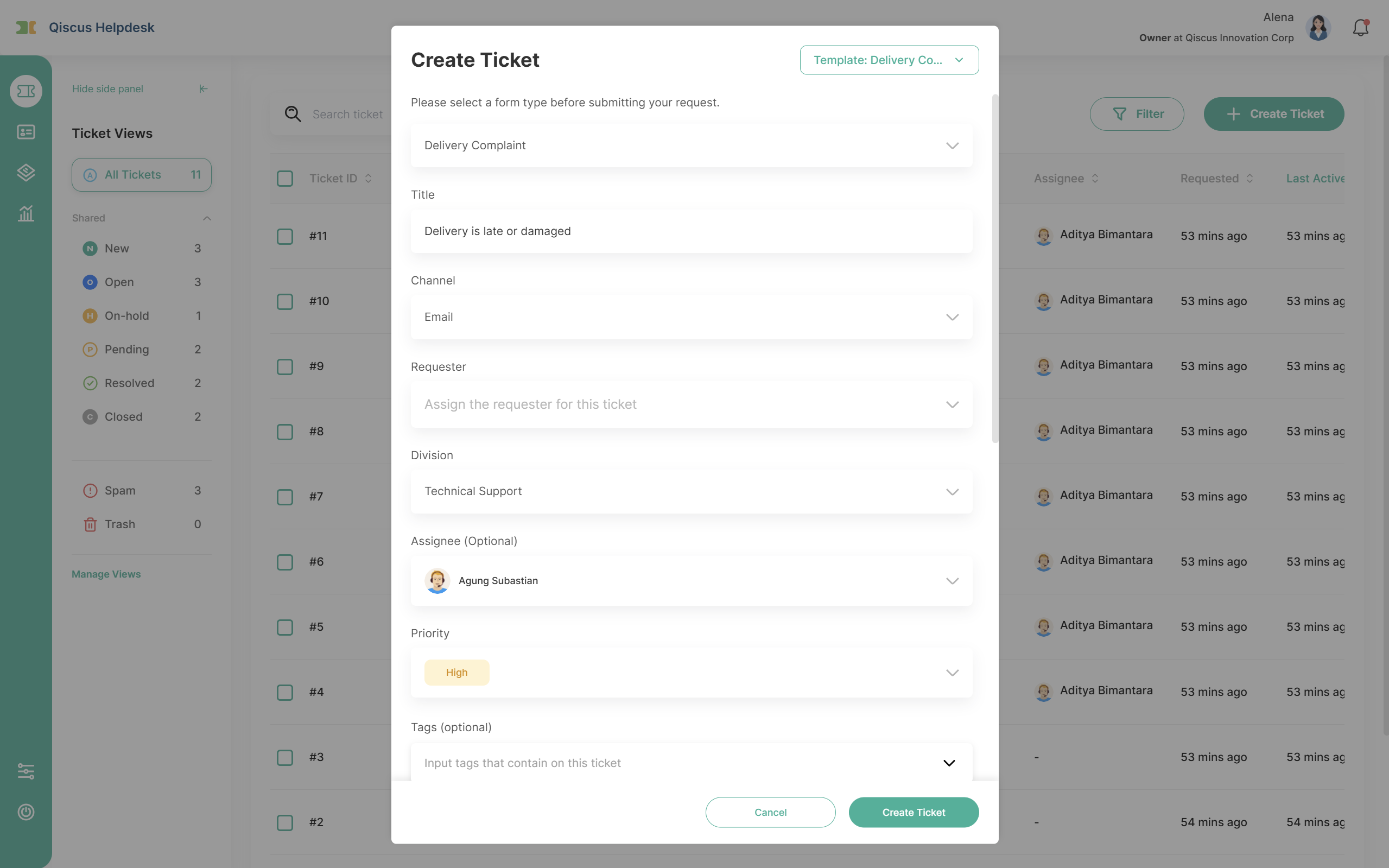
In the Create Ticket modal, a Select ticket template dropdown sits above the Ticket Form selector. It lists the templates you are allowed to use: your own Only me templates, templates shared with your divisions, and All Agents templates. Owner and Admin see templates shared with every division. A search box appears when more than five templates are available, and the list is refreshed every time you open it, so a template created moments ago in another tab is already there.
If no template is available to you, the dropdown shows an empty state with a button that opens the Create Ticket Template wizard in a new tab, so the ticket you are filling in is not lost.
When you pick a template:
The Ticket Form saved on the template is selected.
Every field is replaced with the template's value. Fields the template leaves empty become empty, even if you had already typed something in them.
Requester is the one exception. If the template has a Requester, it replaces the current one; if it does not, the Requester you already have is kept. This matters when you create a ticket from a customer's page, where the Requester is filled in for you.
Applying a template replaces the whole form, not just the empty fields. If you have already filled in any field, a confirmation appears before the template is applied. The same confirmation appears when you switch from one template to another. Cancelling keeps your input unchanged.
Form Conditions on the selected form are evaluated against the template's values, so fields that do not meet their condition are hidden and their values are not saved with the ticket.
Division and Assignee from the template are applied only if you would have been allowed to choose them yourself on the Create Ticket screen. Owner and Admin can be given any division, Supervisor and Agent only the divisions they belong to, and an Agent is only ever given themselves as Assignee. Values you would not have been allowed to pick are left blank without a notice, and an Assignee is applied only when that agent belongs to the selected Division. Fields that are required on the form still have to be filled in before you can create the ticket, whether or not the template provided a value.
If you change the Ticket Form manually after applying a template, the template is deselected in the dropdown, but the values it filled in stay in place.
The same behaviour applies in the Create Follow-Up Ticket modal.
Ticket Template in the Omnichannel App Center widget
Agents who create Helpdesk tickets from the Omnichannel App Center widget can also pick a template. What they see depends on whether they have a Helpdesk account:
If the agent's Omnichannel email matches a Helpdesk user, the widget behaves exactly like the dashboard: the same templates are offered and the same Division and Assignee rules apply.
If the agent has no Helpdesk account, only All Agents templates are offered, and Division and Assignee from the template are applied as saved.
The widget never creates Helpdesk accounts. Tickets created through the widget by someone without a Helpdesk account are recorded as created by the workspace Owner.
Ticket Log
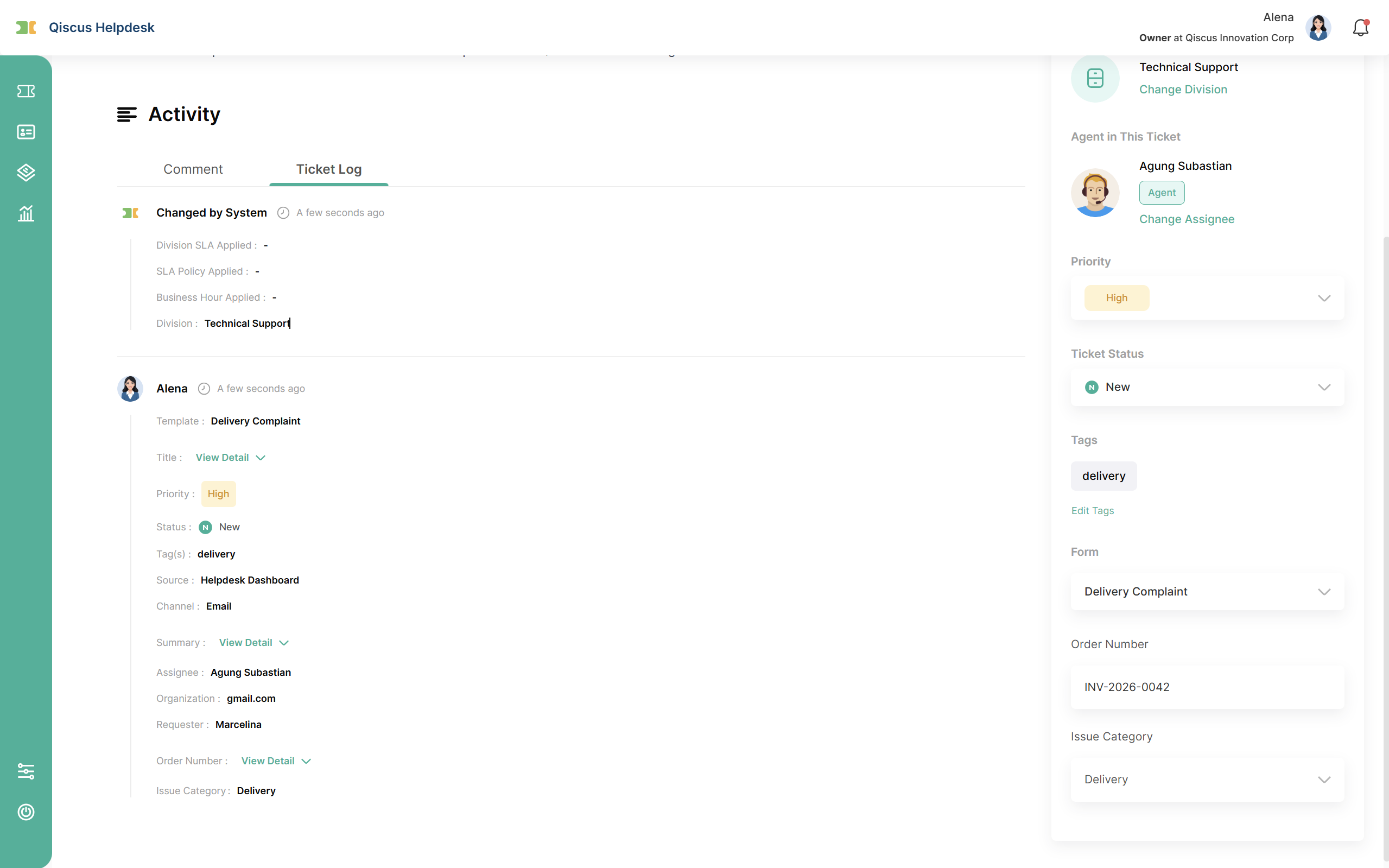
When a ticket is created from a template, the creation entry in the ticket's log gains a Template line showing the template's name, alongside the existing Status, Priority, and Followers lines. The name is the template's name at the moment it was used and is shown as plain text: it does not change if the template is later renamed or deleted, and there is no link to the template. Tickets created without a template do not show this line.
The template used is also stored on the ticket itself, so it can be used for reporting. The Ticket Template list does not show usage counts.
Managing templates through the API
Ticket Templates can be managed with the Helpdesk API using an API token from Settings → Integration → API Tokens. The API lets you list templates (with pagination and search by name), get a template by ID, and create, update, or delete templates, with the same validation rules as the dashboard. An endpoint to list Ticket Forms is also available so you can reference a form when creating a template.
API requests act as the workspace Owner. They can manage templates at all three access levels, and any Only me template created through the API belongs to the Owner and counts toward the Owner's 20-template limit. Templates created through the API may omit the form; if the form is omitted, agents choose a form when they use the template. Updating a template whose form has since been deleted requires a replacement form. Changes made through the API appear in logs as Changed from API.
The API does not apply templates when creating tickets; it only manages the templates themselves.
D. Limitations & Expected Behaviors
When a template's Ticket Form is deleted or inactive
The template stays available, and the original form's name is still shown so you know what it was built for. What you have to do about it depends on where you are:
Where | Form deleted | Form inactive |
|---|---|---|
Creating a ticket | Form name with a Deleted badge and an error; default fields are still filled in, but the ticket cannot be created until you pick another form | Form name with an Inactive badge and an error; same as deleted |
Editing the template | You must pick another form before you can save | Inactive badge only; you can still save as it is |
Duplicating the template | You must pick an active form before you can create the copy | You must pick an active form before you can create the copy |
The Ticket Template list itself does not mark these templates, so you find out when you open, duplicate, or use one rather than from the list.
Clicking Create Ticket while the error is showing scrolls to the form selector instead of submitting. Once you pick a replacement form, the badge and error disappear and the template's values are applied to the fields that exist on the new form.
A deleted Ticket Form cannot be recovered, so the template will keep asking for a replacement until you edit it and choose one. Deactivating a form instead of deleting it keeps the option to reactivate it later, which restores the template on its own.
Where there is no other form to offer, none of this applies: a workspace with no Ticket Form shows all ticket fields directly, and a workspace with exactly one active form uses it automatically.
When a value saved on a template is no longer valid
Unlike the form, a single field's value never blocks a ticket. The value is simply not applied, and the agent fills the field in.
What changed | What the template does |
|---|---|
Channel deactivated | Value is kept and shown with an Inactive badge in Step 2, but not applied. Reactivating the channel applies it again automatically |
Channel deleted | Value is removed, with no badge |
Custom field, dropdown option, requester, assignee, division, or tag deleted | Value is dropped, field is left empty |
Requester suspended | Value is not applied |
Dropdown option renamed | Value still applies, because the template refers to the option itself and not its text |
Field added to the form | Appears empty when the template is used |
Field removed from the form | Its saved value is not applied |
Field made required, template has no value for it | Agent has to fill it in before creating the ticket |
Assignee no longer in the template's Division, for example after moving divisions | Division is applied, Assignee is left empty |
Division removed from the template's access list | Still works for the remaining divisions. If none remain, the template stops appearing in the Create Ticket dropdown but can still be opened and fixed from the list |
Owner of an Only me template deleted | Template is deleted with them |
Other behaviours to expect
Editing or deleting a template does not affect tickets already created from it, nor an agent who is in the middle of creating a ticket with it.
Only me templates are private to their creator, including from Owner and Admin, and are limited to 20 per user across creating, duplicating, editing, and the API.
Ticket Templates are not available to customers in the Help Center, for tickets arriving by email, or when creating tickets through the API.
Templates do not include attachments, cannot be applied to an existing ticket, cannot be imported or exported between workspaces, and cannot inherit from other templates. Deleted templates cannot be restored.
E. Summary
Ticket Template saves a Ticket Form with pre-filled values so agents can create standardised tickets for recurring scenarios in a few clicks. Templates are managed from Settings → Ticketing → Ticket Template, shared with All Agents, specific divisions, or kept as Only me, and applied from the Create Ticket modal in the dashboard or the Omnichannel App Center widget. They respect existing Division and Assignee permissions, keep working when their form or values change, and record which template each ticket came from.