
Division SLA in Qiscus Helpdesk lets teams define how long each division may hold a ticket before it is considered overdue. While the standard SLA Policy tracks response and resolution times, Division SLA introduces a separate metric - Ownership Time - that measures the duration a ticket stays with one division before it is resolved or transferred. This gives teams clear, measurable handling limits per division and surfaces where tickets spend the most time.
Division SLA is available as a dedicated tab under Settings → SLA Policies. Only the Owner and Admin roles can create or change Division SLA policies; Supervisors and Agents have read-only visibility through the ticket badge, ticket list, and analytics.
A. Benefits of Using Division SLA
Gives Owner and Admin direct control to define an Ownership Time limit for each division, per priority.
Helps Supervisors and Agents prioritize daily work through the Ownership Due indicator on the ticket detail and ticket list pages.
Prevents tickets from being held too long with automatic reminders before the due time and escalations after a breach.
Provides full visibility with Division SLA events recorded in the ticket log.
Enables better performance monitoring through the Division SLA analytics dashboard and downloadable ownership logs.
B. Setting Up Division SLA
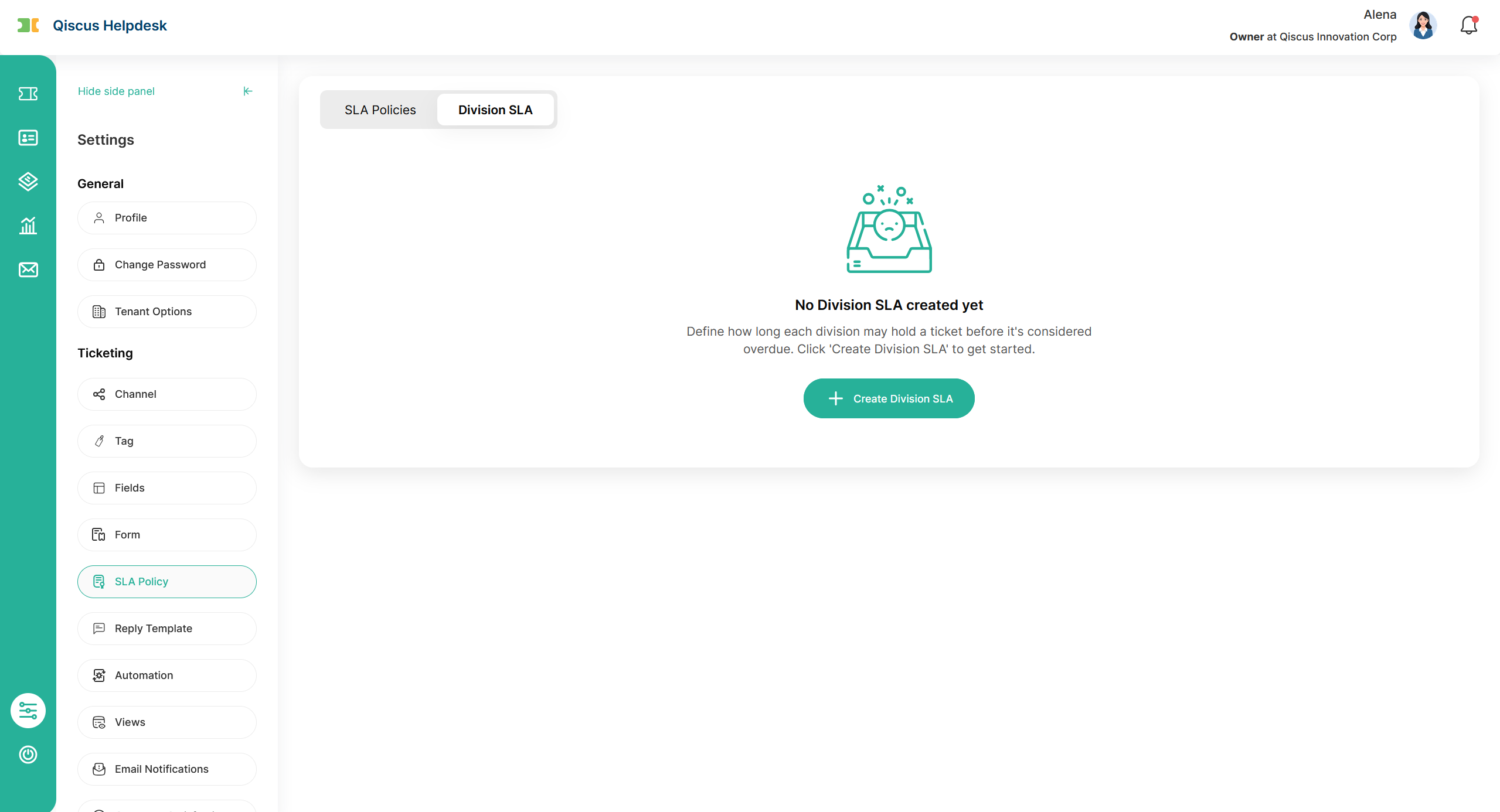
Division SLA policies are created through a three-step wizard accessed from Settings ? SLA Policies ? Division SLA ? + Create Division SLA. When no policy exists yet, the tab shows an empty state with a button to create the first one.
1. Step 1: General Information
The first step defines the basic details of the policy:
Name (required) - a name for internal reference, up to 50 characters.
Description (optional) - a short description, up to 200 characters.
The Next button becomes active once the Name is filled. Division selection is not done here - conditions (including Division) are set in Step 2.
2. Step 2: Rules (Conditions, SLA Targets, and Reminders)
This is the core configuration step, made up of three sections on one screen.
Conditions - defines which tickets the policy applies to (all conditions must match):
Division is always the first condition and is mandatory; it cannot be removed.
You can add up to 3 conditions in total. The available condition types, in order, are Division ? Ticket Form ? Organization. Each type can be used only once.
SLA Target - sets the Ownership Time for each priority. The table has a fixed row for every priority: Critical, Urgent, High, Medium, Low. For each priority you set:
Ownership Time - entered as Days / Hours / Minutes. Minimum total is 15 minutes; maximum total is 1 year.
Operational Hours - Business Hour or Calendar Hour. It defaults to Business Hour when the selected division has business hours configured, and Calendar Hour when it does not. You can override it.
Escalation - a toggle (default on) that controls whether an escalation is sent for that priority.
Default Ownership Time values are pre-filled (you can adjust them): Critical 1 hour, Urgent 2 hours, High 4 hours, Medium 8 hours, Low 24 hours.
The default Ownership Time values are pre-filled but fully adjustable. The total for each priority must be at least 15 minutes and no more than 1 year.
If a division has no business hours configured (or the configured one was deleted), Ownership Due is calculated on Calendar Hour (24/7), and tickets under that policy show a "This SLA runs on calendar hours." banner.
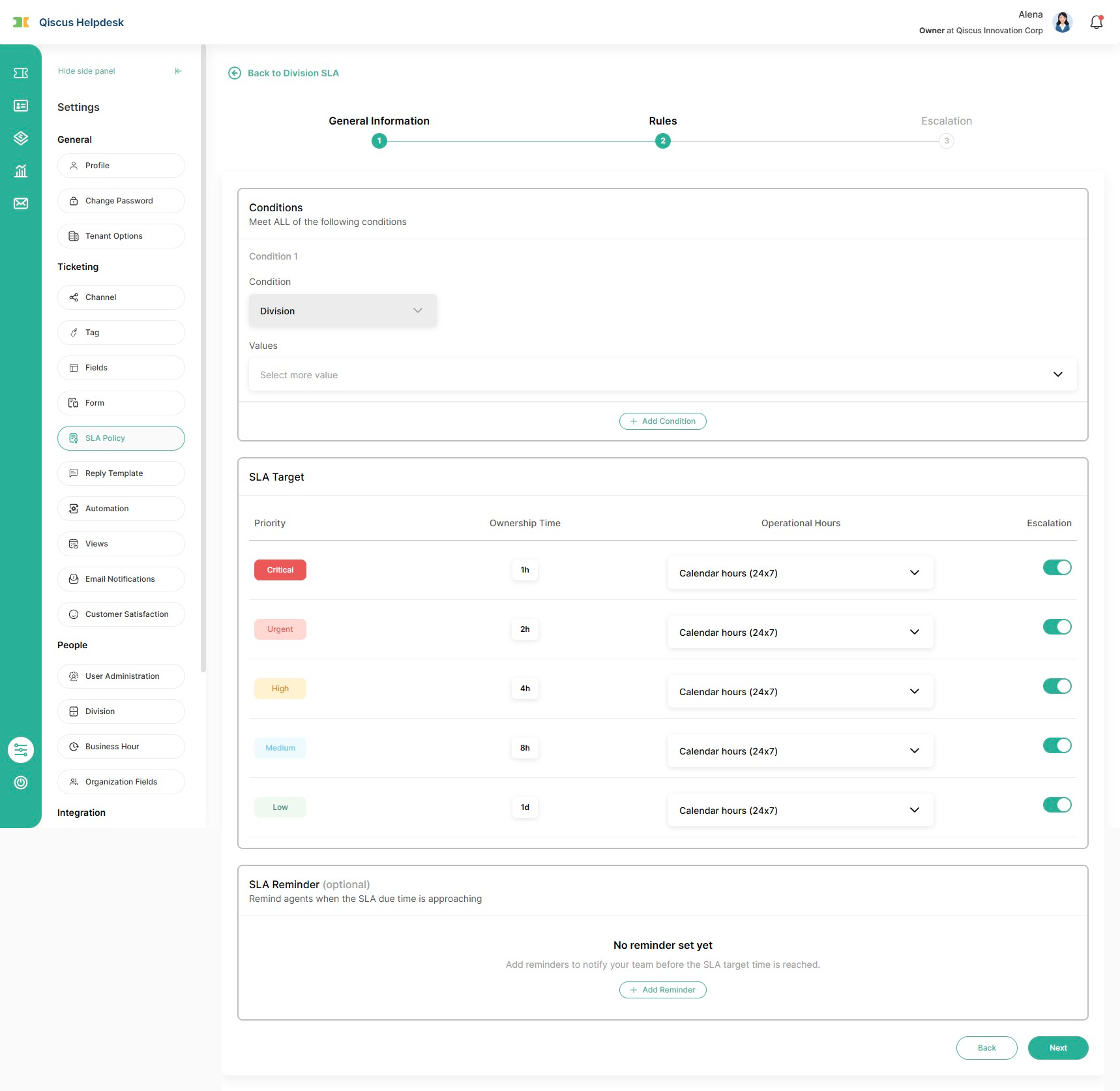
SLA Reminder (optional) - sends a notification before the Ownership Due time is reached:
Approaches in - how long before the due time to remind: 30 minutes, 1 hour, 2 hours, 4 hours, or 8 hours.
Send reminder to - the Assigned Agent and/or specific users.
One reminder can be set per policy.
3. Step 3: Escalation Settings
Escalations notify designated users after the Ownership Due time is breached. This step is optional:
Escalate in - how long after the due time to escalate: After 10 minutes, After 30 minutes, After 1 hour, After 2 hours, After 4 hours, After 8 hours, After 12 hours, After 1 day, After 2 days, After 3 days, After 1 week, After 2 weeks, or After 1 month.
Send escalation to - the Assigned Agent and/or specific users.
One escalation can be set per policy.
An escalation is only sent for priorities whose Escalation toggle is enabled in the SLA Target step. Priorities with the toggle off will not trigger an escalation, and a warning in the wizard indicates this.
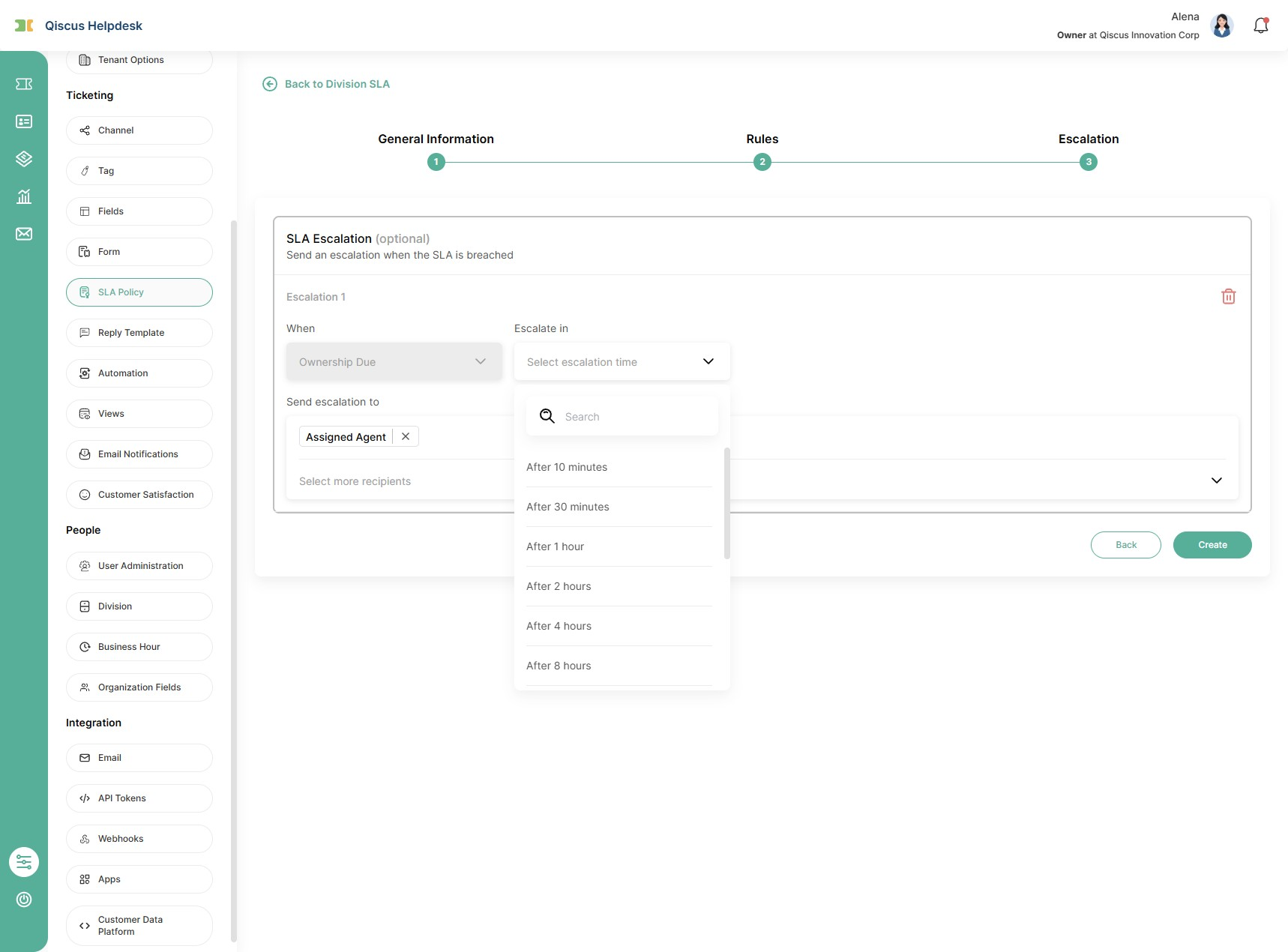
Selecting Create saves the policy and returns you to the Division SLA list.
4. Managing Division SLA After Creation
From the policy list you can manage each policy through its row menu:
Edit - reopen the three-step wizard with all fields pre-filled. Changes apply only to tickets assigned to the division after the change is saved.
Reorder - change the order of policies. When a ticket matches more than one policy, the highest one in the list is used (first match wins).
Duplicate - create a copy of an existing policy, pre-filled and named Copy of {policy name}.
Activate / Deactivate - deactivating shows a confirmation first; activating applies immediately.
Delete - removes the policy after confirmation.
The list shows each policy's Name, Description, Last Modified, and Status (Active / Inactive), with a search box to find policies by name.
Editing a policy does not change tickets that are already being tracked — updates apply only to tickets assigned after the change is saved. When a ticket matches more than one policy, the one highest in the list is used, so reorder policies to control priority.
C. Division SLA Implementation
Once a policy is active, Qiscus Helpdesk tracks Ownership Time automatically and surfaces it across the product.
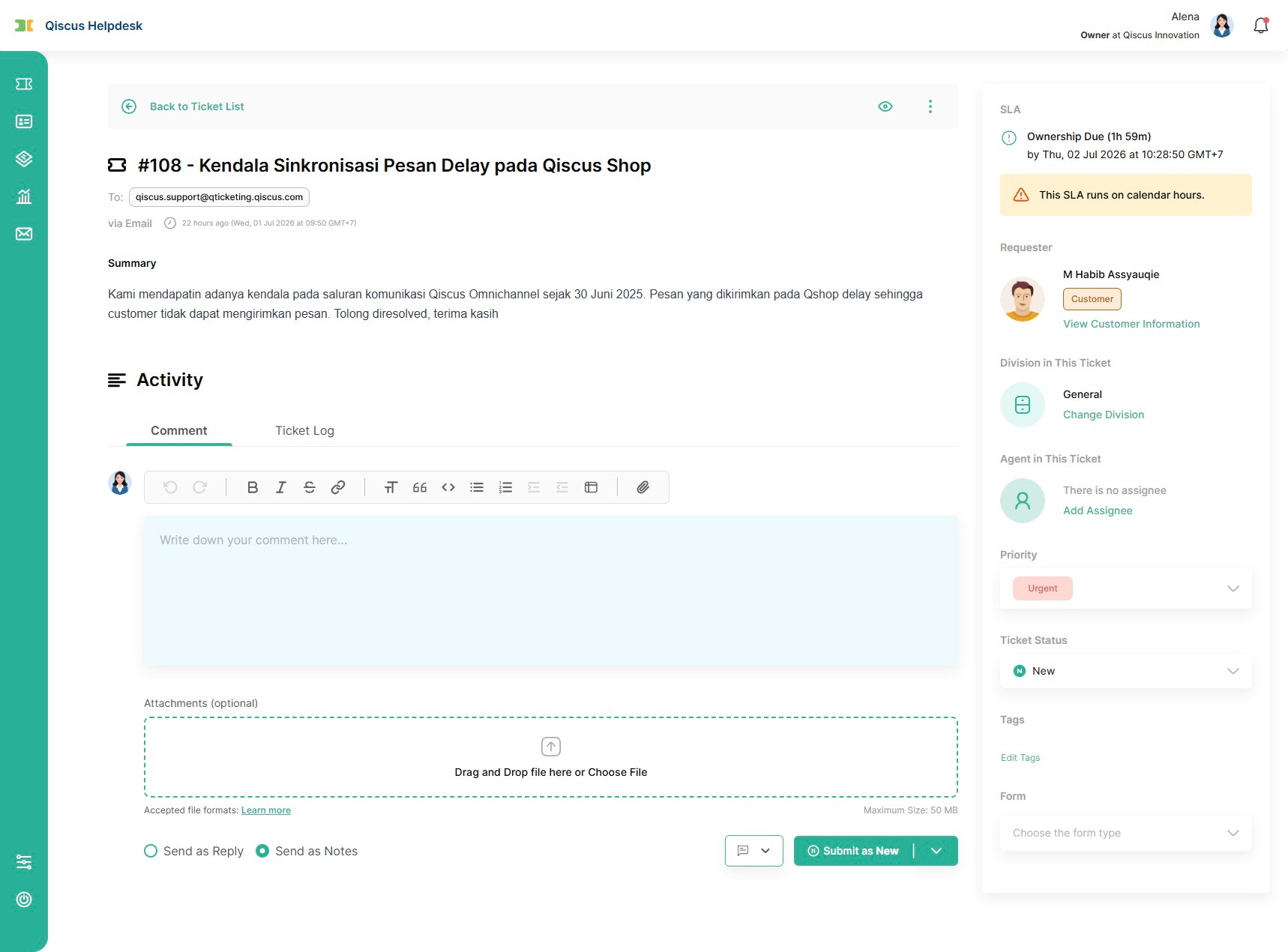
Ownership Due badge (ticket detail). A ticket whose handling division matches an active Division SLA shows an Ownership Due badge in the top-right of the ticket detail page, alongside the existing First/Next/Resolution Due badges. The badge color reflects the status: green when on-track, orange when inside the reminder window, and red when overdue. It reads Ownership Due (x d y h z m), and when overdue the time is shown with a minus prefix (for example Ownership Due (-7d 16h)). The badge updates every minute. If the division has no business hours, the SLA runs on calendar hours and a banner "This SLA runs on calendar hours." is shown.
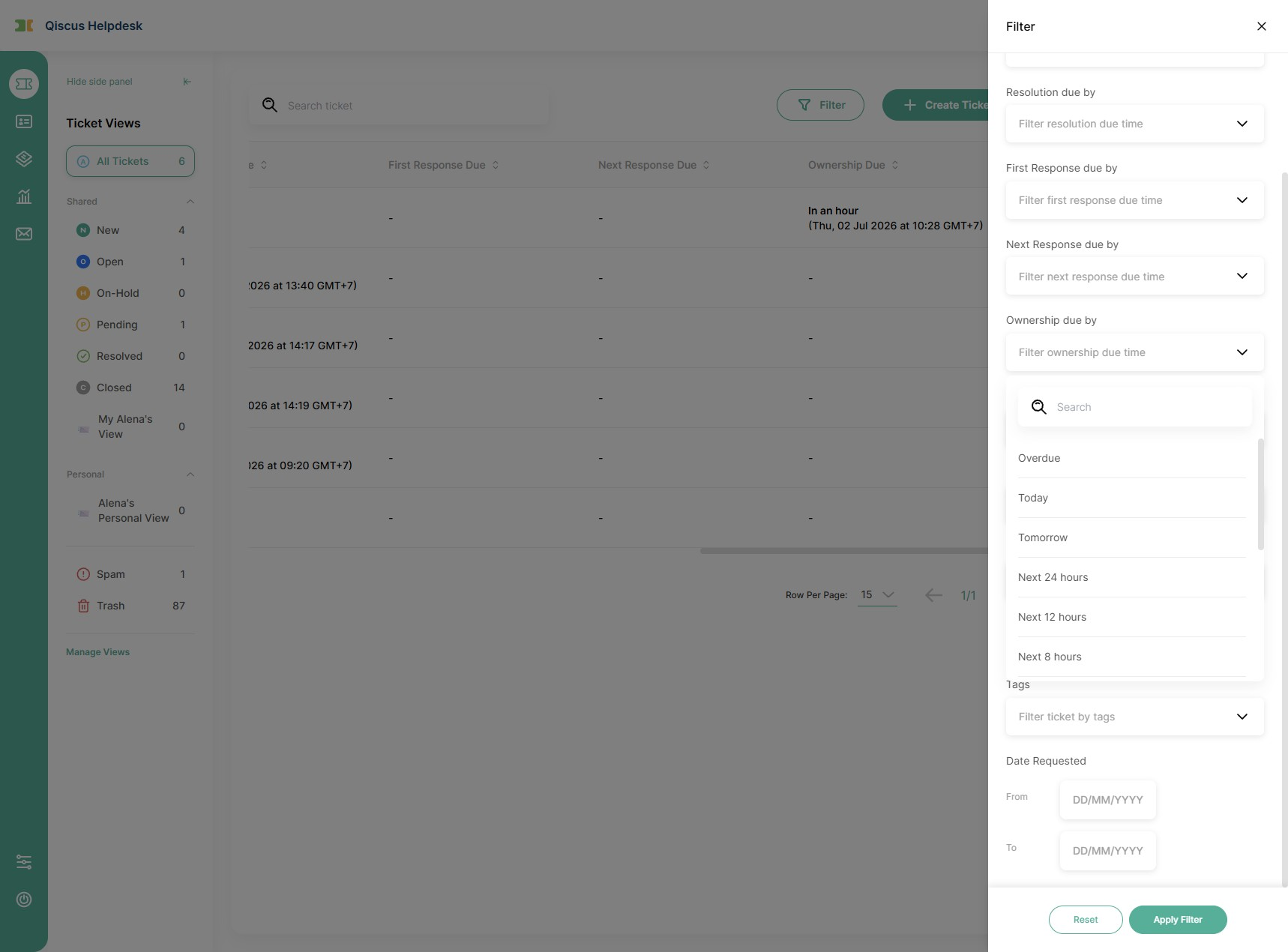
Ownership Due column and filter (ticket list). The ticket list gains an Ownership Due column that can be sorted ascending or descending, and an Ownership Due filter with options ordered from most to least urgent (Overdue, Today, Tomorrow, Next 24 hours, Next 12 hours, Next 8 hours, Next 4 hours, Next 2 hours, Next hour, Next 30 minutes, Next 15 minutes, Next 10 minutes, Next 5 minutes). The column value and filter appear only when the tenant has at least one active Division SLA, and relative times update every minute.
Reminders and escalations. Reminders and escalations are delivered both in-app and by email. The email templates Ownership Time SLA Reminder and Ownership Time SLA Escalation appear under Settings ? Email Notifications, where Owner/Admin can customize the subject and body (they are Inactive by default). Each user can turn the in-app notifications on or off under Settings ? Profile ? Notifications.
Ticket log. Division SLA events are recorded in the ticket history - when a policy is applied, when the Ownership Target is set or changed, and when it is breached or fulfilled - so the full ownership trail is visible per ticket.
Webhook. A ticket_updated webhook is fired when an Ownership Time SLA is breached, allowing external systems to react.
Analytics. Under Analytics ? SLA Violation Analytics, three Division SLA sub-tabs are available once at least one active policy exists:
Division SLA - a dashboard of 12 metrics covering overall KPIs (total tickets tracked, on-time rate, average ownership duration, total violations), division rankings (slowest divisions, top breachers), trends, distribution by priority and status, and a per-division performance table.
Division Ownership Log - a downloadable (CSV / Excel) report where each row is one division ownership period.
Agent Ownership Log - a downloadable report where each row is one agent assignment period.
Owner and Admin have full access; Supervisors have read-only access (view and download); Agents do not have access to the Analytics tab.
D. Limitations & Expected Behaviors
Division SLA is not tied to a specific division. Matching is evaluated at runtime against the ticket's current attributes (division, and optionally organization or ticket form).
When a ticket moves to another division before its Ownership Due is reached, the previous division's record is finalized (counted as fulfilled if released before the due time, or as a breach if released after), and a fresh Ownership Due timer starts for the new division if it matches an active policy.
The Ownership Due badge does not appear when there is no active policy matching the ticket, when the ticket is already resolved, or when the ticket moves to a division or state that matches no policy.
Deactivating or deleting a Division SLA only affects new tickets; tickets that already had the SLA applied keep their current Ownership Due until they are resolved or transferred.
If a value used in a condition (division, organization, or ticket form) is deleted, the policy may stop matching tickets until it is edited to use valid values.
If a division has no business hours configured (or the configured one is deleted), the system calculates Ownership Due using Calendar Hour (24/7).
E. Summary
Division SLA helps teams set clear ownership limits per division, automate reminders and escalations around the Ownership Due time, and gain full visibility through ticket logs and analytics - making it easy to see which divisions hold tickets the longest and where handling can be improved.