
Delete removes a ticket from your working queue and moves it to the Trash view. Deletion is reversible for a limited time: a ticket in Trash can be restored within 30 days, after which it is removed permanently. To set aside junk or abusive tickets without deleting them, see Spam Tickets.
A. Benefits
Reversible deletion. A ticket deleted by mistake can be restored within 30 days and returns to the normal queue for your team to continue working on.
A 30-day safety window. Deleted tickets are retained in Trash for 30 days before they are removed permanently, giving you time to recover anything deleted in error.
A cleaner working queue. Tickets you no longer need are set aside so agents only see active requests.
B. Delete a ticket
You can delete a ticket from two places:
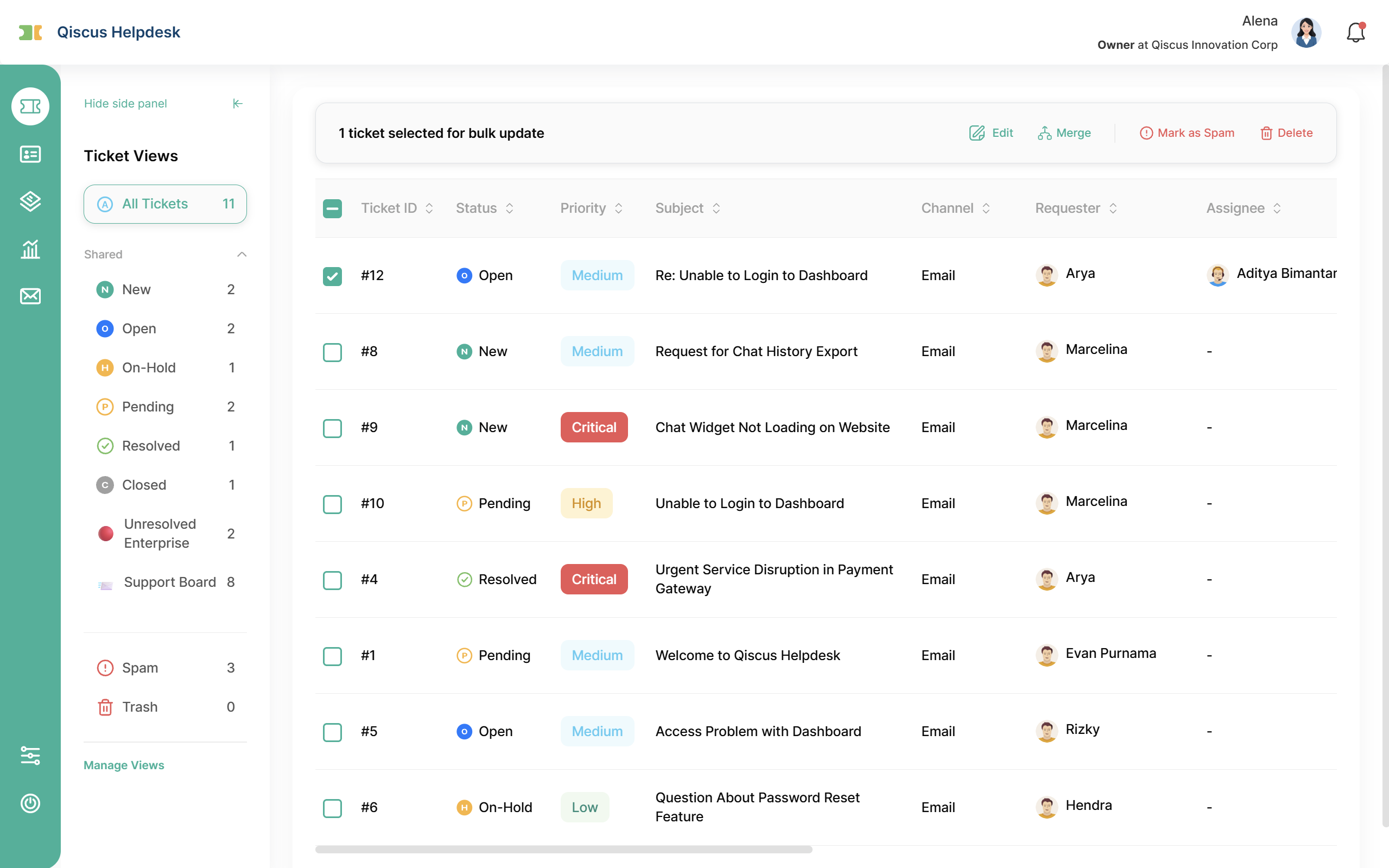
Ticket list (bulk): select one or more tickets with the checkboxes, then choose Delete from the bulk action bar.
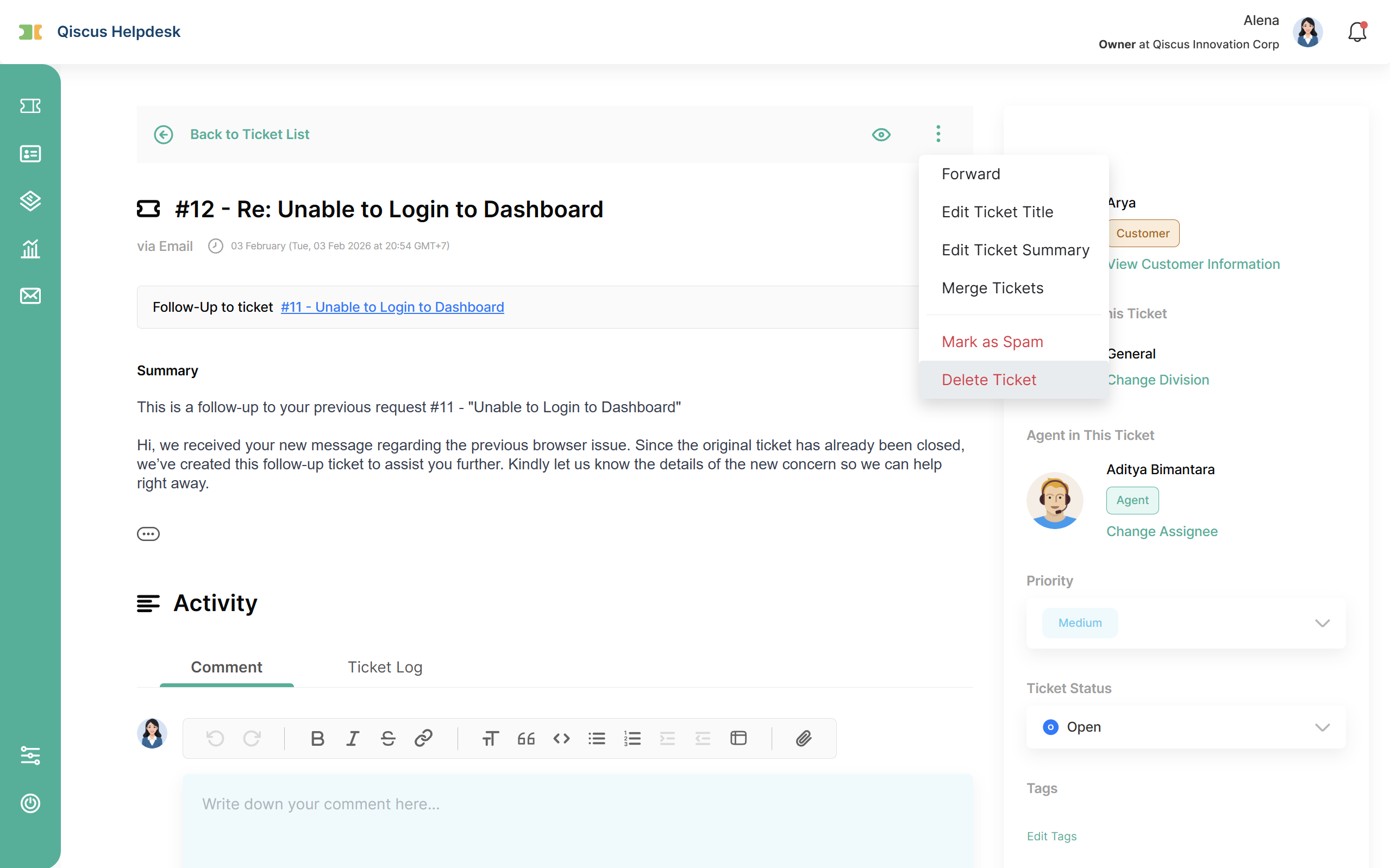
Ticket detail: open the ticket and choose Delete Ticket from the action (⋮) menu.
A confirmation dialog explains that the ticket will be moved to Trash and can be restored. Once confirmed, the ticket moves to the Trash view and a Ticket deleted entry is recorded in the Ticket Log. This is a soft delete: nothing is removed permanently at this step.
Note: Closed tickets can be deleted. The Delete Ticket option is available for them from the ticket detail action menu.
C. The Trash view
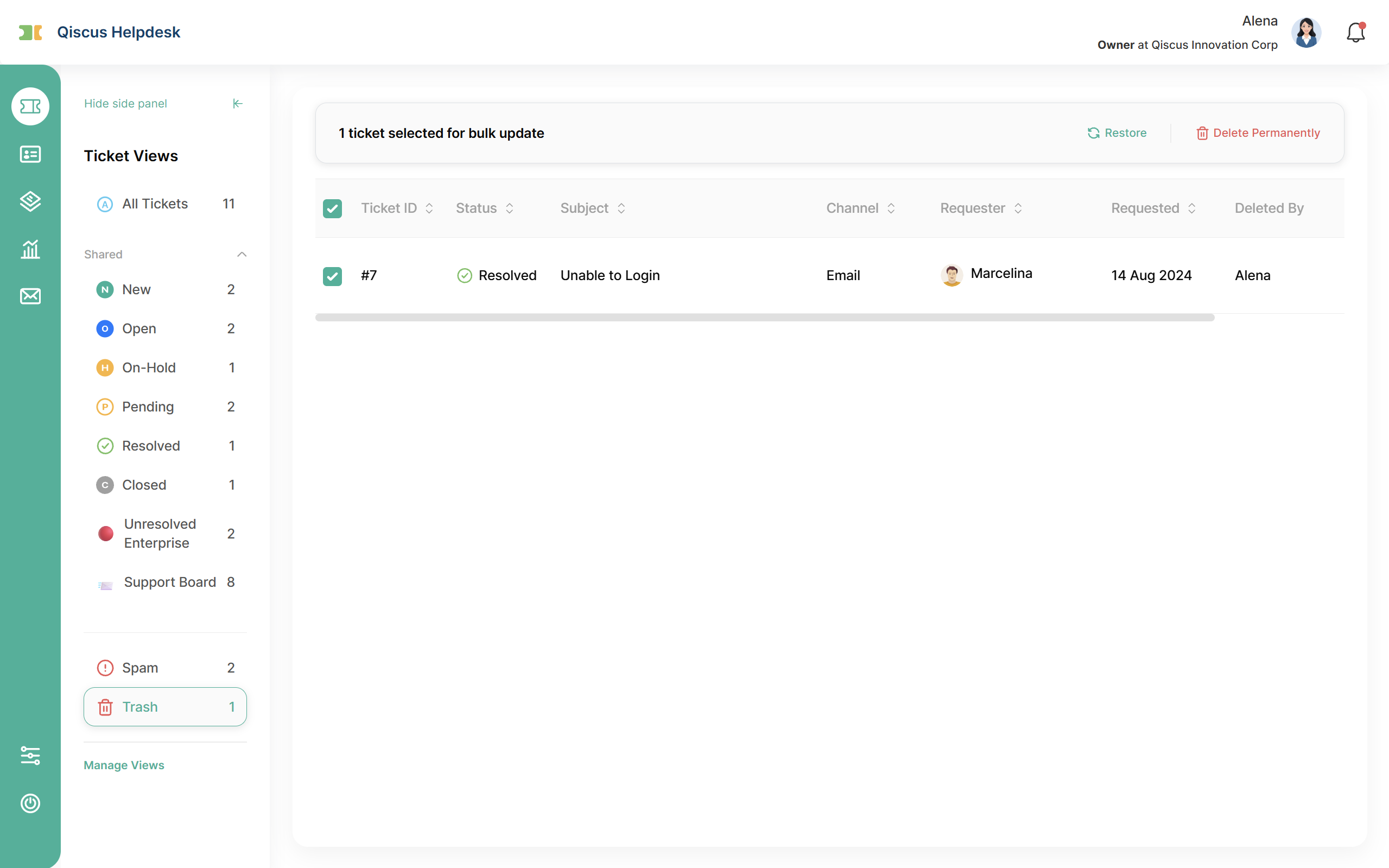
Open Trash from the left sidebar to see every ticket that has been deleted. A counter next to the menu shows how many tickets are currently in Trash.
The list shows Ticket ID, Status, Subject, Channel, Requester, Requested, Deleted By (the agent who deleted the ticket), and Deleted Date (hover for the exact time). Use the checkboxes to select one or more tickets, including closed tickets, for a bulk action.
The bulk action bar in Trash offers two actions: Restore and Delete Permanently.
Previewing a ticket. The full ticket detail page cannot be opened while a ticket is in Trash. To read its contents, hover over the Subject to open the ticket preview.
Restoring a ticket. Use Restore from either the row action menu or the bulk action bar. The ticket returns to the normal queue so your team can continue working on it.
What the requester sees. While a ticket is in Trash, the requester does not see it in the Help Center, and opening its direct link returns a 404 (not found) page. Access returns automatically once the ticket is restored.
D. Delete permanently and auto-delete
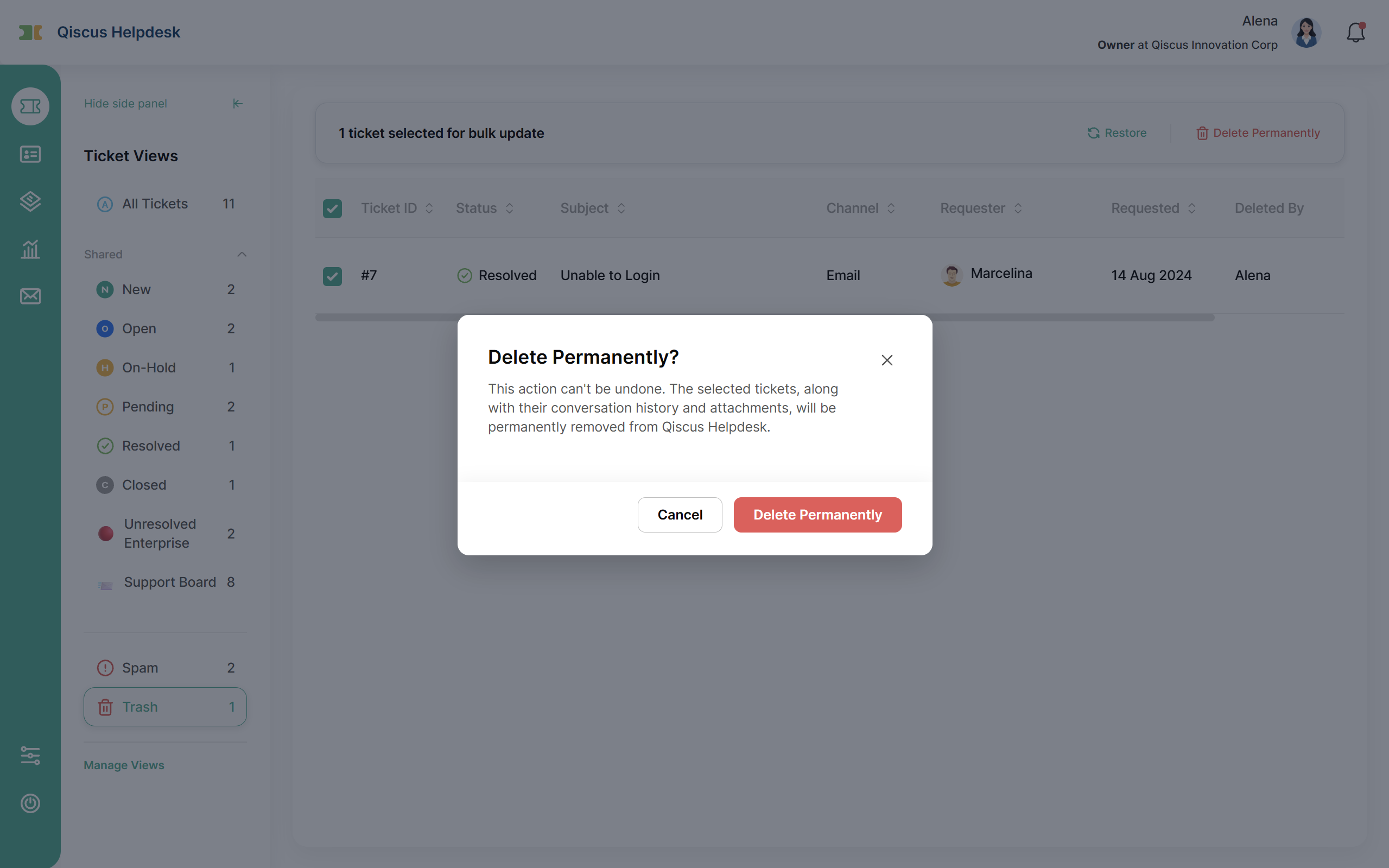
Delete Permanently. Selecting Delete Permanently shows a confirmation dialog warning that the action cannot be undone. The ticket, its full conversation history, and its attachments are removed permanently and cannot be recovered.
Auto-delete after 30 days. Any ticket that has been in Trash for 30 days (counted from its Deleted Date) is removed permanently and automatically. There is no warning notification before this happens.
E. Expected behaviors
Real-time redirect. If you are viewing a ticket at the moment another agent deletes it, you are automatically redirected to a 404 page, because the ticket is no longer available in the normal queue.
Email replies to a deleted ticket. If a requester replies to the email thread of a deleted ticket, the reply does not restore that ticket. It creates a new, independent ticket instead, which enters the queue as a normal new ticket. This applies whether the original ticket is still in Trash or has already been removed permanently.
F. Limitations
The detail page of a ticket in Trash cannot be opened; read its contents through the ticket preview (hover over the Subject).
The 30-day retention period in Trash is fixed and cannot be configured, and there is no warning before a ticket is auto-deleted.
G. Summary
Delete moves a ticket to the Trash view as a soft delete, keeping your working queue clean while giving you a 30-day window to restore anything removed by mistake. After 30 days, or when you choose Delete Permanently, the ticket and its history are removed for good. To set aside junk or abusive tickets without deleting them, see Spam Tickets.