
Mark as spam moves junk or abusive tickets out of your main working queue and into the Spam view, so your team can focus on genuine requests. Spam is reversible: a ticket in Spam can be restored at any time and returns to the normal queue for your team to continue working on. To remove tickets you no longer need instead, see Deleted Tickets.
A. Benefits
A cleaner working queue. Junk and abusive tickets are set aside without deleting their data, so agents only see the requests that matter.
Reversible at any time. A ticket wrongly marked as spam can be restored back to the queue, and your team can keep working on it.
Works together with suspending customers. Pair Mark as Spam with suspending a customer to stop repeat abuse from the same requester. See Customers.
B. Mark a ticket as spam
You can mark a ticket as spam from two places:
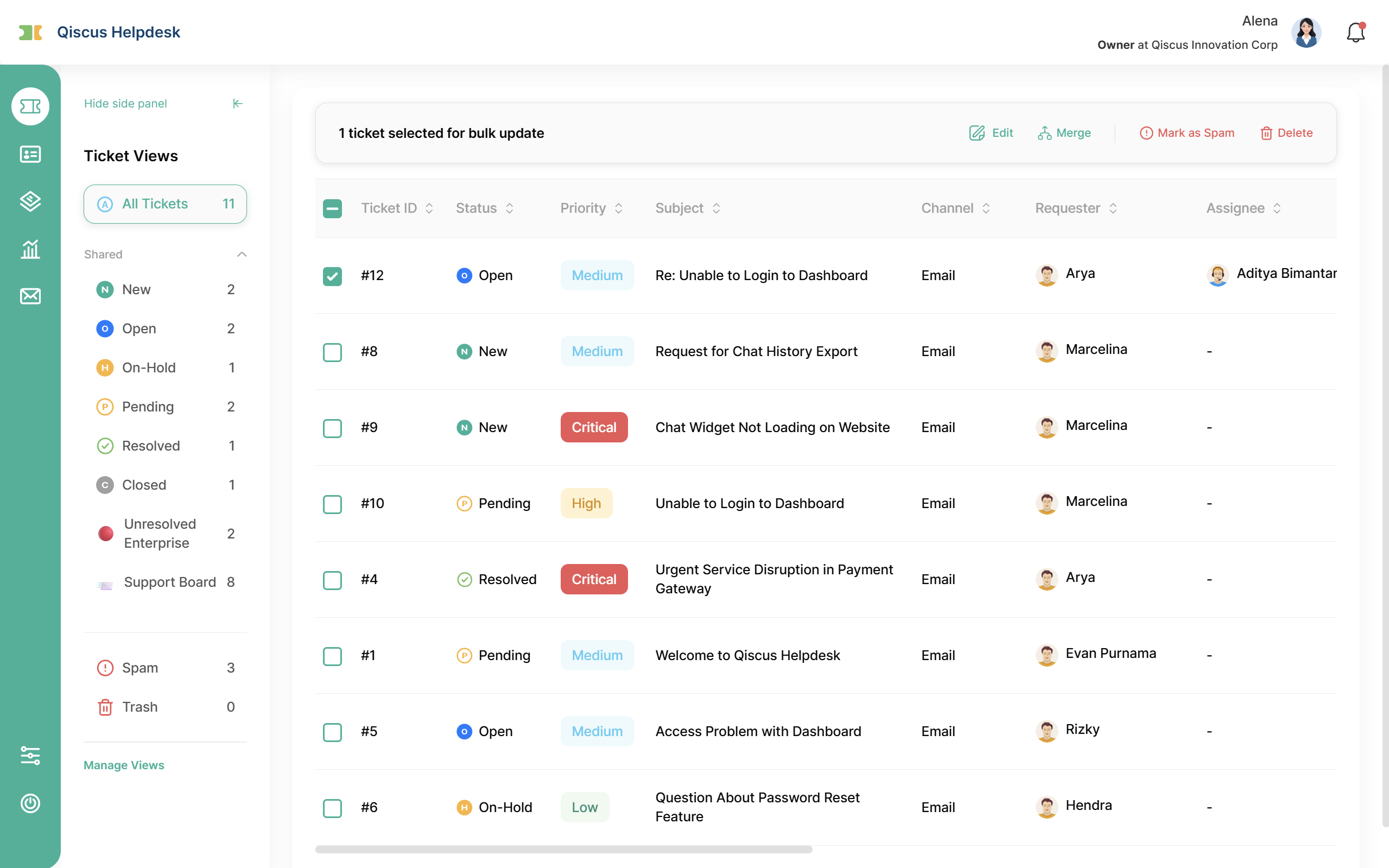
Ticket list (bulk): select one or more tickets with the checkboxes, then choose Mark as Spam from the bulk action bar.
Ticket detail: open the ticket and choose Mark as Spam from the action (⋮) menu.
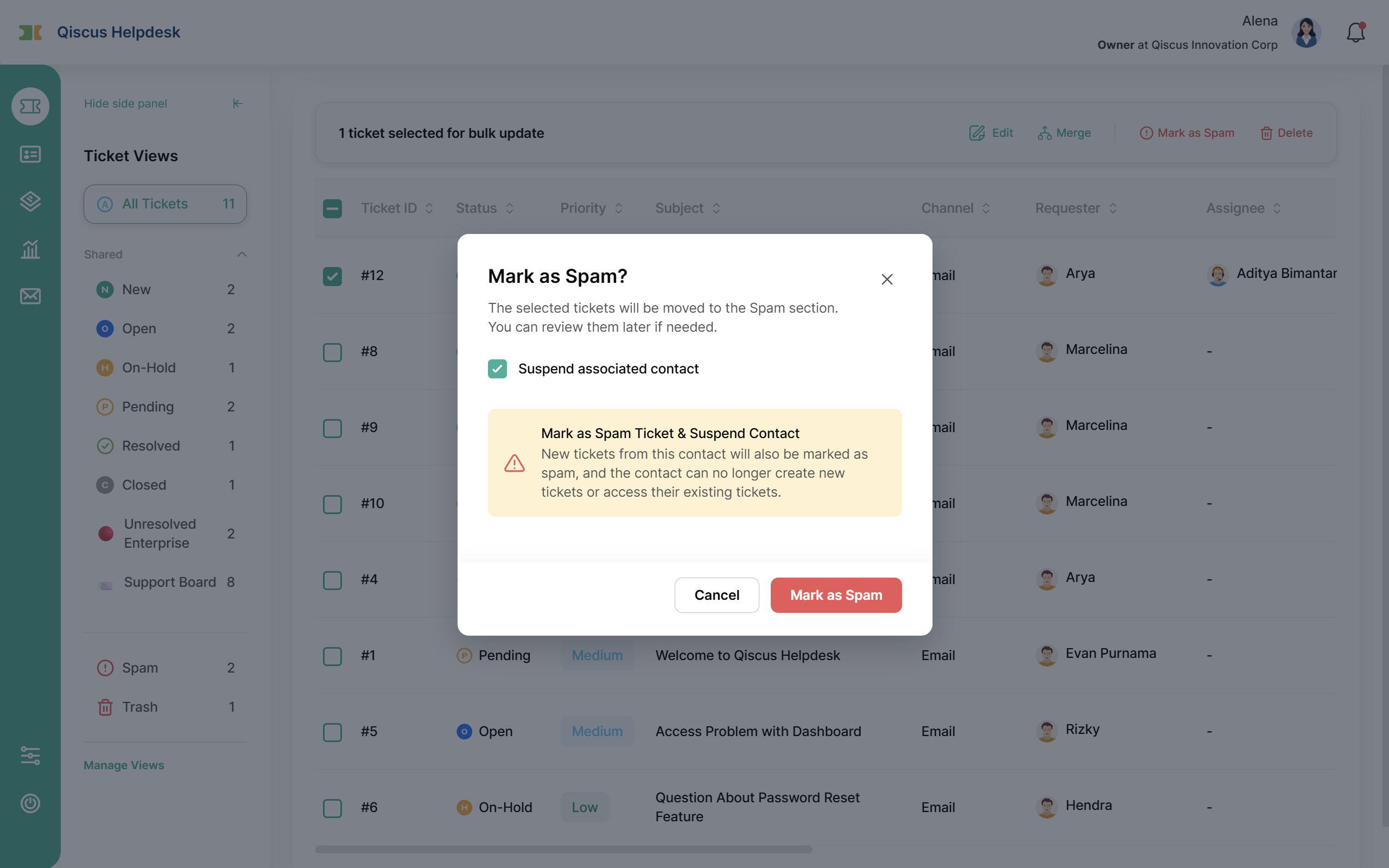
A confirmation dialog appears with an option to Suspend associated contact (off by default). Turn it on to also suspend the requester. A suspended customer cannot sign in to the Help Center, cannot be selected as a requester when an agent creates a ticket, and any new ticket they send goes straight to the Spam view. You can unsuspend them later from the Suspended Customers tab (see Customers).
Once confirmed, the ticket moves to the Spam view and an entry, Ticket marked as spam, is recorded in the Ticket Log.
Note: Closed tickets cannot be marked as spam from the interface; the Mark as Spam option does not appear for them.
C. The Spam view
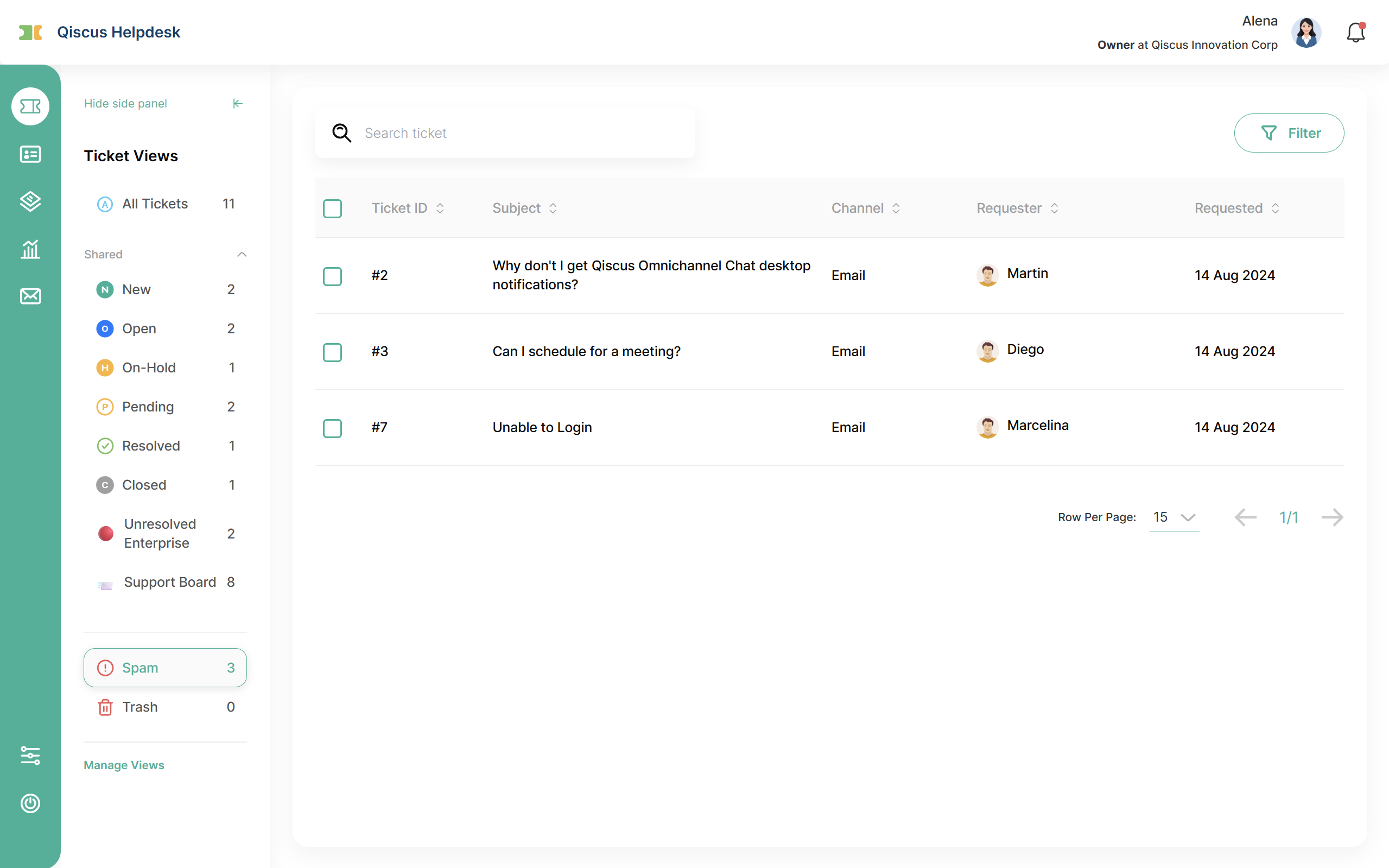
Open Spam from the left sidebar to see every ticket that has been marked as spam. A counter next to the menu shows how many tickets are currently in Spam.
The list shows Ticket ID, Subject, Channel, Requester, and Requested (the date the ticket came in). Use the checkboxes to select one or more tickets, including closed tickets, for a bulk action.
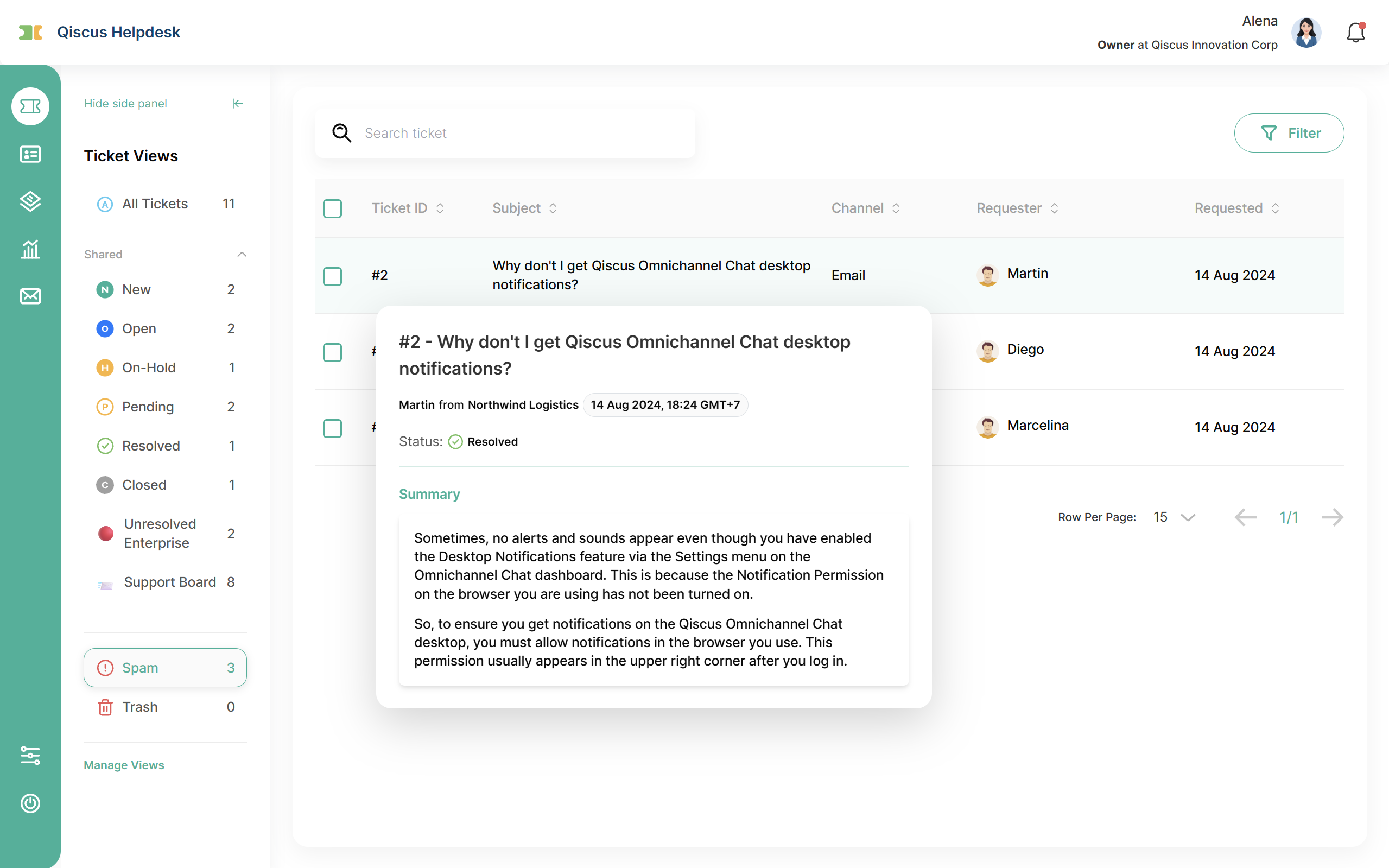
Previewing a ticket. The full ticket detail page cannot be opened while a ticket is in Spam. To read its contents, hover over the Subject to open the ticket preview.
Restoring a ticket. Use Restore from either the row action menu or the bulk action bar. The ticket returns to the normal queue so your team can continue working on it, and a Ticket restored entry is recorded in the Ticket Log.
What the requester sees. While a ticket is in Spam, the requester does not see it in the Help Center, and opening its direct link returns a 404 (not found) page. Access returns automatically once the ticket is restored.
D. Automatic spam for suspended customers
When a customer is suspended, any new ticket they create goes straight to the Spam view, across every channel (email, API, and Help Center submissions). This keeps repeat abuse out of the queue without any extra action from an agent. See Customers for how to suspend and unsuspend a customer.
E. Expected behaviors
Real-time redirect. If you are viewing a ticket at the moment another agent marks it as spam, you are automatically redirected to a 404 page, because the ticket is no longer available in the normal queue.
Email replies to a spam ticket. If a requester replies to the email thread of a ticket that is in Spam, the reply does not reopen that ticket. It creates a new, independent ticket instead. If the requester is still suspended, that new ticket also goes to Spam automatically.
F. Limitations
The detail page of a ticket in Spam cannot be opened; read its contents through the ticket preview (hover over the Subject).
Closed tickets cannot be marked as spam from the interface (the option is hidden).
Unsuspending a customer does not automatically restore tickets that were already marked as spam. Restore those manually from the Spam view.
G. Summary
Mark as Spam keeps your working queue clean by moving junk and abusive tickets into the Spam view without deleting them. Tickets from suspended customers land there automatically, and any ticket can be restored to the normal queue at any time. To remove tickets permanently instead, see Deleted Tickets.