
Agent Status lets everyone on your team show whether they are available right now: Online, Busy, Away, or Offline. Supervisors and admins can see the whole team's status in one place and fix it when someone forgets to update theirs, so you always know who is ready to work.
Depending on your Helpdesk plan, your team can also use custom statuses such as "In a meeting" or "Lunch break". Owners and admins set those up in Custom Agent Status.
Every Owner, Admin, Supervisor, and Agent has a status and can change their own. The Monitoring page is available to Owners, Admins, and Supervisors.
A. Benefits of Using Agent Status
Know who is available: see at a glance who is working, in a meeting, or on a break.
Monitor your team in real time: the Monitoring page updates by itself as people change their status.
Keep statuses accurate: supervisors and admins can correct a status when someone forgets, for example after they have left for the day.
Statuses in your team's own words: use custom statuses that describe what people are actually doing.
B. Status Types
Status | Color | When to use it |
|---|---|---|
Online | Green | You are working and available. |
Busy | Red | You are working, but on something else, like a meeting or training. |
Away | Yellow | You are taking a break or stepping away for a while. |
Offline | Grey | You are signed out of Helpdesk. This is set automatically. |
Custom statuses always belong to Online, Busy, or Away. For example, "Taking tickets" is a kind of Online, and "Lunch break" is a kind of Away.
C. Changing Your Status
Your status is shown by the colored ring and dot on your avatar in the top-right corner.
Click your name or avatar to open the profile menu.
Click Back to Online to go Online in one click, or click Change status to choose another status.
Pick a status. It updates right away, everywhere in Helpdesk.
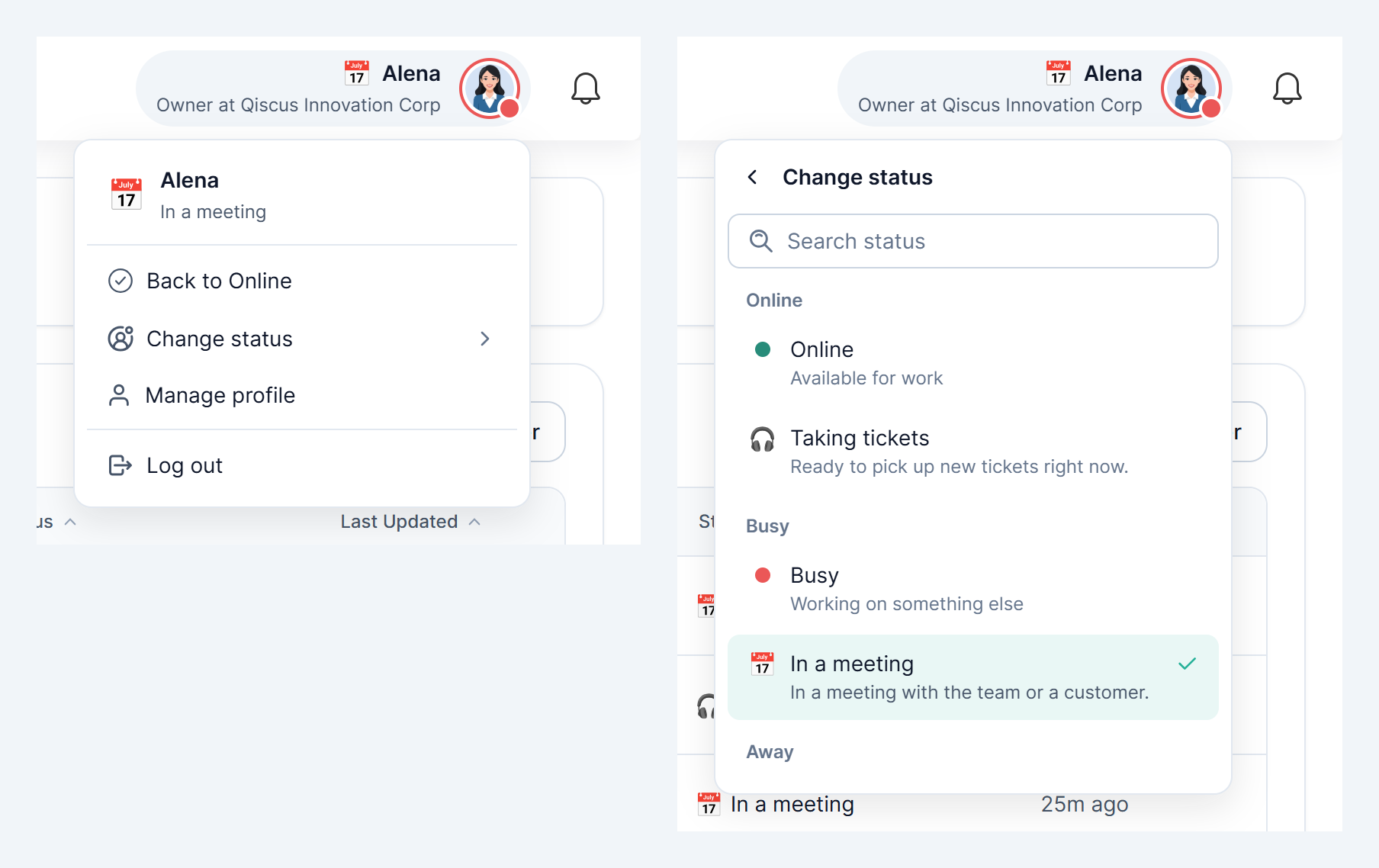
Every time you sign in, your status starts as Offline. A small reminder appears next to your avatar until you choose a status, so make it a habit to pick one when you start working.
D. Monitoring Your Team
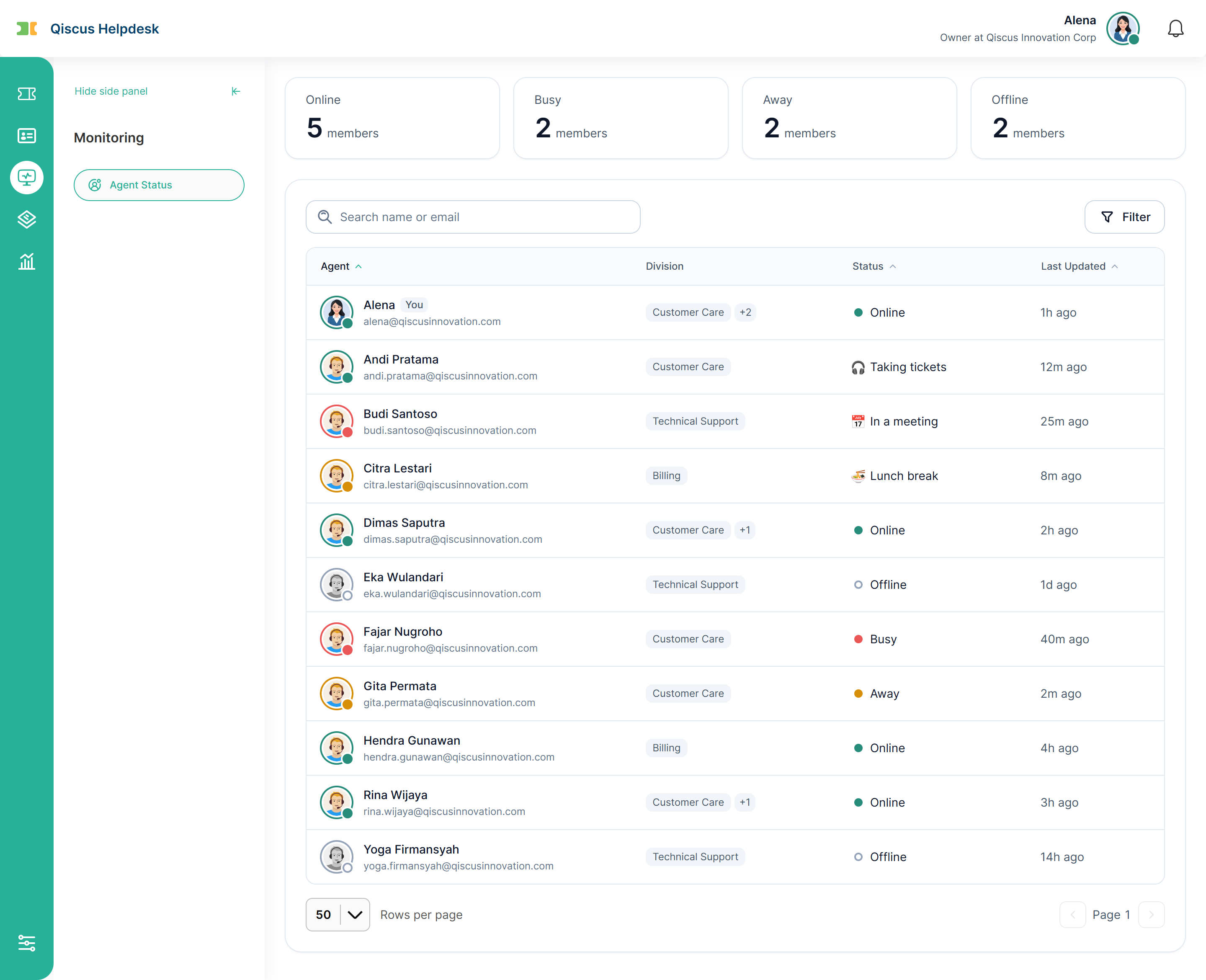
Go to Monitoring in the sidebar. The Agent Status page opens with:
Summary cards showing how many people are Online, Busy, Away, and Offline.
A table of everyone you can see, with their division, current status, and how long ago it last changed.
Use Search to find someone by name or email, or Filter to narrow the list by division, status, or role. Supervisors see the people in their own divisions; owners and admins see everyone.
Seeing someone's day
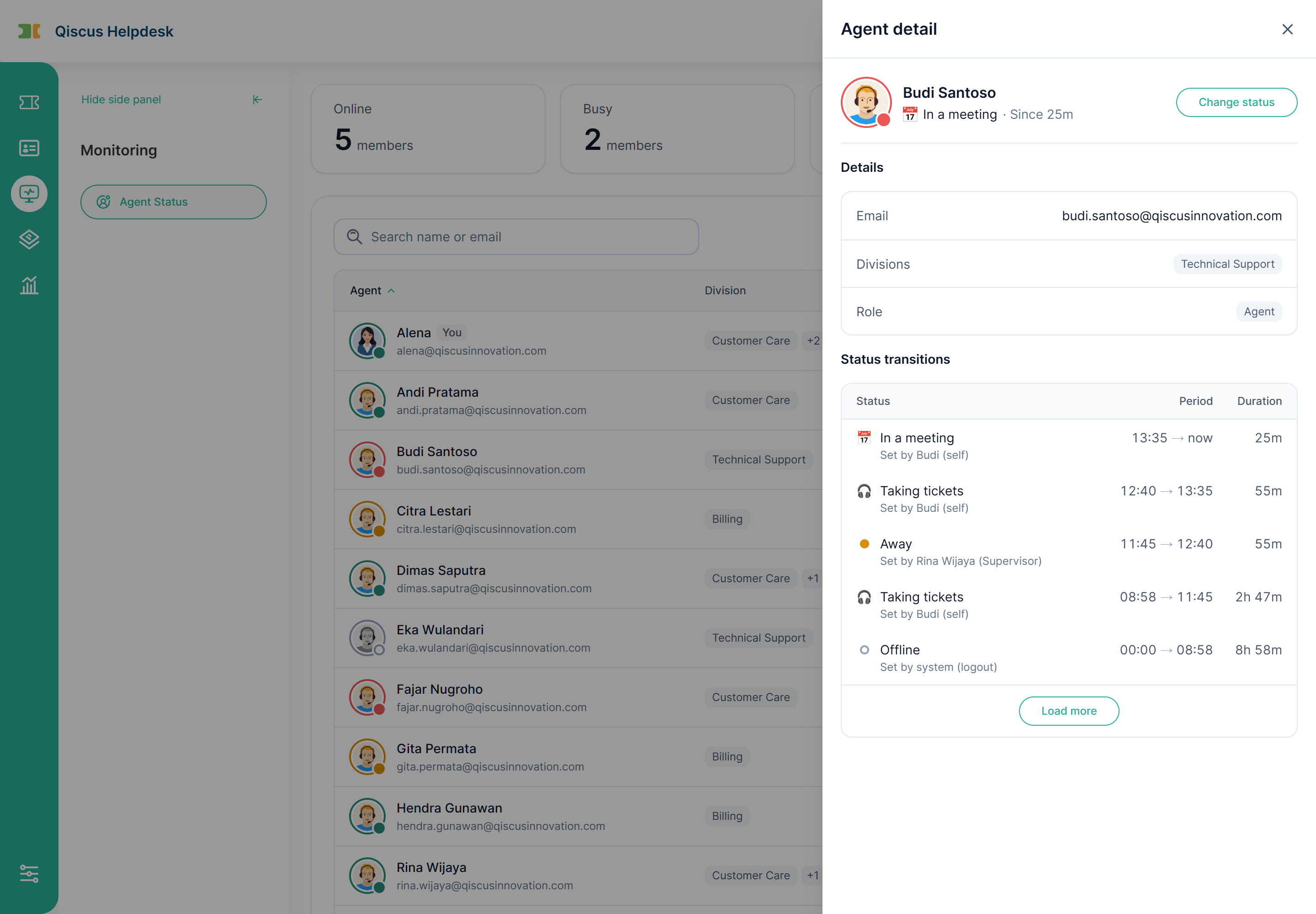
Click a person in the table to open their details. You will see their current status and a timeline of today's statuses: what they were set to, from when until when, and who changed it. Click Load more to look back up to 7 days.
Changing a teammate's status
If someone's status is wrong, open their details and click Change status.
Your role | You can change the status of |
|---|---|
Owner / Admin | Anyone on the team. |
Supervisor | Agents in your divisions, and yourself. |
You cannot change the status of someone who is Offline, because they are signed out. If someone has left but is still signed in, set them to Away.
E. When Someone Changes Your Status
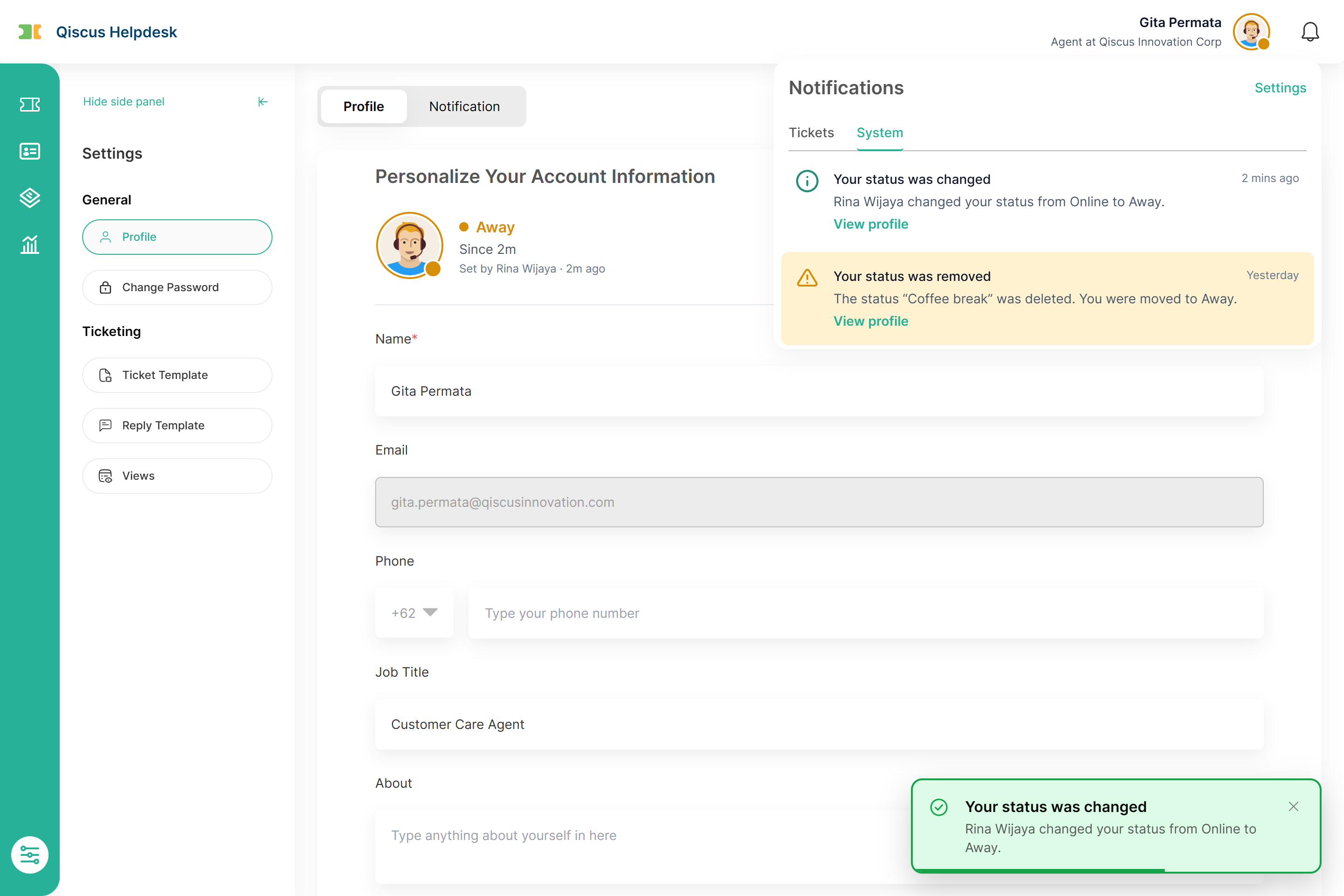
If a supervisor or admin changes your status, you will see a message on screen and a notification in the System tab of the notification bell. Your profile menu and your Profile page in Settings also show who changed your status and when, until you pick a status yourself.
You are notified the same way if a custom status you were using is removed. In that case you are moved to the matching standard status, for example from "In a meeting" to Busy.
F. Good to Know
You start as Offline after signing in. Your status is not switched to Online automatically.
One status across tabs and devices. Changing your status in one tab updates it everywhere you are signed in.
Closing Helpdesk sets you to Offline. When you sign out, or close Helpdesk on all your tabs and devices, your status changes to Offline after a short moment. A quick page refresh does not affect it.
A tab left open keeps your status. If you leave Helpdesk open, your status stays the same until you change it or a supervisor corrects it.
Your status does not affect notifications. You still receive ticket notifications whatever your status is.
G. For Developers
Agent statuses are available through the Public API, so you can read and update a user's status from another system. A webhook event, Agent Status Changed, is sent whenever someone's status changes. See API Token and Webhook to get started.
H. Summary
Agent Status shows who on your team is available right now, lets supervisors and admins keep everyone's status accurate from the Monitoring page, and lets your team use statuses that match how you work. To create your own statuses, see Custom Agent Status.