
Every ticket in Qiscus Helpdesk carries a status that tells your team where the ticket stands. Behind each status there is a status category, a fixed layer that Helpdesk uses to calculate resolution time, run SLA timers, evaluate automations, and decide what customers see in the Help Center.
There are six status categories, and they never change: New, Open, Pending, On-hold, Resolved, and Closed. What you can change is the statuses that live inside them. Instead of being limited to one status per category, you can create your own statuses that match the way your team actually works, such as Waiting for Vendor inside On-hold or Under Review inside Pending. Because every status you create still belongs to a category, Helpdesk keeps working consistently no matter how you name things.
Ticket statuses are managed from Settings → Ticketing → Ticket Status. Only the Owner and Admin roles can see and use this menu. Supervisors and Agents work with the statuses you define, but cannot create or change them.
A. Benefits of Using Custom Ticket Status
Match Helpdesk to the way your team actually works. Break a category into the stages your process really has, whether that is Awaiting Payment and Ready to Ship for orders or Under Review and Signed for contracts, so a ticket's status says what is happening instead of only that someone is on it.
Know where the time is really going. Once each stage has its own status, you can see which stage tickets pile up in and how long they sit there. A queue of undifferentiated open tickets can never tell you that.
Give customers wording that makes sense to them. Your team keeps its internal vocabulary while customers see plain language you choose, so a detailed internal process still reads as a simple update on their request.
Adopt it without disturbing what already works. Every status still belongs to one of the six categories, so SLA targets, automations, and existing reports behave exactly as they do today.
B. Understanding Status Categories
A status category is the stable layer Helpdesk reasons about. A ticket status is the label people see. Every status you create belongs to exactly one category, and that relationship is what keeps timers and automations accurate.
When the feature is first enabled, Helpdesk seeds one default status for each category, using the names your workspace already had. Nothing changes for your team until you start adding statuses of your own.
Status category | Default status name | What agents see it means | What customers see |
|---|---|---|---|
New | New | Ticket is awaiting assignment to an agent | Open |
Open | Open | Staff is working on the ticket | Open |
Pending | Pending | Staff is waiting for the requester to reply | Awaiting Your Reply |
On-hold | On-hold | Staff is waiting for a third party | Open |
Resolved | Resolved | The ticket has been resolved | Solved |
Closed | Closed | The ticket has been closed and can no longer be updated | Solved |
You can create your own statuses in Open, Pending, On-hold, and Resolved. The two remaining categories are reserved for the system:
New is set once, at the moment a ticket is created, and is never applied again afterwards. Because no one ever moves a ticket back into New, there is nothing to customize.
Closed is applied automatically after a ticket has been resolved, and marks the end of the ticket's life. It is set by the system rather than chosen by an agent.
Think of the category as the rule and the status as the wording. If you are unsure which category a new status belongs to, ask what should happen to the SLA clock while a ticket sits in it. A status where you are waiting on the customer belongs in Pending, and a status where you are waiting on someone outside your team belongs in On-hold.
C. Setting Up Ticket Status
1. Creating a Ticket Status
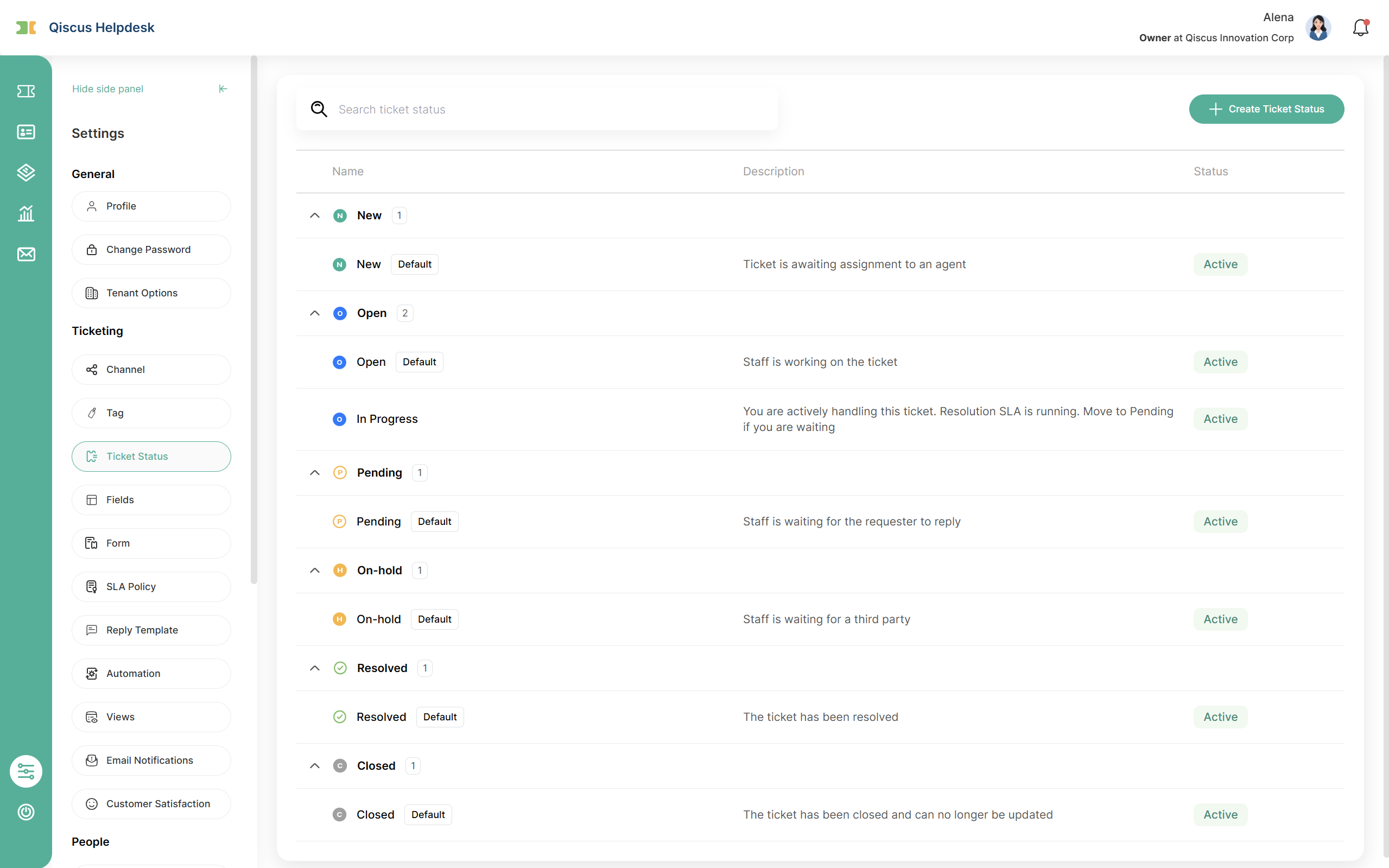
Open Settings → Ticketing → Ticket Status. The page lists every status in your workspace, grouped under its category. Each group header shows the category name and how many statuses it contains, and you can collapse a group to scan the list more quickly. Within each group, the status that acts as the category default is marked with a Default badge, and the Status column shows whether the status is Active or Inactive. Use the search field above the list to find a status by name.
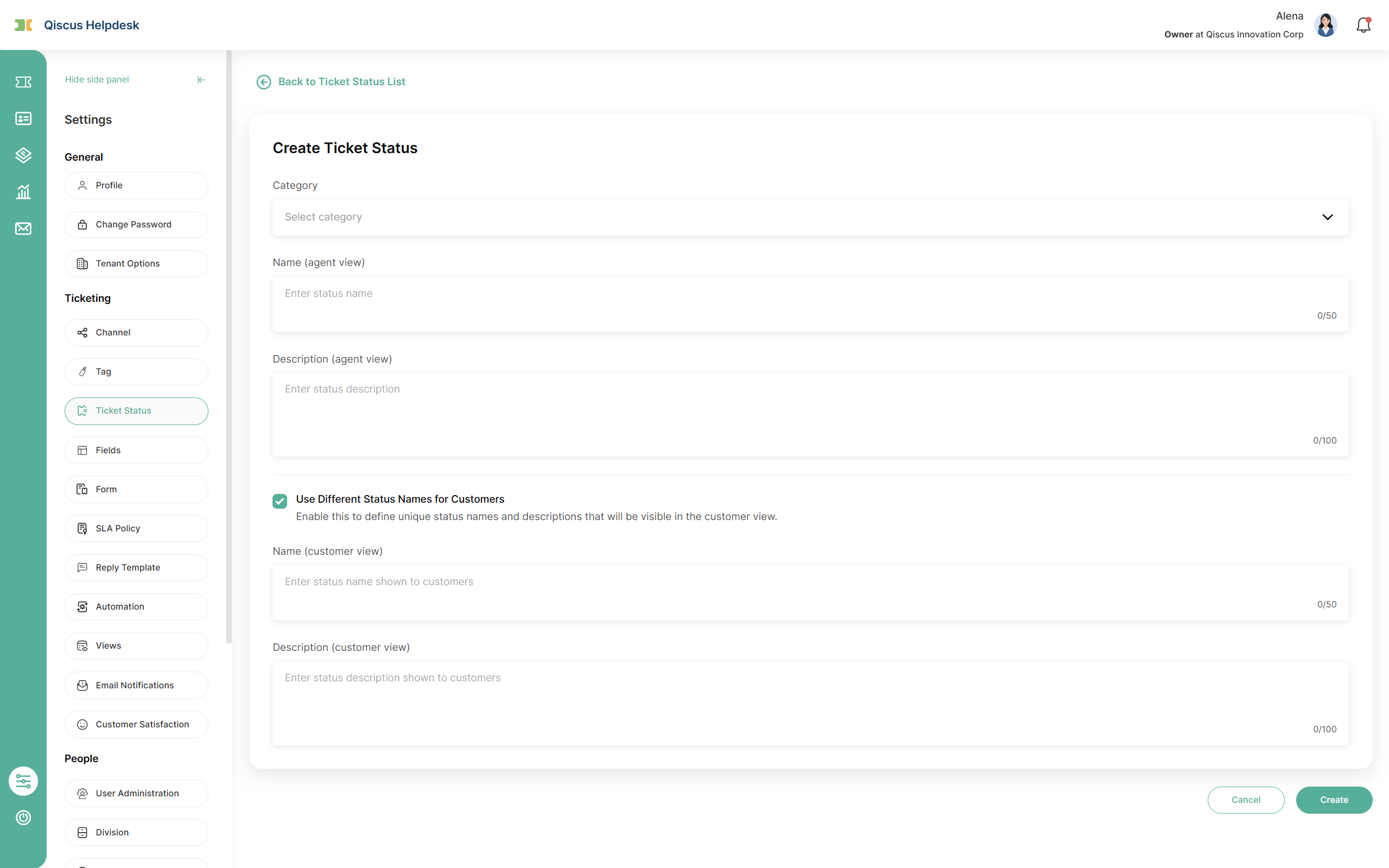
Click Create Ticket Status and fill in the form:
Category (required). Choose Open, Pending, On-hold, or Resolved. This is the only chance to set the category, because a status cannot be moved to a different category later.
Name (agent view) (required, up to 50 characters). The name your team sees throughout Helpdesk.
Description (agent view) (required, up to 100 characters). A short explanation of when this status should be used.
Use Different Status Names for Customers (optional). Turn this on when the internal wording is too technical to show customers. Two more fields appear: Name (customer view) (up to 50 characters) and Description (customer view) (up to 100 characters), both required once the option is on.
The character counters are hard limits, so typing simply stops once you reach the maximum. A new status is created as Active and is immediately available wherever statuses can be chosen.
Two validation rules apply when you save:
Every required field must be filled in.
Name (agent view) must be unique across the whole workspace, not just within its category. If In Progress already exists under Open, you cannot create another In Progress under Pending. Customer-facing names have no such rule and may repeat freely, which is intentional, since several statuses often share a single customer-friendly label.
A workspace can hold up to 300 custom statuses in total and up to 100 in a single category. Statuses that you have deactivated still count toward these limits, and only deleting a status frees up room again.
The category cannot be changed after a status is saved. If you picked the wrong category, create the status again under the correct one and delete the original.
2. Managing Ticket Status
Each row in the list has an action menu, and its contents depend on the status. A category default only offers Edit, because a default must always exist and must always be active. Any other active status offers Edit, Set as Default, Deactivate, and Delete, while an inactive status offers Edit, Activate, and Delete.
Editing lets you change the name, the description, and the customer-facing settings. Everything except the category can be adjusted at any time, and the new wording appears everywhere the status is shown as soon as you save.
Set as Default promotes a status to be the fallback for its category. Because exactly one default exists per category, promoting a status automatically demotes the previous one, which then behaves like any other status in the group. Only an active status can become a default.
Deactivating a status retires it without erasing history. The status disappears from every place where a status can be chosen, including ticket detail, bulk edit, ticket forms, and automations. Tickets that already carry the status keep it and continue to display it, and you can still filter the ticket list by it, which is how you find those tickets and move them somewhere else. Activating the status again restores it everywhere.
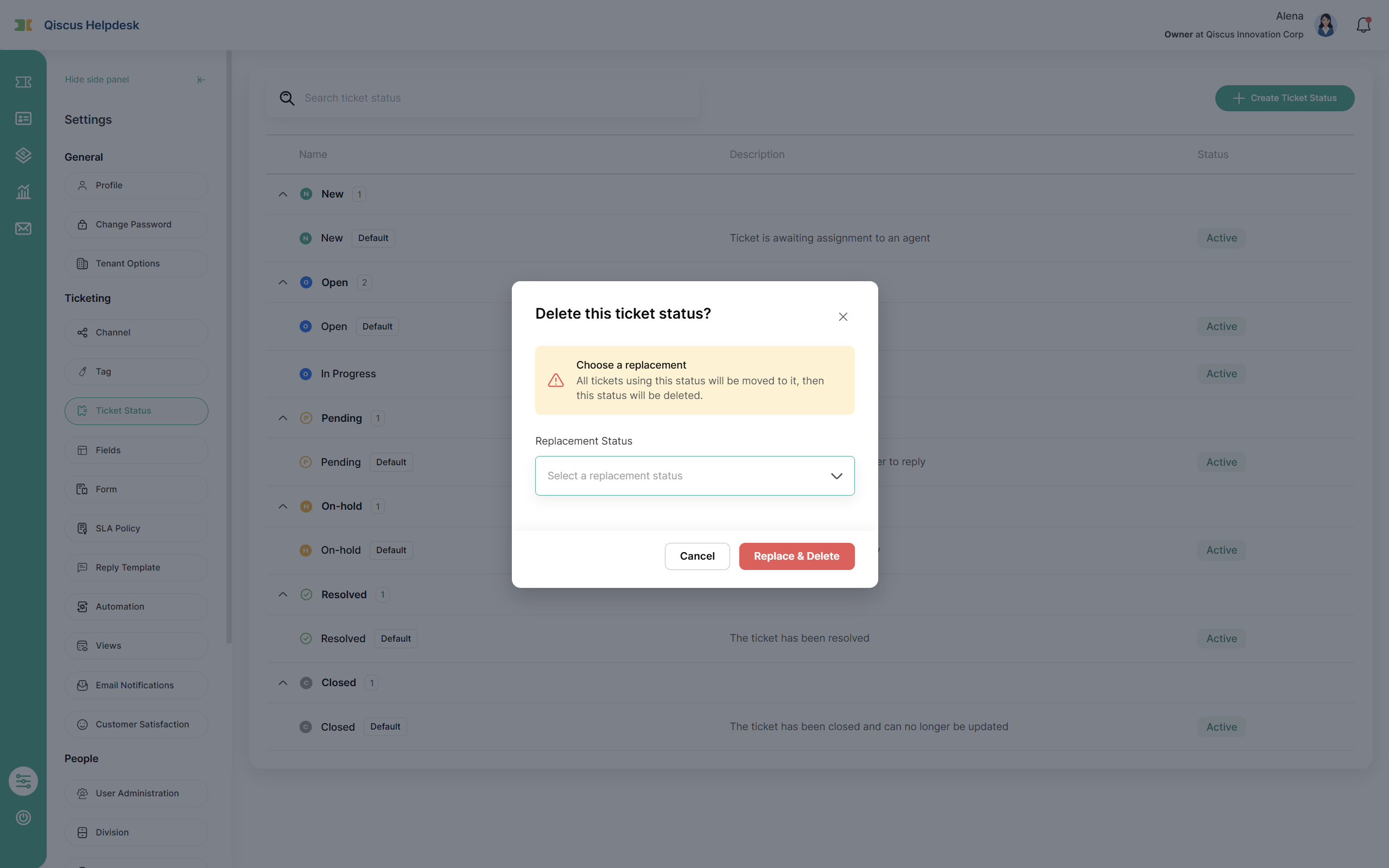
Deleting removes a status permanently. What happens next depends on whether any ticket still uses it. If no ticket does, Helpdesk asks you to confirm and then removes the status. If tickets still use it, Helpdesk asks you to pick a Replacement Status first. The replacement list only offers active statuses from the same category, so the tickets stay in the category they were already in and their SLA and reporting remain correct. When you confirm, every affected ticket moves to the replacement, any form or automation that pointed at the old status is repointed at the replacement, and only then is the status removed. The move is recorded in each ticket's log as an ordinary status change.
Deleting a status cannot be undone. If you only want to stop your team from using a status while keeping its history intact, deactivate it instead.
3. Enabling a Status on a Ticket Form
Not every status makes sense for every kind of request. A refund workflow and an IT support workflow rarely need the same statuses, so you can decide which statuses apply to each ticket form.
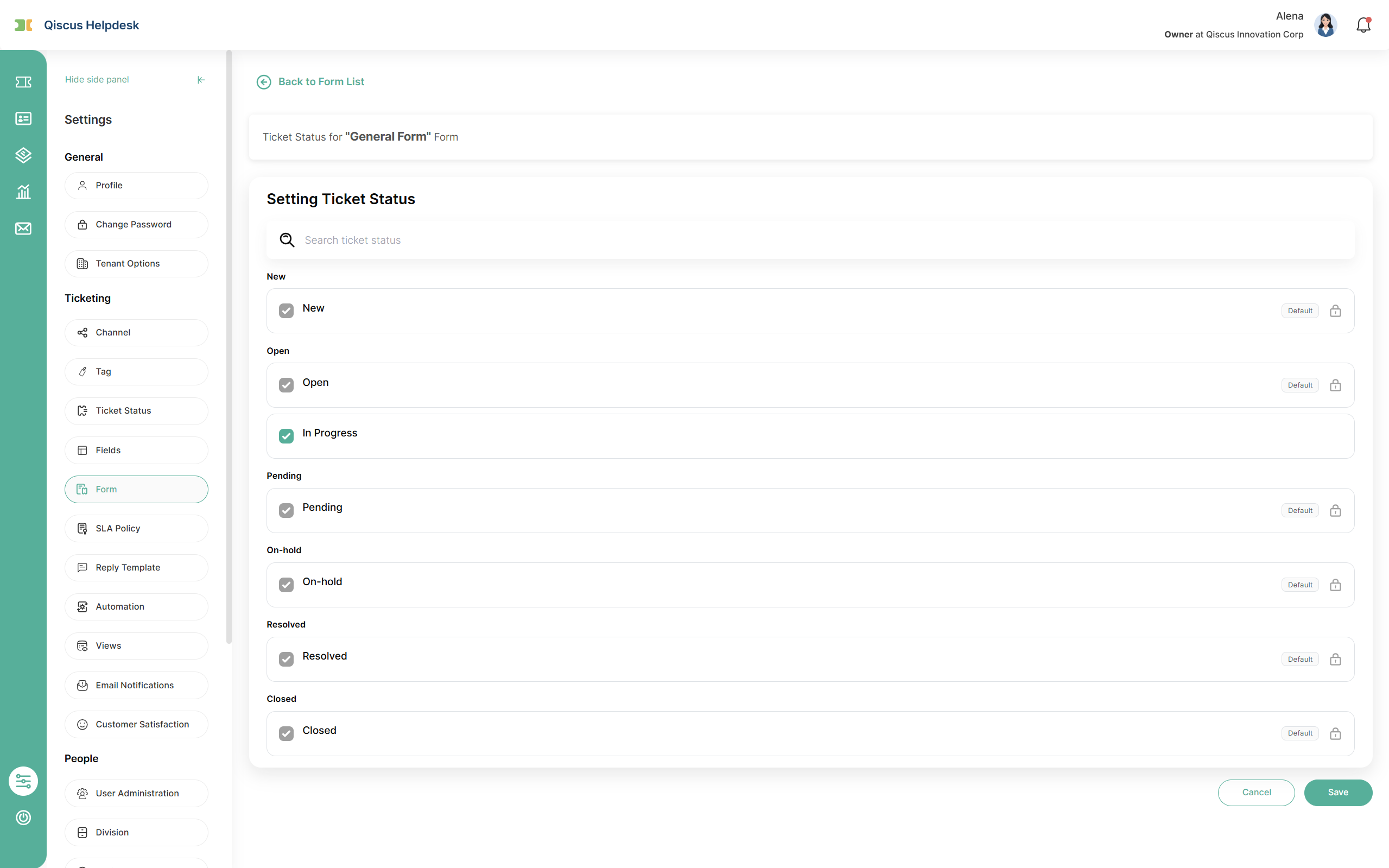
From your form configuration, open Setting Ticket Status. The page lists every active status with a checkbox, plus a search field for longer lists. Tick the statuses that belong to this form and save. The default status of each category is always included and cannot be unticked, which guarantees that every form can always fall back to a valid status. If you later promote a different status to be the category default, the lock follows the new default automatically, and the previous one becomes an ordinary option you can untick.
This selection is what narrows the status list an agent sees on a ticket. When an agent opens a ticket created from a given form, the status picker offers the statuses enabled on that form together with the category defaults, which means the list can legitimately differ from one ticket to another.
D. What Agents and Customers See
Agents and customers look at the same ticket, but they do not see the same status. Agents work with the internal wording you defined, while customers see a simplified version that keeps your internal workflow private.
For agents
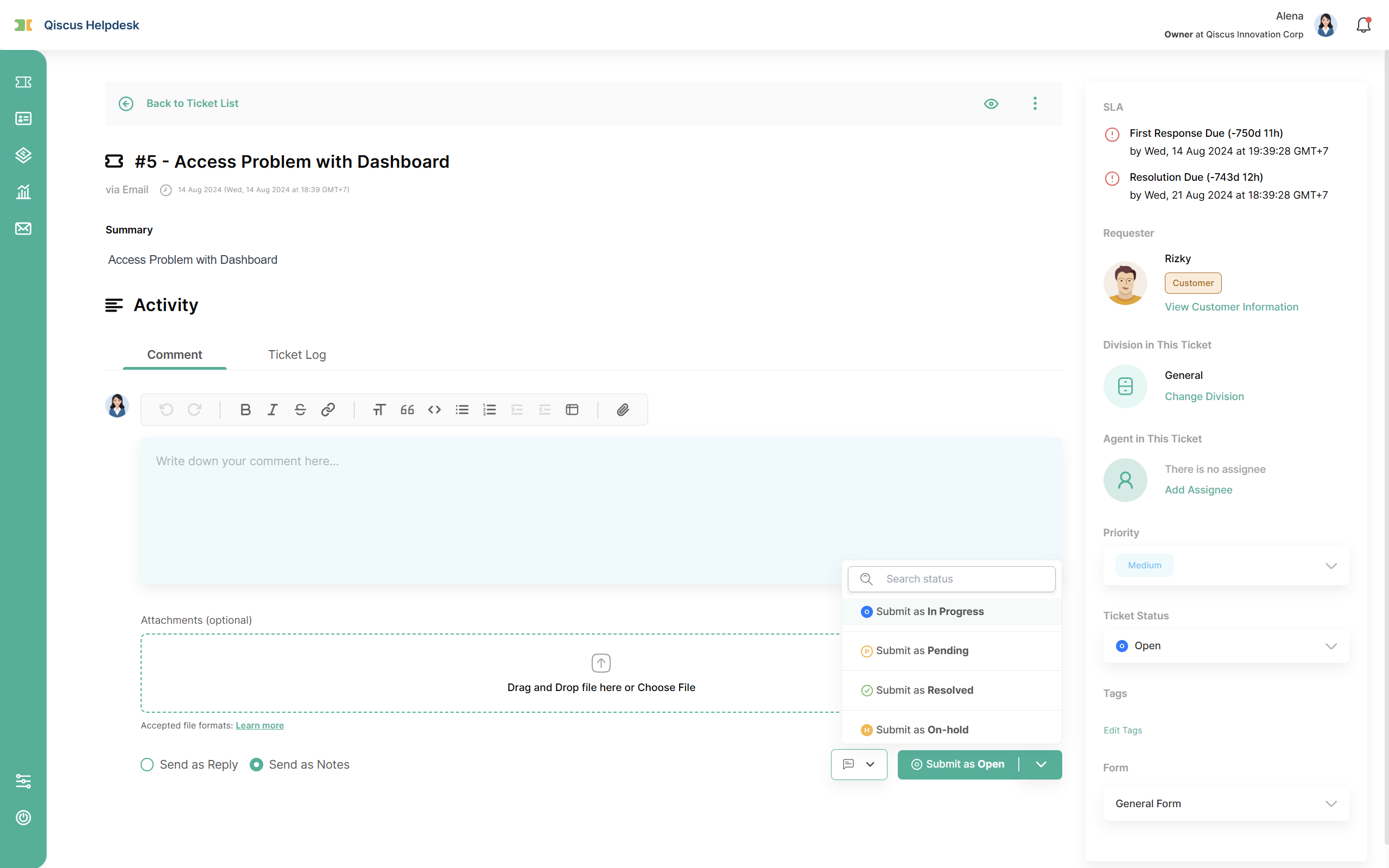
Agents change a ticket's status from the ticket detail page in two places: the Ticket Status field in the Ticket Details panel on the right, and the Submit as button below the comment editor, which applies the new status at the same moment a reply or an internal note is sent. Both open the same list, with statuses grouped under their category and a search field for longer lists.
What that list offers is narrower than your full set of statuses:
Only active statuses appear. If a ticket already carries a status that has since been deactivated, the ticket keeps showing it until an agent moves the ticket, but the status cannot be chosen again.
Statuses in the New category never appear, because New is only set when a ticket is created.
Only the statuses enabled on that ticket's form appear, together with the category defaults. Two tickets can therefore offer different options, which is expected.
If the status you choose requires a field that is still empty, Helpdesk blocks the change and points you to the field so you can fill it in first. Elsewhere in Helpdesk, such as the ticket list, ticket views, and automations, statuses are shown with the same agent-facing name.
For customers
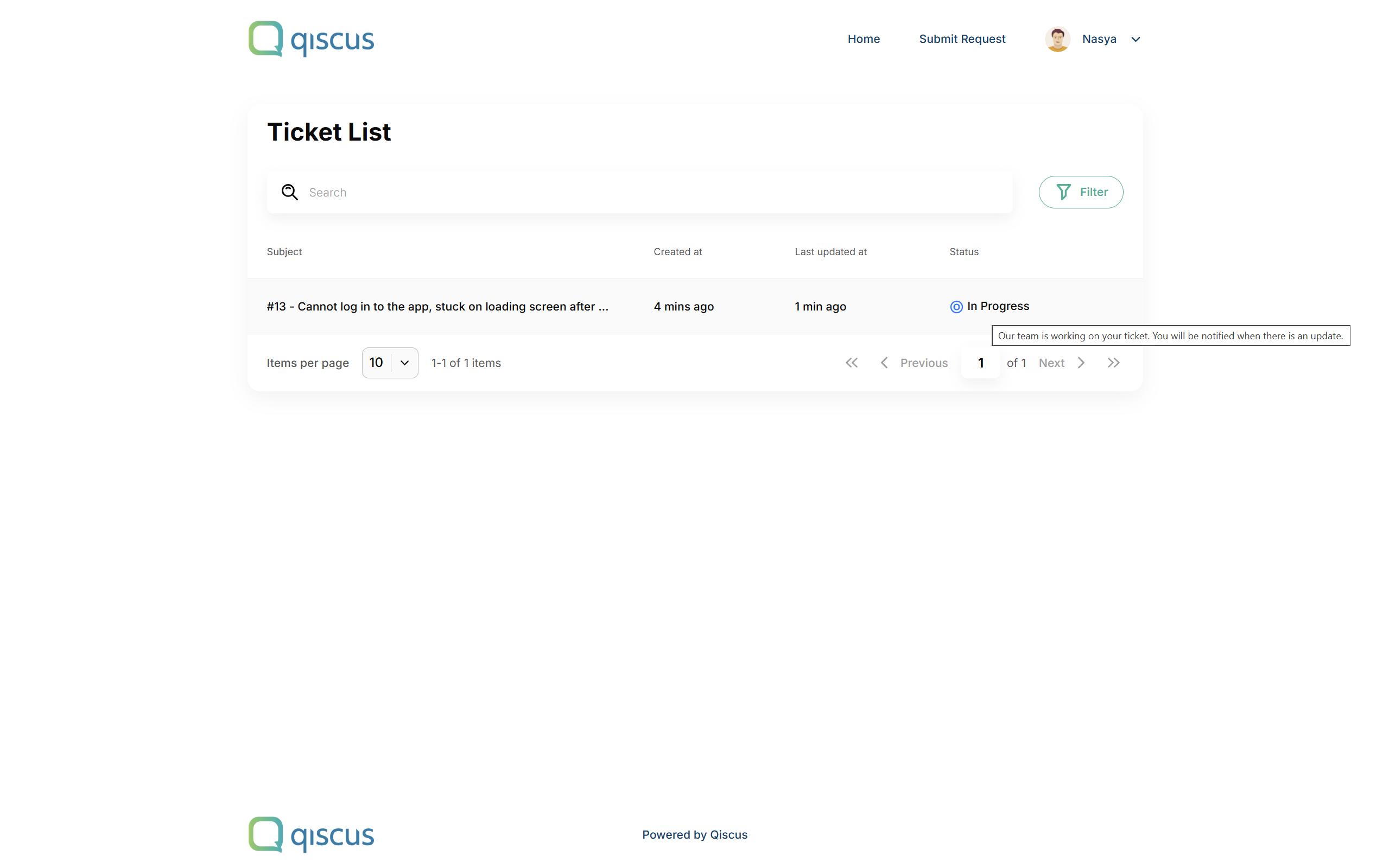
In the Help Center, the six categories are collapsed into three plain labels, so a customer always knows whether the team is working, waiting on them, or finished.
Status category | Label shown to the customer |
|---|---|
New, Open, On-hold | Open |
Pending | Awaiting Your Reply |
Resolved, Closed | Solved |
Closed is deliberately not shown as its own label. To a customer, a resolved ticket and a closed ticket are both simply solved.
If you want a specific status to speak for itself, turn on Use Different Status Names for Customers when you create or edit it. The customer then sees the name you wrote rather than the category label, and hovering over the status shows the customer-facing description. The status icon still follows the category, so the visual language stays consistent even when the wording changes.
When customers filter their ticket list, they choose from these category-level labels rather than from your full list of statuses, and selecting one returns every ticket in that category.
Status names can also be inserted into replies, email notifications, and satisfaction surveys through placeholders. When the message is one a customer will read, the placeholder uses the customer-facing name if the status has one, and falls back to the agent-facing name if it does not. The three category labels above apply to the Help Center only, so a message never says "Awaiting Your Reply" unless you named the status that way yourself.
This is why the status wording in a customer's email can differ from the status you see on the ticket. Both are correct, they are simply the two names of the same status.
E. Automatic Status Changes
Helpdesk changes a ticket's status on its own in a few situations. In every case it targets a category and then applies that category's default status, so the outcome stays predictable no matter how many statuses you have created.
There is one deliberate exception. If a ticket is already in the target category, its status is left alone. Say you created In Progress inside the Open category: when a reply arrives on a ticket sitting in In Progress, the ticket stays exactly there instead of being reset to the default Open status, so the context your agent chose is not lost.
A reply from the requester on a ticket that is Pending, On-hold, or Resolved brings the ticket back into the Open category, so it returns to the working queue. If the ticket already sits in the Open category, nothing changes at all, whichever status inside Open it is using.
A reply on a closed ticket does not reopen it, because Closed is final. Helpdesk creates a new follow-up ticket instead, so the conversation can continue while the closed ticket stays closed as a finished record. See Closed Ticket Behavior and Follow-Up Flow. <!-- PENDING: confirm the Help Center path also creates a follow-up ticket; it currently rejects the reply instead -->
Merging tickets closes the source ticket.
Automatic closing moves a ticket from Resolved to Closed once it has stayed resolved for the configured period.
Marking a ticket as spam or deleting it does not change its status at all. Only the ticket's location changes, and it moves to the Spam or Trash view. Restoring it later brings it back with exactly the status it had before.
F. Limitations and Expected Behaviors
Only Owner and Admin can manage statuses. The Ticket Status menu is hidden from Supervisors and Agents.
Categories are fixed. You can add statuses inside the six categories, but you cannot create, rename, or remove a category.
New and Closed cannot hold custom statuses. New is set only at creation, and Closed is applied by the system after a ticket is resolved.
Category cannot be changed after saving. Recreate the status under the correct category instead.
Every category always keeps one default. A default status cannot be deactivated or deleted, and promoting another status demotes the previous default automatically.
Agent-facing names must be unique across the workspace. Customer-facing names may repeat.
Limits. Up to 300 custom statuses per workspace and 100 per category. Inactive statuses still count, and only deletion frees space.
Deactivated statuses stay on existing tickets. They disappear from pickers but remain visible on tickets and usable as a filter, so you can find and move those tickets.
A replacement always comes from the same category. This keeps ticket categories, SLA timers, and reporting intact when a status is deleted.
Deleting a status that an automation or a view relies on has consequences. If the status is deleted without a replacement, conditions that referenced it can no longer match, so the automation stops firing and the view returns no tickets. Update those conditions afterwards.
Statuses use the colors and icons of their category. Custom colors and icons are not available.
Tickets in Spam and Trash still count as using a status. A status used only by quarantined tickets still requires a replacement before it can be deleted.
G. Summary
Ticket Status turns a fixed list of six statuses into something your team can shape, without giving up the consistency Helpdesk depends on. Categories stay in place and keep resolution time, SLA, automation, and analytics accurate, while the statuses inside them describe your real workflow in your own words. Add the statuses your process needs, choose which ones apply to each ticket form, and give customers clearer wording where it helps, all while keeping a safe path to retire or replace a status once your process changes again.