
Customer Satisfaction (CSAT) in Qiscus Helpdesk helps teams collect feedback after a ticket is resolved. With CSAT, administrators can create branded surveys, send them automatically through Helpdesk Automation, and review the results directly from tickets and analytics.
This feature helps support teams understand how customers feel about the service they received, identify service gaps, and track satisfaction trends over time.
A. Benefits of Using CSAT
CSAT helps teams understand customer satisfaction more clearly by collecting feedback after a ticket is resolved. Instead of relying only on internal handling metrics, teams can measure how customers actually feel about the support experience they received.
With CSAT, you can:
Collect direct feedback after a support interaction is completed
Measure satisfaction trends across tickets, teams, or workflows
Automate survey delivery after tickets reach the right status
Review the latest feedback directly from the related ticket
Monitor broader satisfaction patterns from Analytics
Typical examples include sending a satisfaction survey a few hours after a ticket is solved, reviewing whether a resolved case received positive or negative feedback, and identifying recurring issues from customer comments or quick feedback responses.
B. Setting Up CSAT
To create a CSAT survey, go to Settings -> Ticketing -> Customer Satisfaction -> Create Customer Satisfaction. If no survey has been created yet, the page will show an empty state with an option to create a new survey.
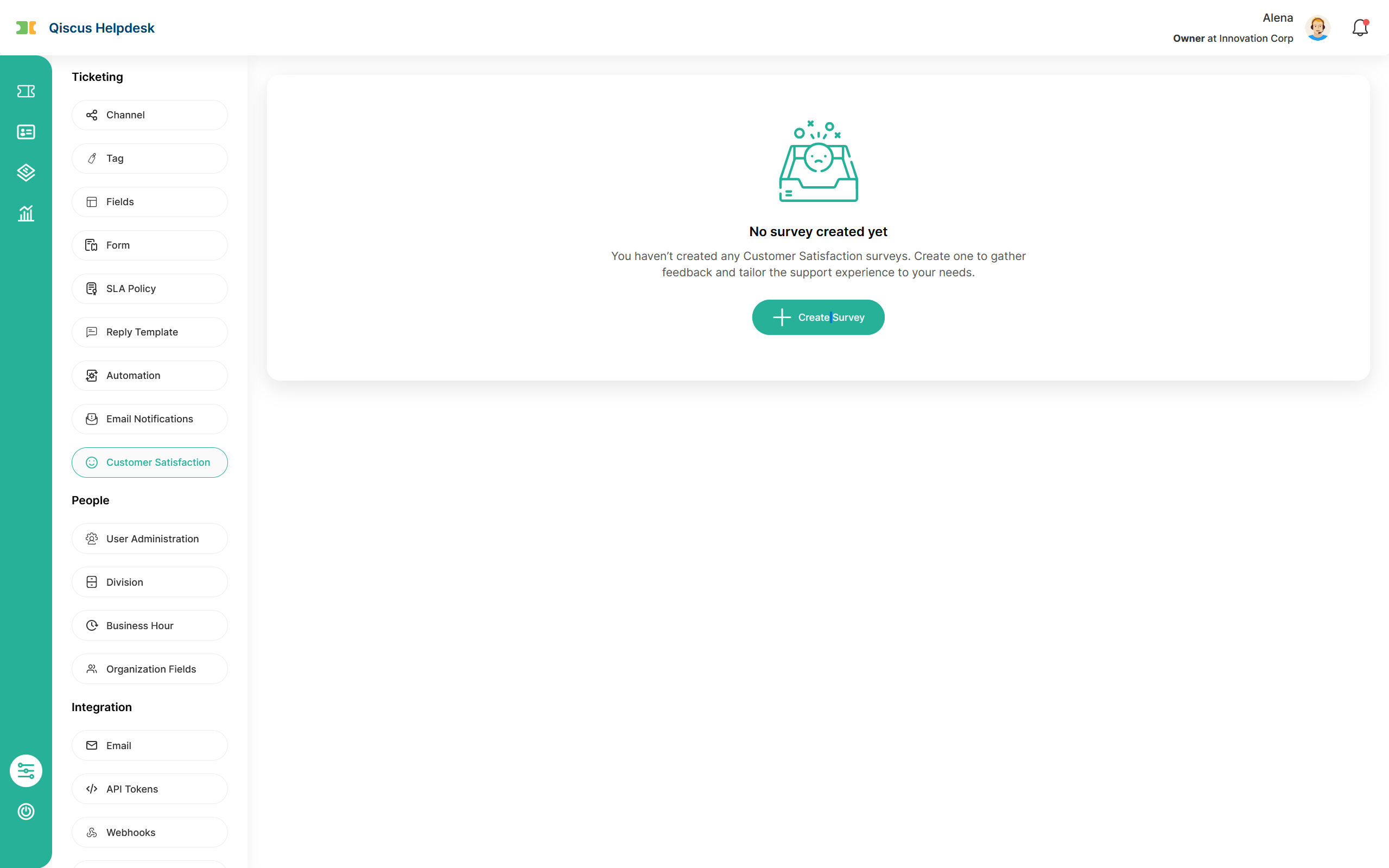
Qiscus Helpdesk provides a four-step setup flow:
Step 1: General Information
The General Information step is used to define the survey identity. In this step, admins must complete the survey name and description. The name supports up to 30 characters, while the description supports up to 200 characters. These details help teams distinguish one survey from another, especially when different surveys are used for different workflows or business units.
Use a survey name that clearly reflects the use case, such as the team, channel, or automation that will send the survey.
Step 2: Survey Content
The Survey Content step is used to configure the main survey experience. This step is organized into four accordion sections: Rating, Quick Feedback, Feedback Comments, and Thank You Pages.
Section | Purpose |
|---|---|
Rating | Collect the main satisfaction score |
Quick Feedback | Let customers choose short reasons for their rating |
Feedback Comments | Let customers leave written feedback |
Thank You Pages | Show a closing message after submission |
Rating
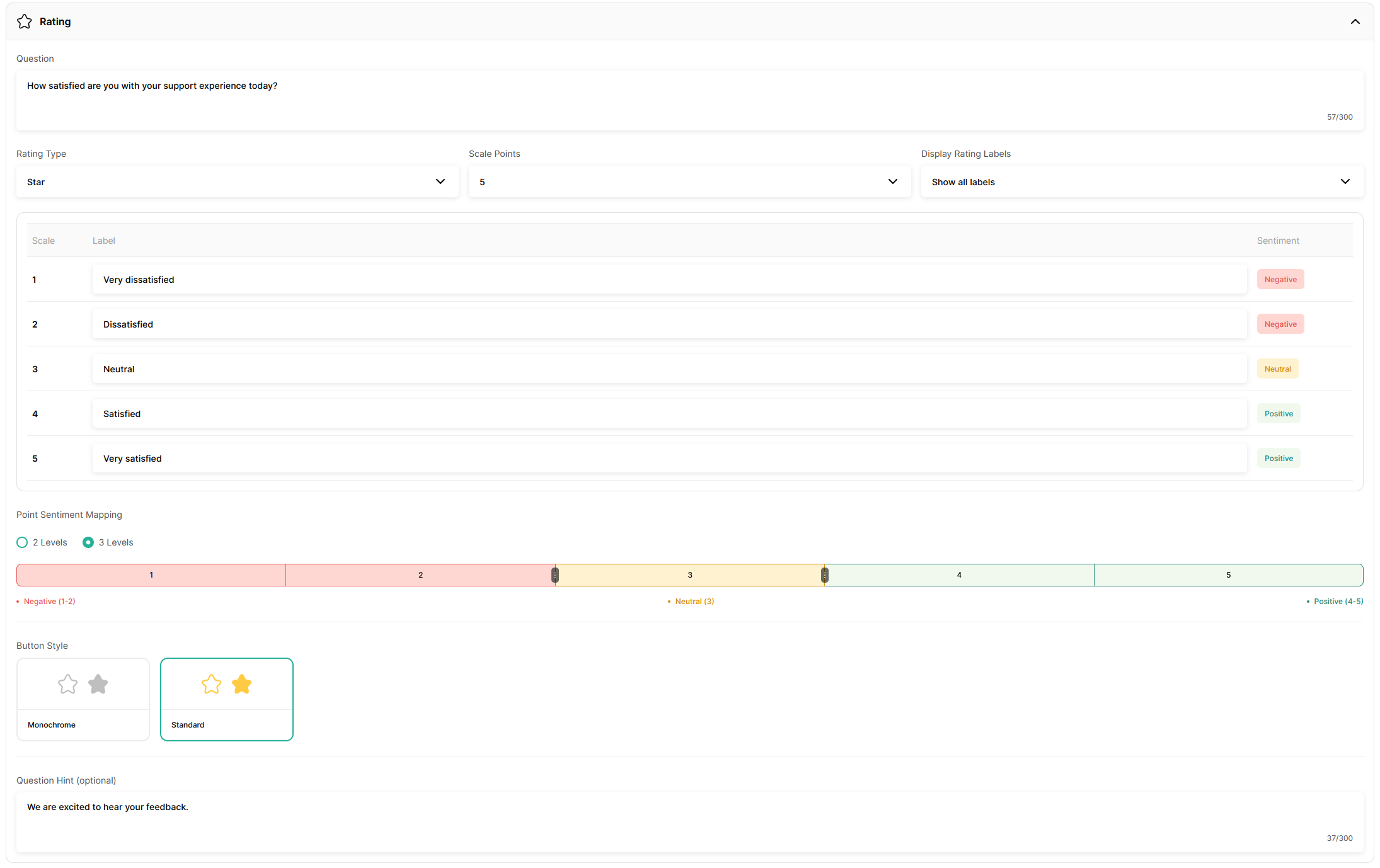
The Rating section is used to define the main CSAT question and scoring format. This section includes the main question field, rating type, scale points, display rating labels, a label table for each point, point sentiment mapping, button style, and an optional question hint.
Qiscus Helpdesk provides several rating types that can be selected depending on the survey style that best fits the support experience:
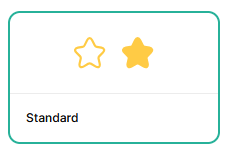
Star displays the rating as a star-based scale.
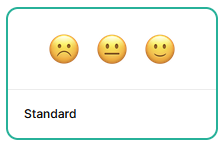
Emoji displays the rating using emoji expressions.
Number displays the rating using numeric values.
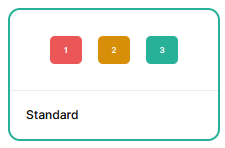
Thumbs displays the rating using thumbs-based choices.
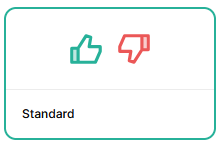
After selecting the rating type, the scale can be configured according to the selected format. The available scale points range from 2 to 10, although some rating types may apply specific scale behavior. The Display Rating Labels field allows labels to be shown in different ways, including showing all labels, showing only the lowest and highest labels, or hiding labels entirely.
The label table is used to define the label for each score and to review the sentiment assigned to each point. The Point Sentiment Mapping area displays how the score range is divided into Negative, Neutral, and Positive segments. Button appearance can also be configured using either Monochrome or Standard style.
There are several important behaviors in this section. When scale points are changed, the label table and sentiment mapping adjust automatically. For 2-point surveys, sentiment mapping is simplified and does not use a neutral state. Some label display options are only available for specific scale sizes. After a survey is created, the Rating Type and Scale Points can no longer be changed, so those fields will appear disabled when the survey is edited.
After a survey is created, Rating Type and Scale Points cannot be changed.
Quick Feedback
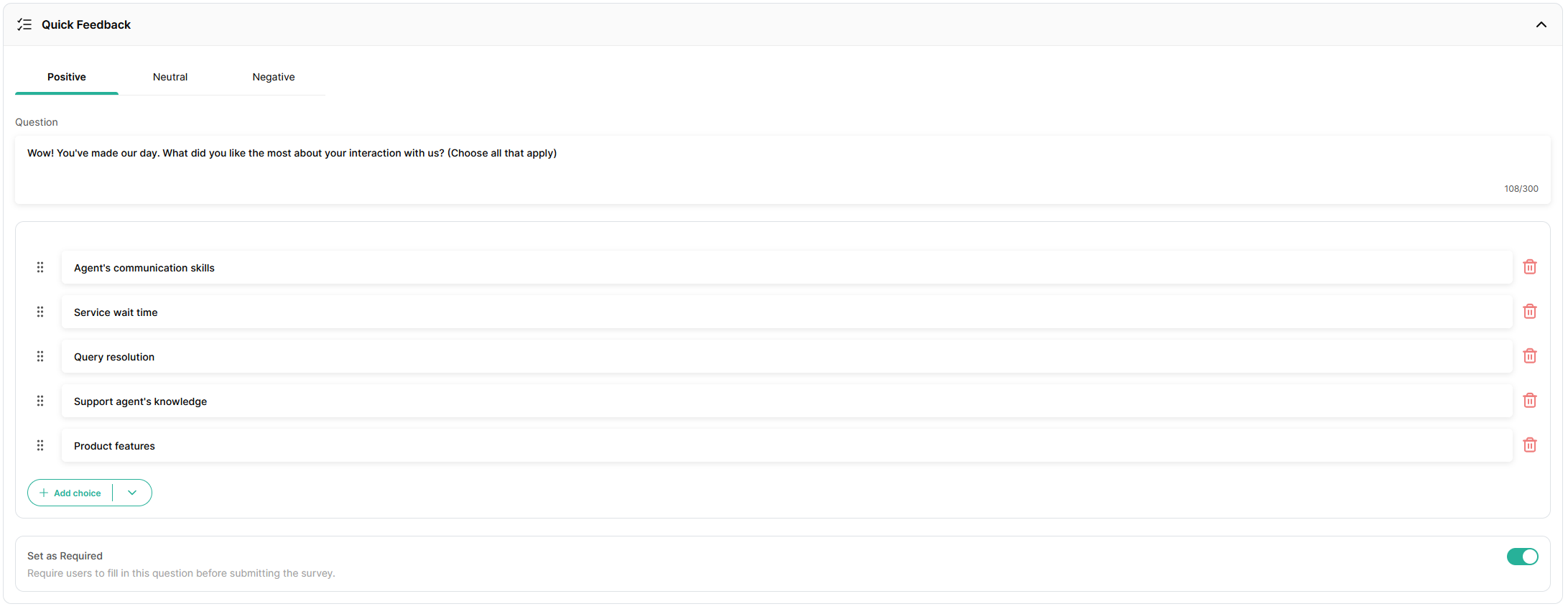
The Quick Feedback section is used to provide predefined answer choices that explain a customer's rating. This section is organized with sentiment tabs such as Positive, Neutral, and Negative. Each tab contains its own question field and its own list of answer choices.
Each choice is displayed as a separate row, with controls for reordering and deleting the option. Additional choices can be added through the Add choice button. This section also includes a Set as Required toggle to determine whether customers must answer this part before continuing.
This section supports separate configuration for Positive, Neutral, and Negative sentiment tabs, although only Positive and Negative are shown if the survey uses 2-level sentiment mapping. Each tab can have up to 10 feedback choices. Choices can be added one by one, added in bulk, or copied from another sentiment tab. Each choice must be unique within the same tab, while duplicate values from bulk input are skipped automatically.
Feedback Comments

The Feedback Comments section is used to collect written feedback after a rating is submitted. Similar to Quick Feedback, this section is also divided into sentiment tabs, allowing different prompts to be shown for Positive, Neutral, and Negative responses.
This section contains a question field and a Set as Required toggle. The configuration can be adjusted independently for each sentiment tab. Customer comments support up to 1500 characters.
Thank You Pages
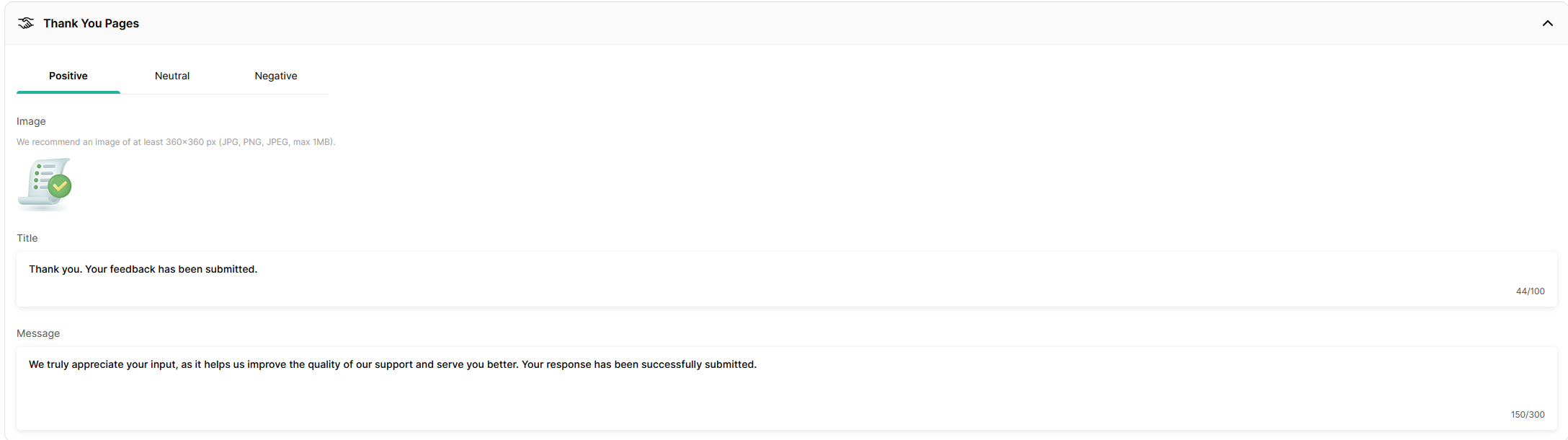
The Thank You Pages section controls the closing screen shown after survey submission. This section is also organized with sentiment tabs, so different closing messages can be prepared for Positive, Neutral, and Negative responses.
Each tab includes an image area, a title field, and a message field. This allows the closing page to be adjusted based on the sentiment of the response. The image must use JPG, JPEG, or PNG format and must not exceed 1 MB. Each thank you title supports up to 100 characters, and each message supports up to 300 characters.
Use different wording in each sentiment tab so the survey feels more relevant. For example, positive responses can receive a thank-you message, while negative responses can acknowledge the issue more carefully.
Step 3: Style Configuration
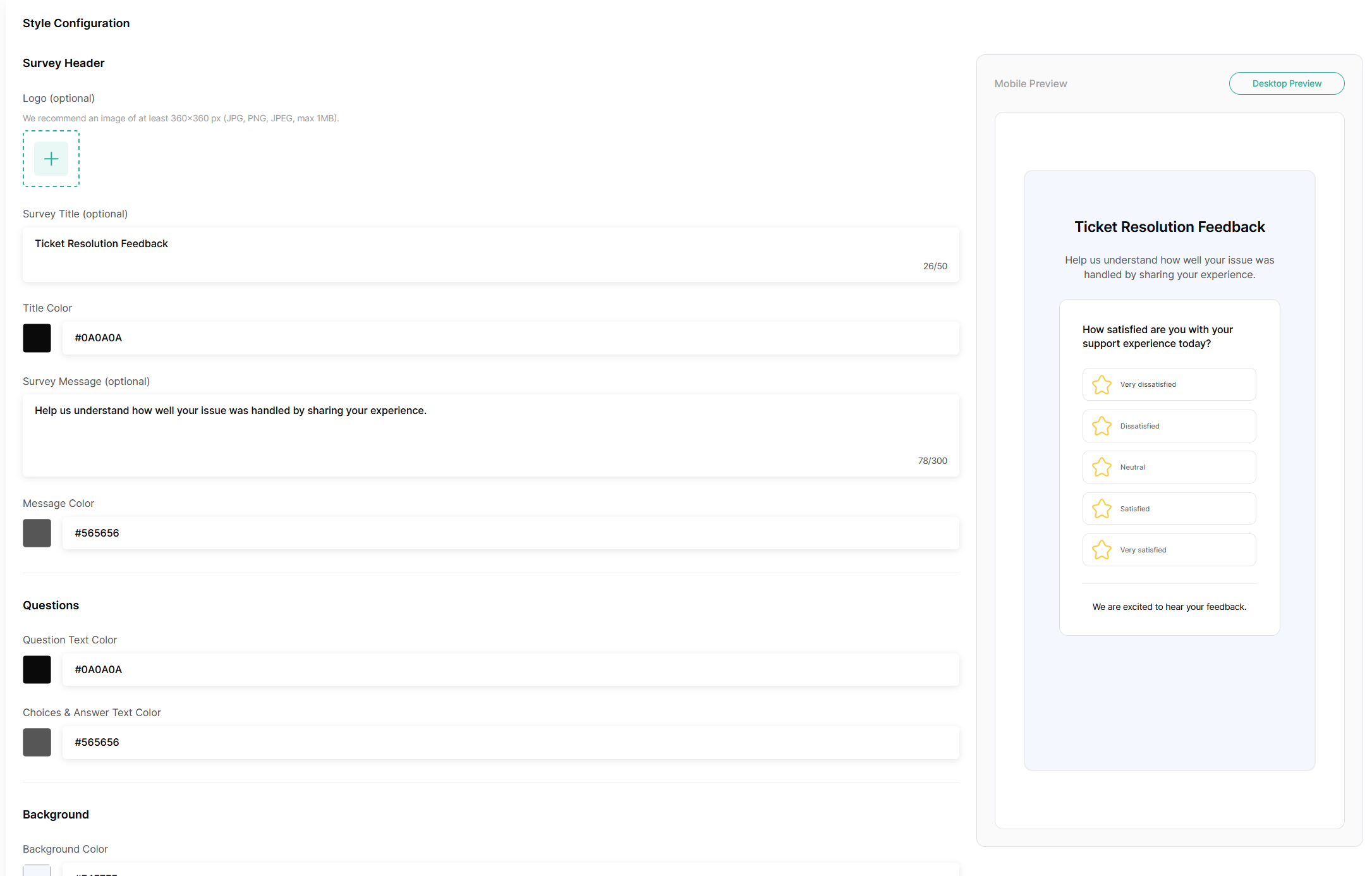
The Style Configuration step controls the survey appearance. Admins can customize the logo, survey title, survey message, background image, background color, title color, message color, question text color, choices text color, button color, button text color, and font family. Qiscus Helpdesk also provides mobile and desktop previews so admins can review the visual result before saving the survey.
Preview the survey in both mobile and desktop mode before saving, especially if you use a background image or custom colors.
Step 4: Sharing Survey
The Sharing Survey step controls how the survey is delivered by email and automation. In this step, admins configure the email subject and body, both of which are required. The subject supports up to 200 characters, and the email body supports up to 1500 characters. The email body also supports placeholders, including {{satisfaction.rating}}, which renders the survey question and rating buttons directly inside the email.
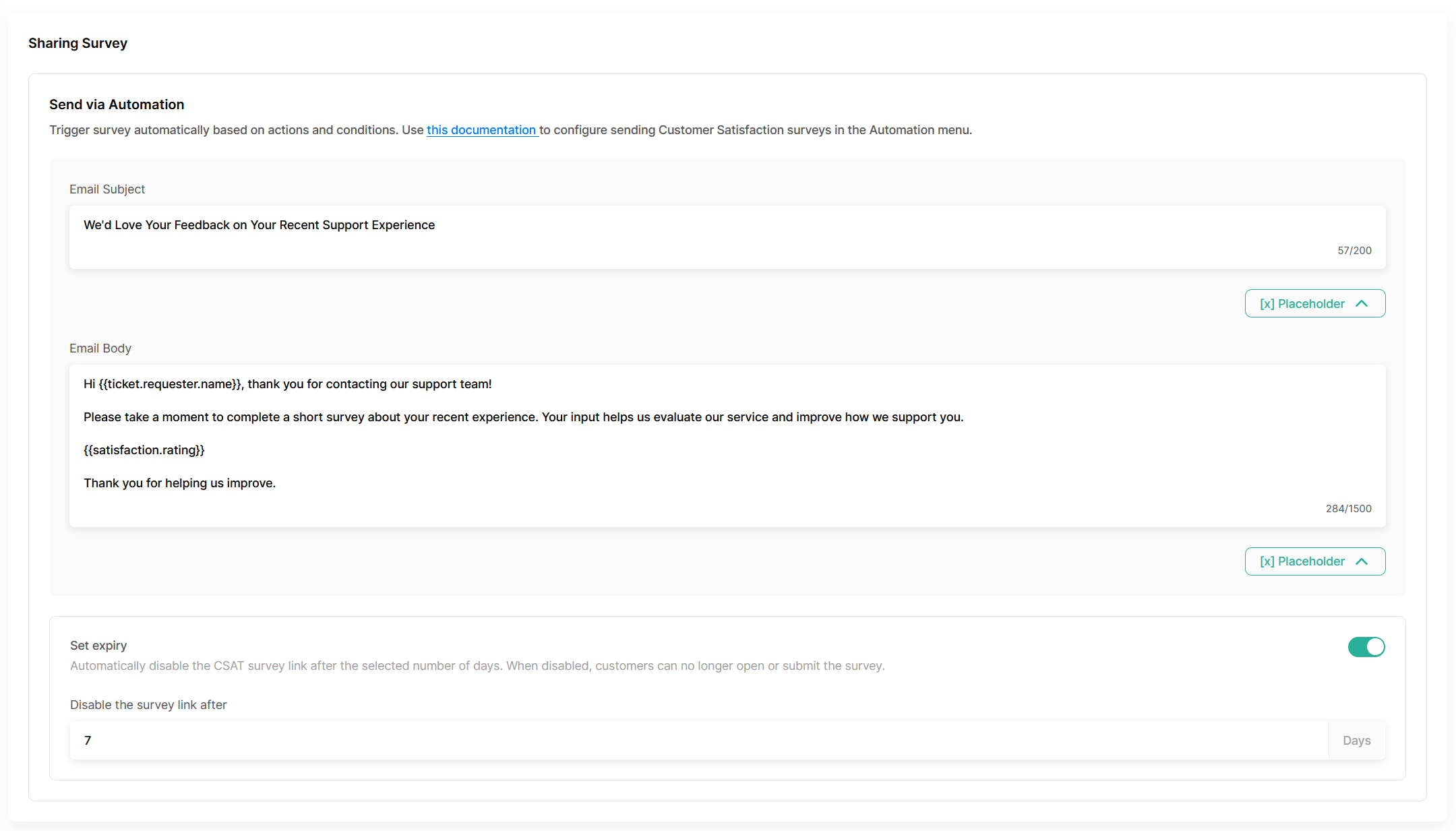
Admins can also enable survey expiry. If expiry is turned on, the survey link can remain active for 1 to 30 days. If expiry is turned off, the survey link remains available until other system rules limit access. Once all required fields are complete, click Create to save the survey.
C. Sending CSAT Through Automation
CSAT surveys are sent through Helpdesk Automation. To configure this flow, go to Settings -> Automation.
After CSAT is enabled, Automation includes a new ticket condition called Satisfaction, with the operators is and is not. The available satisfaction values are Not Offered, Offered, Negative, Neutral, and Positive. Automation also adds a new action called Send Survey, which allows admins to select one of the CSAT surveys that has already been created.
Automation Item | Details |
|---|---|
Condition | Satisfaction |
Operators | is, is not |
Values | Not Offered, Offered, Negative, Neutral, Positive |
Action | Send Survey |
In practice, CSAT is usually sent after a ticket reaches its final resolved state. Teams can combine status-based conditions with timing rules if the survey should only be sent a few hours after the ticket is solved. The Satisfaction condition is also useful to prevent accidental duplicate delivery.
A survey only becomes active for a ticket after the automation is triggered. If a survey that is already used in Automation is later deleted, the automation remains in place, but the selected survey becomes empty and must be replaced before CSAT can be sent again. One automation rule can only contain one Send Survey action for CSAT.
If a survey used by Automation is deleted, the automation will not send CSAT again until a new survey is selected.
Best practice automation setup
For most use cases, the recommended approach is to use a Time Trigger automation. This allows the survey to be sent a few hours after the ticket is solved, instead of immediately when the status changes. This setup is suitable for teams that want to give customers a short buffer before requesting feedback.
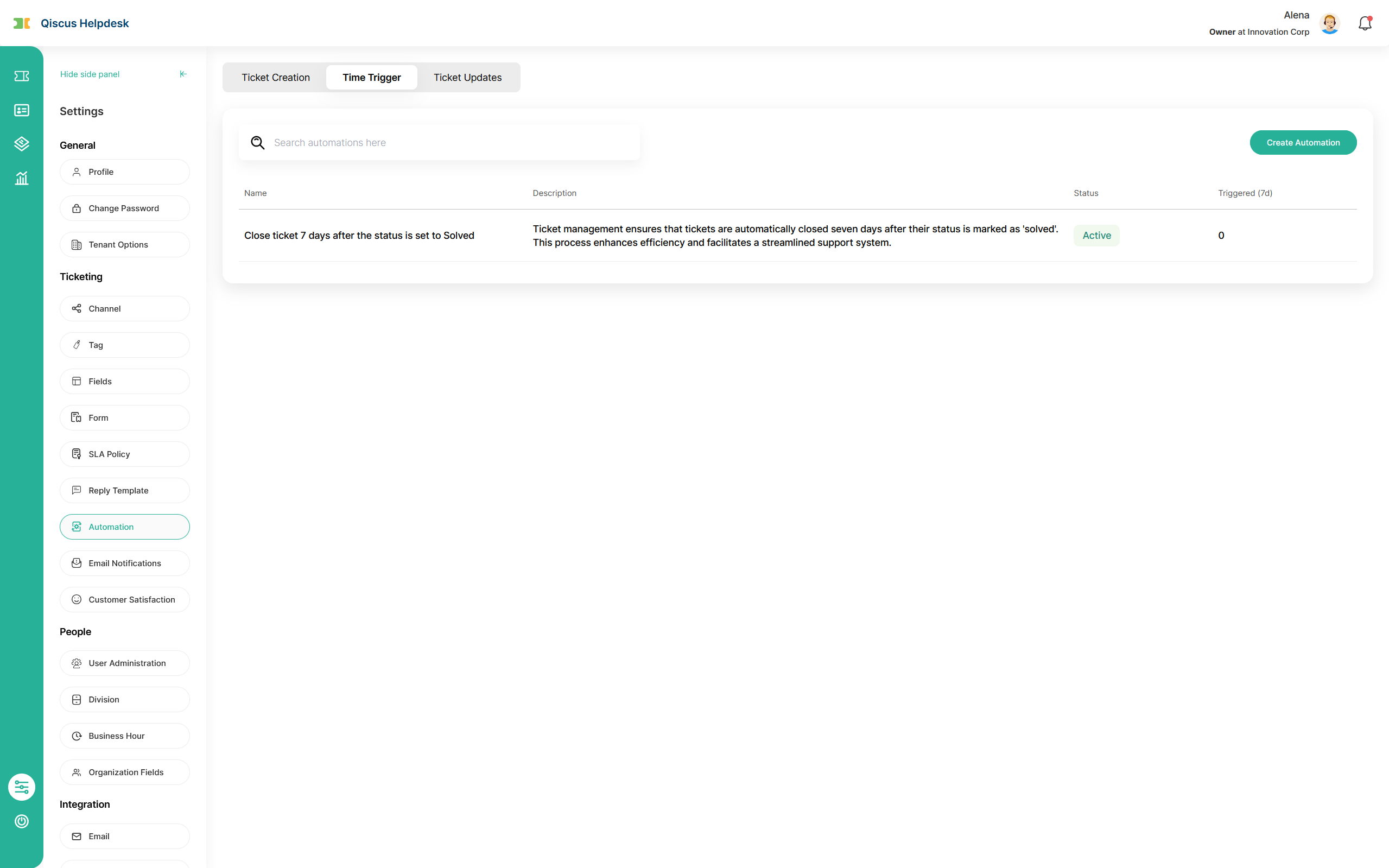
The If Hours since solved condition is available when creating a Time Trigger automation.
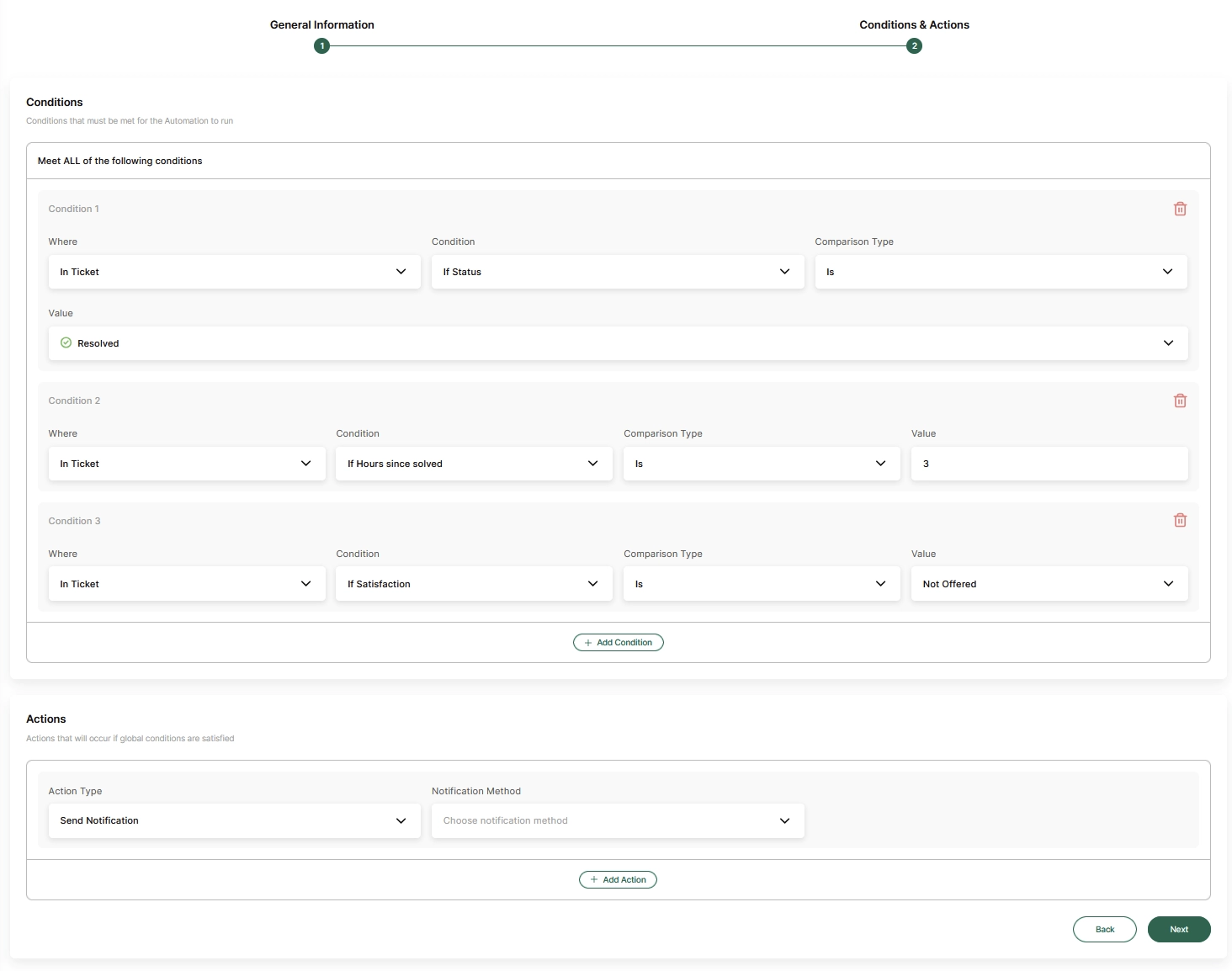
The following example shows a recommended CSAT automation that sends the survey three hours after a ticket is resolved.
Open
Settings -> Automation.Select the
Time Triggertab.Click
Create Automation.In the first step, complete the automation name and description, then click
Next.In
Meet ALL of the following conditions, add the following conditions:Set
WheretoIn Ticket,ConditiontoIf Status,Comparison TypetoIs, andValuetoResolved.Add another condition and set
WheretoIn Ticket,ConditiontoIf Hours since solved,Comparison TypetoIs, and enter the number of hours to wait before sending the survey.Add another condition and set
WheretoIn Ticket,ConditiontoIf Satisfaction,Comparison TypetoIs, andValuetoNot Offered.In the
Actionssection, setAction TypetoSend Survey.Select the CSAT survey that should be sent.
Save and activate the automation.
This configuration is a suitable default for most clients because it ensures that:
the survey is sent only after the ticket has already been resolved,
the survey can be delayed by a defined number of hours after the solved state,
the survey is only sent once per ticket unless the workflow is intentionally changed,
the customer receives the feedback request at the end of the support journey rather than in the middle of the conversation.
Recommended Automation | Value |
|---|---|
Automation Type | Time Trigger |
Ticket Status | Is Resolved |
Hours since solved | Is a selected number of hours, for example 3 |
Satisfaction | Is Not Offered |
Action | Send Survey |
A delay of a few hours after the solved state is a practical default for CSAT delivery because it gives customers time to confirm that their issue has been fully resolved.
D. Customer Survey Experience
Customers can submit CSAT in two ways: from the survey email sent by automation, or from the Help Center ticket detail page when feedback is available for that ticket.
Entry Point | Description |
|---|---|
Customers open the survey from a separate survey email | |
Help Center | Customers open the survey from the related ticket detail page |
Email entry point
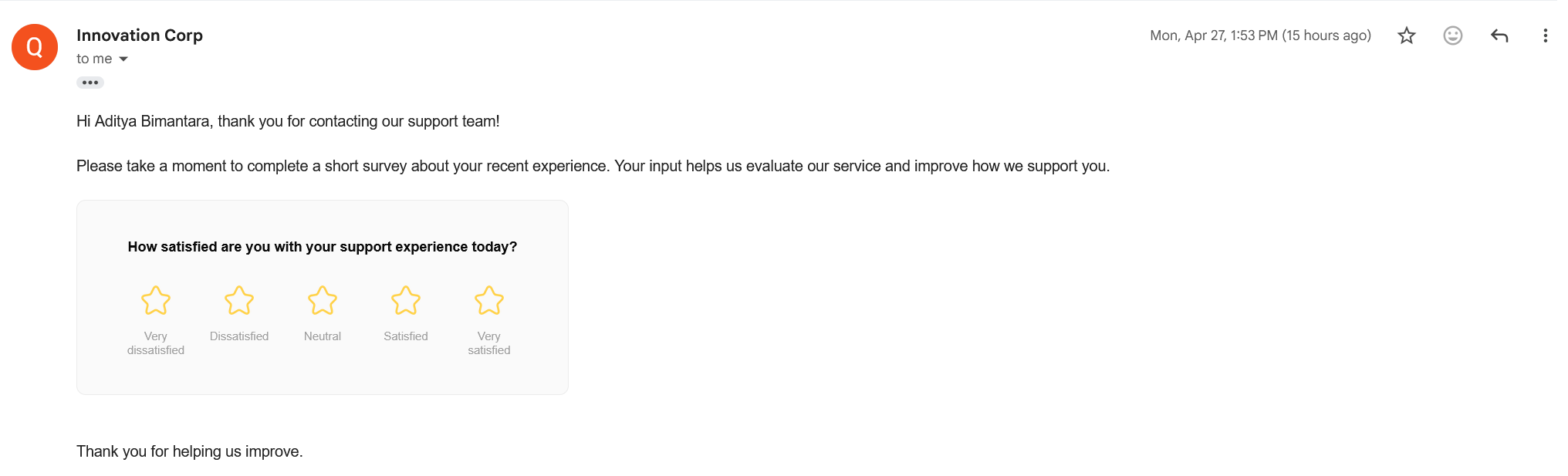
When sent by email, the survey is delivered as a separate email and not as part of the ticket thread. The email shows the configured subject and message, along with the embedded rating section generated by {{satisfaction.rating}}. If the customer clicks a rating and the survey link is still valid, that rating is pre-filled and the customer is taken into the rest of the survey flow. If the survey has expired, the customer sees a closed-survey page instead.
The survey flow itself may include four parts: Rating, Quick Feedback, Feedback Comments, and Thank You Page. Required quick feedback must be selected before the customer can continue, and required comment fields must be completed before the survey can be submitted. Inputs that contain only spaces are treated as empty and will trigger validation.
If you make quick feedback or comments required, keep the questions short and easy to answer so the survey remains simple for customers.
If the customer opens the same survey link again before it expires, they can submit feedback again. The ticket keeps the latest survey result as the active record, while the submission history can still store multiple responses. If the survey has already expired, the customer can only view the submitted feedback in read-only mode.
Help Center entry point
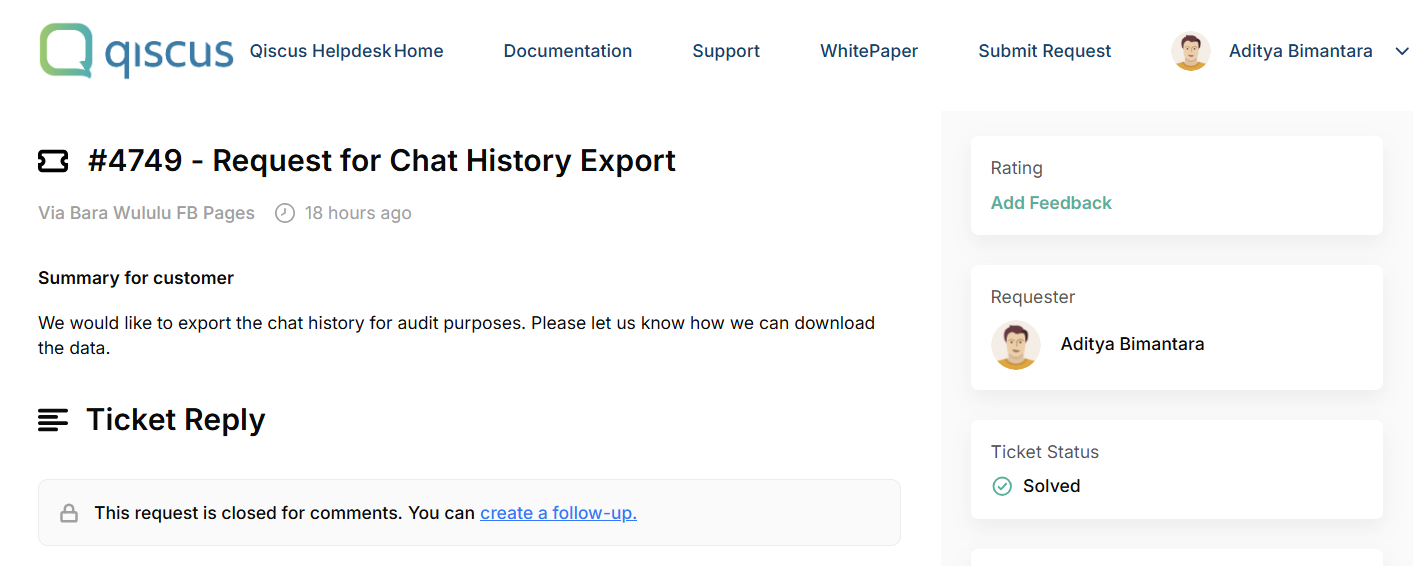
Customers can also access the survey from the Help Center ticket detail page after the survey has been offered for that ticket. In this case, the button label depends on the survey state. Add feedback is shown when feedback has not been submitted yet. Edit feedback is shown when feedback has already been submitted and the survey is still active. View feedback is shown when feedback has been submitted but the survey has already expired.
E. Viewing CSAT on Tickets
CSAT results are visible from the related ticket so both internal users and customers can review the latest feedback. Ticket satisfaction can move through several states: Not Offered when no survey has been sent, Offered when a survey has been sent but not yet answered, and Negative, Neutral, or Positive after the customer submits a response.
Status | Meaning |
|---|---|
| No survey has been sent |
| A survey has been sent but no response has been submitted yet |
| The latest response is mapped to negative sentiment |
| The latest response is mapped to neutral sentiment |
| The latest response is mapped to positive sentiment |
Helpdesk also records CSAT activity in the ticket log. This includes important updates such as when a survey is offered, when it is submitted, what sentiment it produced, and any quick feedback or detailed comments that were included in the response.
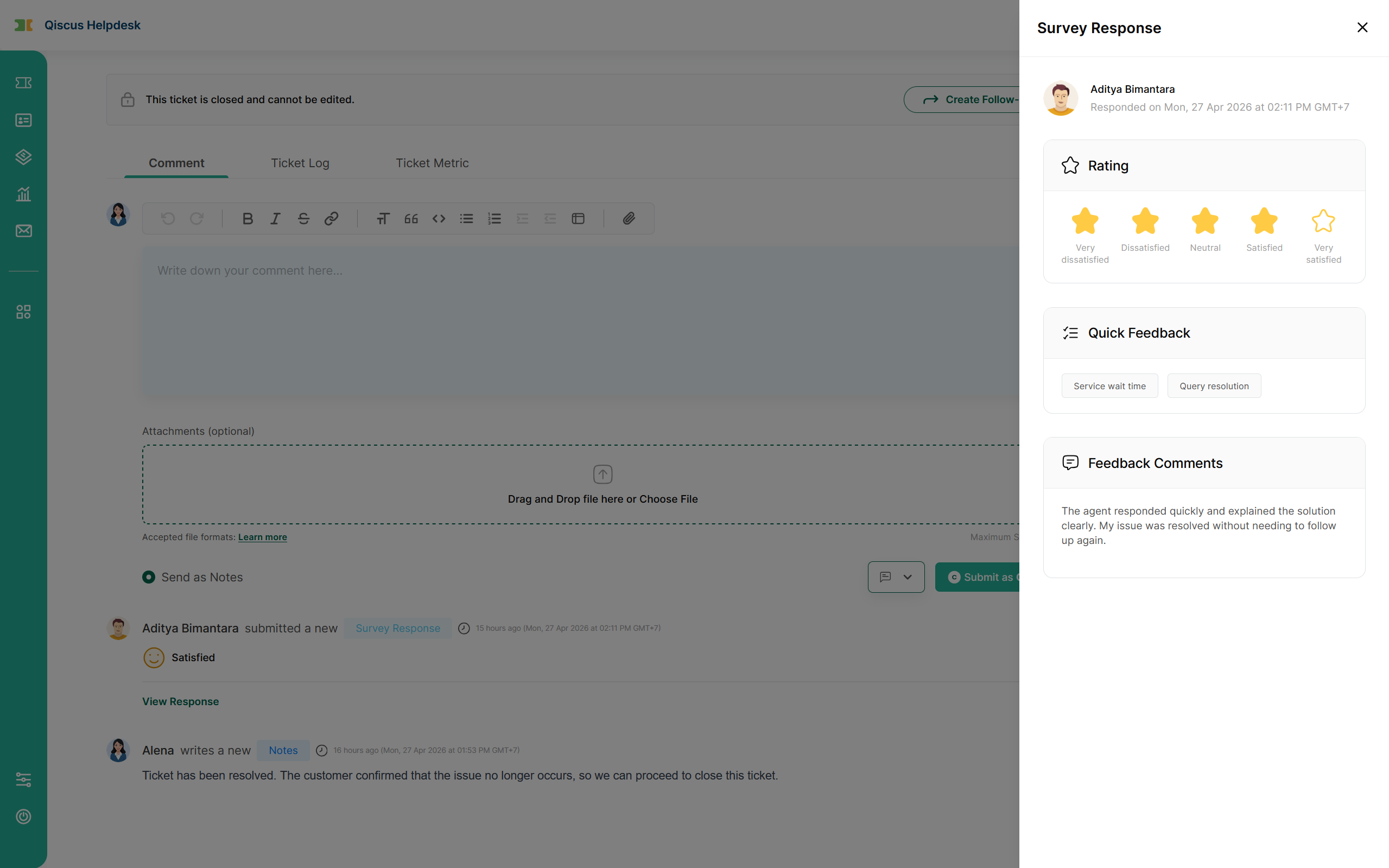
To open the CSAT detail result from a ticket, go to the ticket activity area and find the Survey Response activity. The activity shows the customer name, submission time, and the latest satisfaction result, such as Satisfied. Click View Response to open the survey response detail panel.
The survey response detail panel shows the submitted rating, selected quick feedback, and feedback comment. This allows internal Helpdesk users such as Agents, Supervisors, Admins, and Owners to review the customer's latest CSAT response without leaving the ticket.
F. CSAT Analytics
Qiscus Helpdesk provides a dedicated Customer Satisfaction tab in Analytics for Admins, Owners, and Supervisors. This page can be filtered by Survey Name and Date Range, making it easier to review either a single survey or overall trends within a selected period.
The analytics view includes core metrics such as Total Responses, Overall CSAT Score, Average Rating, and Response Rate. It also provides distribution views for ratings and sentiment, along with quick feedback summaries and raw response data for deeper analysis.
Filter or Metric | Description |
|---|---|
Survey Name | Filter analytics by a specific survey |
Date Range | Filter analytics by a selected time period |
Total Responses | Total submitted responses in the selected range |
Overall CSAT Score | Percentage of positive responses |
Average Rating | Average rating value across submitted responses |
Response Rate | Percentage of sent surveys that resulted in a response |
The exact metrics shown may vary based on the scale used by the survey. For 2-point surveys, the analysis focuses on Satisfied and Dissatisfied percentages. For surveys with 3 or more scale points, the analytics also include average rating and sentiment distribution based on the configured sentiment mapping.
Use Survey Name together with Date Range when you want to compare how a specific CSAT survey performs over time.
G. Conclusion
Customer Satisfaction (CSAT) gives support teams a structured way to collect post-resolution feedback, automate survey delivery, and measure customer experience directly inside Qiscus Helpdesk. With flexible survey design, automation-based sending, visibility on tickets, and dedicated analytics, CSAT helps teams turn customer feedback into actionable service improvements.