
The Ticket Follower feature in Qiscus Helpdesk allows internal users to follow a ticket and receive updates without being directly assigned to a ticket. This feature helps teams stay informed, collaborate transparently, and monitor ticket progress without interrupting the main ownership of the ticket.
A. Common Use Cases
Cross-division monitoring: Allow internal users from other divisions to monitor ticket progress.
Manager or supervisor oversight: Enable supervisors or owners to follow important tickets without assigning themselves.
Supporting collaboration: Let agents follow tickets they support without changing assignment.
Visibility without ownership: Stay updated on ticket activity without taking action responsibility.
B. Who Can Be a Ticket Follower
The following internal roles can be added as ticket followers:
Agent
Supervisor
Admin
Owner
Ticket followers do not need to be the ticket assignee and do not take over responsibility for resolving the ticket.
C. How to Add Ticket Followers
Via Ticket Detail Page Users who have edit access to a ticket can add other internal users as followers, allowing them to monitor the ticket’s progress without being assigned to it.
Open a ticket from the ticket dashboard.
In the Ticket Summary section, click the Followers button (eye icon) located at the top of the summary. When clicked:
A Followers panel will appear, displaying the list of current followers.
If no followers have been added yet, an empty state will be shown.
Click the search bar inside the Followers panel, and the list of all available internal users (Agent, Supervisor, Admin, Owner) will be displayed automatically. You can:
Scroll the list to browse users, or
Type in the search bar to filter users by username or email.
Click a user from the list to add them as a ticket follower.
Once added, the user will appear in the follower list and start receiving updates based on their notification settings.
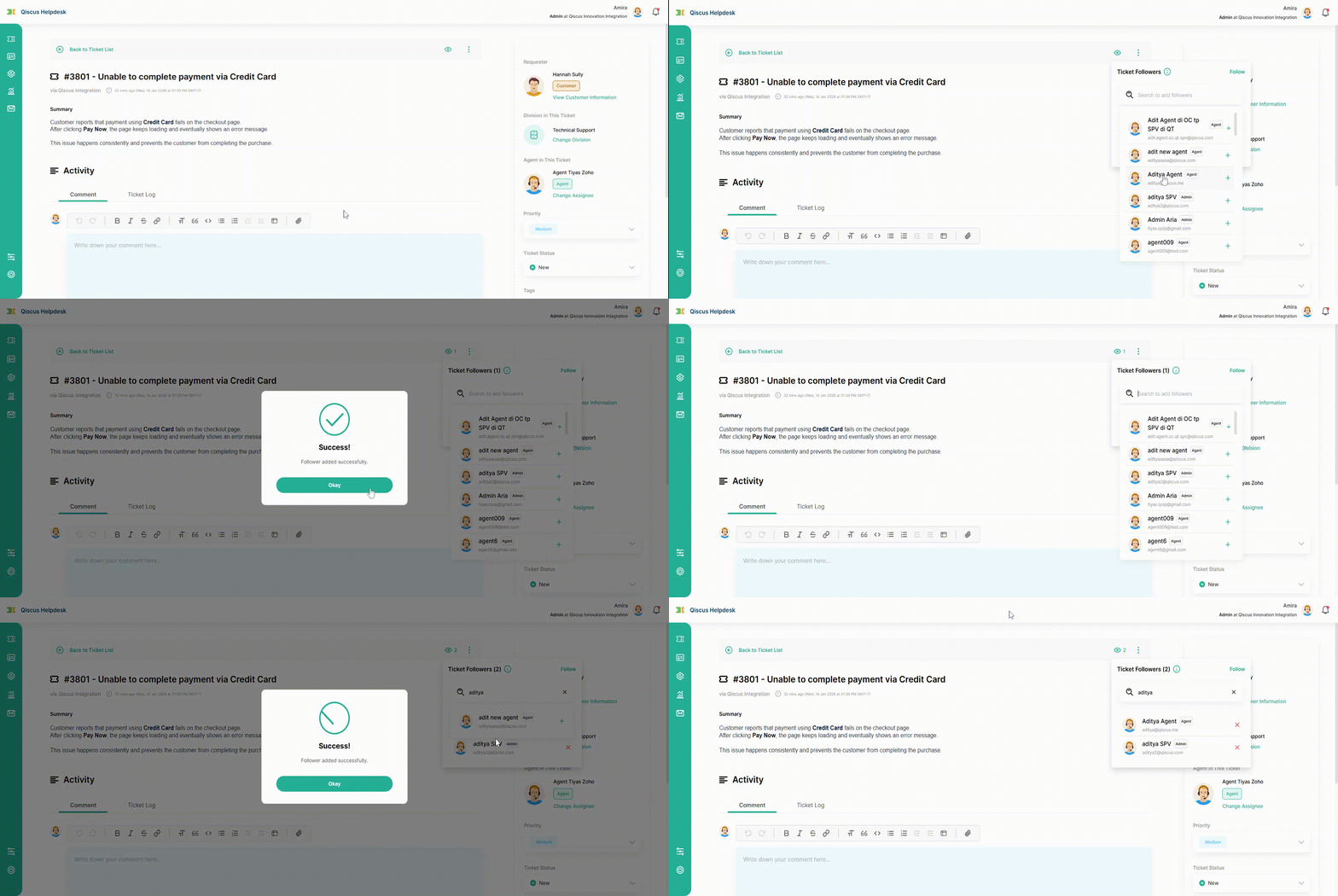
Internal users with edit access to the ticket can remove followers by clicking Remove button next to the follower’s name.
D. Following a Ticket Yourself
Internal users can follow a ticket directly by clicking Follow. Once clicked, the button changes to Unfollow and the user is automatically added to the follower list.
Note: Assigned agents cannot follow their own tickets and will not appear in the follower selection list.
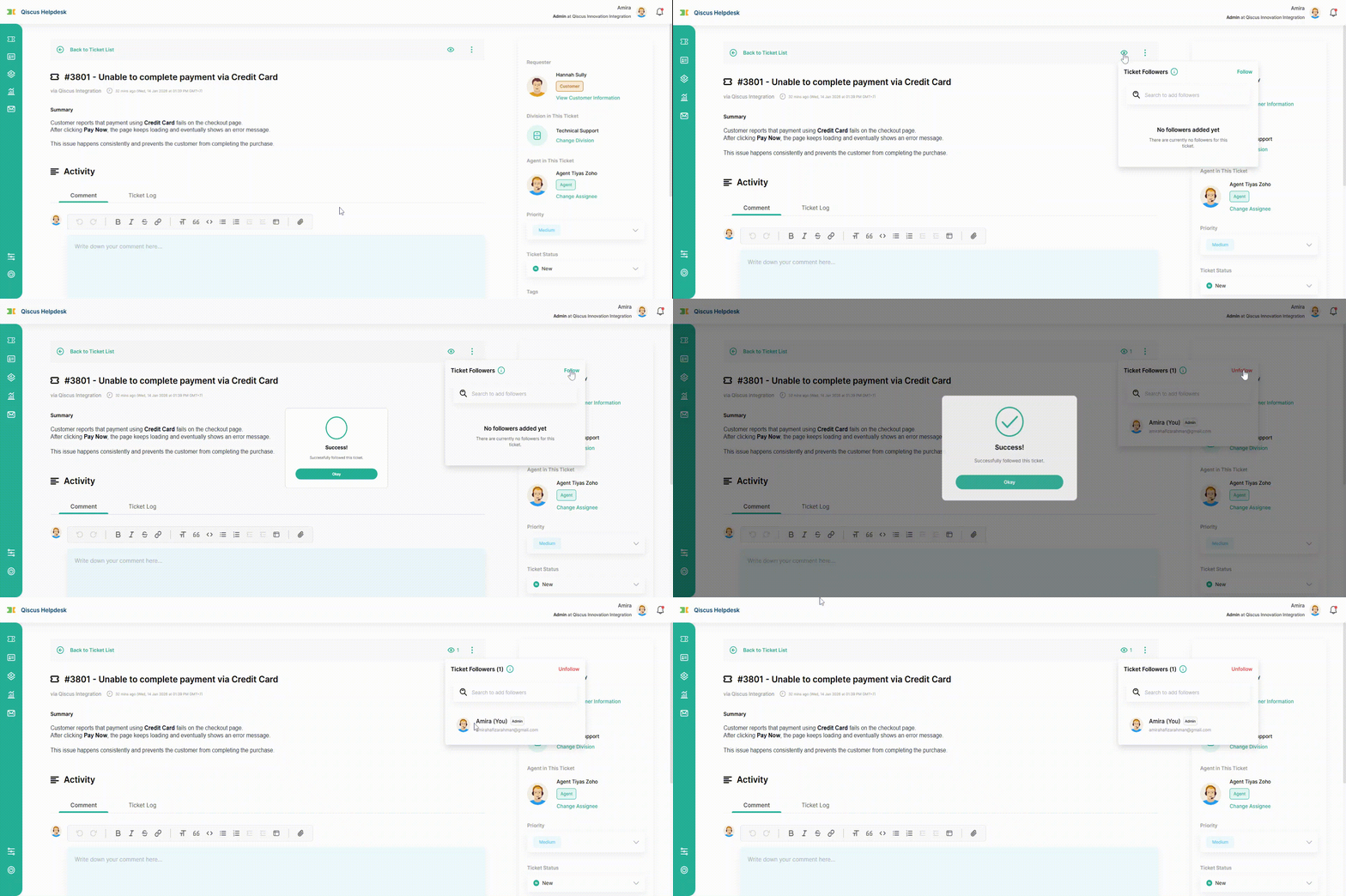
Followers can unfollow a ticket by clicking Unfollow button. After unfollowing, the user is removed from the follower list and will no longer receive notifications from the ticket.
E. What Ticket Followers Can Do
Ticket followers’ capabilities depend on their existing access level to the ticket. Being added as a follower does not change or override a user’s original permissions.
Followers with Edit Access to the Ticket
If a follower already has edit access to the ticket, they can:
View ticket details, conversation history, and updates
Update ticket fields and status
Reply to customers
Post internal notes
Receive notifications based on their notification settings
These capabilities remain available whether the user is following or has unfollowed the ticket.
Followers without Edit Access to the Ticket
If a follower does not have edit access to the ticket, they can:
View the ticket and conversation history
Post internal notes only
Receive notifications based on their notification settings
These users cannot:
Update ticket fields or status
Reassign the ticket
Manage followers
If the user unfollows the ticket, their access to the ticket will be revoked.
F. Ticket Logs for Follower Updates
All follower-related actions are recorded in the Ticket Logs to ensure transparency and traceability.
The following activities are logged:
Adding a follower
Removing a follower
Following a ticket
Unfollowing a ticket
These logs help teams understand who is monitoring the ticket at any point in time.
G. Filter Tickets You Follow
Users can use the ticket list filter to view only tickets they are currently following, making it easier to track and manage followed tickets alongside other filters.
To use this filter:
Open the Ticket List page.
Click the Filter panel on the right side of the page.
Under the Following section, enable the checkbox Only show tickets I follow.
Apply the filter to update the ticket list.
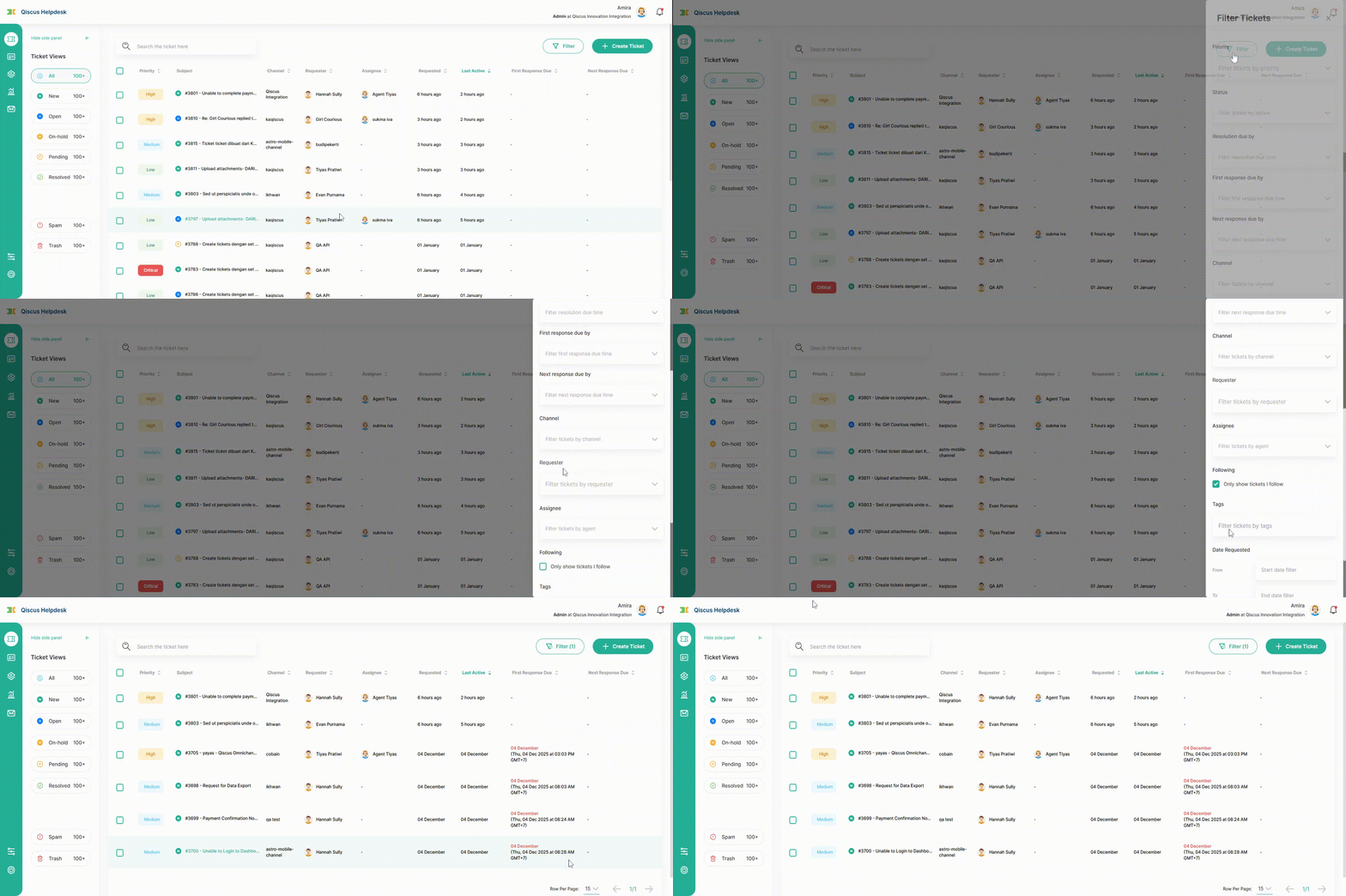
Once enabled, the ticket list will display only tickets that the logged-in user is following. This filter can be used together with other filters such as Assignee, Status, Priority, Channel, or Tags.
H. Notifications for Ticket Followers
Ticket followers can receive toast and email notifications based on their notification settings in Settings → Profile → Notifications and Settings → Email Notifications.
There are three types of notifications available:
1. Added as a Follower: Followers will receive a notification when they are added as a follower to a ticket by another internal user.
2. New Reply on a Followed Ticket: Followers will receive a notification when there is a new reply on a ticket they follow, whether the reply is from an internal or external user.
3. New Internal Note on a Followed Ticket: Followers will receive a notification when an internal note is added to a ticket they follow.
If a user unfollows a ticket, they will no longer receive any notifications related to that ticket.
I. Summary
The Ticket Followers feature enables internal teams to collaborate more effectively by allowing users to monitor tickets without taking ownership. With flexible follow and unfollow options, clear visibility rules, detailed logs, and configurable notifications, this feature ensures transparency while keeping ticket management structured and controlled.