
The Email Notification feature in Qiscus Helpdesk allows internal users to receive automated email updates for important ticket activities. This helps agents, supervisors, and admins stay informed about new tickets, assignments, and replies even when they are not actively using the Helpdesk dashboard.
When enabled, the system automatically sends email notifications to the relevant internal users based on configured triggers such as ticket creation, assignment, or replies.
A. Notification Types & Configuration
Email notifications can be managed from the Settings → Email Notifications page.
This page displays all available notification types that will be sent to internal Helpdesk users.
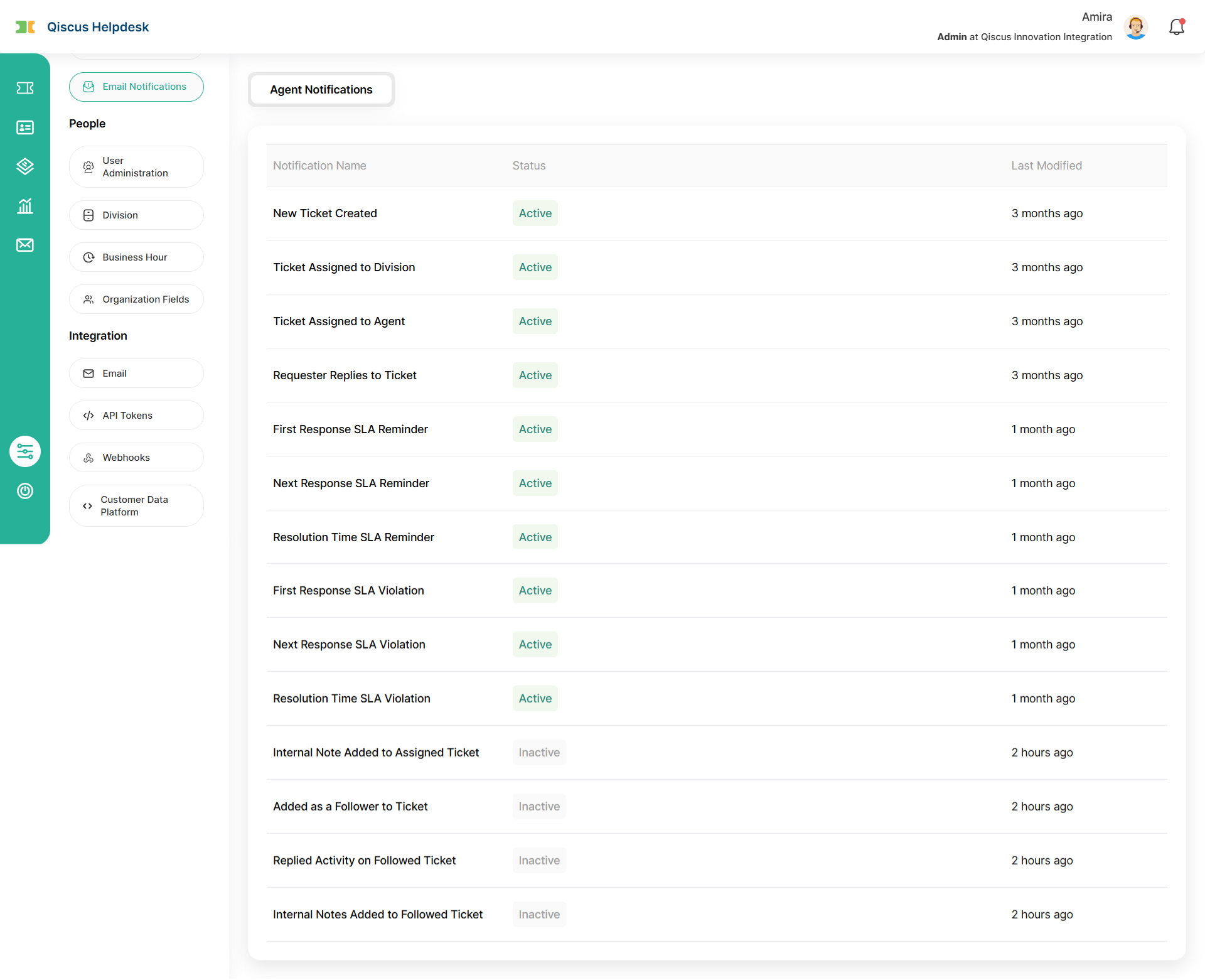
Only Admin and Owner have permission to manage these settings. Each notification type can be set to Active or Inactive according to the organization’s needs.
Admins and Owners can also customize the email subject and body content using placeholders such as {{ticket.title}}, {{ticket.description}}, and {{requester.name}} to tailor how the information appears in the email.
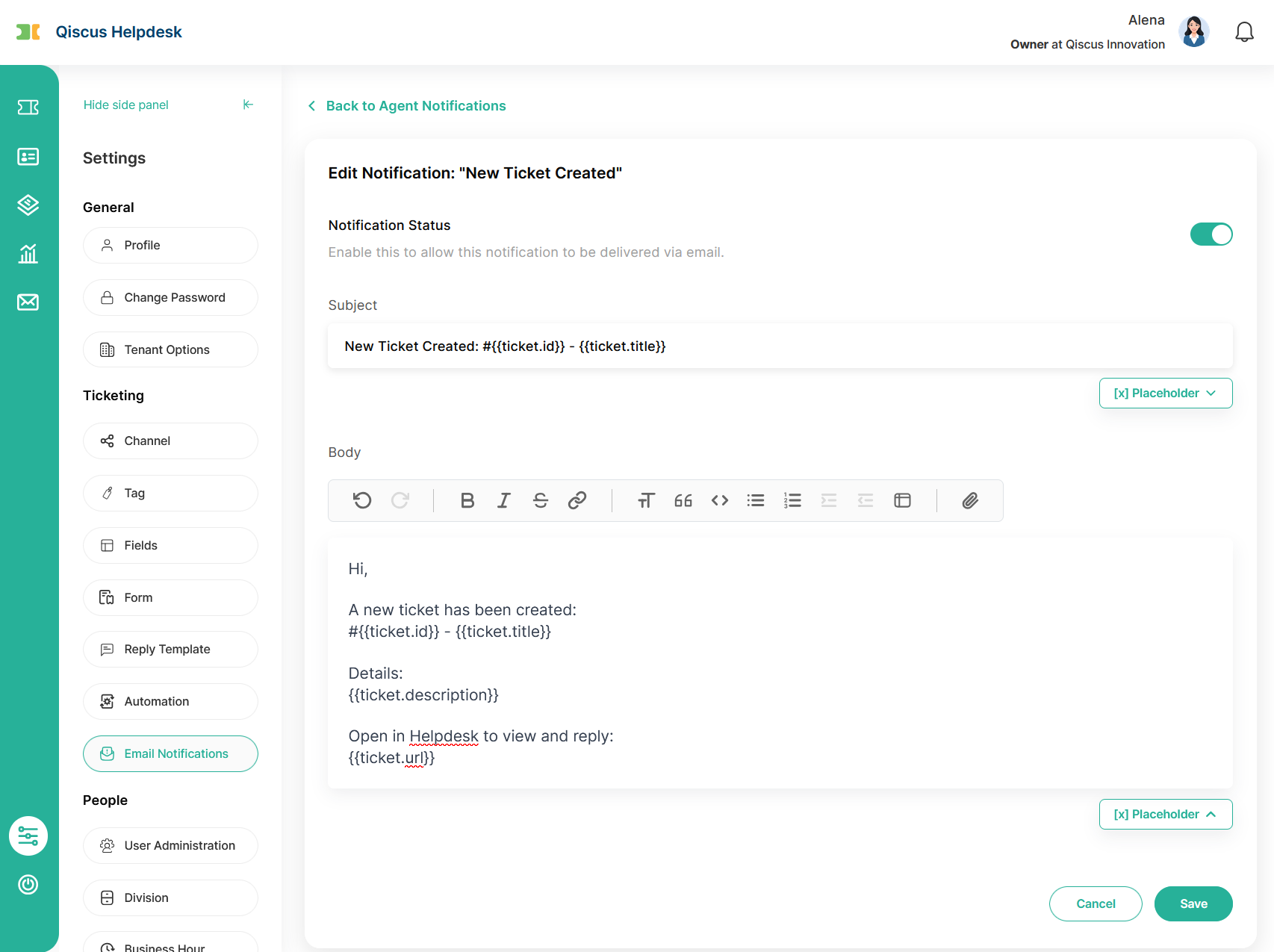
Notification Type | Recipient | Trigger Event | Description |
|---|---|---|---|
New Ticket Created | Owner, Admin | When a new ticket is created | Notifies that a new ticket has been added to Helpdesk. |
Ticket Assigned to Division | Division Supervisors | When a ticket is assigned to a division | Notifies supervisors about tickets assigned to their division. |
Ticket Assigned to Agent | Assigned Agent | When a ticket is directly assigned to an agent | Notifies the agent about their newly assigned ticket. |
Requester Replies to Ticket | Assigned Agent | When a requester replies to a ticket | Notifies the assigned agent that a new customer reply has been received. |
First Response SLA Reminder | Owner, Admin, Supervisor, Agent (based on SLA Policy) | When the first response SLA approach time is reached | Sends a reminder based on the First Response reminder configuration in the SLA Policy. |
Next Response SLA Reminder | Owner, Admin, Supervisor, Agent (based on SLA Policy) | When the next response SLA approach time is reached | Sends a reminder before the next response SLA is due, following the SLA Policy. |
Resolution Time SLA Reminder | Owner, Admin, Supervisor, Agent (based on SLA Policy) | When the resolution SLA approach time is reached | Sends a reminder before the resolution SLA is due, according to the configured reminder timing. |
First Response SLA Violation | Owner, Admin, Supervisor, Agent (based on SLA Policy) | When the first response SLA is breached | Triggered following the Violation timing configured in the SLA Policy. |
Next Response SLA Violation | Owner, Admin, Supervisor, Agent (based on SLA Policy) | When the next response SLA is breached | Triggered following the Violation timing configured in the SLA Policy. |
Resolution Time SLA Violation | Owner, Admin, Supervisor, Agent (based on SLA Policy) | When the resolution SLA is breached | Triggered based on the Resolution Time escalation configuration (Level 1–4) defined in the SLA Policy. |
Internal Note Added to Assigned Ticket | Assigned Agent | When an internal note is added to a ticket assigned to the agent | Notifies the assigned agent when an internal note is added to a ticket they are assigned to. |
Added as a Follower to a Ticket | Ticket Followers | When a user is added as a follower | Notifies the user that they have been added as a follower to a ticket. |
Replied Activity on Followed Ticket | Ticket Followers | When a reply is added to a followed ticket | Notifies followers when an internal or external user replies to a ticket they follow. |
Internal Note Added to Followed Ticket | Ticket Followers | When an internal note is added to a followed ticket | Notifies followers when an internal note is added to a ticket they follow. |
B. Notification Behavior
Once configured, email notifications will be automatically sent whenever their trigger events occur.
Each notification includes essential ticket details such as the title, requester name, summary, division, and a direct link to open the ticket in Helpdesk. The final appearance of each message depends on the customized template defined in the Email Notifications settings.
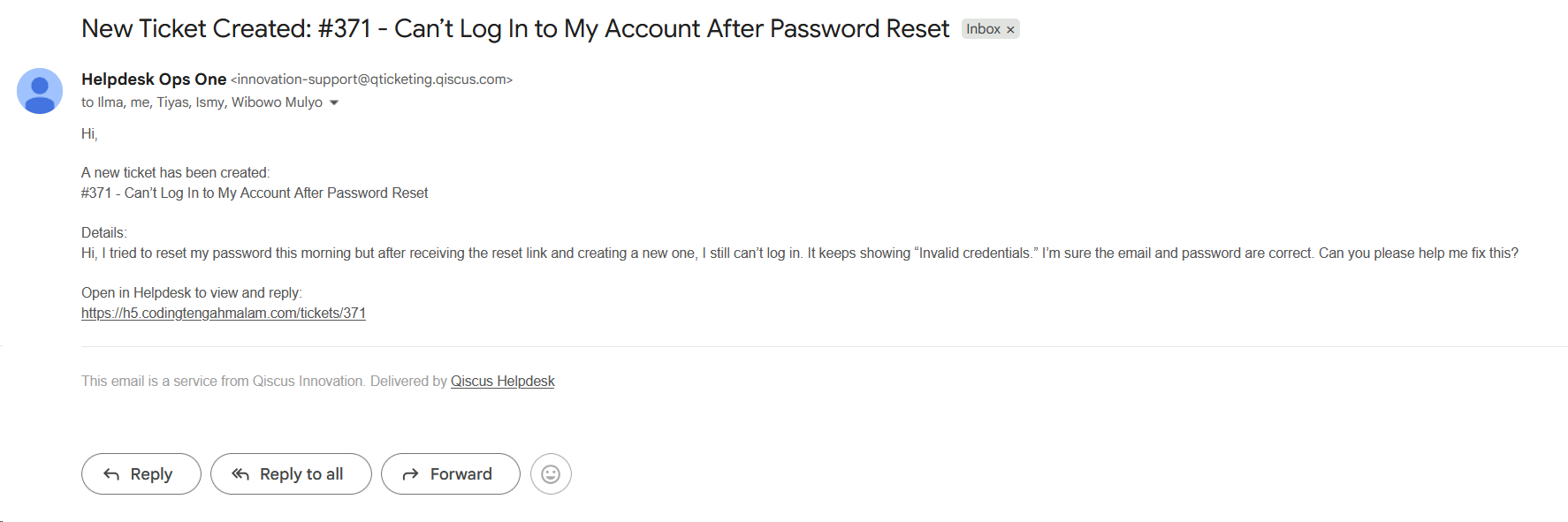
Internal users can reply directly to these notification emails. Their responses will automatically be added as Internal Notes in the related ticket, ensuring all communications stay centralized within the Helpdesk.
Example:
When a new ticket is created and assigned to the Technical Support division:
The Admin and Owner receive an email about the new ticket creation.
Supervisors in the division are notified of the assignment.
The assigned Agent receives a notification about their new ticket.
If the customer sends a reply, the agent gets another notification. If the agent replies to that email, their response appears as an internal note in the ticket.
C. Summary
The Email Notification feature helps ensure internal Helpdesk users never miss important ticket updates. With flexible configuration options, Admins and Owners can control which notification types are active and customize the email content to match their organization’s needs. Recipients are automatically determined based on their roles within the Helpdesk. Replies to these notifications are converted into internal notes, keeping all communication organized and traceable within the system.