
Ticket Merge is a Helpdesk feature that allows internal users to combine multiple related tickets into a single ticket. One ticket will be selected as the primary ticket, while the others will be merged and closed automatically.
This helps teams manage duplicate requests, keep conversations centralized, and maintain a clean ticket list.
Ticket Merge is available for Agents, Supervisors, Admins, and Owners.
A. Benefits of Using Ticket Merge
Using Ticket Merge, you can:
Avoid duplicate handling Combine multiple tickets that talk about the same issue into one primary ticket.
Keep history in one place All important messages and notes are easier to track in a single ticket.
Close merged tickets automatically Secondary tickets are closed and clearly marked as merged.
Maintain a clear audit trail Ticket logs record who merged what, and into which ticket.
Manage participants efficiently CC’d users and (optionally) different requesters can be carried over to the primary ticket.
B. How To Merge Ticket
You can start Ticket Merge from:
The ticket detail page, or
The ticket list page (bulk merge)
1. Merge Ticket from Ticket Detail Page
Open the ticket you want to use as primary ticket.
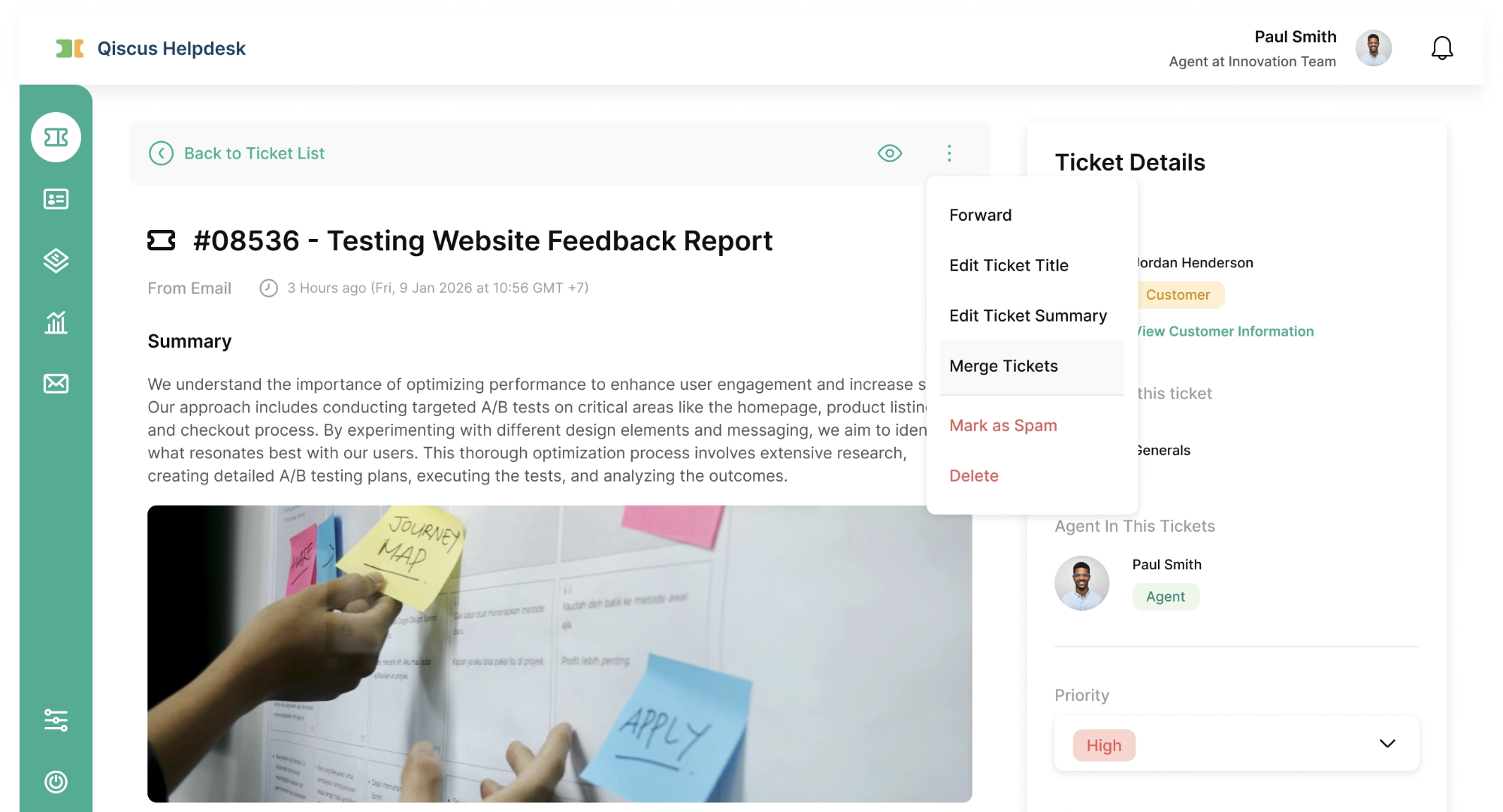
Click the More (⋯) menu at the top of the ticket.
Select Merge Ticket.
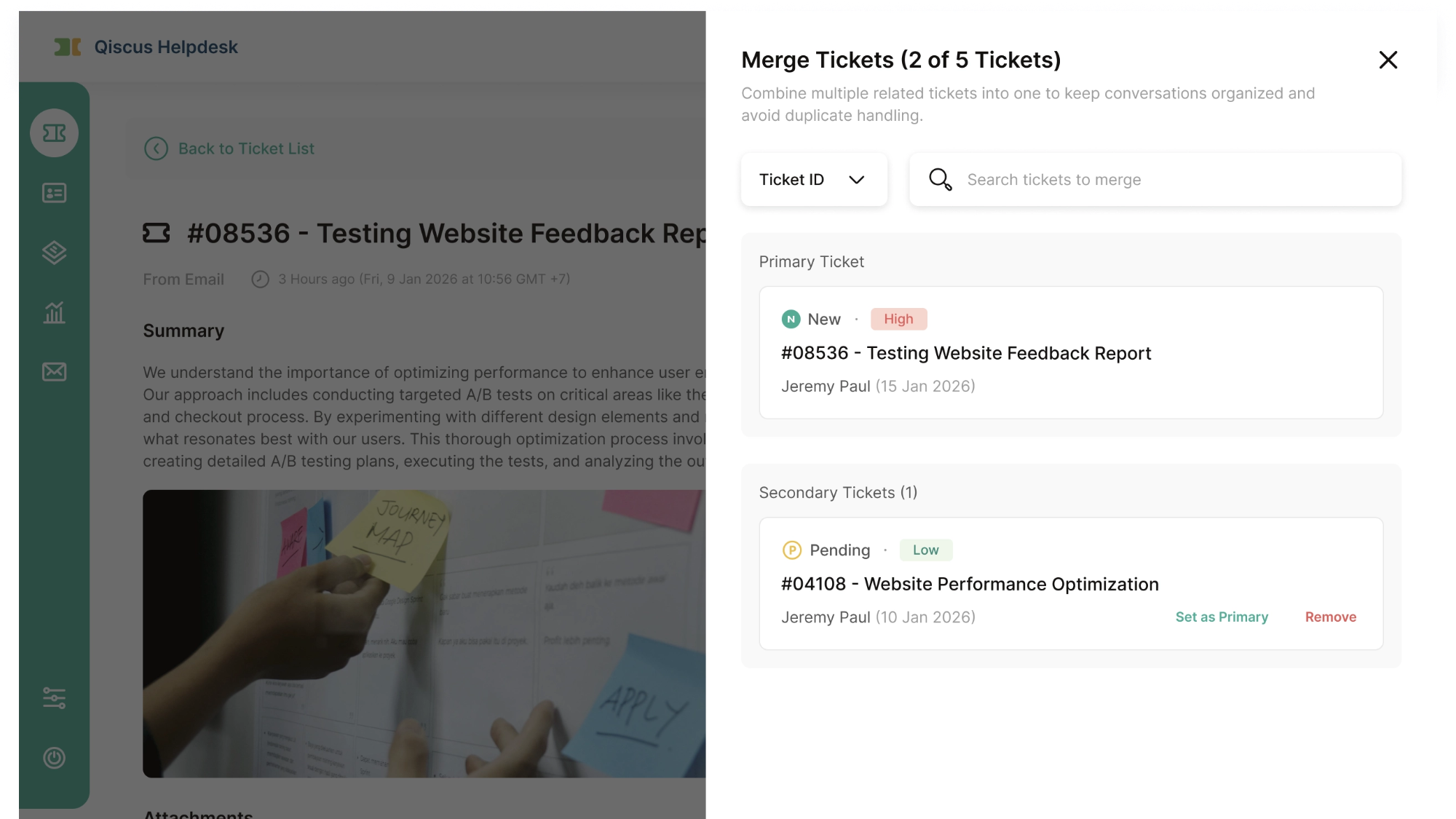
In Step 1, search and select tickets to merge:
Search by ticket number or ticket title.
Tickets with Resolved, Closed, Spam or Deleted status cannot be selected and will show a tooltip: “Resolved, closed, spam, or deleted tickets cannot be selected for merging.”
Choose which ticket is the primary ticket, and add at least one secondary ticket.
You can remove a secondary ticket if needed.
Maximum 5 tickets per merge (1 primary + up to 4 secondary). When 5 tickets are selected, the search area is hidden.
If you click Next without any secondary ticket, you’ll see an error: “Select at least one secondary ticket to continue.”
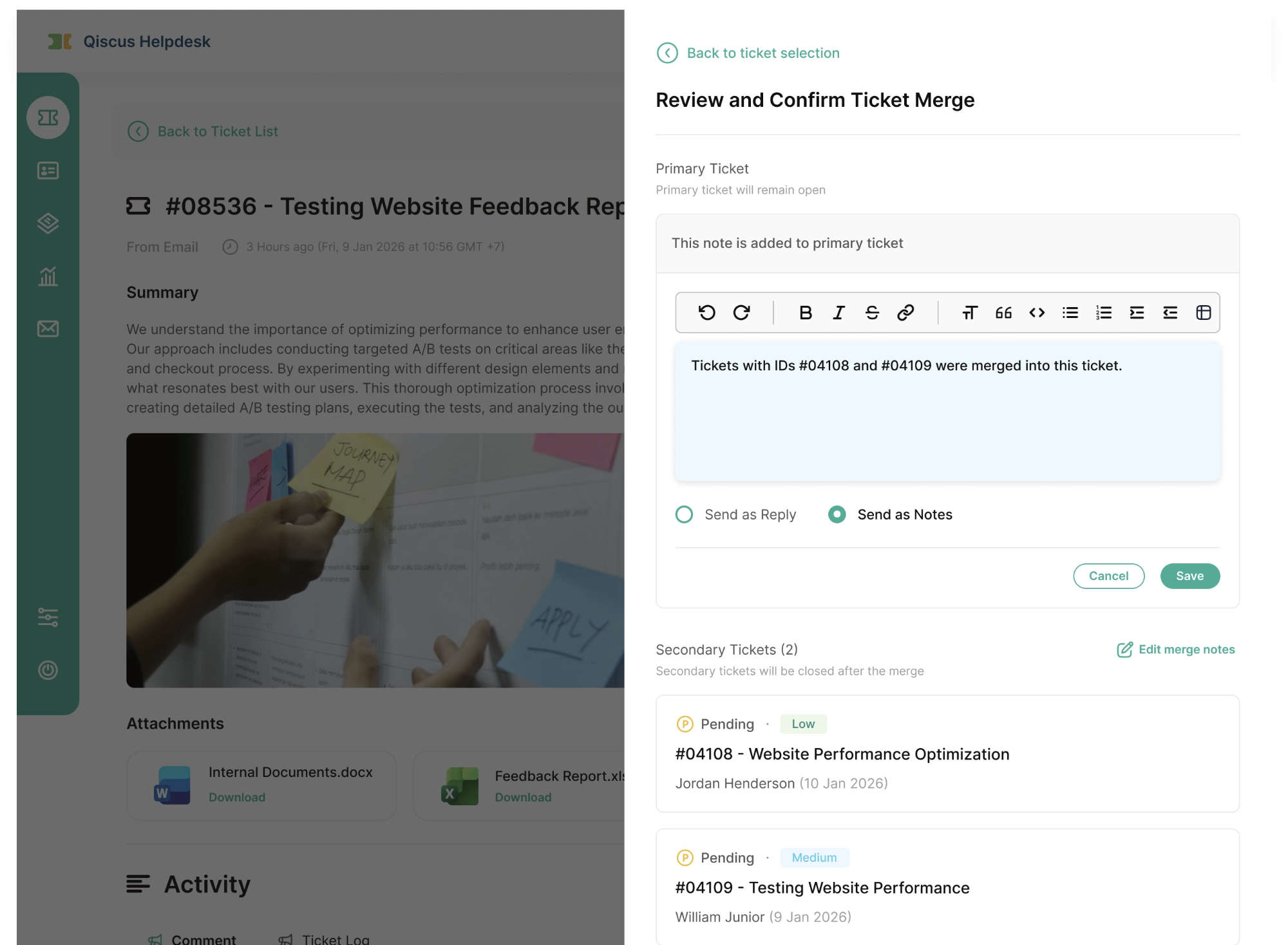
In Step 2, configure merge settings:
CC & requester behavior
If all tickets have the same requester, you can enable “Add all CC’d users from the secondary ticket as CC on the primary ticket” (default: ON).
If some tickets have different requesters, you can enable “Add the secondary ticket requester as a CC’d user on the primary ticket.”
When merging tickets with different requesters, a confirmation dialog will appear before completing the merge.
Merge message behavior
Add a merge message for the primary and/or secondary tickets.
Choose how it is recorded:
Add as Note (internal, default – blue background), or
Send as Reply (customer-visible – white background, same as normal reply).
Click Merge to complete.
A success message will appear and the merge panel will close. Ticket logs and statuses will be updated automatically (see section C. Ticket After Being Merged).
2. Merge Ticket from Ticket List Page
You can also merge tickets directly from the list when you want to handle multiple tickets at once.
Go to the Ticket List page.
Select multiple tickets using the checkboxes.
Click Merge Ticket from the bulk action menu (only visible if at least one eligible ticket is selected).
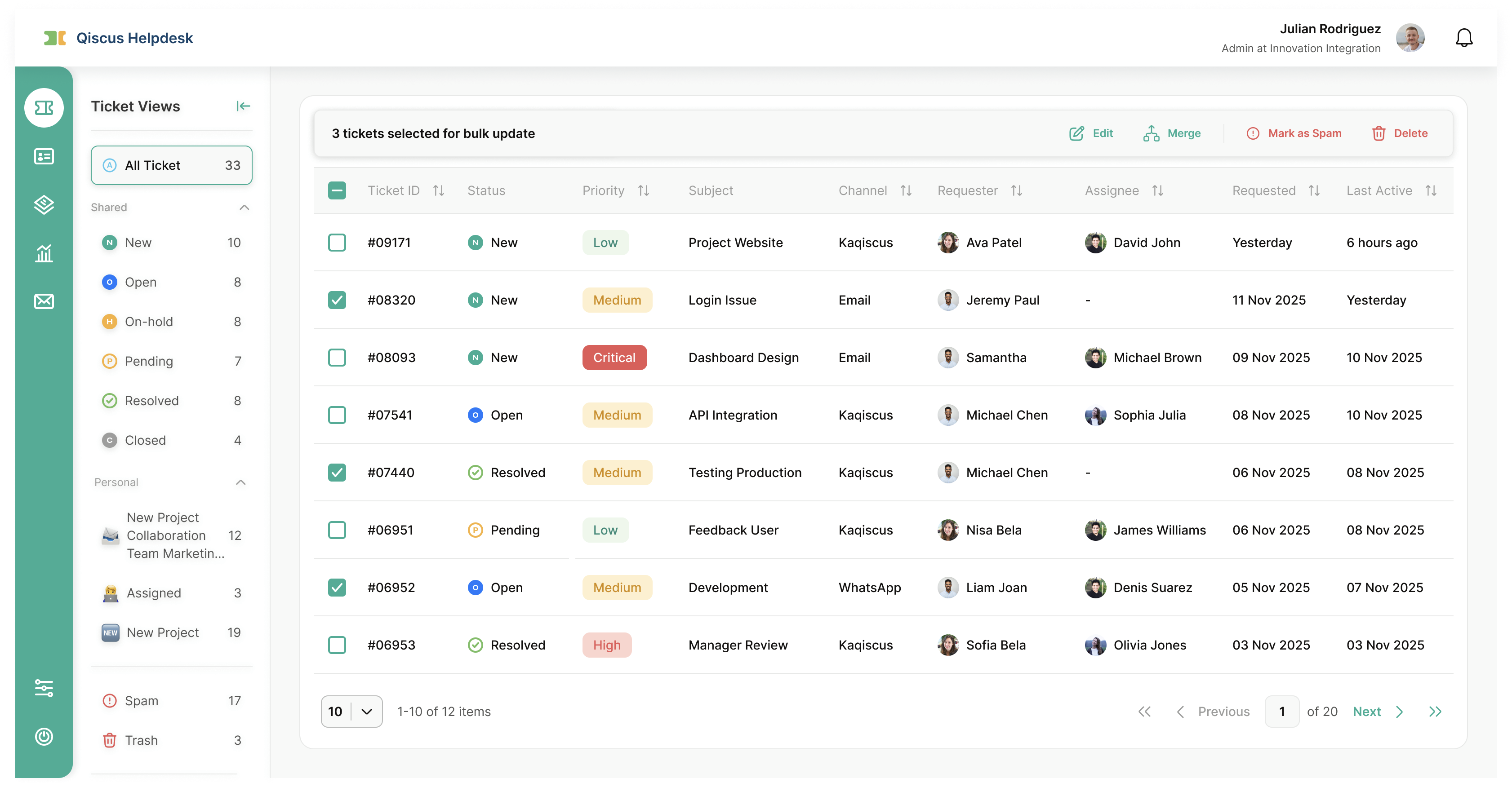
Review the selected tickets in the merge side panel:
Tickets with Resolved, Closed, Spam or Deleted status cannot be merged.
If all selected tickets are resolved/closed, the merge option will not be available.
If you select more than 5 tickets, only the first 5 eligible (not resolved/closed) tickets will be used.
Continue to Step 2 and configure merge settings using the same options described above.
Click Merge to complete the process.
If you remove one of the selected tickets so that the total becomes less than 5, the search bar in the merge panel will appear again, allowing you to add another ticket if needed.
C. Ticket After Being Merged
After the merge is completed, both primary and secondary tickets are updated.
Primary Ticket
On the primary ticket, the system will:
Add a ticket log with:
Actor: the user who performed the merge.
Information such as: “This ticket was merged from tickets {{secondary_ticket_1}}, {{secondary_ticket_2}}, {{secondary_ticket_3}}.”
Add the merge message as:
Note or Reply, depending on what you selected.
Add CC’d users and (optionally) secondary requesters as CC on the primary ticket, based on the options you enabled. (CC changes may not have a separate log entry, but will reflect in the ticket participants.)
Secondary Tickets
On each secondary ticket, the system will:
Change the ticket status to Closed.
Add ticket logs with:
Actor: the user who performed the merge.
Information such as: “This ticket is closed and merged into ticket {{primary_ticket_number}}.”
Status update: Closed.
Tag added: Closed by merge.
Add the merge message as Note or Reply, depending on your selection.
This makes it clear that the ticket is no longer handled separately and has been merged into another ticket.
D. Limitations
Maximum 5 tickets per merge:
1 primary ticket
Up to 4 secondary tickets
Tickets with status Resolved, Closed, Spam or Deleted:
Cannot be selected as primary or secondary tickets.
Will not enable the Merge action if all selected tickets are Resolved, Closed, Spam or Deleted .
At least 1 secondary ticket is required to perform a merge.
When merging tickets with different requesters:
A confirmation step is shown.
The secondary requester is not automatically added as CC unless you explicitly enable the option.
E. Summary
Ticket Merge helps your team:
Reduce duplicate tickets,
Keep conversations focused in a single primary ticket,
Automatically close and clearly tag merged tickets,
And maintain a transparent audit trail through detailed ticket logs.
By following the steps above and understanding the merge options (CC behavior, requesters, and message handling), your agents can safely merge tickets while preserving important context and participant information.