
Service Level Agreement (SLA) Policy in Qiscus Helpdesk allows teams to define clear response and resolution expectations for all incoming tickets. By setting SLA targets, reminders, and escalation rules, your team can respond faster, maintain consistent service quality, and ensure no customer issue is overlooked.
Qiscus Helpdesk supports three SLA metrics:
First Response SLA - Time allowed for agents to send the first message to a new ticket.
Next Response SLA - Time allowed for agents to reply after each customer message.
Resolution SLA - Time allowed for agents to resolve a ticket and mark it as Solved.
These SLA metrics can operate in two countdown modes:
Calendar Hour (24�7): SLA runs continuously at all times.
Business Hour: SLA runs only during the operational hours defined in your Business Hour settings.
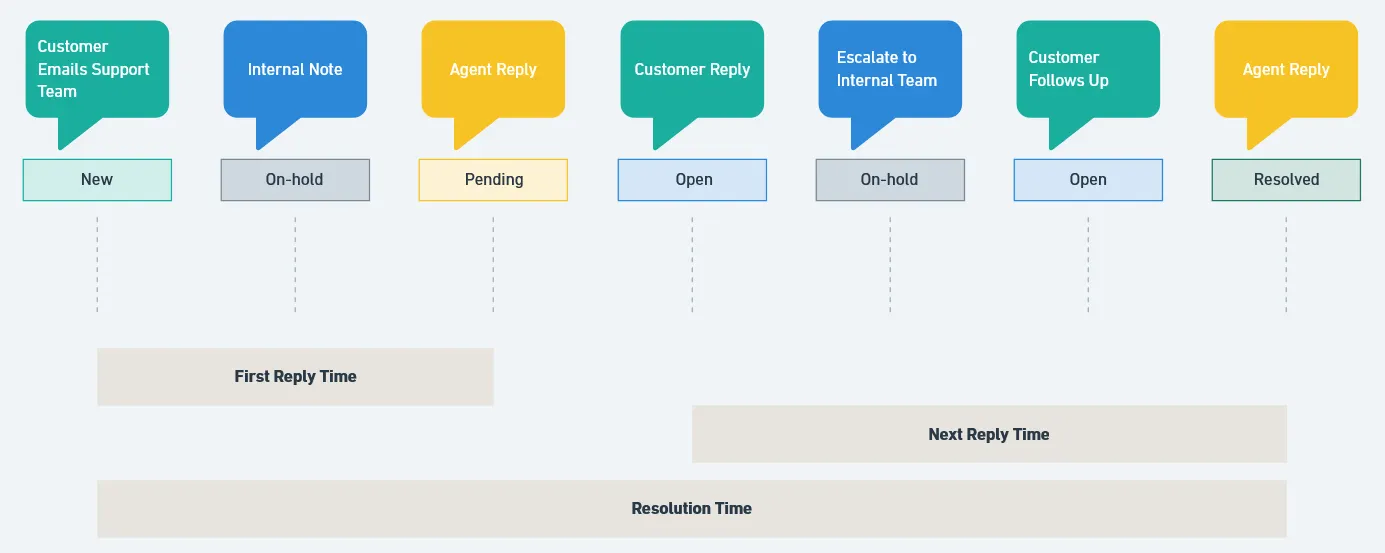
Each SLA target can trigger specific reminders and escalations. All SLA-related events-including reminders, escalations, breaches, and fulfillment-are recorded in the ticket logs to provide full visibility throughout the ticket lifecycle.
A. Benefits of Using SLA Policy
Ensures agents respond and resolve tickets within clearly defined time targets.
Helps agents prioritize work through SLA due indicators on the ticket list and detail pages.
Prevents missed deadlines with automatic reminders and escalations.
Provides full visibility with SLA events recorded in ticket logs.
Enables better performance monitoring through SLA Violation Analytics.
B. Setting Up SLA Policy
Qiscus Helpdesk provides a guided three-step wizard to create an SLA Policy. This wizard helps you define when the SLA applies, how the SLA targets behave, and how reminders and escalations trigger.
You can start from:
Settings ? SLA Policies ? Create SLA Policy
1. Step 1: General Information
The first step allows you to define the basic details of the SLA Policy:
Name - A unique identifier for the policy
Description - Optional notes for internal reference
This step ensures each SLA Policy is clearly labeled and easy to distinguish.
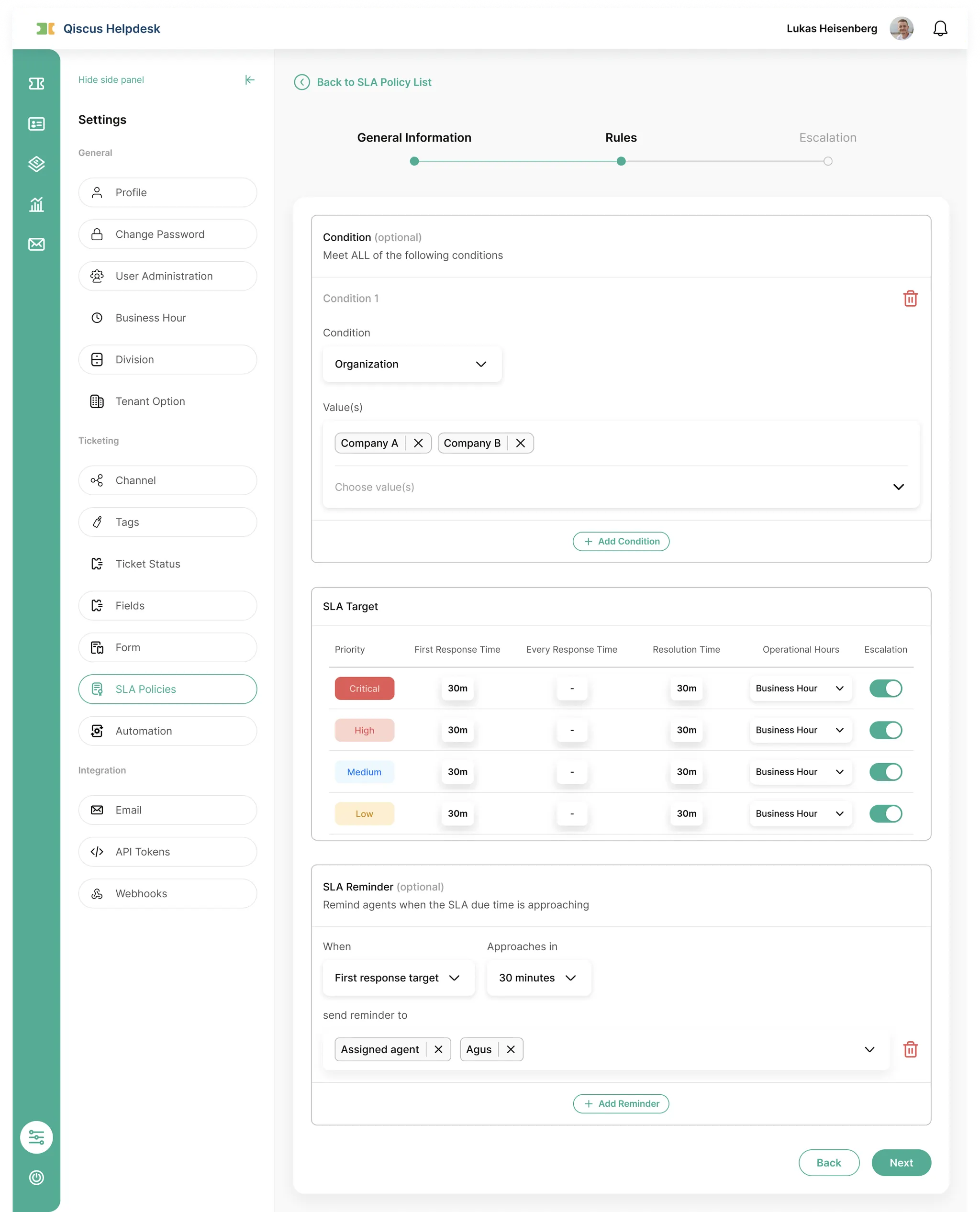
2. Step 2: Rules (Conditions, SLA Targets, and Reminders)
This is the core configuration step of the SLA Policy.
a. Conditions (Optional)
Conditions determine when the SLA policy should be applied.
Available conditions:
Organization
Division
Ticket Form
You can add multiple conditions. All conditions must match for the SLA to be applied.
b. SLA Targets
SLA targets are configured per ticket priority-Critical, High, Medium, and Low-where each priority can have its own First Response Time, Next Response Time, and Resolution Time. You can also choose whether each target runs in Business Hour or Calendar Hour mode, and enable or disable SLA escalation using the toggle in the Escalation column. All SLA durations must be within 15 minutes to 1 year.
You can configure for each priority:
First Response Time
Next Response Time
Resolution Time
Operational mode: Business Hour or Calendar Hour
SLA escalation toggle (enable/disable)
c. SLA Reminder (Optional)
Each SLA target can have one reminder, which triggers before the SLA due time.
Reminder configuration includes:
SLA Target to monitor
Reminder timing (10 minutes ? 1 month)
Recipients (Assigned agent and/or specific users)
This helps agents anticipate SLA deadlines before they're breached.
3. Step 3: Escalation Settings
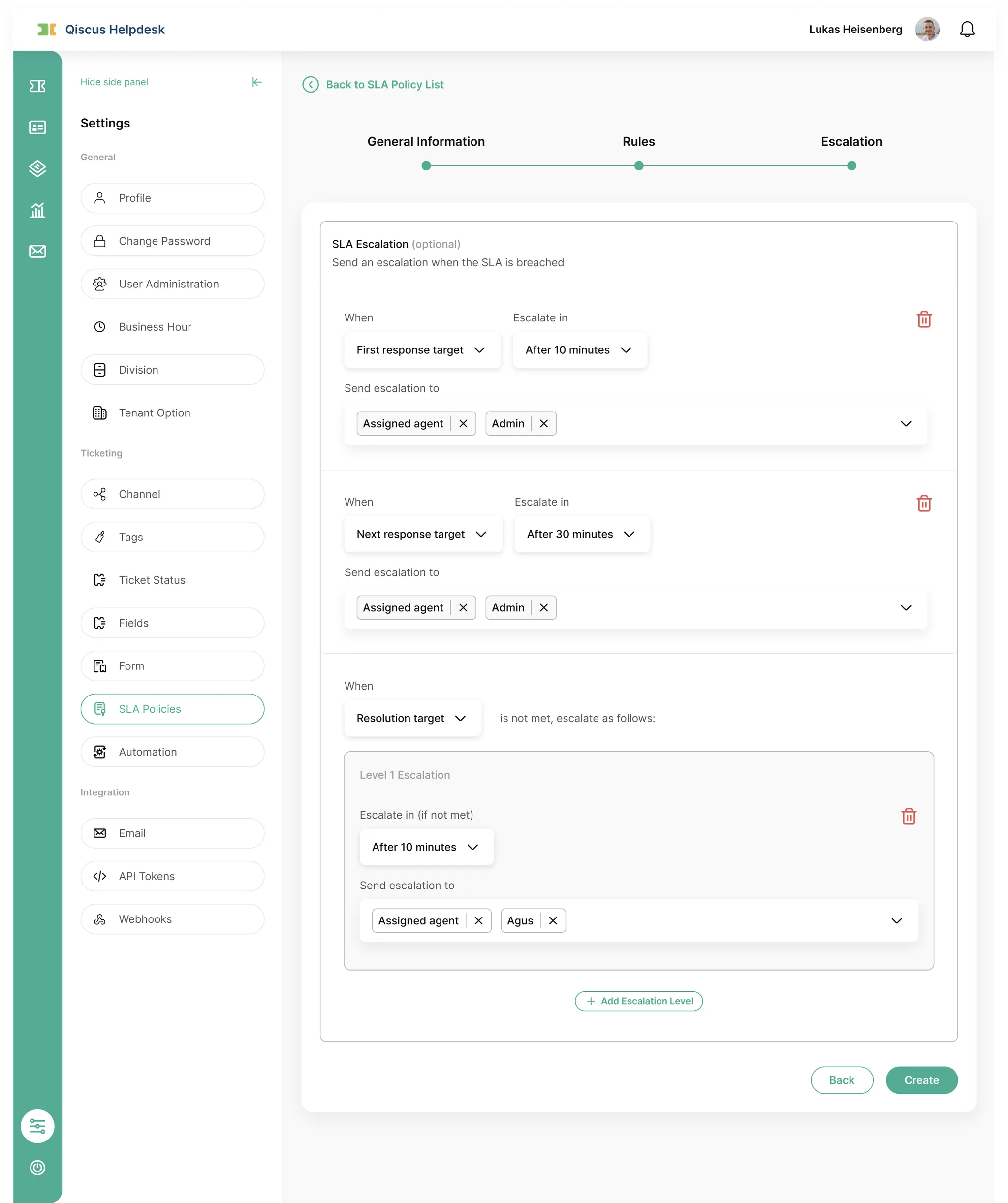
Escalations notify designated users when an SLA target is breached.
Supported escalation types:
First Response target
Next Response target
Resolution target (supports up to 4 escalation levels)
Each escalation level allows you to define:
Escalate after (duration)
Recipients (Assigned agent or specific users)
Example for Resolution SLA:
Level 1 - Assigned Agent (After 15 minutes): Gives the assigned agent an immediate alert to act before the issue becomes more serious.
Level 2 - Division Supervisor (After 1 hour): Notifies the supervisor if the agent does not take action within a reasonable time.
Level 3 - Team Lead or Manager (After 4 hours): Alerts higher-level management for prolonged SLA breaches that may impact customer satisfaction.
Level 4 - Key Stakeholder (After 12 hours): Escalates to important stakeholders or department heads when the issue becomes critical and requires urgent intervention.
4. Managing SLA Policies After Creation
After an SLA Policy is created, you can manage it from the SLA Policies list page.
a. Reordering SLA Policies
You can reorder SLA Policies using the Reorder menu option.
SLA Policies are evaluated from top to bottom
The SLA placed at the top of the list has the highest execution priority
This ordering determines which SLA is applied first when multiple policies match a ticket
This gives administrators full control over policy precedence.
b. Available Actions
Each policy includes the following options (as shown in the screenshot):
Edit - Modify the wizard configuration
Reorder - Change execution order
Duplicate - Create a copy of the policy
Delete - Remove the policy from the list
Only active policies remain eligible during SLA evaluation.
C. SLA Policy Implementation
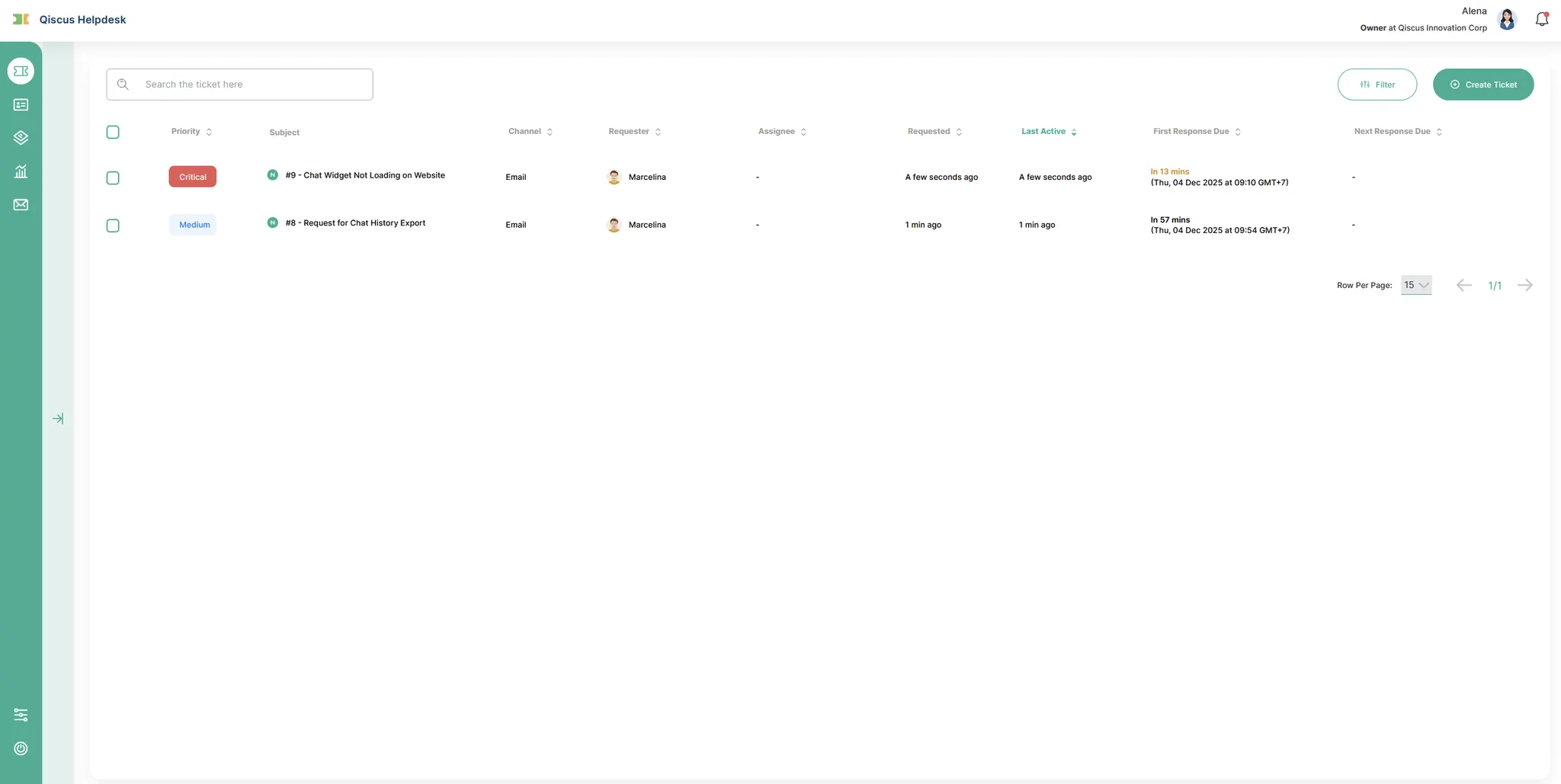
Once an SLA Policy is active, Qiscus Helpdesk will automatically track response and resolution targets across the Ticket List page, Ticket Detail page, notifications, and logs. Agents can immediately see which tickets need attention through SLA due indicators, which help them prioritize their work more effectively.
SLA indicators are shown in two places:
Ticket List Page - Displays First Response Due and Next Response Due, along with color indicators (green, orange, red) to highlight urgency.
Ticket Detail Page - Shows a detailed countdown for First Response, Next Response, and Resolution SLA, including whether the SLA is active, paused, fulfilled, or breached.
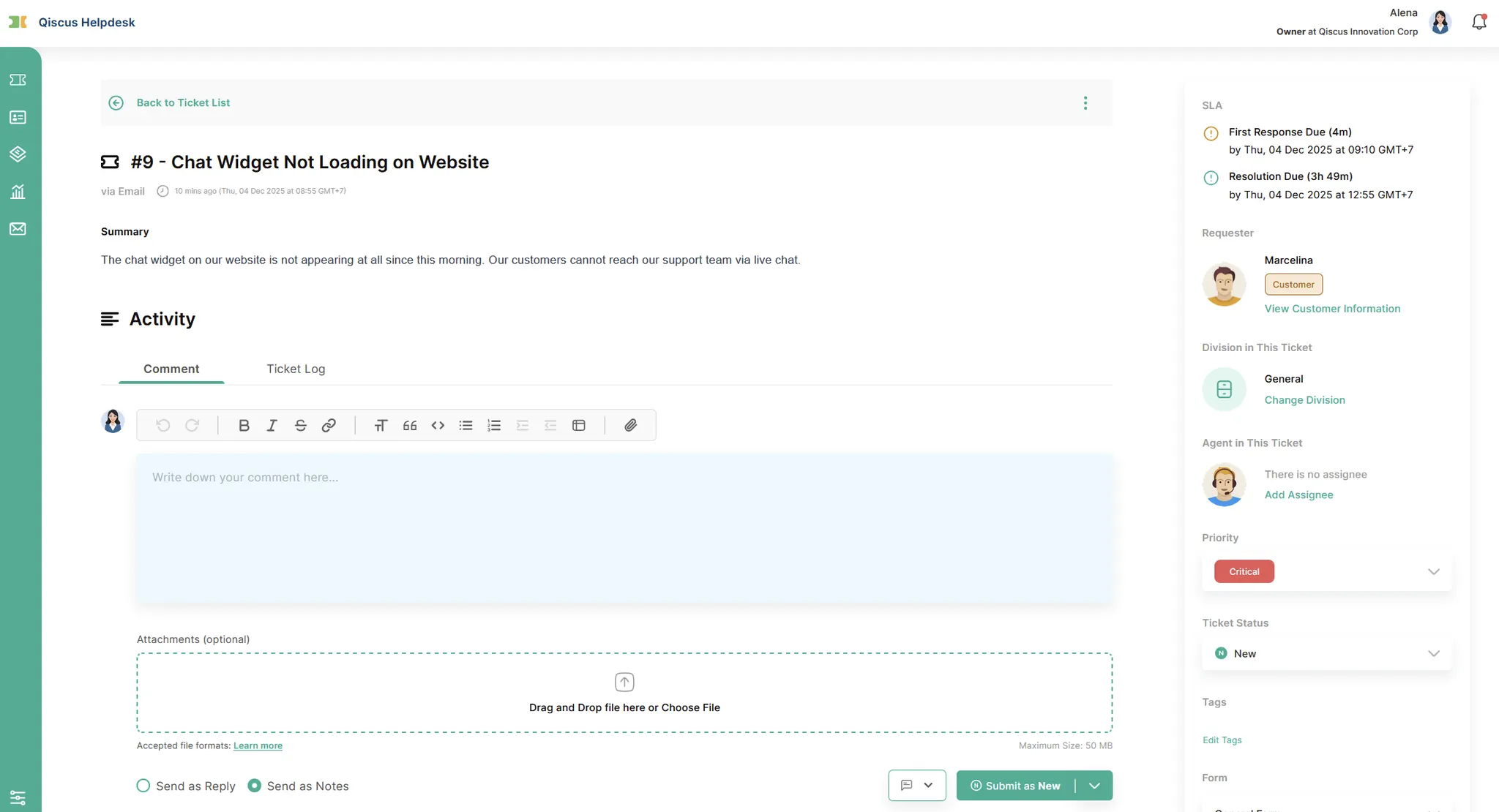
All SLA events are recorded in the ticket logs, providing clear visibility on what happened throughout the ticket lifecycle. Logged events include target changes, reminders, breaches, fulfillments, and escalation triggers. These logs help teams trace SLA behavior and understand why a ticket was escalated or violated.
When a reminder or escalation occurs, the system sends notifications to the configured recipients. Users who enable specific SLA notification types in their Helpdesk notification settings will receive in-app alerts. Email notifications, when enabled by the admin, are always delivered to the designated recipients regardless of user preferences.
For integration purposes, SLA breaches also trigger dedicated webhook events:
on_ticket_first_response_sla_breachedon_ticket_next_response_sla_breachedon_ticket_resolution_sla_breached
These webhook events allow you to connect Helpdesk SLA behavior with external systems such as Slack alerts, dashboards, or monitoring tools.
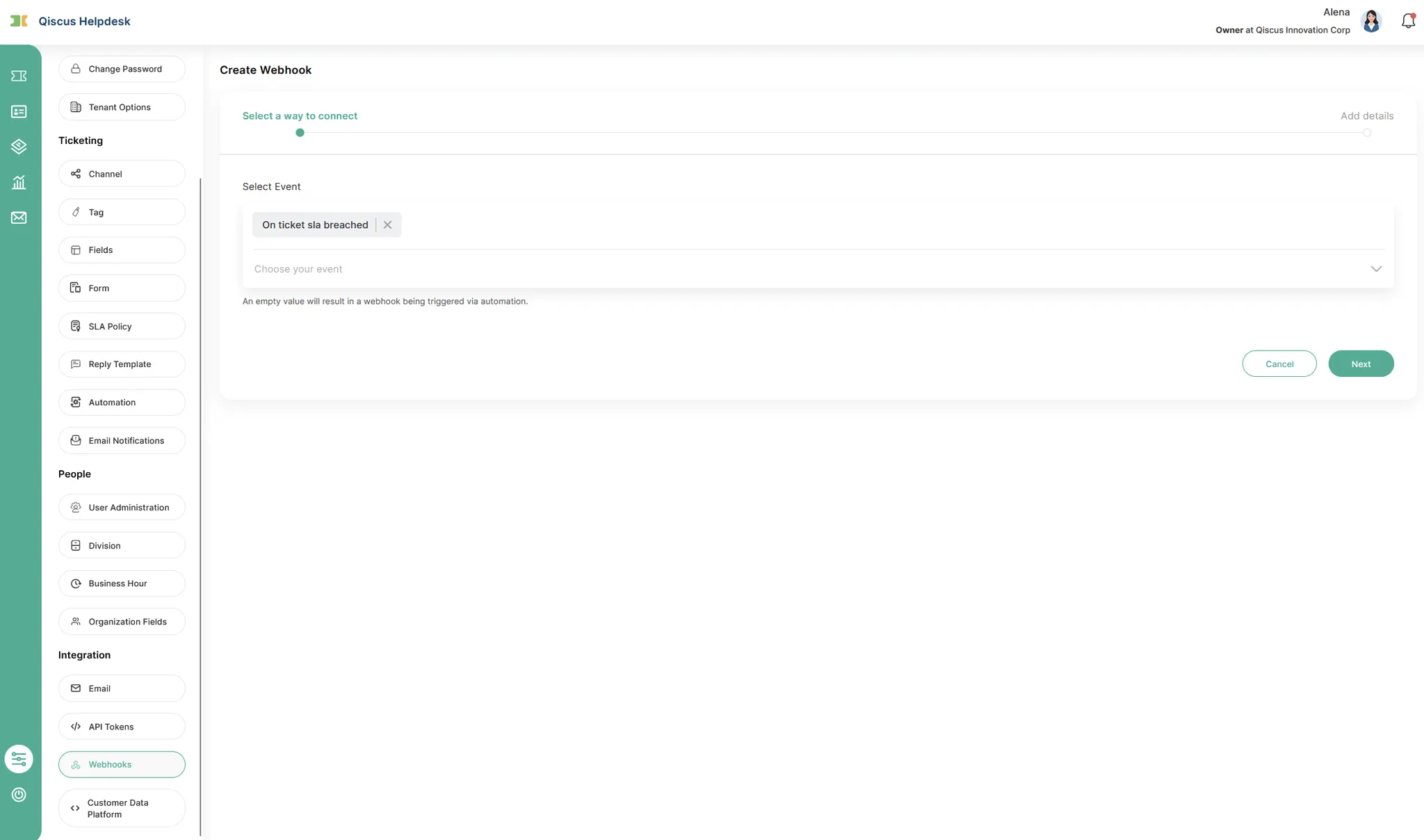
SLA performance can also be reviewed through the SLA Violation Analytics page, where supervisors can monitor how often SLA targets are met or breached and identify areas needing improvement.
D. Limitations & Expected Behaviors
SLA policy can change when ticket priority, division, requester organization, or ticket form is updated.
SLA timers will update when ticket priority changes or when a new reply from the requester is received.
Deactivated or deleted SLA policies only affect new tickets; tickets that already had the SLA applied will continue using the previous SLA without changes.
E. Summary
SLA Policy helps teams deliver consistent and timely support by defining clear response and resolution targets, automating reminders and escalations, and providing full visibility through ticket logs and analytics. With flexible conditions, priority-based targets, and multi-level escalation options, SLA Policies ensure that urgent tickets get the right attention at the right time. By understanding how SLA is applied, updated, and limited, teams can use this feature effectively to maintain service quality across all customer interactions.