
Custom Ticket Views let you create, organize, and switch between tailored ticket lists in Qiscus Helpdesk. Each view filters tickets by the conditions you set (status, assignee, division, requester, and many more) and can be displayed in two layouts:
List — a sortable table with the columns you choose.
Kanban Board — cards grouped into status columns, with optional swimlanes and drag-and-drop to move tickets between columns or rows.
Every view appears in the dashboard sidebar with a live ticket counter, so the most relevant tickets are always one click away.
All internal users (Owner, Admin, Supervisor, Agent) can use ticket views. Creating, editing, reordering, and deleting Shared views is restricted to Owner and Admin. Any user can create their own Personal views.
A. Benefits of Using Custom Ticket Views
Choose the layout that fits the work. Use List for sortable reporting-style tables; use Kanban Board for workflow-driven visual management with drag-and-drop status changes.
Tailored fields and order. Pick which columns appear in the table or which fields appear on each Kanban card, and order tickets by ID, status, priority, request date, or last update.
Shared workspace, personal space. Share views across all agents or specific divisions, or keep them private to yourself.
Quick switching from the sidebar. All your active views appear in the dashboard sidebar with live ticket counters — no need to re-apply filters when you change context.
Status updates by drag-and-drop. Drag a card from one Kanban column to another to update its status (or any swimlane field) without opening the ticket.
Realtime collaboration. Cards and rows animate in, out, and across columns as other agents make changes — no manual refresh needed.
Consistent permissions. View visibility, ticket scope per agent, and handover permissions on the Kanban board all follow your existing tenant options.
B. Setting Up a View
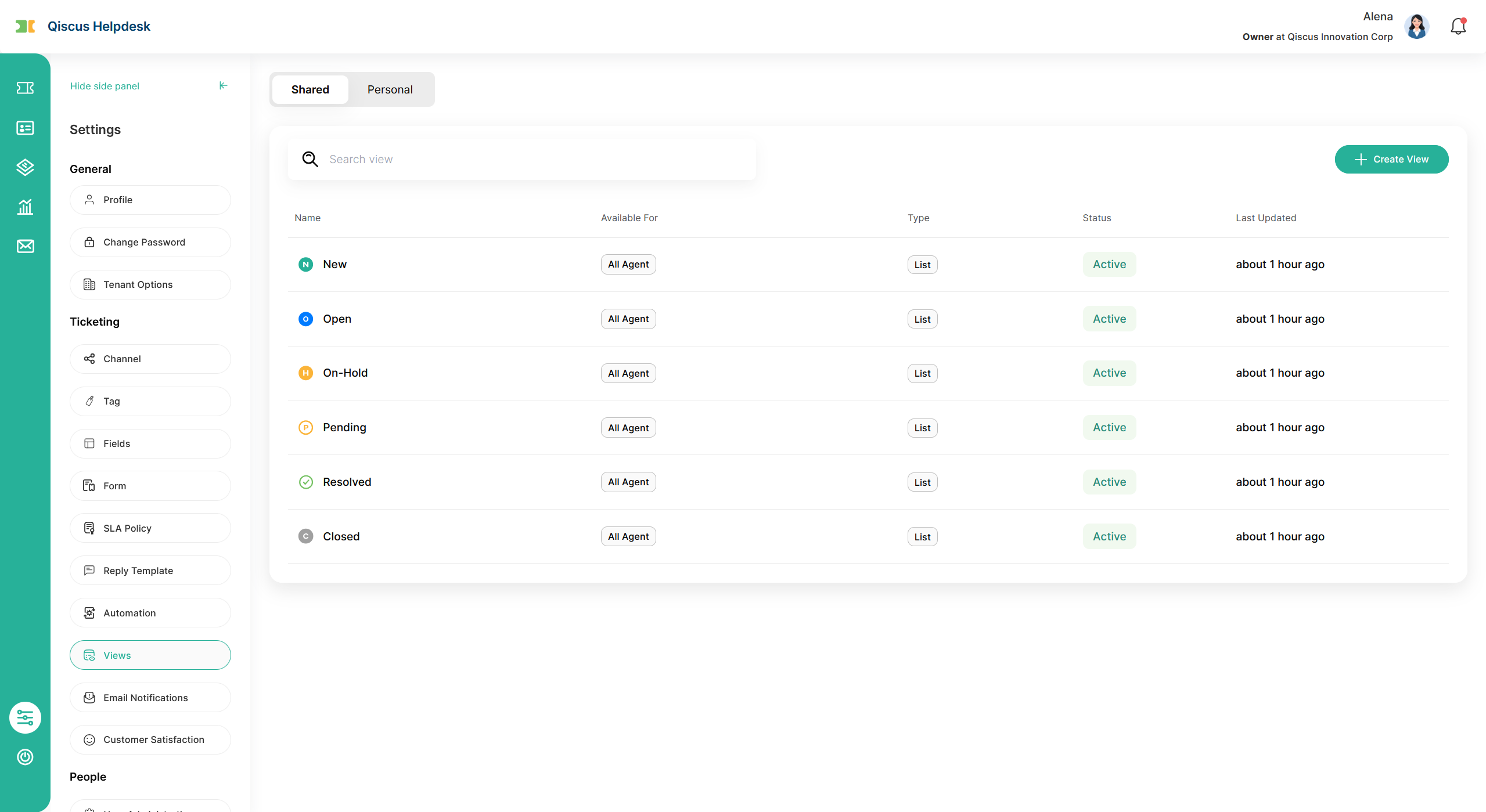
You can access the Views configuration from Settings → Views, located under Automation in the Ticketing group.
The page has two tabs:
Shared — views that are visible to multiple agents. Contains the system default views and any custom shared views.
Personal — views you create for yourself only. Other users cannot see your personal views.
Default Views
When you first open Settings → Views, the Shared tab already contains six default views, one for each ticket status: New, Open, On-Hold, Pending, Resolved, and Closed. They are configured with access level All Agent so every agent in your tenant can see them in the sidebar.
Default views cannot be edited or deleted by anyone. Owners and Admins can still Activate / Deactivate or Reorder them, and any user can Duplicate a default view to create a customized version of it.
Creating a Custom View
Click Create View on the Shared or Personal tab to start the 3-step wizard. Required fields are validated on Next — any empty input shows a red border and the inline message This field is required., which clears as soon as you fill it.
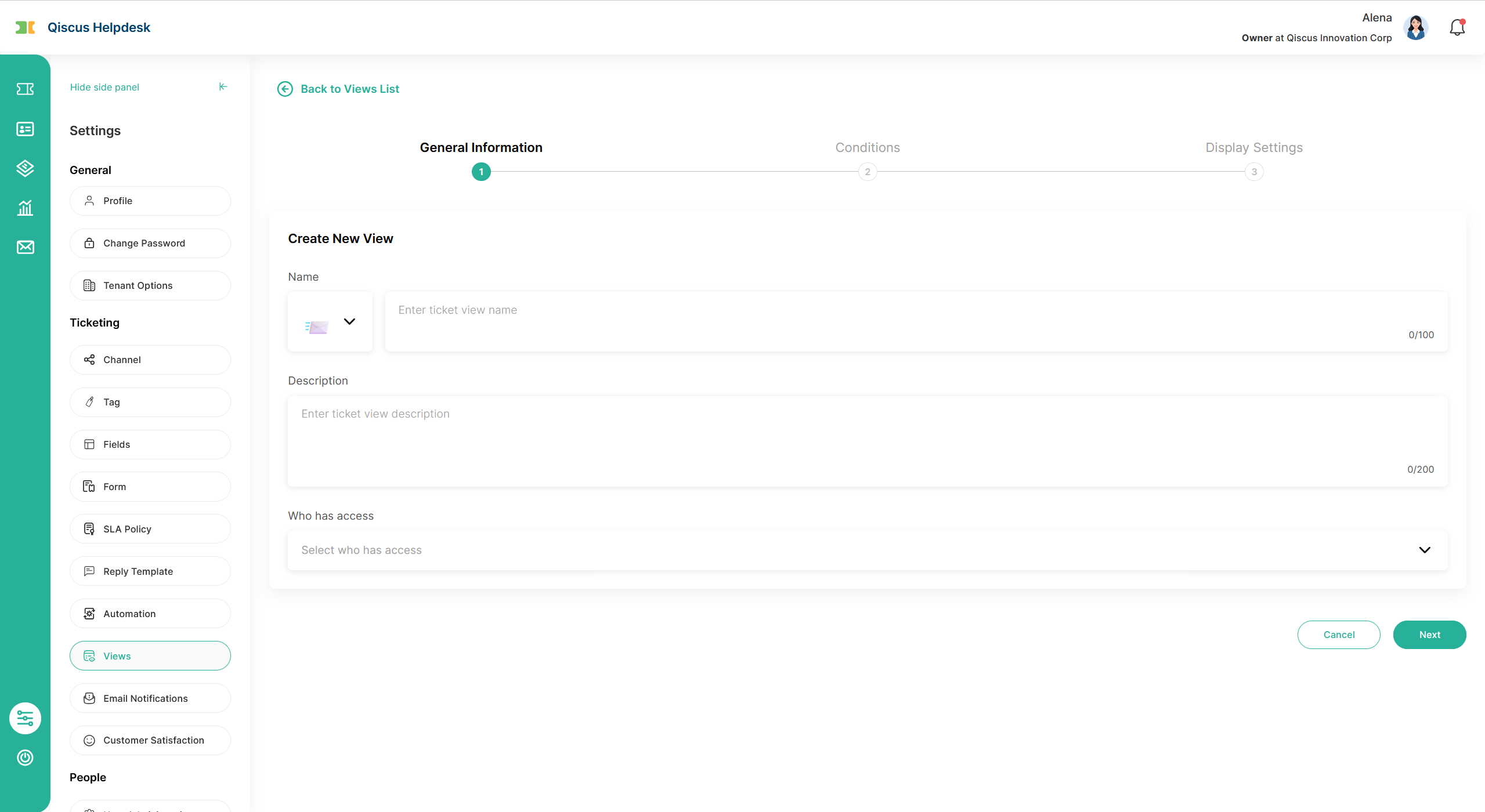
Step 1: General Information
Fill in the identity and access scope of the view:
Name (required) — pick an emoji from the picker on the left, then type a view name (up to 100 characters). The emoji becomes the view's icon in the sidebar; the name becomes the view's tab title.
Description (required) — a short note describing what the view is for (up to 200 characters).
Who has access (required) — controls who can see the view:
On the Shared tab (Owner/Admin only): choose All Agent to share with everyone, or Agents in specific divisions to pick one or more divisions.
On the Personal tab: this is automatically set to Only Me and cannot be changed.
When you duplicate an existing view, Step 1 is pre-filled from the source view. Owners and Admins can change the access scope before saving. Supervisors and Agents who duplicate a Shared view will see access locked to Only Me — the resulting view is added to their Personal tab.
Step 2: Conditions
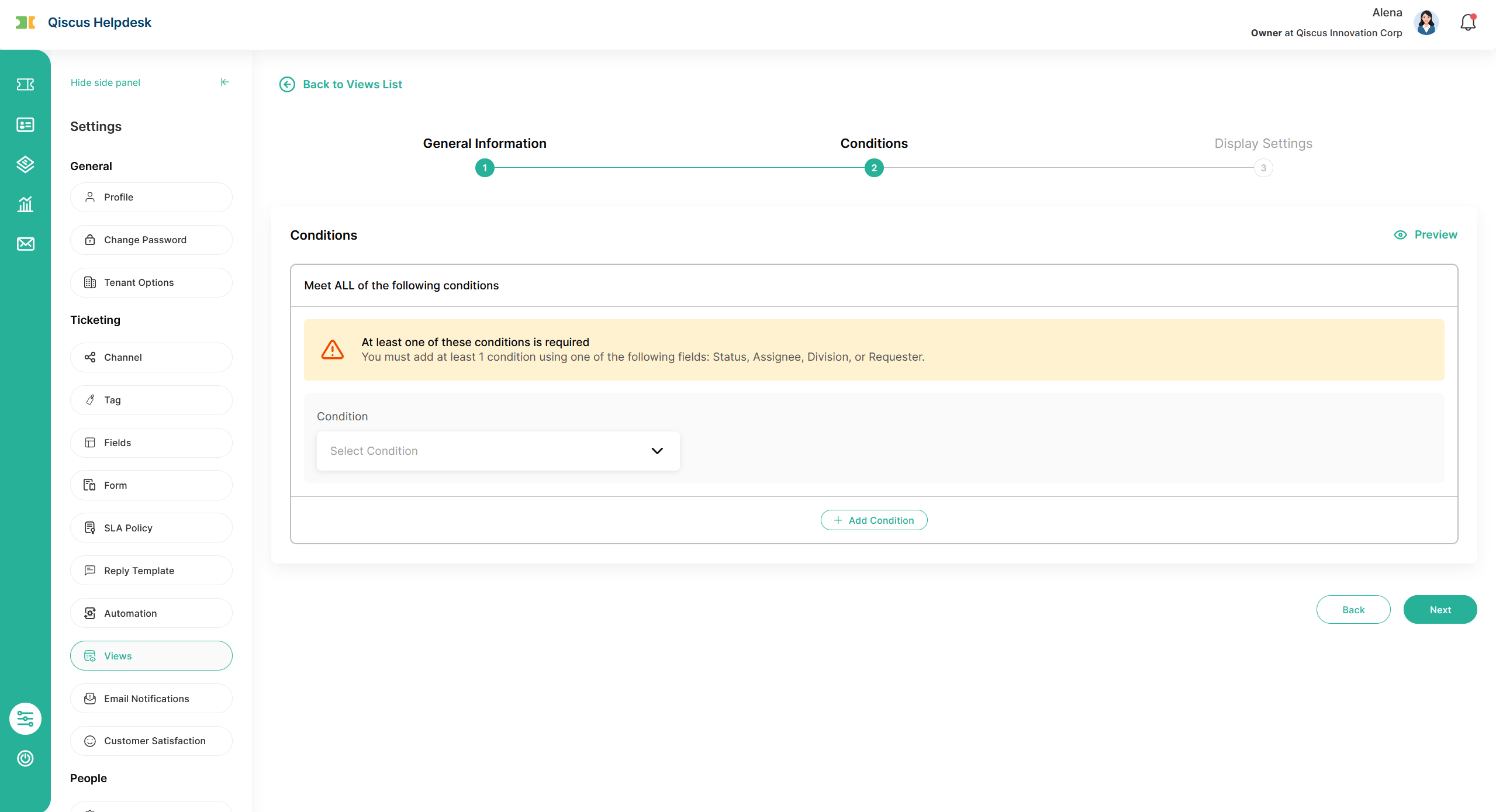
Define which tickets should appear in this view. Conditions follow an AND rule — a ticket appears only if it matches all conditions you add.
Each condition has three inputs: Condition (the field), Comparison Type (the operator), and Value(s).
At least one condition must use one of these fields: Status, Assignee, Division, or Requester. A warning banner at the top of the Conditions section guides you while this required condition is missing, and disappears as soon as a required field is added.
Click + Add condition to add as many conditions as you need. The same field can be added more than once (for example, two
Tagsconditions with different values).Click the trash icon next to a condition to remove it. The trash icon only appears when you have two or more conditions.
Click Preview at the top-right of the Conditions section to see which existing tickets match your current conditions before saving. The preview opens in a table (ID, Status, Priority, Subject, Requester, Assignee). If any condition still has an empty input, clicking Preview shows the same
This field is required.inline error instead of opening the preview.
Available condition fields include: Assignee, Channel, Division, Followers, Hours-since/Hours-until timing fields (created, open, pending, on-hold, solved, closed, assigned, requester responded, agent responded, response due, ownership due, resolution due), Organization, Priority, Received At (Email), Requester, Status, Subject, Tags, Ticket Form, and any Custom Field of type Dropdown configured in your tenant.
Step 3: Display Settings
Choose how the view looks. View Type has two options:
List — tickets in a sortable table.
Kanban Board — cards grouped into status columns, with optional swimlanes.
The settings below the selector change depending on the View Type you pick.
Display Settings — List
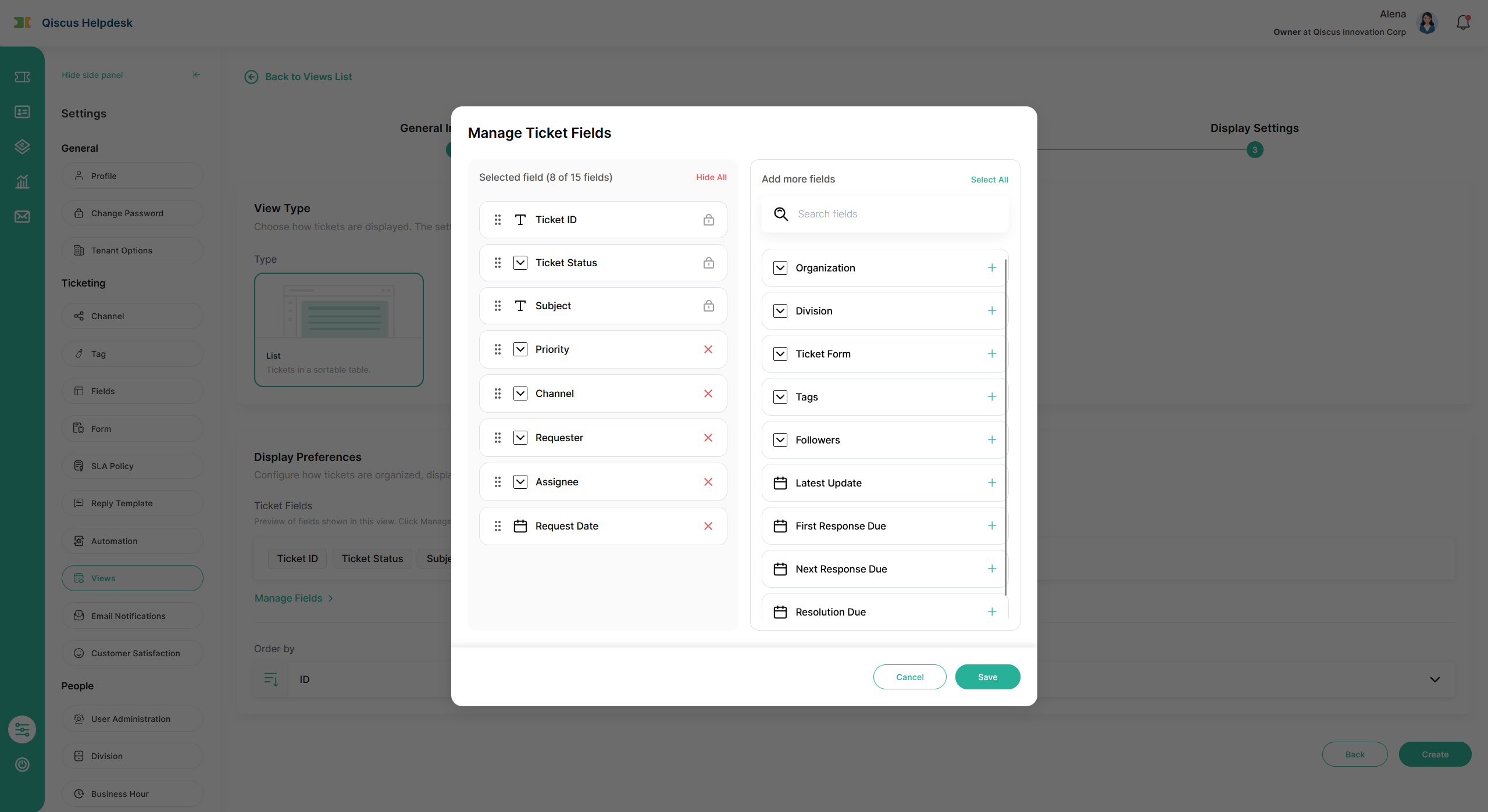
Manage Fields. Click Manage Fields to choose which columns appear in the view and in what order. The modal has two panels:
Selected field ({n} of 15 fields) on the left — the columns that will appear in the view, in order from top to bottom. Drag rows to reorder; click
×on a row to remove it; click Hide all in the panel header to move all removable fields to the right panel at once.Add more fields on the right — the available fields you haven't added yet. Click
+on a row to add it; type into Search fields to filter the list; click Select all in the panel header to add as many fields as possible up to the 15-field limit.
Ticket ID, Ticket Status, and Subject are mandatory and cannot be removed. They are shown with a lock icon. Default columns when you first open the modal also include Priority, Channel, Requester, Assignee, and Request Date.
Order by. Pick ID, Status, Priority, Created At, or Latest Update, plus Ascending or Descending. Default is ID Descending.
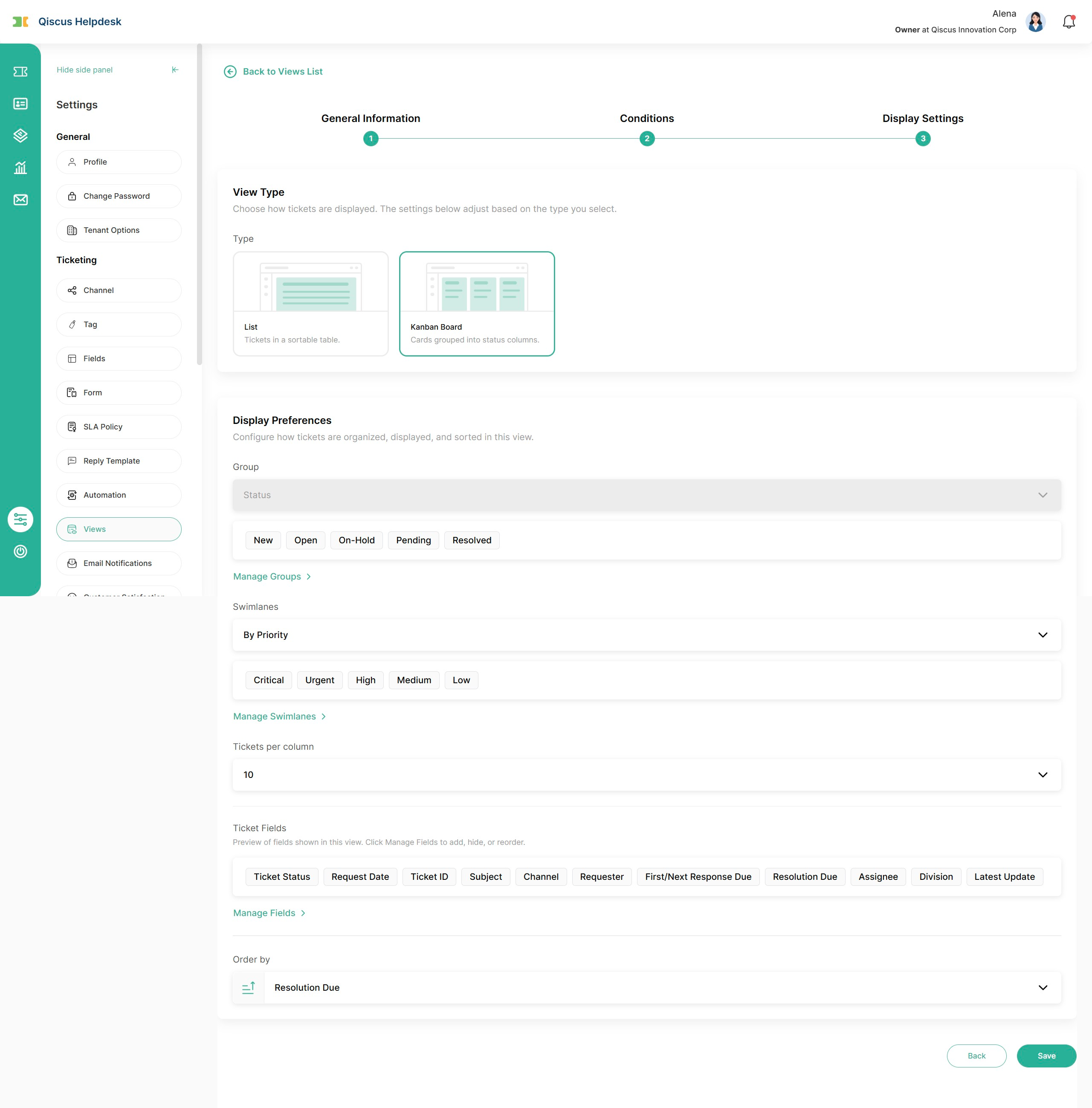
Display Settings — Kanban Board
Selecting Kanban Board reveals four configuration sections:
1. Group. The field whose values become the board's columns. Set to Status; each Status value becomes one column, in the order you arrange them under Manage Groups.
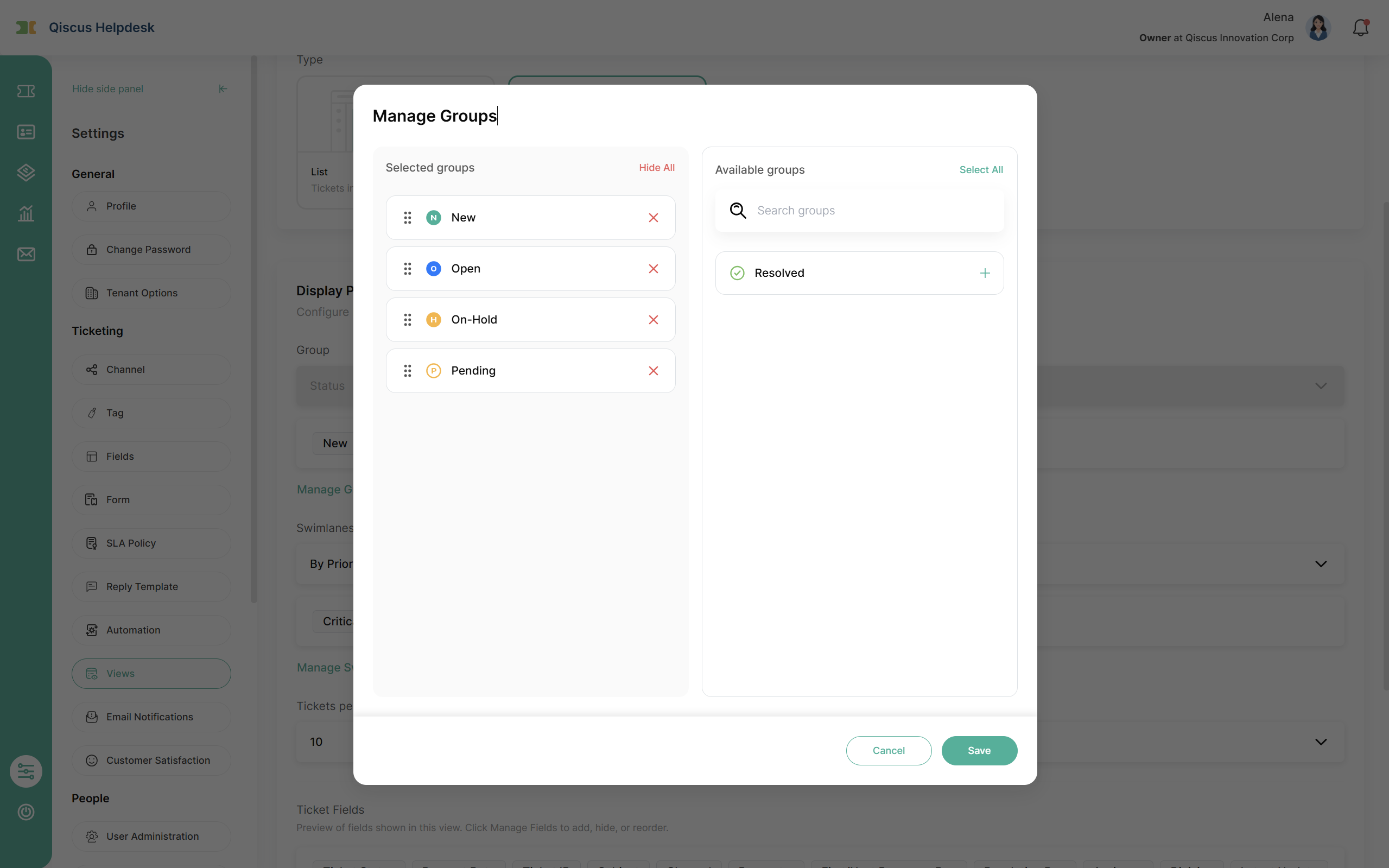
Manage Groups. Click Manage Groups to choose which Status values appear as columns and their order. The modal has two panels mirroring the List Manage Fields modal:
Selected groups on the left, with Hide all in the header.
Available groups on the right, with a Search groups input and Select all in the header.
All Status values are selected by default in the system's workflow order. Drag rows on the left to reorder columns; click × to hide a column; click + on the right to bring it back. At least one group must be selected to save.
2. Swimlanes. Optional horizontal grouping inside each column. Choose None (no swimlanes — the default) or one of Assignee, Priority, Channel, Division.
When you pick a swimlane field, Manage Swimlanes appears with the same two-panel layout. By default all values of the chosen field are selected, sorted A–Z. You can reorder, hide, and search swimlanes just like groups.
For swimlane fields whose values can be empty (Assignee, Division), the system injects a pseudo-value — Unassigned for Assignee and No Division for Division — so tickets without that field still appear in a swimlane. Hide the pseudo-value through Manage Swimlanes to exclude those tickets from the board.
3. Tickets per column. Sets how many cards load initially per column (default 10). When a column has more tickets than the limit, a Load more button appears at the bottom of the column.
4. Manage Fields (Kanban card). Choose which fields appear on each Kanban card, up to 15. The modal works exactly like the List Manage Fields modal. Ticket Status, Ticket ID, and Subject are mandatory.
Default card fields include: Ticket Status, Ticket ID, Subject (mandatory), plus Priority, Date Requested, Channel, Requester, Organization, First/Next Response Due, Resolution Due, Ownership Due, Assignee, Division, Last Update, and up to three Custom Fields.
Order by. Set the default ordering of cards inside each column:
Pick None, ID, Status, Priority, Created At, Latest Update, or Resolution Due, plus Ascending or Descending. Default is None.
When Order by = None, cards keep the position you place them with drag-and-drop. The Ascending/Descending toggle is shown grayed out and is not clickable.
When a real field is selected, cards auto-sort by that field. Manual drag-and-drop reordering inside a column is not preserved in this mode.
When all steps are complete, click Create (or Save when editing an existing view) to save. The view is created with status Active and immediately appears in the views list and — if its access scope includes you — in the dashboard sidebar.
Managing Views After Creation
The Settings → Views list shows your existing views with columns Name, Available For, Type (List or Kanban), Status (Active/Inactive), and Last Updated. Use the search bar at the top to find a view by name.
To run an action on a view, find the view in the list and open its action menu, then select the action you want. Available actions are: Edit View, Reorder, Duplicate View, Activate / Deactivate, and Delete. Whether each one appears depends on your role and the tab you're on:
Tab | Owner / Admin | Supervisor / Agent |
|---|---|---|
Shared — custom views | Edit, Reorder, Duplicate, Activate / Deactivate, Delete | Duplicate only |
Shared — default views | Duplicate, Activate / Deactivate, Reorder | Duplicate only |
Personal — your own views | Edit, Reorder, Duplicate, Activate / Deactivate, Delete | Edit, Reorder, Duplicate, Activate / Deactivate, Delete |
Create View button | Visible on both tabs | Visible on Personal tab only |
C. Custom Ticket Views Implementation
Once a view is Active and its access scope includes you, it appears in the dashboard sidebar and is ready to use.
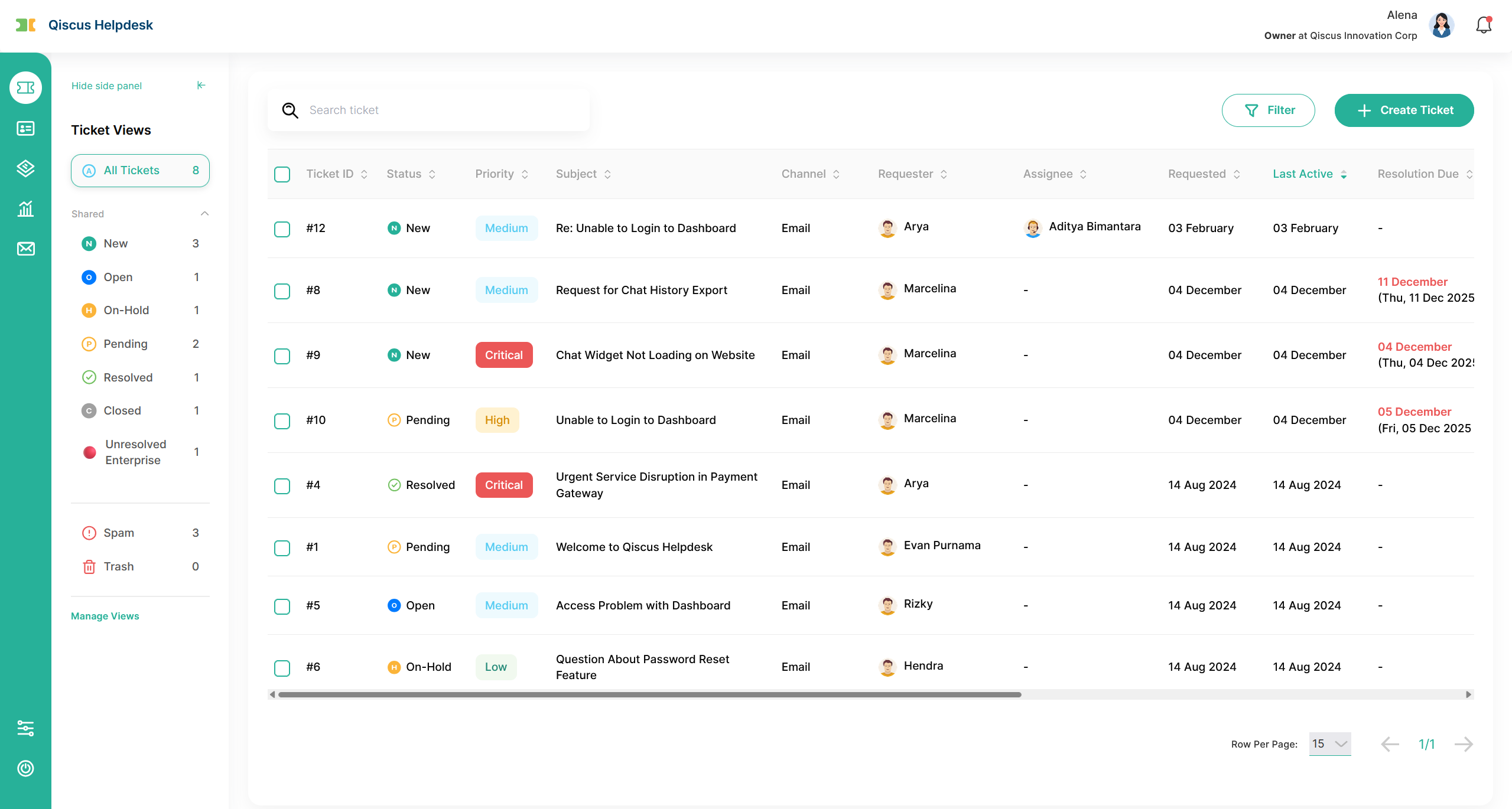
Sidebar Layout
The dashboard sidebar lists ticket entries in this order:
All Tickets — the default entry at the top. Shows every ticket, no view filter applied. The counter on the right shows the total.
Shared group — active views with access
All AgentorAgents in specific divisions. Owners and Admins see every active shared view; Supervisors and Agents see default views plus the custom shared views they have access to. The group hides itself if no active shared view applies to you.Personal group — active personal views you created. The group hides itself if you don't have any active personal view.
Spam — tickets marked as spam. Counter shows the spam count.
Trash — tickets that were deleted. Counter shows the trash count.
Manage Views — shortcut at the bottom that opens Settings → Views.
Each row in the Shared and Personal groups shows the view's emoji icon, name, and a live counter of matching tickets.
To keep the realtime ticket counter performant, the sidebar shows up to 20 active custom shared views and 10 active personal views. Default views are always shown and do not count against this limit. If you have more active views than the limit, only the first 20 (Shared) and first 10 (Personal) by reorder position appear in the sidebar; the rest stay accessible in Settings → Views. To surface a view to the sidebar, reorder it into the top 20 / top 10, or deactivate one that currently is.
Counters display the exact number up to 99. Anything above shows as 99+.
A long view name wraps over up to three lines in the sidebar; anything longer is truncated with ... at the end of the third line. Hovering the row shows the full name in a tooltip — whether the name is truncated or not.
The currently selected entry is highlighted with a colored outline border so you always know which view is open.
Rendering a List View
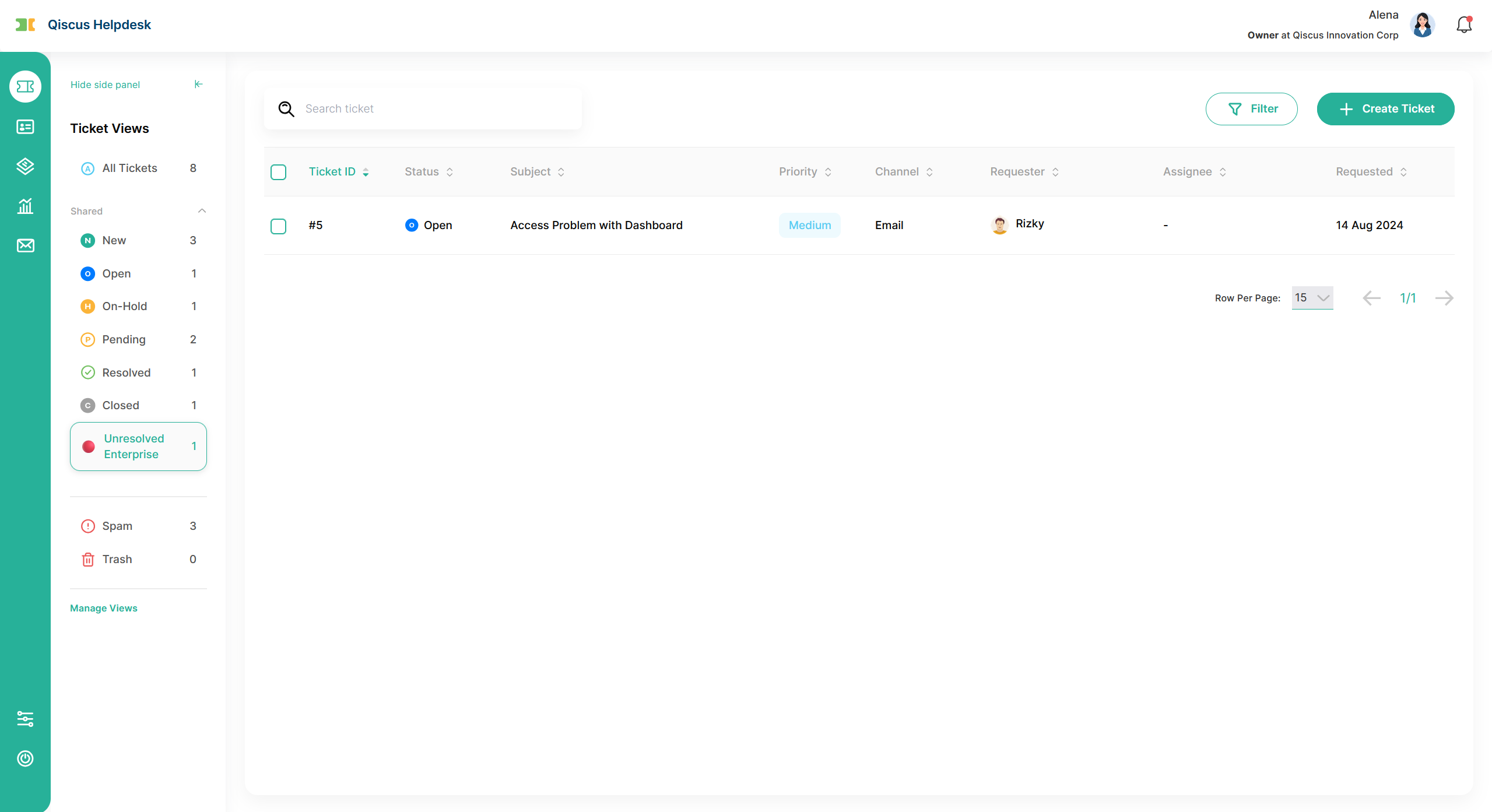
Clicking a view in the sidebar renders the matching tickets in a table:
Columns and order follow your Manage Fields configuration for that view.
Tickets are sorted by your Order by + Ascending/Descending setting.
Empty state appears when no ticket matches the view's conditions.
If a condition in the view references a value that has been deleted from the system (for example a tag, division, agent, organization, ticket form, or custom field option that no longer exists), the condition cannot be evaluated and the view returns an empty result. To restore the view, edit it and replace or remove the affected condition.
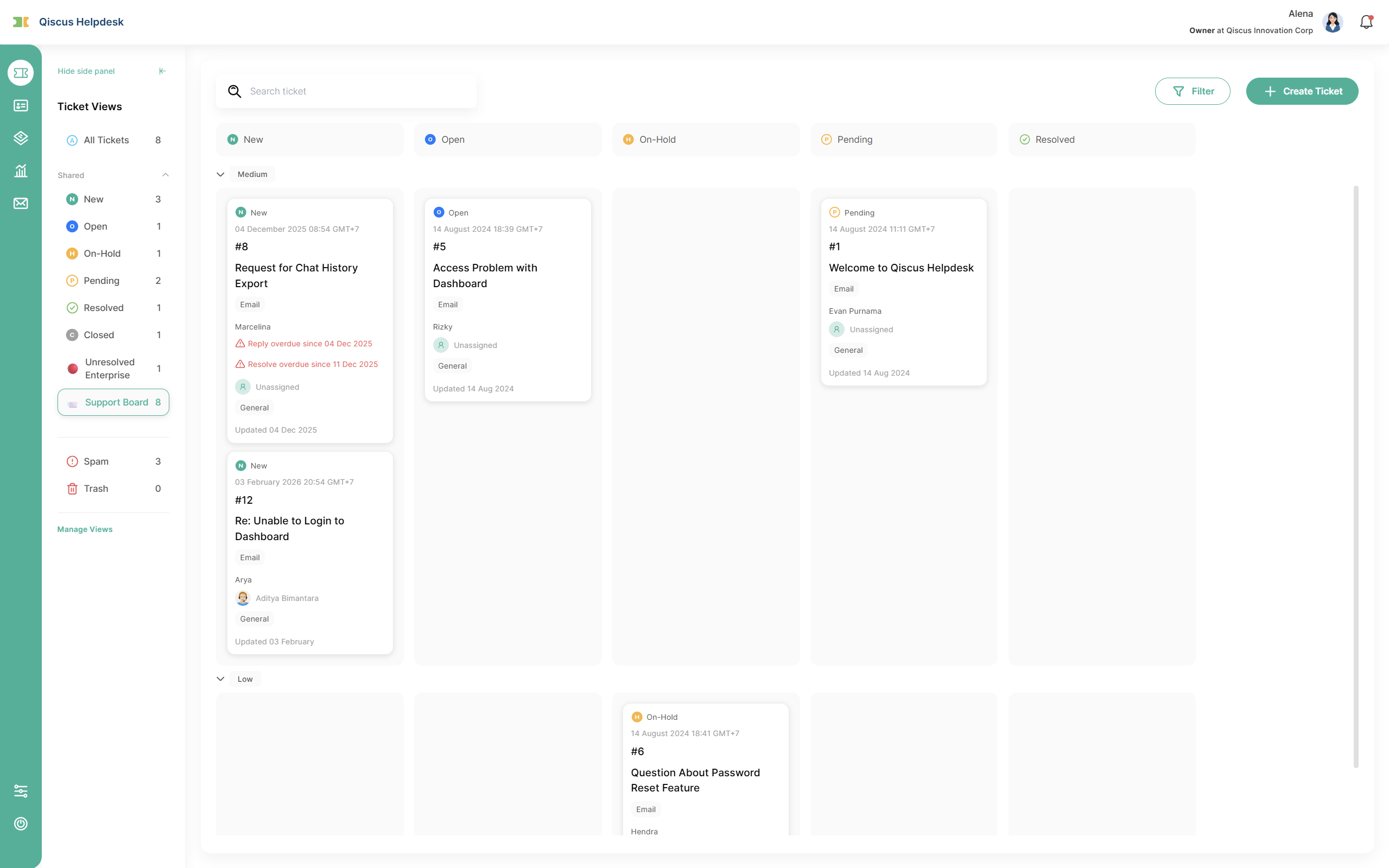
Rendering a Kanban Board View
Clicking a view of type Kanban Board renders the matching tickets as cards grouped into columns:
Columns are the Status values selected in Manage Groups, in the order you arranged them. Each column header shows the group's icon and name (for example,
New,Open,On-hold).Empty state appears when no ticket matches the view's conditions.
If a condition references a value that has been deleted from the system, the board returns an empty result, the same way a List view does.
Card content. Each card shows the fields you configured in Manage Fields, formatted compactly — colored badges for priority, chips for channel/division, avatars for assignee, and relative time for last update. Hovering on Subject shows a card preview popup with the full ticket details.
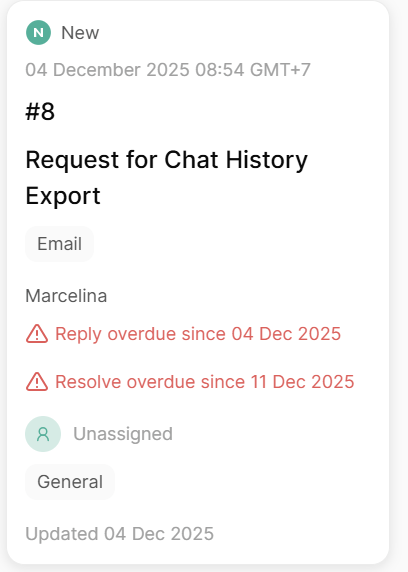
SLA reminder block. Each due-date field on the card appears with a prefix (Reply for First/Next Response Due, Resolve for Resolution Due, Division SLA for Ownership Due) and a relative time — for example Reply in 30m, Resolve in 2d, or Reply 10m overdue. The block turns 🟡 yellow when the ticket enters the reminder period set by your SLA policy, and 🔴 red once overdue. Hover the block to see the exact deadline with day, date, and time zone.
Fields with no value are hidden from the card by default. The exceptions are Subject (shows (no title) placeholder) and Assignee (shows Unassigned). SLA fields are hidden when the ticket has no applicable SLA policy.
Order inside a column. Cards are sorted by the Order by + Ascending/Descending setting you chose. When Order by = None, cards keep their manual position from drag-and-drop, or fall back to creation time.
Load limits. Each column loads up to the Tickets per column limit you configured; click Load more at the bottom to load the next batch. When swimlanes are enabled, additional swimlanes load on demand at the bottom of the board.
Drag-and-Drop on the Kanban Board
You can drag a card between columns to change its Group field (typically the ticket's status), or between swimlane rows to change its swimlane field (e.g. Priority, Assignee). Cards highlight the target column or swimlane as you drag over.
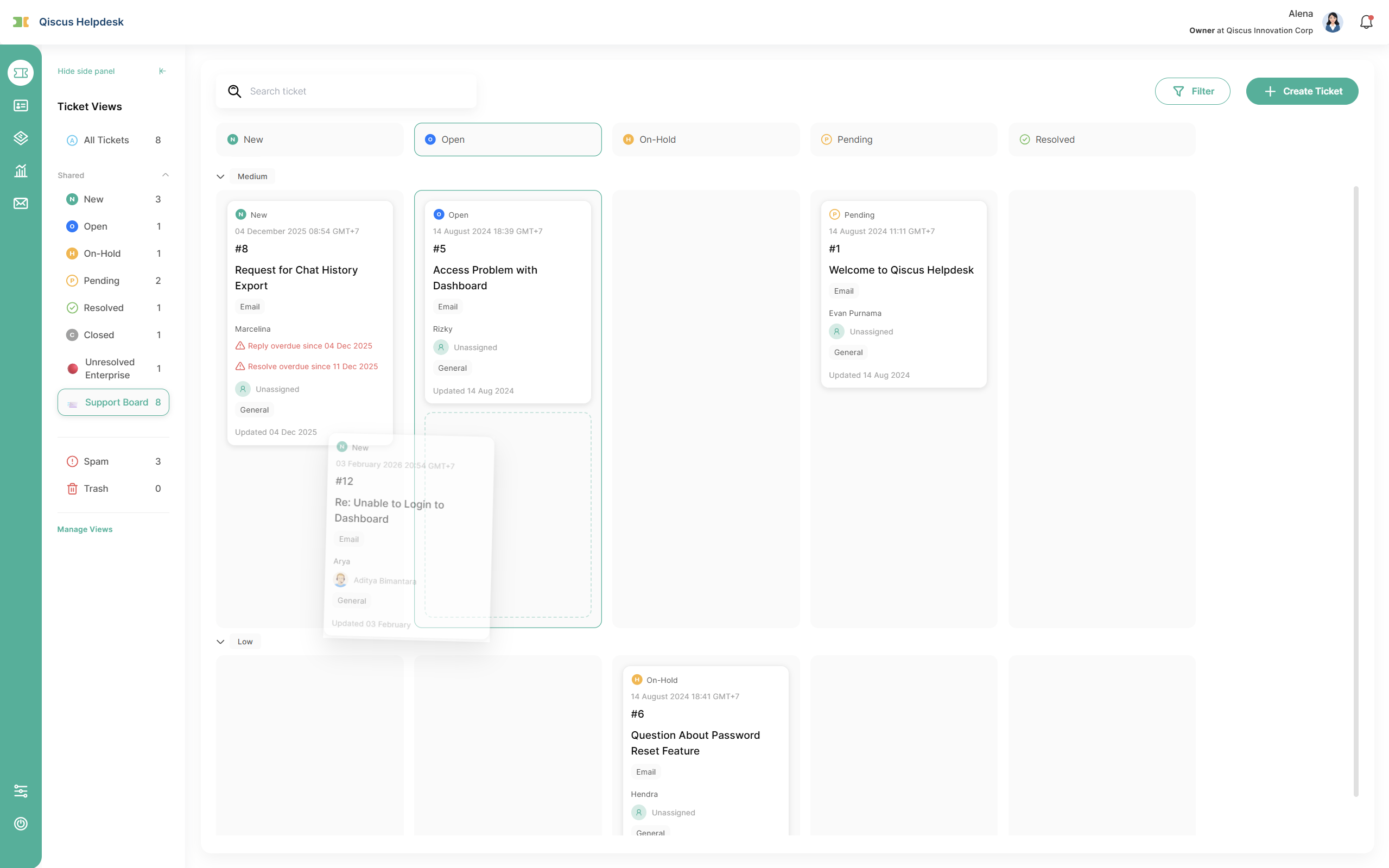
If a move isn't allowed — required field empty for the target status, read-only swimlane (like Channel), or you don't have handover permission — the card snaps back and a toast tells you why. Server or network errors show a generic retry message.
You can't drag a ticket back to the New column. New is set only once, when the ticket is first created — any drop into the New column is rejected with a toast.
Handover permission (Swimlane = Assignee). When swimlane is Assignee, dragging across rows is a handover. What's allowed depends on the user's role and your tenant's Handover Options setting:
Owner / Admin can hand a ticket to anyone, regardless of the setting.
Supervisor and Agent follow the Handover Options setting —
Agents not allowed to handover ticketsblocks the Agent entirely but still lets a Supervisor hand over within their own division;Can only handover tickets within own divisionlimits both roles to same-division handovers;Can handover tickets to own and other divisionlets both roles hand over to any division.
When a drop is rejected, the cursor shows 🚫 before you let go and a toast explains why.
If you drag a ticket to an agent who belongs to multiple divisions and isn't a member of the ticket's current division, the drag is blocked because the system can't tell which of their divisions to move the ticket to. Open the ticket and assign from the ticket detail — the division picker lets you choose explicitly. Single-division agents and agents who share the ticket's current division work as expected.
Dragging a card into the Unassigned swimlane un-assigns the ticket. Owner, Admin, and Supervisor can always un-assign; an Agent can only un-assign tickets that are currently assigned to themselves.
Permission to change Division (Swimlane = Division). Drag a card between Division rows to move the ticket to a different division.
Owner / Admin can move a ticket to any division, including clearing it to No Division.
Supervisor can move tickets between divisions per the Handover Options setting (within own division only, or to any division). Clearing the division (drag to No Division) is reserved for Owner and Admin.
Agent cannot change a ticket's division via drag-and-drop.
When a ticket's division changes — by drag-and-drop or from the ticket detail — the assignee is automatically cleared so a member of the previous division doesn't follow the ticket into a new one. A small toast confirms the change, and you can re-assign the ticket once it's in the new division.
Assigning a ticket that doesn't yet have a division. Tickets without a division can't be assigned directly from the Kanban board. Open the ticket and set its division first, then you can assign someone — either from the ticket detail or by dragging it on the board.
Picking up an unassigned ticket as an Agent. If your tenant lets agents see all tickets in their division (Settings → Tenant Options → Agent's Ticket Visibility), you can drag any unassigned ticket from the Unassigned row onto your own row to claim it. This works regardless of your Handover Options setting — picking up a ticket isn't a handover, so it's never blocked.
Realtime Updates
As your teammates work on tickets, the view stays in sync without manual refresh. The view-specific behaviors to expect:
List view:
A ticket that newly matches the view's conditions animates in; the sidebar counter increases by one.
A ticket that no longer matches the view's conditions fades out; the sidebar counter decreases by one.
If a change affects the view's Order by field, the row re-sorts in place.
Kanban Board view:
A change to the Group field animates the card from its original column to the target column.
A change to the Swimlane field animates the card to the new swimlane row.
A change to the view's Order by field re-sorts cards inside the column (unless Order by = None).
A ticket that no longer matches the view's conditions fades out; a ticket that just started matching fades in.
When another user drags a card and the drop succeeds, your board mirrors the move with the same animation.
SLA reminder block on Kanban cards:
When a ticket enters the SLA reminder period configured in your SLA policy, the card's SLA reminder block turns 🟡 yellow.
When a ticket goes overdue, the block turns 🔴 red and the text switches to the overdue pattern (e.g.
Reply 10m overdue).The relative time text updates as the clock advances (e.g.
in 2h→in 1h).
Filtering Tickets in a View
Each view (List or Kanban) has a Filter button that opens the standard ticket filter panel. Filtering narrows the tickets that are already in the view — it does not bring in tickets that don't match the view's conditions. The filter behavior is identical for both view types.
The filter panel contains the default filters plus a filter for each Custom Field of type Dropdown that you included in Manage Fields when creating or editing the view. To add a custom field filter to a view, edit the view and add that field through Manage Fields.
Custom field filter labels that are long (up to 100 characters) wrap up to two lines, then truncate with .... Hovering shows the full label in a tooltip.
Visibility per Tenant and Role
The tickets each agent sees inside a view always respect your tenant's existing Agent's Ticket Visibility setting (Settings → Tenant Options):
Owner / Admin / Supervisor — see every ticket that matches the view's conditions, regardless of the tenant option.
Agent — follows the configured behavior:
Only able to view ticket that assigned to them — only tickets where the Agent is the Assignee.
Allow Agent to see all ticket in their division — all tickets within the Agent's division.
The ticket counter shown next to each view in the sidebar is also calculated against the post-visibility scope. The number you see is what you can actually open.
D. Limitations and Expected Behaviors
Default views are read-only. New, Open, On-Hold, Pending, Resolved, and Closed cannot be edited or deleted by anyone, including Owners. To customize one, use Duplicate to create your own copy.
Field limit. A view can show up to 15 columns (List) or 15 fields per card (Kanban). Three fields are always mandatory: Ticket ID, Ticket Status, Subject.
Required condition. A view must include at least one condition using Status, Assignee, Division, or Requester.
Personal views are private. No one else (including Owners and Admins) can see another user's personal views.
Supervisor / Agent duplicates. When a Supervisor or Agent duplicates a Shared view, the resulting view is always a Personal view with Who has access = Only Me. The role does not have permission to create Shared views.
Deactivated views. A deactivated view is removed from the dashboard sidebar but remains in Settings → Views. Re-activate it to bring it back.
Deleted reference values. If a condition references a value that's been deleted (tag, division, agent, etc.), the view returns an empty result until you edit the condition.
Sidebar display limit. The dashboard sidebar shows up to 20 active custom shared views and 10 active personal views (default views are always shown and don't count toward the limit). Active views beyond the limit stay accessible in Settings → Views but aren't rendered in the sidebar.
Kanban Group is fixed to Status. Other group fields are not configurable. Closed status is excluded from the board on purpose; closed tickets are visible only in List views.
Read-only swimlane fields. When the swimlane field cannot be edited (e.g. Channel), drag-and-drop between swimlanes is rejected and shows a toast.
Manual order is overridden by Order by. When Order by is set to a real field, manual drag-and-drop ordering inside a Kanban column is not preserved — the system re-sorts on every change.
E. Summary
Custom Ticket Views give your team a flexible, role-aware way to surface the right tickets fast — and now with two complementary layouts. List is ideal for reporting, bulk inspection, and tickets that move at a slower cadence. Kanban Board is ideal for status-driven workflows where the team wants to see and update progress visually. With shared and personal scopes, sticky filtering, realtime sync, and drag-and-drop status updates, ticket views shrink the time spent navigating so agents can spend more of their time handling tickets.