
Besides the standard Online, Busy, Away, and Offline statuses, you can give your team custom statuses that describe what people are actually doing, such as "Taking tickets", "In a meeting", or "Lunch break". You set them up in Settings → People → Agent Status.
To learn how your team uses these statuses day to day, see Agent Status.
Only Owners and Admins can manage statuses. Custom statuses are available on selected Helpdesk plans, with up to 5 custom statuses per tenant. The limit applies to your whole tenant, not to each user: the statuses you create are shared by everyone on your team.
A. Benefits of Custom Statuses
Clearer availability: teammates can see exactly why someone is busy or away.
Fits your workflow: name statuses the way your team already talks about their work.
Easy to pick: you decide the order, so the statuses your team uses most appear first.
B. Creating a Custom Status
Go to Settings → People → Agent Status and click Create Agent Status.
Choose a Status Category:
Online for statuses where the person is working and available, for example "Taking tickets".
Busy for statuses where the person is working on something else, for example "In a meeting".
Away for breaks and time away, for example "Lunch break".
Enter a Name and a short Description. The description helps teammates understand when to use the status.
Pick an emoji so the status is easy to recognize.
Click Create. The status is immediately available to your whole team.
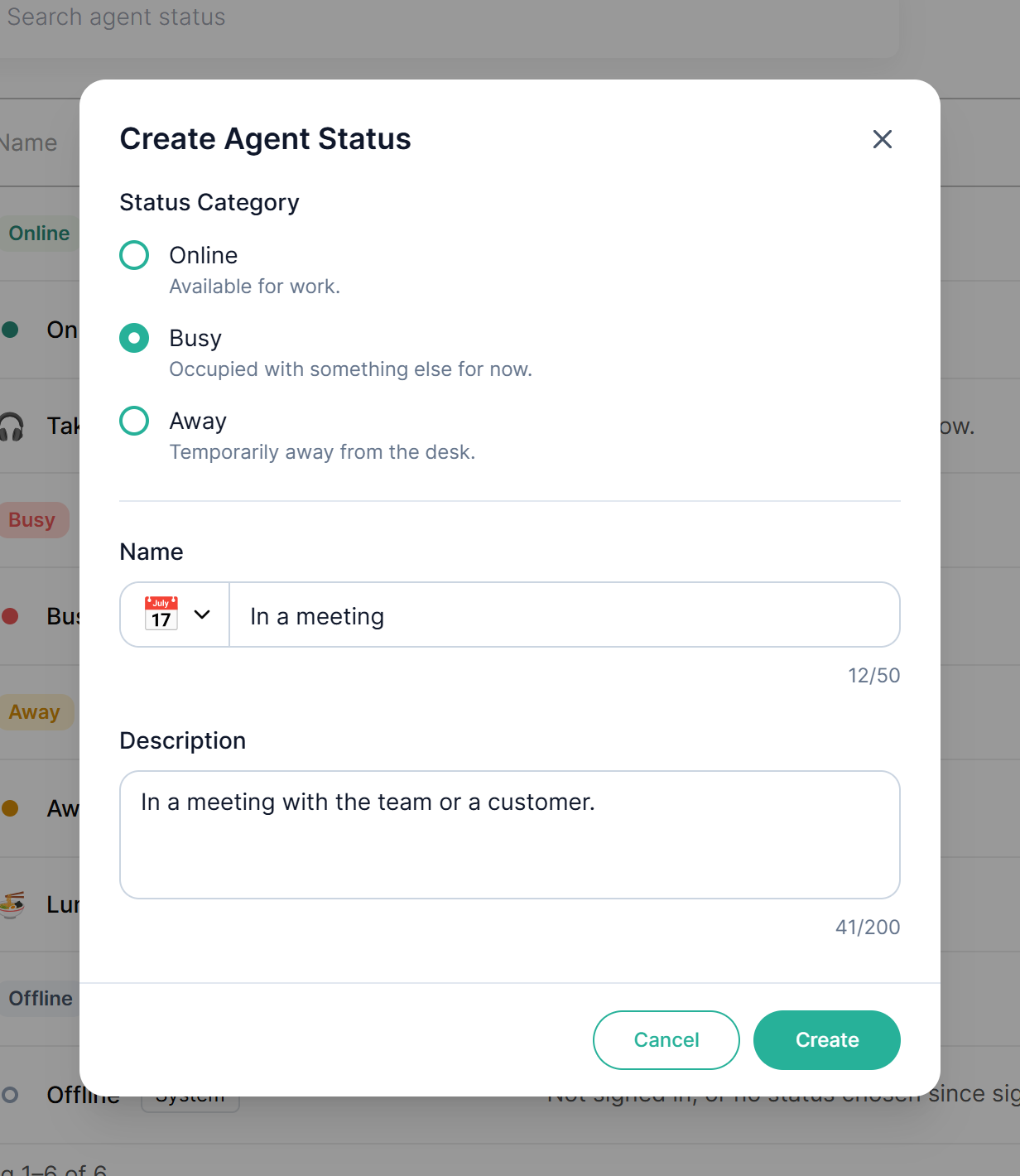
Choose the category carefully. It decides how the status is grouped and counted on the Monitoring page, and it cannot be changed later.
C. Managing Your Statuses
All statuses are listed by category. The standard statuses are marked System and always stay at the top of their group. Click any custom status to edit, reorder, or delete it.
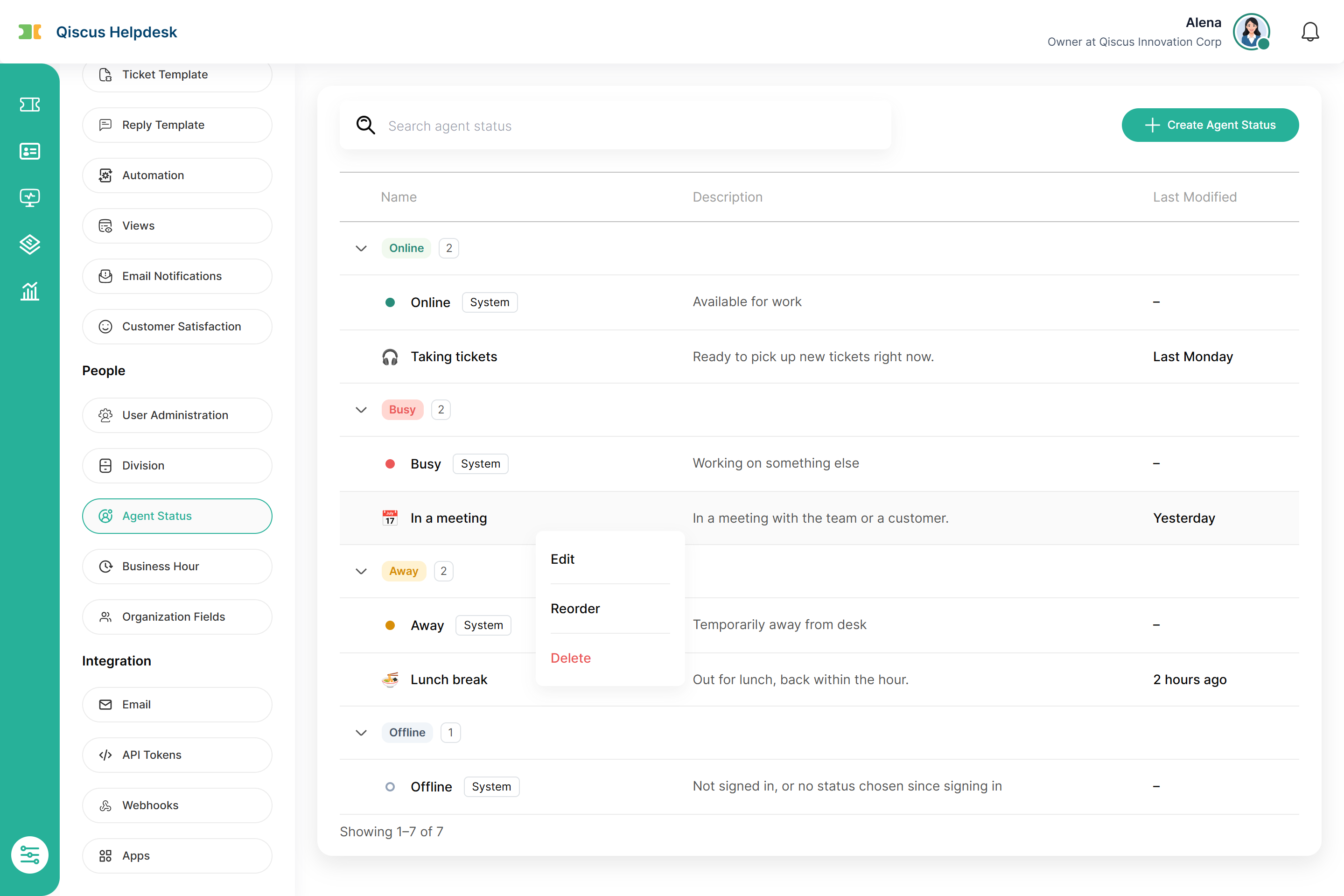
Editing a status
You can change the name, description, and emoji at any time. Anyone currently using the status keeps it and simply sees the updated name.
Reordering statuses
Choose Reorder, drag the statuses into the order you want, and click Save order. Your team will see the statuses in this order when they change their status.
Deleting a status
Choose Delete and confirm. If anyone is using the status when you delete it, they are moved to the standard status of the same category, for example from "In a meeting" to Busy, and they are notified about the change.
D. Good to Know
Standard statuses cannot be changed. Online, Busy, Away, and Offline are always available and cannot be edited or deleted.
There are no custom Offline statuses. Offline is set automatically when someone signs out.
Custom statuses depend on your plan. Selected Helpdesk plans include up to 5 custom statuses for your whole tenant. If you don't see the Create Agent Status button, either your plan does not include custom statuses or you have reached the limit. Deleting a custom status frees up a slot. To add custom statuses to your plan, contact the Qiscus team.
E. Summary
Custom statuses help your team share what they are doing in their own words. Create them under Online, Busy, or Away, keep the most useful ones at the top, and remove the ones you no longer need. For how your team uses these statuses, see Agent Status.