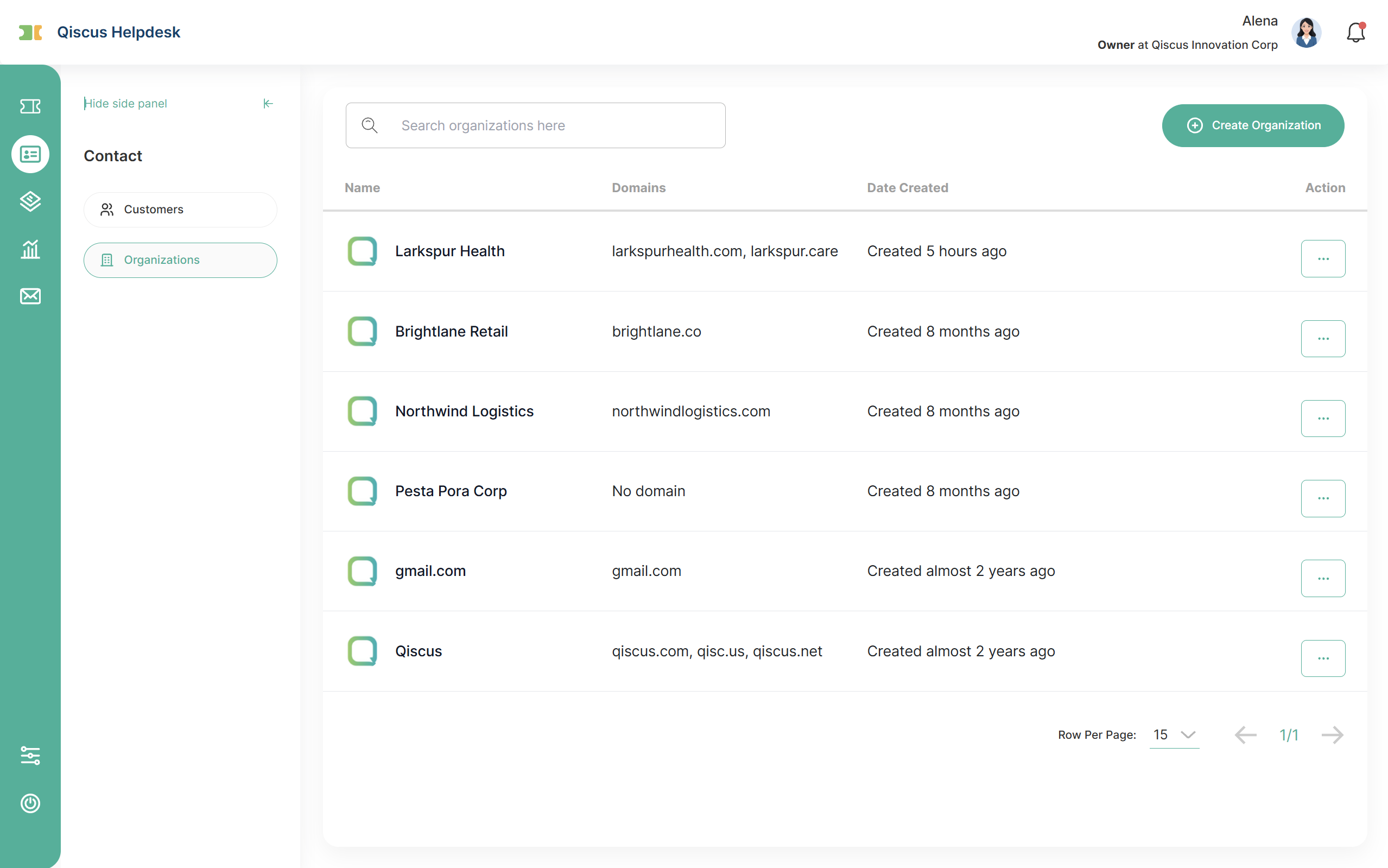
The Organizations menu groups customers who belong to the same company or team. Organizations make it easier to see all tickets and interactions from one company together, so you can spot recurring issues and understand the full context behind a request.
Creating an organization
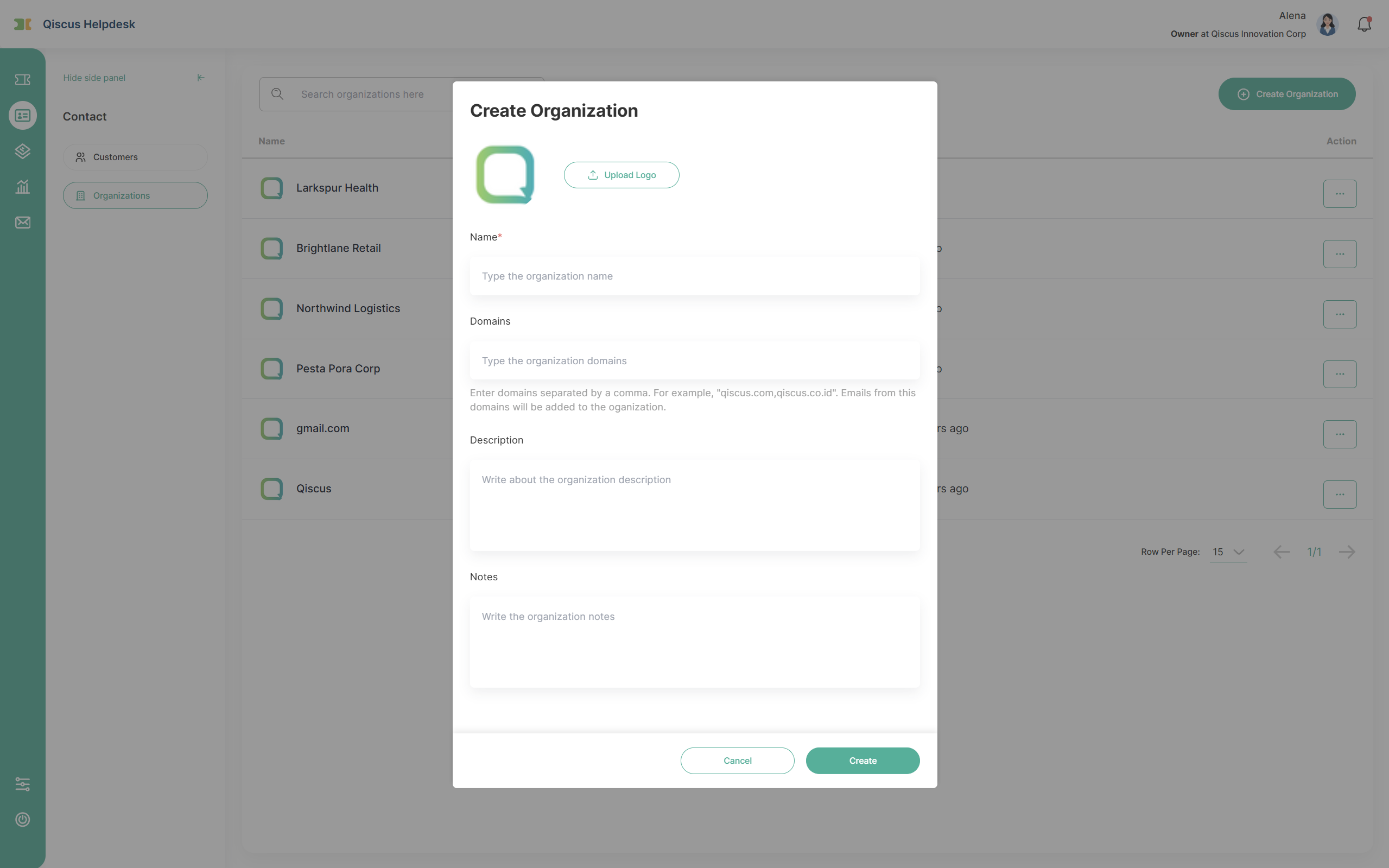
Only the Name field is required. The other fields are optional:
Name (required)
Domains: the company's email domain(s), separated by commas (for example,
qiscus.com).Description: what the organization does.
Notes: any additional relevant information.
Custom organization fields
Beyond the default fields above, you can add your own custom organization fields to capture information specific to your business. Custom fields are dropdown fields that you configure in Settings → Organization Fields, and they appear when creating or editing an organization (and can be marked as mandatory). For details, see Organization Fields.
How customers are grouped
Automatic grouping: customers whose email uses a registered domain (for example,
@qiscus.com) are automatically added to the matching organization.Manual assignment: customers without email data can be added to an organization manually.
Organization actions
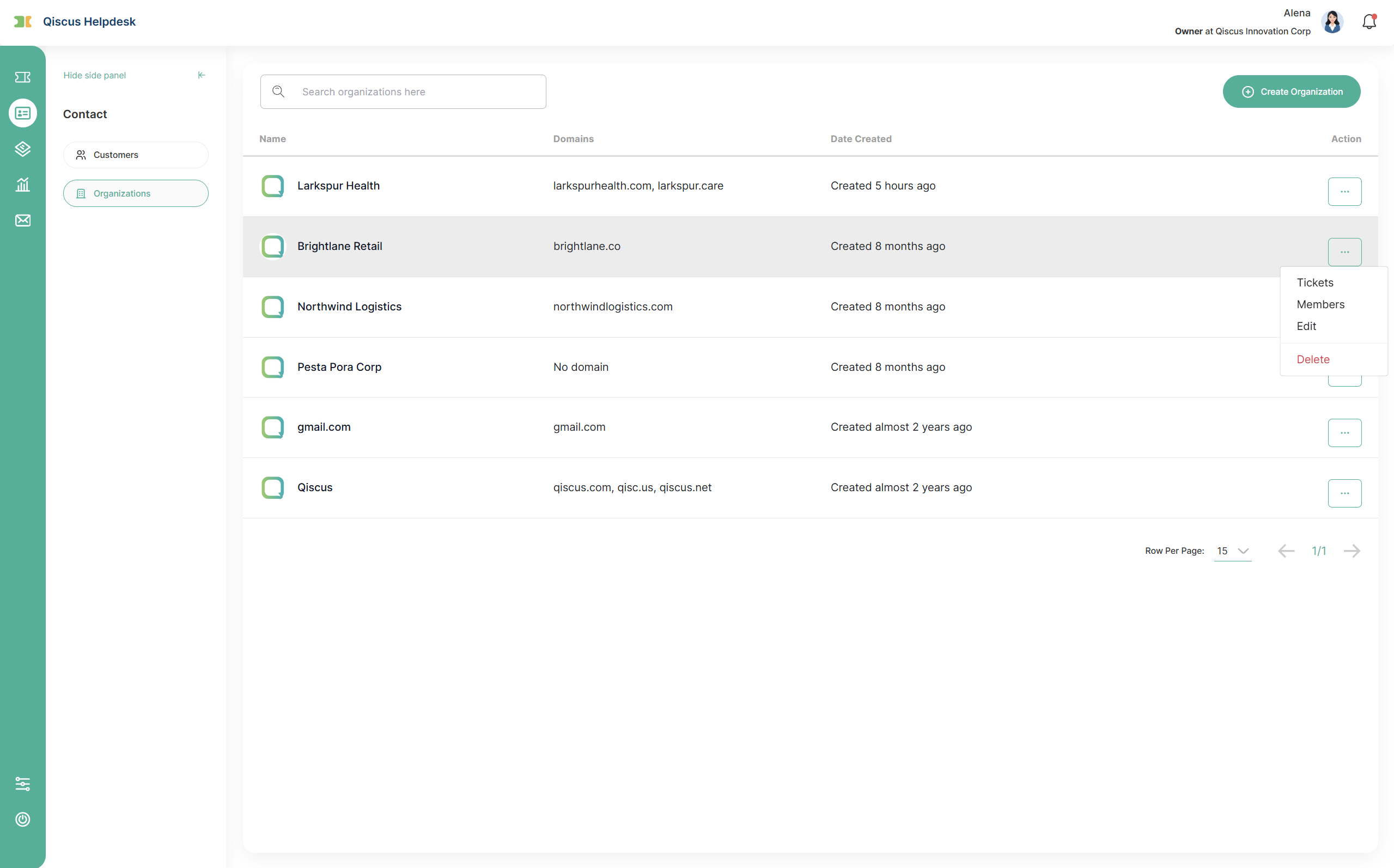
Open an organization's action menu (the ⋯ button at the end of each row) to:
Tickets: view all tickets from customers in this organization, to review support interactions and identify recurring issues.
Members: view the customers who belong to this organization.
Edit: update the organization's information (name, domains, description, notes, and any custom fields).
Delete: remove the organization. This action is permanent.