
Mention lets you call a specific teammate into a ticket directly from an Internal Note. Type @, pick a name, and send the note. The person you mention is notified that you need them on this ticket, and the conversation stays inside the ticket instead of moving to a chat group.
Everyone you mention also becomes a follower of the ticket, so they keep receiving its updates. If they could not open the ticket before, the mention gives them access to it.
Owners, Admins, Supervisors, and Agents can all mention teammates in any ticket they can write an Internal Note on. Customers cannot be mentioned.
A. Common Use Cases
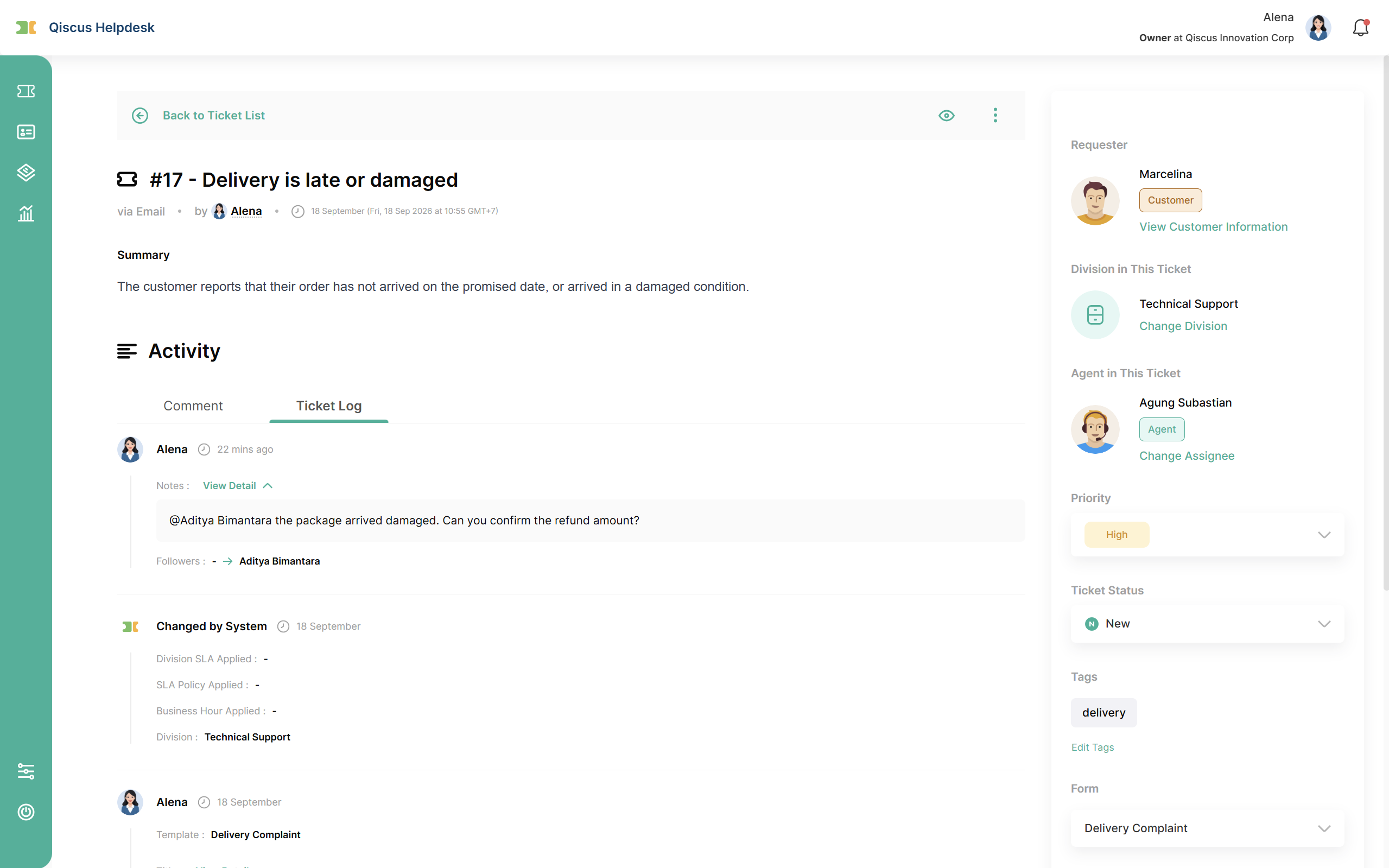
Asking a colleague a specific question. An agent handling a refund request from Brightlane Retail writes
@Hendra can you confirm this refund amount?in an Internal Note, and the answer lands in the same ticket.Delegating work without changing the assignee. A supervisor writes
@Diego please handle the follow-up, @Rizky will monitorto direct the work while the assignee stays the same.Pulling in another division. A case needs input from the legal or technical team, who normally cannot see tickets from your division. Mentioning them gives them access to this one ticket.
B. How to Mention a Teammate
Open a ticket and choose Send as Notes in the composer.
Type
@. A list of teammates appears under the cursor.Keep typing to filter the list by name or email.
Select a name with the mouse, or with the arrow keys and
Enter. The name is inserted as a chip.Send the note as usual.
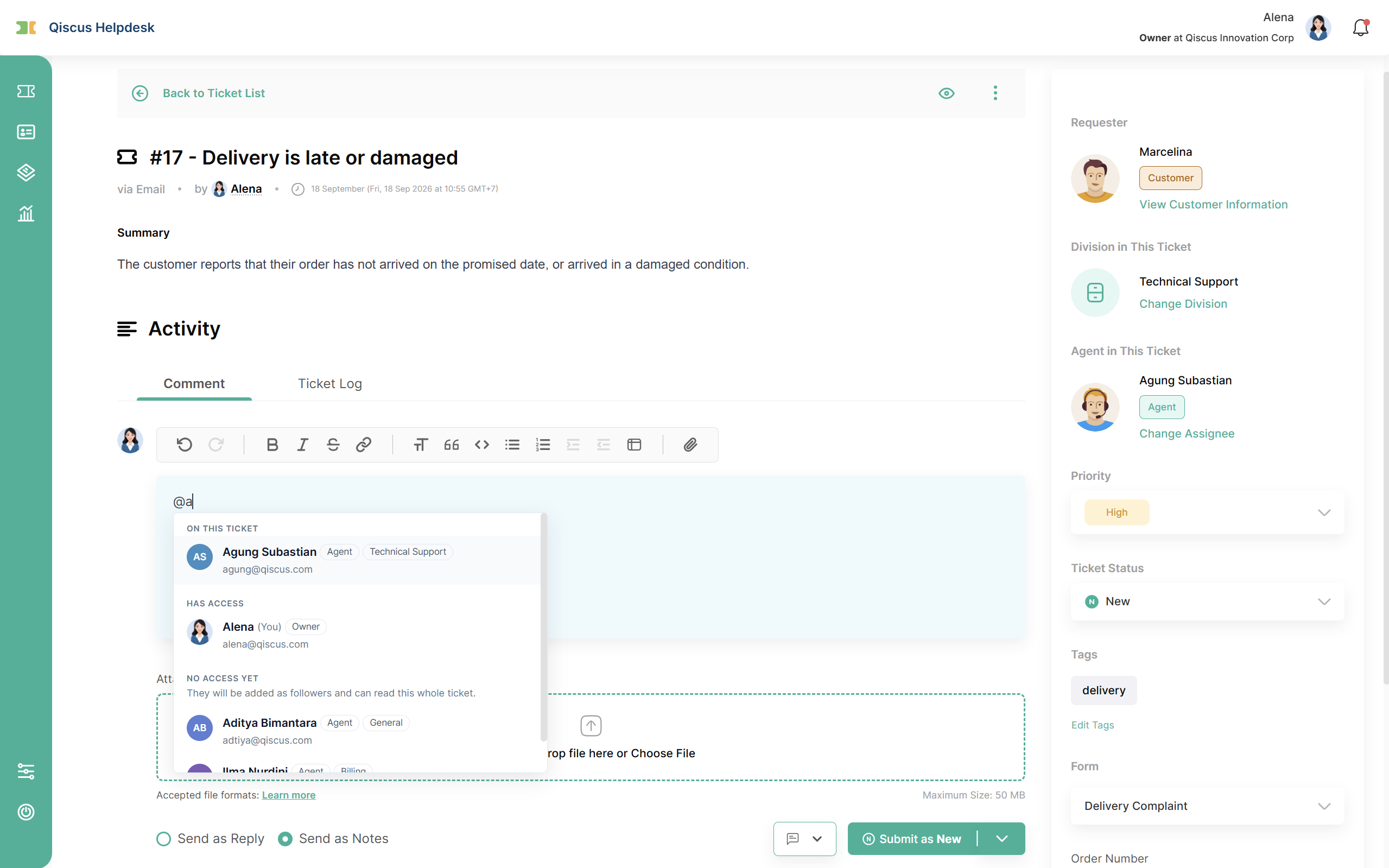
The mention list
The list is grouped so you can see what happens when you pick someone:
Group | Who appears | What mentioning them does |
|---|---|---|
On this ticket | The assignee and the followers of this ticket. | Notifies them. |
Has access | People who can already open this ticket, such as Owners, Admins, and members of the ticket's division. | Notifies them and adds them as a follower. |
No access yet | Everyone else. Appears once you start typing a name. | Notifies them, adds them as a follower, and gives them access to the whole ticket. |
Each row shows the person's name, role, email, and division. You can also mention yourself, for example to show that you are keeping an eye on a ticket; you become a follower but are not notified.
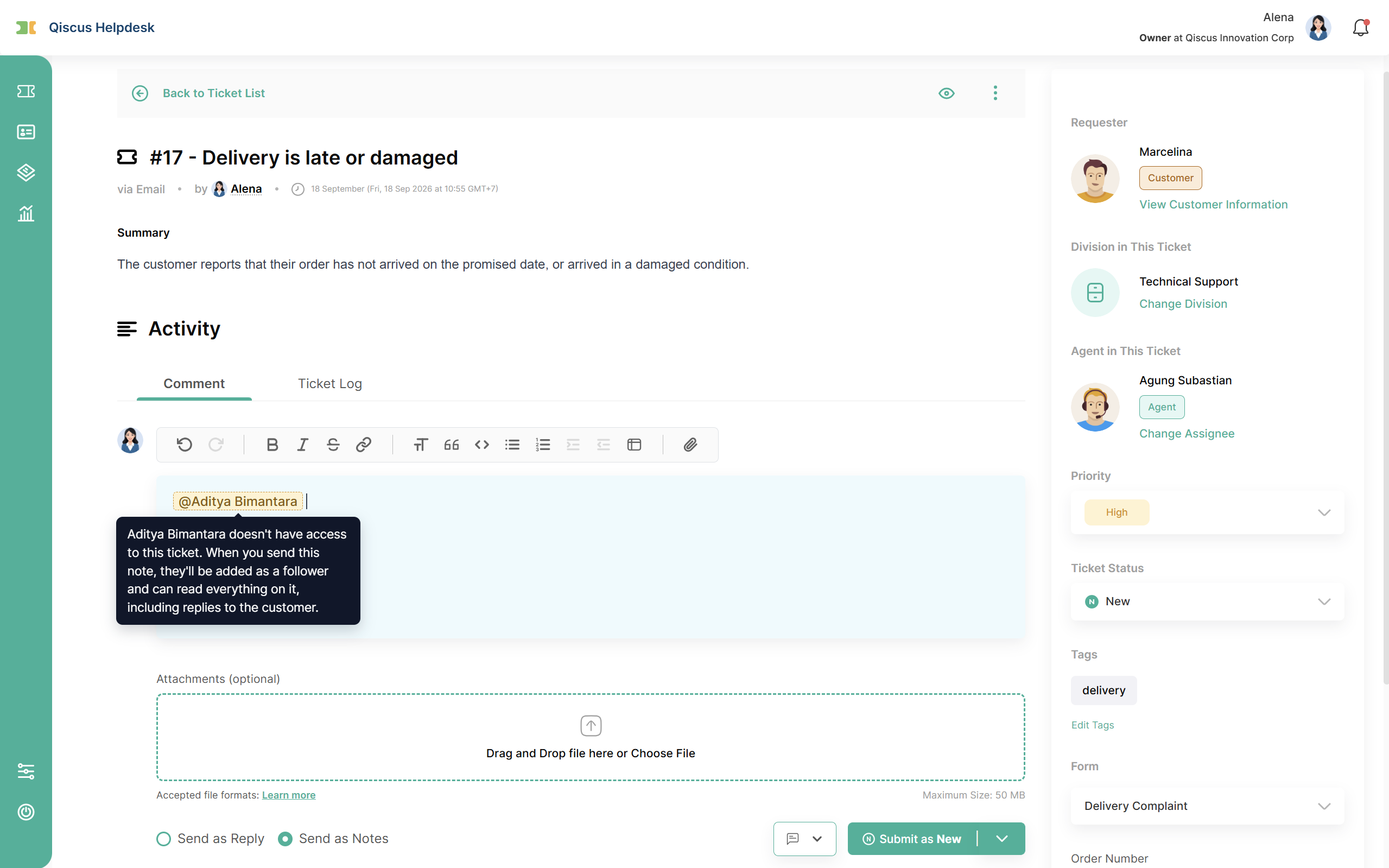
Mentioning someone who does not have access yet
When you pick someone from No access yet, their chip is highlighted. Hover over it, or tap it on a touch screen, to see what will happen when you send the note. If you change your mind, delete the chip before sending.
Sending the note gives that person access to the entire ticket, including the conversation with the customer, not only to your note.
C. After You Send the Note
The mentioned person becomes a follower and keeps receiving updates on the ticket. The assignee is the only exception, because they already receive every update.
Mentions stay as chips in the note. Click or hover over a chip to see the person's email, role, and division.
Mentions of deleted users appear as
@Name (Deleted)in grey, so older notes stay readable.
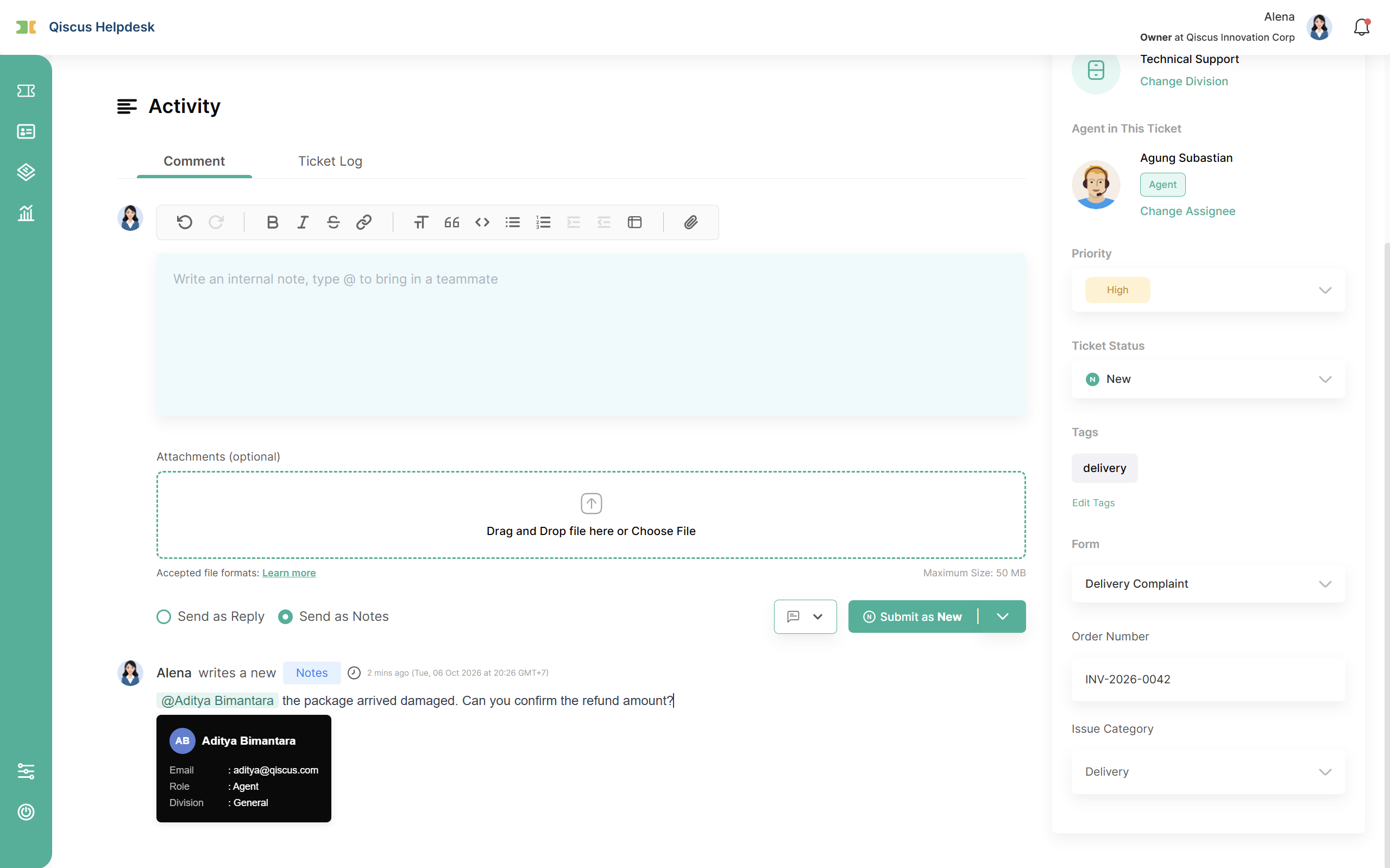
Mentions only work in Internal Notes. If you switch the composer to Send as Reply, the chips turn into plain text and no one is notified.
D. Notifications for Internal Users
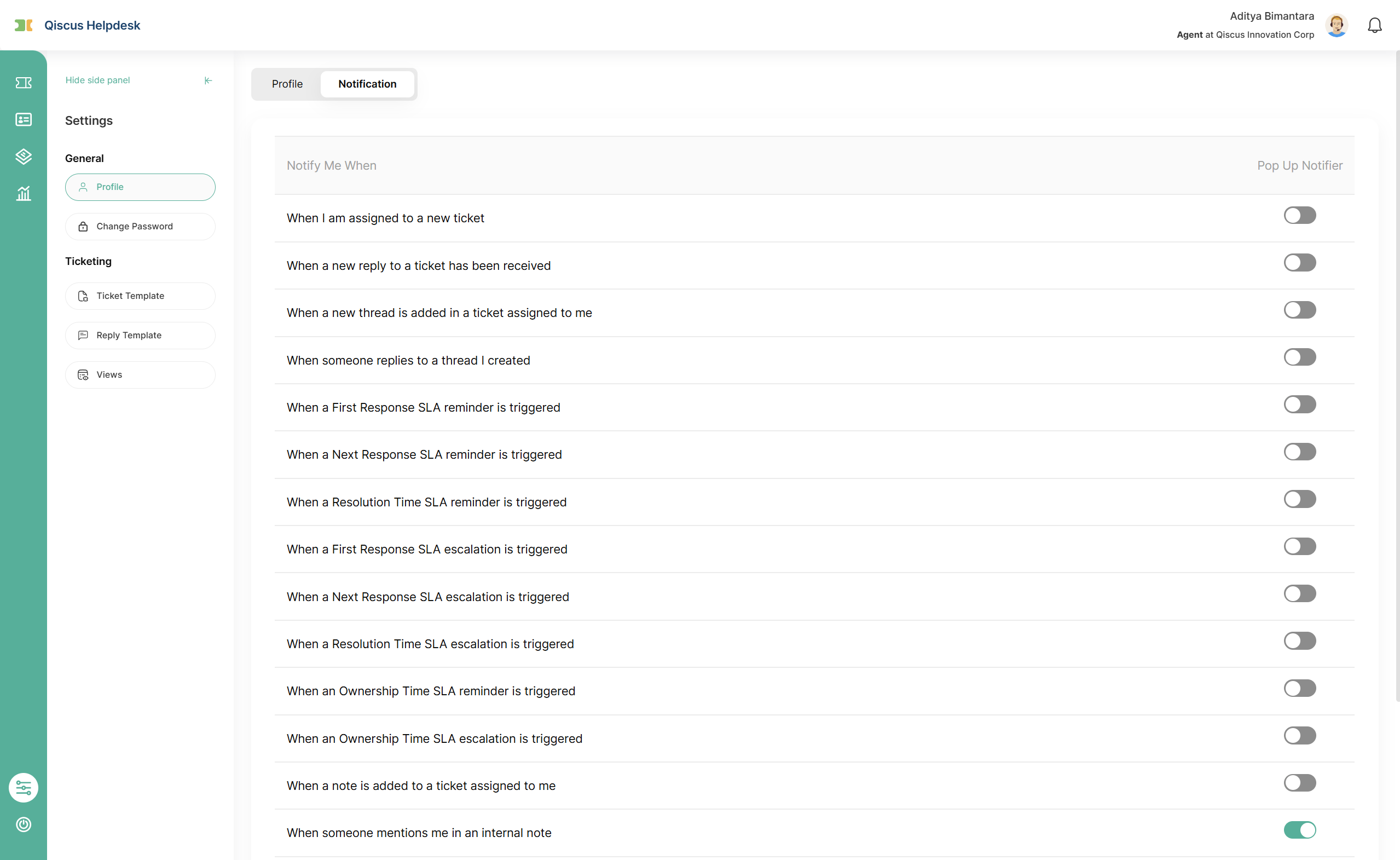
The person you mention receives a pop-up and an entry in the notification bell, reading {Your name} mentioned you in an internal note on ticket #{ticket number}. Clicking it opens the ticket and scrolls straight to your note.
They receive one notification per note. Even if they are also the assignee or a follower of the ticket, the mention notification replaces the usual note notifications, so they are not notified twice for the same note.
Email. Mentioned users also receive an email through the Mentioned in an Internal Note notification type, which is active by default. Owners and Admins can customise or turn it off in Settings → Email Notifications. See Email Notifications.
Pop-up preference. Each user can turn the mention pop-up off in Settings → Account → Notification, on the row When I am mentioned in an internal note. Mentions still appear in the notification bell.
E. Ticket Logs for Mention
When a mention adds someone as a follower, the Ticket Log records it as a regular follower addition, so you can always see who was brought into the ticket and by whom.
F. Limitations & Expected Behaviors
Internal Notes only. Mentions are not available in replies to customers, Forward, or Thread.
Individual teammates only. You cannot mention customers, divisions, or teams.
Mentions cannot be undone after sending. Notes cannot be edited or deleted, so check your mentions before you send.
Mention no longer valid. If someone you mentioned was deleted just before you sent the note, the note is not sent and a dialog tells you who to remove. Your text stays in the composer.
Finding older mentions. The notification bell shows the last 24 hours. To find tickets you were mentioned on earlier, use the Followers filter in your ticket views.
G. Best Practices
Mention the person you need an answer from, not everyone involved. Followers already receive updates, so mentioning them only adds noise.
Say what you need in the same note.
@Martin please confirm the refund amount by 3 PMgets a faster answer than a bare mention.Keep the discussion in the ticket. Reply to a mention with another Internal Note, so the answer is recorded next to the question.
Unfollow when you are done. If a mention pulled you into a ticket you no longer need to track, use Unfollow to stop receiving its updates.
H. Summary
Mention turns an Internal Note into a direct request to a specific teammate. The person you mention receives one clear notification, becomes a follower of the ticket, and, if needed, gains access to it, with the access change shown before you send.