
Helpdesk Apps let you extend the Helpdesk experience by embedding external tools directly into the Helpdesk interface using iframe.
This allows agents to access supporting systems—such as CRM, order data, or internal dashboards—without switching tabs or leaving Helpdesk.
Apps appear as additional menus inside Helpdesk and are fully managed by Admins or Owners.
A. Why Use Helpdesk Apps?
Helpdesk Apps help teams work more efficiently by keeping important tools inside the Helpdesk workspace. Instead of switching between multiple tabs or systems, agents can access what they need while staying focused on the conversation.
With Helpdesk Apps, you can:
Reduce context switching during ticket handling
Show relevant information next to the ticket
Adapt Helpdesk to match your internal workflows
Control access by role or division
Typical examples include embedding customer or order details, internal dashboards, CRM or sales tools, third-party operational systems, or simple internal references and calculators directly inside Helpdesk.
B. Setting Up Helpdesk Apps
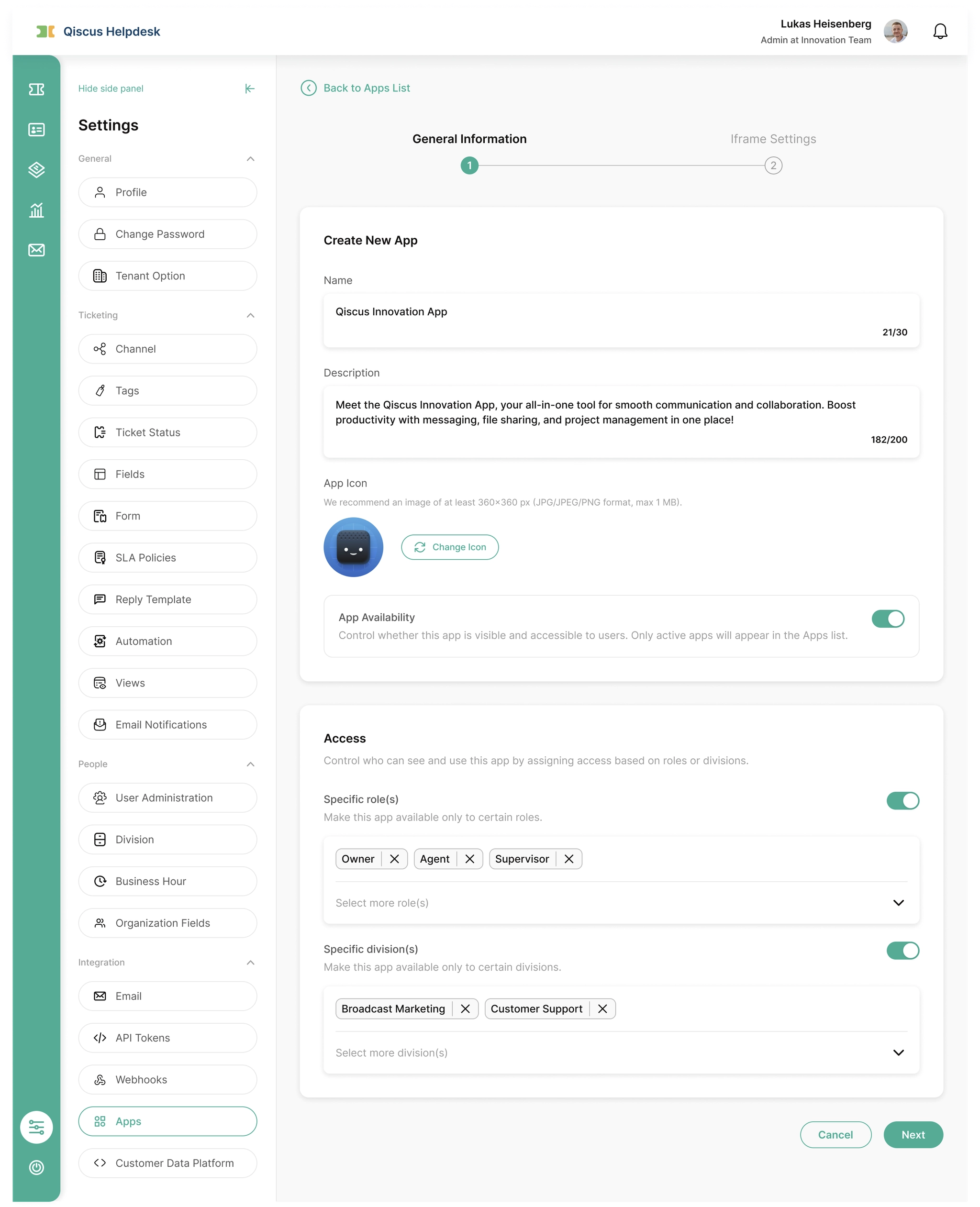
Admins and Owners can create and configure Apps from the Helpdesk settings.
Access path:
Settings → Integrations → Apps
When setting up an App, you will define where the app appears, who can access it, and which external page is embedded.
App Access
You can control who can see each App by:
Role (Agent, Supervisor, Admin, Owner)
Division
If a user does not meet the access rules, the App will not appear for them.
App Placement
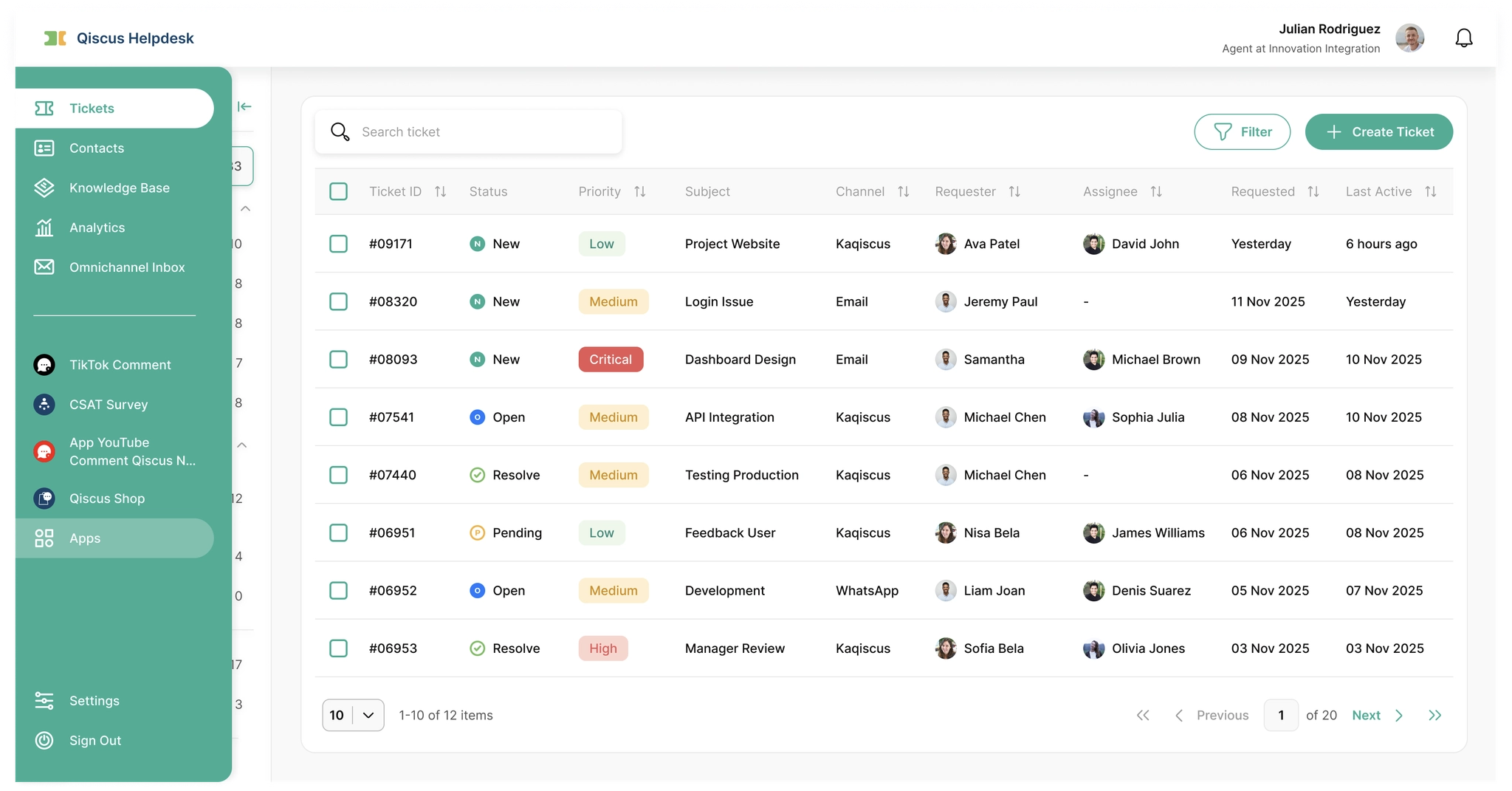
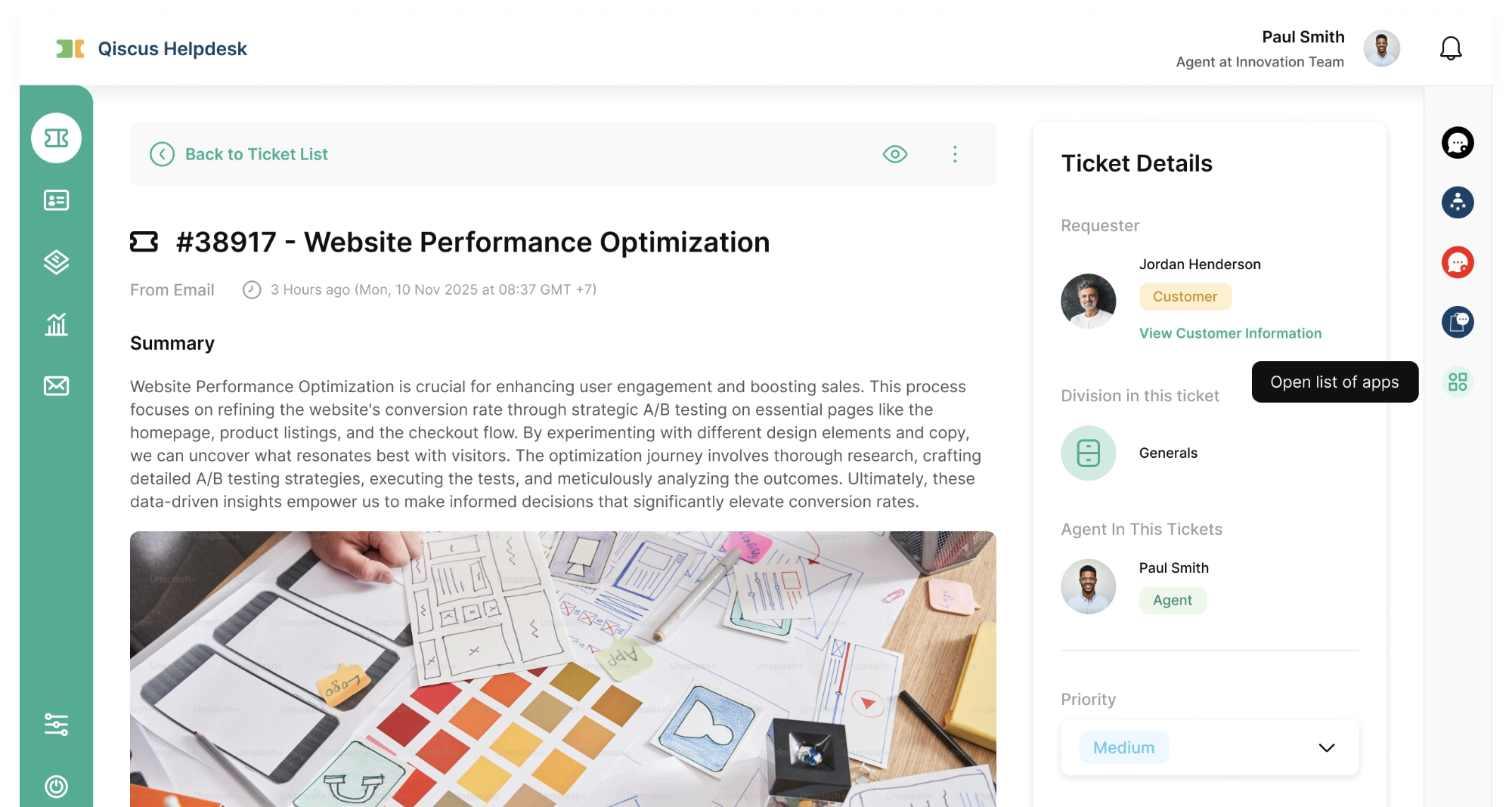
Apps can be placed in one of the following locations:
Placement | Description | Best For |
|---|---|---|
Side Navigation | Appears in the main Helpdesk menu | General tools used across tickets |
Ticket Sidebar | Appears on the ticket detail page | Ticket-specific or customer-related tools |
C. Managing Helpdesk Apps
Once Apps are created, Admins or Owners can manage them from the Apps list.
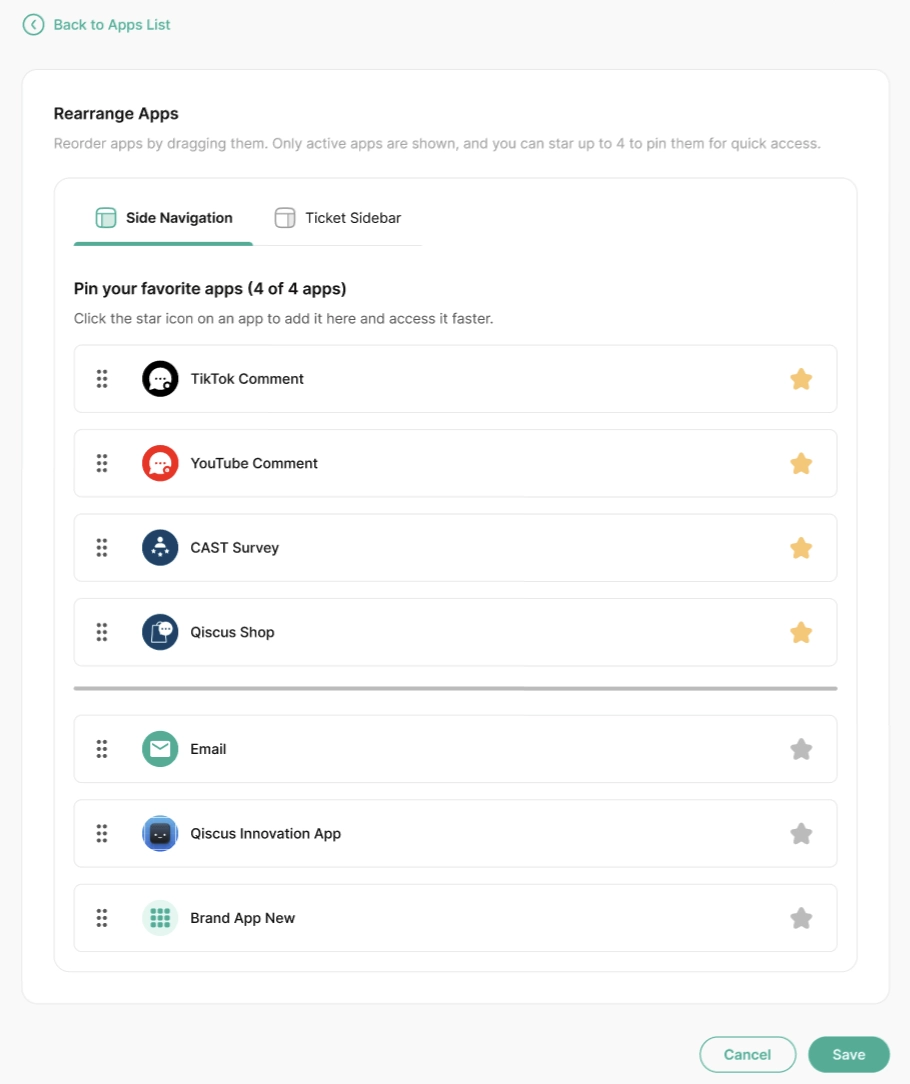
Editing and Reordering Apps
App details can be updated at any time
Apps can be rearranged to control display order
Important apps can be marked as favorites and shown first
Activating, Deactivating, and Deleting Apps
Apps can be activated or deactivated without deleting them
Deactivated apps are hidden from users
Apps can be deleted when no longer needed
D. App Interactions and Context
Beyond displaying content, Helpdesk Apps can also receive context and react to changes inside Helpdesk.
Events & Signals
Apps can notify Helpdesk when they are ready, and Helpdesk can notify Apps when the ticket changes.
App ready – the embedded App notifies Helpdesk that it is ready to receive context and render content.
Ticket updated – Helpdesk sends the latest ticket data whenever the ticket is updated (Ticket Sidebar apps only).
When the ticket is updated (Ticket Sidebar apps only), the app can receive a payload that includes key ticket information such as:
This helps apps in the Ticket Sidebar keep their view aligned with the current ticket state.
Data Apps Can Request
Apps can also request basic context from Helpdesk:
Current logged-in user – available for all app placements.
Current ticket data – available for apps placed in the Ticket Sidebar.
This is useful for personalising the app or tailoring content to the ticket being viewed.
App Display Actions
To improve the user experience, apps can ask Helpdesk to adjust how they are shown:
Resize window –
helpdesk:app:resizeFullscreen –
helpdesk:app:fullscreen
These actions allow apps to expand when they need more space, or shrink when showing simpler content.
E. Developer Guide
This section explains how embedded Apps communicate with Helpdesk, request data, receive updates, and control their display behavior.
Helpdesk Apps communicate using the window.postMessage API. All communication must use the helpdesk:apps channel.
Communication Channel
All messages between Helpdesk and the embedded App use:
Helpdesk will only process messages where:
Apps should always include the correct channel and event name.
App Initialization
Each App instance embedded in Helpdesk follows a lifecycle to establish communication and receive required data.
App Ready
When the iframe is fully loaded and ready to receive data, the App should notify Helpdesk:
After receiving this event, Helpdesk will automatically send:
helpdesk:context:userhelpdesk:context:ticket(if available)helpdesk:context:app
Apps may also request context manually.
Context Data
Apps can receive the following contexts.
App Context
Scope: All placements
When your App is loaded inside Helpdesk, the system assigns an appId to that iframe instance.
Helpdesk automatically sends this value to the App via the helpdesk:context:app event.
Example:
This event is sent after the App sends helpdesk:app:ready.
mode can be:
"popup"– rendered as a floating, resizable window"embed"– rendered fully embedded in the layout
This allows the App to adjust its UI based on how it is displayed.
Your App can also store the appId locally and reuse it when sending future events.
Example:
Including appId in outgoing messages is optional, but strongly recommended.
If
payload.appIdis not provided, the event will still be processed.If
payload.appIdis provided, Helpdesk will validate that it matches the correct App instance.
Example (recommended usage):
User Context
Scope: All placements
Apps can request the current logged-in user:
Helpdesk responds with:
This allows the App to personalize its behavior based on the logged-in agent.
Ticket Context
Scope: Ticket Sidebar only
If the App is placed in the Ticket Sidebar, it can request ticket data:
Helpdesk responds with:
This data matches the current state of the ticket.
Automatic Ticket Updates
Scope: Ticket Sidebar only
For Ticket Sidebar Apps, Helpdesk automatically sends updates when the ticket changes:
Apps should listen for this event to stay synchronized with the current ticket state.
App Display Control Events
Scope: Ticket Sidebar only
Apps can request Helpdesk to change how the iframe is displayed.
Resize Window
Scope: Popup mode only
Helpdesk will resize the popup iframe accordingly.
Toggle Fullscreen
Scope: Popup mode only
Set fullscreen: false to exit fullscreen mode.
Message Validation Rules
Helpdesk will ignore messages if:
channelis not"helpdesk:apps"The message does not originate from the App iframe
appIdis provided but does not match the current instance
If appId is not provided, the message will still be processed.
Notes
Apps must support iframe embedding.
All communication relies on
window.postMessage.Ticket context is only available for Ticket Sidebar Apps.
Resize and fullscreen actions only work in popup mode.
appIdis automatically provided by Helpdesk viahelpdesk:context:appIncluding
appIdin outgoing messages is optional but recommended
F. Limitations
While Helpdesk Apps are flexible, there are some things to keep in mind:
Apps are embedded using iframe and must support iframe usage
Authentication and permissions are handled by the embedded app
Performance depends on the external app being embedded
Apps cannot modify Helpdesk behavior outside their allowed scope
G. Summary
Helpdesk Apps allow you to bring external tools directly into Helpdesk, improving efficiency and reducing context switching for agents.
With flexible placement, access control, and simple organization, Apps help teams work faster while keeping the Helpdesk interface clean and focused.