
What is OmniForm in Live Chat?
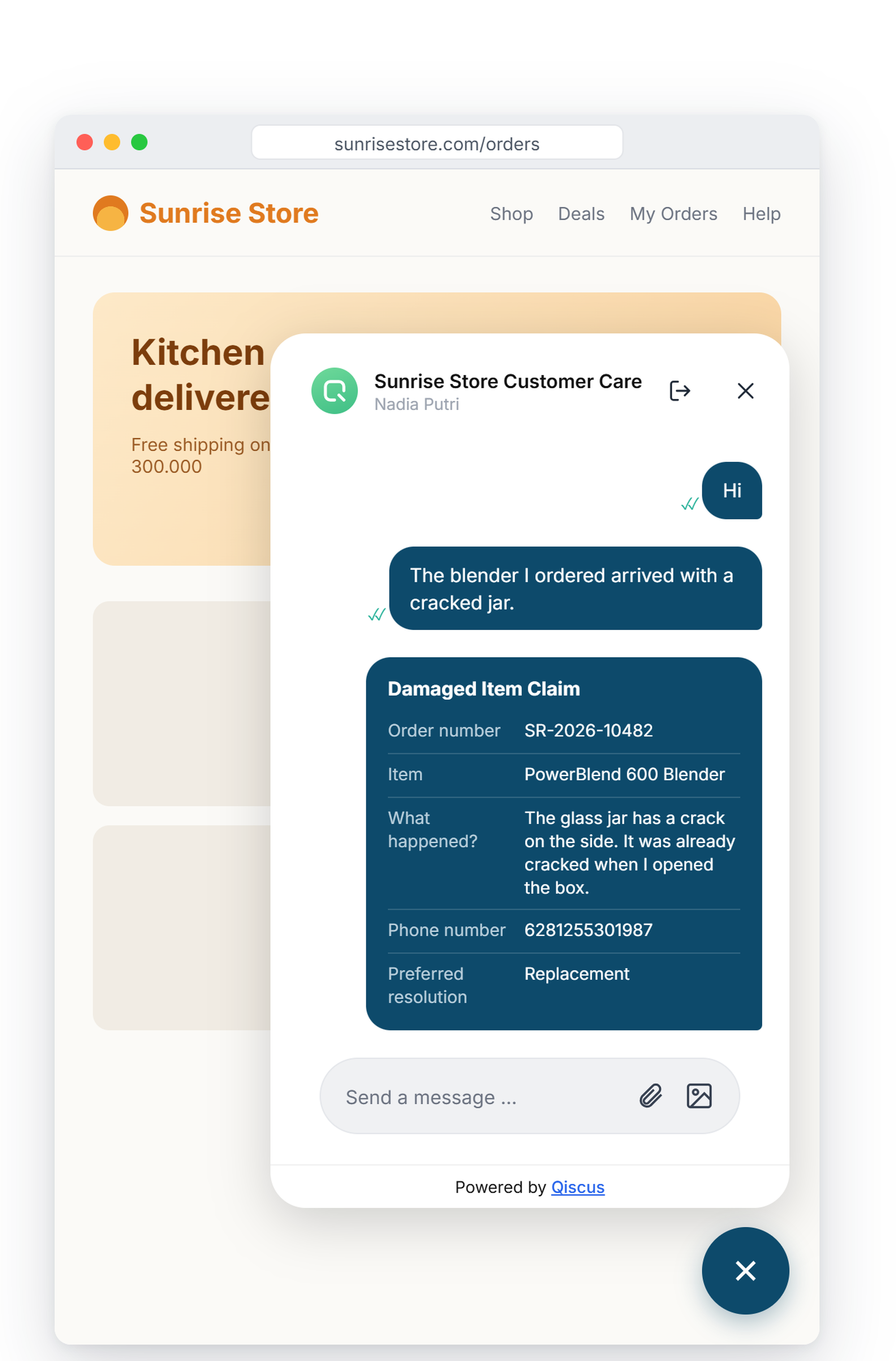
Your bot can send an OmniForm form to a customer during a Live Chat conversation. The customer fills it in without leaving the chat: the form opens in a panel inside the chat widget. After they submit it, the answers appear in the conversation as a table, so your agents can read them in the Inbox next to the rest of the chat.
This works the same way as WhatsApp Flow replies. If your team already handles WhatsApp Flow answers, OmniForm answers follow the same display and privacy rules.
This article covers the Live Chat and Inbox side. To build forms and create form links, see the OmniForm articles listed under Before you start.
When to use it
Your bot needs structured data before an agent takes over, such as an order number, a complaint category, or a photo of a damaged item.
You want customers to answer several questions at once instead of replying to the bot one message at a time.
You need customers to upload files (for example a receipt or an ID document) as part of a request.
Before you start
Channel: OmniForm answers can only be posted to Live Chat rooms. Other channels are not supported.
A form with a webhook. Build the form and set its webhook URL in Submit Action. See Build a Form.
An API token and a bot that creates form links. The form is sent by your bot (your own server), not by an agent. See Share Forms with Customers.
How it works
Your bot creates a form link for the customer's Live Chat room and sends it as a button.
The customer taps the button. The form opens in a panel inside the chat widget.
The customer fills in the form and submits it.
OmniForm sends the answers to your webhook. When your webhook accepts them, the answers are posted to the room as a message from the customer.
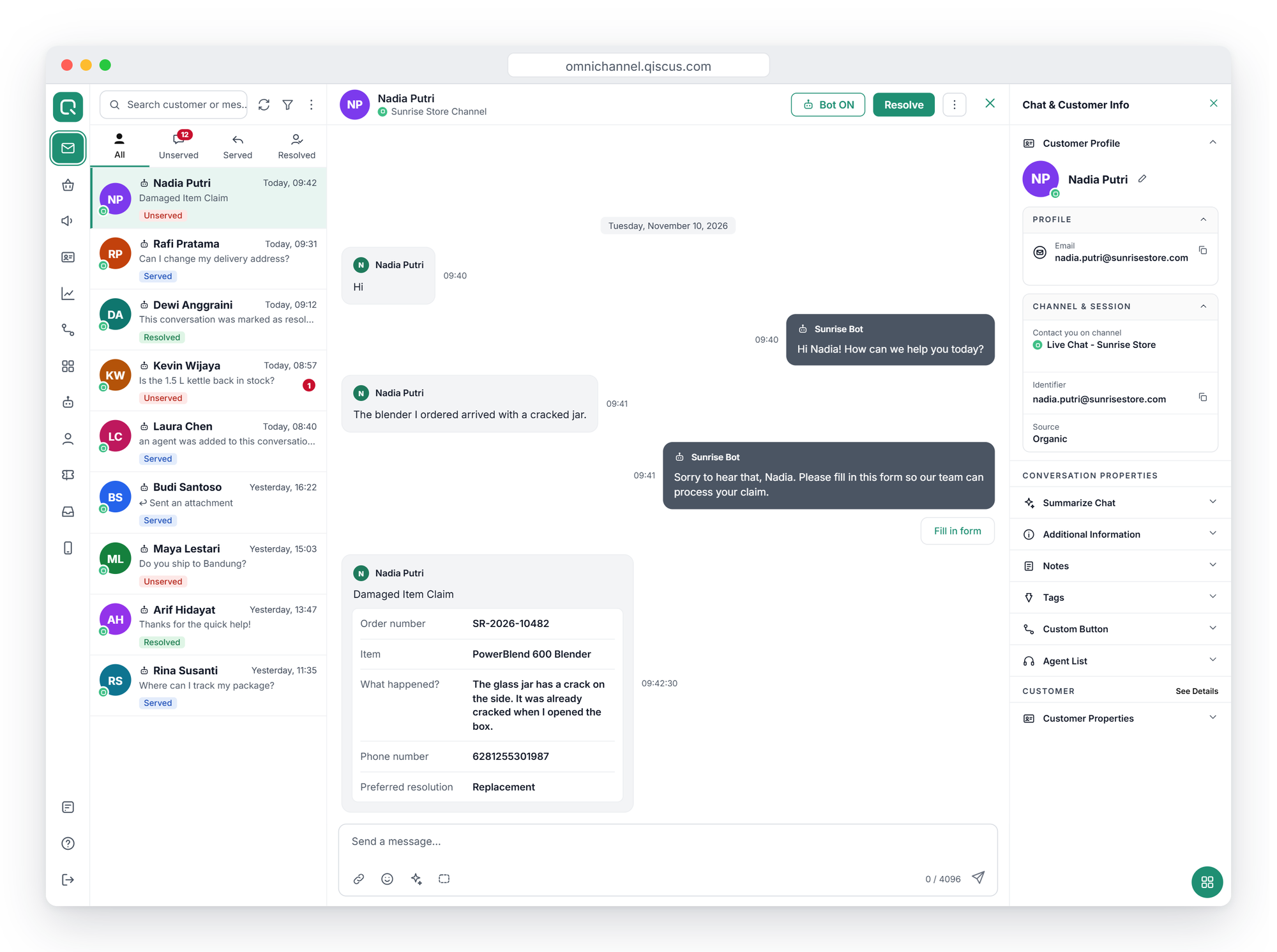
Agents see the answers in the Inbox. If the room is handled by a bot, the bot receives the same message.
Step 1: Send the form from your bot
This step is done by your developer.
Create a form link for the customer's Live Chat room, with sending to Omnichannel turned on so the answers come back to the room. [KONFIRMASI: nama parameter/opsi di Public API OmniForm, mis.
submit_to_omnichannel, dan link ke Public API Documentation]Take the embed address of the link (the address meant for showing the form in a panel). See Share Forms with Customers.
Send a bot message with a button whose URL is that embed address. A plain link in the message text works too.
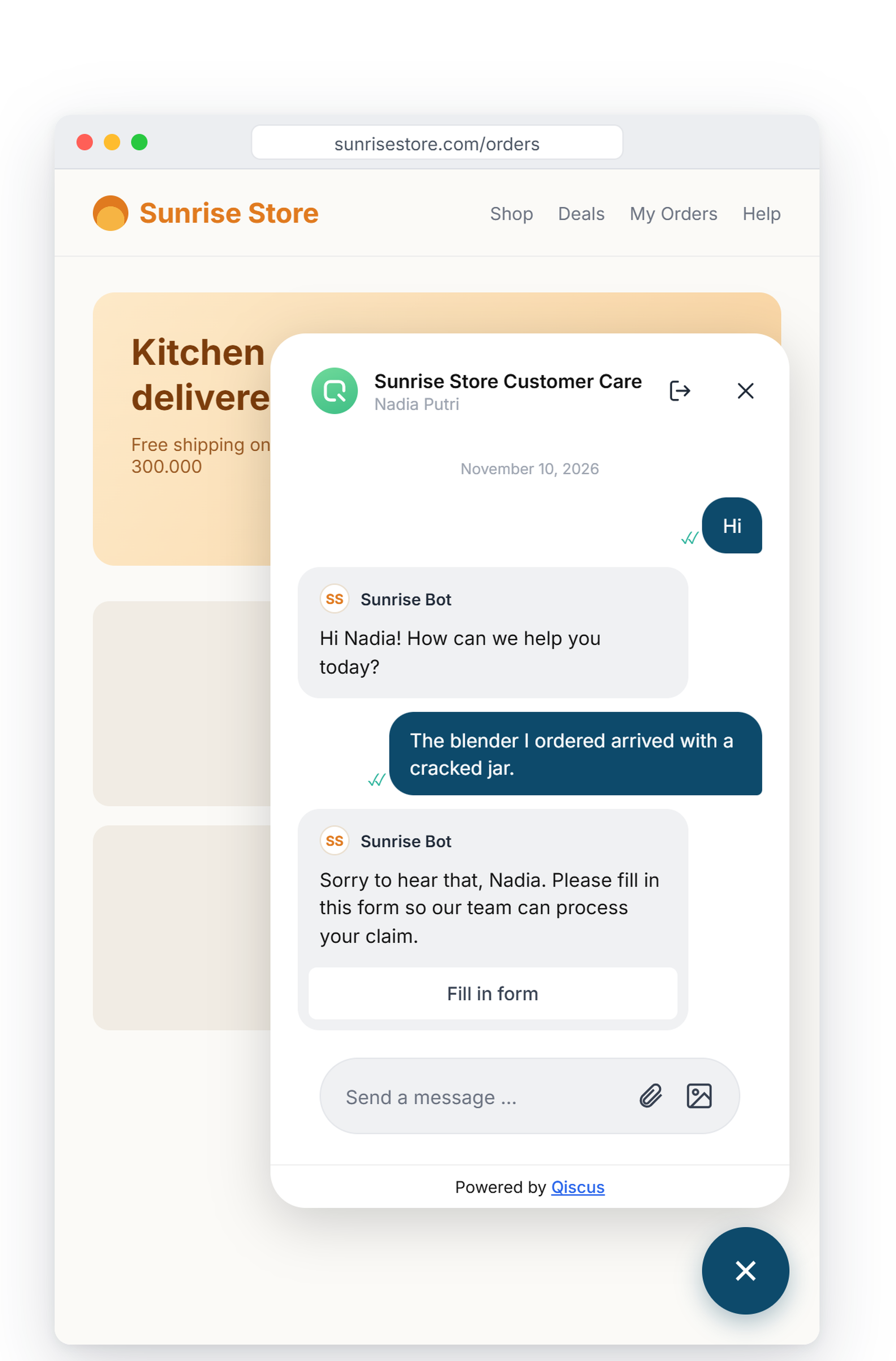
Only the embed address opens inside the chat widget. The regular form link and any other link still open in a new browser tab.
Step 2: The customer fills in the form
The customer taps the button. The form opens in a panel at the bottom of the chat widget.
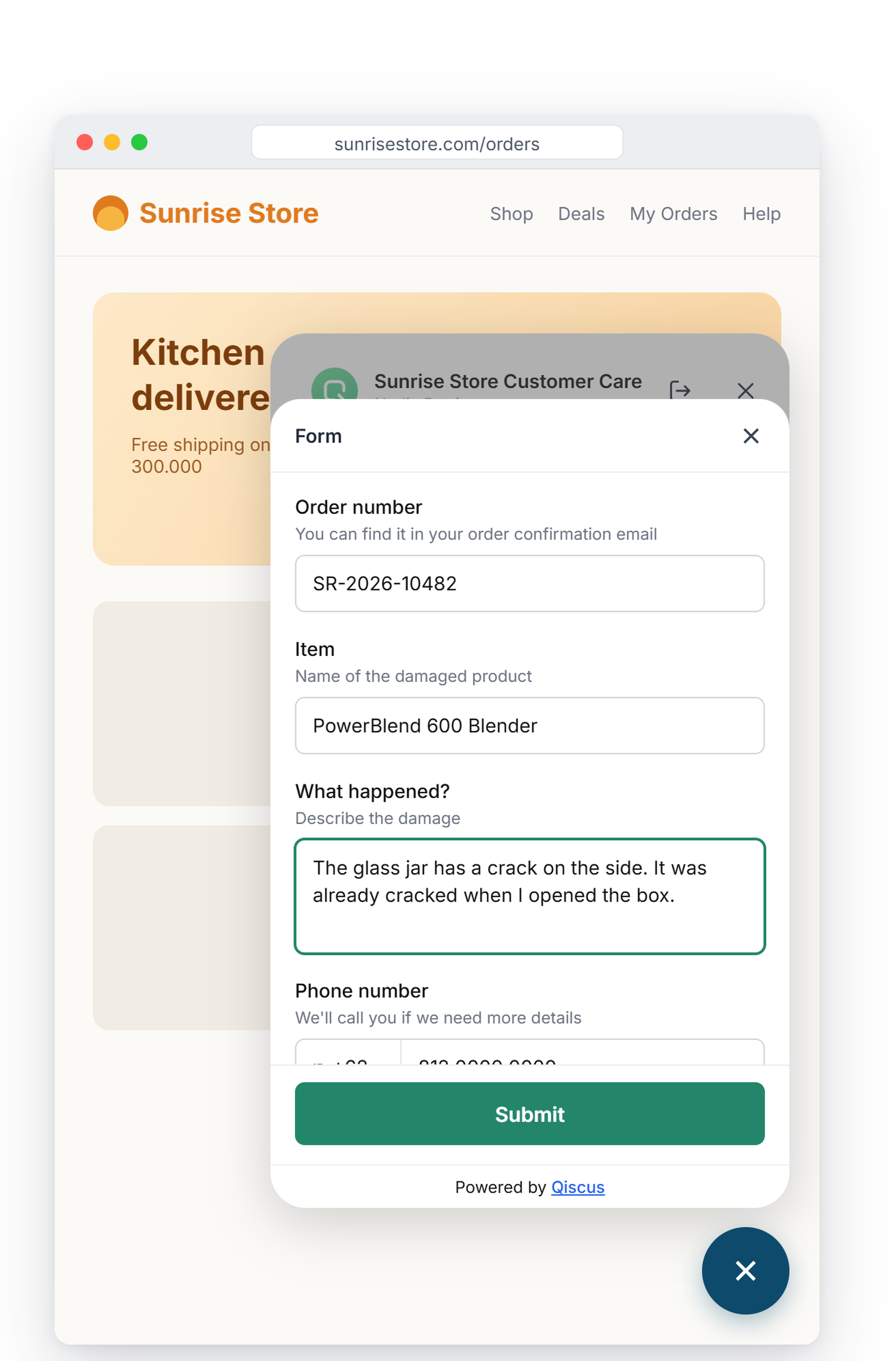
The customer fills in the questions, uploads files if the form asks for them, and submits.
The panel closes and the customer is back in the chat. A Sending form… bubble shows while the answers are on their way.
When the answers arrive, they appear in the chat as a table of questions and answers.
If the form does not load within 15 seconds, the panel shows a short error and an Open in a new tab button so the customer can still fill it in.
Step 3: Read the answers in the Inbox
Open Inbox and select the customer's conversation.
The answers appear as a card from the customer, with each question and its answer. Uploaded files are listed by file name. Click a file to open it in a new tab.
Who can see the answers
Form answers follow the same rule as WhatsApp Flow answers:
Admins always see the full answers.
Agents and Supervisors see the answers hidden as
********while Mask WhatsApp Flow answers from agents is turned on.
To let Agents and Supervisors read the answers:
Go to Agent Management and open the Settings tab.
In Other Agents Inbox Setting, turn off Mask WhatsApp Flow answers from agents.
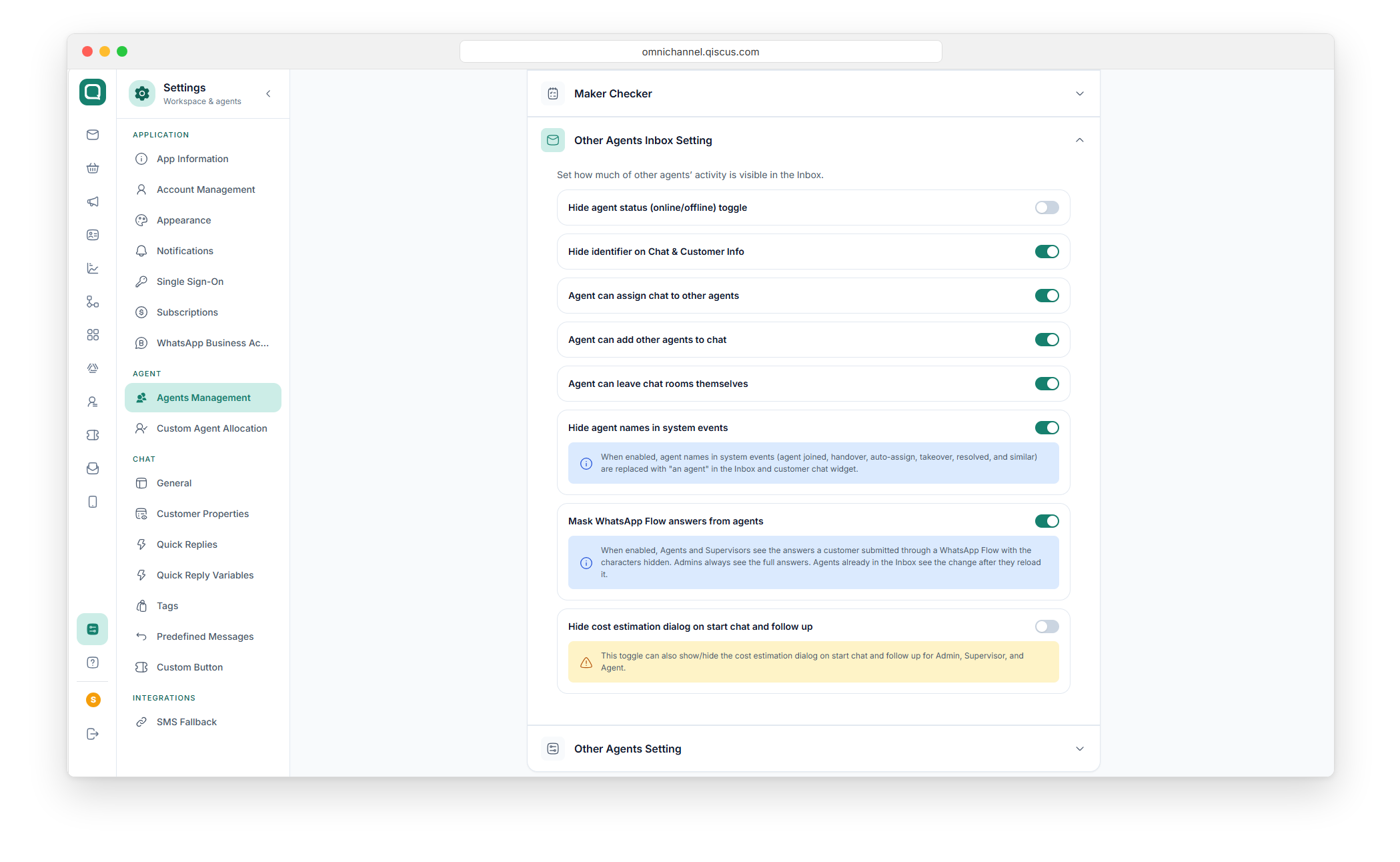
Ask agents who already have the Inbox open to reload it.
The conversation list preview shows only the form name, never the answers.