
What is Handoff to Live Chat?
Handoff to Live Chat moves a WhatsApp conversation into a Live Chat room when a human agent needs to take over. The customer taps a button in WhatsApp, and the chat opens right away inside WhatsApp's own browser. They don't need to install an app, log in, or fill in a form.
Replies sent in the Live Chat room are not charged per message by WhatsApp. This saves the most on long conversations that need many replies.
For your team, the customer is the same person on both channels:
The latest messages from the WhatsApp conversation are copied into the Live Chat room, so the agent can see what has already been discussed.
If an agent is already handling the WhatsApp conversation, the Live Chat room is assigned to that same agent.
Both rooms appear in the same Omnichannel inbox.
When to use it
Handoff to Live Chat fits you best if:
Your service conversations often take many replies, such as consultation, after-sales troubleshooting, bookings, or document checks.
WhatsApp is your main published service channel, and your customers mostly use their phones.
Human agents reply to customers in these conversations.
Before you start
Your plan must include Handoff to Live Chat. If it doesn't, the Handoff to Live Chat tab appears greyed out with the message "This feature isn't included in your current plan".
Only an Admin can change the settings. Admins, Supervisors, and Agents can use the handoff button in the inbox (see Who can hand off a conversation).
You need a connected WhatsApp channel.
You need a Live Chat channel with Enhance Conversation Security turned on. You can't save the handoff settings with a Live Chat channel that has this option turned off (see security in Live Chat).
We recommend creating a separate Live Chat channel for handoff instead of reusing the widget channel on your public website.
If an agent is already handling the WhatsApp conversation, the Live Chat room goes to that same agent. Otherwise, it is assigned based on the agents and allocation settings of the Live Chat channel, so make sure that channel has agents assigned before you go live.
Set up Handoff to Live Chat
Go to Integration and select WhatsApp.
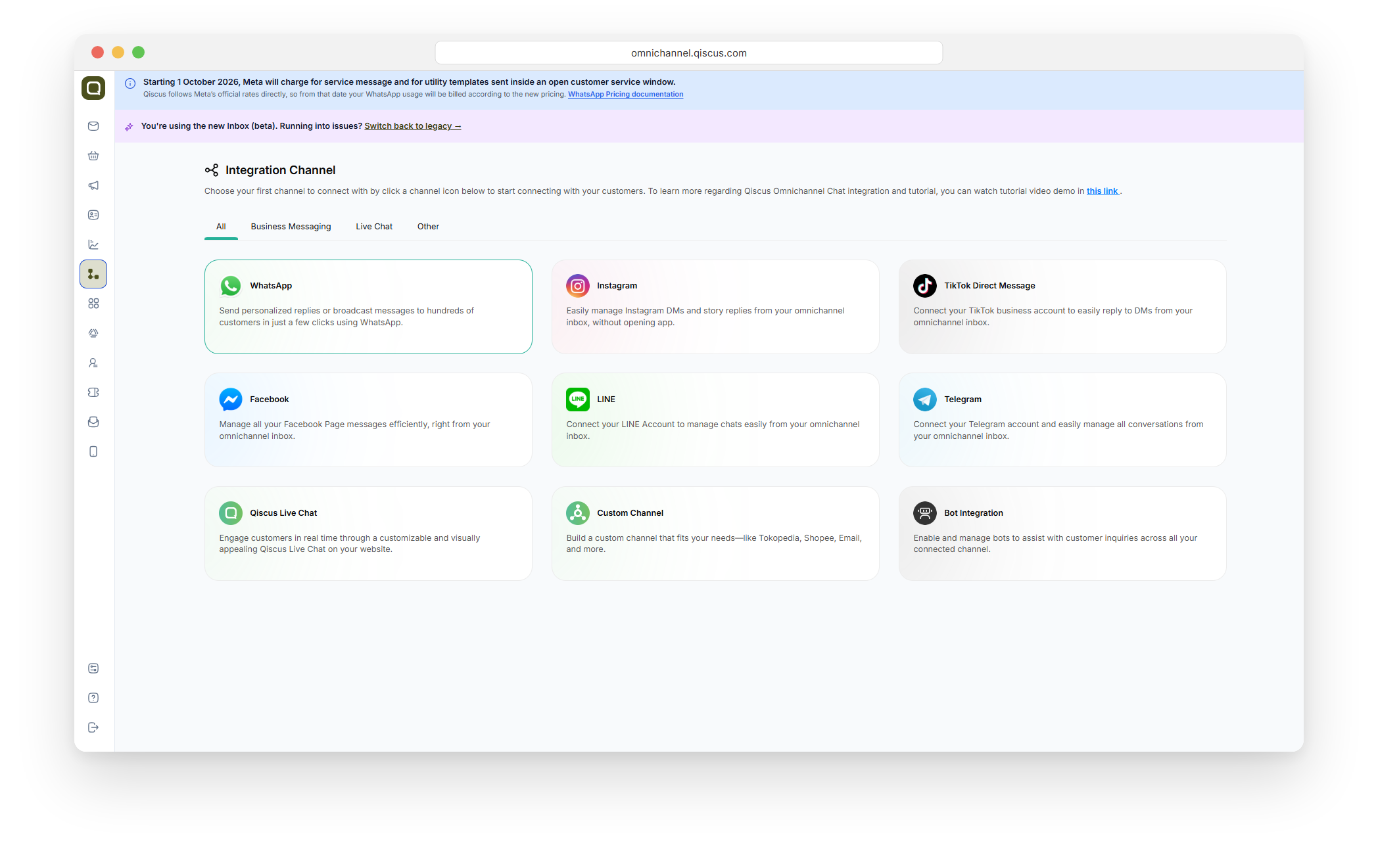
Select the WhatsApp account you want to set up.
Open the Handoff to Live Chat tab.
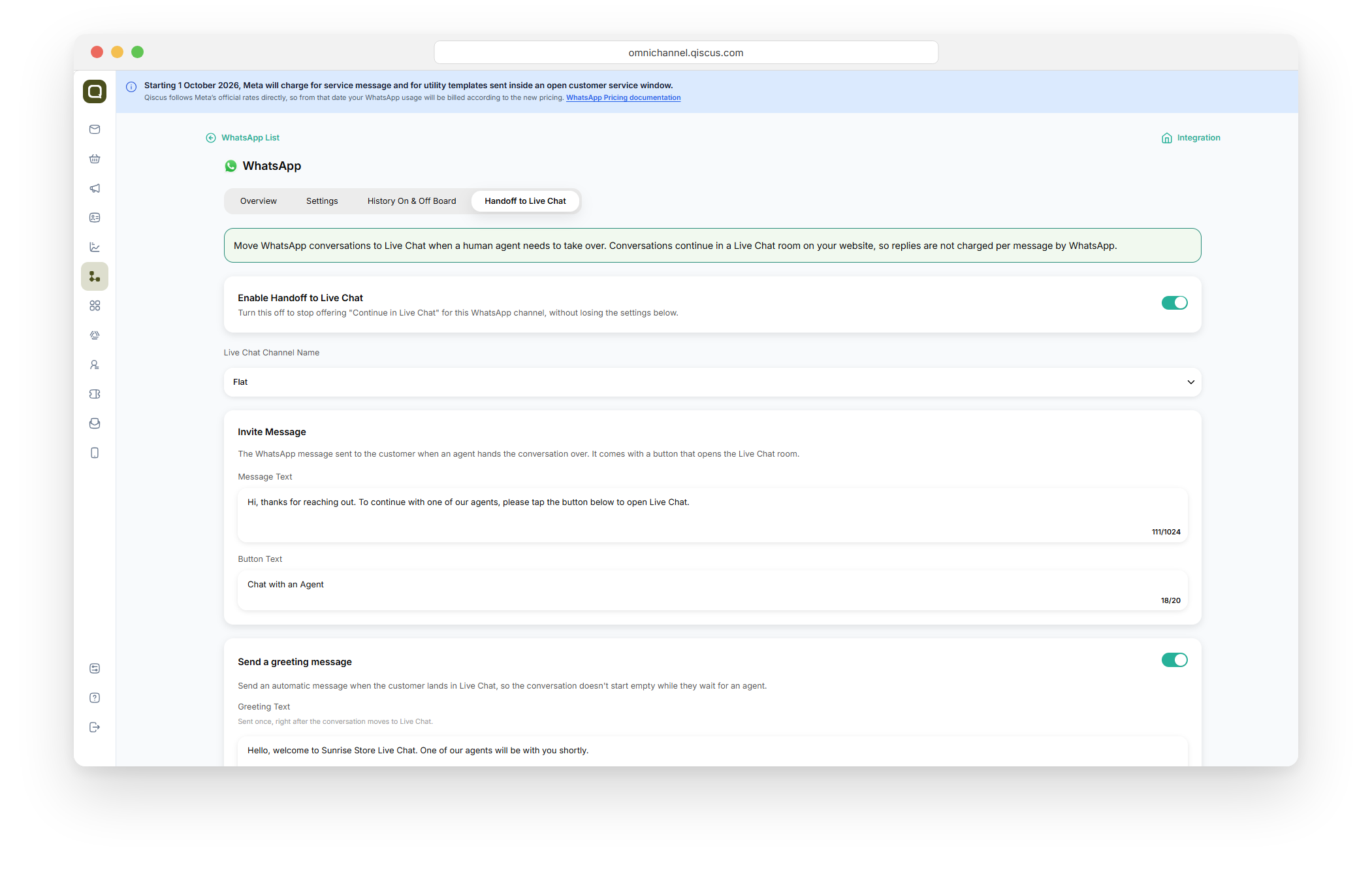
Turn on Enable Handoff to Live Chat. Turning this off later stops the handoff for this WhatsApp channel. Your settings are kept.
In Live Chat Channel Name, select the Live Chat channel that will receive the handed-over conversations.
Under Invite Message, write the WhatsApp message that is sent to the customer together with the button:
Message Text (required): up to 1,024 characters. Example: "Our team is ready to help. Continue the conversation using the button below."
Button Text (required): up to 20 characters. Example: "Continue in Live Chat".
(Optional) Turn on Send a greeting message and fill in Greeting Text.
This message is sent once, right after the customer arrives in Live Chat, so they don't see an empty chat while they wait for an agent. Example: "Hi! You're now chatting with our team here. An agent will reply shortly."
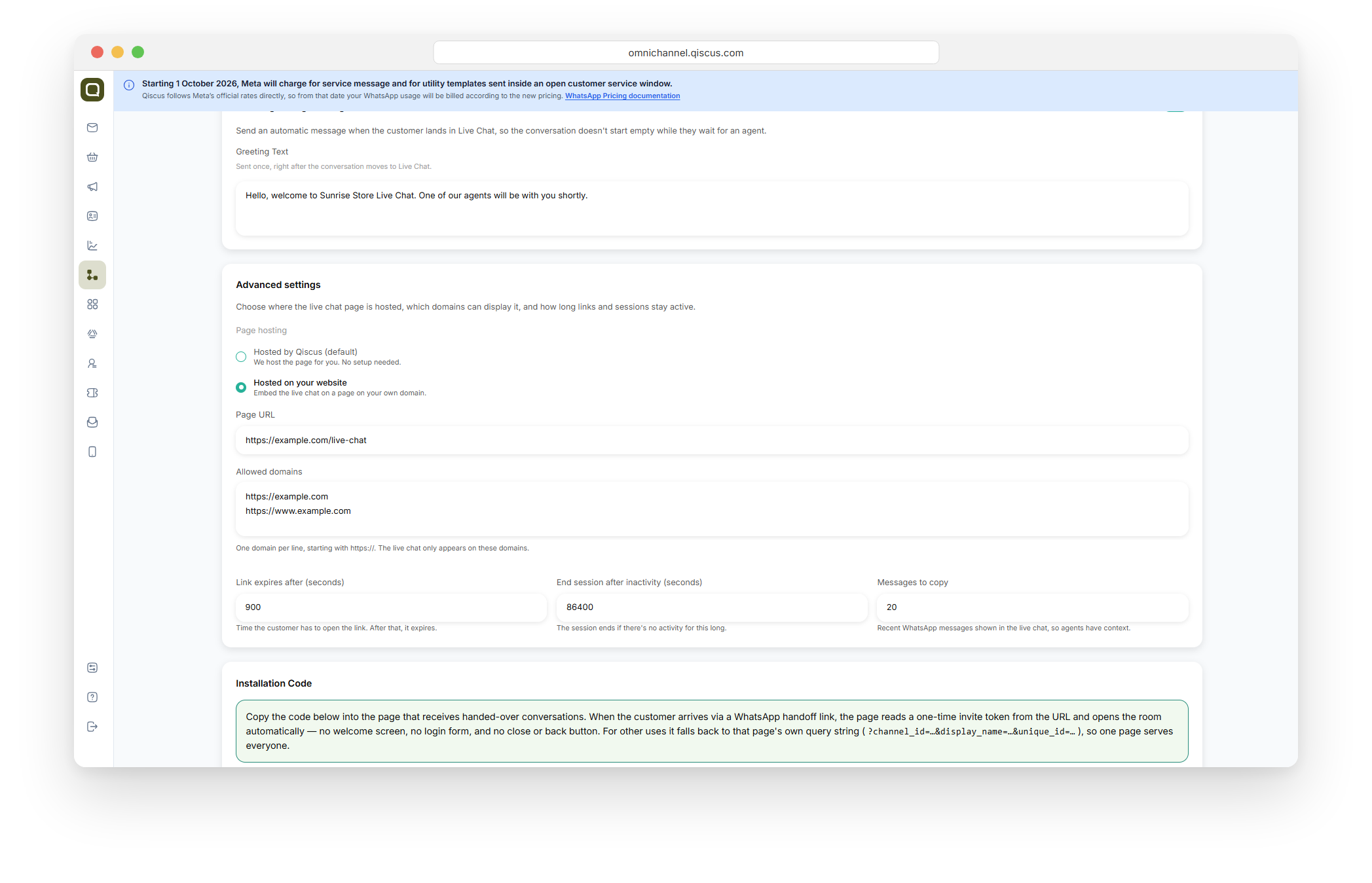
(Optional) Open Advanced settings to choose where the live chat page is hosted, which domains can display it, and how long links and sessions stay active.
Click Update. You'll see the message "Your handoff to live chat settings have been saved."
Advanced settings
Setting | What it does | Default |
|---|---|---|
Page hosting | Where the live chat page opens. Hosted by Qiscus: we host the page for you, no setup needed. Hosted on your website: embed the live chat on a page on your own domain. | Hosted by Qiscus |
Page URL | Only for Hosted on your website. The address of the page on your website, for example | None |
Allowed domains | Only for Hosted on your website. One domain per line, starting with https://. The live chat only appears on these domains. | None |
Link expires after (seconds) | Time the customer has to open the link. After that, it expires. | 900 |
Session Duration (seconds) | How long, in seconds, the customer can keep using the same link to return to the Live Chat conversation. The time counts from when the link was sent. | 86400 |
Messages to copy | Recent WhatsApp messages shown in the live chat, so agents have context. Set this to 0 to copy nothing. | 20 |
If you use your own page: after you select Hosted on your website, copy the snippet from the Installation Code section into the page on your website that will receive handed-over conversations.
Hand off a conversation from the inbox
Open a WhatsApp conversation in the inbox.
Click Handoff to Live Chat in the chat header, next to Resolve.
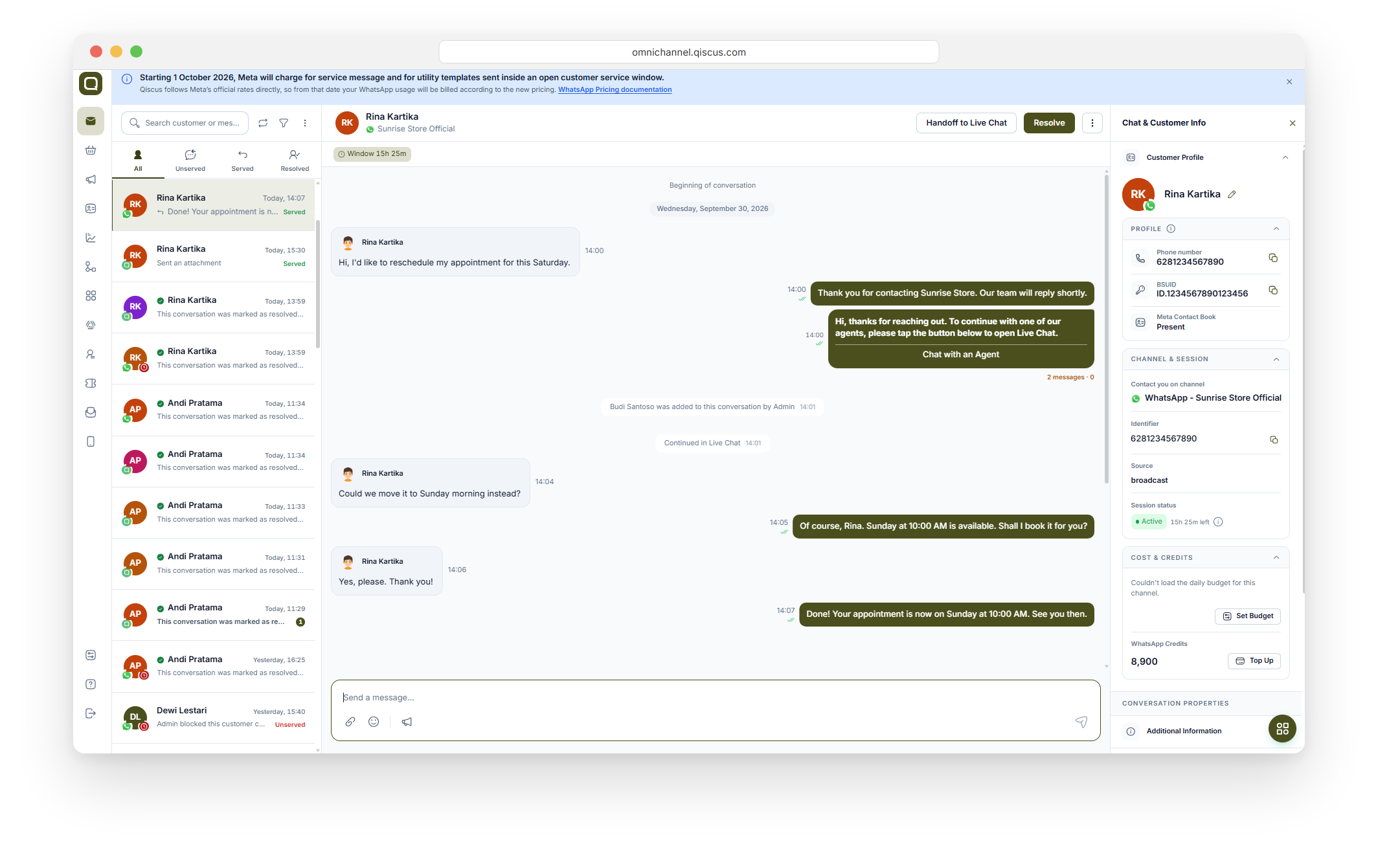
The customer receives your invite message with the button in WhatsApp.
When the customer taps the button and sends their first message, a new Live Chat room appears in the inbox:
The latest WhatsApp messages are shown at the top of the room.
If you were handling the WhatsApp conversation, the Live Chat room is assigned to you.
The WhatsApp room shows the system message "Continued in Live Chat", and the Live Chat room shows "Continued from WhatsApp".
Reply in the Live Chat room the same way you reply to any Live Chat conversation.
The Handoff to Live Chat button only appears when:
the conversation is a one-to-one WhatsApp conversation (not a group),
the conversation isn't resolved, and
Enable Handoff to Live Chat is turned on for that WhatsApp channel.
Who can hand off a conversation
Role | Can hand off |
|---|---|
Admin | Any WhatsApp conversation |
Supervisor | Any WhatsApp conversation |
Agent | Only conversations they are handling |
Hand off automatically with your chatbot
If a chatbot answers your WhatsApp conversations, it can send the Live Chat link itself when it decides a human is needed, instead of passing the conversation to an agent in WhatsApp. Your chatbot also gets a notification when the customer opens the Live Chat, or when the link expires without being tapped. The bot can then pass the conversation to an agent in WhatsApp as usual, so the customer is still served.
This needs a change on your chatbot's side. Contact your Qiscus account team for the integration guide.
What your customer experiences
The customer receives your invite message with the button in WhatsApp.
They tap the button. The chat opens full screen inside WhatsApp's own browser, with no login and no form to fill in.
If they close the page, they can tap the same button again to go back to the same conversation, until the link's time limit ends (24 hours by default) or the conversation is resolved.
If the link has expired or been used up, the page says the link is no longer valid and asks the customer to reply in WhatsApp to get a new one.
Important notes
The invite message is billed like any other WhatsApp message. Replies sent after that in Live Chat are not charged per message by WhatsApp.
The invite message can only be sent while the WhatsApp 24-hour window is open.
You can send the link at most twice per session. If the customer comes back to WhatsApp, you can click Handoff to Live Chat again.
Resolving the Live Chat room ends the Live Chat session. Resolving the WhatsApp room doesn't end it.
Follow-ups at a later time, such as the next day, still need a WhatsApp message.
FAQ
Q: If the customer closes the Live Chat page and opens the link again, is the earlier conversation lost? A: No. As long as the link's time limit (24 hours by default) hasn't ended and the conversation hasn't been resolved, the customer goes back to the same conversation. The chat history from that session is still there
Q: Is the WhatsApp conversation history brought over to Live Chat? A: Yes. The latest WhatsApp messages (20 by default) are copied into the Live Chat room, so the agent has the context.
Q: If Agent A was handling the conversation in WhatsApp, will Agent A also handle it in Live Chat? A: Yes. The Live Chat room is assigned automatically to the agent who was handling the WhatsApp conversation. If no one was handling it, the Live Chat channel's normal agent allocation applies.
Q: Why does the link expire? A: For security. Anyone with the link can open the customer's conversation. If a link were leaked or forwarded, it could be used to pose as the customer, or to learn the conversation's contents. A time limit reduces that risk. Your Admin can change the limit in Advanced Settings, but a longer limit makes the link less secure.
Q: Does the customer need to fill in their name or phone number? A: No. The customer's identity is carried over from WhatsApp, so your agent can see who the customer is.