
What is Dynamic Pricing?
Dynamic Pricing lets you set the most you will pay per message for a WhatsApp Marketing template. Meta charges each delivered message at or below that limit, so the price can differ from one customer to another but never goes above your max price.
The limit also affects reach. Meta may skip customers who cost more to reach than your limit allows, so a lower max price costs less but reaches fewer contacts, and a higher max price improves delivery.
When to use it
You want a fixed upper limit on what each Marketing message costs.
You run a campaign where delivery matters more than cost, such as a holiday promotion, and want to raise the limit to reach more customers.
Before you start
Dynamic Pricing is available on selected subscription plans. If you don't see the Max Price step when you create a Marketing template, your current plan doesn't include it yet. Contact our team to upgrade your subscription.
Your WhatsApp channel has Marketing Messages Optimization (Marketing Message Lite from Meta) enabled.
Max price applies to Marketing templates only.
An Admin activates Dynamic Pricing once for each WhatsApp business in Integration > WhatsApp > Dynamic Pricing (see Step 1). After it is active, Admins and Supervisors can create templates with a max price. Agents can too if your account allows Agents to create templates.
Step 1: Activate Dynamic Pricing
Only an Admin can do this.
Go to Integration > WhatsApp.
Open the Dynamic Pricing tab.
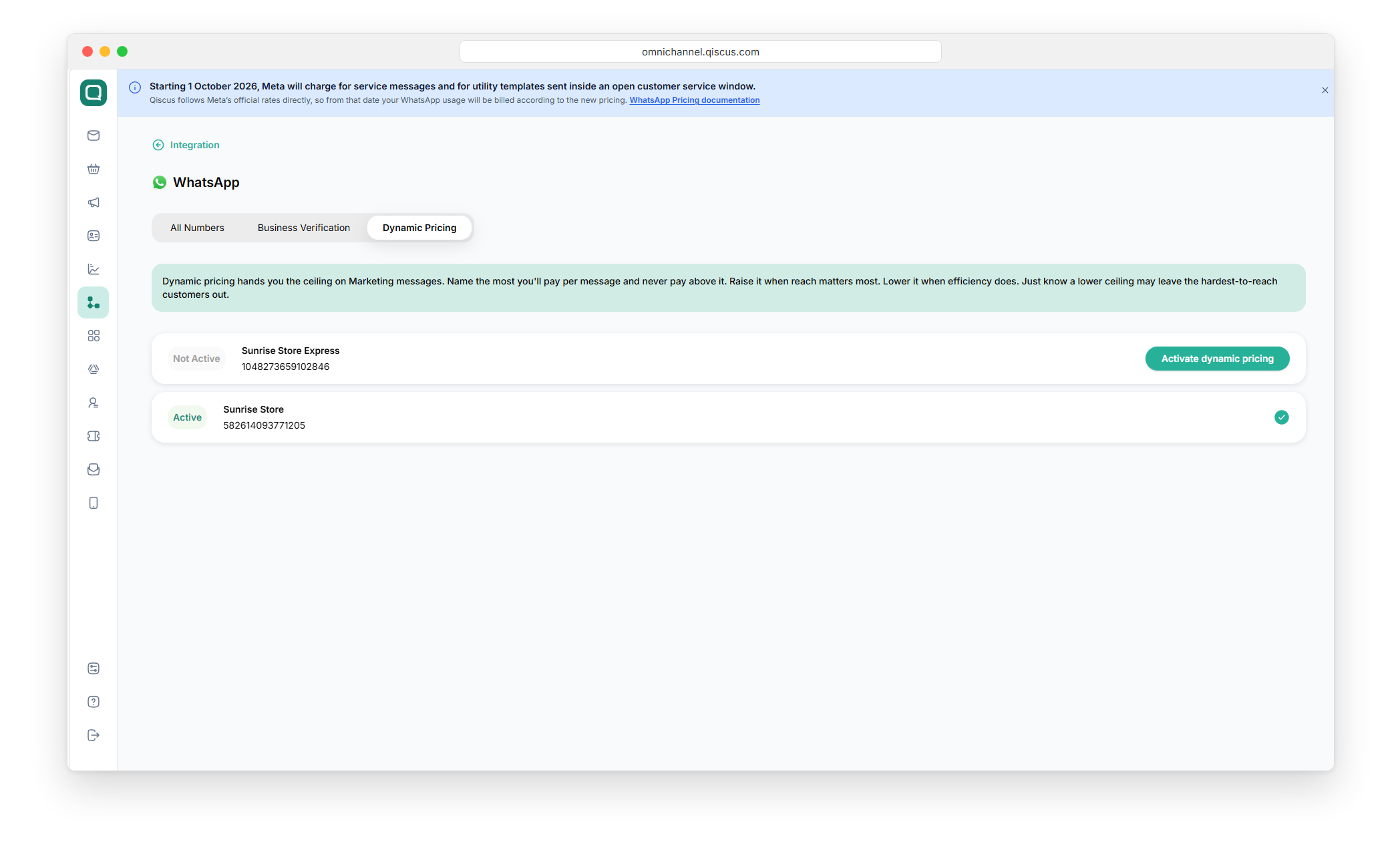
Find your business and click Activate dynamic pricing.
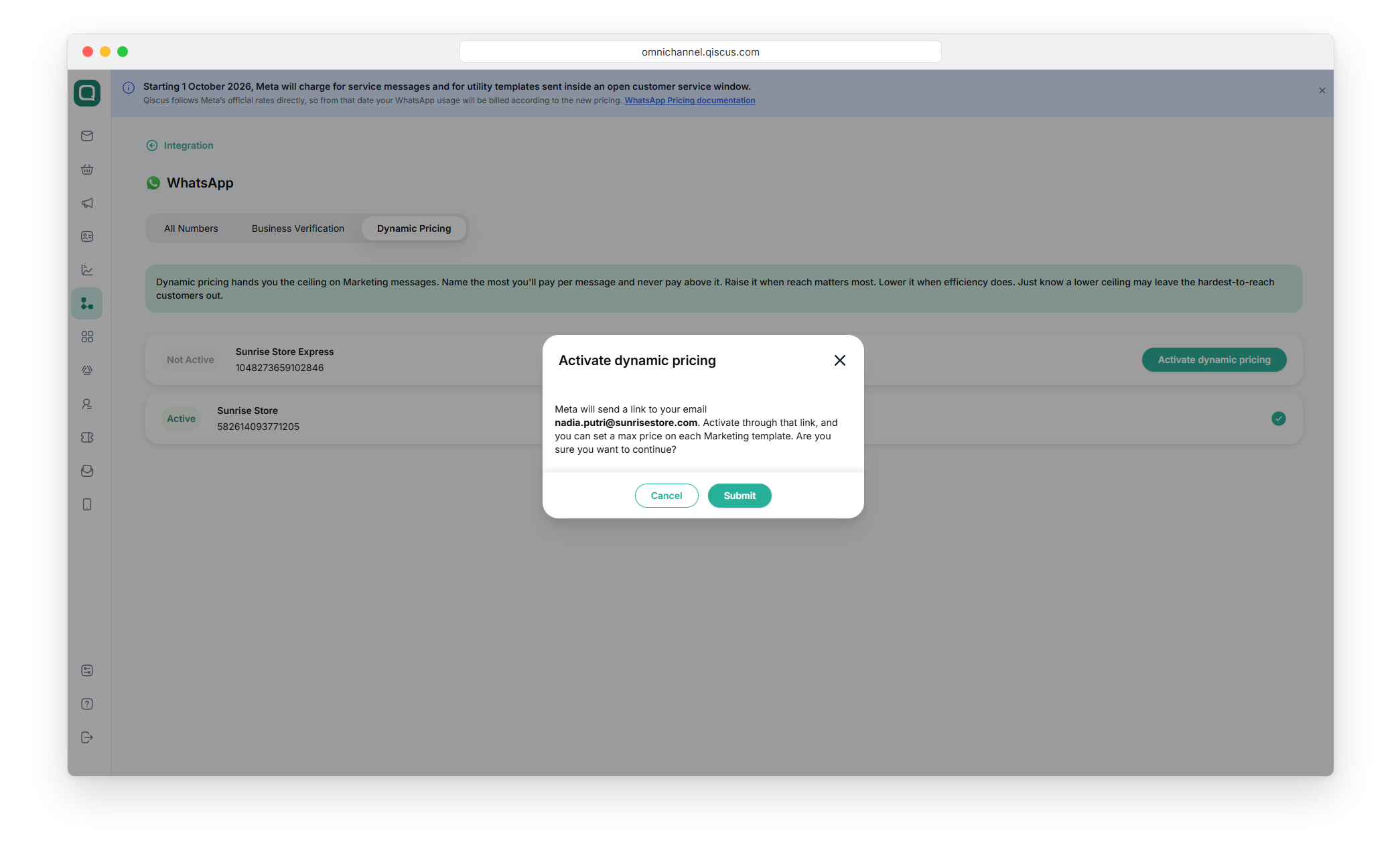
Check the email address shown in the confirmation, then click Submit.
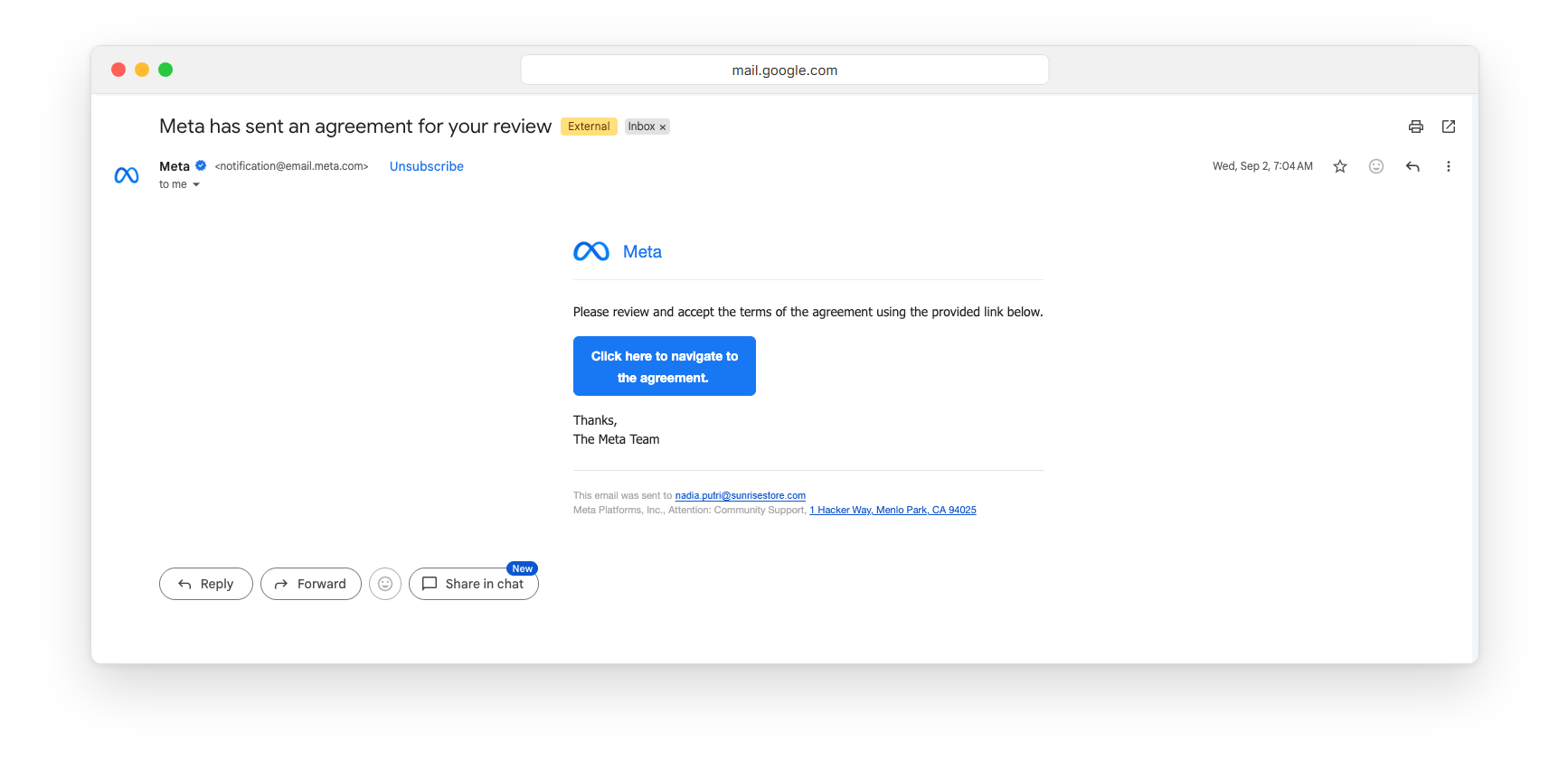
Open the email from Meta with the subject "Meta has sent an agreement for your review", then click Click here to navigate to the agreement.
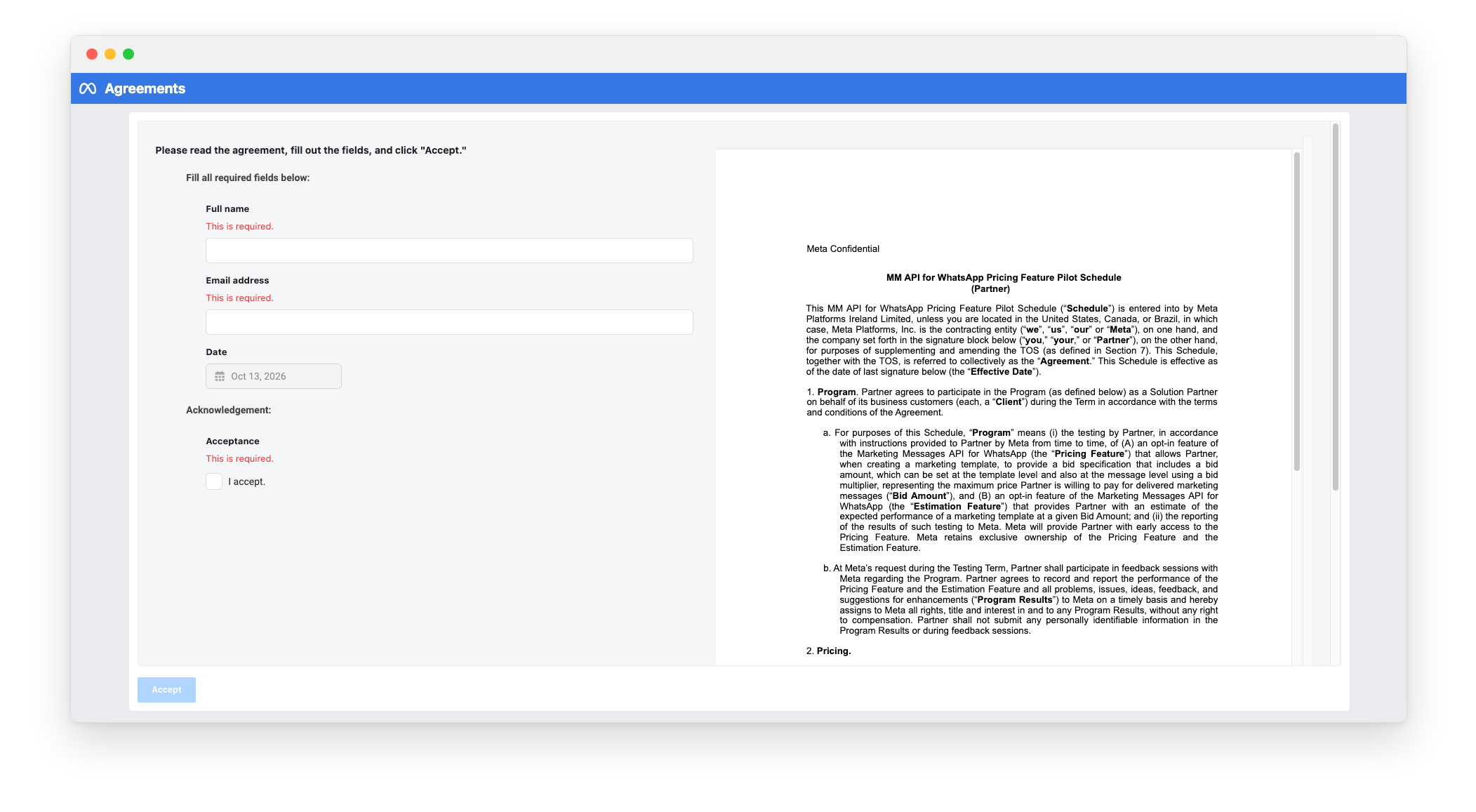
You are taken to Meta's Agreements page. Fill in Full name and Email address, select I accept., then click Accept.
Go back to the Dynamic Pricing tab. When the activation succeeds, the status changes to Active and you can set a max price on your Marketing templates.
Each business shows one of these statuses:
Status | Meaning |
|---|---|
Not Active | Dynamic Pricing has not been activated for this business. |
Awaiting Confirmation | The activation email has been sent. Accept the agreement on Meta's page to finish. |
Active | Dynamic Pricing is ready. You can set a max price on Marketing templates. |
Step 2: Set a max price on a Marketing template
Go to Outbound > WhatsApp Templates and click + New Template.
In Template Information, choose the Marketing category, then fill in the template content in Template Creation.
In the Max Price step, choose one of these options:
Use the standard rate: you pay the market rate for Marketing messages, and delivery works the way it does today.
Set my own max price: you set your own limit per message. A lower price spends less but reaches fewer contacts, and a higher price reaches more.
If you chose Set my own max price, enter the amount in Max price per message. The amount uses the currency of your WhatsApp Business Account. For IDR, enter a whole number. For other currencies, you can use up to 2 decimal places. The allowed range appears below the field, along with the equivalent cost per 1,000 messages.
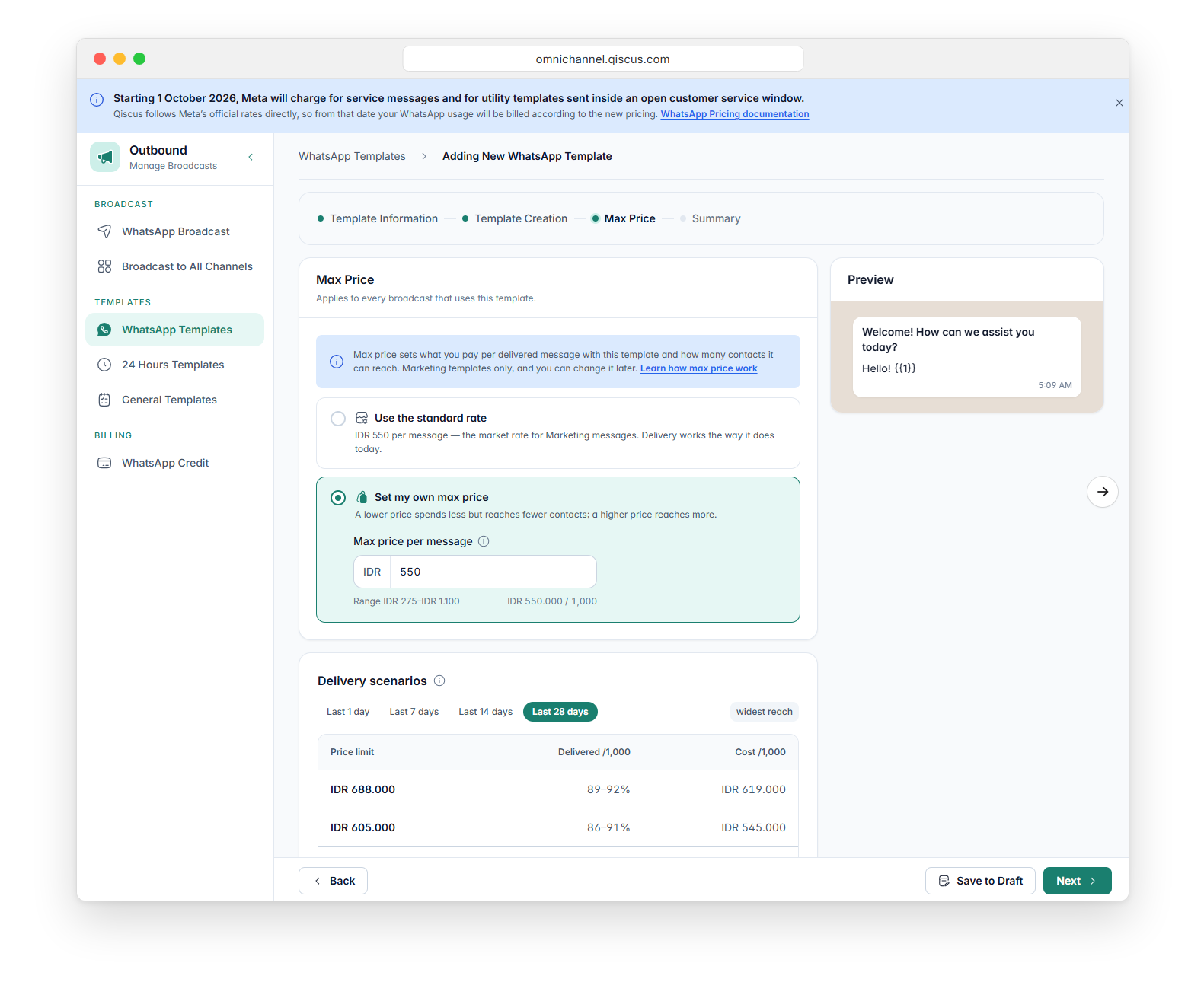
Check Delivery scenarios below to compare price limits. Each row shows the estimated share of messages delivered and the cost per 1,000 messages. Switch between Last 1 day, Last 7 days, Last 14 days, and Last 28 days to see estimates from different periods of your account history.
Click Next, review the Summary, and click Submit template.
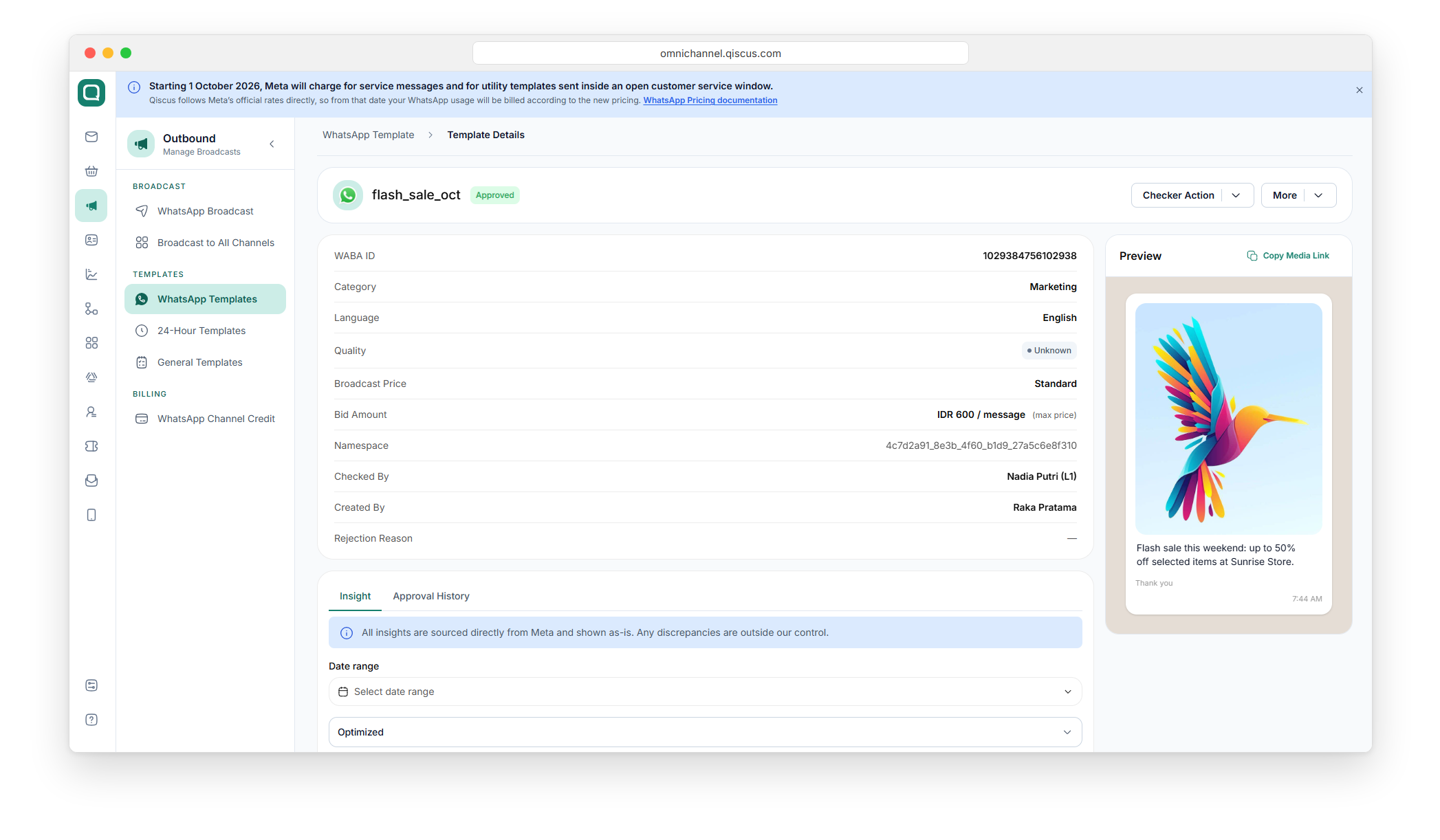
After Meta approves the template, its detail page shows the limit in the Bid Amount row.
Step 3: Send a broadcast with a max price template
Create a new WhatsApp broadcast and choose your channel.
In Select Template, choose the Marketing category, select Optimized as the broadcast objective, and pick your max price template.
In Choose Audiences, select your audience.
Continue to Schedule and send the broadcast.
The broadcast uses the max price set on the template. To use a different max price, change it on the template.
Set a different price for some contacts (CSV)
When you send a max price template to a CSV audience, you can raise or lower the price for individual contacts with the multiplier column. For example, you can give VIP customers a higher price so they are more likely to receive the message.
In Choose Audiences, set Audience Type to By CSV.
Click Download CSV Template. The file already includes
multiplieras the last column, with1as the default value.
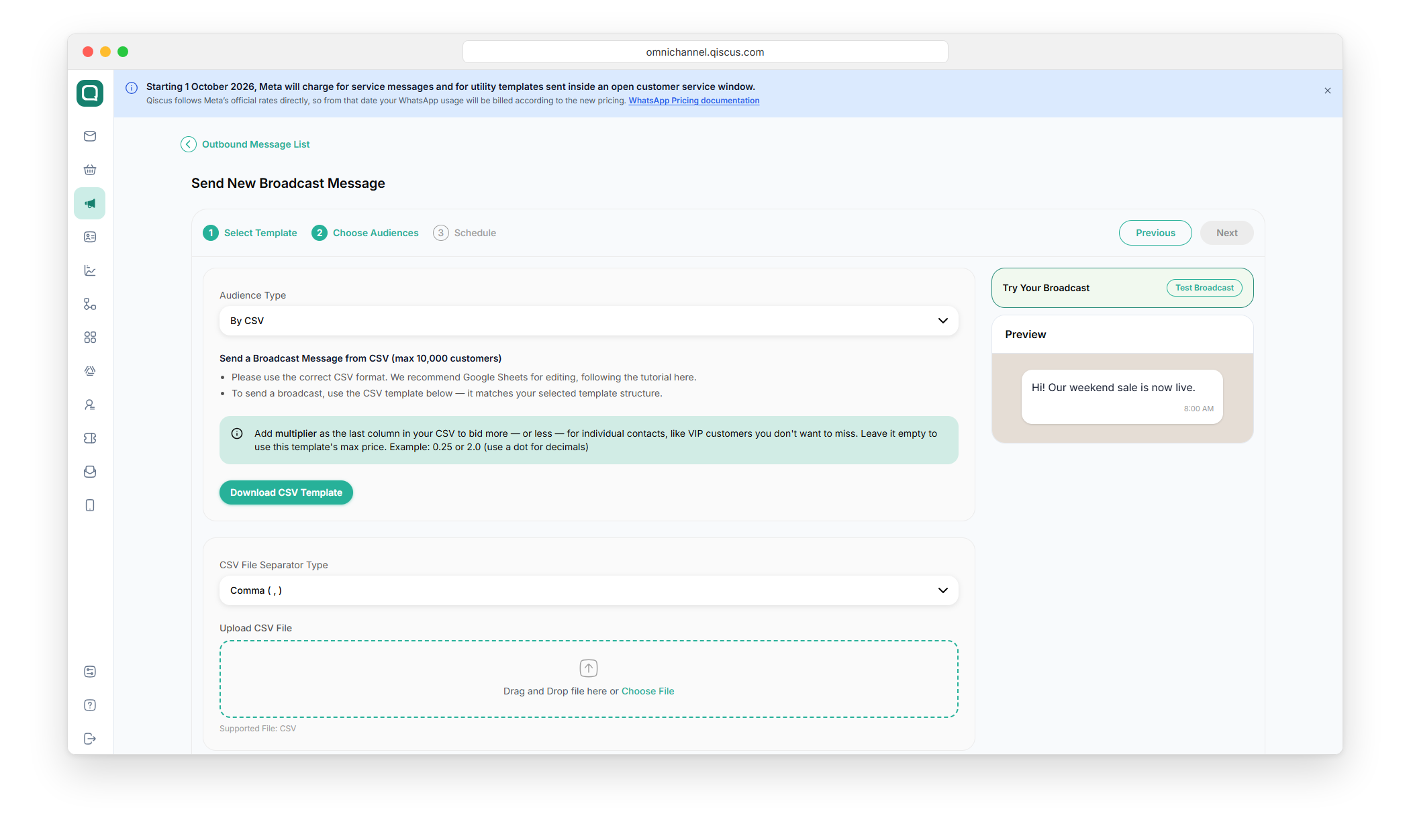
Enter a multiplier for each contact. The contact's price is the template's max price multiplied by this number, so with a max price of IDR 600, a multiplier of
0.5gives that contact a price of IDR 300. Use a dot for decimals, such as0.25or2.0.To use the template's max price for a contact, leave the cell empty.
Upload the file in Upload CSV File.
Example:
phone_number_or_BSUID | username | customer_name | multiplier |
|---|---|---|---|
6281234560001 | WA_USERNAME | Raka Pratama | 2.0 |
6281234560002 | WA_USERNAME | Dewi Lestari | 0.5 |
6281234560003 | WA_USERNAME | Budi Santoso |
How you are charged
Each delivered message is charged in credit at or below the template's max price.
The cost estimate you see before sending uses the max price, which is the most each message can cost.
Failed messages are not charged.
To see the charge for each contact, open the broadcast from Outbound > WhatsApp Broadcast, select your broadcast and scroll to Broadcast Logs. A max price broadcast has two extra columns:
Charged Credit: what the message cost. It shows "-" when the message failed.
Max Price Credit: the price limit for that contact. If you used the
multipliercolumn, this is the template's max price multiplied by the contact's multiplier.
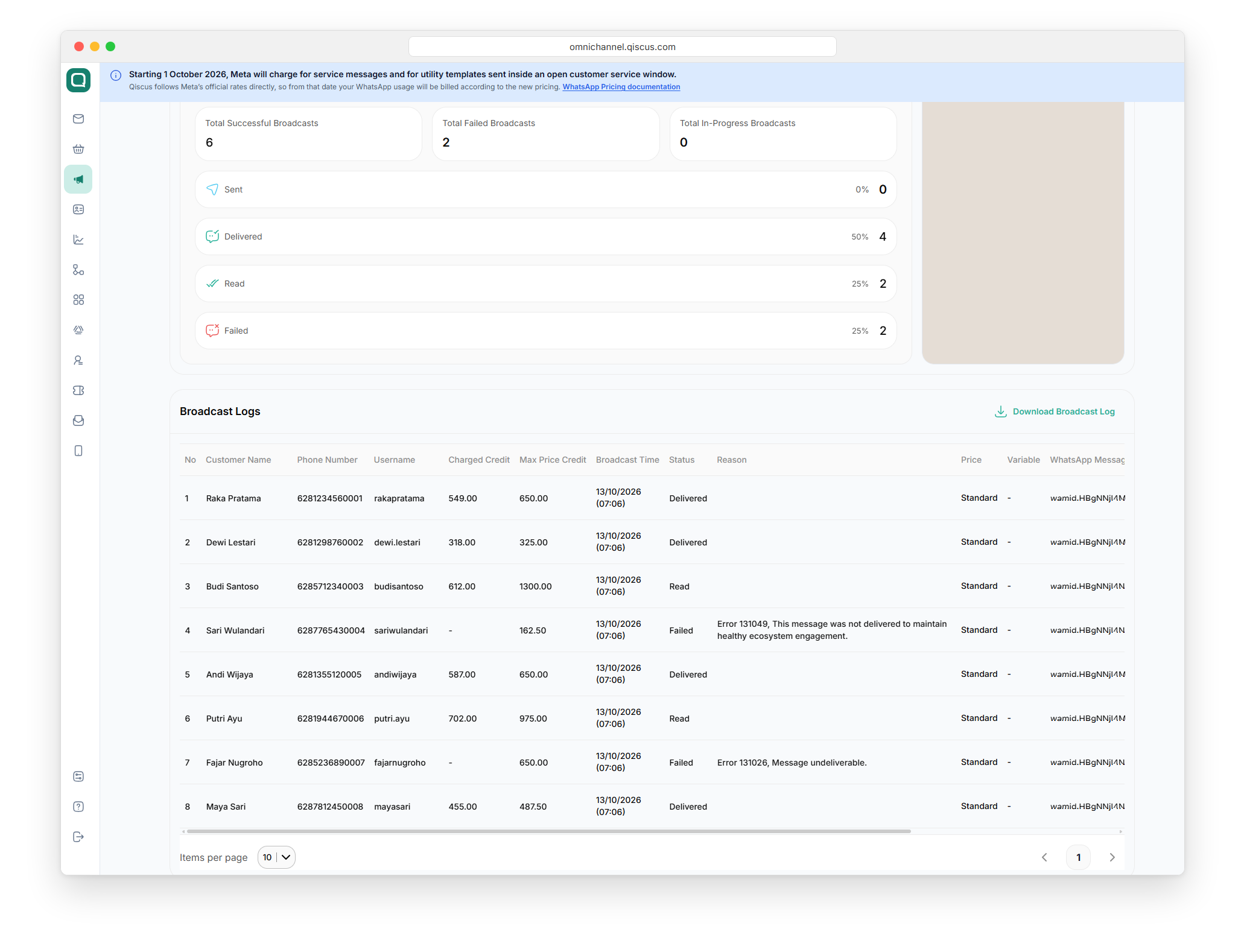
Click Download Broadcast Log to export the same columns to a file.
Important notes
Meta does not allow a template with a max price to be sent with the Targeted objective, even after you switch the template back to Use the standard rate. Send it with Optimized. For Targeted broadcasts, use a Marketing template that has never used Set my own max price.
You can only change the max price of an approved template. While the template is waiting for approval, the price stays as it is.
The delivery estimates come from your account's history in the market, so every template gets the same numbers. Template quality still affects the result: High-quality templates tend to land above the estimate and Low-quality templates below it.
The cost of each message depends on the customer, so the cost per message in your report is an average.
FAQ
Q: Does a lower max price always save money? A: It lowers the cost of each delivered message, but fewer customers may receive the broadcast.
Q: Can I send a max price template if I cannot see the price estimate? A: Yes. If the estimate is unavailable, you can still schedule and send the broadcast.