
Quick Start
In this Quick Start section, you will integrate the Qiscus Widget so customers can reach your team through a chat widget on your website. To integrate additional channels, see Channel Integration. To get started, follow the steps below.
Register at the Qiscus Omnichannel website and complete the required account information.
After signing up, you will receive an email verification message. Verify your email address before continuing.
Once verified, log in to the Qiscus Omnichannel dashboard via the login page.
Open the Integration page by clicking the + button on the left-hand side, then go to the Qiscus Widget tab. Copy the snippet and paste it into your website HTML. For simplicity, this example uses CodePen.
Voila! You can now start to get messages from your website and respond to them directly in Qiscus Omnichannel dashboard. Please try to have a conversation through the widget.
Inbox
Managing Messages
In the Quick Start above, you connected one channel (Qiscus Widget) to receive customer messages. This is not the only supported channel. See Channel Integration to connect other channels.
After you connect one or more channels, you can manage incoming messages from the dashboard. Qiscus Omnichannel consolidates incoming messages in one place called the Inbox. When you open the Inbox for the first time, the sidebar and chat area may be empty. Once you receive a message, the Inbox will display the conversation list and tools to help you manage conversations.
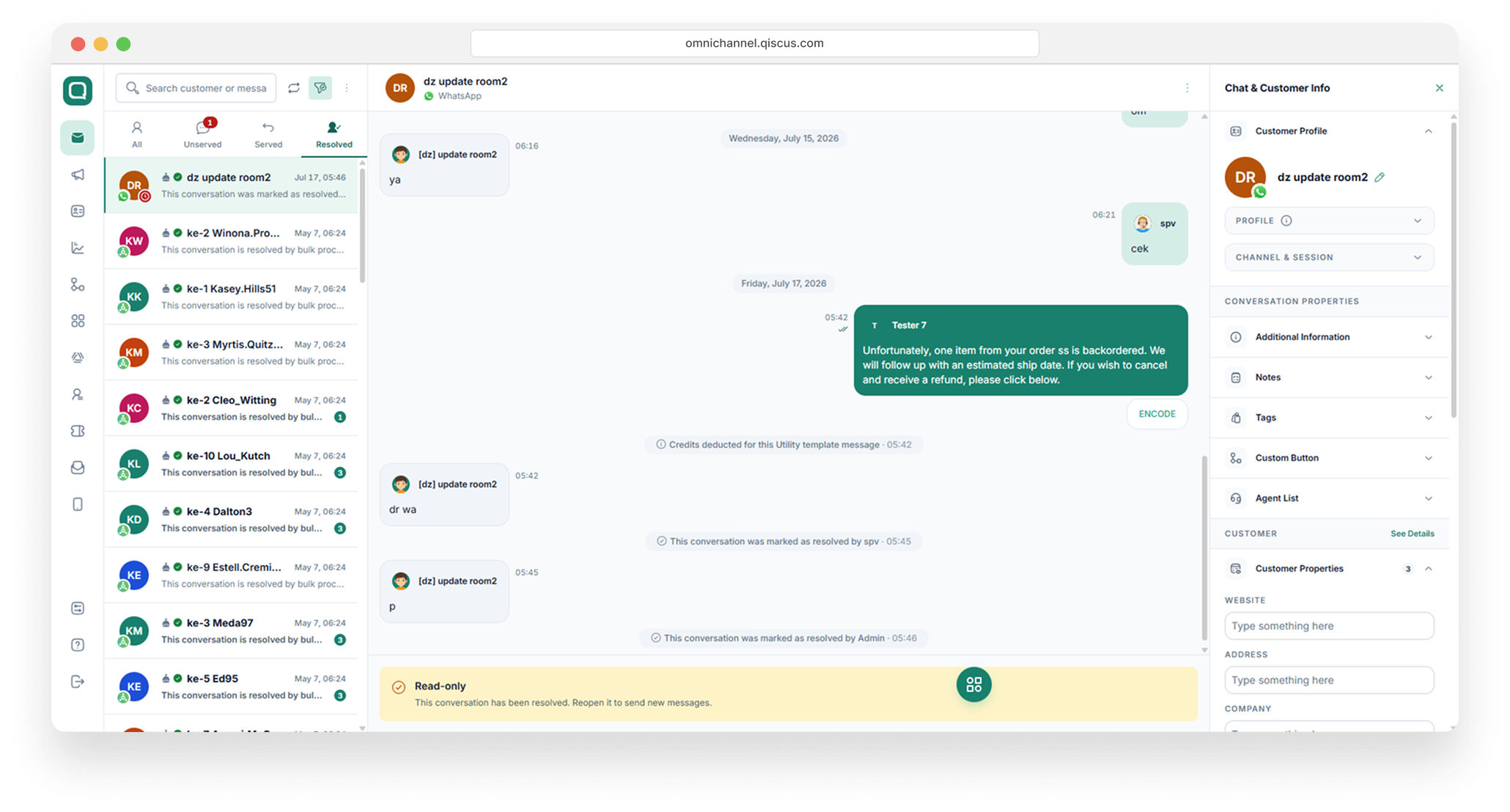
There are several features you can use to help you enhance your conversation, let's break these features down a bit.
Chat List
On the left hand side, we have a chat list. It lists all incoming messages to your Qiscus Omnichannel dashboard. Each item will have its channel badge (Qiscus, FB Messenger, Line, WhatsApp, Telegram or others), check mark whenever a room is marked as resolved, bot badge if you activate bot feature, Served or Unserved indicator is used to indicate the existence of agent while expiring or expired badge is used if you integrate WhatsApp channel.
By default, it will only list around 20 rooms. However if you have more than that, you can just scroll down to reveal more.
For Agents, chat lists are grouped into Ongoing and Resolved. Ongoing displays the chat that the Agent is currently holding. While Resolved displays the chat that has been resolved by the relevant Agent.
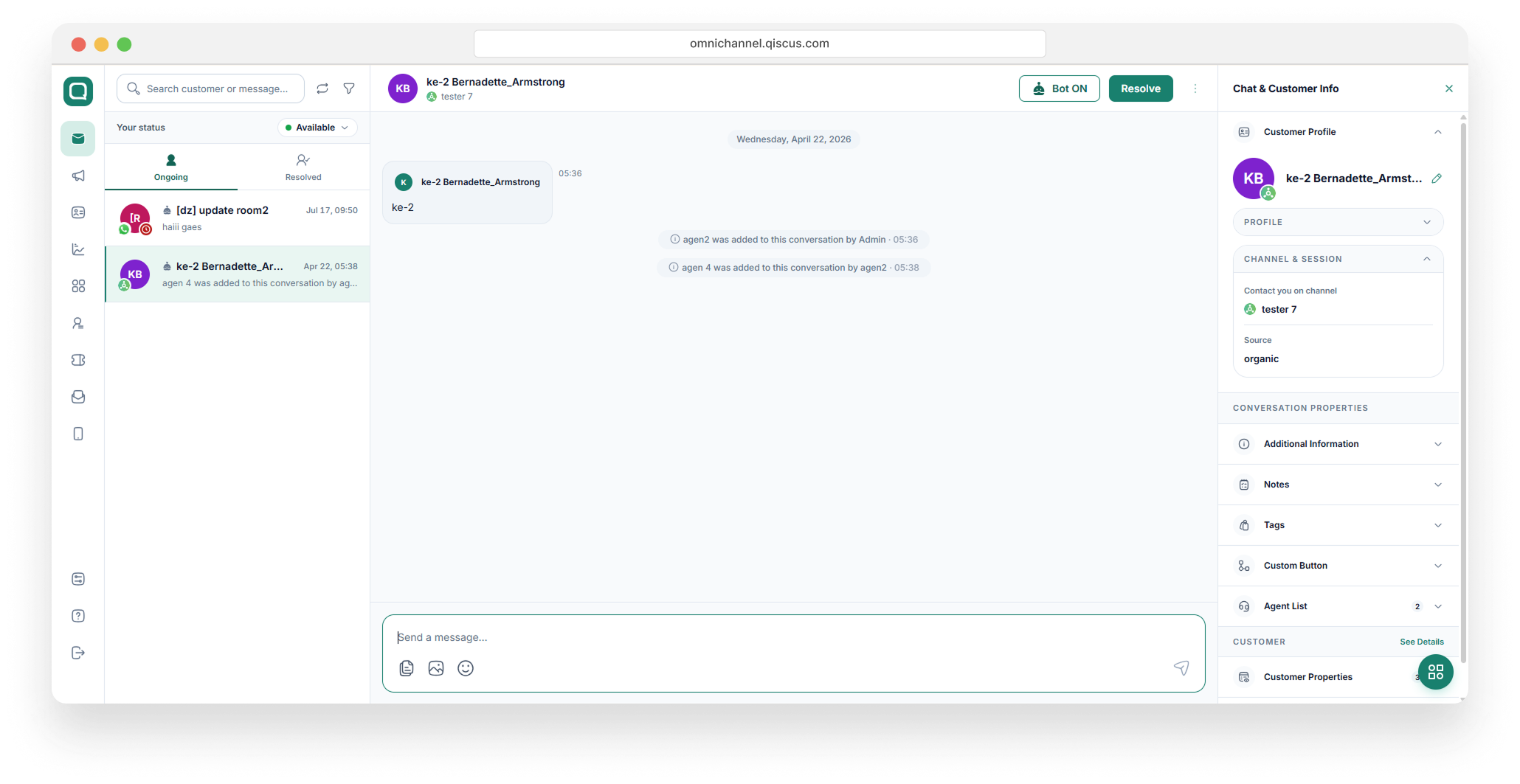
For Admin and Supervisor, chat lists are grouped into All, Unserved, Served, and Resolved. All displays both chats that have been resolved and not resolved. Unserved displays a chat that is still in progress but no Agent has joined it yet. Served displays a chat that is still in progress and an Agent has joined. Resolved displays the resolved conversations. The chat room list displayed on each tab Inbox is only eligible chat rooms within the Supervisor’s assigned channel.
Realtime customer conversations are only on the far left tab on the Admin, Supervisor or Agent side. So there are indicators that provide information that conversations on tabs other than the far left tab are those that are not realtime. You can update the latest data conversation by clicking “Refresh Now” in the indicator section.
Chat Filter
If you see on the top right corner of this list, you will see a chat list filter. This feature will help you on filtering which items should be shown. It will come handy when you are dealing with a lot of chats. Admin, Supervisor and Agent can filter based on Channel, Service Windows, Tag, Bot, Agent and Condition Each filter is not interconnected, so the user can only do one type of filter.
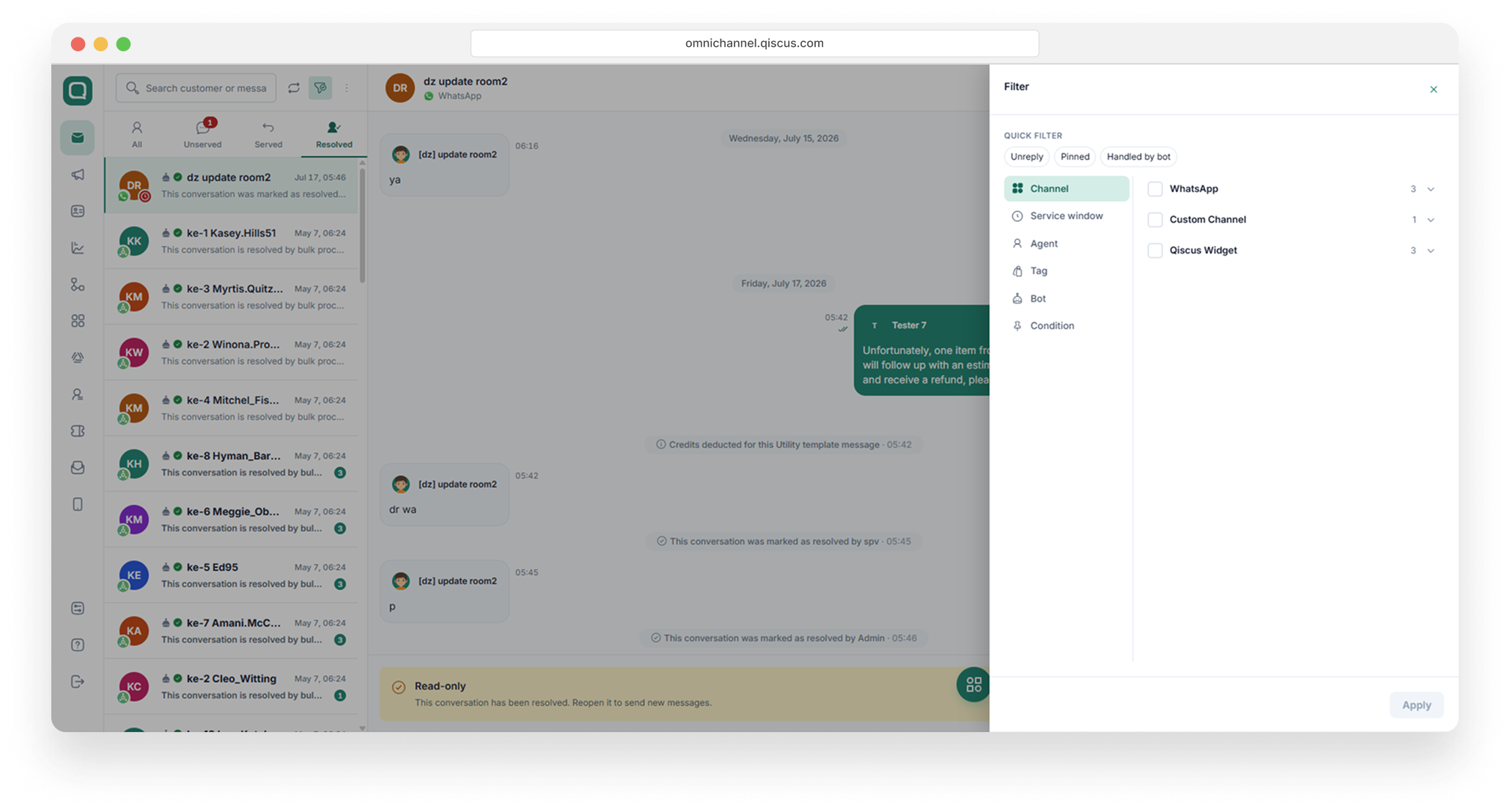
Filter by Channel includes Qiscus Widget, Channel Account and Custom Channel. Users can filter conversations based on specific integrated account channels. Users can choose more than one channel account. If you choose WhatsApp, 3 choices will appear, namely All, Ongoing but Expired and Expiring (8 Hours). All are all chats from the WhatsApp channel. Ongoing but Expired is all ongoing chat from the WhatsApp channel that has been more than 24 hours since the last customer returned the number in question. Expiring (8 Hours) is all ongoing chat from the WhatsApp channel which is close to expiry time, which is 8 hours before it expires. All, Ongoing but Expired, Expiring (8 Hours) can only be selected one. The default choice is All.
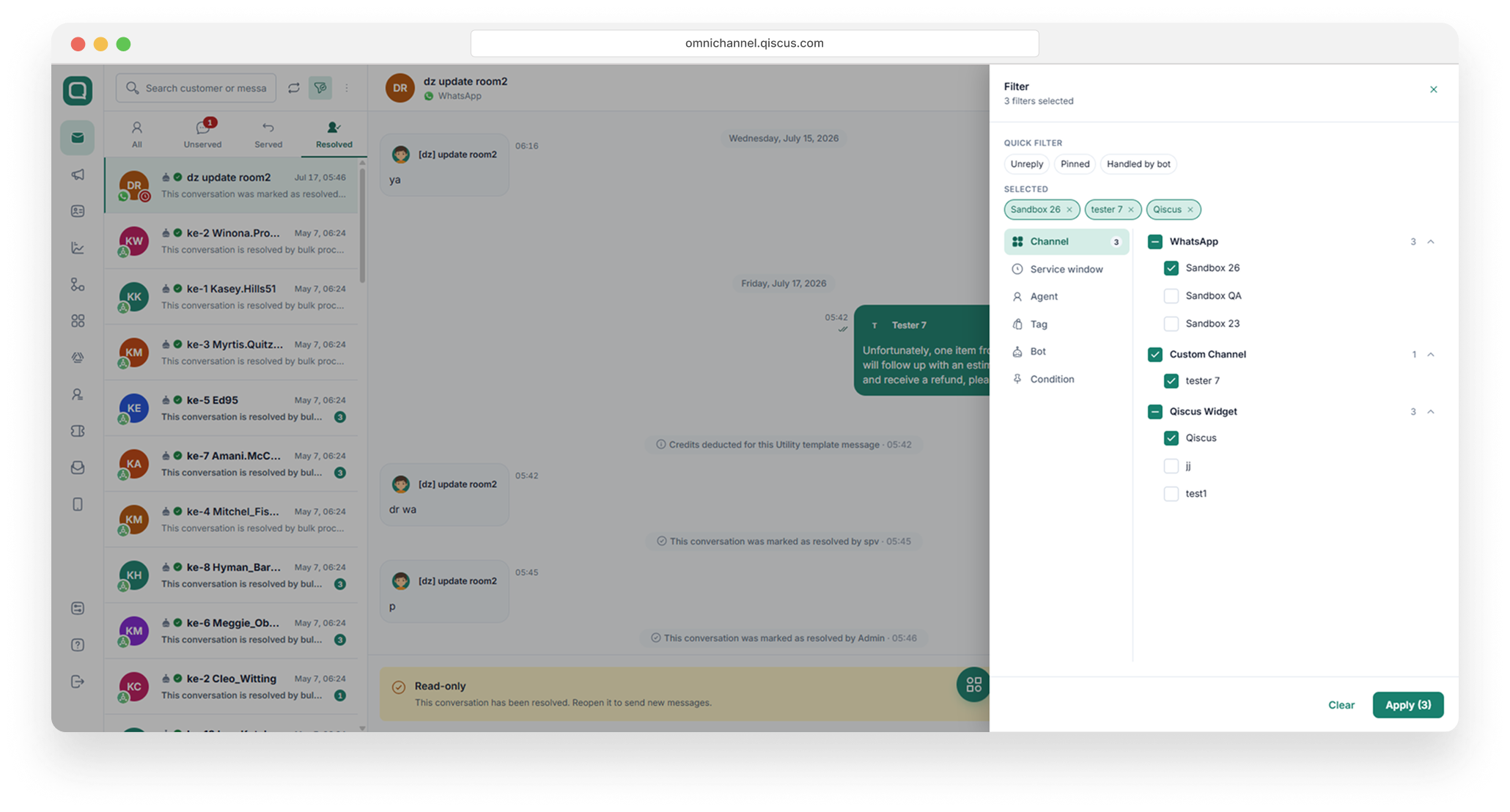
Filter by Tag is used to filter conversations on the Inbox chat list based on certain tags. Users can filter conversations based on several tags. The list of tags displayed matches the tags found on the Qiscus Omnichannel dashboard. The relationship between tags is AND, meaning that if the user defines more than one tag, the results obtained must meet all the tags defined.
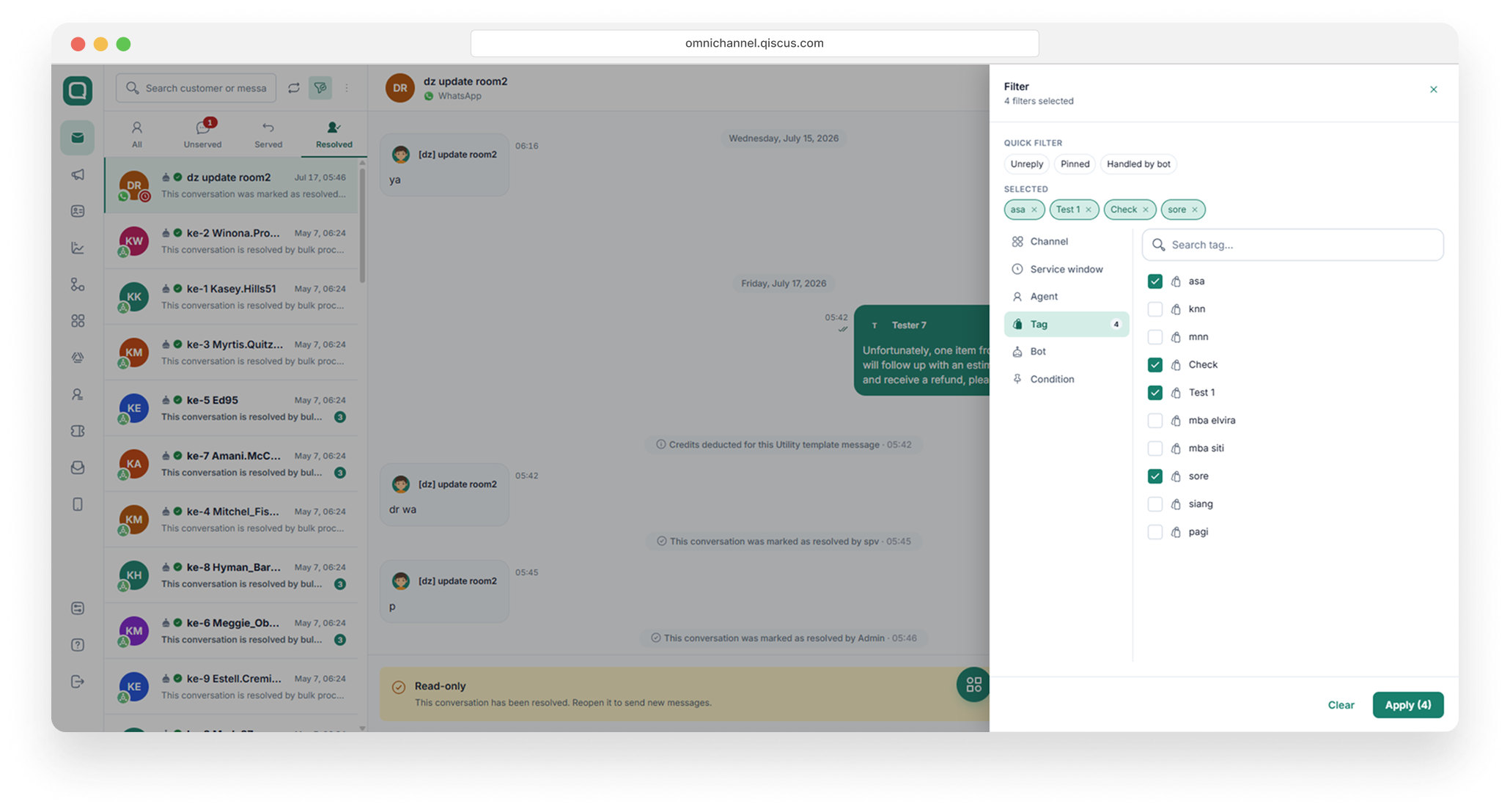
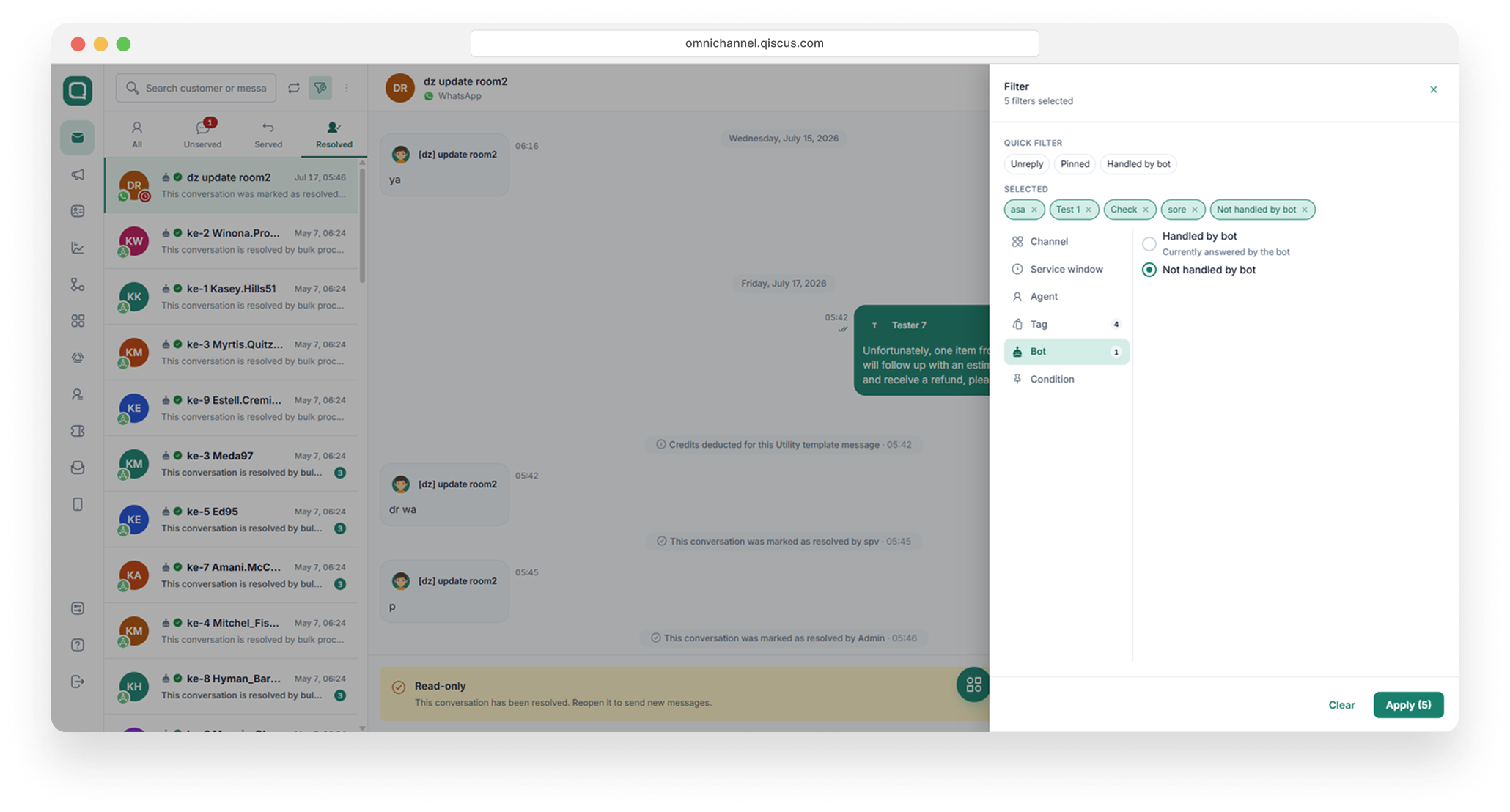
Filter by Bot displays chat with bot enabled or disabled. Filter by bot only activates if you have bot integrated.
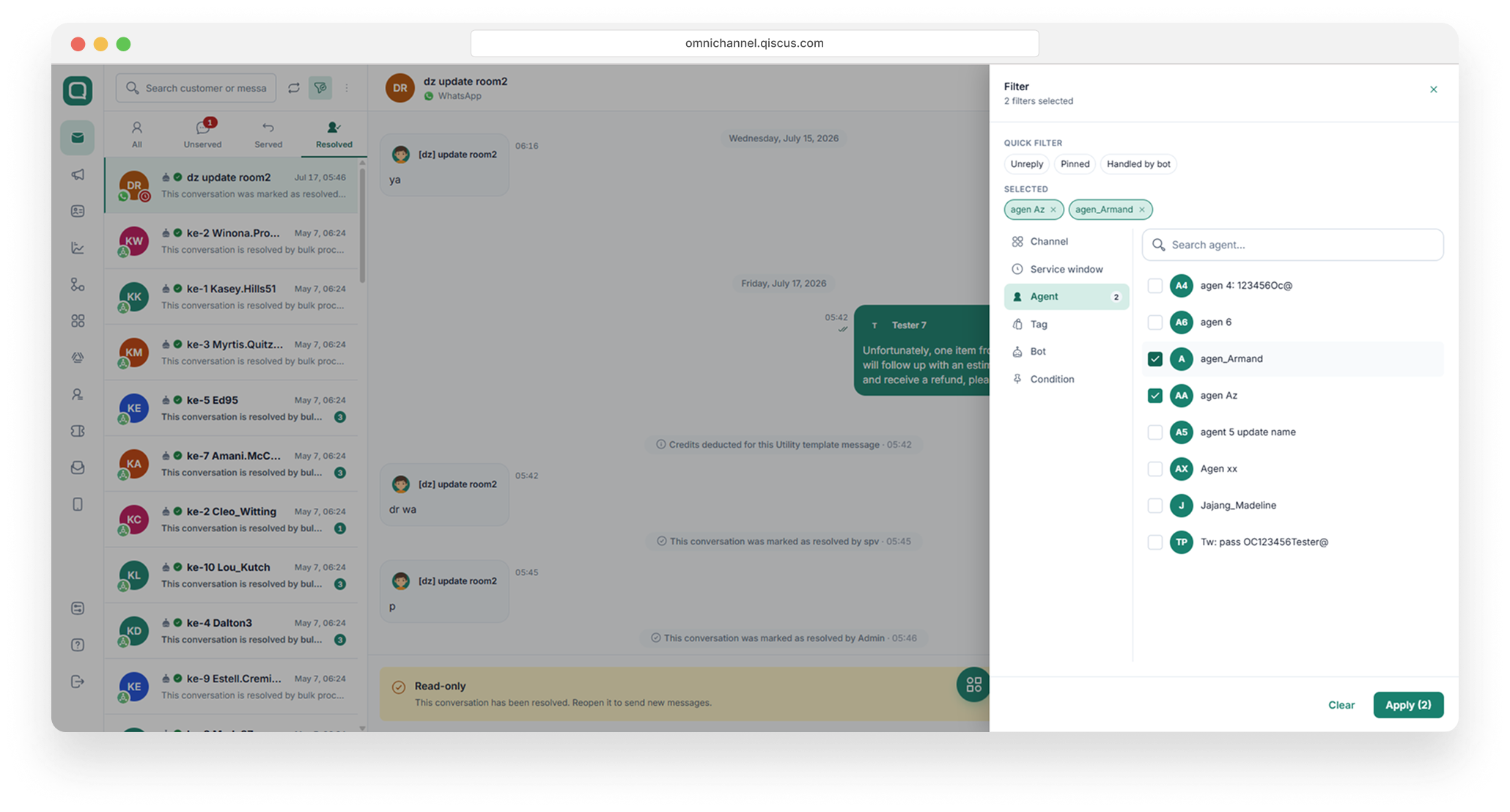
Filter by Agent is used to filter conversations on the Inbox chat list based on selected agent. If the user selects more than one agent then the filter will be OR, meaning that if the user select more than one agent, the results will contain every message with at least one agent selected on filter.
This feature is available in the Enterprise package only.
Chat Room
Whenever you click a room on the chat list, a chat room will appear on the right hand side. This is the place where a conversation happens.
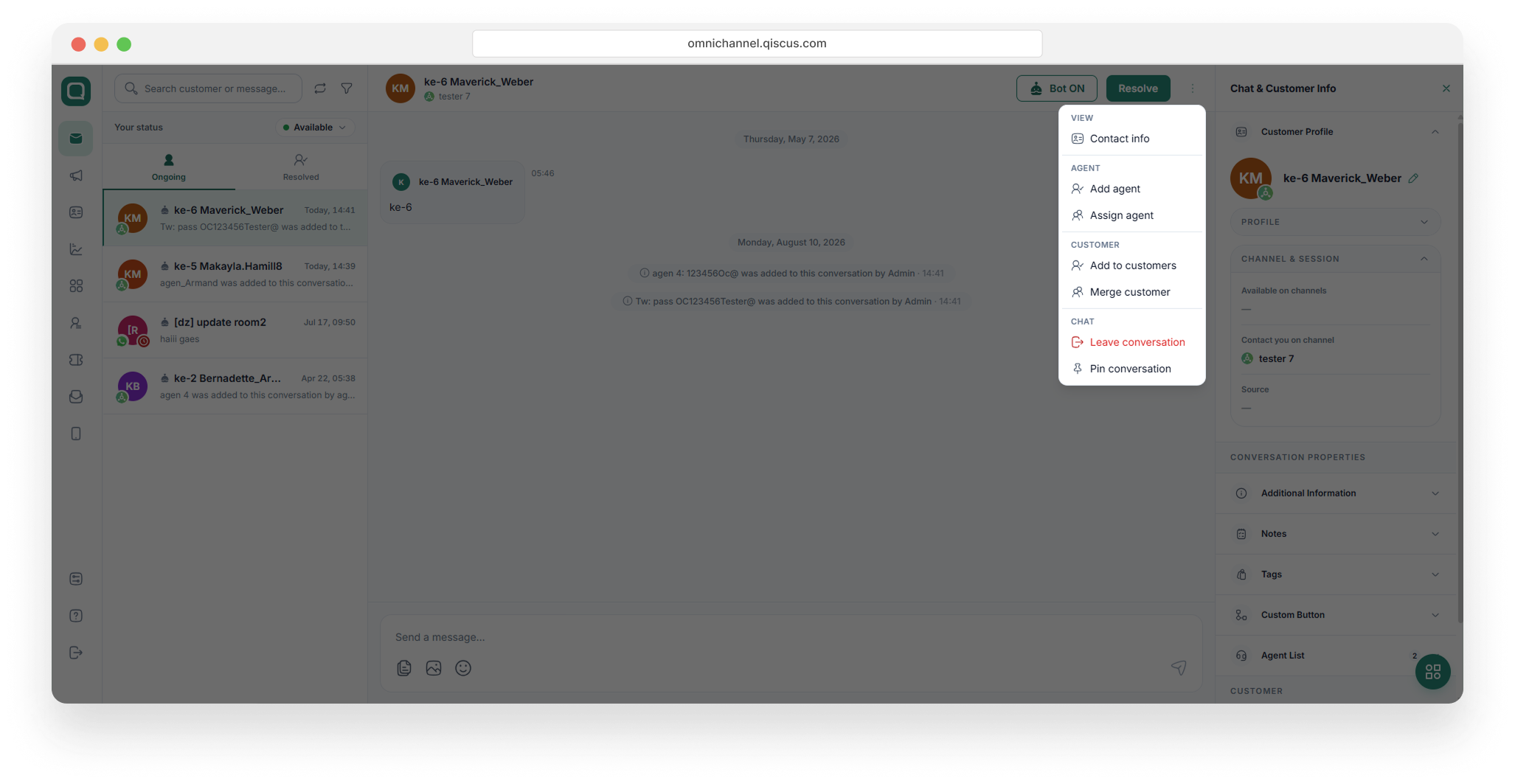
First is the chat panel itself, where the conversation takes place. By default, you can send text messages, files, multiple images, and emojis. The header includes the Bot toggle, Resolve button, and More (⋮) menu for additional agent actions. The More menu includes:
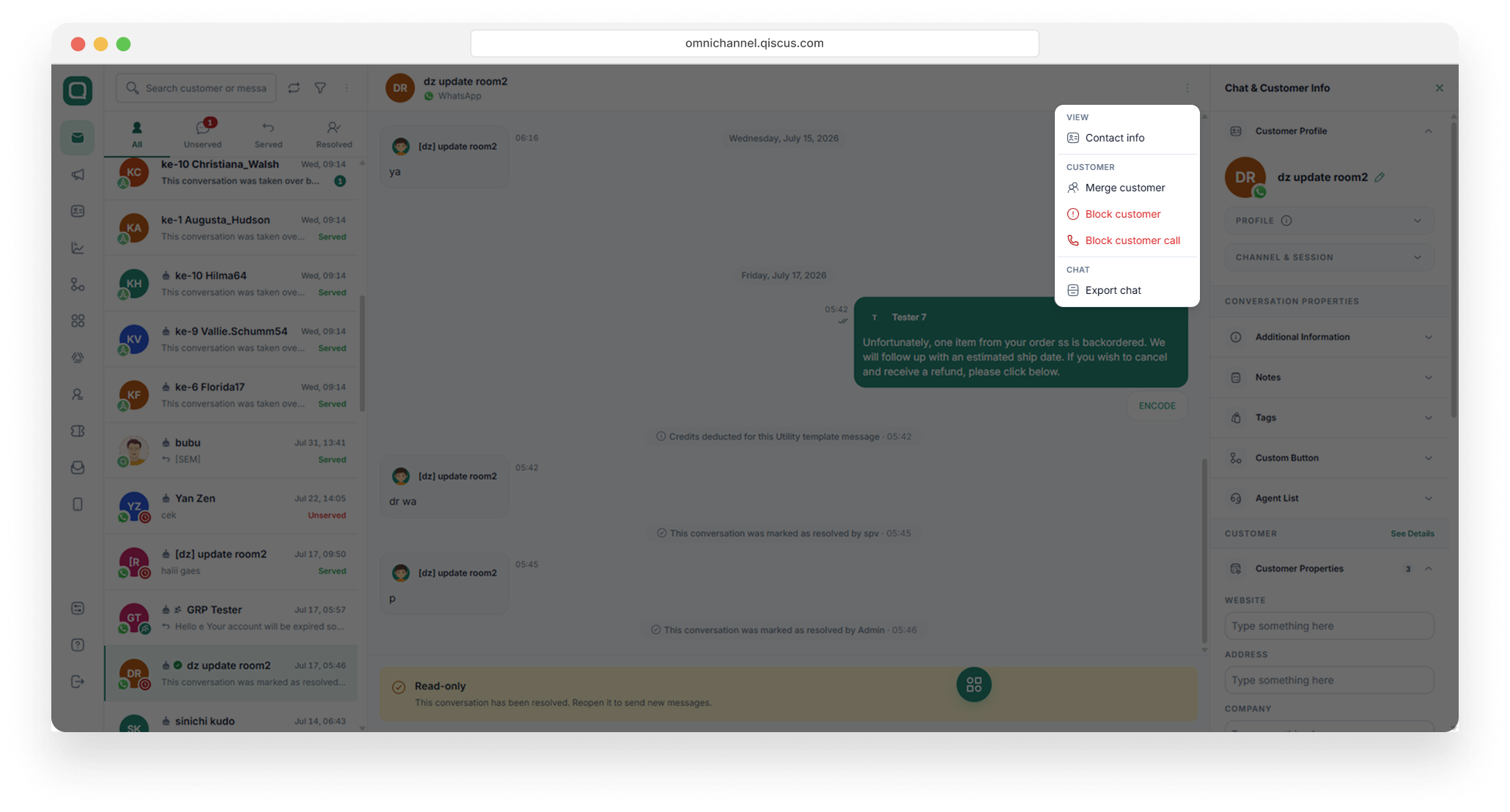
The More (⋮) menu includes View (Contact Info), Agent (Add Agent, Remove Agent), Customer (Merge Customer), and Chat (Pin Conversation).
Chatbot toggle button will only appear whenever you activate chatbot feature in the integration page, otherwise you won't see the button. Whenever the feature is activated, all incoming messages will be handled by bot automatically by default. However, you can override this behaviour for each room. Let's say you want to make your bot silent for room A, you can just toggle it off for that room only. For more information about this feature, head over to Bot-Human Collaboration.
Conversations on the WhatsApp channel have a Block Contact feature where the customer contacts can be blocked by the admin and or supervisor. Block Contact can be used to avoid spam messages sent by customers. All messages going in and out will not be received as long as the customer's contact is blocked. This also applies to 24 Hours HSM messages. Blocked customer contact lists are displayed on the Analytics page under the Others tab for both admin and supervisors. Customer contacts that have been blocked can be unblocked. If a contact is unblocked, you can send and receive messages from the customer again. However, all messages sent by customers during the block period will not be received.
Chat & Customer Info
The Chat & Customer Info panel is located on the right-hand side of the conversation screen in Qiscus Omnichannel. It provides agents and supervisors with a consolidated view of customer identity, communication channel status, conversation-specific settings, and customer profile data. This document describes the purpose and function of each section within the panel: Profile, Channel & Session, Conversation Properties, See Detail, Customer Properties, and Customer Activities.
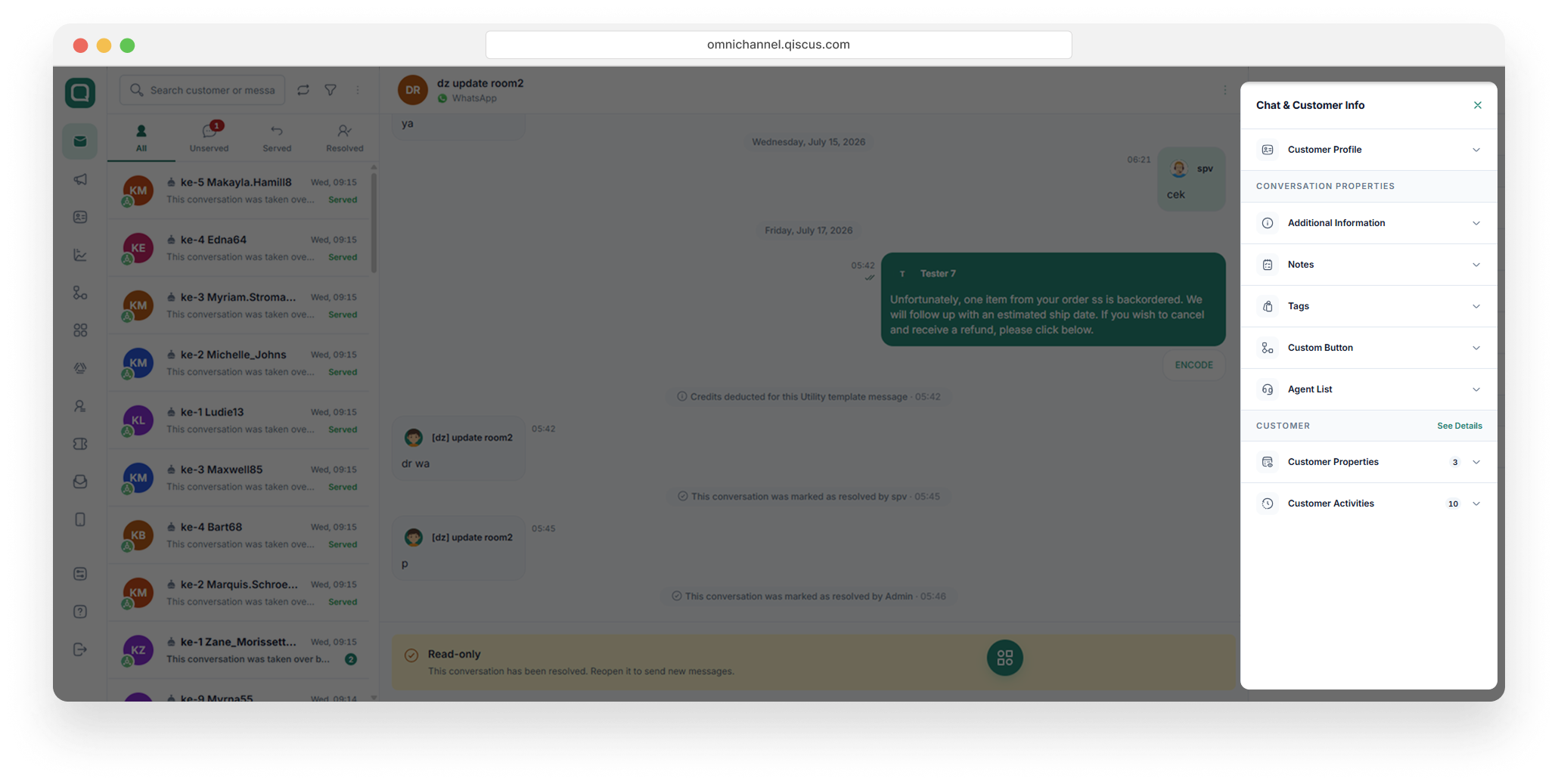
Customer Profile
Displays the customer’s basic information, such as their name, contact details, channel, and source.
Profile
This section allows an agent to quickly identify the customer without requesting the same information repeatedly during the conversation.
For the Customer Profile section, there are two types of profile views based on the customer’s source:
WhatsApp Customer Profile — displays profile information specific to customers from the WhatsApp channel.
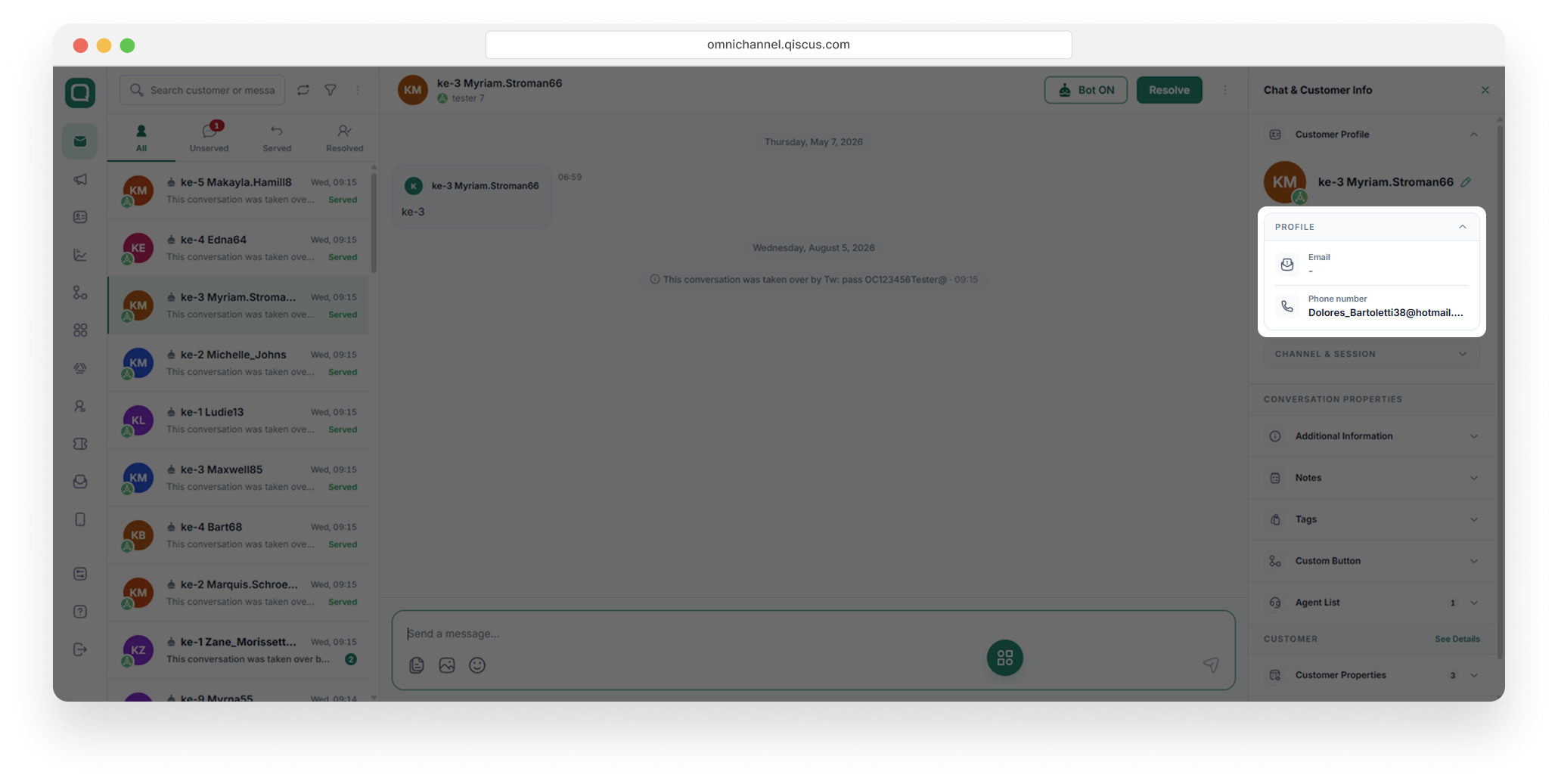
Non-WhatsApp Customer Profile — displays profile information for customers from other channels or integrations.
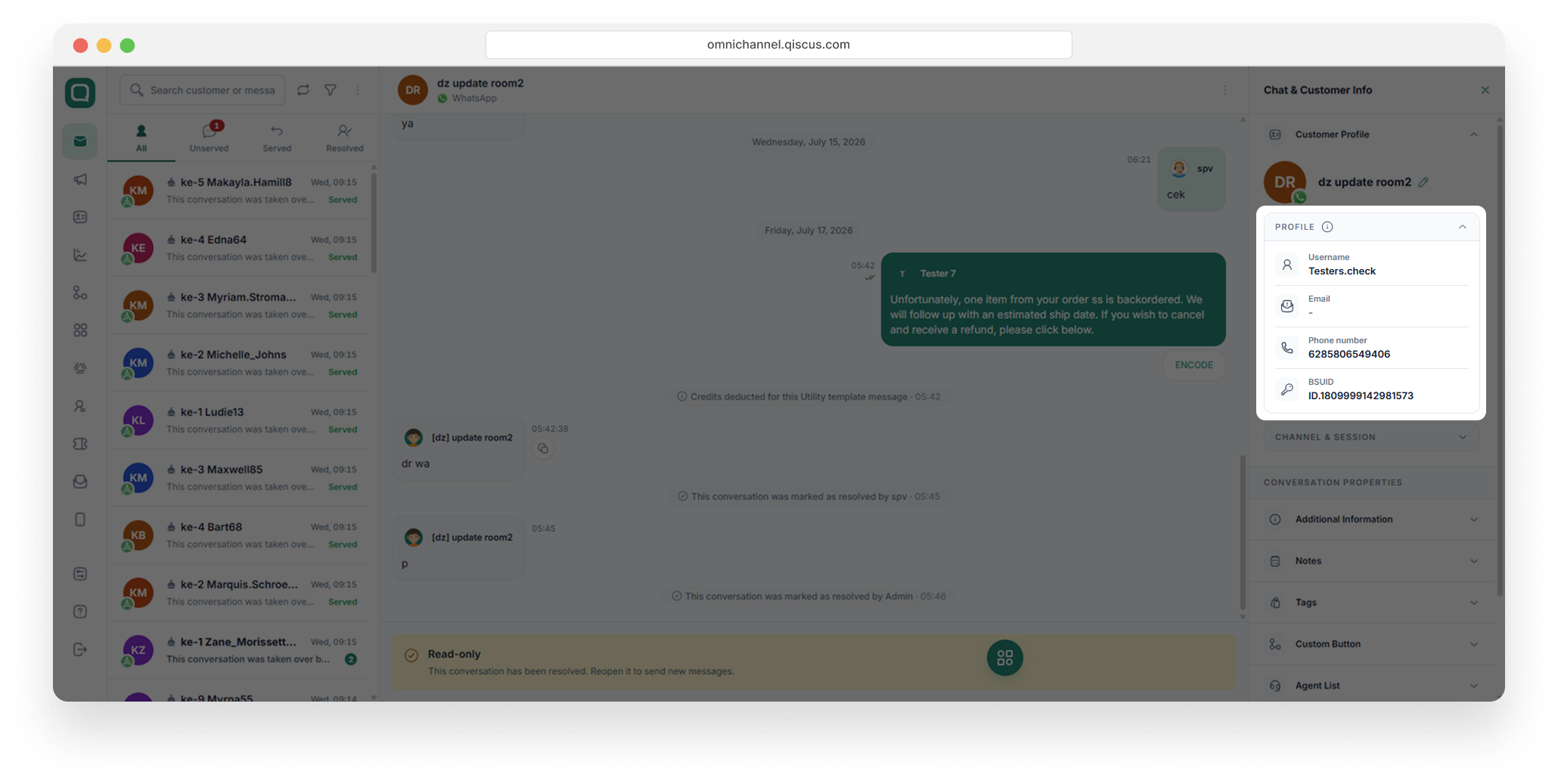
Field | Description |
|---|---|
Username | The display name registered for the customer. |
The customer's registered email address, where available. | |
Phone Number | The contact number associated with the customer's account. |
BSUID | A unique system-generated identifier used to distinguish the customer record. |
For non-WhatsApp sources, the Customer Profile displays information such as:
Email
Phone Number
Channel & Session
Provides information regarding the communication channel and the technical status of the messaging session. This section informs the agent of the medium through which the customer initiated contact and any constraints that may affect the ability to send further messages.
For non-WhatsApp source:
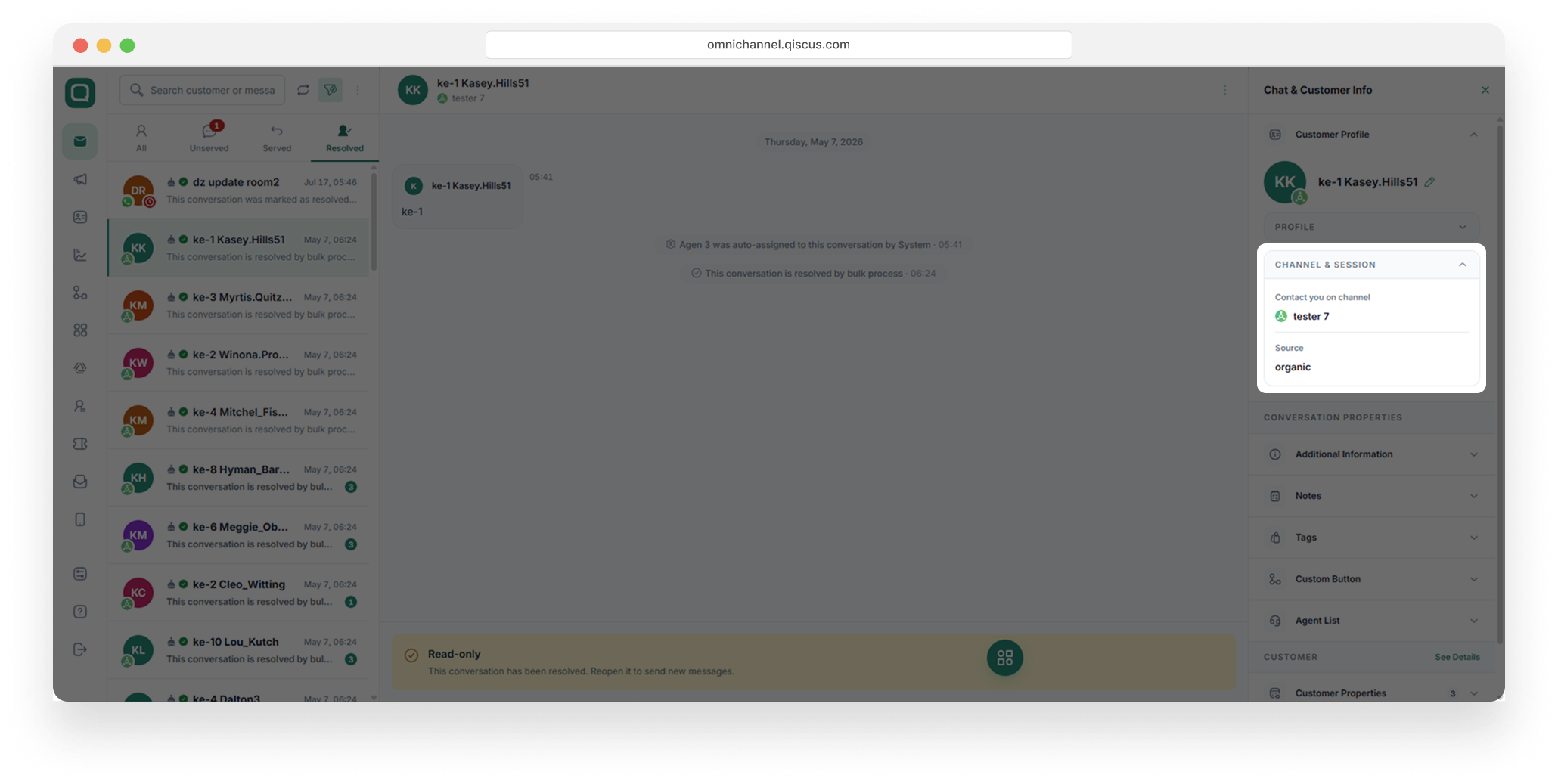
for WhatsApp source
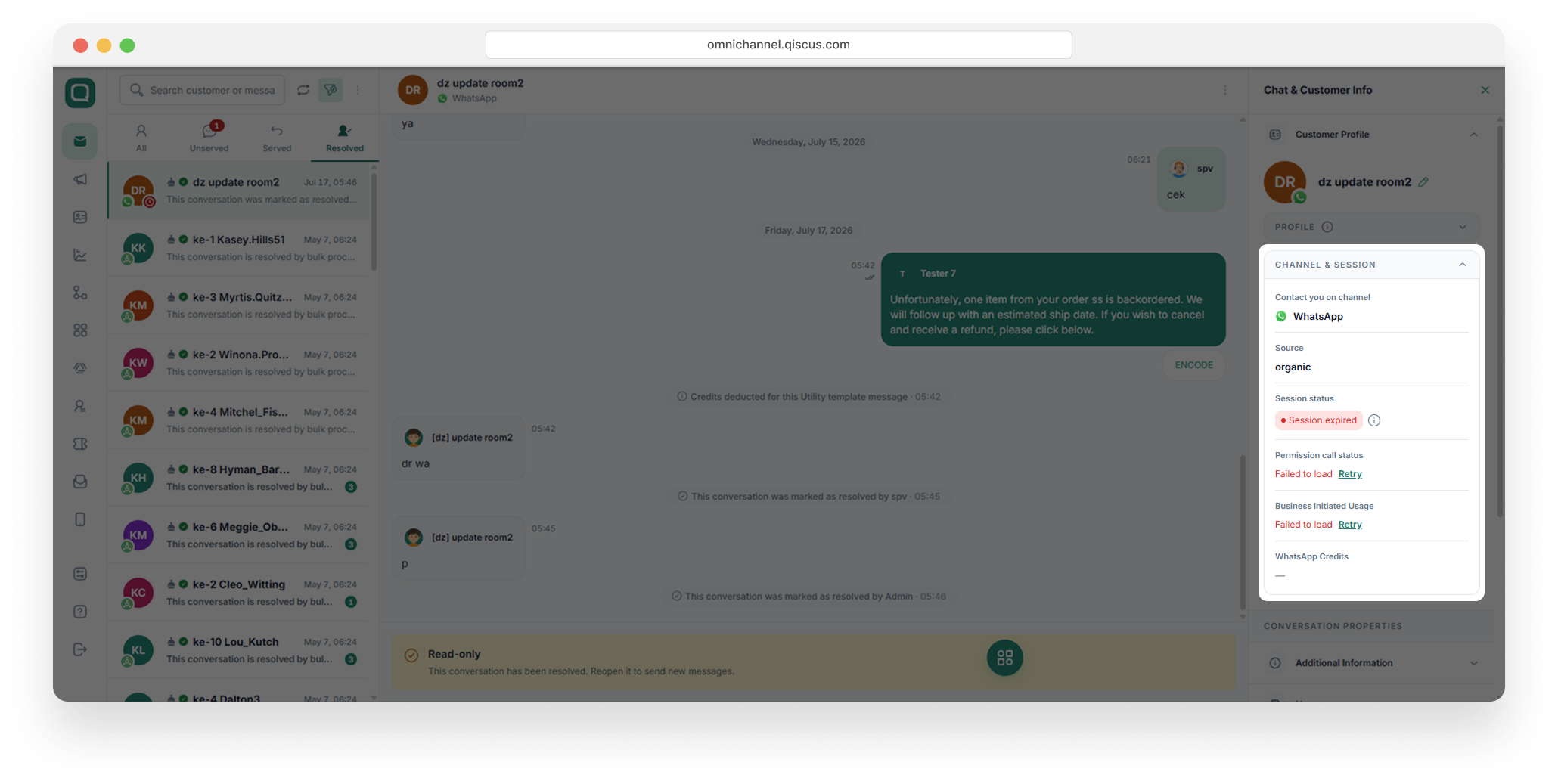
Field | Description |
|---|---|
Contact You on Channel | The messaging channel used by the customer (e.g., WhatsApp). |
Source | Indicates how the conversation originated (e.g., "organic" refers to a customer-initiated contact). |
Session Status | Indicates whether the messaging session is active or has expired. An expired session typically requires the use of a pre-approved template message to re-engage the customer, in accordance with the channel provider's policy. |
Permission Call Status | Displays the current permission status for voice or call-related functionality, where applicable. |
Business Initiated Usage | Displays usage information related to business-initiated messaging. |
WhatsApp Credits | Displays the remaining message credit balance associated with the WhatsApp channel. |
Conversation Properties
Contains configuration options and metadata that apply specifically to the currently open conversation. Unlike the Profile and Channel & Session sections, which pertain to the customer's identity and communication channel, Conversation Properties pertain to the conversation instance itself.
Component | Description |
|---|---|
Additional Information | Allows agents to record supplementary information relevant to the specific conversation. |
Notes | A free-text field enabling agents to document internal remarks regarding the conversation for reference by themselves or other team members. |
Tags | Labels that may be applied to categorize or classify the conversation according to topic, urgency, or internal workflow requirements. |
Custom Button | A configurable shortcut button that, when selected, executes a predefined action or opens a specified resource relevant to the conversation. |
Agent List | Displays agents who have been additionally assigned to collaborate on the conversation, beyond the primary assigned agent. |
See Detail
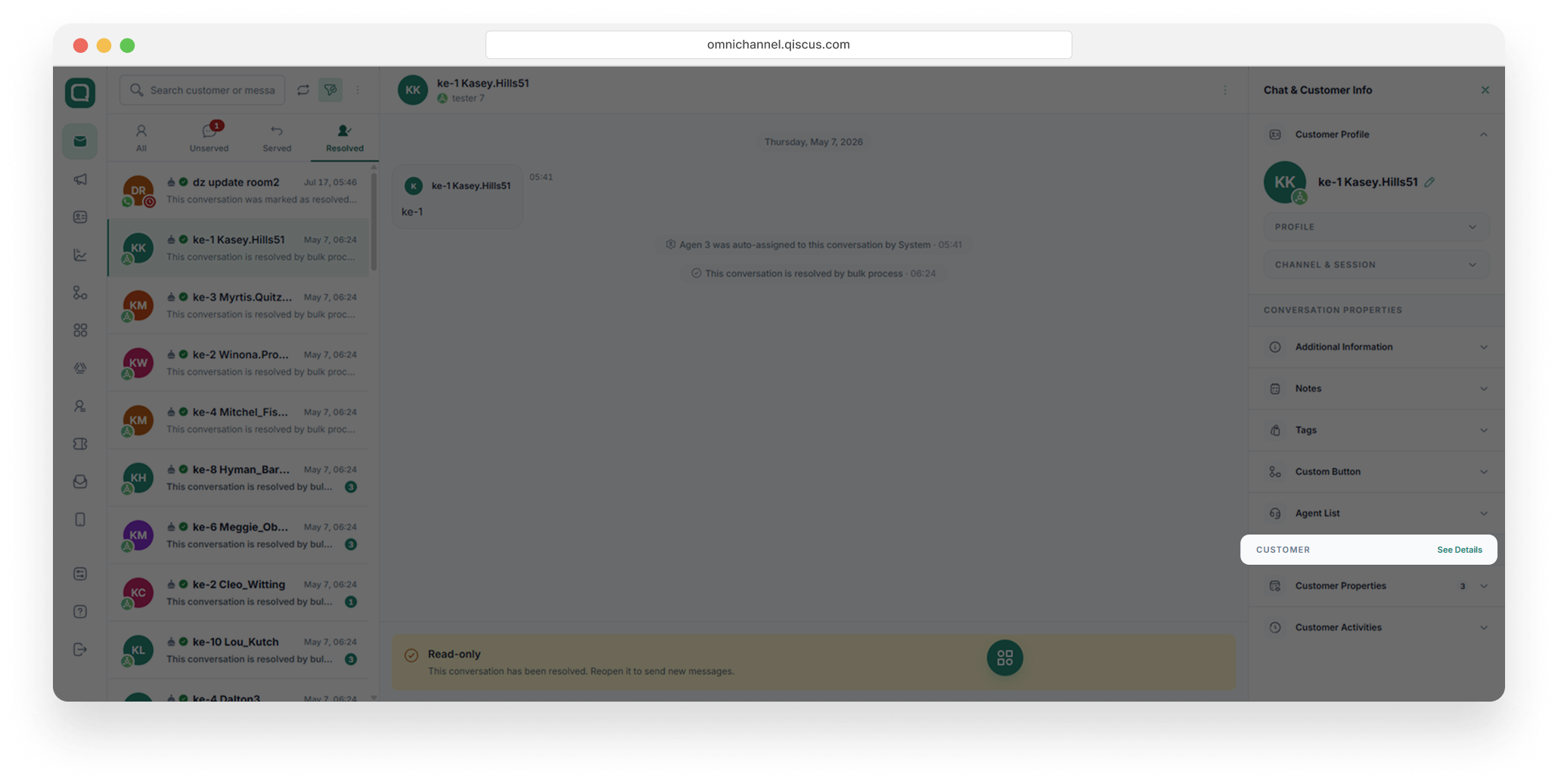
Selecting "See Detail" opens a new tab containing a comprehensive view of the customer, independent of any single conversation. This view includes two tabs:
Activity: A chronological log of all recorded events associated with the customer record.
Conversation History: A complete record of the customer's past conversations, organized into Ongoing and Resolved categories.
This section is intended for use when a comprehensive understanding of the customer's history and prior interactions is required, beyond the scope of the currently active conversation.
Customer Properties
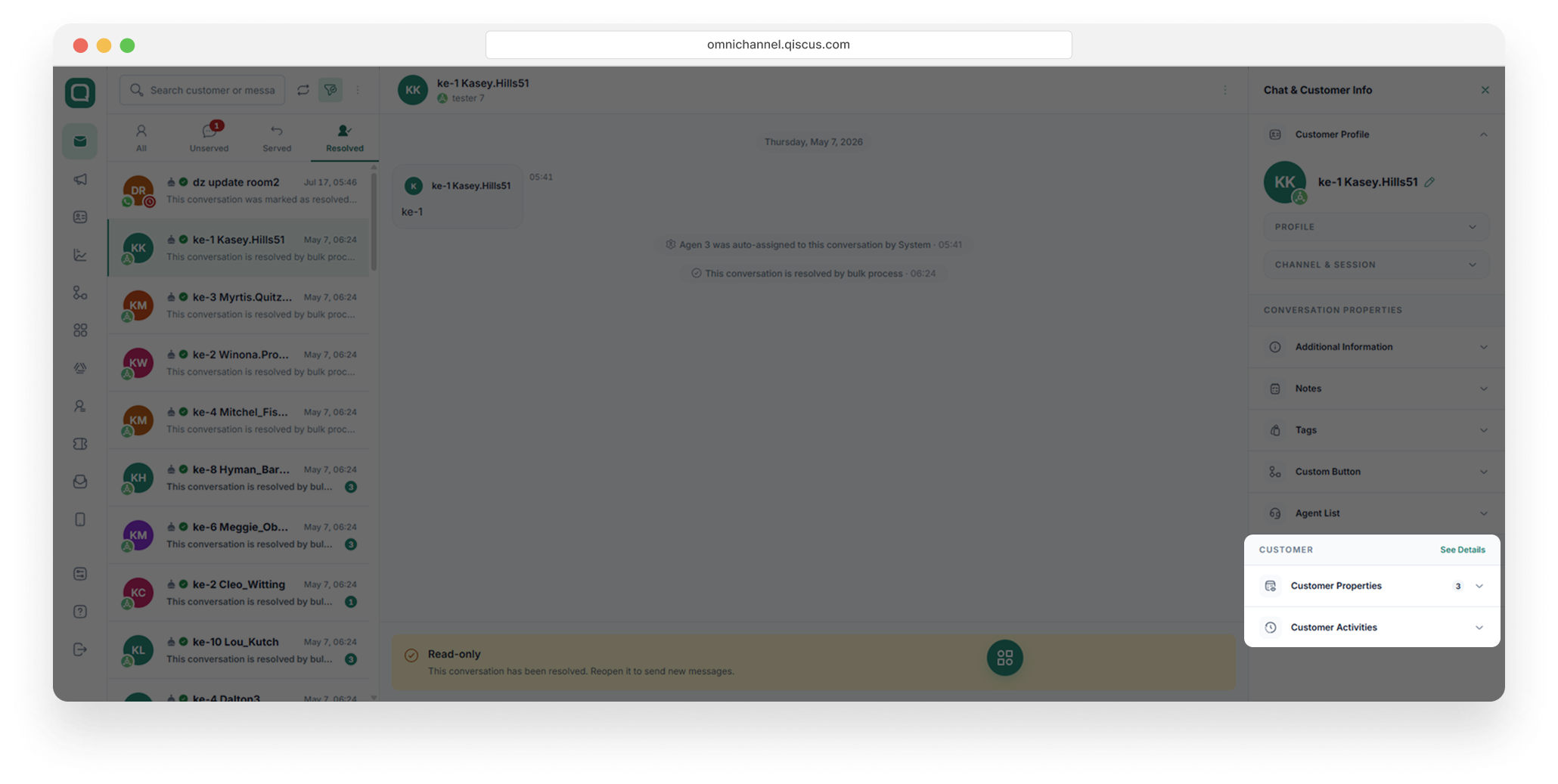
Stores supplementary profile attributes associated with the customer record. These fields are intended to capture business-relevant information about the customer that persists across conversations, once entered.
Field | Description |
|---|---|
Website | The customer's associated website address, if applicable. |
Address | The customer's physical or mailing address. |
Company | The organization or company the customer represents, if applicable. |
Information entered in this section is retained on the customer's profile and will remain accessible in future conversations.
Customer Activities
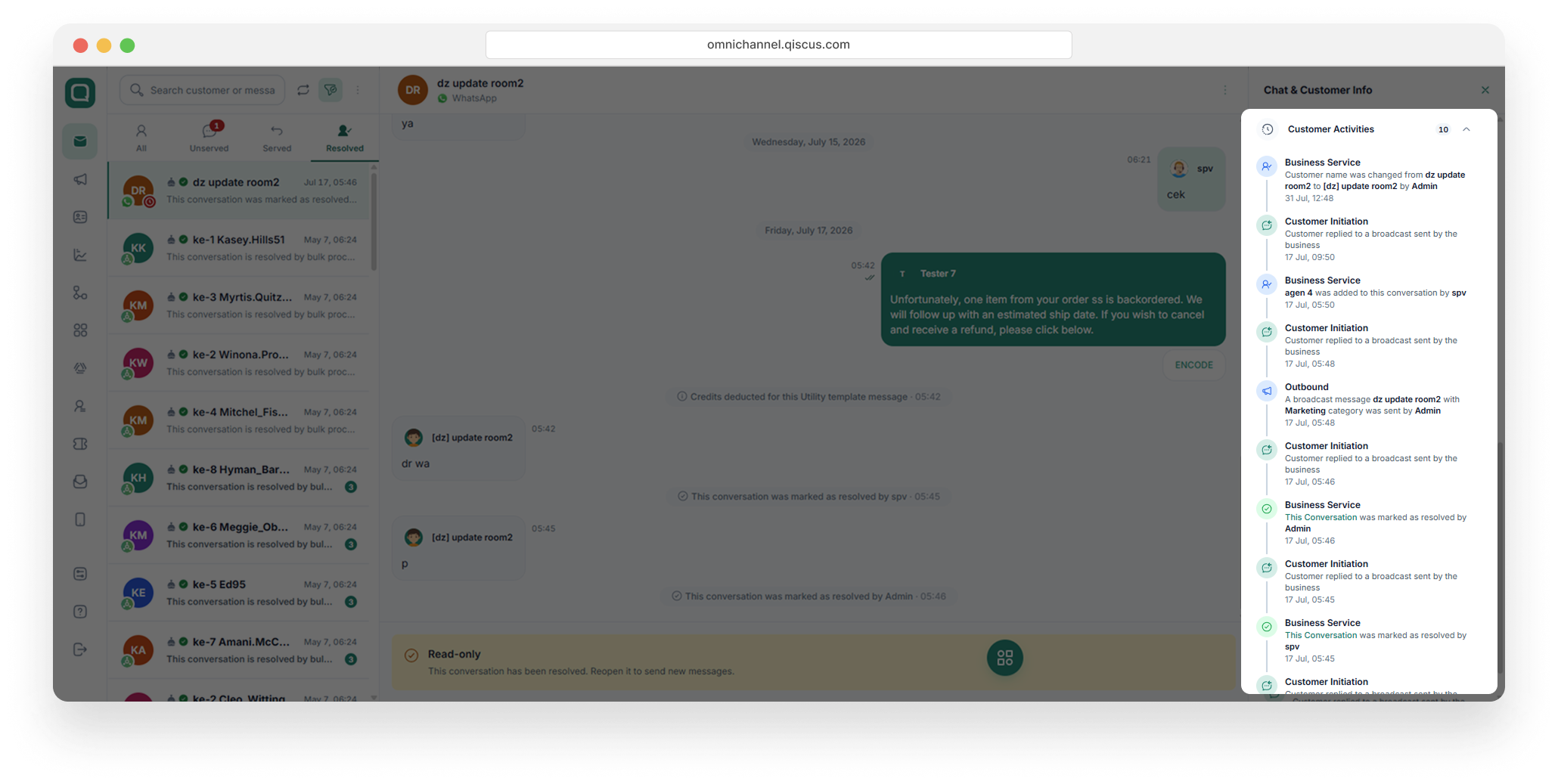
This section records system and agent actions associated with the customer over time, such as changes to customer information, replies to broadcast messages, or agent assignment events. It functions as a chronological audit trail, allowing team members to review the history of a customer record without needing to access individual past conversations.
Mark as Resolve Conversation
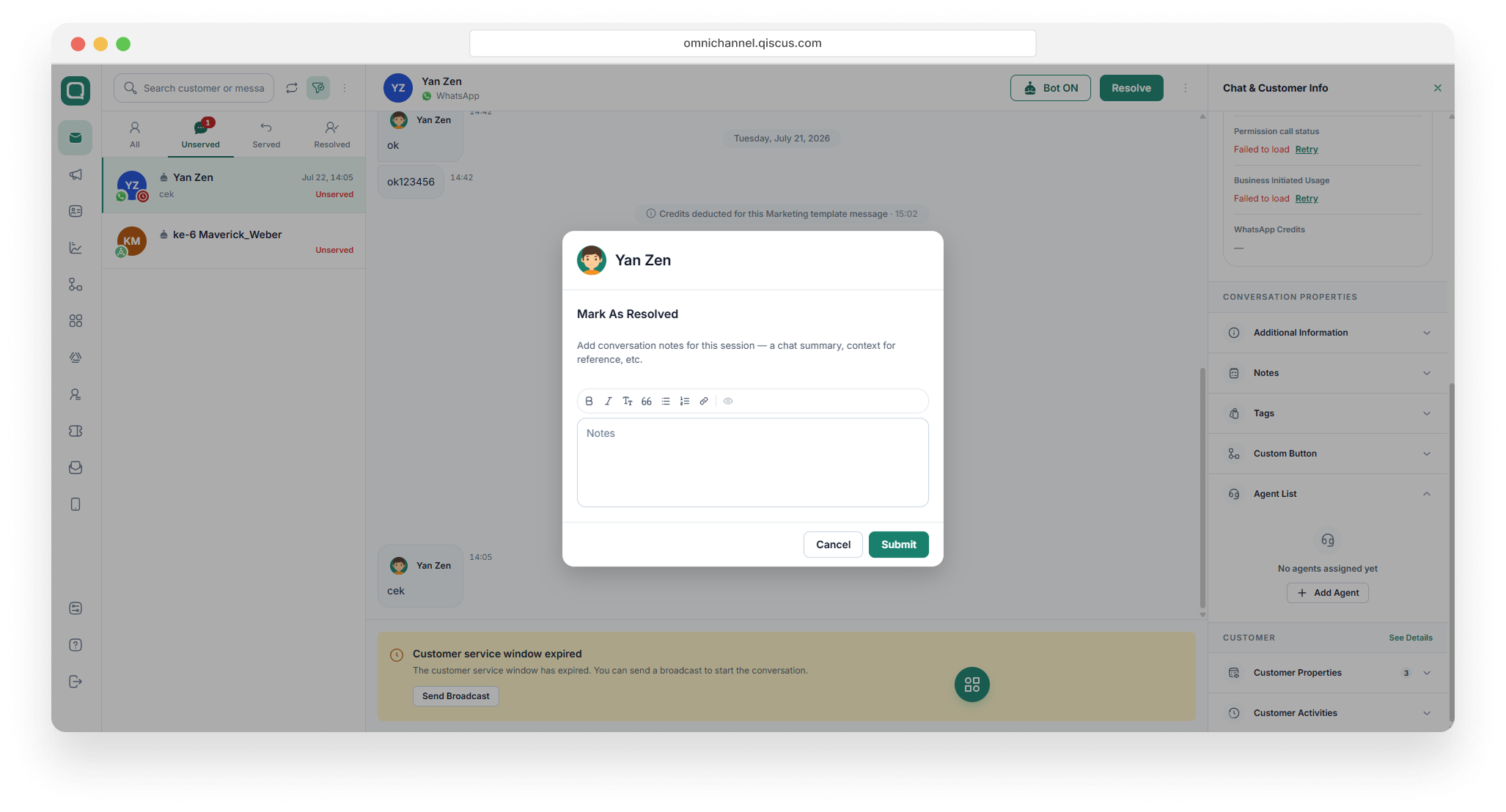
To the right of the chatbot toggle button, you will see a mark as resolve button. This button is used to mark a room as a resolved conversation. As soon as you hit this button, a mark as resolve panel will pop up. In that panel you can put a note regarding the inquiry context of the room for your reference. When you click submit, it will put a check mark on the room list. Not to mention, you can also send the conversation transcript and/or conversation note in one conversation session to user email address in order for your customer to have a copy of conversation record.
Resolve All Expired Chat
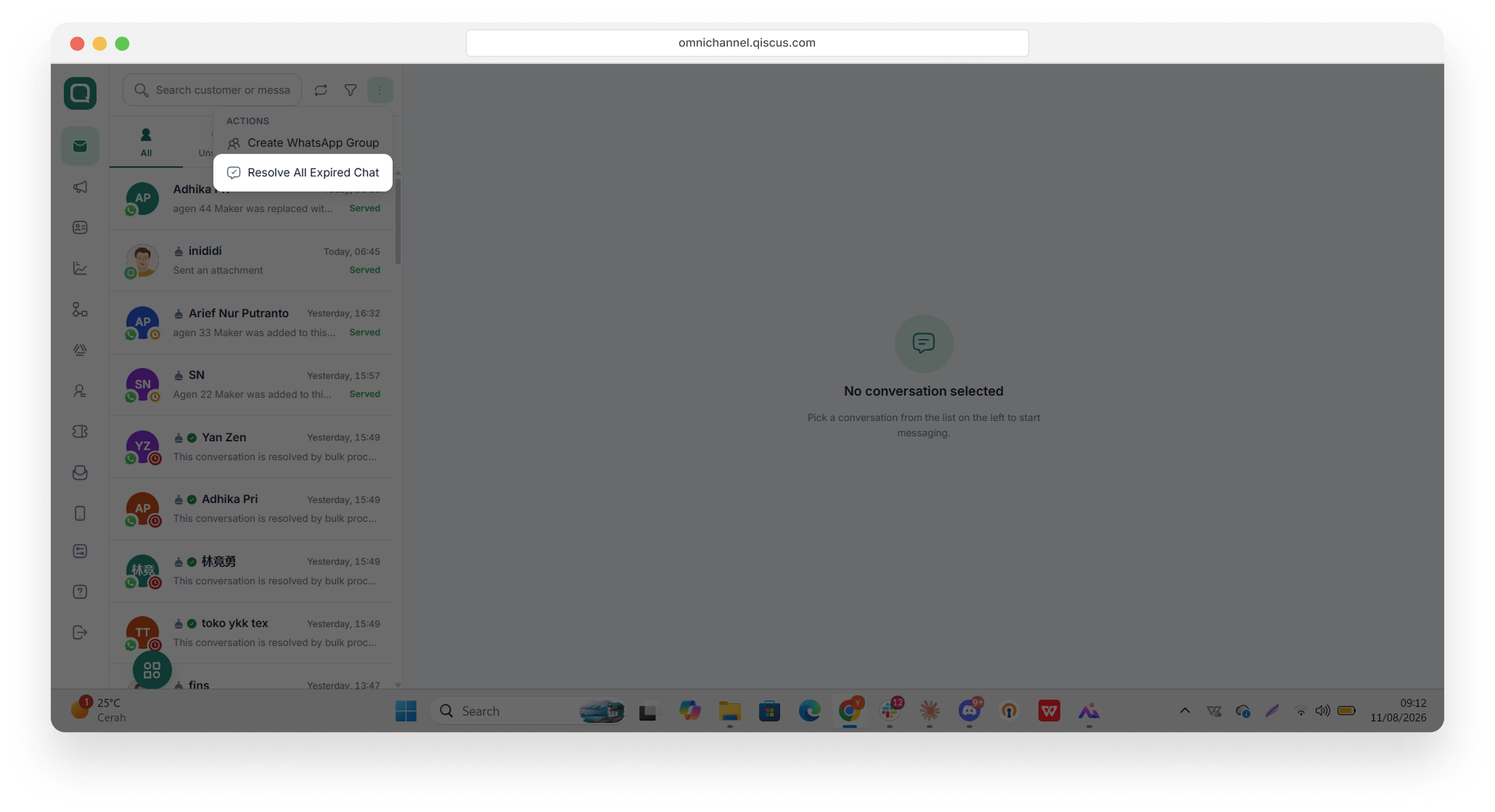
Resolve All Expired Chat is a feature on the Qiscus Omnichannel dashboard that makes it easy for you to resolve all expired conversations on the WhatsApp channel at once. You can access this feature on the Inbox page if your account is integrated with the WhatsApp channel. Unlike the Mark As Resolve Conversation feature, this feature does not provide a note before resolving the room and does not send a system message after resetting.
Go to the More (⋮)
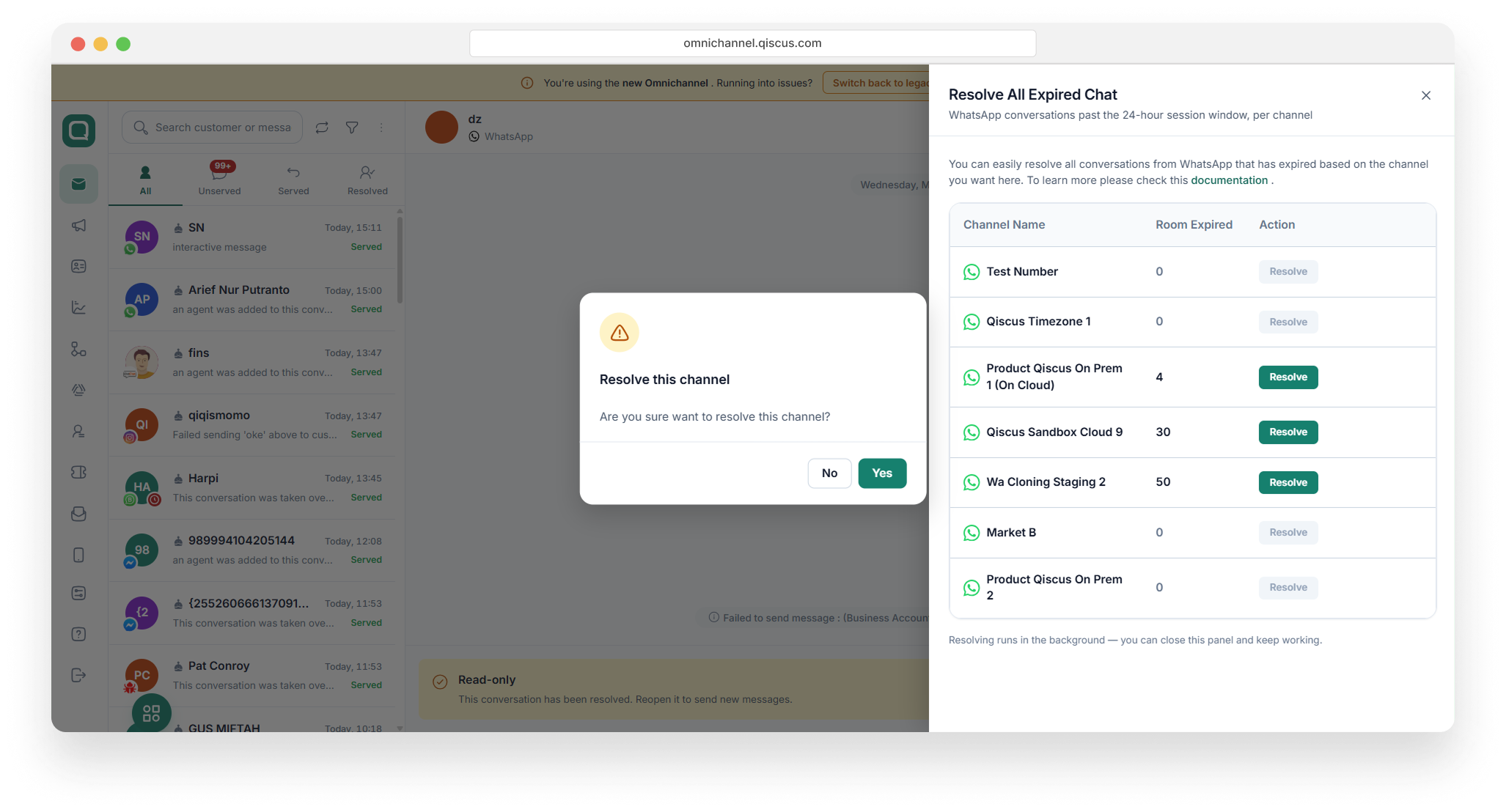
A panel will open with the Resolve button. Click Resolve, then click Yes on the confirmation dialog.
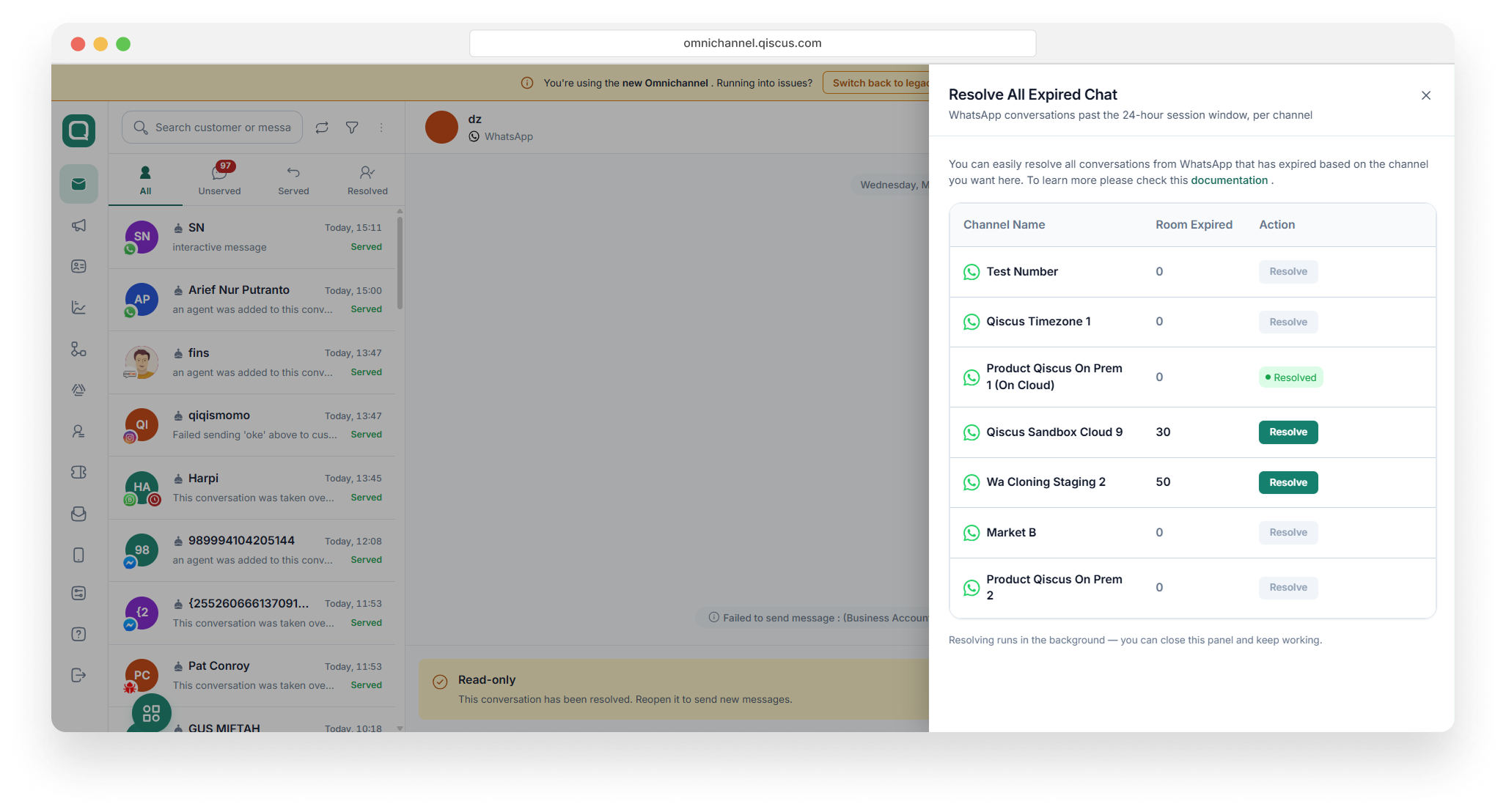
Wait for the resolve process to complete until the Resolve button becomes available again.
Agent Management
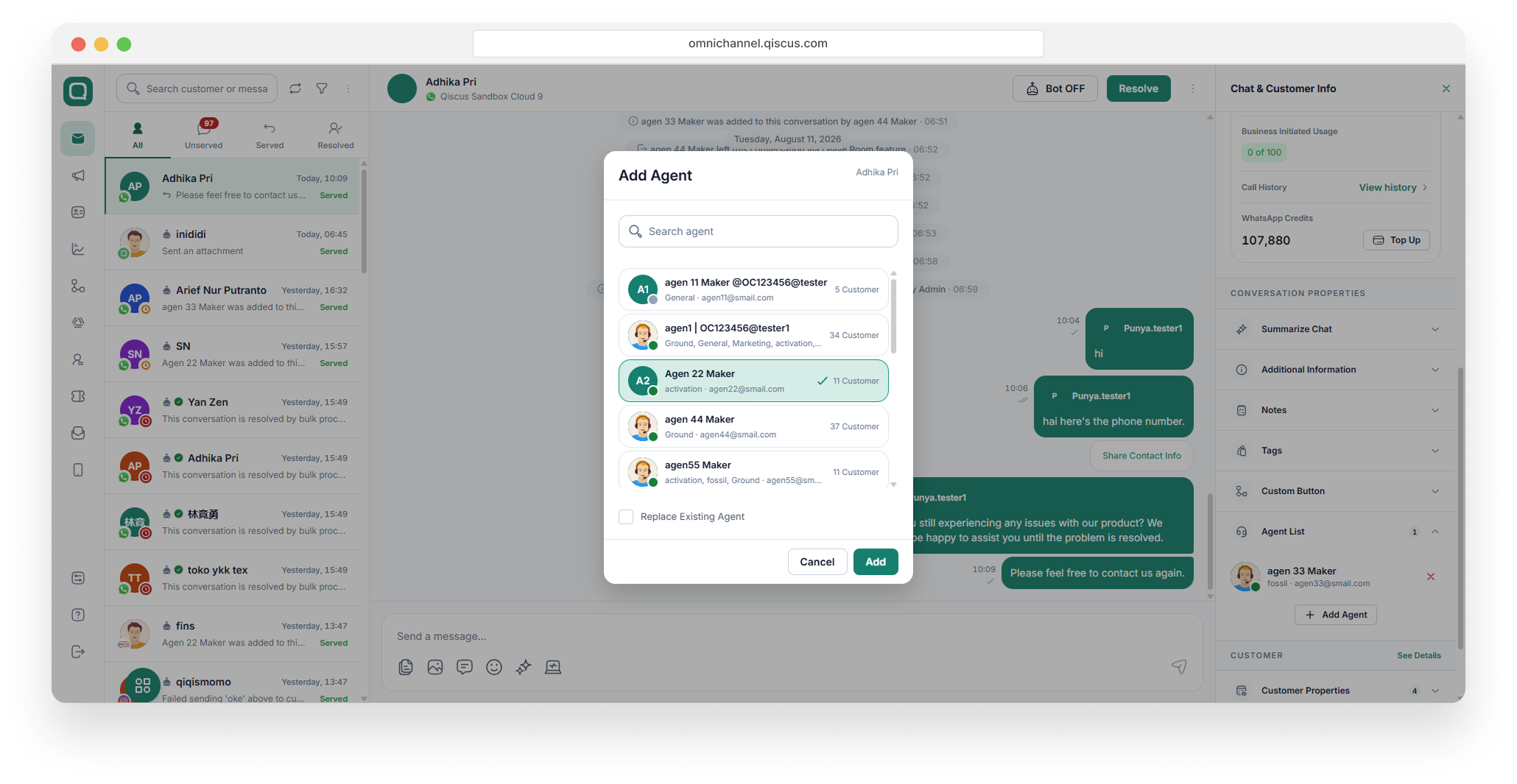
The last button in the header is more buttons rendered as a dropdown. This dropdown button contains agents functionality, such as add one or more agents to the room or remove agent out. This feature would be helpful in distributing work loads for your agents to help you respond to customers' inquiries.
To be noted here, this feature would be different when you are logged in as an agent. First, from the user interface point of view, you will see assign chat to other agent and add agent button, but not remove agent button. Add agent feature is to add another agent as a respondent in the room. Assign chat to other agents feature is to handover the role of an agent to another agent as a respondent in one room. Remove agent feature is to remove certain agents from a room. You can search for agent based on name, email or division on assigning agent's list.
You can also add the agent from the Conversation Properties.
Agent Leave Room
In Qiscus Omnichannel, agents can retrieve unserved chat rooms with the Get Customer feature. However, if multiple agents click the Get Customer button at the same time, they may join in the same chat room even though one chat room ideally should only be handled by one agent.
Previously, only Admin or supervisor had the authority to remove agents from a chat room. But as of now, Qiscus has a Leave Room feature where agents can leave from a chat room by themselves.
Important note:
The Leave Room button will not appear if there is only one agent in a chat room
The Leave Room button will not appear in resolved chat rooms
The Leave Room button will appear if there is more than 1 agent in a chat room
The Leave Room feature will be available to agents once an Admin or Supervisor activates the toggle. "Agent can leave chat room by themselves" in the Agent Management setting.
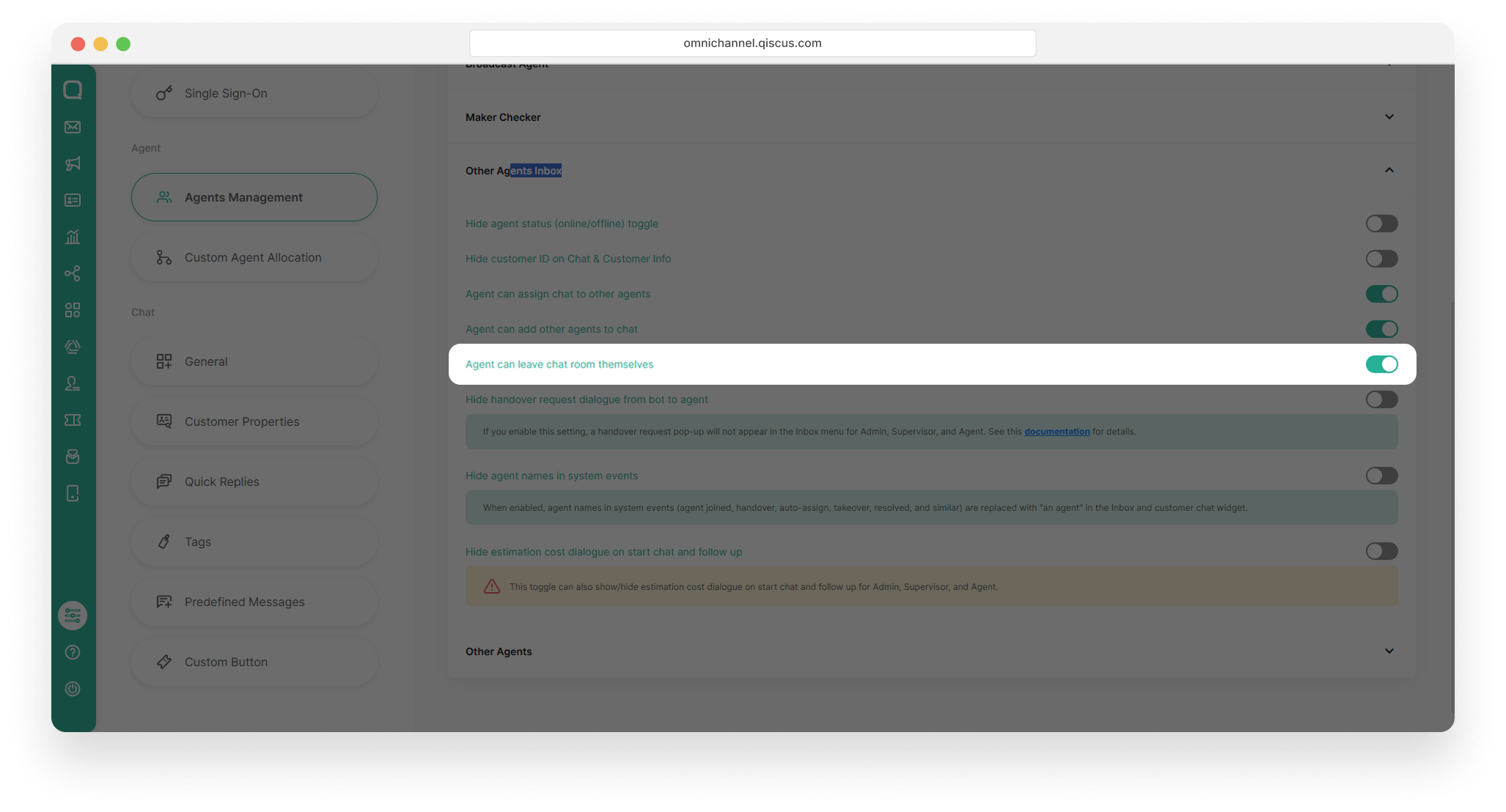
You can follow these simple steps to use Leave Room feature:
Go to Inbox menu and select a chat room,
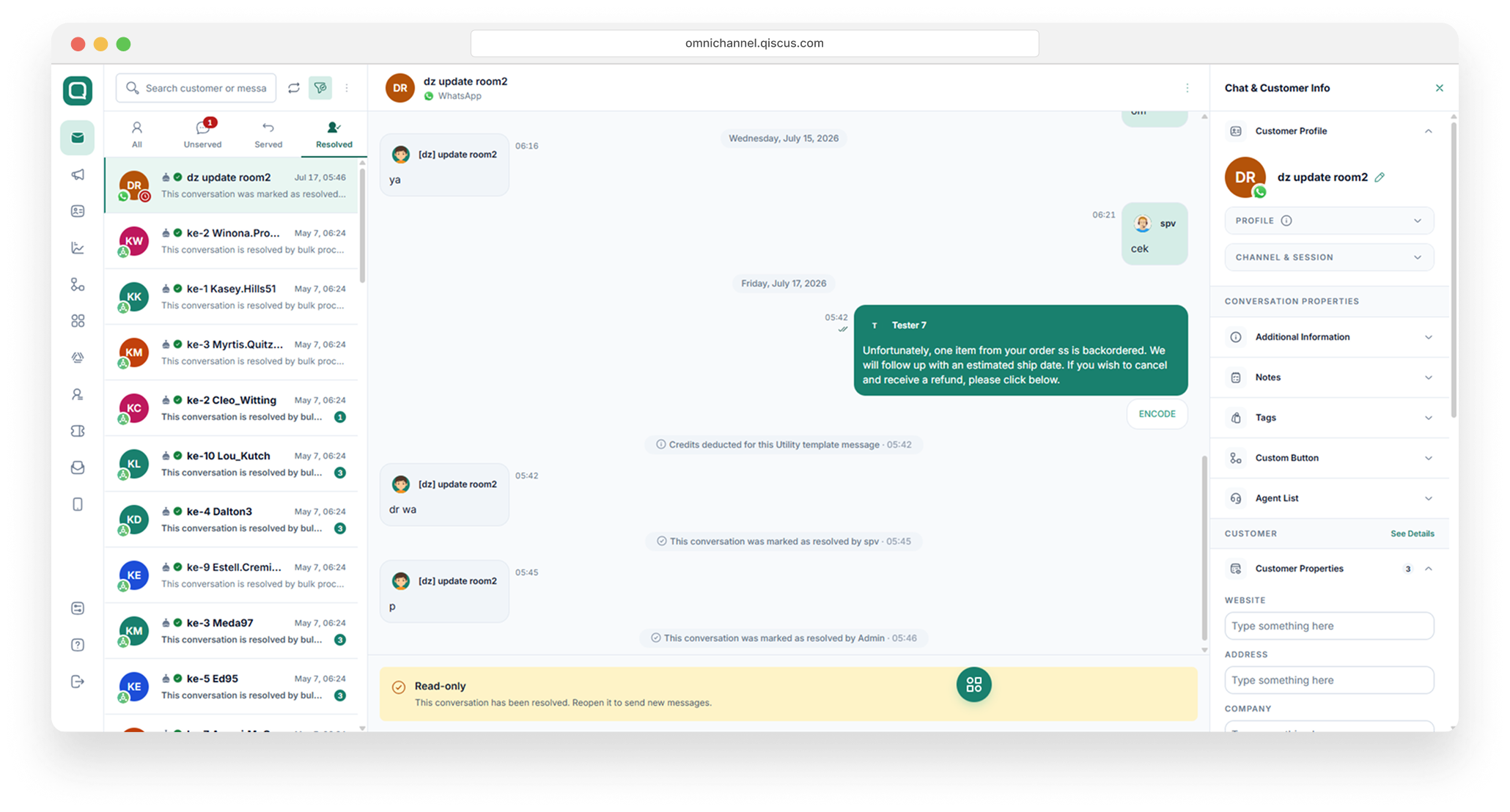
Go to the More (⋮) and click Leave room,
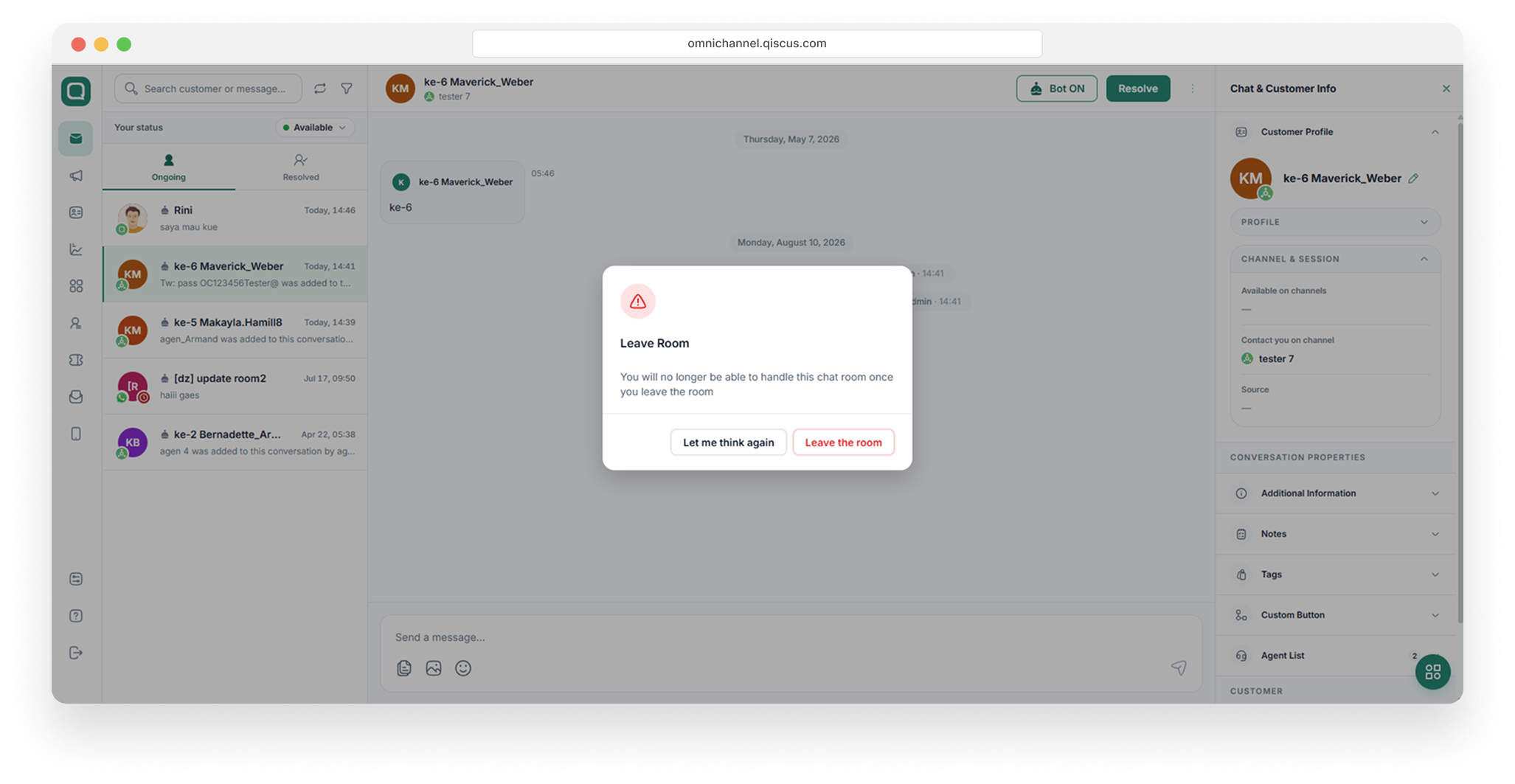
After you click Leave room, a confirmation dialog will appear. Click Leave the room.
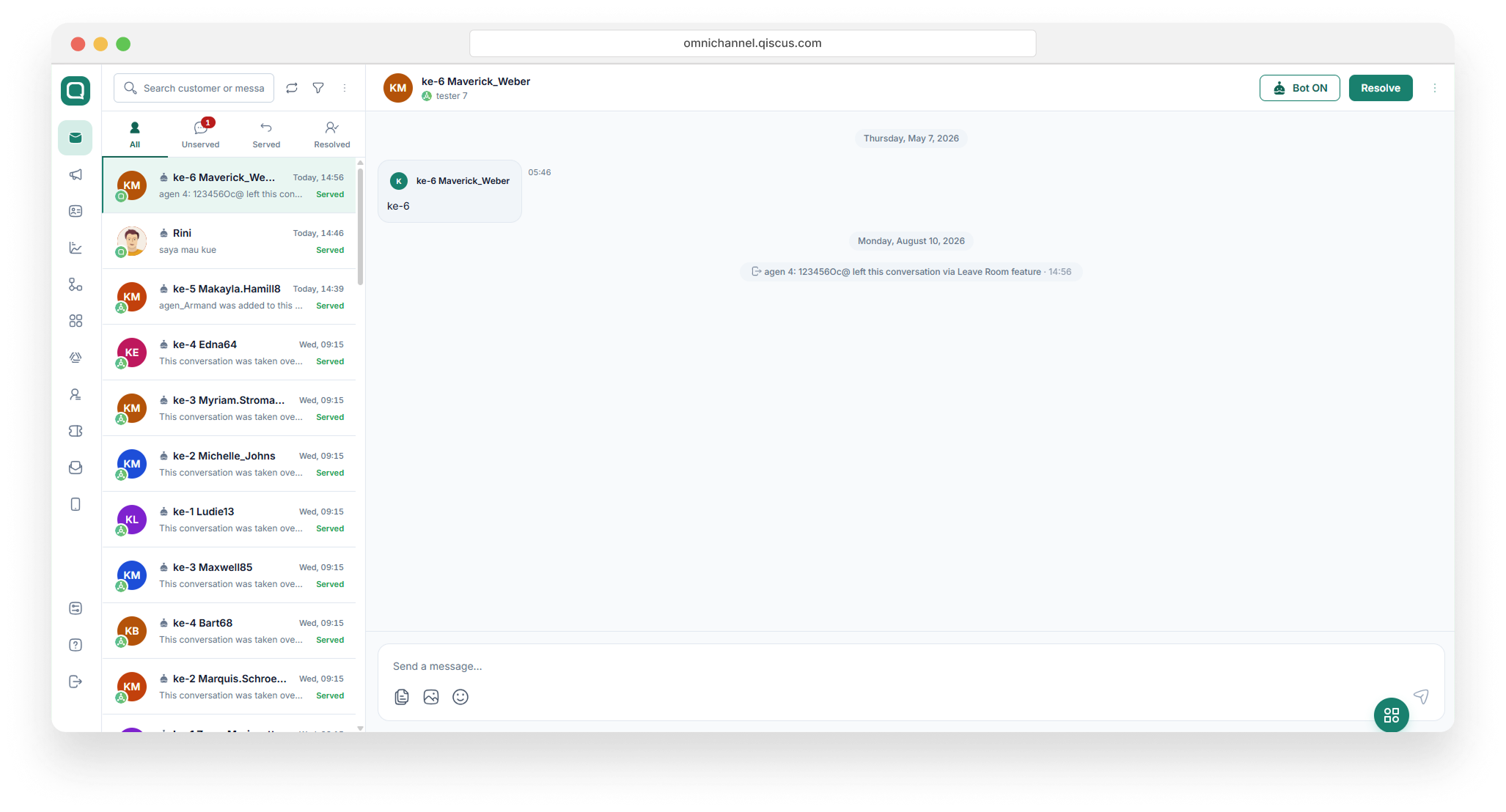
In the Admin or Supervisor Inbox, a system event will appear:
{Agent's name} left this conversation via the Leave Room feature.
Particularly for chat rooms from Qiscus widget channel, customers will also receive a system event {Agent's name} left this conversation via the Leave Room feature.
Room Information
On the right hand side of this chat room, you will see a bunch of information about customer you are talking to. It will show you certain things, such as customer's avatar, email (id), channel where the customer have a conversation from, additional information, room notes, tags and agent list of the room. The room notes is exactly the same as mark as resolve note.
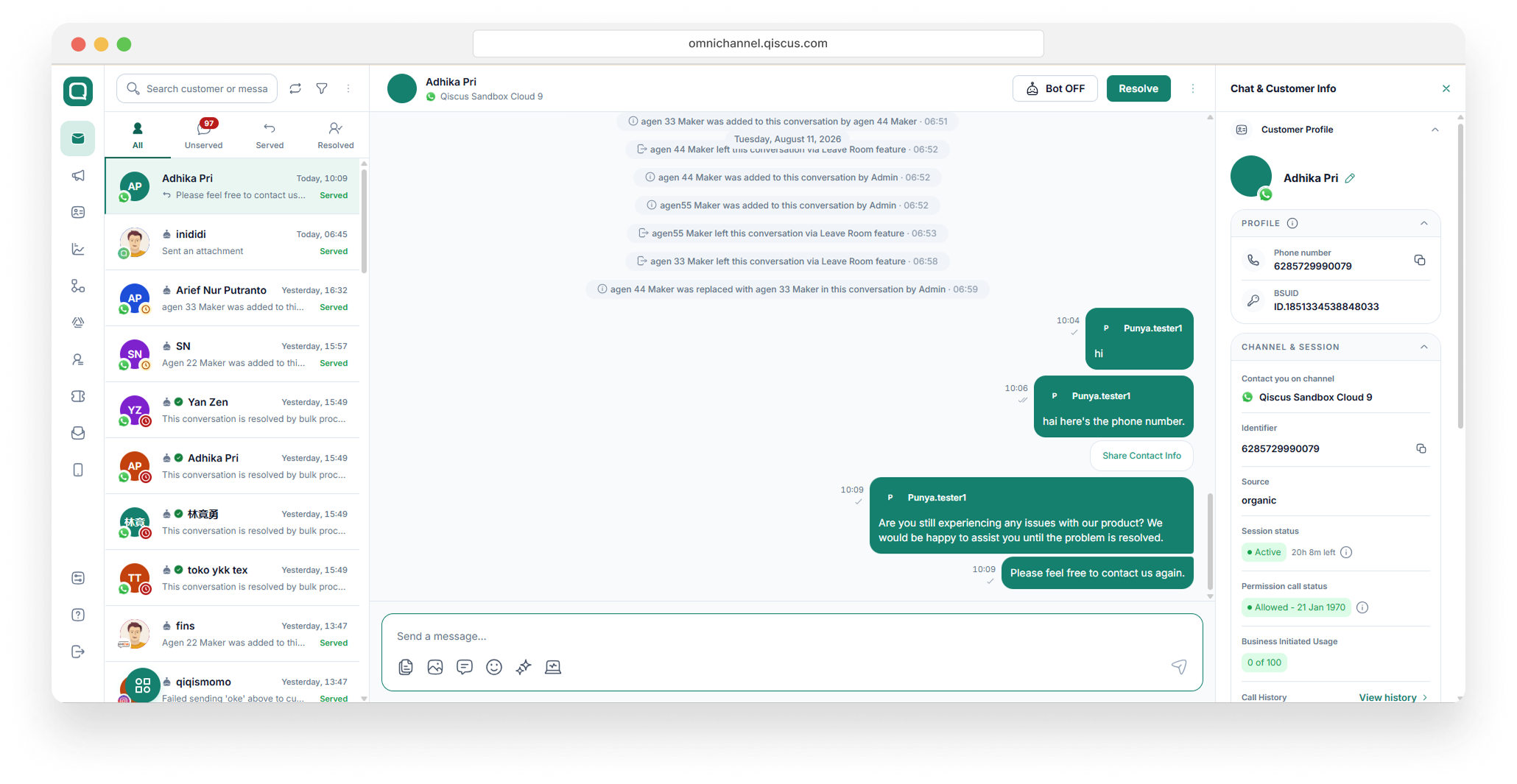
Especially on the WhatsApp channel, there are additional features, namely expiring or expired indicator and broadcast history. Expired indicators indicate that a chat session has expired, meaning that the customer's last message has exceeded 24 hours. The expiring indicator displays the countdown of a chat session to be expired. Broadcast history is used to display broadcast history in a chat room from the WhatsApp channel. WhatsApp broadcasts sent via Qiscus Omnichannel will be displayed in the broadcast history. You can see WhatsApp broadcast details in the broadcast history consisting of Broadcast Time, Broadcast Message, Template Name, and Status.
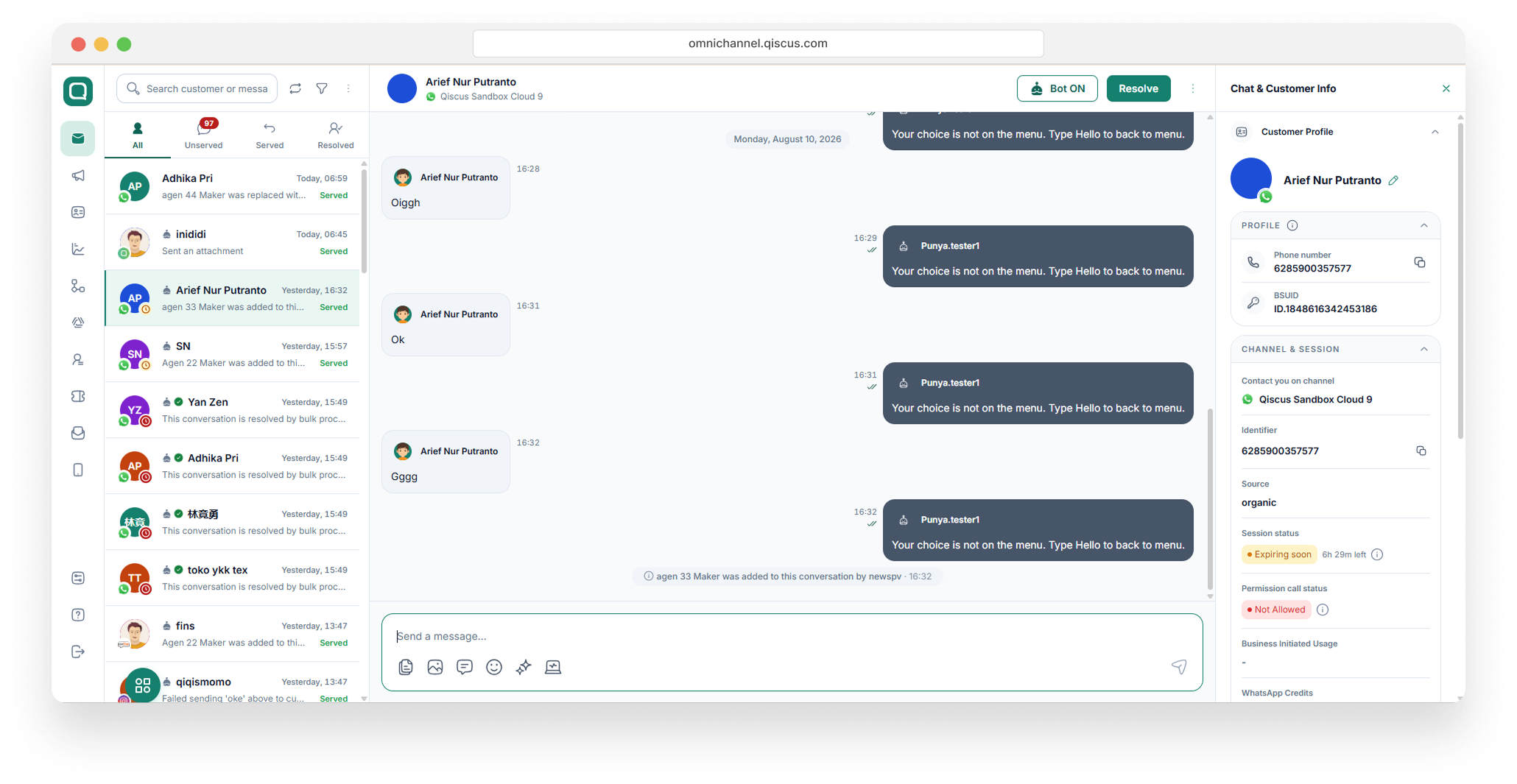
Those are several features you can use inside a chat room. These feature will always be improved to help you manage your customers' inquiries.
Searching
As your customers getting more and more connected with Qiscus Omnichannel, you will realize you might want to come back to check for previous customers or messages. And since you already got more chat rooms, we provided a search feature for you to find your customer or message faster. So you can search customer or message list you think you need to retrieve.
Please read the points below for more details about the Search Customer and Message feature.
You can input any text in the Search text field, and the Customer and Message tab will appear.
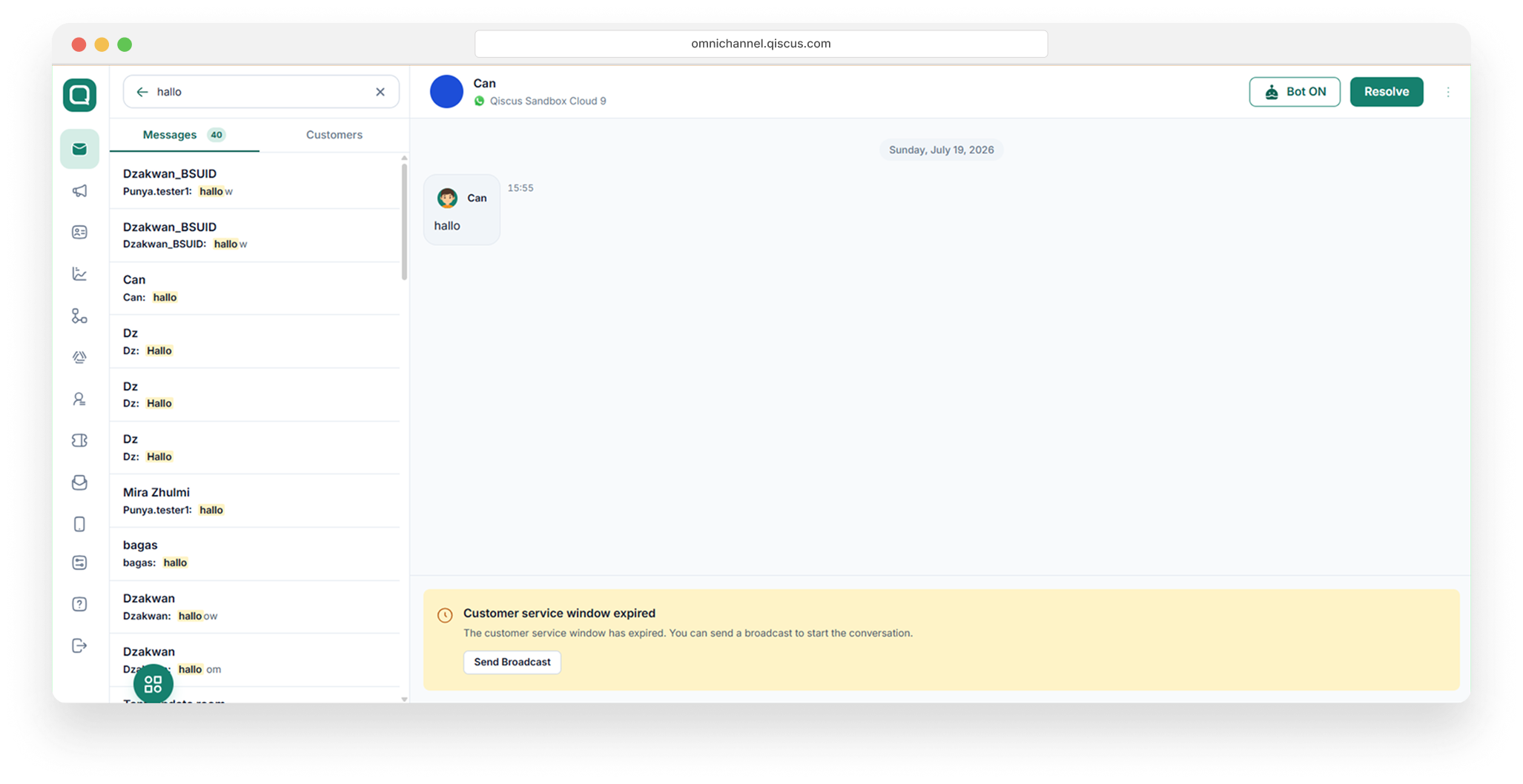
You can search any room based customer name and message or file name.
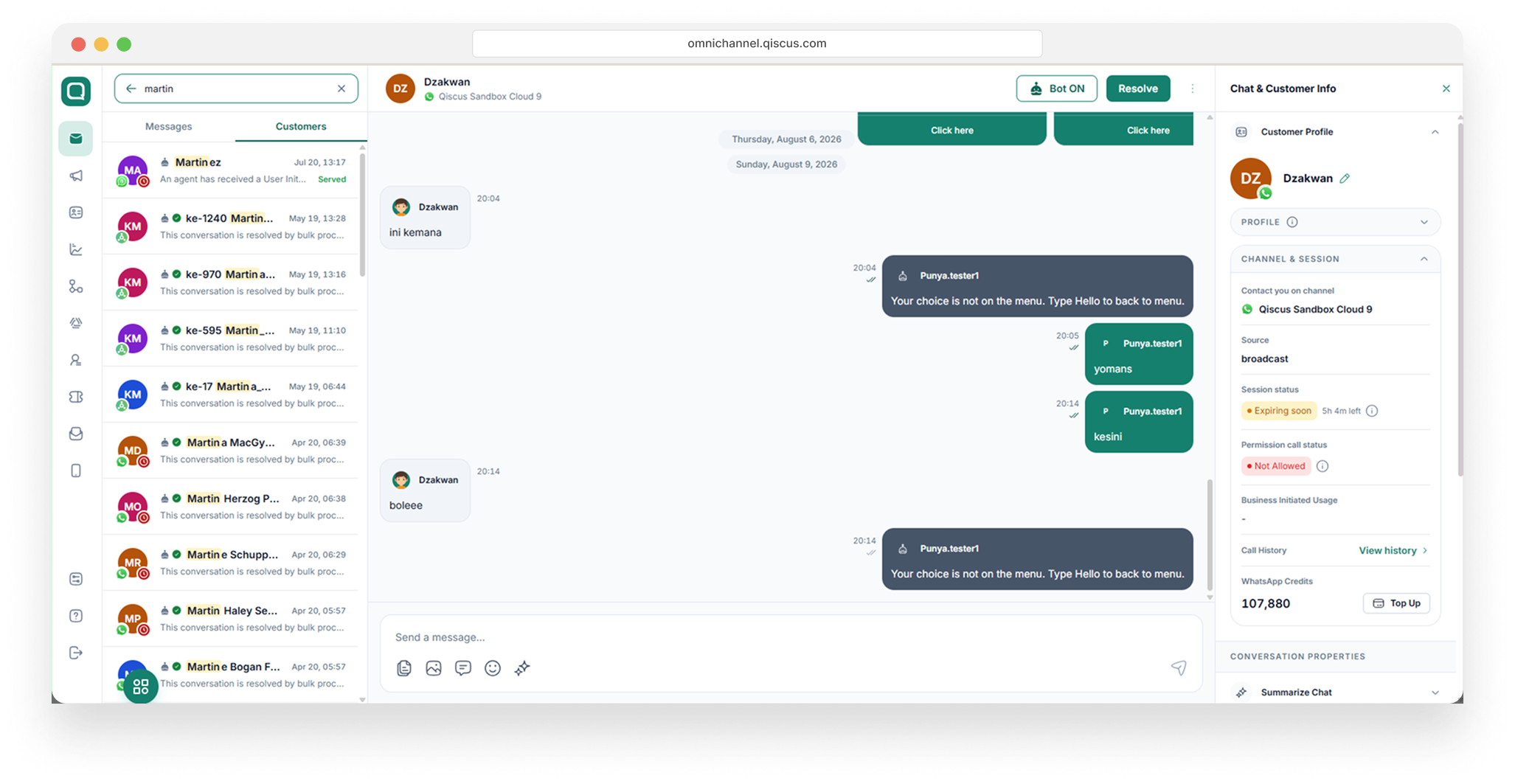
Not only that, but you will redirect to message position when select the search message result. Please note, input more than 2 characters to search any customer or message.
Search Message feature for enterprise only.
Whisper Message
Whisper is an internal chat that sits right next to every customer conversation in the Inbox. Agents, supervisors, and admins can use it to discuss a conversation with each other — ask for help, share context, or get a decision — without leaving the conversation.
Whatever you write in Whisper stays inside your team. It is never sent to the customer, and it is not billable.
Whisper is currently in Beta. It is available in the New Inbox on web. Availability depends on your plan and is set per role (Admin, Supervisor, Agent) — if you don't see the Whisper button, contact your Qiscus account manager to check your plan.
What You Get
Discuss in context Talk about a conversation right beside it, instead of switching to another chat app and losing the link to the customer's history.
Never visible to the customer Whisper messages live in a separate internal channel. They are never delivered to the customer, on any channel.
Not billable Whispers are not customer messages, so they don't count toward your WhatsApp message charges or credits.
Quote the customer's message Pull any customer message into the discussion so your team knows exactly what you're talking about.
Stay on top of new discussions A red dot in the conversation list shows where there are whispers you haven't read yet.
Who Can Use Whisper
Whisper follows the same access as the conversation itself: if you can open the conversation, you can read and write its whispers — as long as Whisper is included in your plan for your role.
Role | Can read and send whispers in |
|---|---|
Admin | Any conversation in the app. |
Supervisor | Conversations handled by agents in their divisions (and, for supervisors assigned to specific channels, conversations in those channels). |
Agent | Conversations assigned to them — including conversations they have resolved. |
When a conversation is reassigned, an agent who is removed from it no longer has access to that conversation or its whispers. An agent who resolved the conversation keeps access and can still read its whispers.
Before You Begin
Plan and role. Whisper is a plan feature that is turned on per role. For example, a plan can include Whisper for admins and supervisors but not for agents.
New Inbox on web. Whisper is not available in the legacy Inbox.
Text only. Each whisper can be up to 2,000 characters. Images and files are not supported yet.
Near real time. New whispers show up in an open Whisper panel within a few seconds; the red dot in the conversation list can take a little longer to update. There is no typing indicator.
Always available in the conversation. You can still use Whisper after a conversation is resolved, and when the WhatsApp 24-hour customer service window has expired.
Opening Whisper
Open a conversation in the Inbox.
In the message composer, click the Whisper button.

The Whisper panel opens on the right, in place of Chat & Customer Info. The panel header shows Whisper, with the Internal and Beta labels.
To go back to the customer details, close the panel with ✕.
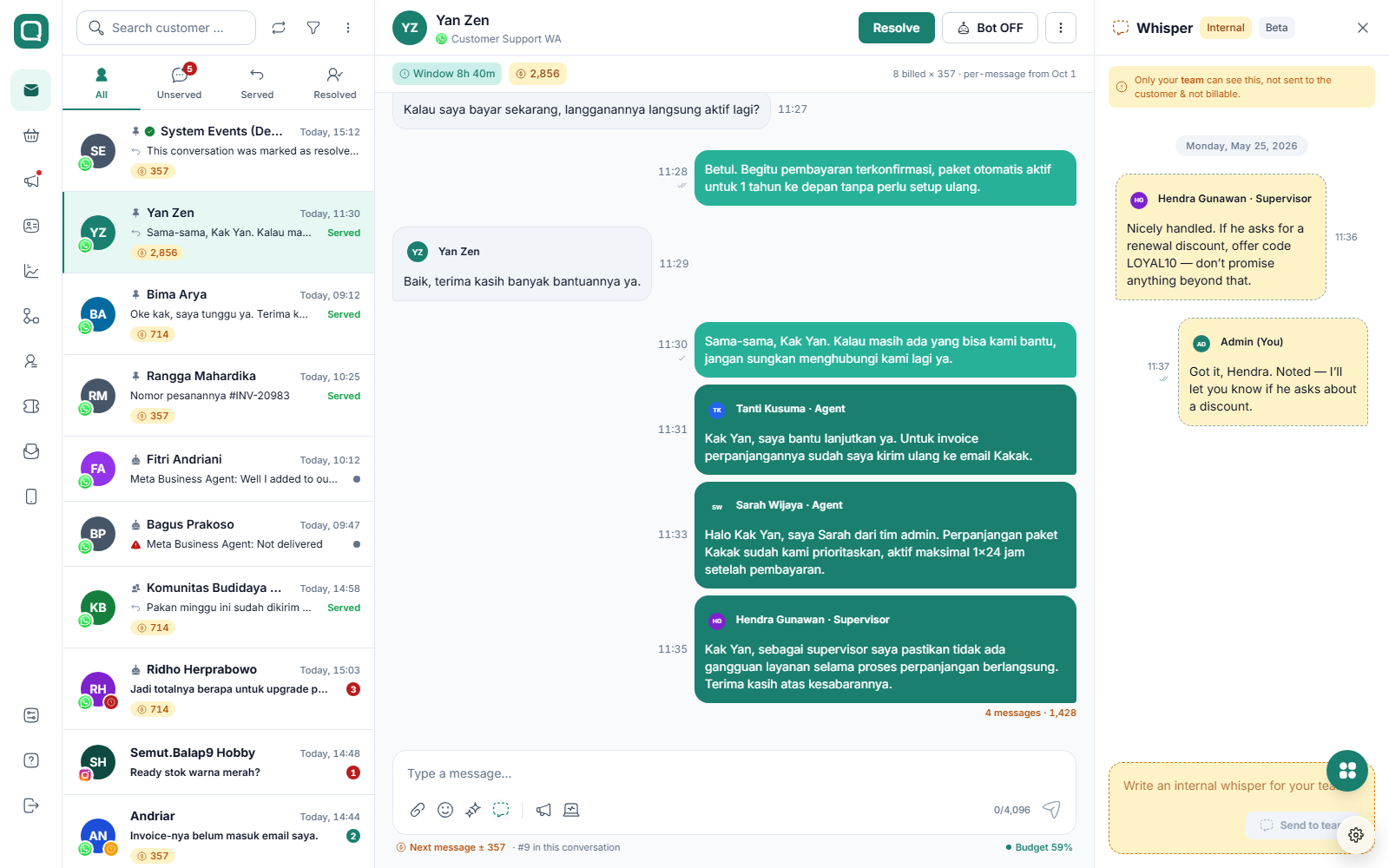
If nobody has written a whisper in this conversation yet, you'll see "No whispers yet".
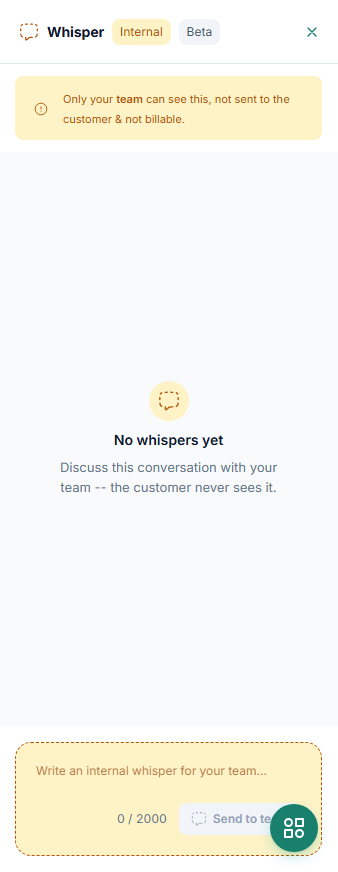
Sending a Whisper
Type your message in the Whisper composer at the bottom of the panel ("Write an internal whisper for your team…").
Click Send to team.
The counter under the composer shows how many characters you've used, out of 2,000. Send to team stays disabled until you type something.
How whispers look
Whispers are shown with an amber, dashed-border bubble, so they are easy to tell apart from customer messages.
Each whisper shows who sent it and their role — for example, Hendra Gunawan · Supervisor.
Your own whispers appear on the right, labeled (You), with the time sent and a tick: it shows the whisper was sent, and turns into a read tick once a teammate has seen it.
Date separators split the discussion by day.
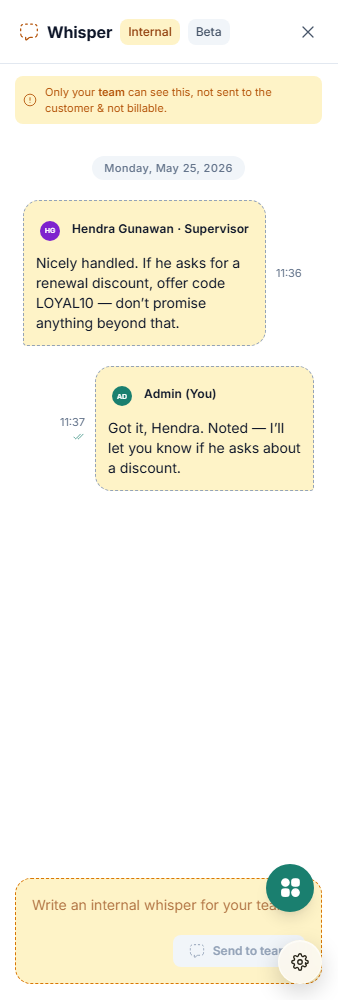
Note: The banner at the top of the panel is a reminder that only your team can see this, it is not sent to the customer, and it is not billable.
Quoting a Customer Message
You can bring a specific customer message into the discussion:
Hover over the customer's message and click ⋮.
Choose Whisper.
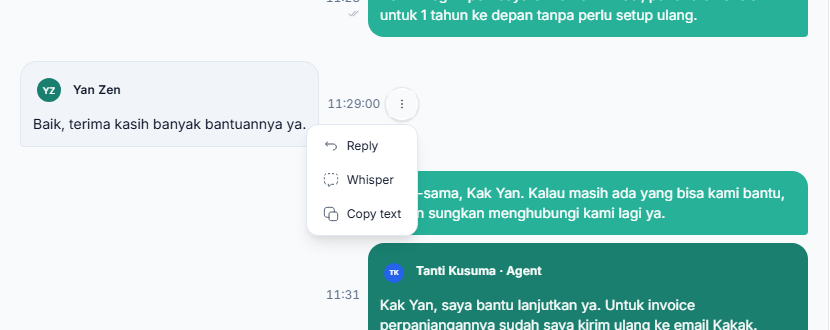
The Whisper panel opens (if it was closed) with the customer's message quoted above the composer.
Write your note and click Send to team.
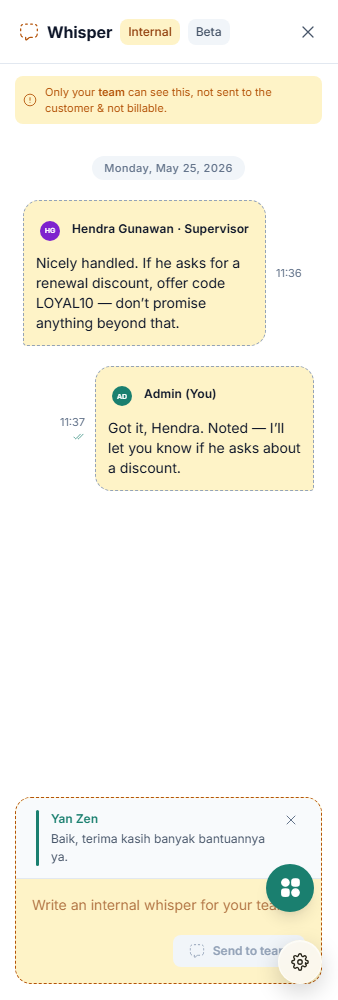
To send without the quote, remove it with ✕ before sending.
In the discussion, click a quoted message to jump back to the original message in the customer conversation.
The quote keeps a copy of the customer's message, so the context stays intact even if the original message changes later.
Unread Whispers
When a conversation has whispers you haven't read yet, a red dot appears on that conversation in the conversation list. Open the conversation and its Whisper panel to read them.
Messages You Might See
Message | What it means |
|---|---|
No whispers yet | Nobody has started a discussion in this conversation. Write the first whisper. |
You don't have access to this discussion | You are not assigned to this conversation. Only agents assigned to the conversation, and their admins and supervisors, can view its whispers. |
Couldn't load the discussion | Whisper is temporarily unavailable. Click Retry. The rest of the Inbox keeps working normally. |
Couldn't send — check your connection and try again. | Your whisper was not sent. Check your connection and send it again. Sending many whispers in a very short time can also be temporarily limited. |
Current Limitations
Whisper is in Beta. The following are not available yet:
Images and file attachments
Replying to a specific whisper, and @mentions
Notifications for new whispers (other than the red dot in the conversation list)
Searching whispers, including from Search Message
Editing or deleting a whisper after it is sent
Exporting whispers
FAQ
Can the customer ever see a whisper? No. Whispers are stored in a separate internal channel and are never delivered to the customer.
Are whispers charged? No. Whispers are not customer messages and are not billable.
Can I still use Whisper after the conversation is resolved? Yes. Whisper stays available for everyone who can still access the conversation.
What happens to whispers when a conversation is reassigned? The whispers stay with the conversation. An agent who is removed from the conversation loses access to them, while the newly assigned agent, admins, and the supervisors in scope can read the full discussion.
Why don't I see the Whisper button? Check two things: you're using the New Inbox on web, and Whisper is included in your plan for your role. Whisper can be on for some roles and off for others. If the button still doesn't appear, contact your Qiscus account manager.