
Maker Checker adds an internal review step to outbound WhatsApp messages. One person prepares the work (the maker) and another person checks it (the checker) before it goes further.
Qiscus Omnichannel Chat has two types of Maker Checker. You can use them separately or together:
Template approval: templates created by agents are reviewed internally before they are submitted to Meta.
Broadcast send approval: broadcasts are reviewed before any message is sent to your customers.
Template approval vs. broadcast send approval
Template approval | Broadcast send approval | |
|---|---|---|
What is checked | New templates created by agents | Every broadcast sent from the dashboard by an agent or supervisor |
When the check happens | Before the template is submitted to Meta | Before messages are sent to customers |
Who can be the checker | An admin, or a supervisor from the agent's division | An admin, or a supervisor from the division you choose |
Review levels | One level, with an optional second level | One level |
Who skips the review | Templates created by an admin or a supervisor | Broadcasts sent by an admin |
Statuses | In Review by Checker, Rejected by Checker | Waiting Approval, Rejected by Checker |
Both settings are in the same place: Settings > Agents Management > Settings tab > Maker Checker. Only admins can see and change them.
Note: Maker Checker is not included in every plan. If you do not see Maker Checker section, contact us to upgrade your plan.
Template approval
Template approval lets agents create WhatsApp message templates while making sure each template is reviewed internally before it is submitted to Meta. It helps you keep templates consistent with your brand and internal policies.
Roles
Role | What they can do |
|---|---|
Agent (maker) | Creates templates and submits them for internal review. |
Supervisor (checker) | Reviews templates created by agents in the same division. |
Admin (checker) | Reviews templates from all agents, as long as a supervisor has not approved the template yet. Also manages the settings. Templates an admin creates are submitted to Meta right away, without internal review. |
Templates created by an admin or a supervisor skip the internal review and go straight to Meta. Nobody can approve a template they created.
Turn on template approval (Admin)
Open Settings > Agents Management > Settings tab, then expand Maker Checker.
Turn on Agent can create templates on the broadcast page. This setting is off by default.
Turn on Templates created by agents need approval from an Admin, or a supervisor from the agent's division.
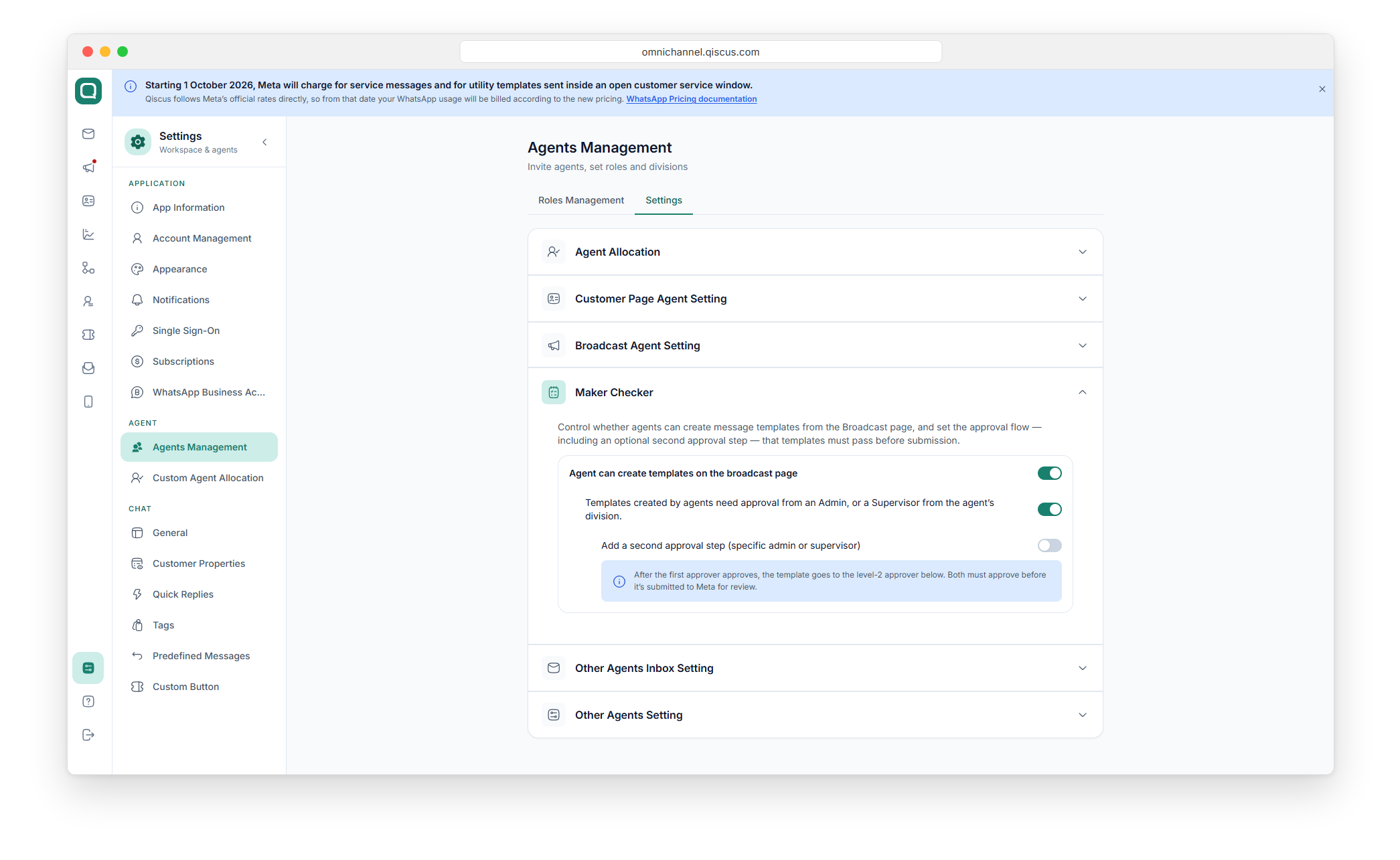
When approval is on, every template created by an agent waits for a checker before it is submitted to Meta. When approval is off, templates created by agents are submitted to Meta right away.
If you turn off Agent can create templates on the broadcast page, the approval settings below it are turned off too.
Add a second approval step (optional)
A second approval step means a template needs two approvals before it is submitted to Meta. This setting is off by default.
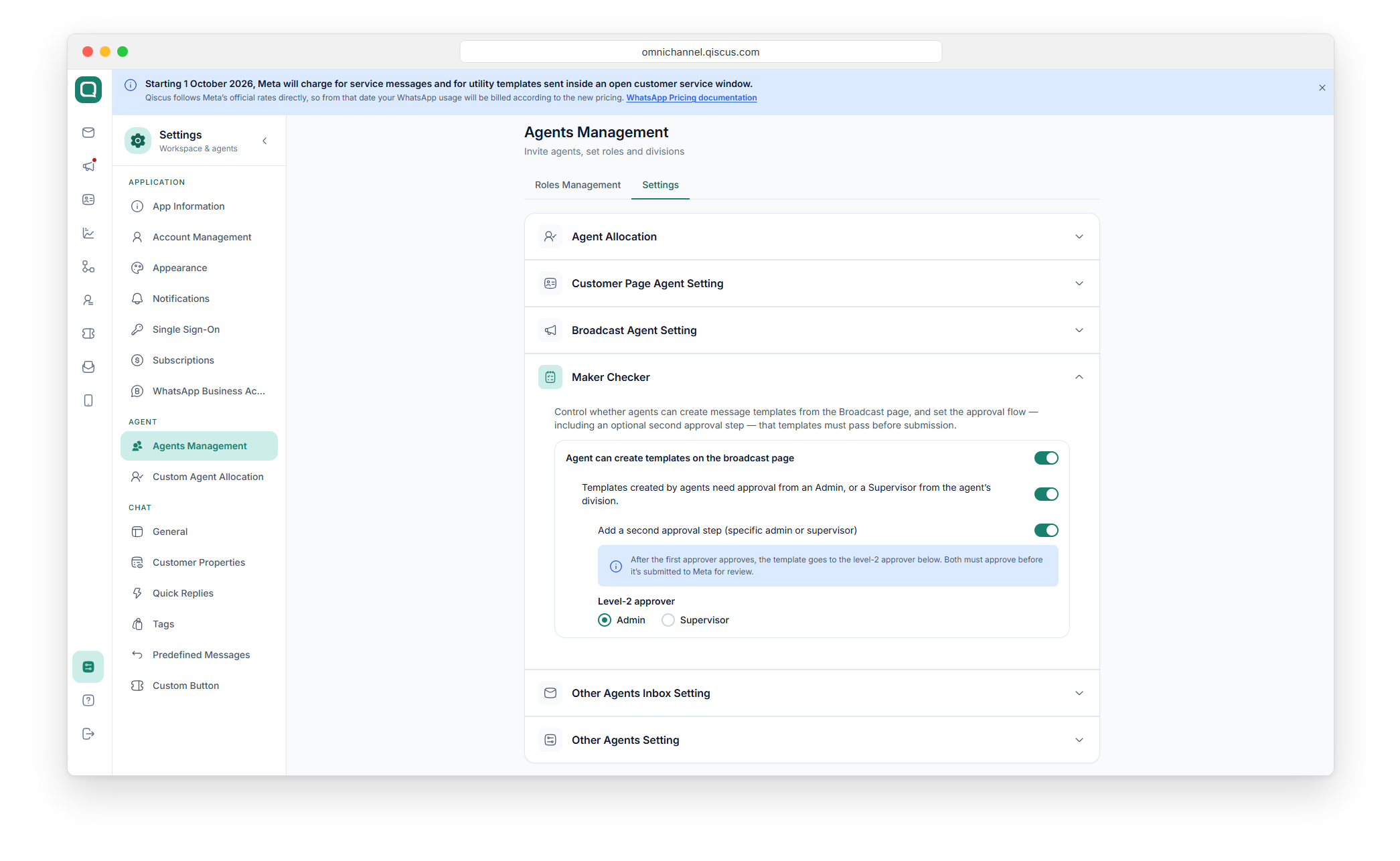
Turn on Add a second approval step (specific admin or supervisor).
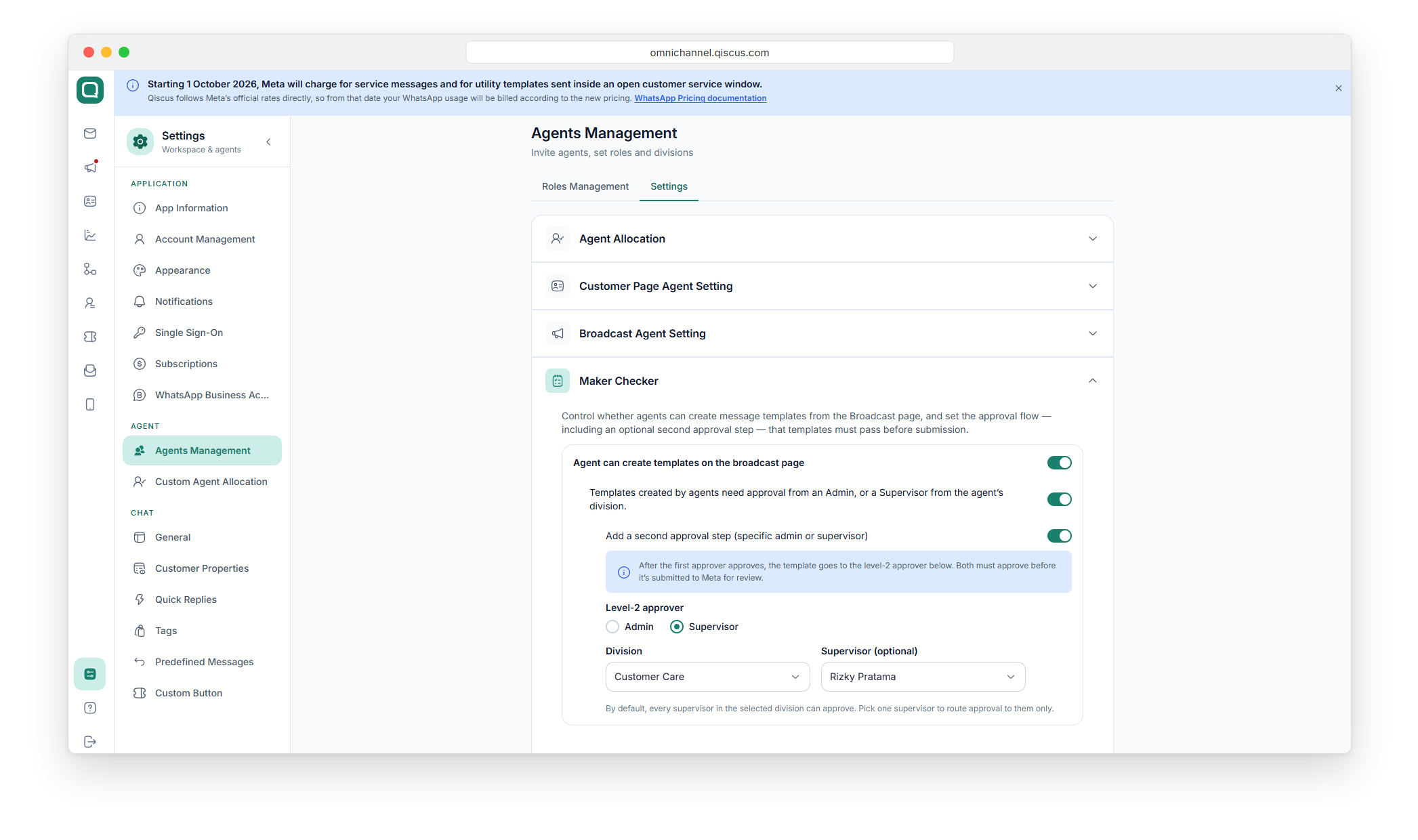
Choose the Level 2 approver:
Admin: select Admin. There are no other fields to fill in.
Supervisor: select the Division, then optionally pick one supervisor. If you do not pick one, all supervisors in that division can approve.
How the second step works:
When a supervisor approves the template first, it goes to the level-2 approver. The status stays In Review by Checker until the level-2 approver decides.
When an admin approves the template first, it goes straight to Meta.
The person who approved the first level cannot approve the second level of the same template.
Template statuses
Status | Meaning |
|---|---|
In Review by Checker | Waiting for a supervisor or admin. With a second approval step, the template keeps this status until the level-2 approver decides. |
In Review by Meta | Passed the internal review (or was created by an admin or supervisor) and is waiting for Meta. |
Rejected by Checker | Rejected during the internal review and returned to the agent. |
Rejected by Meta | Rejected by Meta. |
Approved | Approved by Meta and ready to use. |
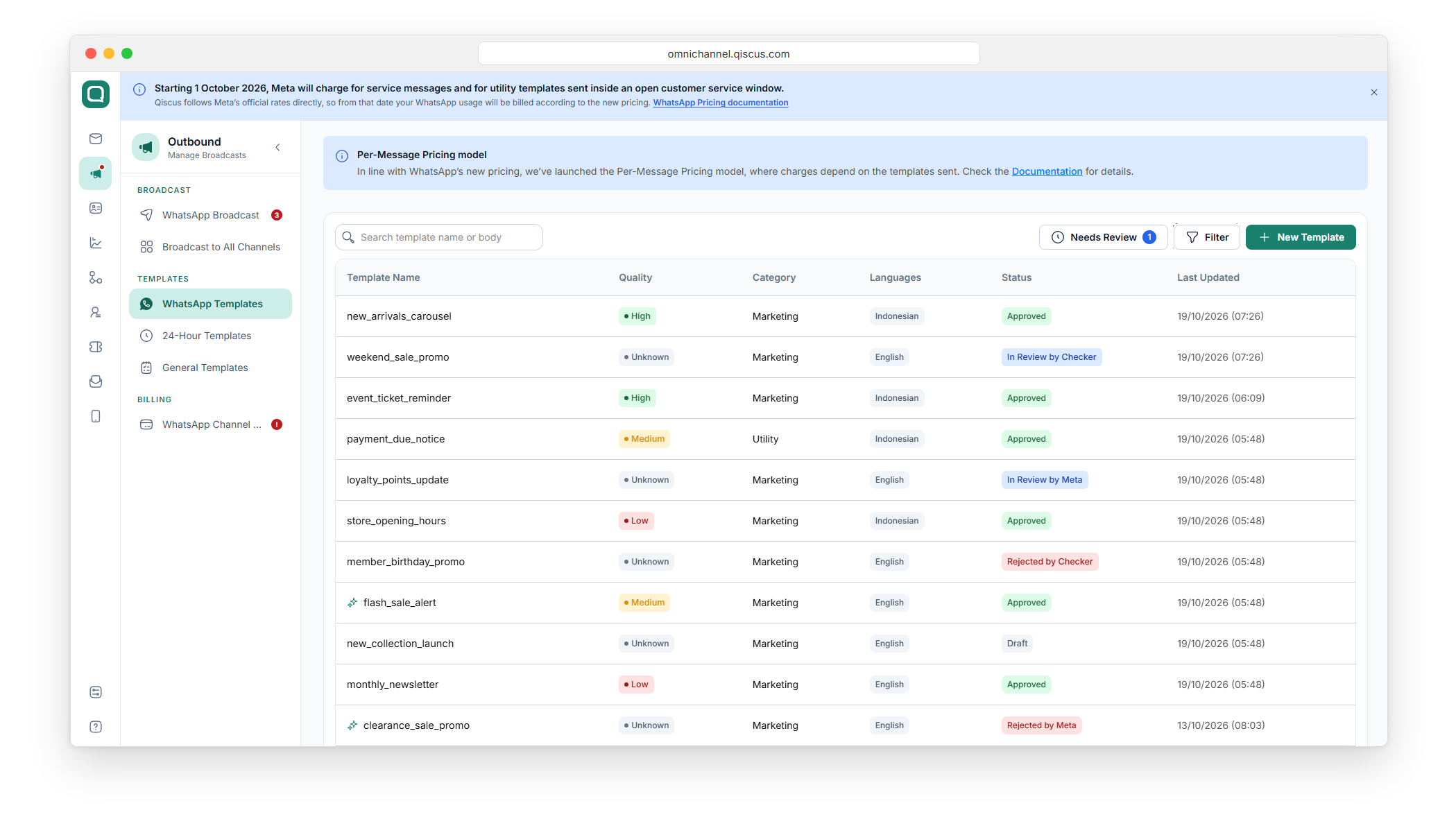
The Status column on the WhatsApp Templates page shows where each template is.
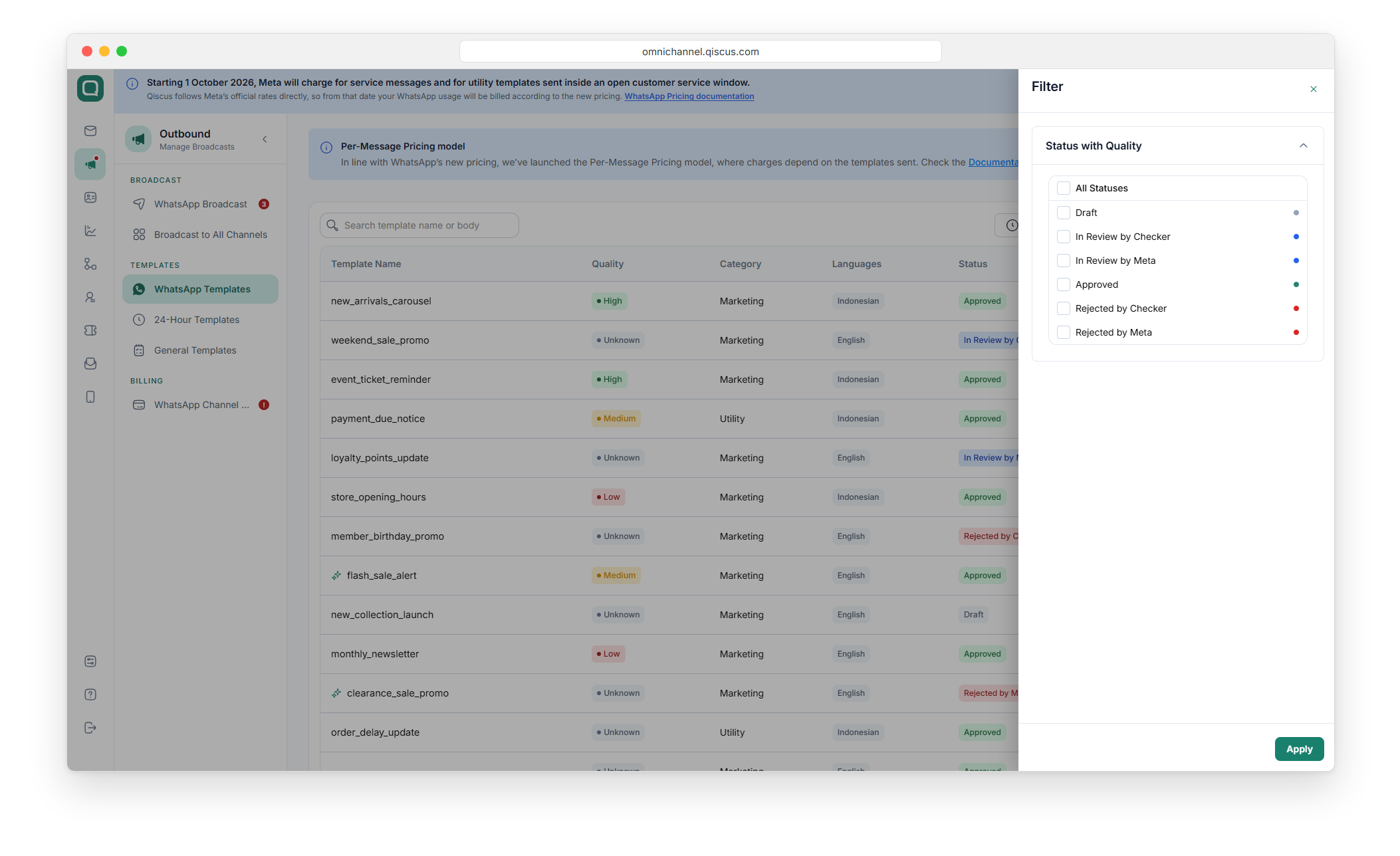
To see only templates with a certain status, click Filter and select the statuses under Status with Quality, then click Apply.
Review a template (Checker)
Open WhatsApp Templates.
Click Needs Review to show the templates that are waiting for you.
Open the template you want to check and review its content.
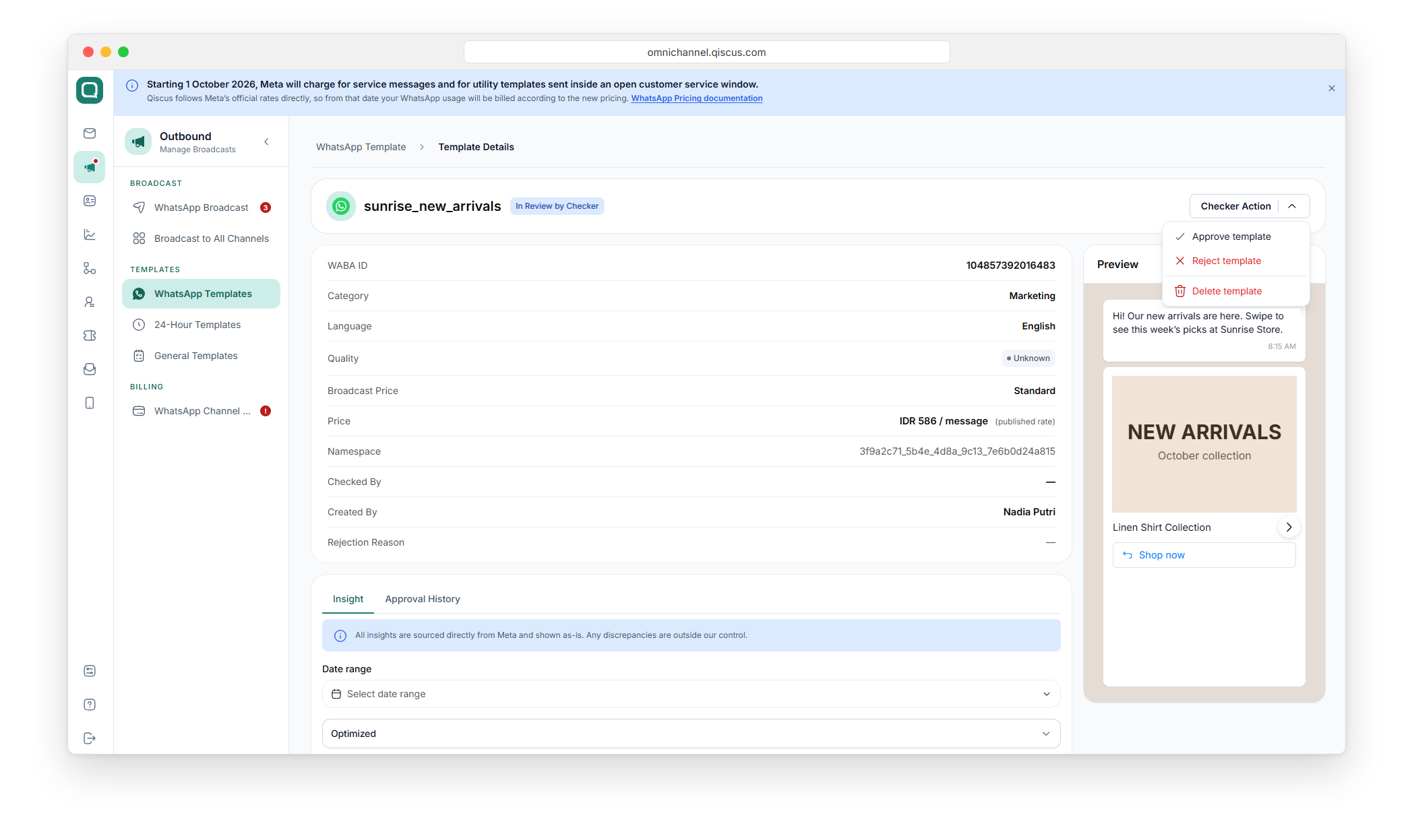
Click Checker Action and choose:
Approve template: the template moves to the next step. If no other level applies, its status changes to In Review by Meta and it is submitted to Meta automatically.
Reject template: the status changes to Rejected by Checker and the template is returned to the agent.
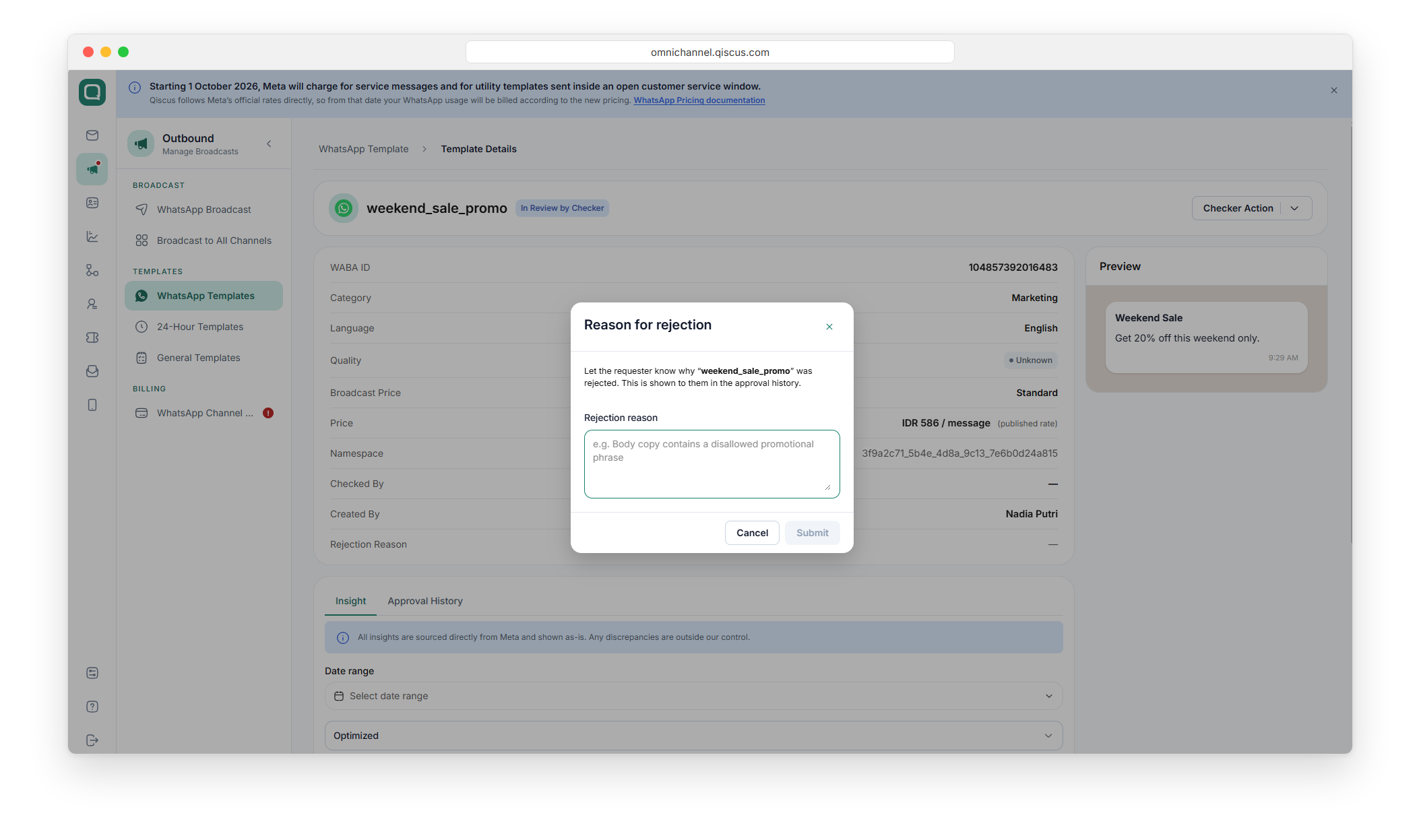
If you chose Reject template, the Reason for rejection dialog opens. Enter the Rejection reason, then click Submit. Submit stays disabled until you enter a reason. The agent sees your reason in the template's approval history.
Track a template's approval (Agent)
Agents can follow the review of their own templates.
Open WhatsApp Templates and select the template.
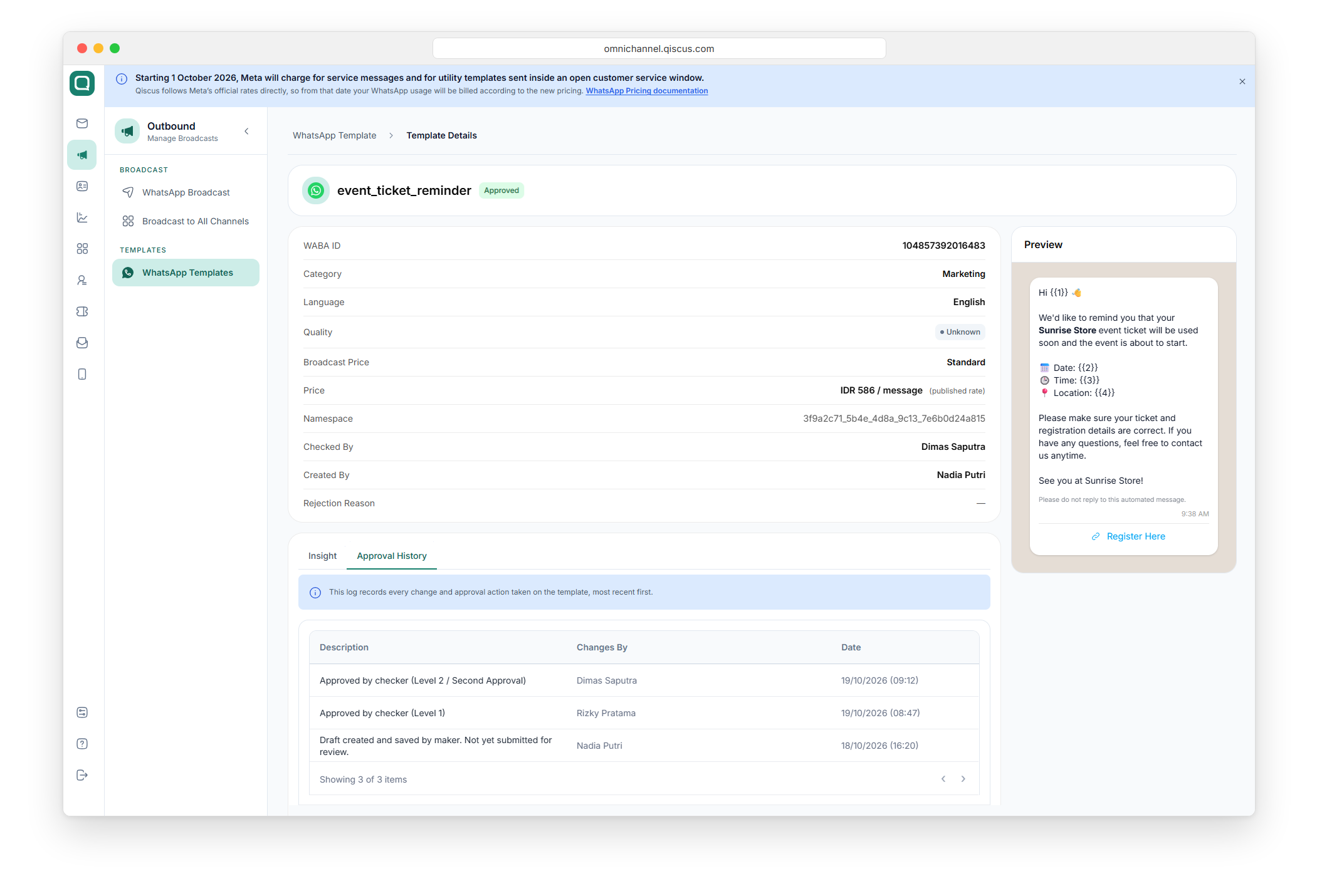
Click the Approval History tab.
The log lists every change and approval action on the template, most recent first, with who made it (Changes By) and when (Date). With a second approval step, each level appears as its own entry. If a checker rejected the template, the entry includes the reason, which is also shown in the Rejection Reason field.
Broadcast send approval
Broadcast send approval adds a review step before a WhatsApp broadcast goes out. When it is on, broadcasts created by agents and supervisors are held in an approval queue. Nothing is sent until a checker approves it.
The checker sees the template, audience, schedule, and estimated cost of each broadcast before it reaches your customers, so a wrong CSV file or template is caught before it goes out.
Roles
Role | What they can do |
|---|---|
Admin | Turns the feature on or off and chooses who approves. Broadcasts sent by an admin go out directly, without approval. An admin can always approve or reject submissions. |
Agent or supervisor (submitter) | Creates a broadcast as usual. When they finish, the broadcast is submitted for approval. |
Checker | Reviews each submission, then approves it (the broadcast is sent) or rejects it with a reason. |
A few rules apply to everyone:
Approval applies to every sending method (single number, CSV upload, and other audience options) and every template category, including Authentication/OTP.
Test broadcasts are not held.
Messages sent through the WhatsApp direct API are not held.
Nobody can approve their own submission.
If the checker is a supervisor, they only see submissions for the WhatsApp channels assigned to them.
Before you start
At least one WhatsApp channel must be connected.
If you want supervisors to approve, set up the division and add the supervisors to it first.
Broadcasts must be submitted from the Omnichannel dashboard
Turn on broadcast send approval (Admin)
Open Settings > Agents Management > Settings tab, then expand Maker Checker.
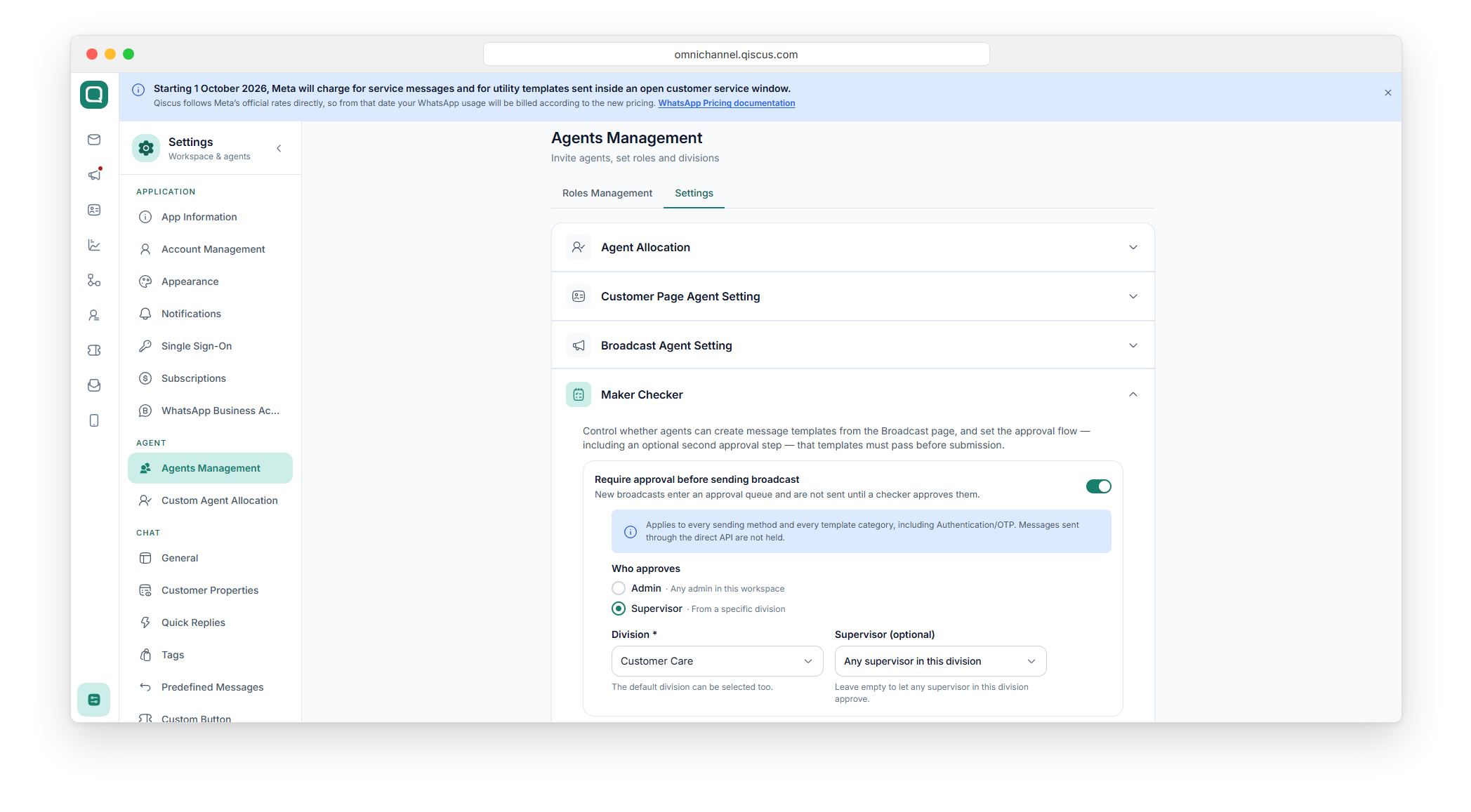
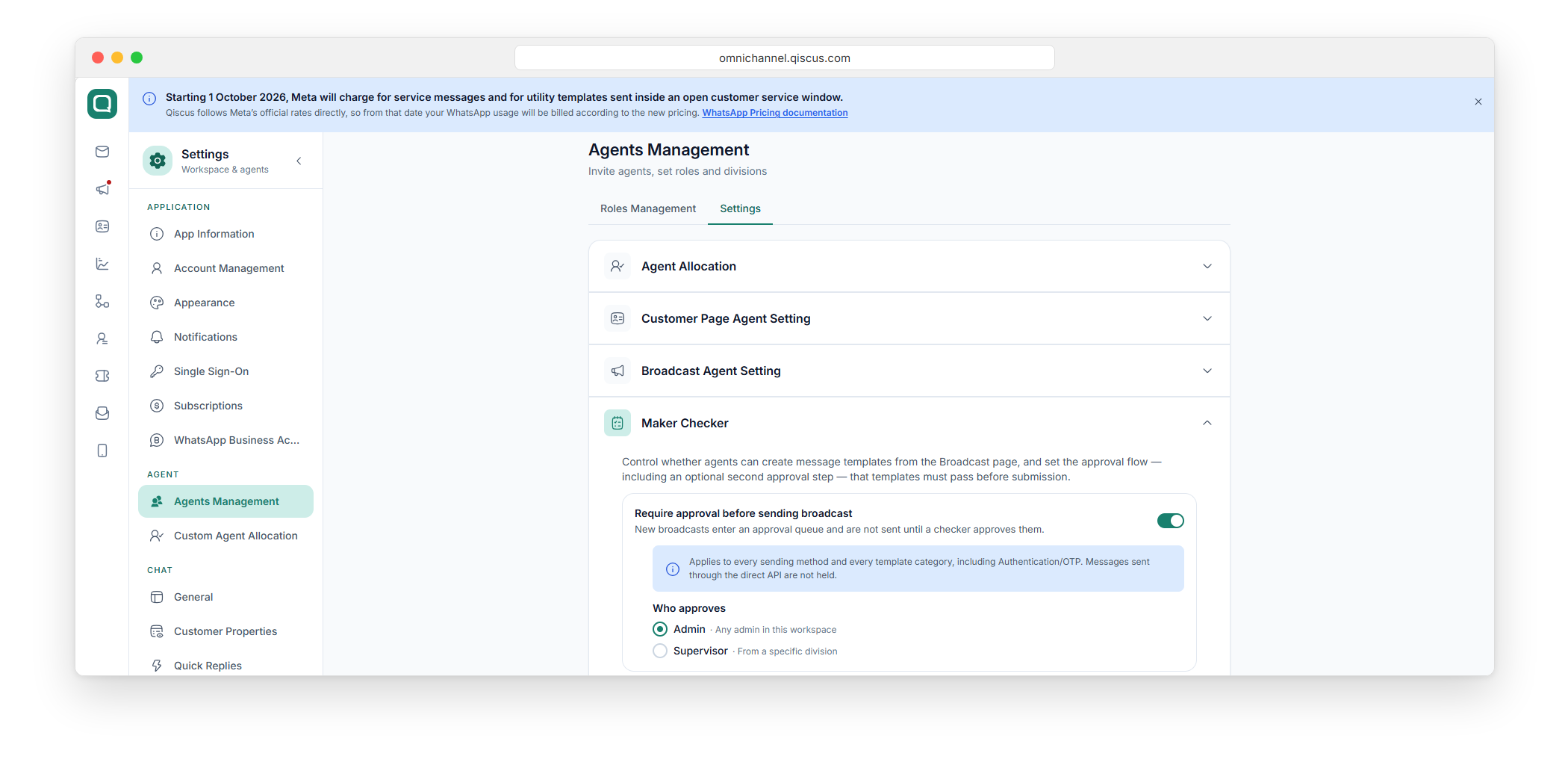
Turn on Require approval before sending broadcast.
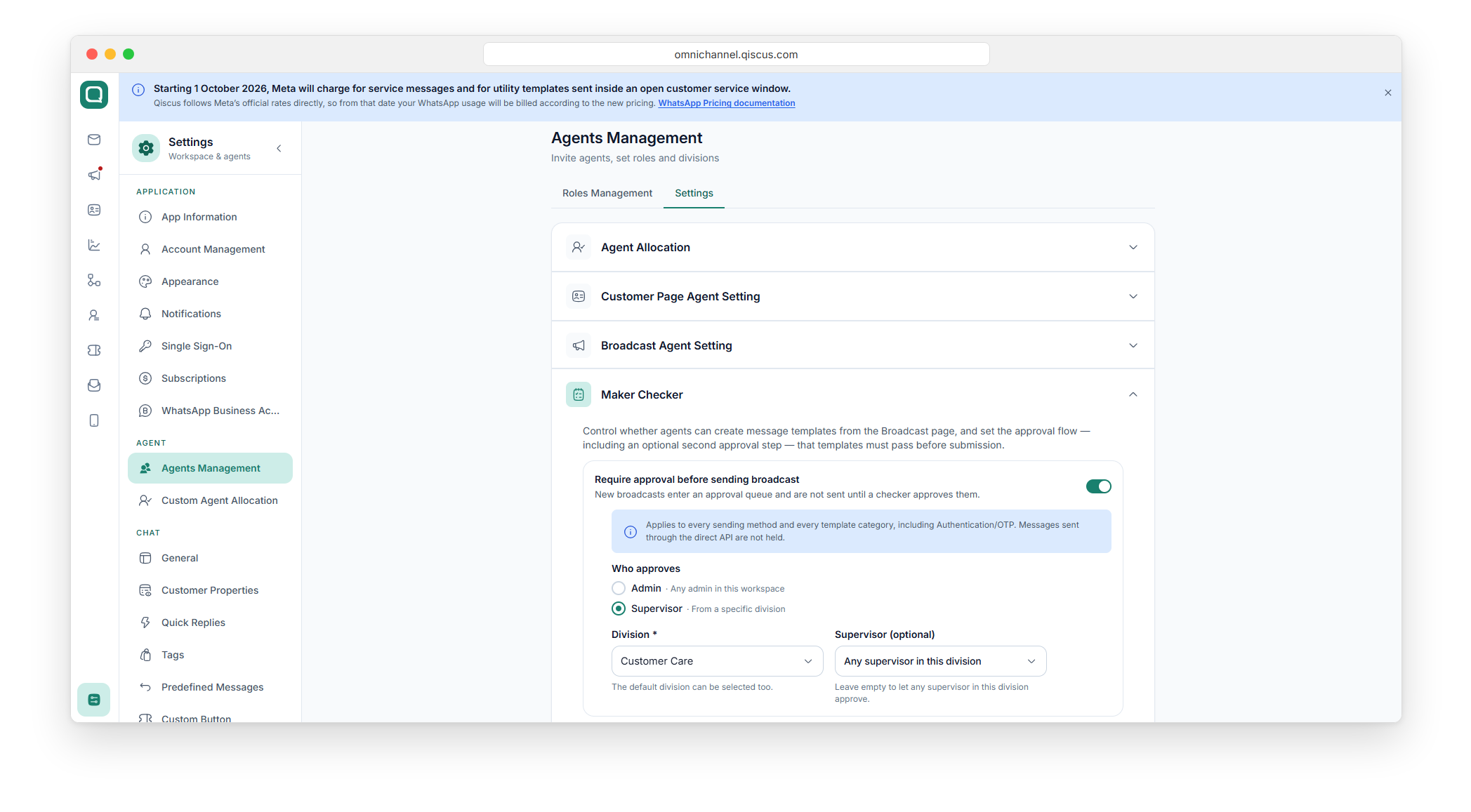
Under Who approves, choose the checker:
Admin: any admin in your workspace can approve.
Supervisor: a supervisor from a specific division approves. Select the Division, then optionally pick one Supervisor. If you leave Supervisor empty, any supervisor in that division can approve.
Your changes are saved right away. You will see a confirmation message after each change.
Even when you choose Supervisor, admins can still approve or reject submissions, so a broadcast does not get stuck when the supervisor is away.
Submit a broadcast for approval (Agent / Supervisor)
Open WhatsApp Broadcast and click New Broadcast.
Fill in each step of the broadcast as usual.
On the schedule step, you will see a Needs approval before sending note. It tells you who will approve your broadcast. If you set a schedule and the approval happens after that time, the broadcast is sent as soon as it is approved.
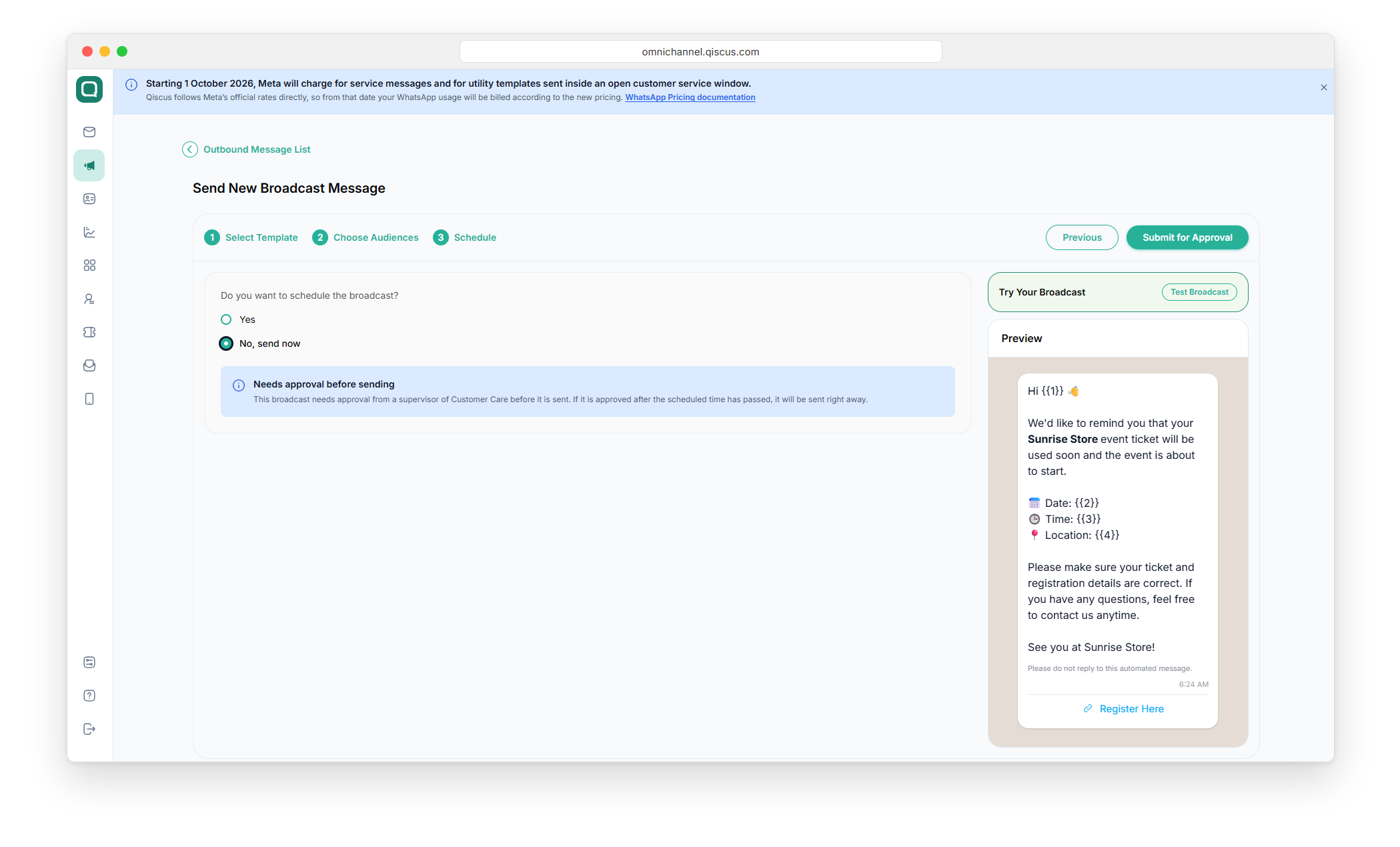
Click Submit for Approval.
Check the summary in the Submit this broadcast for approval? dialog: Recipients, estimated cost, Current balance, and Schedule.
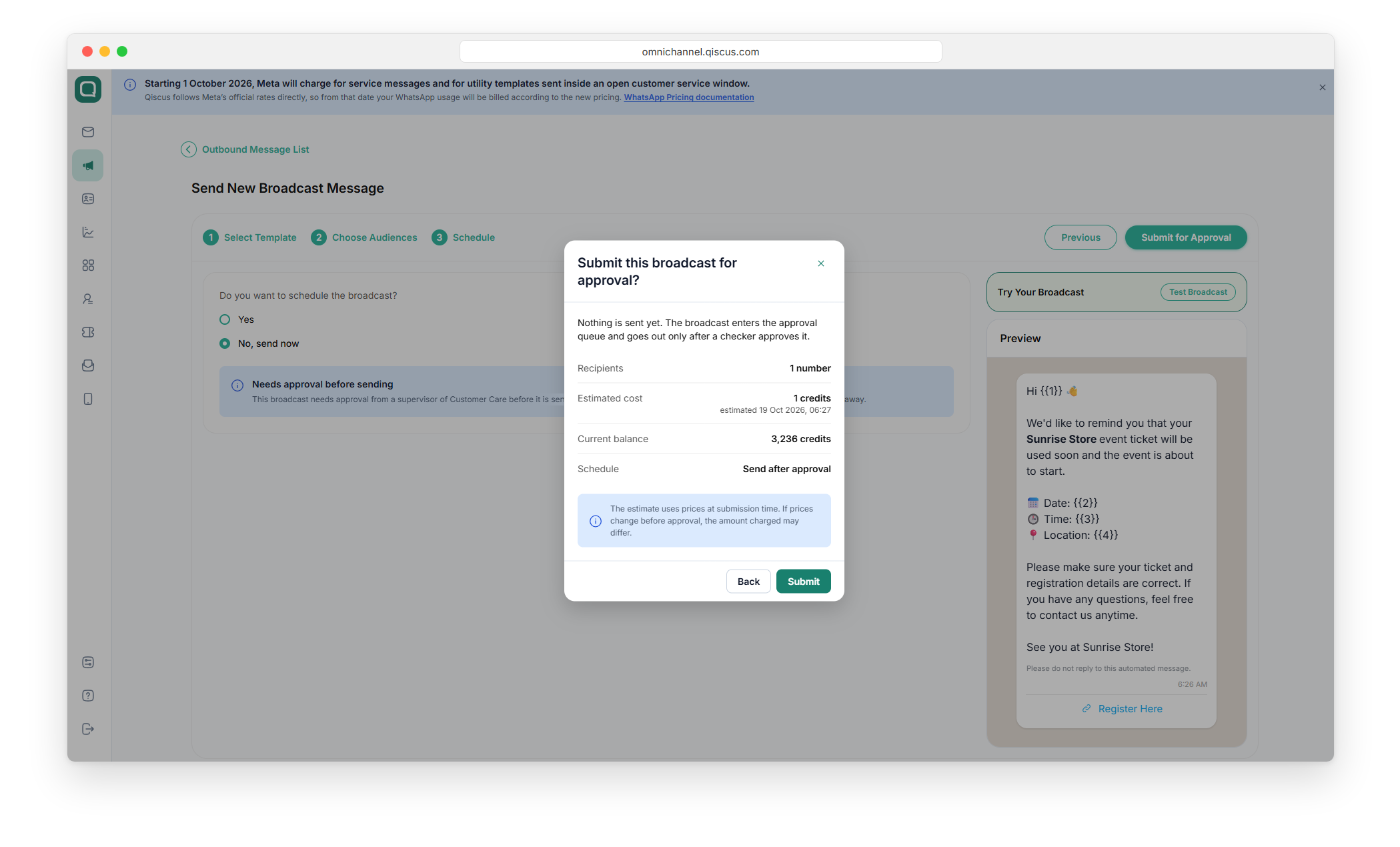
Click Submit.
The broadcast now has the Waiting Approval status in the broadcast list. You can follow it with the Waiting Approval filter at the top of the list.
The estimated cost uses the prices at the time you submit. If WhatsApp prices change before the broadcast is approved, the amount charged may be different.
Cancel a submission
If you no longer want to send a broadcast that is still waiting for approval:
In the broadcast list, click Review on the broadcast.
Click Cancel submission, then confirm.
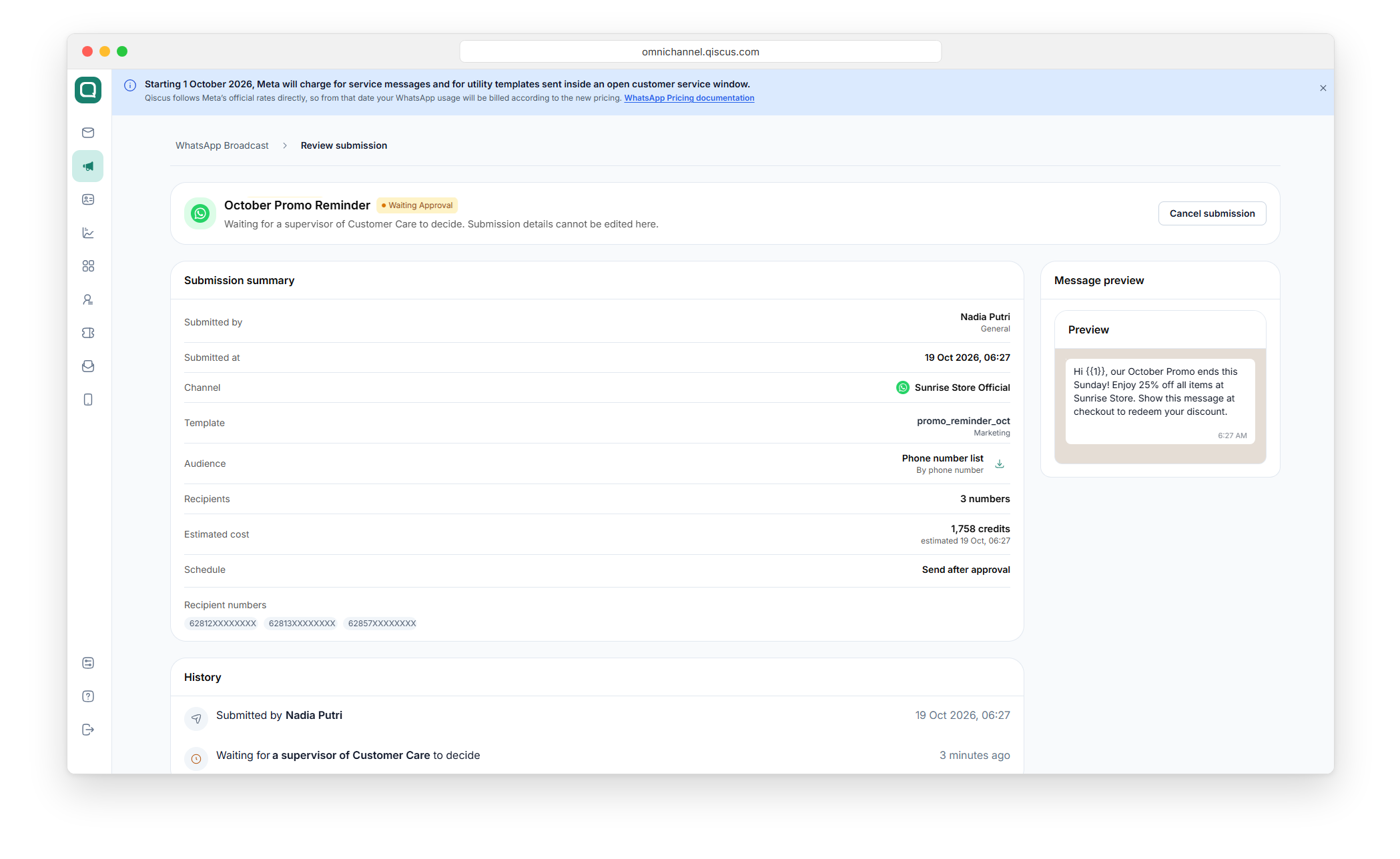
The broadcast is marked as Canceled, and nothing is sent. The submitter or an admin can cancel a submission.
Review a broadcast (Checker)
When submissions are waiting for you, a number appears next to WhatsApp Broadcast in the sidebar.
Open WhatsApp Broadcast.
Click the Waiting Approval filter to see the submissions in your queue.
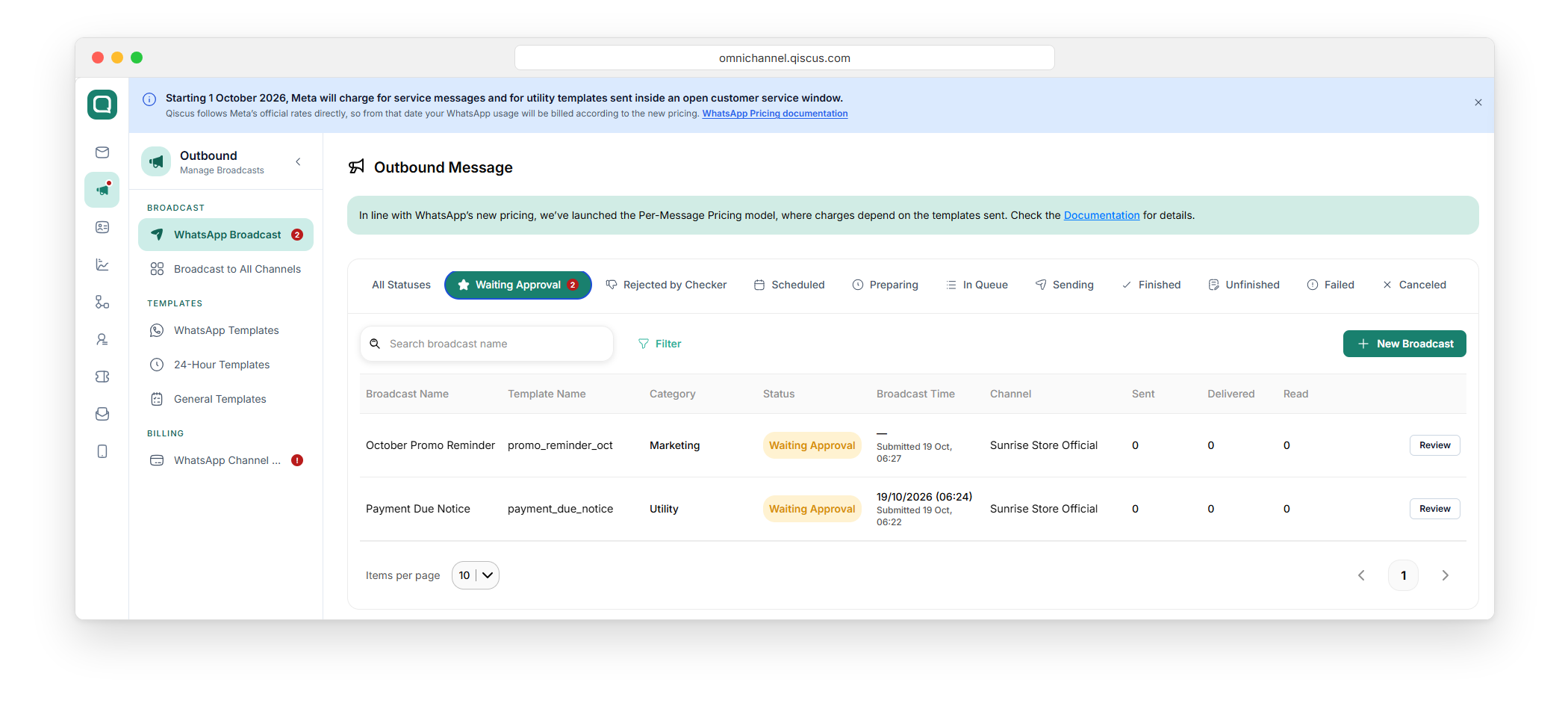
Click Review on the broadcast you want to check.
On the Review submission page, check the details: Submitted by, Channel, Template, Audience, Recipients, Estimated cost, and Schedule. To see the full recipient list, download the audience file. A submission scheduled to go out within the next hour is marked Due soon.
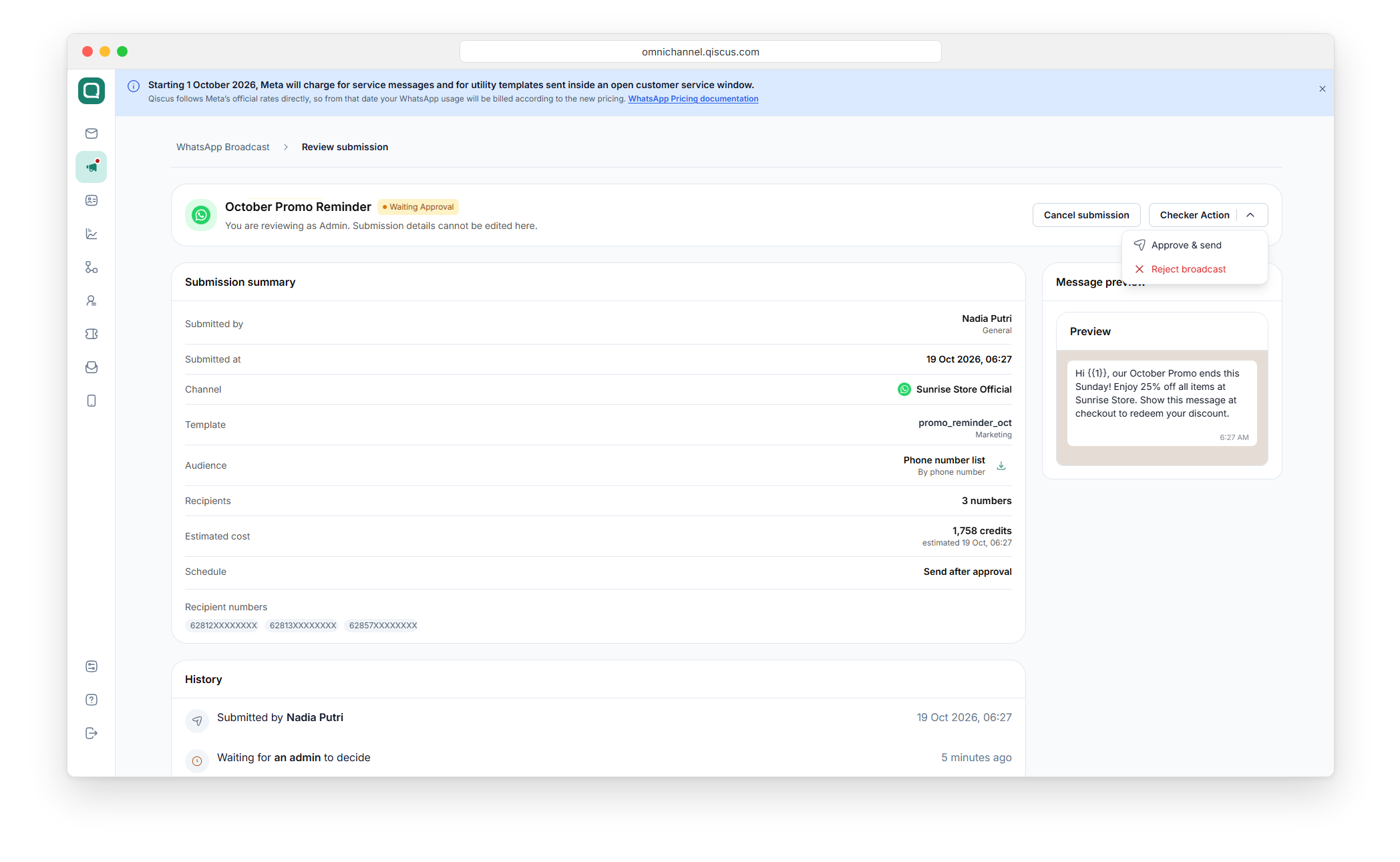
Click Checker Action and choose Approve & send or Reject broadcast.
Approve a broadcast
Select Approve & send.
In the dialog, click Approve & send.
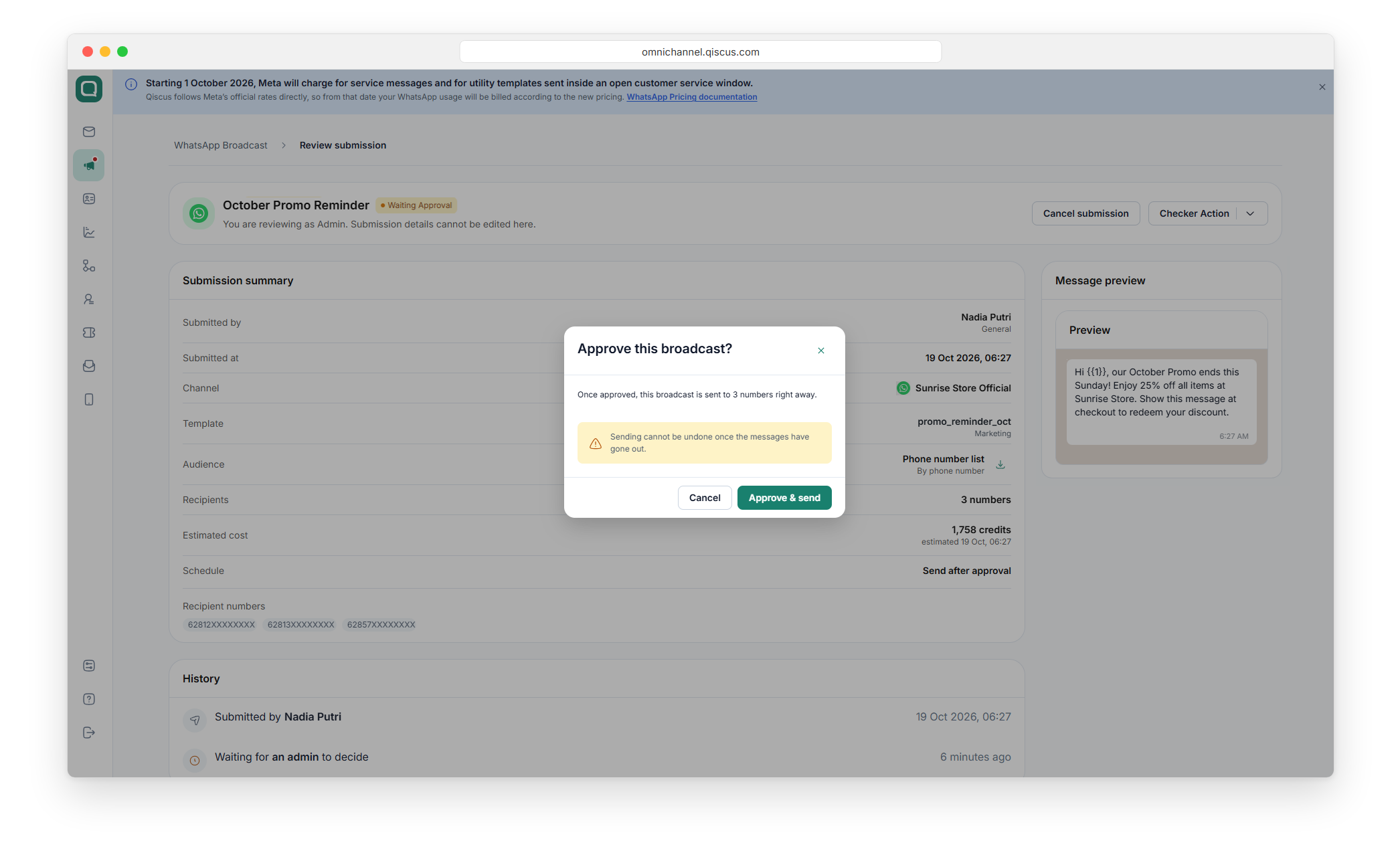
The broadcast is sent at its scheduled time. If it has no schedule, or the scheduled time has already passed, it is sent right away. Once messages have gone out, sending cannot be undone.
Before sending, the system checks the broadcast again: the channel must still be active, the template must still be approved, and your WhatsApp balance must be enough. If one of these checks fails, the broadcast is not approved and stays in the queue.
Reject a broadcast
Select Reject broadcast.
Enter the Reason for rejection. Explain what needs to be fixed so the submitter knows what to change. This field is required.
Click Reject broadcast.
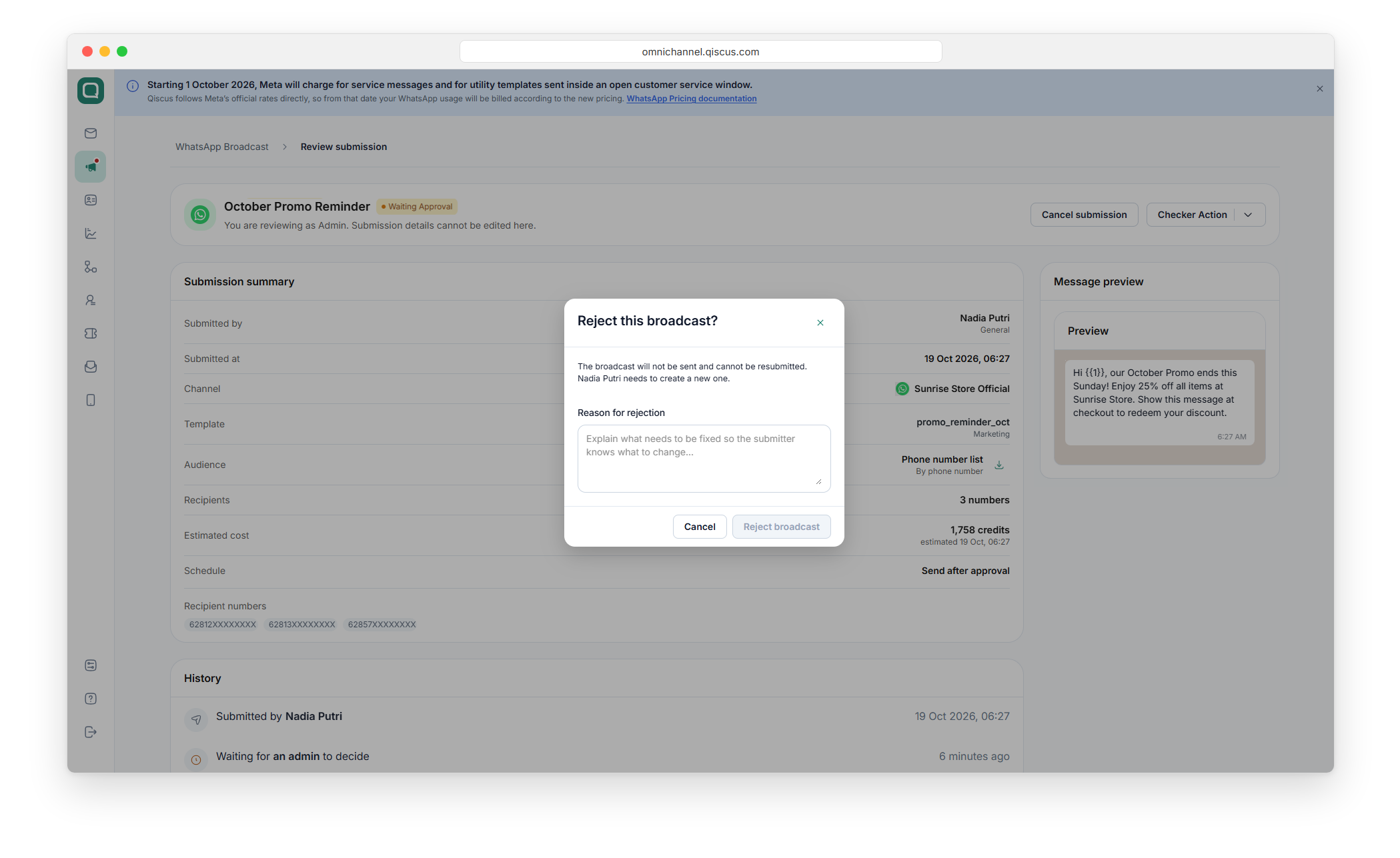
The broadcast gets the Rejected by Checker status and is not sent. A rejected broadcast cannot be resubmitted. The submitter needs to create a new one.
Check why a broadcast was rejected (Submitter)
Open WhatsApp Broadcast.
Click the Rejected by Checker filter.
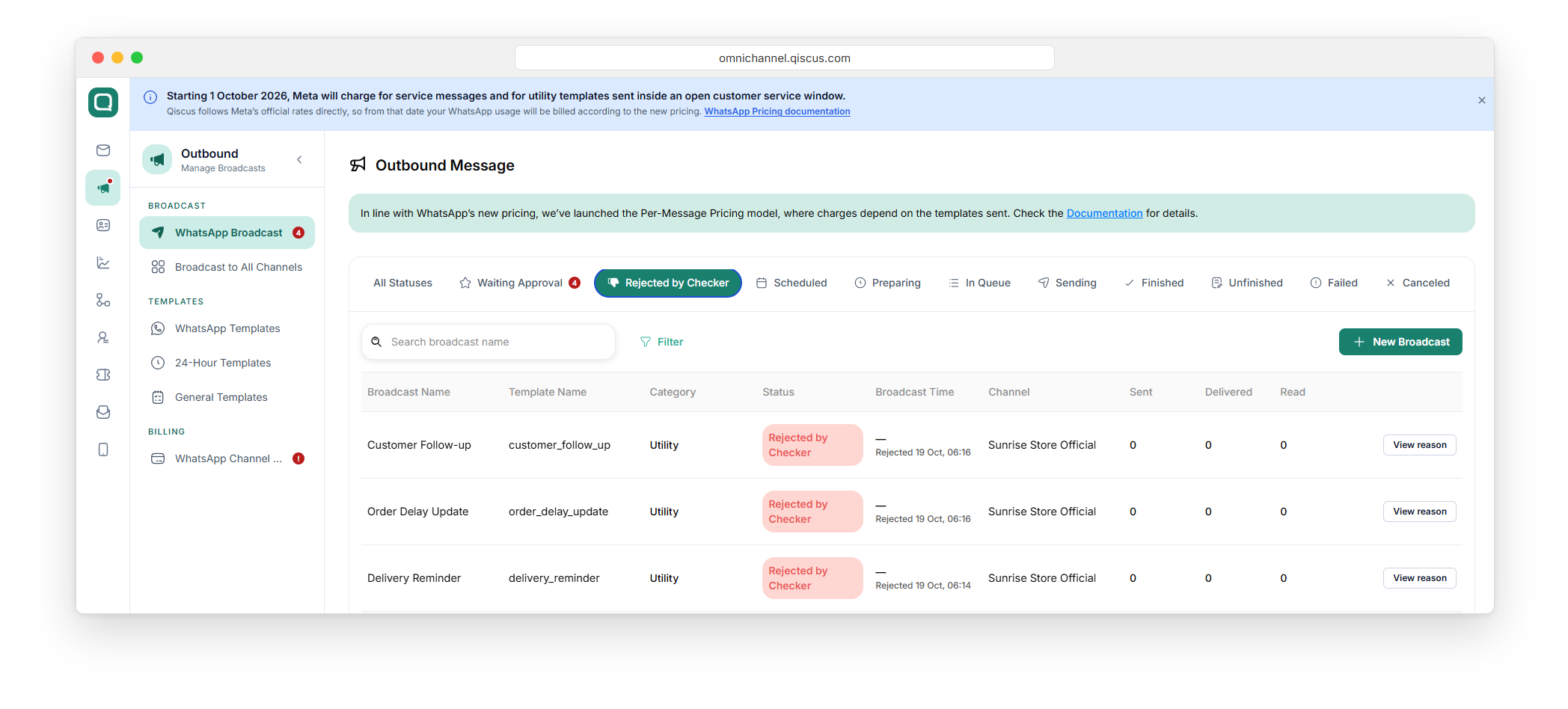
Click View reason on the broadcast. The checker's reason is shown in the Rejection reason row.
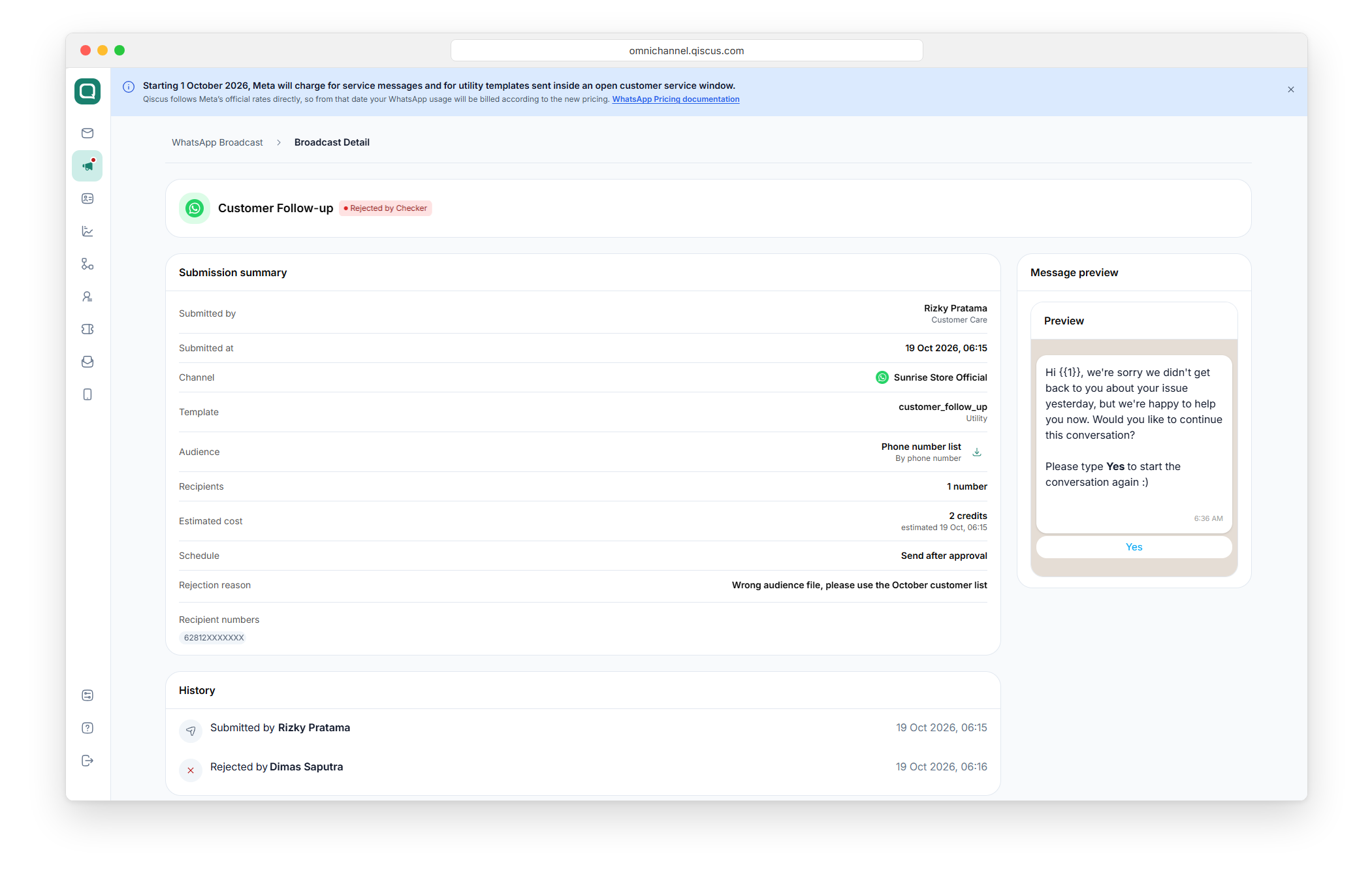
Create a new broadcast with the changes the checker asked for.
Turn off broadcast send approval (Admin)
Open Settings > Agents Management > Settings tab > Maker Checker.
Turn off Require approval before sending broadcast.
If some broadcasts are still waiting, the Turn off broadcast approval? dialog appears. Click Turn off to confirm.
Broadcasts that are already waiting are not sent automatically. They stay in the queue until a checker approves or rejects them, or the submitter cancels them. New broadcasts are sent without approval.
FAQ
Q: If I turn on template approval, do broadcasts also need approval? A: No. The two settings are separate. Template approval checks new templates before they go to Meta. Broadcast send approval checks each broadcast before it is sent. Turn on Require approval before sending broadcast if you also want broadcasts reviewed.
Q: Can the same person approve both levels of a template? A: No. The person who approved the first level cannot approve the second level of the same template.
Q: Does broadcast send approval apply to broadcasts sent by an admin? A: No. Broadcasts sent by an admin go out directly.
Q: Are OTP or Authentication templates held too? A: Yes, for broadcast send approval. It applies to every template category, including Authentication/OTP. If your OTP messages are time-sensitive, send them through the WhatsApp direct API, which is not held.
Q: What happens if a broadcast is approved after its scheduled time? A: It is sent right away when the checker approves it.
Q: Do test broadcasts need approval? A: No. Test broadcasts are sent directly.
Q: Can I edit a broadcast that is waiting for approval? A: No. Submission details cannot be edited. Cancel the submission and create a new broadcast.
Q: Two checkers opened the same broadcast submission. What happens? A: The first decision counts. The other checker sees a message that the submission has changed, and the page refreshes with the latest decision.