
What is Broadcast Assign Agent?
Replies to a WhatsApp broadcast normally follow your allocation rules, so any agent can get them. With Broadcast Assign Agent, you choose who gets the replies when you create the broadcast. You can pick one agent, a division, or a different agent for each customer in your CSV file. In the app, this setting is called Reply handling and sits on the Set Schedule & Send step.
You can also make the agent the customer owner. All later chats from that customer then go to that agent, including chats that are not about the broadcast.
When to use it
A salesperson sends a follow-up campaign and wants the replies back.
A regional team sends a promo and wants its own division to handle replies.
Each customer has a dedicated agent, and you keep that list in a spreadsheet.
Before you start
Your plan must include Broadcast Assign Agent. If you don't see Reply handling when you create a broadcast, contact your account manager.
It works for WhatsApp broadcasts created from New Broadcast, with any audience type.
Replies are routed only when auto-assign (agent allocation) is on and the reply comes in during office hours. Outside office hours, the chat stays unserved. The customer's next message during office hours is routed to your target.
If your app uses Custom Agent Allocation, that rule decides who gets the chat. Broadcast Assign Agent is not used.
Your role decides which options you see:
Role | Options in Reply handling |
|---|---|
Admin | Default allocation, Specific agent, Division, Per customer (from CSV) |
Supervisor | Same as Admin. The lists only show agents and divisions in your division. |
Agent | Default allocation, Broadcast sender (replies go to you) |
How replies are routed
A reply is any message the customer sends on the same WhatsApp channel within 30 days of the broadcast.
The chat goes to your target only when it needs an agent. That means a new chat or a resolved chat.
An ongoing chat stays with its current agent.
If a customer got several broadcasts with different settings, the most recent broadcast on that channel wins. This applies even when the customer replies to an older message.
From day 31, replies follow your default allocation again. The exception is a customer owner (see Sticky assignment and customer owners).
A routed reply goes straight to the agent. Your chatbot does not handle it.
Set who handles replies
Go to Outbound > WhatsApp Broadcast and click New Broadcast.
Choose your template and audience as usual.
On Set Schedule & Send, go to Reply handling. Default allocation is selected at first.
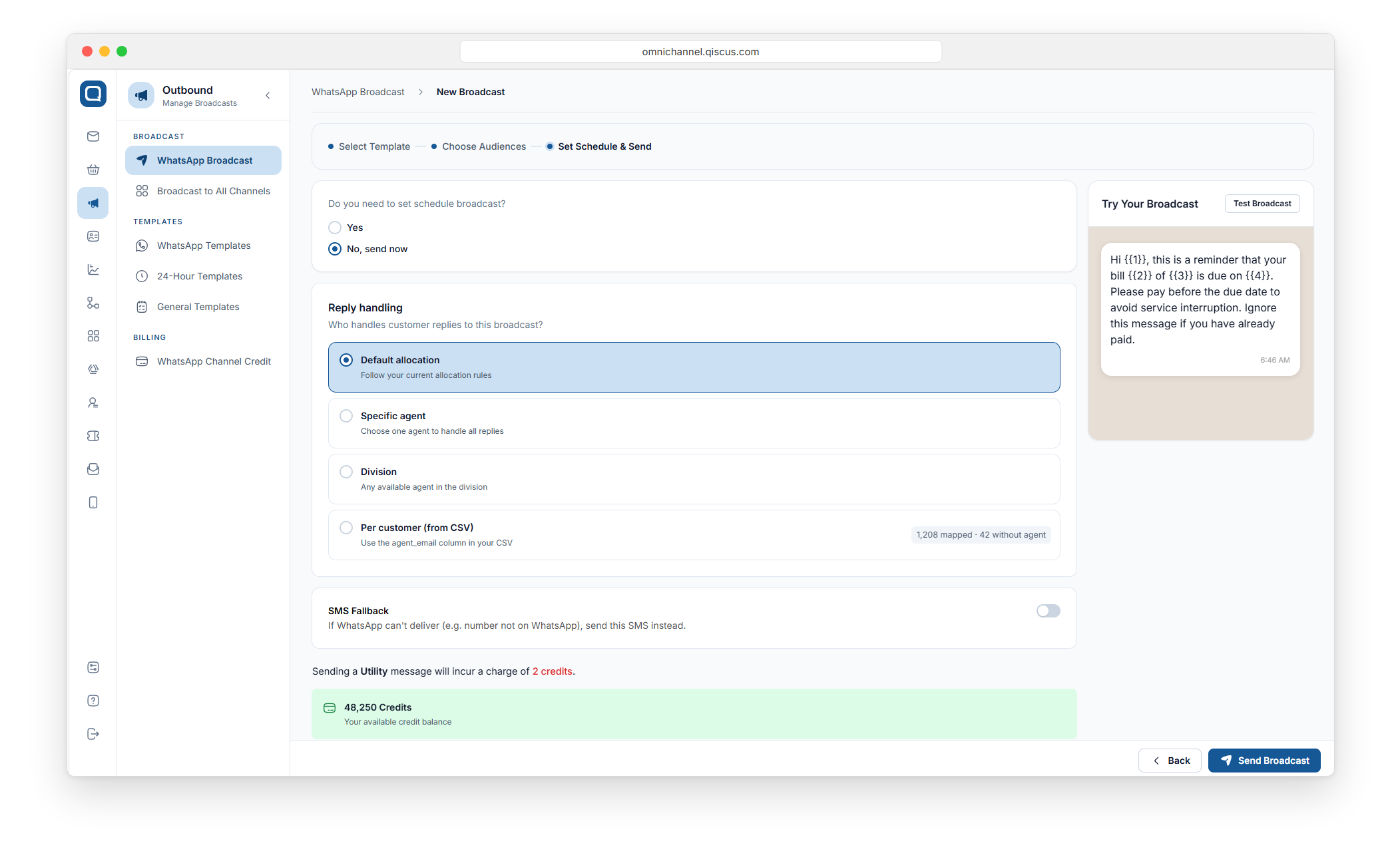
Pick an option below, fill in its settings, then schedule or send the broadcast.
If a required field is empty, the broadcast is not sent. The field shows a message such as Select an agent to handle replies.
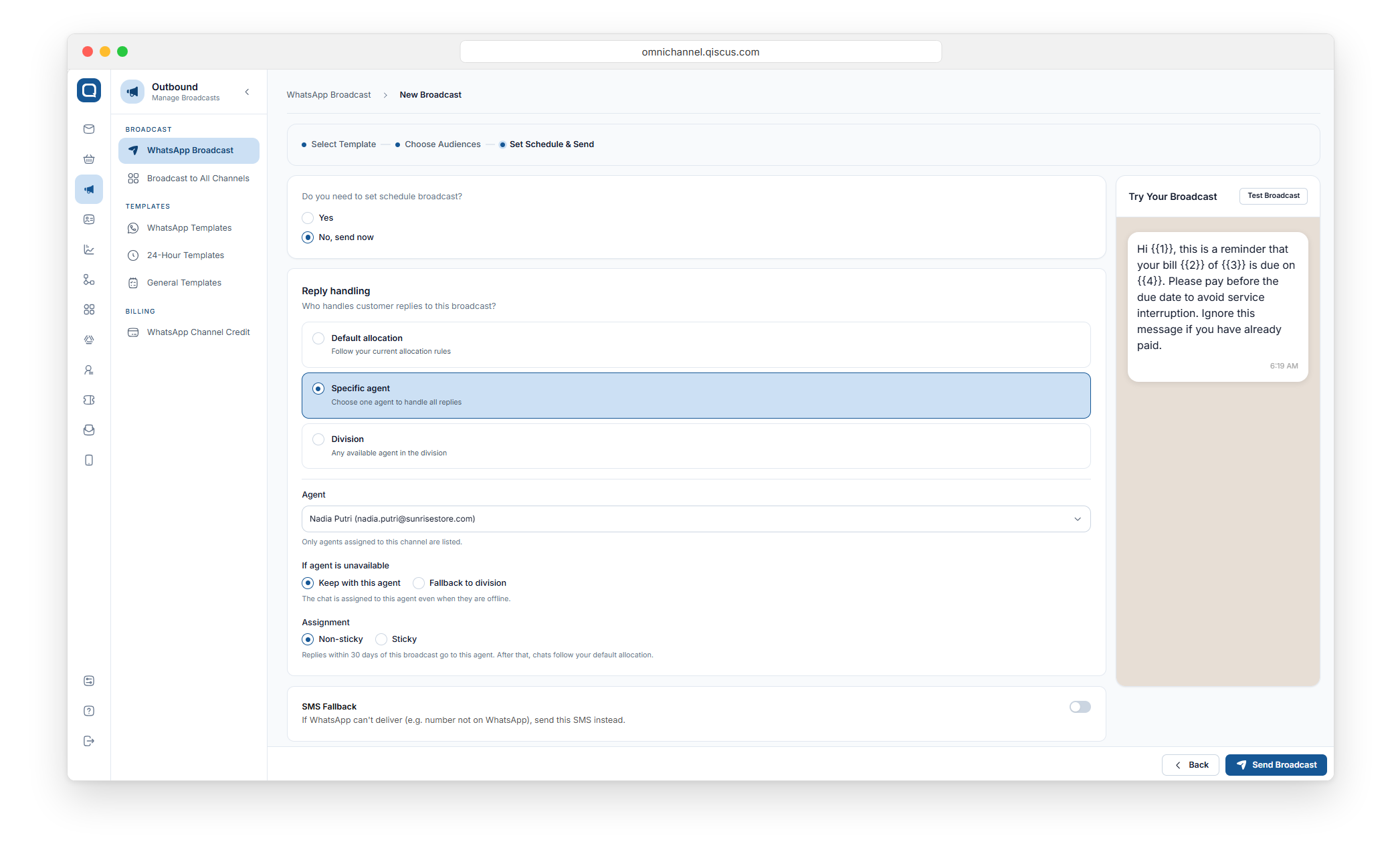
Send replies to one agent (Specific agent)
For Admins and Supervisors.
Select Specific agent.
In Agent, search by name or email and pick the agent. The list only shows agents on the broadcast's WhatsApp channel.
Under If agent is unavailable, choose one:
Keep with this agent: the chat goes to this agent even when they are offline. No other agent takes it.
Fallback to division: when the agent is offline, the chat goes to an available agent in the division you pick.
Under Assignment, choose Non-sticky or Sticky. See Sticky assignment and customer owners.
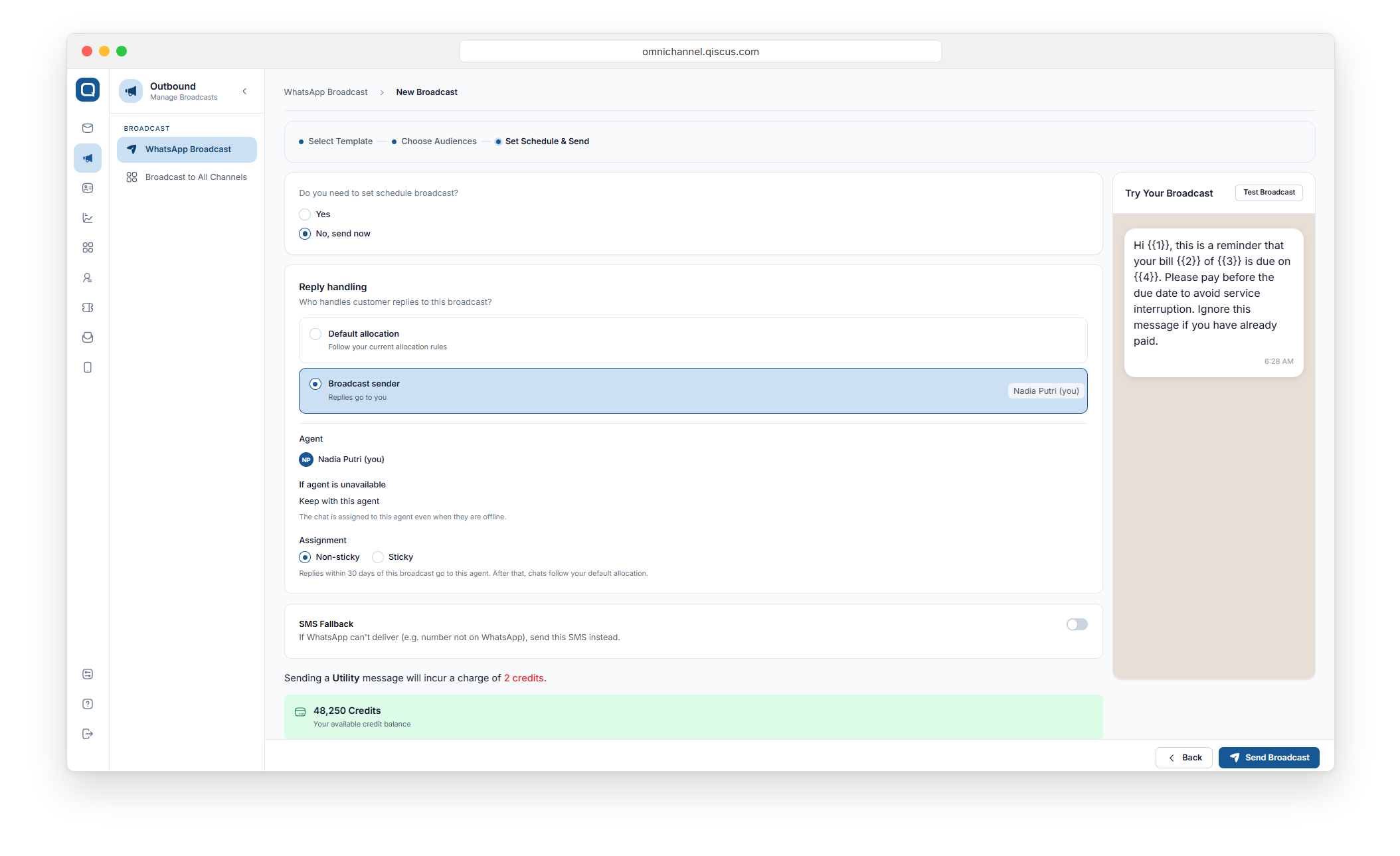
Send replies to yourself (Broadcast sender)
For Agents.
Select Broadcast sender. Your name appears with "(you)".
Replies stay with you even when you are offline. Agents can't set a fallback division.
Under Assignment, choose Non-sticky or Sticky.
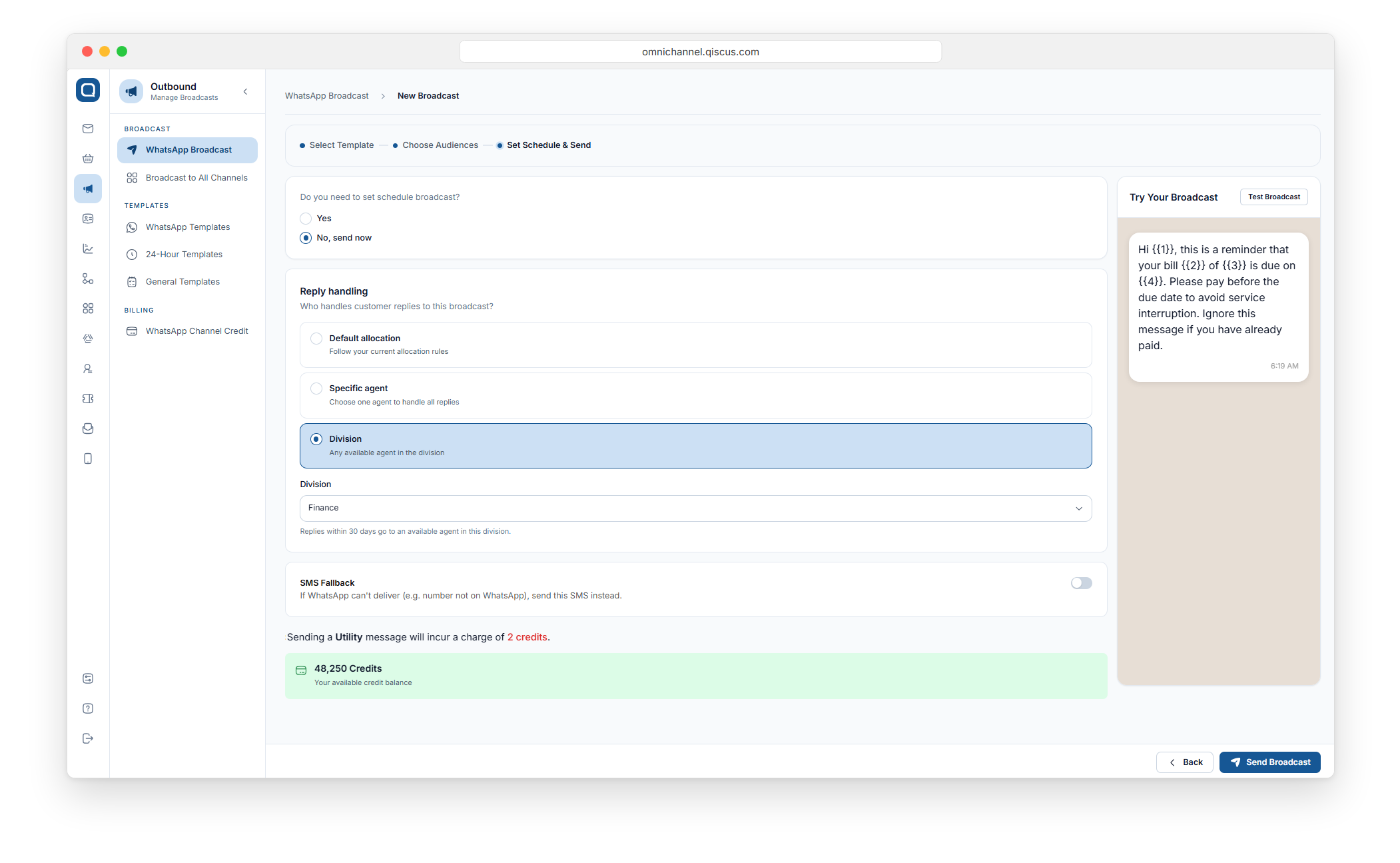
Send replies to a division (Division)
For Admins and Supervisors.
Select Division.
Pick the division. The list only shows divisions with at least one agent on this channel.
Replies within 30 days go to an available agent in that division. Your least busy or round robin setting picks the agent. Division routing is always non-sticky, so it never sets a customer owner.
Send each customer's replies to their own agent (Per customer from CSV)
For Admins and Supervisors, when the audience is a CSV file.
On the audience step, choose CSV and download the sample file. Its last column is an optional
agent_emailcolumn.For each customer, enter the email of the agent who should handle their replies. Leave it empty to use the backup option in step 6.
Upload the file. A note shows how many agents were found and how many rows have no agent, for example "agent_email detected · 3 agents · 12 rows without agent".
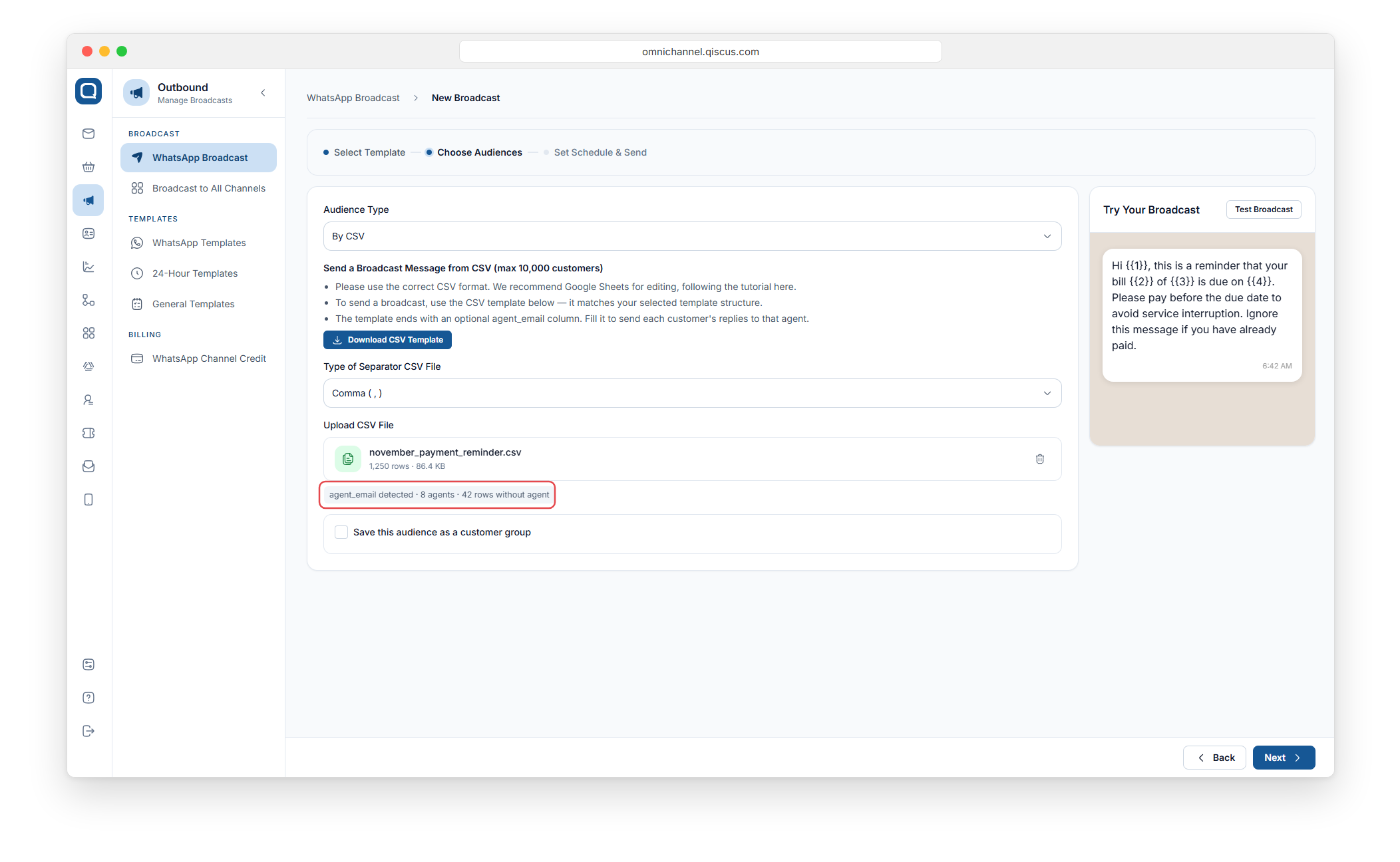
Emails that don't match an agent on this channel are listed by row, for example "Row 42: ...". You can still continue. Those rows count as rows without an agent.
On Set Schedule & Send, select Per customer (from CSV). The option shows how many customers are mapped.
Under Customers without agent, choose Default allocation or Division. If you choose Division, pick one.
Set If agent is unavailable and Assignment. Both apply to every agent in the file.
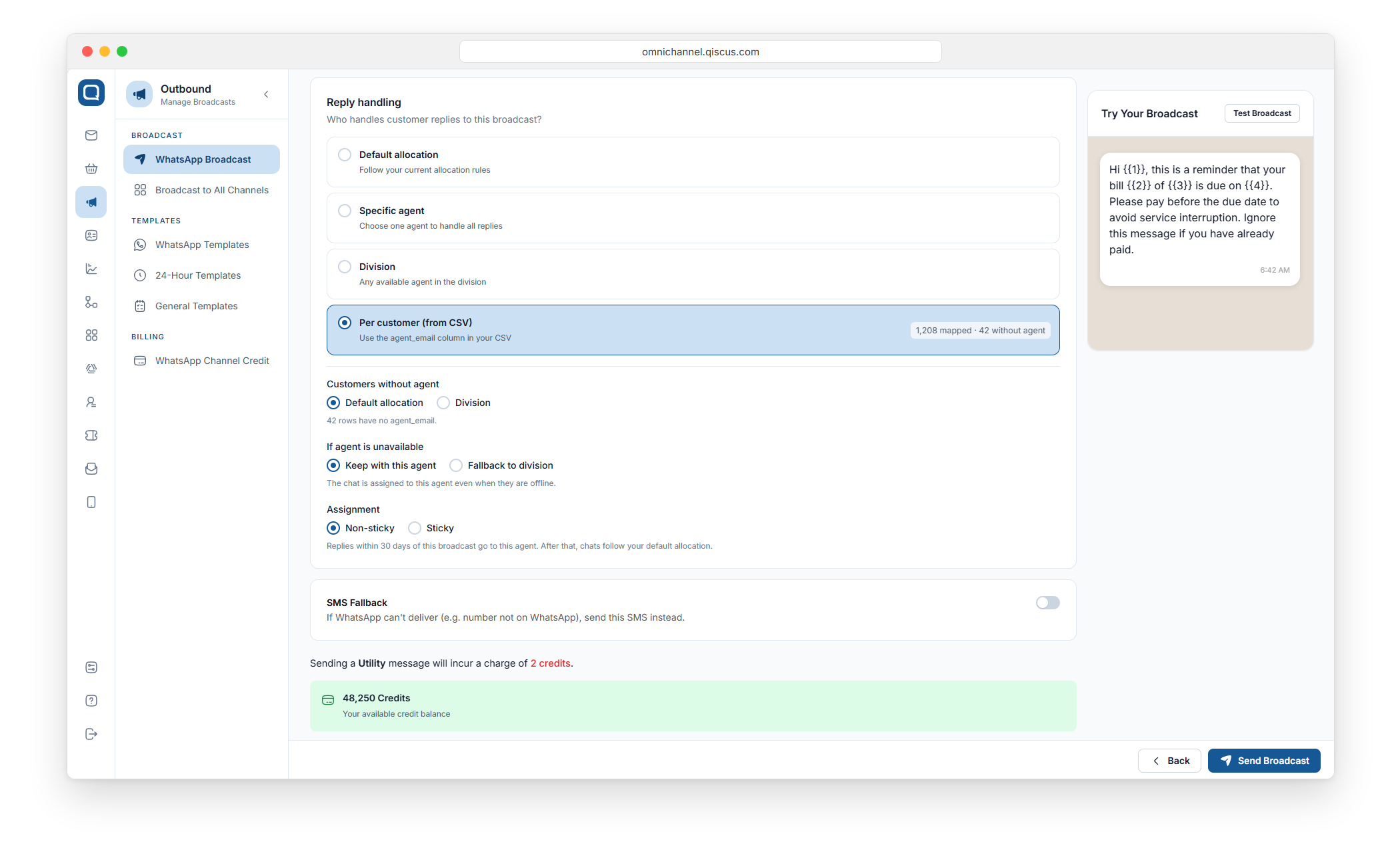
Per customer (from CSV) only appears when at least one agent_email matches an agent on the channel.
Sticky assignment and customer owners
Specific agent, Broadcast sender, and Per customer (from CSV) have two assignment options:
Option | What happens |
|---|---|
Non-sticky (default) | Replies within 30 days of this broadcast go to this agent. After that, chats follow your default allocation. |
Sticky | This agent becomes the customer owner. All future chats from this customer on this channel go to this agent, with no time limit. |
About customer owners:
The agent becomes the owner when the customer replies and the chat is assigned to them. If the chat went to a fallback division, no owner is set.
A customer has one owner per WhatsApp channel. A newer sticky broadcast to another agent replaces the owner. A newer non-sticky broadcast sends that reply to its own target and keeps the owner.
Moving a chat to another agent by hand does not change the owner.
If the owner is deleted, deactivated, or removed from the channel, the customer has no owner. Chats go back to default allocation.
You can't change or remove an owner by hand.
Check how replies are handled
On the broadcast detail
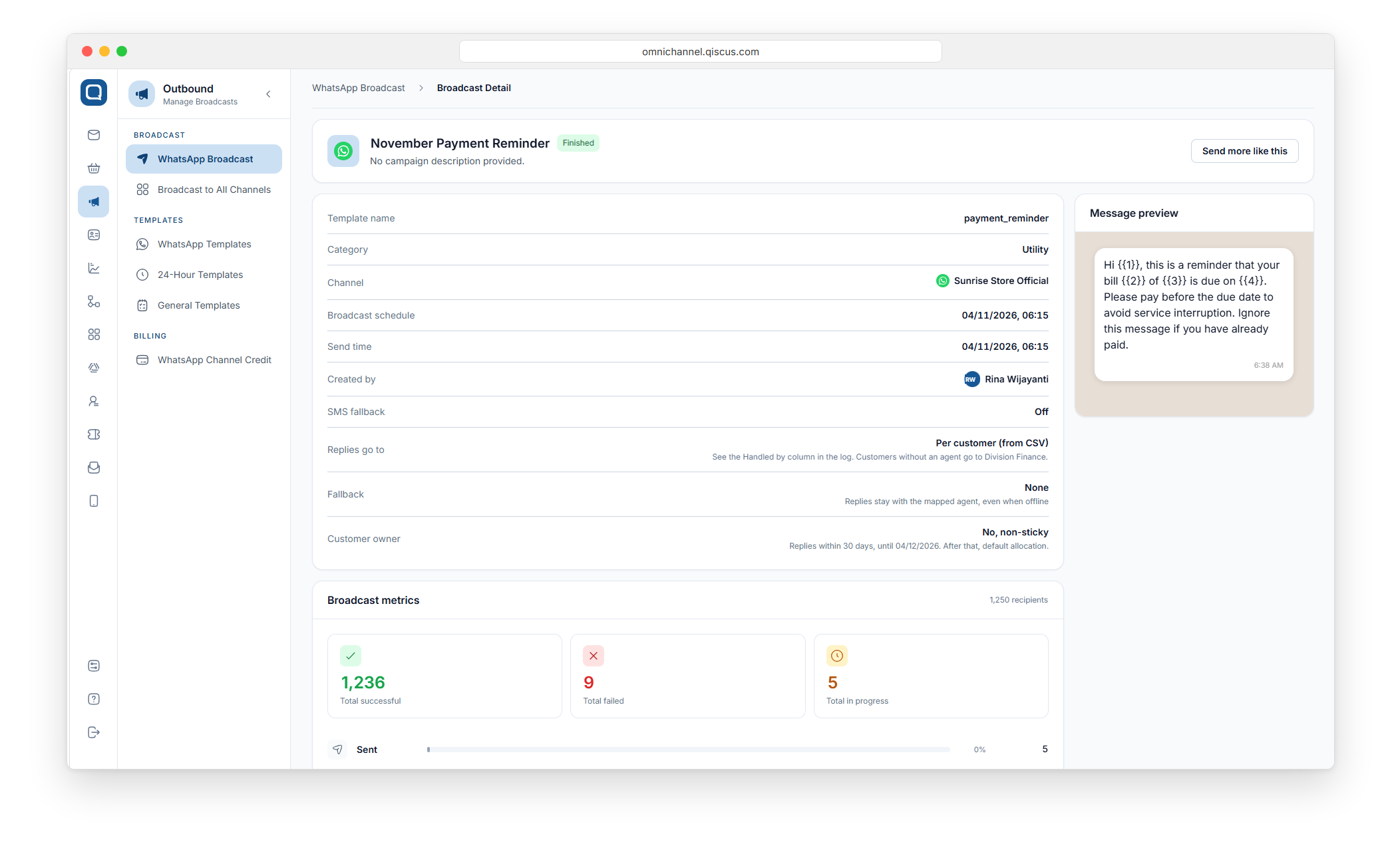
Go to Outbound > WhatsApp Broadcast and open the broadcast. The detail shows:
Replies go to: the agent, the division, or "Per customer (from CSV)".
Fallback: the fallback division, or a note that replies stay with the agent when offline.
Customer owner: "Yes, sticky", or "No, non-sticky" with the end date of the 30 days.
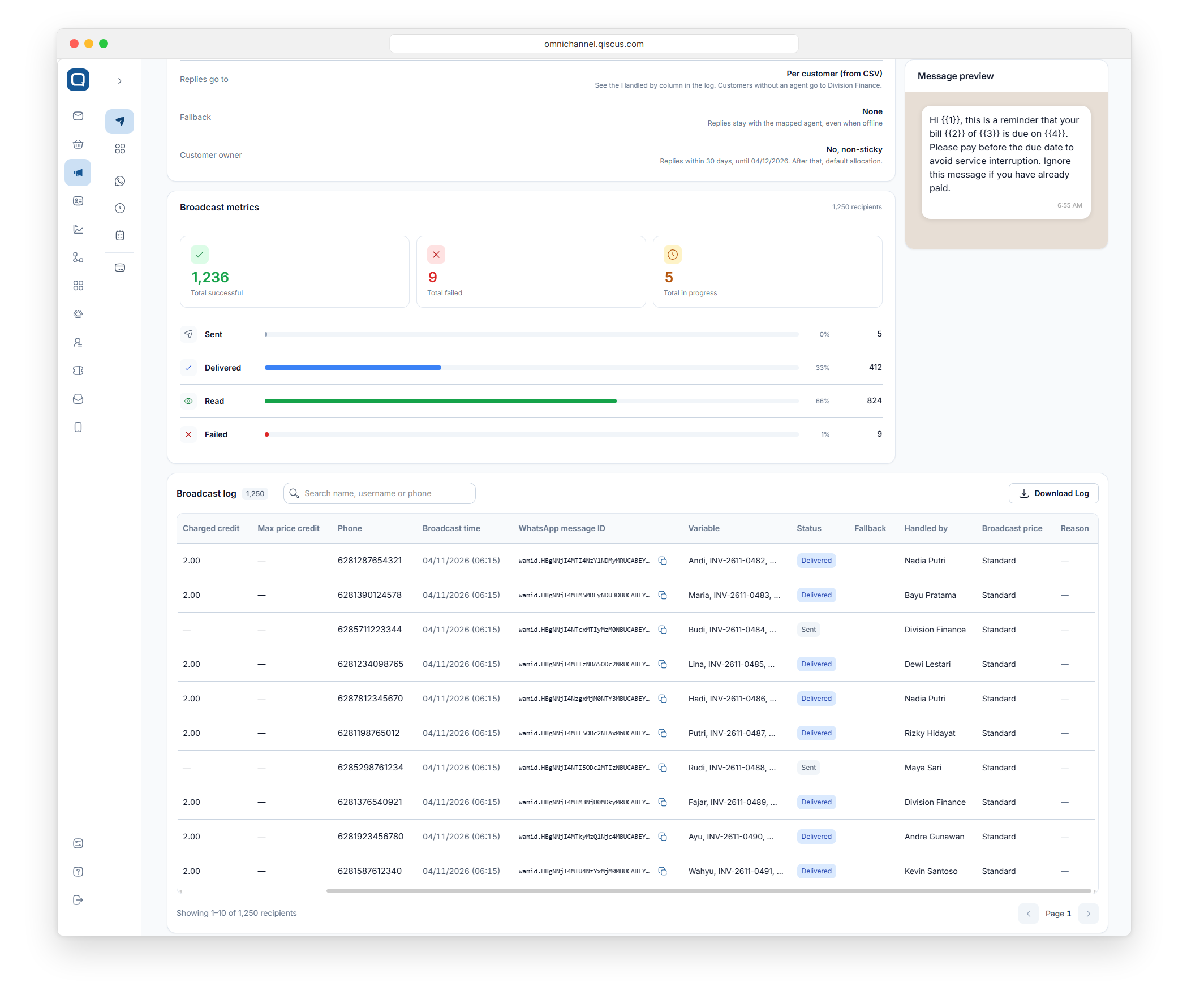
For CSV broadcasts, the log table has a Handled by column with each customer's agent. Customers without an agent show Default allocation.
A scheduled broadcast may go out after its agent or division stopped being available on the channel. The broadcast is still sent, and the detail shows a warning. Replies go to the fallback division or follow default allocation.
In the inbox
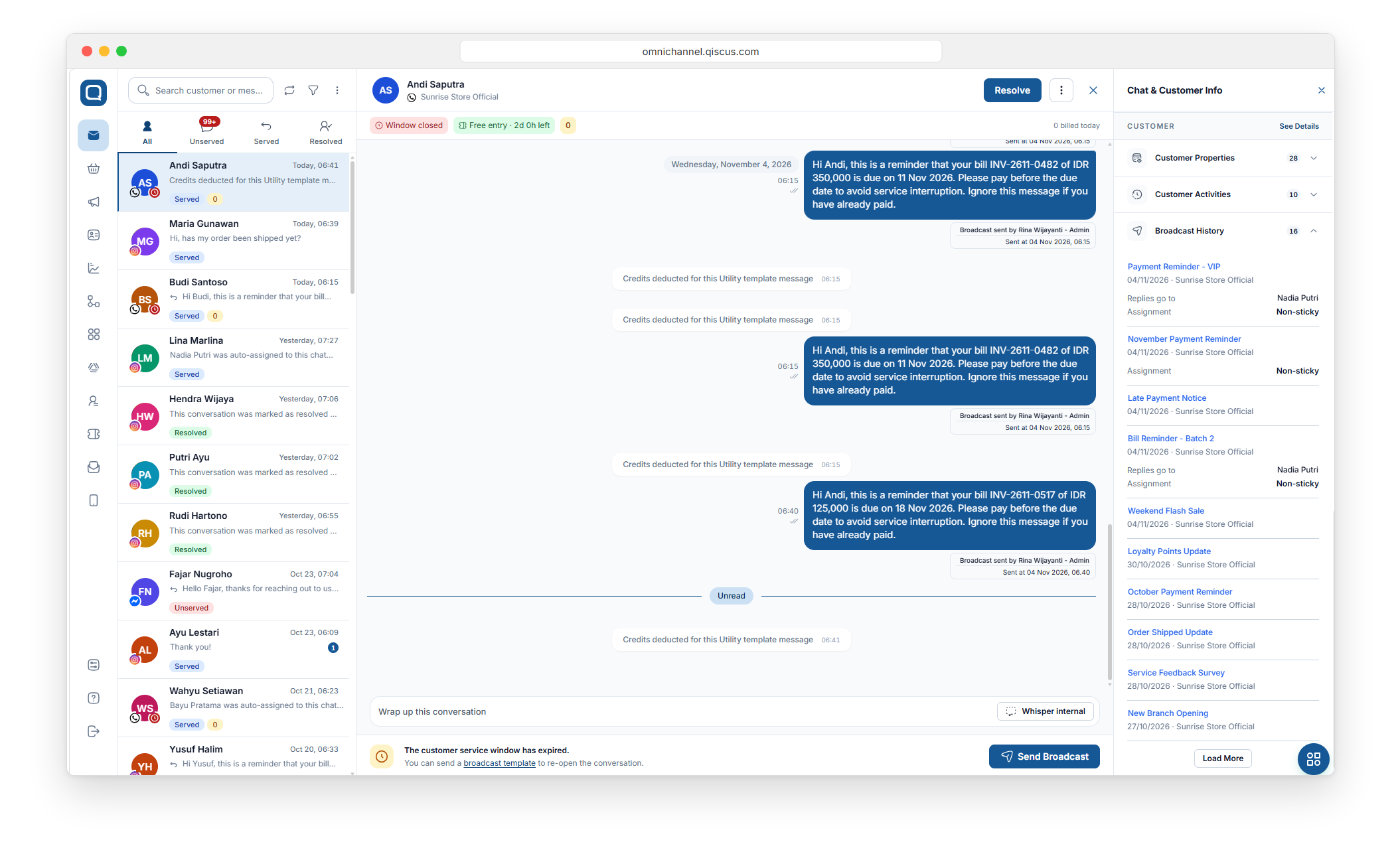
In a WhatsApp chat, open Customer Info and expand Broadcast History. Each broadcast shows where replies go. After the customer replies, it shows Assigned to and the agent's name. It adds "via fallback {division}" when the fallback division took the chat.
FAQ
Is the chat assigned when the broadcast is sent? No. Nothing is assigned until the customer replies.
I chose Keep with this agent and the agent is offline. What happens? The chat is assigned to that agent and waits for them. No other agent gets it.
Does Broadcast Assign Agent work for broadcasts sent from a chat room or to all channels? No. It only works for WhatsApp broadcasts created from New Broadcast and for the Client Broadcast API v3.
Can I use Broadcast Assign Agent through the API? Yes. The Client Broadcast API v3 accepts the same settings.