
Qiscus Survey allows you to create surveys with various types of questions. This feature enables you to craft surveys for Net Promoter Score (NPS), Customer Satisfaction (CSAT), as well as other diverse survey types. Surveys crafted using Qiscus Survey can be easily distributed through shared URLs, customized buttons on the Chat & Customer Information page, or even be automatically sent when a chat room is resolved.
Activation
Follow the instructions step on the Getting Started pages and try to activate Qiscus Survey Add-on.
Create New Survey
To create a new survey, you must ensure that the Qiscus Survey Add-on has been added to the App Center menu. After that, you can follow these steps to create a new survey.
From the Your Installed Apps section, search for Qiscus Survey, and click Add-on Settings,

Click Create New Survey button,

Fill in the name for your survey,

A new survey has been created with a draft status. Currently the survey that you created is still empty. To start editing, click on the survey,

Start editing the survey by clicking Start Your First Question,

The survey will be created in the style of 1 question per page.
Select the question Type. There are 4 question types in the Qiscus Survey: First Page, Text Answer, Choice, and Rating,

First Page
We recommend that you choose First Page to start the survey. On the right side, you can set the Title, Description, and also the Button.

The style for surveys made on Qiscus Survey can be edited. You can change the color or provide a background image by clicking Survey Configuration.

To make it easier for you to change the color, click the color box then select the color you want.

Text Answer
If you select Text Answer, the customer can add answers to the text field provided. You can add questions, descriptions, and change the style just like the First Page type. However, for the Text Answer type, you can choose whether this question is required to be filled in or not.

Choice
For the choice type, you can ask questions with answer choices in the form of radio buttons or checkboxes. If the customer can only choose one answer, then the choice will be in the form of a radio button. Conversely, if you want the customer to be able to choose more than one answer, the choices will be in the form of a checkbox. To determine this type of choice, there is an Allow Multiple Answer toggle that can be enabled or disabled.

If you want to add a choice, click Add Choice.

Rating
The rating question type allows you to ask customers to provide ratings on a certain scale, such as a number. You can add a label on the left and also on the right to make it easier for customers to give ratings.

If you want to add questions to the survey, click the (+) icon at the bottom,

While editing, you can see a live preview. You can see how the survey will look on various devices,

Don’t forget to click Save,

Once the editing process is complete, the survey is ready to be published by clicking the Publish button.

Share
On the Share menu, there are 4 things you can set: Share Link, Redirect, Custom Button in Omnichannel, and also Auto resolve setting.

Share Link
Surveys that have been created can be shared with customers through any media by sharing a link that is automatically generated from the Qiscus Survey.

You can customize the URL that will be shared by clicking the Customize Survey Link button.

Redirect
Redirect is used to provide a destination URL when the customer has finished filling out the survey. For example, you can add a URL to your website.

You can enable or disable the Redirect feature by sliding the toggle.

Custom Button in Omnichannel
If you enable the Custom Button toggle in Omnichannel, a new custom button will automatically form and appear on the Chat & Customer Info page.

You can set Custom Button Messages as you wish.

New custom button that is automatically created on the Chat & Customer Info page:

Auto resolve setting
If you enable the Auto resolve setting toggle, then a message regarding the survey will be automatically sent to the customer when a chat room is resolved.

Just like the custom button setting, you can set Custom Button Messages as you wish.

Once the chat room is resolved, a message regarding the survey will be sent.

You can only enable the Auto resolve setting for one survey. To use it on another survey, turn it off on the current survey first. To send a different survey per channel, or more than one survey when a chat room is resolved, use Auto Resolve Routing.
Don't forget to click Save Data to save the settings you have made. If the save fails, nothing is saved, including a changed survey link, and the error message tells you why.

If your Mark as Resolved webhook is already used by another service
The Auto resolve setting works through the Mark as Resolved webhook in your Omnichannel Webhook Config. If that webhook already points to another service, for example a webhook extender or your own server, the Auto resolve card shows the host it points to, and Qiscus Survey does not replace it.
You can still enable the Auto resolve setting and click Save Data. The settings are saved, and a Saved, but not connected yet message appears, because surveys are not sent until the resolve events reach Qiscus Survey. To connect it:
Click Copy Webhook URL in the message, or copy the Webhook URL from the Auto resolve card,
In the service that receives your Mark as Resolved webhook, forward the resolve events to that URL. A webhook extender can do this next to the webhooks you already use,
Resolve a test chat room and check that the survey message is sent.
Allow Channel
Allow Channel controls which channel accounts receive the survey sent by the Auto resolve setting. Use it when you don't want the survey to reach every account, for example a promo-only WhatsApp number.
On the Qiscus Survey page, open the Allow Channel tab,
Under Select channel, click a channel type. Only channel types that have accounts in your app are shown,
Tick the accounts that should receive the survey, or tick the All Accounts option of that channel (for example All WhatsApp Accounts). Accounts with a red cross are blocked,
Click Save Changes. Repeat for each channel type.
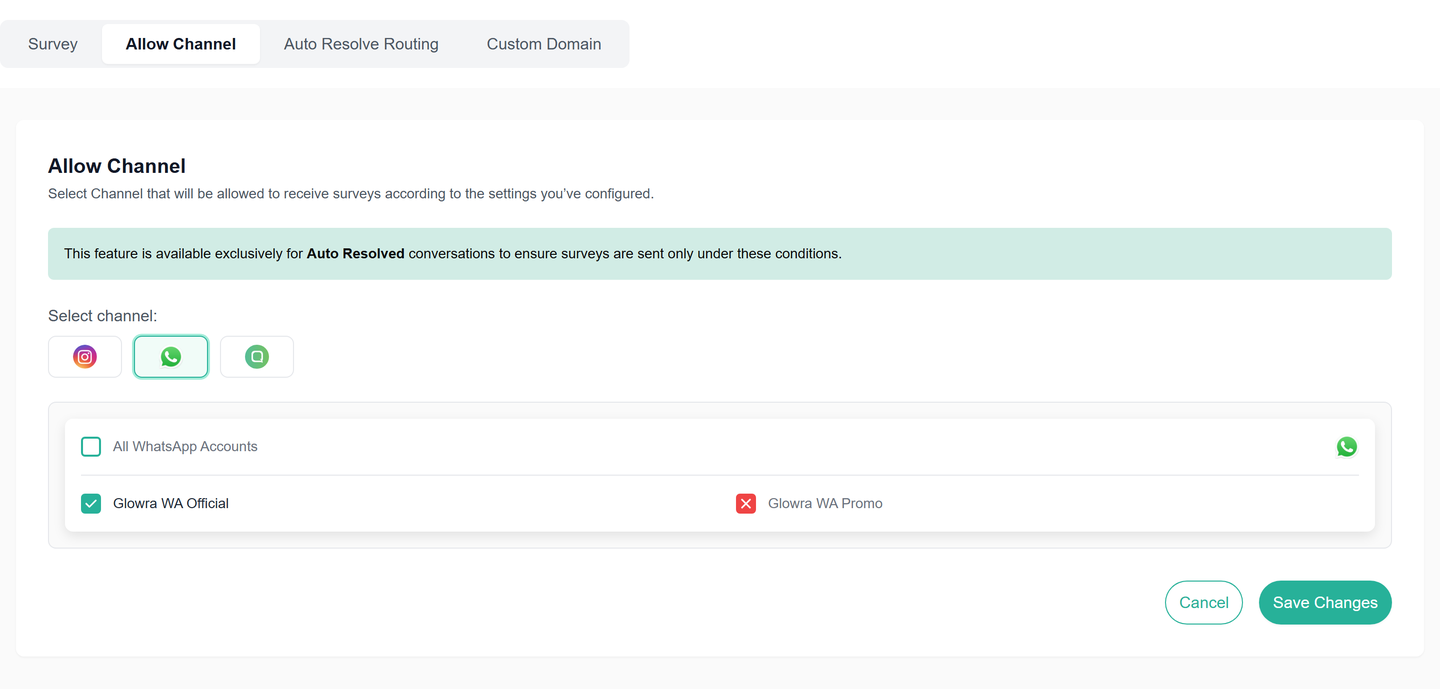
Allow Channel applies only to the Auto resolve setting. It does not affect the Custom Button in Omnichannel, shared links, or Auto Resolve Routing. For Auto Resolve Routing, the channels you select for each survey decide who receives it.
Auto Resolve Routing
Auto Resolve Routing lets you choose which published surveys are sent to the customer when a chat room is resolved, based on the channel of the chat room. You can assign different surveys to different channels, and you can assign more than one survey to the same channel. All routing uses one webhook URL for your app.
Auto Resolve Routing is separate from the Auto resolve setting in the Share menu. You can use both at the same time.
On the Qiscus Survey page, open the Auto Resolve Routing tab,
Click Copy Link next to Webhook Link. Register this link as a Mark as Resolved webhook in your Omnichannel Webhook Config. Webhook Config can send the Mark as Resolved webhook to several URLs, so you can add this link next to the webhooks you already use,
The table lists your published surveys and their channels. Click Edit Channel on the survey you want to route,
In Channels, select the channels that should receive this survey, then click Save Changes,
Repeat steps 3–4 for each survey. When a chat room on a selected channel is resolved, the customer receives a message with the link to every survey assigned to that channel.
The message uses the auto resolve message of each survey. Set it in the survey's Share menu under Auto resolve setting, then click Save Data. You don't need to enable the Auto resolve setting toggle for the routing to use the message.
If you assign several surveys to one channel, the customer receives one message per survey.
Only published surveys are sent. Before you unpublish a survey, remove its channels in Edit Channel, so the other surveys on those channels are still sent.
The Allow Channel tab settings do not apply to Auto Resolve Routing. Control which channels receive surveys by the channels you select for each survey.
Custom Domain
Custom Domain lets you send survey links on your own domain, for example https://survey.yourcompany.com/s/..., instead of the default survey.qiscus.com. The setting applies to your whole app: once the domain is active, every survey in the app uses it for new links, including links sent from the Custom Button, the Auto resolve setting, and Auto Resolve Routing.
You need access to the DNS settings of the domain you want to use.
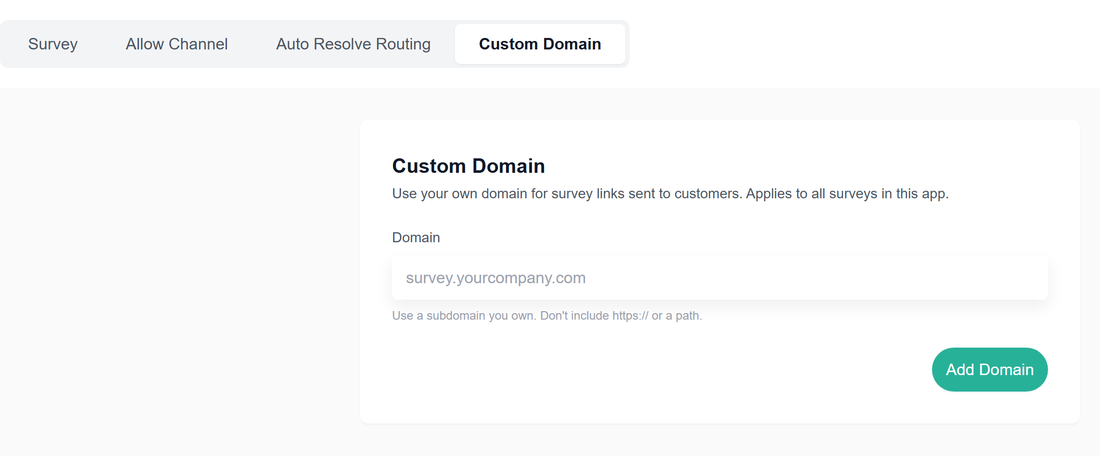
On the Qiscus Survey page, open the Custom Domain tab,
Enter the domain or subdomain you want to use, for example
survey.yourcompany.com, withouthttps://or a path, then click Add Domain. Domains owned by Qiscus, IP addresses, and wildcard domains are not accepted,
The status becomes Pending and the DNS record to add is shown. Click Copy next to the value, then create a CNAME record in your DNS provider that points your domain to
custom-survey.qiscus.com,
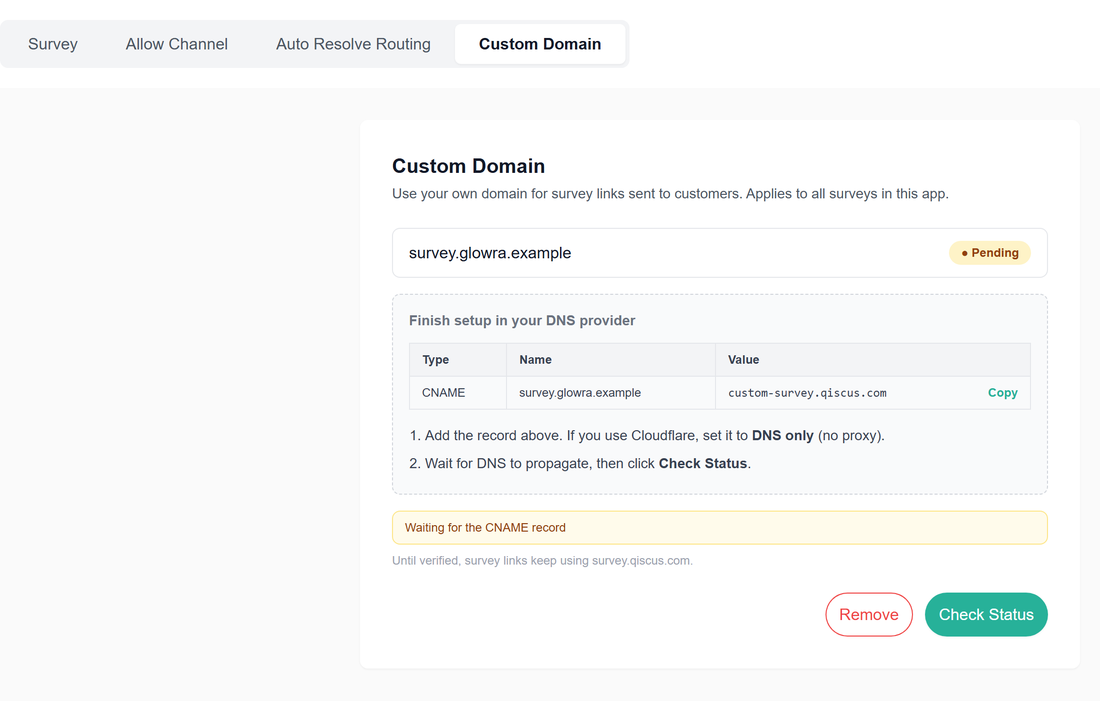
Click Check Status. When the DNS record is found, the SSL certificate is issued automatically. This usually takes about 10 minutes after the record is set,
When the status is Active, new survey links use your domain. Links that were sent earlier on
survey.qiscus.comkeep working.
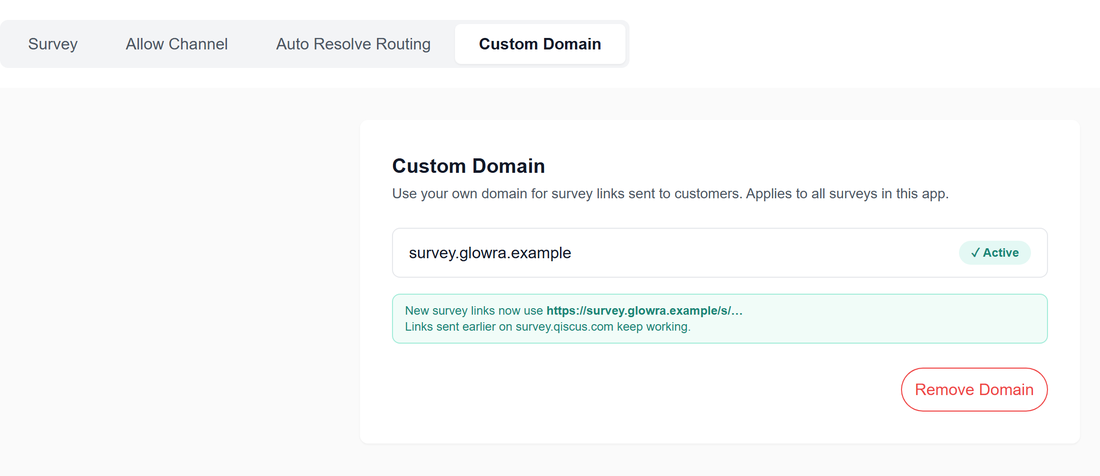
If the domain stops working
Qiscus re-checks your domain automatically. If it stops working, for example after a DNS change or an SSL problem, the status becomes Not reachable and new survey links temporarily use survey.qiscus.com, so customers still get a working link. When the domain works again, new links switch back to it. After you fix the DNS, you can click Check Again to re-check right away.
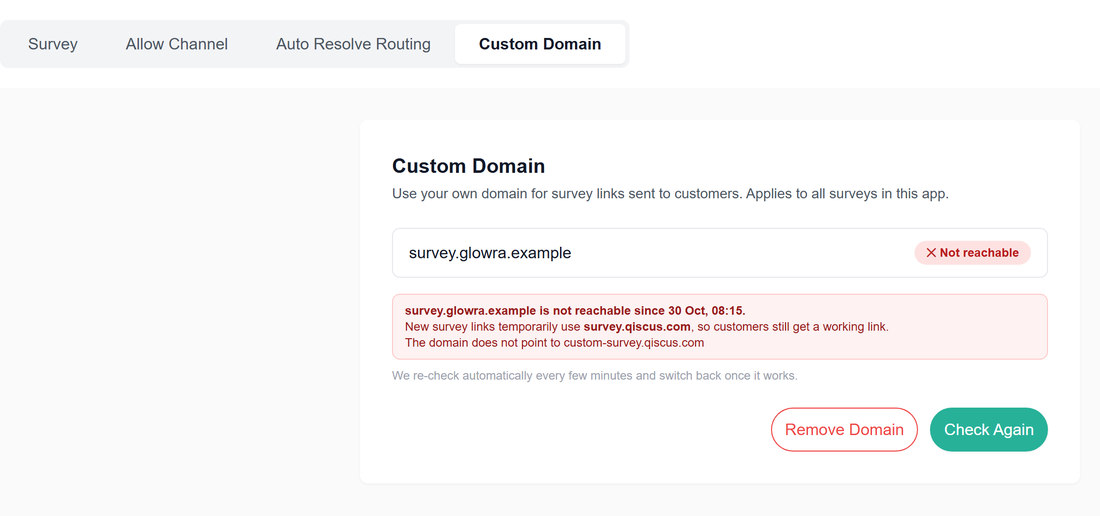
Remove a domain
Click Remove Domain (or Remove while the status is still Pending) and confirm. Survey links that were already sent on your domain stop working immediately, including links in past chats. New links go back to survey.qiscus.com, and responses that were already submitted are kept.
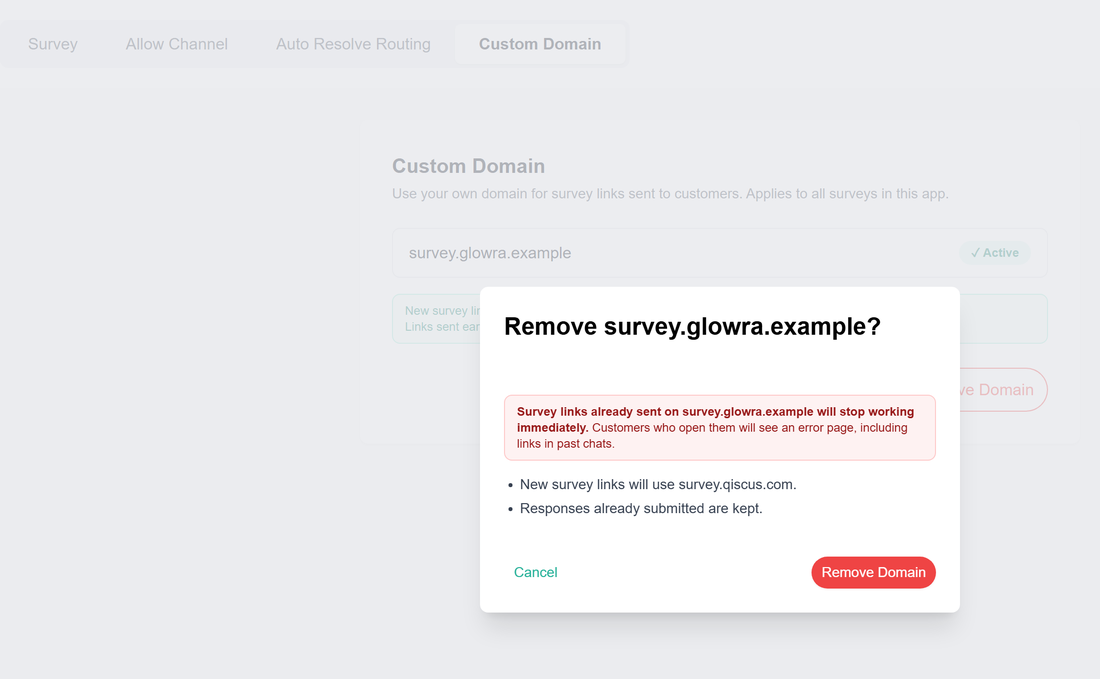
If your DNS is on Cloudflare, set the CNAME record to DNS only (grey cloud). Proxied records (orange cloud) are not supported.
While the status is Pending, survey links keep using
survey.qiscus.com, so customers never receive a link that does not work yet.Remove the domain only when you no longer need the links that were sent on it.
Analytics
Qiscus Survey provides analytics reports that allow you to see the results or responses from surveys that have been made. In this menu, you can see data on when the last survey was published, how many respondents have filled out the survey, and also the answers to survey questions from the respondents.

The analytics report can be downloaded as an excel or csv file.

You can check individual answers in Answers Tab
