
Overview
Idle Notification helps you automatically detect and act on idle conversations in Qiscus Omnichannel. When a chat remains inactive for a set period, the system can trigger a webhook, post a reminder message, resolve the room, or combine a reminder message with an auto-resolve action—based on your configured channel rules.
Use Idle Notification to monitor inactive conversations and trigger reminders or room resolution automatically based on your rules.
Features
Automatic idle detection – Monitors inactivity automatically for both agents and customers.
Four monitoring subjects – Allows you to target specific groups: agents, unserved customers, served customers, or all customers.
Four automated actions – Enables you to trigger a webhook, send a message, resolve the conversation, or send recurring messages before resolving.
Multi-channel configuration – Applies a single configuration across multiple channels.
Office hours restriction – Inherits app-wide settings or applies a custom operating schedule per configuration.
Built-in analytics – Tracks every idle event and identifies agents with the highest trigger counts directly from the analytics dashboard.
Getting Started
Prerequisites
Make sure you have the following before you start:
An active Qiscus Omnichannel account with Admin access to App Center.
Add-on activation approved by the Qiscus team.
At least one active channel in Omnichannel (WhatsApp, Instagram, Facebook, and more).
Install the Add-on
Open App Center from the sidebar menu.
Search for Idle Notification in the search bar, then click Install Add-on.
Submit the installation request. Your request will be reviewed by the Qiscus team.
Once approved, the add-on appears in the My Apps tab and is ready to use.
Create an Idle Configuration
Once the add-on is active, open the Idle Notification page from your dashboard, then click Create New. Fill in the following fields:
Assign channel – Select the channels you want to monitor. At least one channel is required.
Name – Used to identify the configuration on the list page.
Subject – Who is being monitored.
Action – The automated action to run when idle is triggered.
Duration (minutes) – The idle time before the action runs. For the Message Then Resolved action, this field is labeled Message Interval (minutes).
Max Recurring – The maximum number of repeat actions. Not applicable to the Resolved action. For the Message Then Resolved action, the minimum is 1.
Only trigger during office hours (optional) – Restrict the action to office hours. Choose Inherit from global settings to follow your App-wide business hours, or Custom schedule for this config to set a specific schedule (days, hours, and timezone).
Activate this idle configuration – Enable or disable this configuration.
Click Create to save the configuration. When editing a saved configuration, the button changes to Save.
Subject Types
Choose who is monitored by the configuration:
Agent – Monitors agents who are currently handling a conversation but have not yet replied to the customer.
Customer Unserved – Monitors customers waiting in the queue who have not yet been assigned to an agent.
Customer Served – Monitors customers who are currently being served by an agent but have stopped responding.
Customer Combined – Monitors all customer activity, including both unserved and served statuses.
Available Actions
Choose the automated action that runs when the idle condition is triggered:
1. Webhook
The system sends an HTTP POST request to the URL you provide whenever an idle condition is detected. The payload only contains the conversation’s room_id.
{
"room_id": "123123123"
}
2. Message
The system sends an automated message to the chat room. Delivery depends on the monitoring subject:
Agent – The message is sent as a system event message and is only visible to supervisors and internal staff.
Customer –The message is sent as a regular chat bubble and is visible to everyone in the conversation.
Required field: Message. Optional field (for customer subjects only): Agent System Event Message — an additional note that is only visible to agents.
3. Resolved
The system automatically resolves conversations that have been idle for too long. You can add an optional Resolved Message to explain the reason to the customer.
This action runs only once, so the Max Recurring setting does not apply.
4. Message Then Resolved
A combination of Message and Resolved. The system sends recurring messages up to the Max Recurring limit every Message Interval minutes. After the final message is sent, the system waits Resolve After minutes and then automatically resolves the conversation if it is still idle.
Filter by Room Tags
The Filter by room tags option allows you to apply configurations to conversations with specific room tags. This feature is useful for tailoring different idle actions to distinct customer segments (e.g., "VIP" vs "Standard") within the same channel.
To configure room tag filtering:
Enable the toggle on the configuration form.
Select either Include these tags (to apply the configuration only to rooms with these tags) or Exclude these tags (to apply it to all rooms except those with these tags).
Type each tag and press Enter or , (comma) to add it. You can add between 1 and 20 tags. Tag matching is case-insensitive.
Note: When this filter is disabled, the configuration will act as a catch-all for its specific channel and subject pair.
How It Works
The system monitors every chat room that matches the channels and subject in your configuration.
Any new message from the monitored party resets the idle counter for that room.
When a room does not receive a message from the monitored party within the configured duration, the action runs.
If Max Recurring is greater than 1, the action repeats every interval until the limit is reached or the room becomes active again.
Once the conversation is resolved or the monitored party replies, monitoring stops automatically.
Analytics
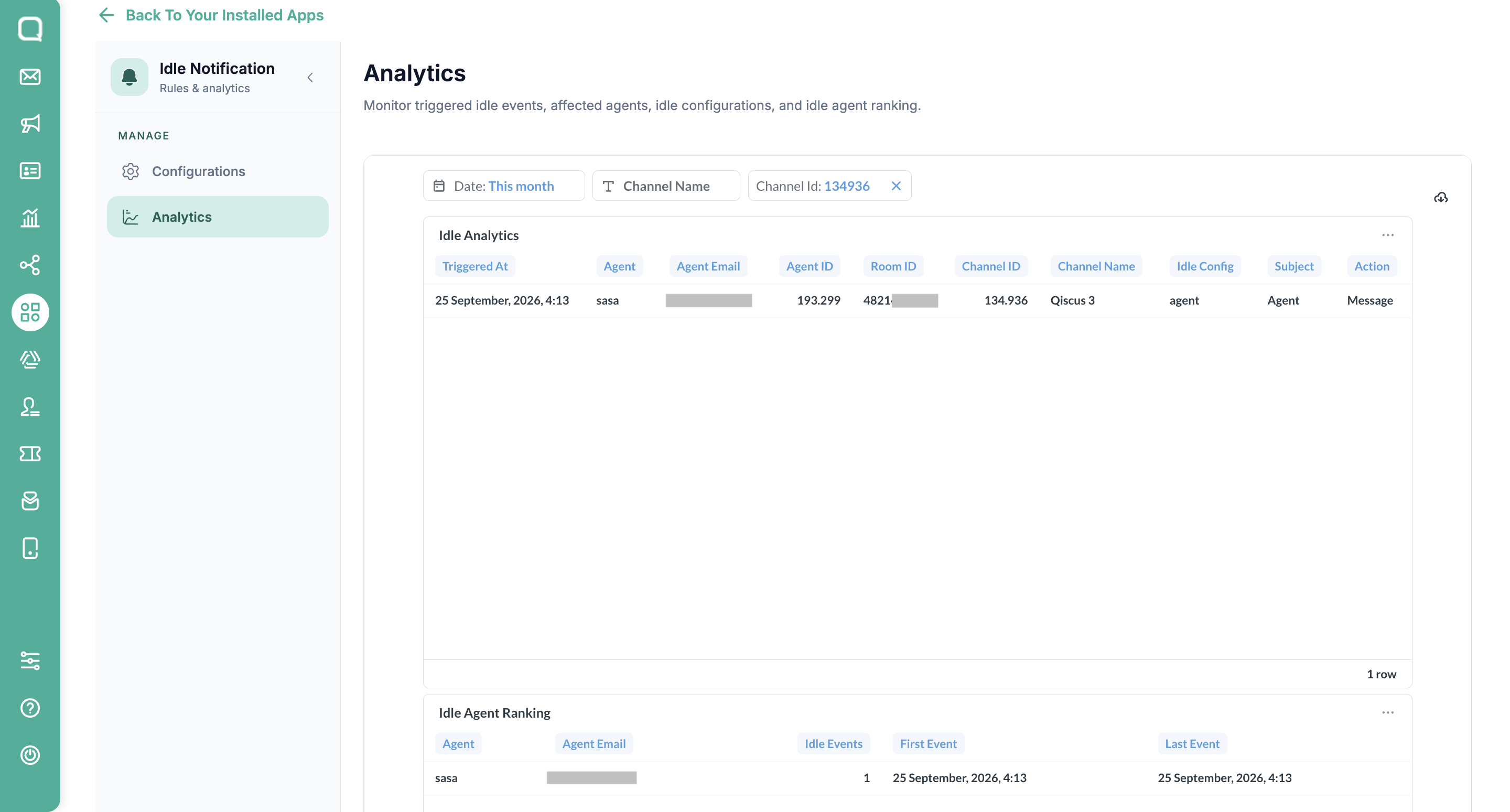
The add-on includes a built-in Analytics view, accessible from the Analytics entry in the add-on sidebar. The page renders a full-width Metabase dashboard that monitors triggered idle events, affected agents, idle configurations, and idle agent ranking — so you can verify that your rules are running correctly and identify which agents are receiving the most idle triggers. The dashboard provides two reports:
Idle event list — one row per idle session, showing the time it triggered, the agent involved, the room, the channel, the configuration used, the subject, and the action taken.
Agent ranking — a leaderboard of agents ordered by how many idle events they received, along with each agent's first and last event date.
Info: Only rooms with an assigned agent are logged. If an idle action fires on a room that has no agent assigned, the action still runs but the event is not recorded — a later fire on the same room can still log the event once an agent joins.
Limitations
Idle duration — minimum 1 minute, maximum 1,440 minutes (24 hours).
The (channel, subject) combination is unique per configuration — two configurations cannot monitor the same subject on the same channel. The Customer Combined subject is also mutually exclusive with Customer Unserved and Customer Served on the same channel. The exception is when each configuration uses Filter by room tags in Include these tags mode to target a different set of tags.
FAQ
Q: What happens if I don't select a channel when creating a configuration?
The configuration cannot be saved. Select at least one channel in the Assign channel field so the system knows which conversations to monitor.
Q: When does the idle timer start?
The starting point depends on the subject. See the When the idle timer starts and resets table in the Subject Types section.
For the Agent subject, the timer only starts after the customer sends a message. If the customer has not sent any message after the configuration is activated, the timer will not run.
Q: Can I apply the same configuration to multiple channels?
Yes. You can select multiple channels for a single configuration. Create separate configurations if you need different policies per channel or department.
Q: Can I create multiple configurations with the same subject on the same channel?
Generally, no. Each channel and subject combination is restricted to a single configuration to prevent conflicts.
The Exception:
You can create multiple configurations for the same channel and subject pair only if you use the Filter by room tags feature in Include these tags mode. By assigning different tags to each configuration, you can successfully route distinct customer segments to different actions.
Q: Who can see the automated messages sent by Idle Notification?
The following applies to message visibility per subject and channel type:
Customer subject — the message appears as a regular chat bubble and is visible to everyone in the conversation.
Agent subject — the message is sent as a system event. On gateway channels (WhatsApp, Instagram, Facebook), the message is not delivered to the customer's app. On the Qiscus Widget channel, the message can be visible to the customer because the widget renders system events.
Agent System Event Message (optional for Customer subjects) — follows the same system event behaviour.
If you use Qiscus Widget and want to ensure internal notes remain visible only to agents, avoid combining the Agent subject with the Message action and avoid filling in the Agent System Event Message field.
Q: What is the difference between Inherit from global settings and Custom schedule for this config?
Inherit from global settings — the configuration follows the App-wide business hours defined in your global settings. Any change to the global settings is reflected automatically.
Custom schedule for this config — the configuration uses a dedicated schedule (days, hours, and timezone) that applies only to this configuration.