
Comment to DM Automation in Qiscus Omnichannel helps businesses respond to Instagram comments automatically. With this feature, admins can create rules that send a public reply, a private direct message (DM), or both whenever a new comment matches the conditions you set.
This feature is built for Instagram accounts that receive a high volume of repetitive comments — for example, questions about price, stock, or promotions — and want to keep responses fast and consistent without relying on agents to reply one by one.
A. Benefits of Using Comment to DM Automation
Comment to DM Automation helps teams handle Instagram comments faster and more consistently by replacing manual replies with rule-based automation. Instead of having agents respond to every comment that asks the same thing, businesses can define rules that respond automatically as soon as a new comment arrives.
With Comment to DM Automation, you can:
Reply to Instagram comments automatically based on the account, the post, or specific keywords
Send a public reply, a private DM, or both from a single rule
Set up multiple reply variations so responses do not feel repetitive
Keep responses running without depending on agent availability
Lower response time on accounts that receive a high volume of comments
Typical examples include sending a thank-you reply on a campaign post and following up with a DM that contains a product link, or auto-responding to comments that mention specific pricing or product keywords during a launch.
B. Setting Up Comment to DM Automation
The Automation menu lives inside the Instagram Comment add-on settings, so it is only available when the add-on has been installed. To open it:
Log in to Qiscus Omnichannel.
From the side navigation, open App Center.
Find the Instagram Comment add-on and make sure it has been installed.
Open the add-on settings by clicking the gear button on the add-on card.
In the add-on side navigation, open the Automation menu.
If no automation has been created yet, the page shows an empty state with a button to create the first one.
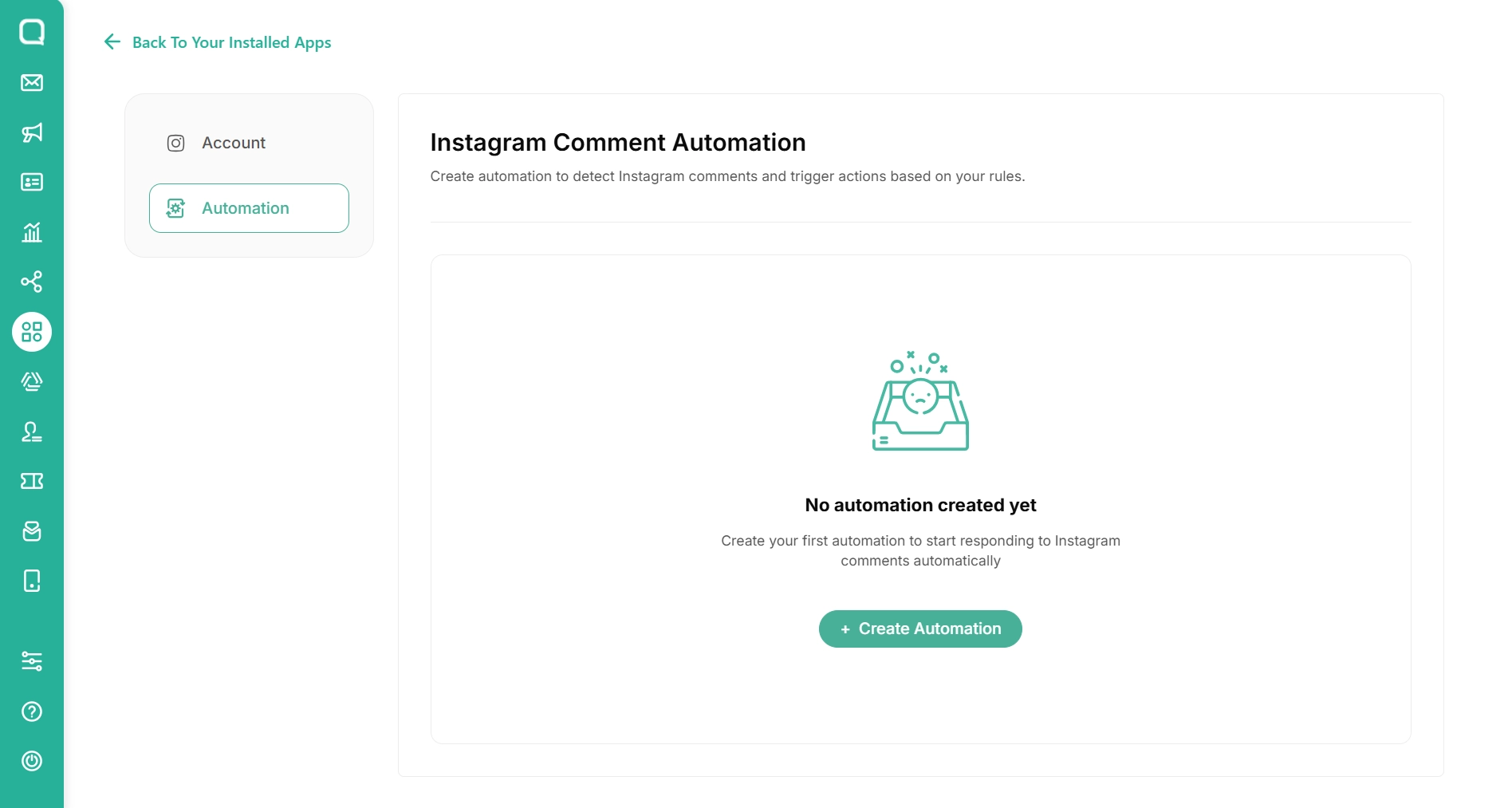
The Instagram Comment add-on provides a two-step setup flow for creating an automation:
Step 1: General Information
Step 1 is used to give the automation an identity that's easy to find later on the list page.
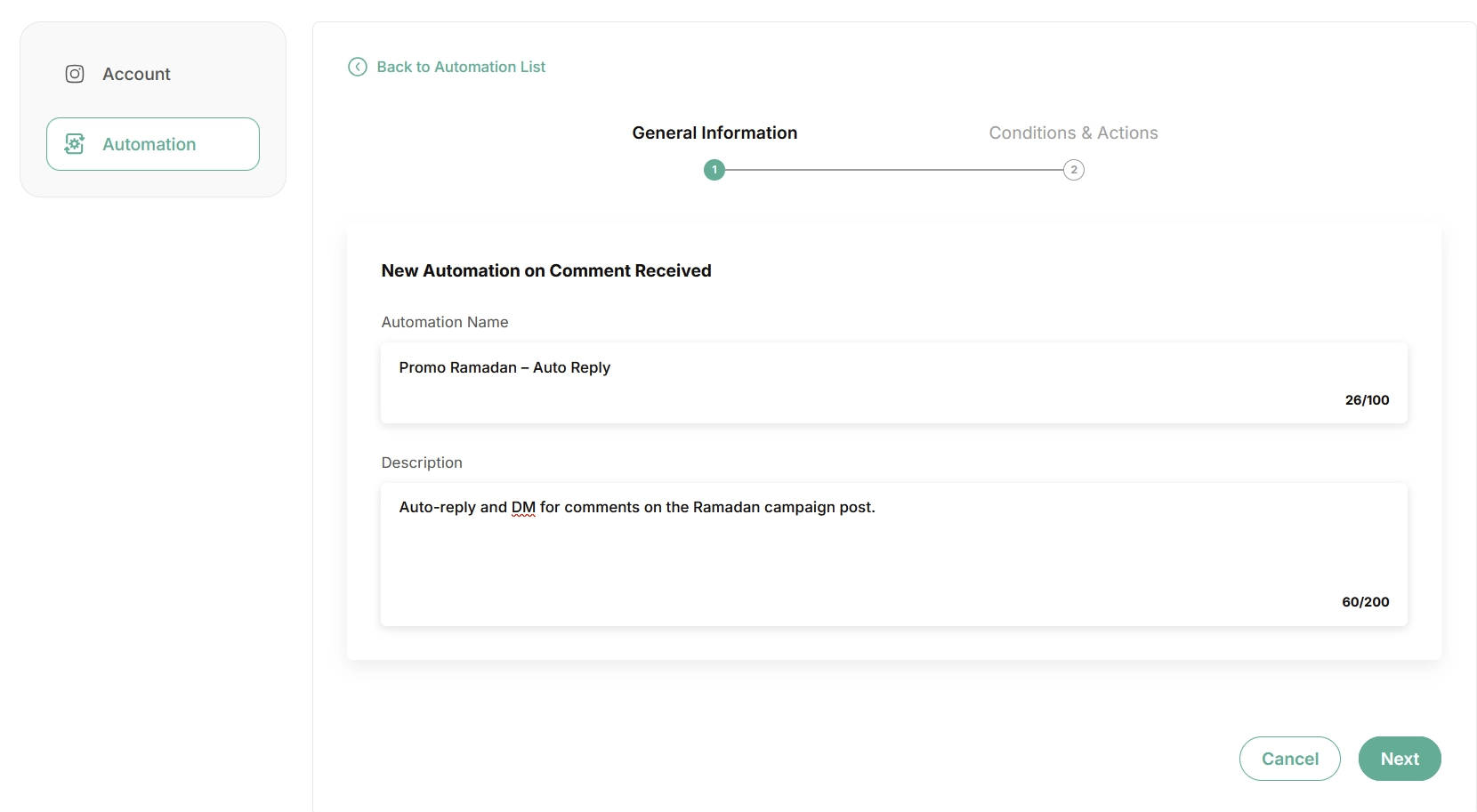
Field | Description |
|---|---|
Automation Name | Required. Up to 100 characters. Used to identify the rule on the list page. |
Description | Required. Up to 200 characters. A short note about the rule's purpose. |
Tip
Use an automation name that reflects the use case, such as the campaign or product the rule covers. This makes it easier to find when you have many automations.
When both fields are filled in, click Next to continue. Click Cancel to return to the automation list. If a required field is empty, the error This field is required appears under the field.
Step 2: Conditions & Actions
Step 2 is used to define when the automation should run and what it should do when it runs.
Conditions
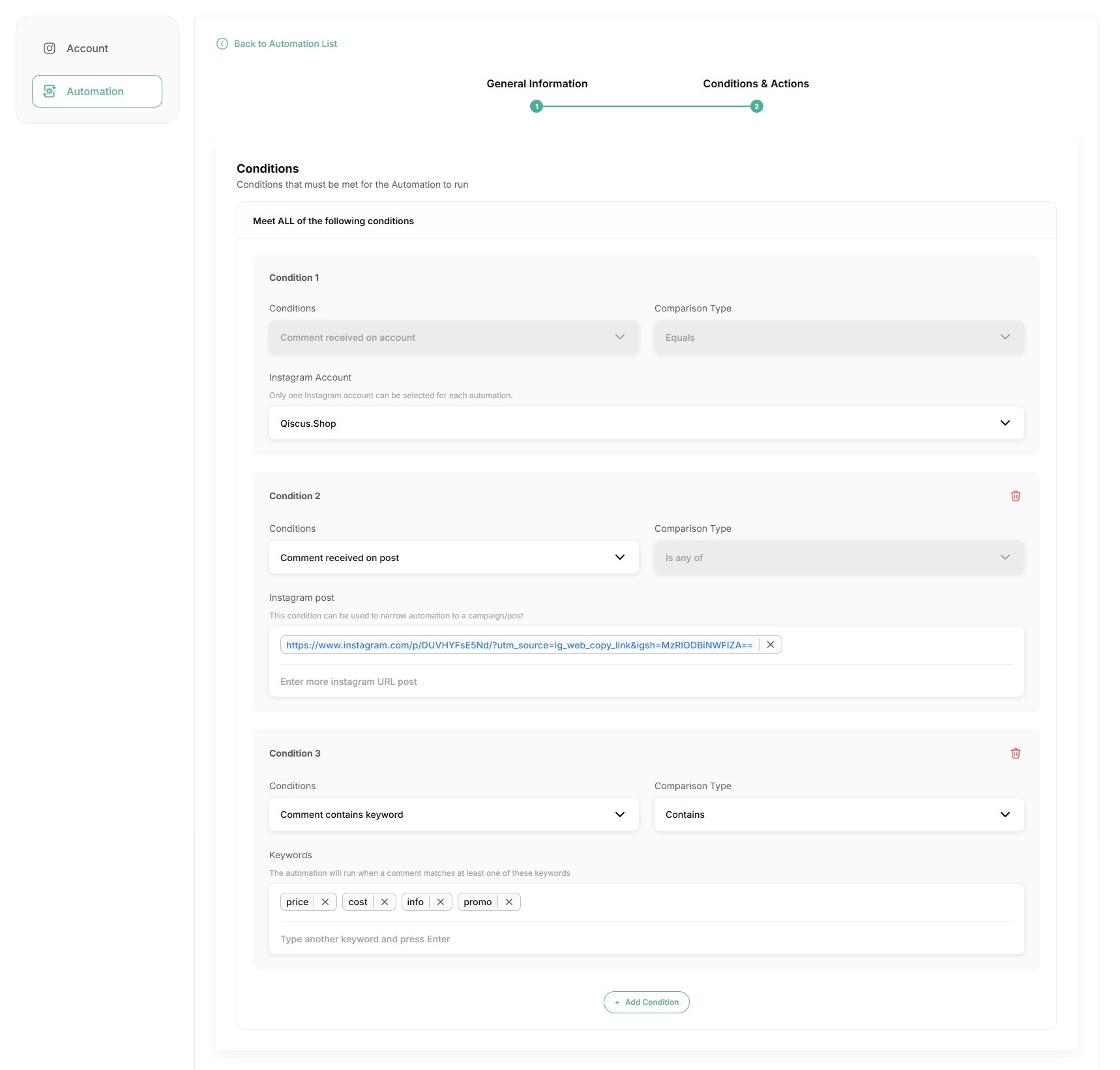
Conditions decide when the automation runs. They follow the rule "Meet ALL of the following conditions" — every condition must match before the automation triggers. Each condition has a Conditions dropdown that picks the type of check, and a Comparison Type dropdown that picks how the check is evaluated.
There are three types of conditions:
Conditions | Comparison Type | Required | How many times it can be added | Purpose |
|---|---|---|---|---|
Comment received on account | Equals | Yes | Once | Selects which connected Instagram account the automation applies to |
Comment received on post | Is any of | No | Once | Limits the automation to one or more specific posts |
Comment contains keyword | Contains | No | Multiple | Limits the automation to comments that match certain keywords |
Comment received on account is the only required condition and cannot be removed. Select one Instagram account from the dropdown — it lists every connected Instagram account by its custom channel name. Only one account can be selected per automation.
Note
Only one Instagram account can be selected for each automation.
Comment received on post is optional. Paste an Instagram post URL into the value field, then click the Add "‹pasted value›" option that appears to add the post as a tag. More than one post can be added. If this condition is not added, the automation runs on every comment received on the selected account.
Comment contains keyword is optional and can be added multiple times. Type one or more keywords — an Add "‹value›" option appears as you type, so each keyword is confirmed before it's added as a tag. Within a single keyword condition, the keywords work as a list of alternatives — the condition is considered true as soon as the comment matches any one of them. If the keyword condition is not added at all, this check is simply skipped, and the automation runs on every comment that meets the other conditions.
Use + Add Condition to add another condition row, and the delete icon to remove an optional condition.
Actions
Actions are what the automation does when all conditions are satisfied. There are two action types, and at least one action must be active before the automation can be saved.
Action Type | Purpose | Character limit |
|---|---|---|
Reply to Instagram Comment | Posts a public reply directly underneath the commenter's comment | 2,000 characters per message |
Send Instagram Private Message | Sends a private DM to the user who left the comment | 1,000 characters (640 with CTA Button — see below) |
Tip
Adding several reply variations helps responses feel more natural and avoids the same text appearing under every comment.
Use + Add Action to add a second action; once both actions are present, the button is hidden. Each action has a delete icon, so any action can be removed — but at least one must remain.
Both actions support the Add placeholder picker (the [x] chip in the bottom-left of the message field), which inserts dynamic variables into the message. The available placeholder is {{commenter.name}}, which is replaced with the commenter's display name when the automation runs. If the name is not available, the variable is replaced with an empty value.
Reply to Instagram Comment
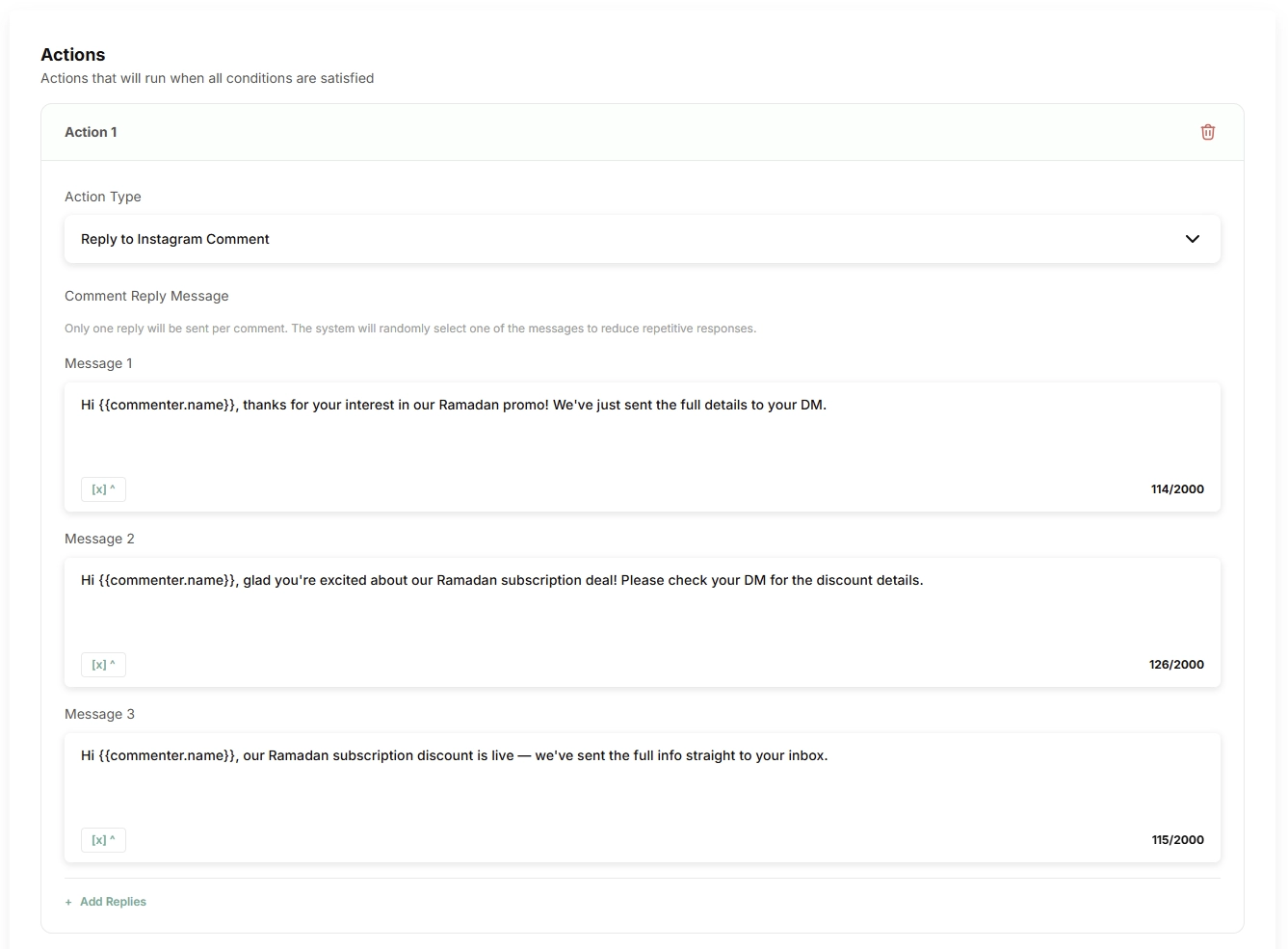
Posts a public reply directly underneath the commenter's comment. The field group is labelled Comment Reply Message with the helper note:
"Only one reply will be sent per comment. The system will randomly select one of the messages to reduce repetitive responses.".
Each reply variation is labelled Message 1, Message 2, and so on, and has its own real-time character counter (up to 2,000 characters).
Use + Add Replies to add another variation. Each variation has its own delete icon, so unwanted variations can be removed.
When the automation runs, the system picks one variation at random.
Send Instagram Private Message
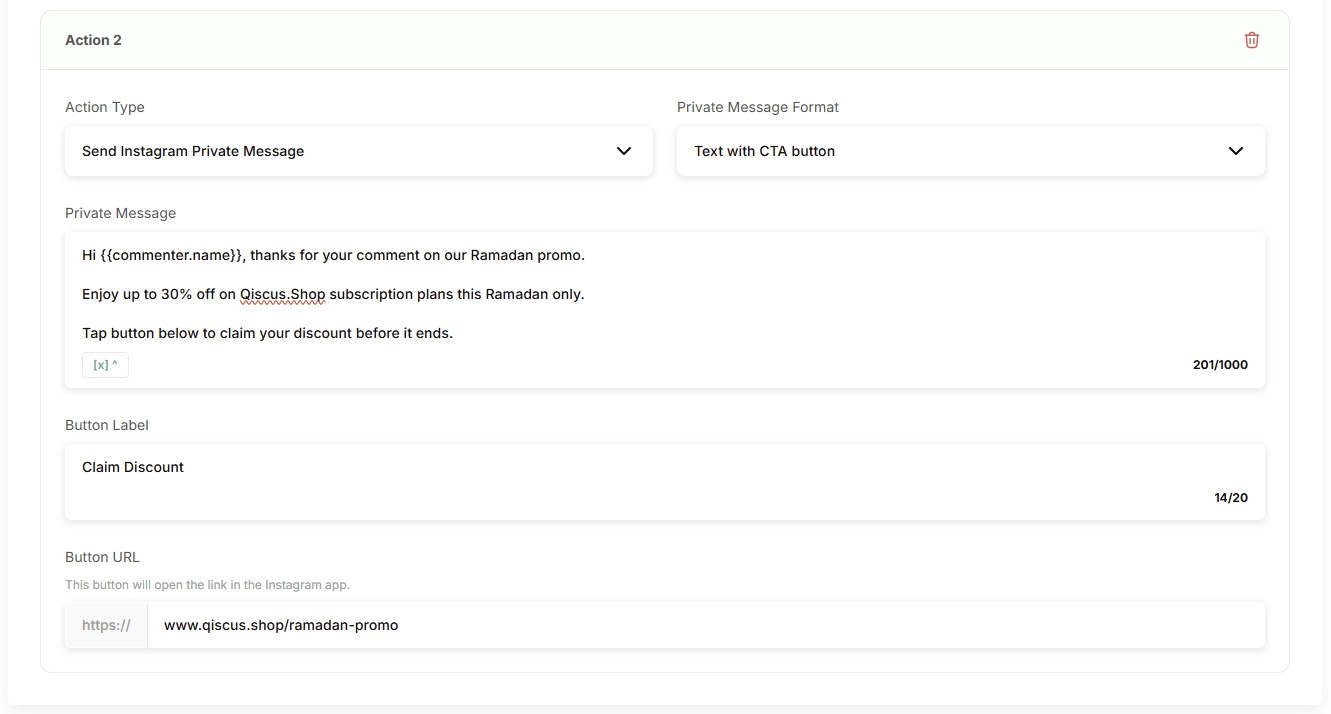
Sends a DM to the user who left the comment and supports the {{commenter.name}} placeholder. The Private Message field has a real-time character counter — up to 1,000 characters for Text only, or up to 640 characters when Text with CTA Button is selected.
The Private Message Format dropdown selects how the DM is delivered:
Format | Description |
|---|---|
Text only | Default. The DM is sent as plain text. |
Text with CTA Button | The DM is sent with 1 to 3 call-to-action buttons beneath the text. |
When Text with CTA Button is selected, a first button is required, and up to 2 more can be added with + Add Button. Each button has:
Field | Description |
|---|---|
Button Label | Required. Up to 20 characters. The text shown on the button. |
Button Link | Required. The destination URL. If the URL is not valid, an error appears: "Invalid URL. (Example: www.yourwebsite.com)"") |
After Step 2 is filled in, click Create to save the automation. Back returns to Step 1.
Warning
An automation only applies to new comments received after activation. It will not run on comments that arrived before the automation was created or activated.
C. Managing Your Automations
The automation list page shows every automation that has been created, along with its account, status, and the time it was last updated. From here, admins can search by name, filter by Instagram account or status, and update any rule when business needs change.
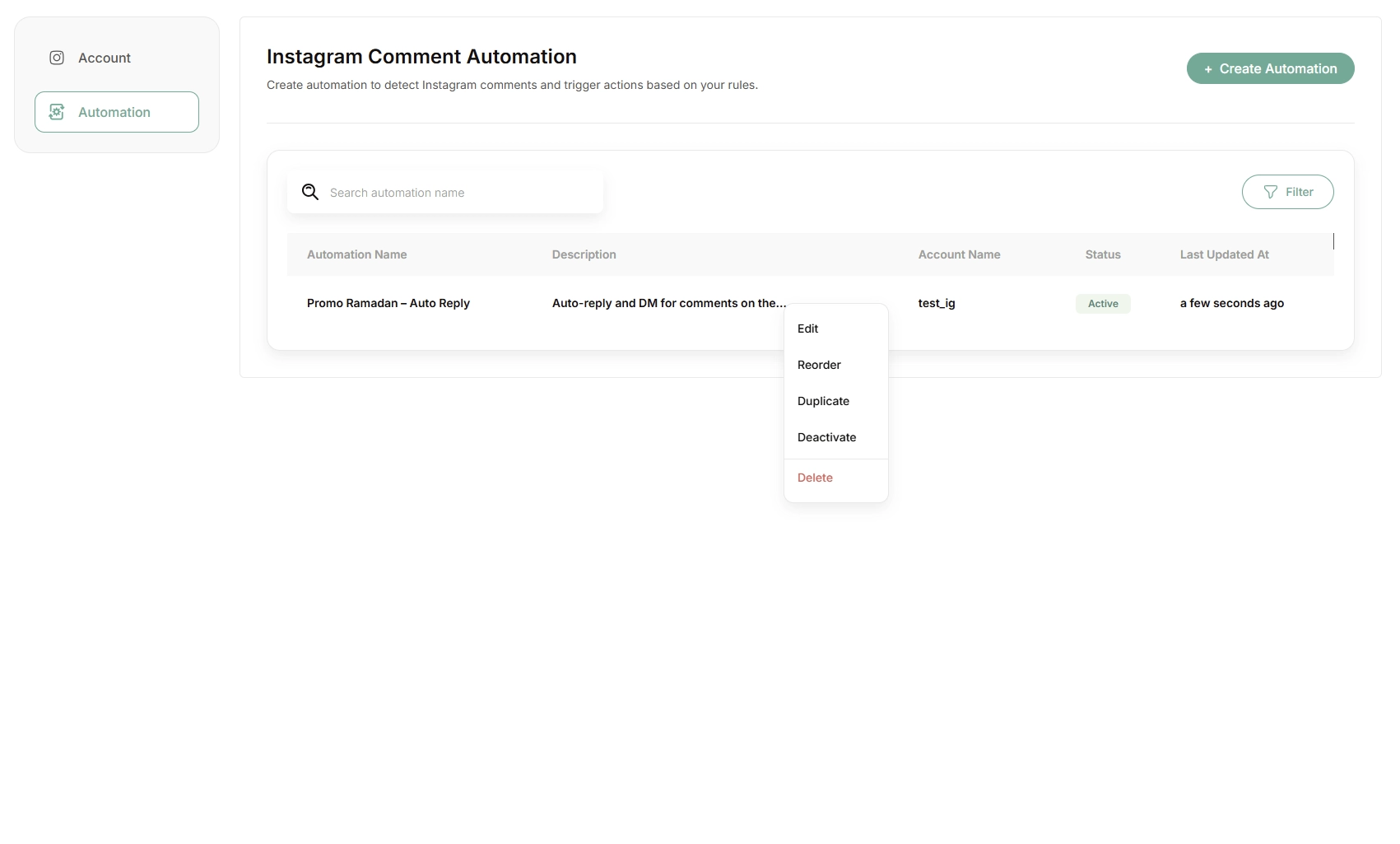
Each automation can be edited, duplicated, turned on or off, reordered, or removed when it is no longer needed. Duplicating is useful for creating similar rules quickly — for example, copying an existing campaign automation and changing only the keywords for a new campaign.
The order of the list also matters: when a single comment matches more than one active automation, only the automation at the top of the list runs. Reordering lets businesses control which rule takes priority.
D. How the Automation Runs
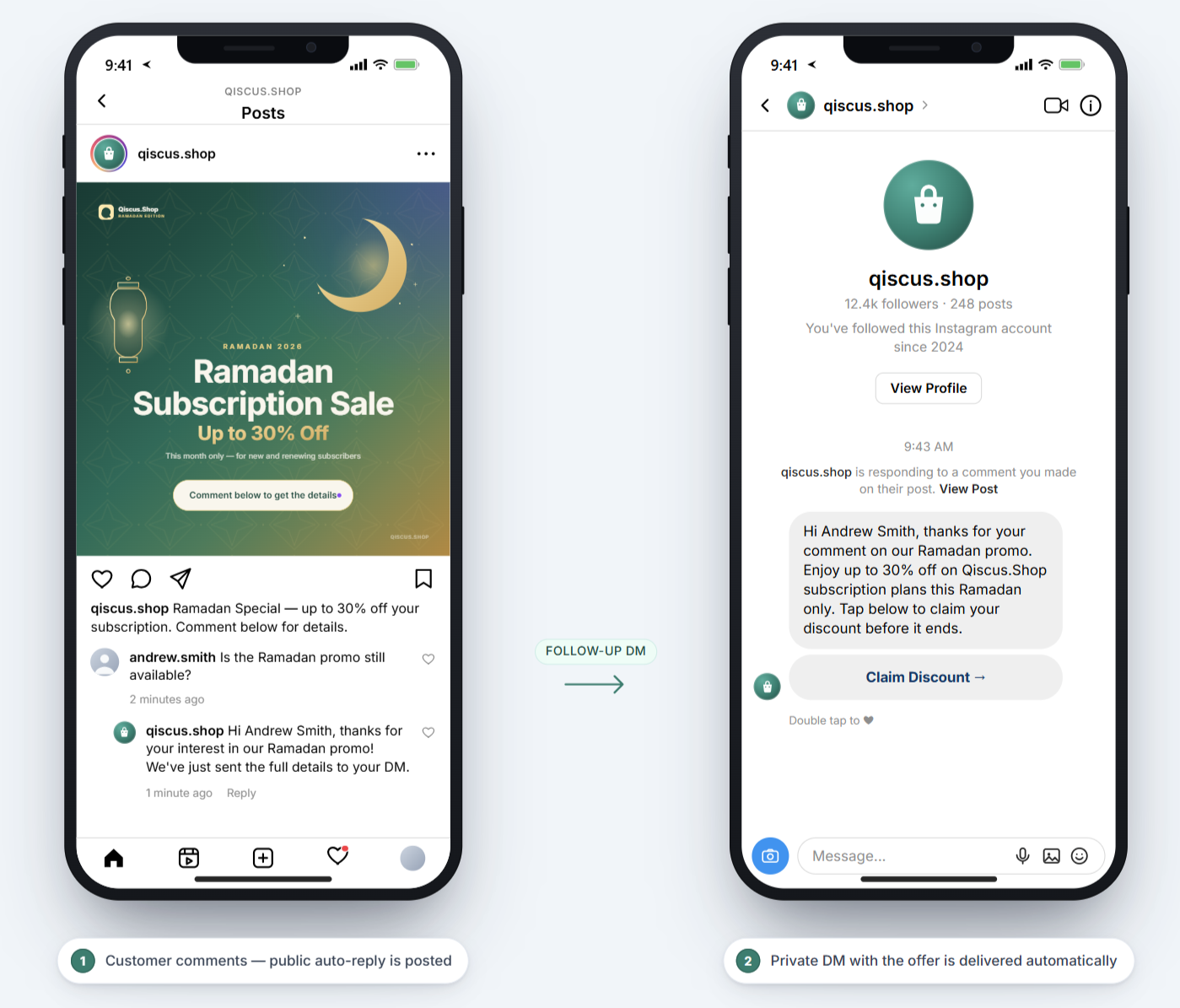
Once an automation is saved and active, it runs in the background whenever a new Instagram comment arrives.
Before any automation is evaluated, the comment first passes through the Filtering Words rules set when the Instagram account was connected. During account integration, admins can define an Inclusion filter (only process comments that match the pattern) or an Exclusion filter (ignore comments that match the pattern). Comments that are filtered out at the account level are not forwarded into Qiscus Omnichannel, so automations only run on comments that have already passed those filters.
Rule | Behavior |
|---|---|
Account-level filter | Comments are checked against the Inclusion or Exclusion filter on the connected account first; filtered-out comments never reach the automation |
Status | Only Active automations process incoming comments |
Timing | Only new comments received after activation are processed; existing comments are not affected |
Priority | If a comment matches more than one active automation, only the automation at the top of the list runs |
When an automation runs:
Reply to Instagram Comment — the system posts one reply at random from the configured variations underneath the commenter's comment. The placeholder
{{commenter.name}}is replaced with the commenter's display name. If the name is not available, the placeholder is replaced with an empty value.Send Instagram Private Message — the system sends a DM to the commenter using the configured message and format. The same
{{commenter.name}}rule applies.
If both actions are active in the same automation, both run for the matching comment.
E. Viewing Automation Activity in Conversations
When an automation runs, a system event is added to the conversation thread for the comment that triggered it. Agents, Supervisors, and Admins can review which automation ran and which actions were executed without leaving the conversation.
The system event format is:
"Automation <automation name> was triggered. Executed: <action summary>"
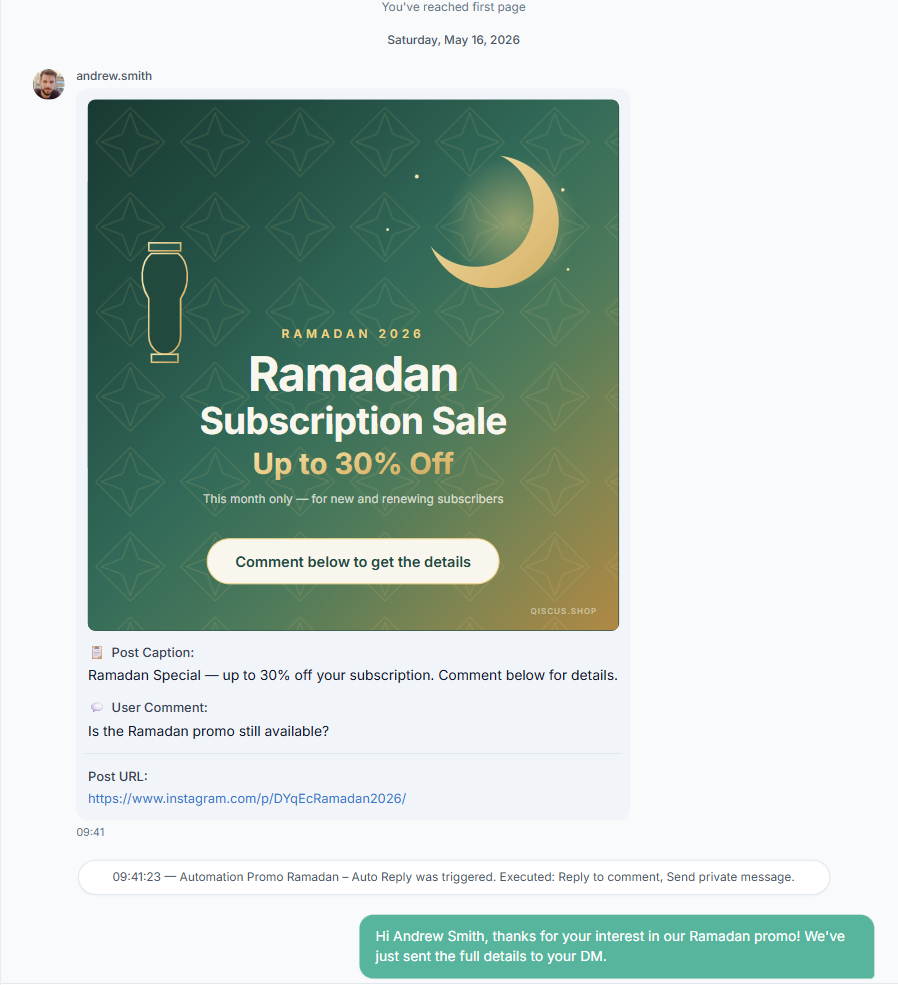
The conversation thread automatically prefixes the event with the time it occurred. The action summary depends on which actions were active in the automation:
Active actions | Summary text |
|---|---|
Reply to Instagram Comment only | Reply to comment |
Send Instagram Private Message only | Send private message |
Both | Reply to comment, Send private message |
Examples of system events:
"08:11 - Automation Promo Ramadan was triggered. Executed: Reply to comment"
"09:42 - Automation IG Acne Campaign was triggered. Executed: Reply to comment, Send private message"
F. Conclusion
Comment to DM Automation gives Instagram-focused teams a structured way to respond to high comment volumes automatically. By combining account, post, and keyword conditions with public reply and private DM actions, businesses can keep their Instagram conversations consistent, quick, and easy to manage — without adding manual workload for agents.