
Overview
Integrating Google Business Review with Qiscus Omnichannel lets you monitor and respond to customer reviews from your Google Business Profile directly from one dashboard. Every new review left on your business listing on Google Search or Google Maps appears as a conversation in Qiscus Omnichannel, so your team can reply promptly without switching between platforms.
Responding to reviews quickly and consistently helps you maintain your business reputation and show customers that their feedback matters.
Info: A Google review consists of a star rating (1–5) and an optional text comment. Replies sent from Qiscus Omnichannel are published as the official owner's reply on your Google Business Profile and are publicly visible. Each review can only have one owner's reply — sending a new reply will replace the previous one.
Key Benefits
Centralized review management — all reviews from your Google Business Account flow into the Omnichannel dashboard alongside your other channels.
Faster response time — reviews are assigned to agents like any other conversation, following your existing agent allocation rules.
Team collaboration — Admin, Supervisor, and Agent roles can view review details (reviewer name, star rating, review text) and coordinate the response.
Multi-location support — reviews from all locations under your Google Business Account are managed in one channel, each labeled with its location.
Built-in analytics — monitor incoming reviews and agent replies from the add-on's Analytics dashboard.
Requirements
Before integrating, make sure you have:
A Google Business Profile for your business location(s).
A Google account that has been invited to the Business Profile (as Owner or Manager). Any account with access to manage the profile can be used to connect.
A verified business listing. Unverified listings cannot read or reply to reviews.
An active Qiscus Omnichannel account with Admin access to the App Center.
Setup Steps
1. Install the Add-On
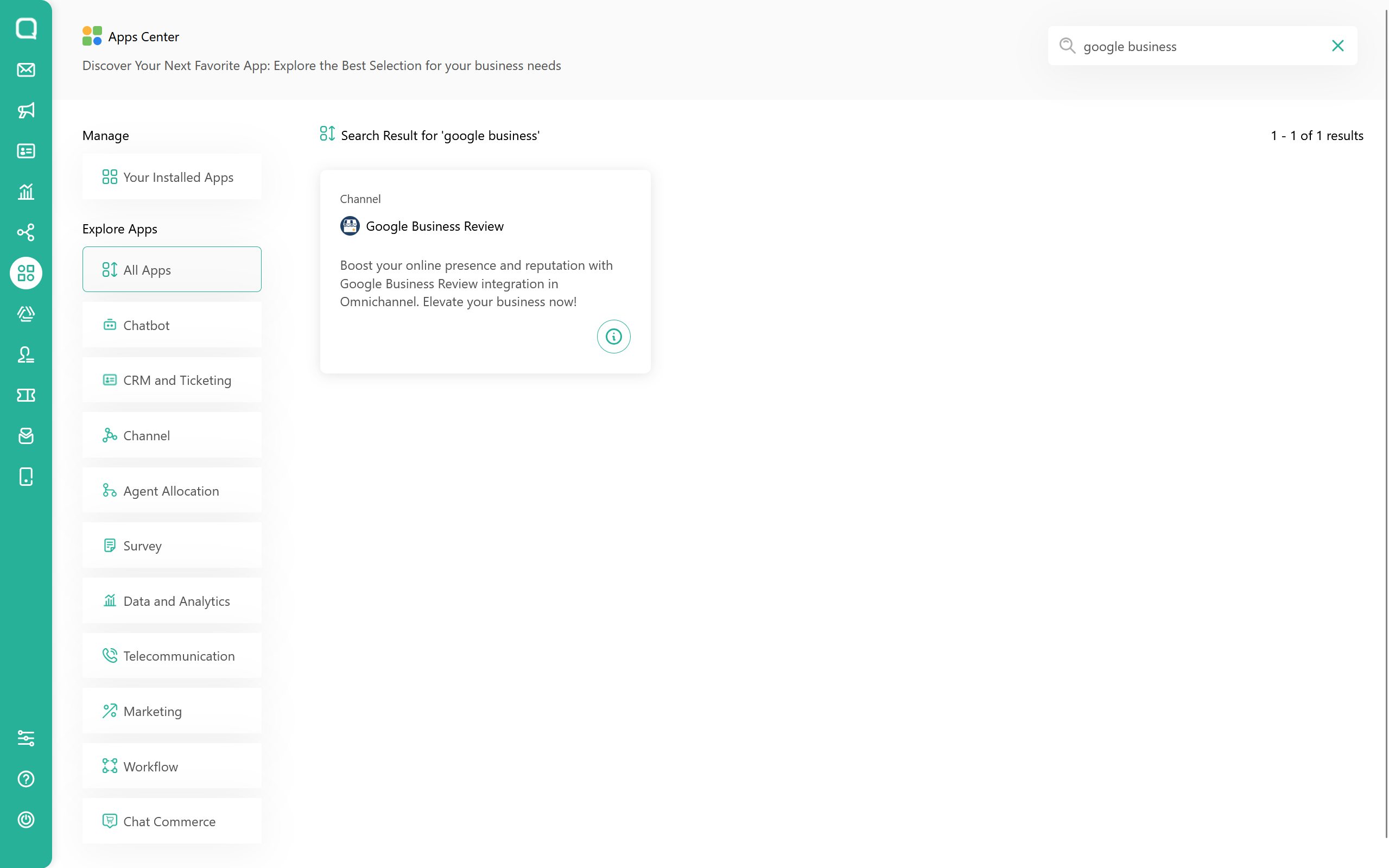
Navigate to the App Center from the sidebar menu, then search for Google Business Review using the search field on the All Apps page.
Open the app detail page and click Install App.
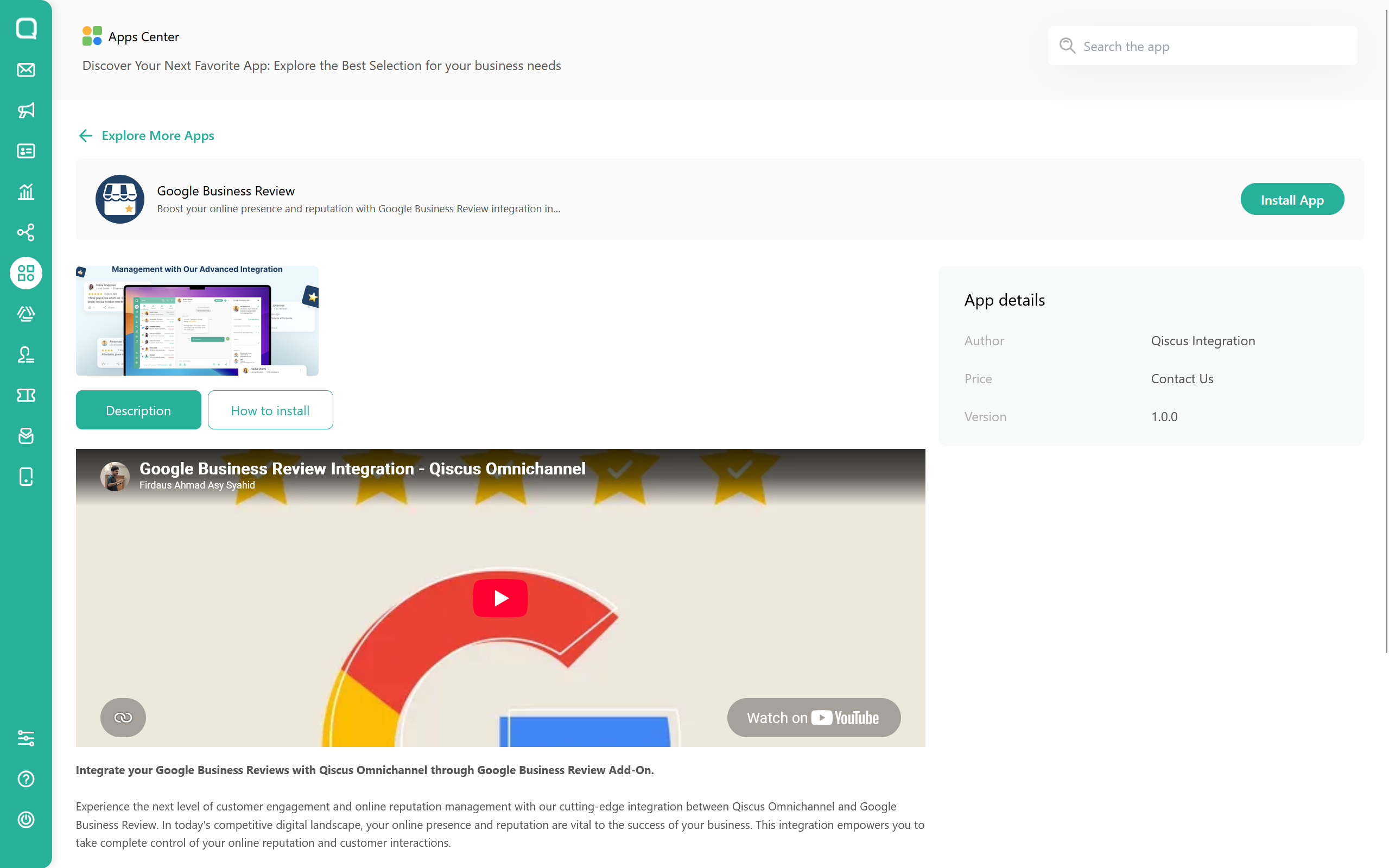
Info: The Google Business Review Add-on requires activation approval from the Qiscus team. After you submit the installation, the add-on will be activated once it is approved. Contact your Qiscus representative for pricing and activation details.
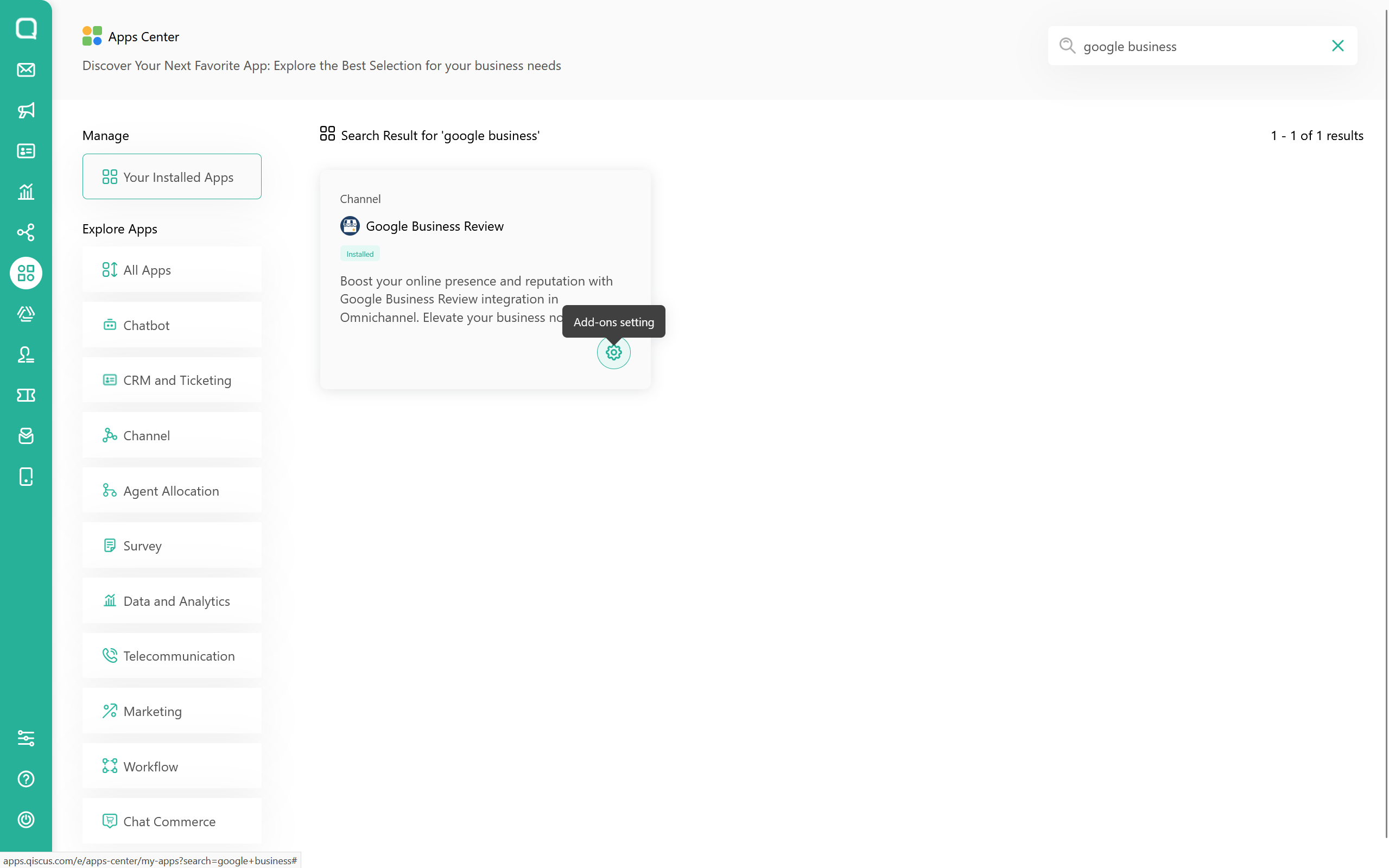
Once approved, the add-on appears in Your Installed Apps with an Installed badge. Click the gear icon (Add-ons setting) to open the configuration page.
2. Add a New Account
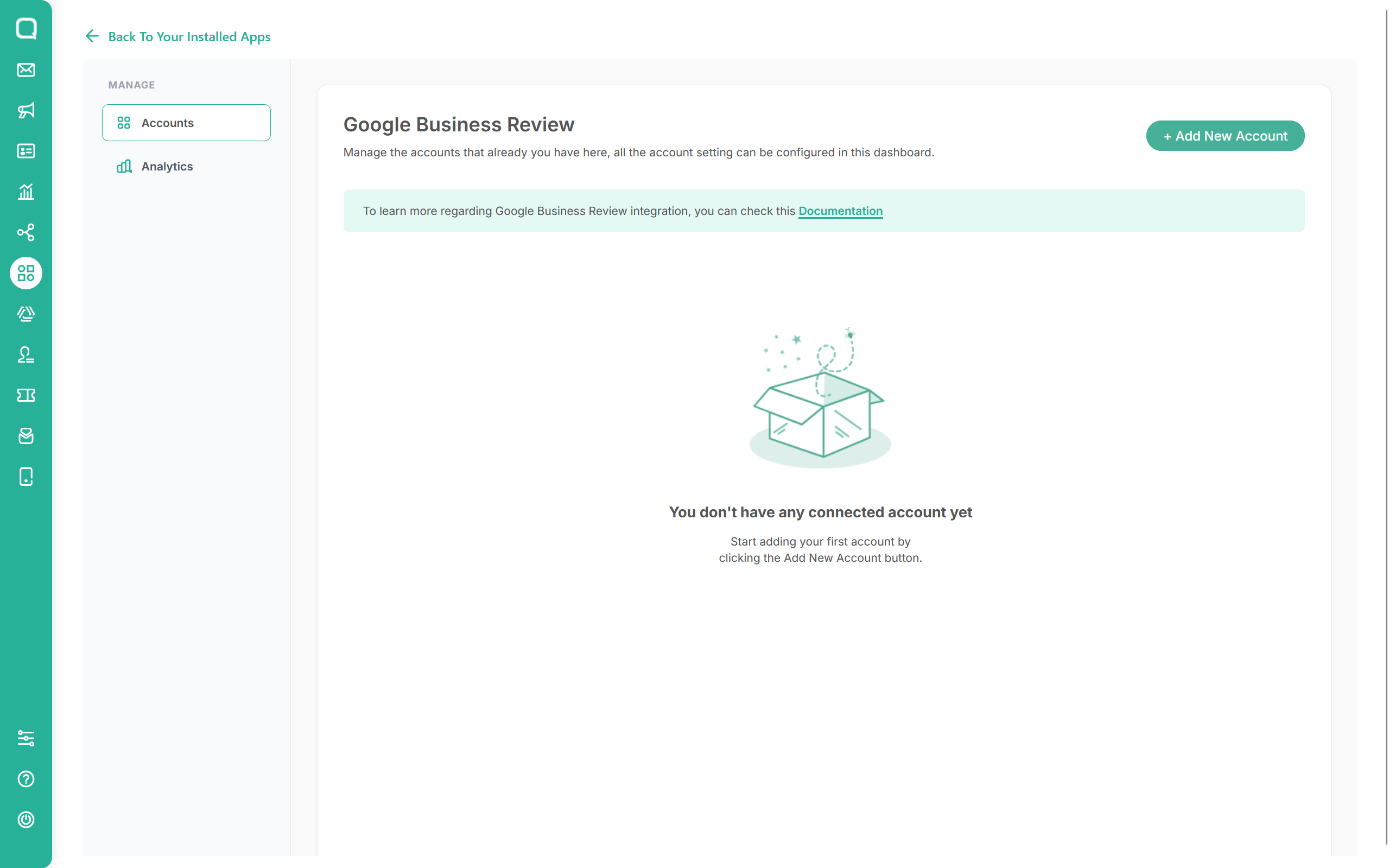
On the Google Business Review settings page, click + Add New Account.
3. Connect Your Google Account
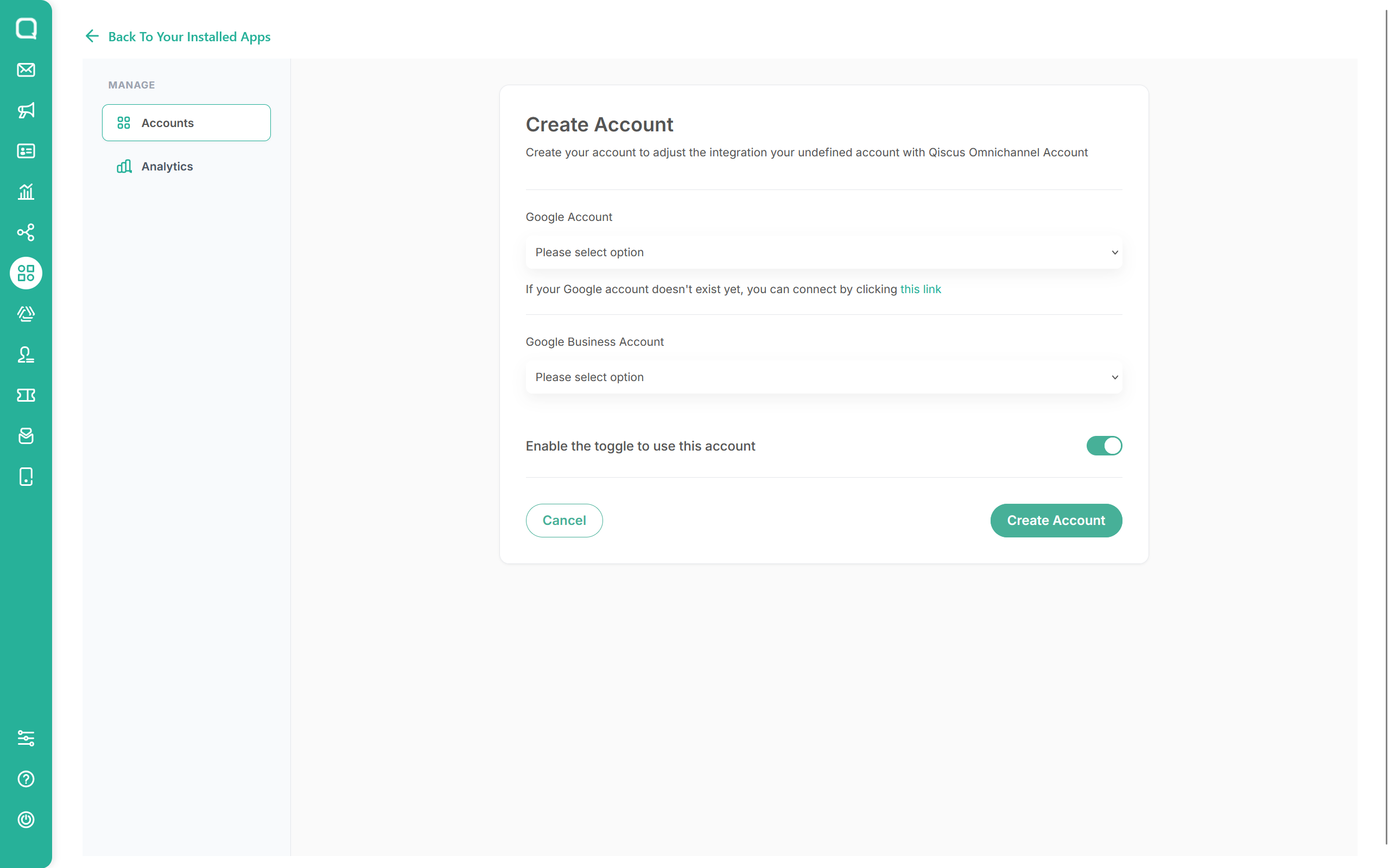
On the Create Account form, if your Google account is not connected yet, click this link under the Google Account field to sign in with Google.
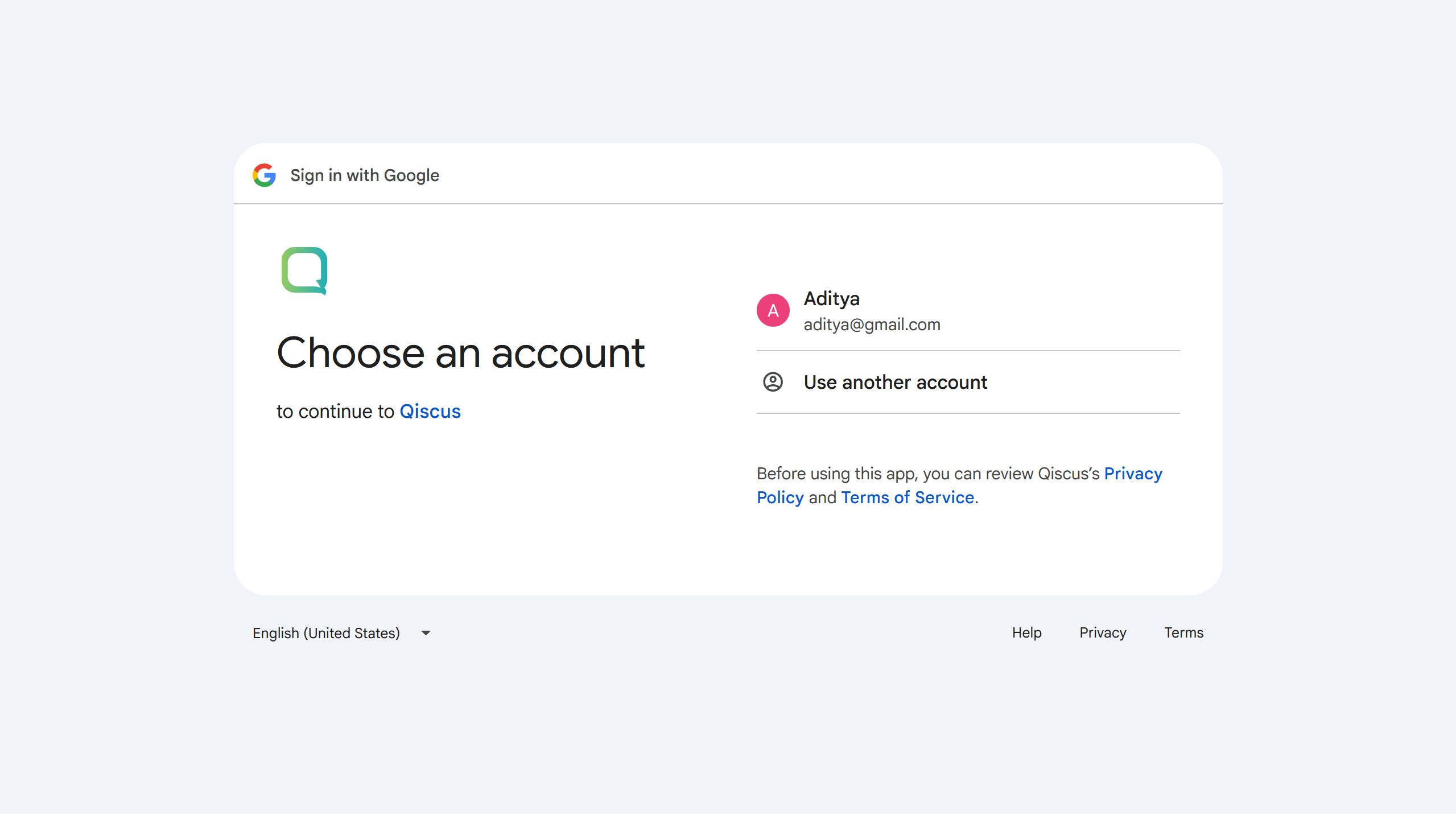
Choose the Google account that is linked to your Google Business Profile.
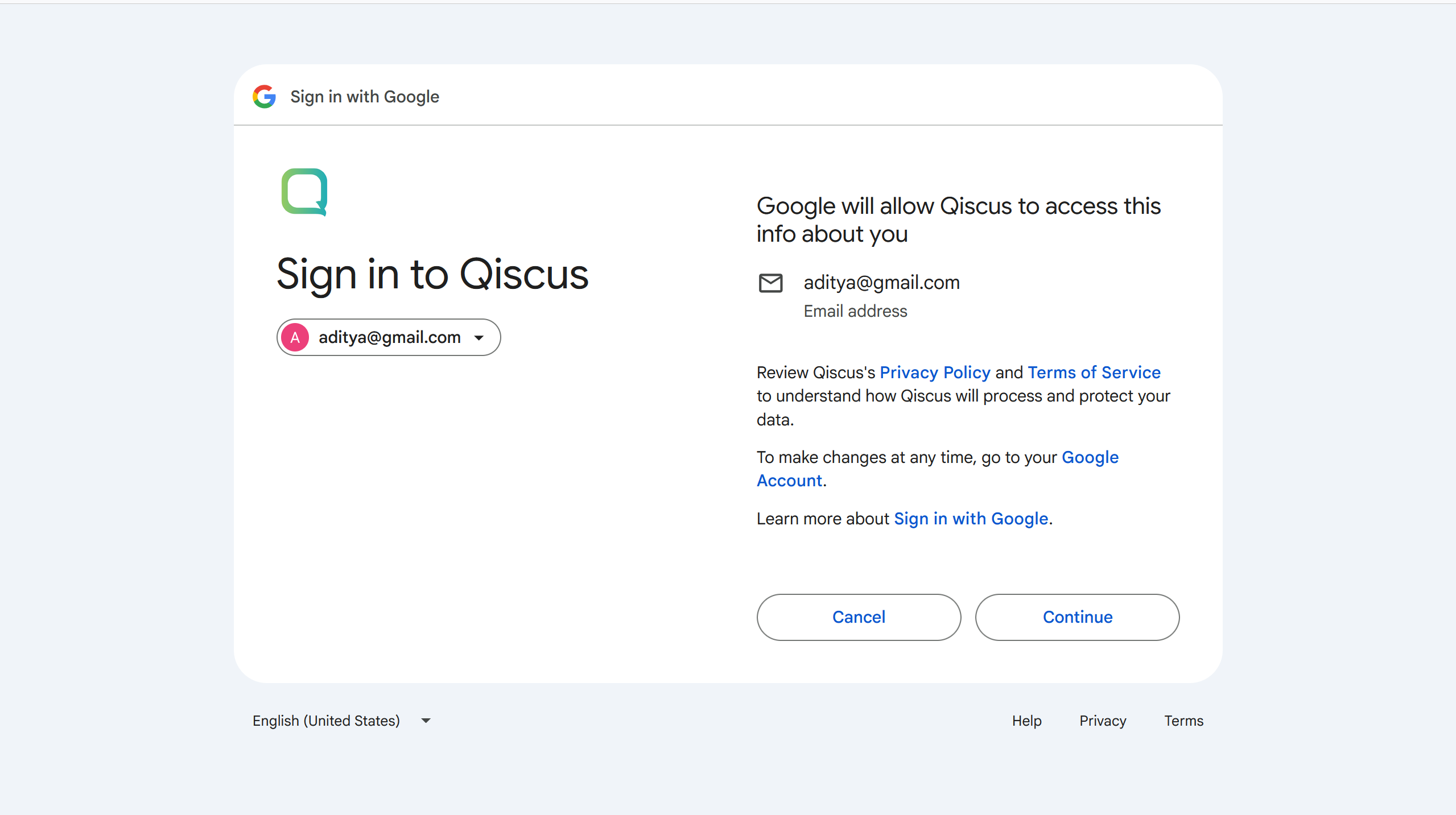
Click Continue to sign in to Qiscus.
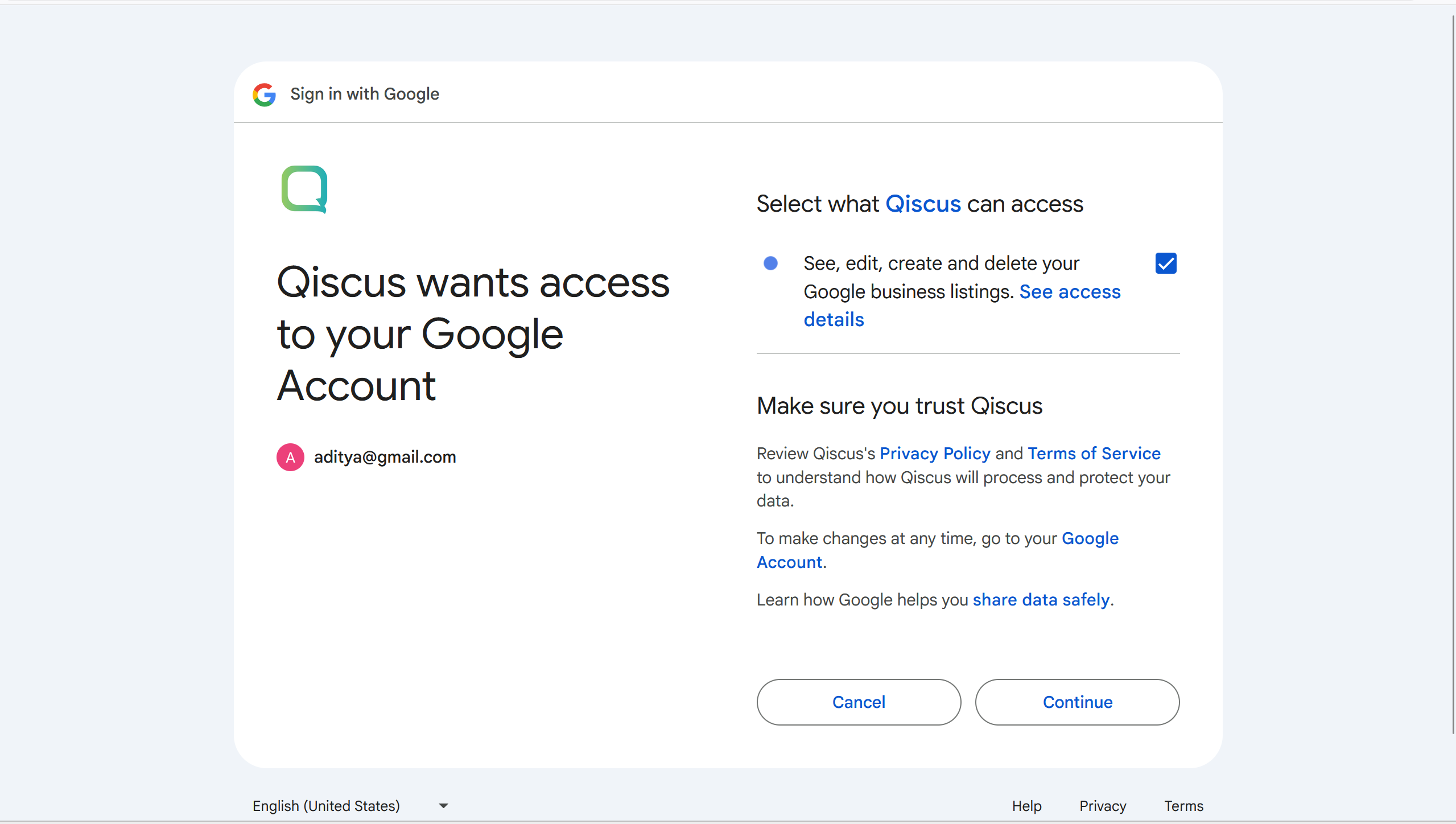
Check the permission "See, edit, create and delete your Google business listings" and click Continue. This permission is required so Qiscus can retrieve your reviews and publish your replies.
4. Create the Account
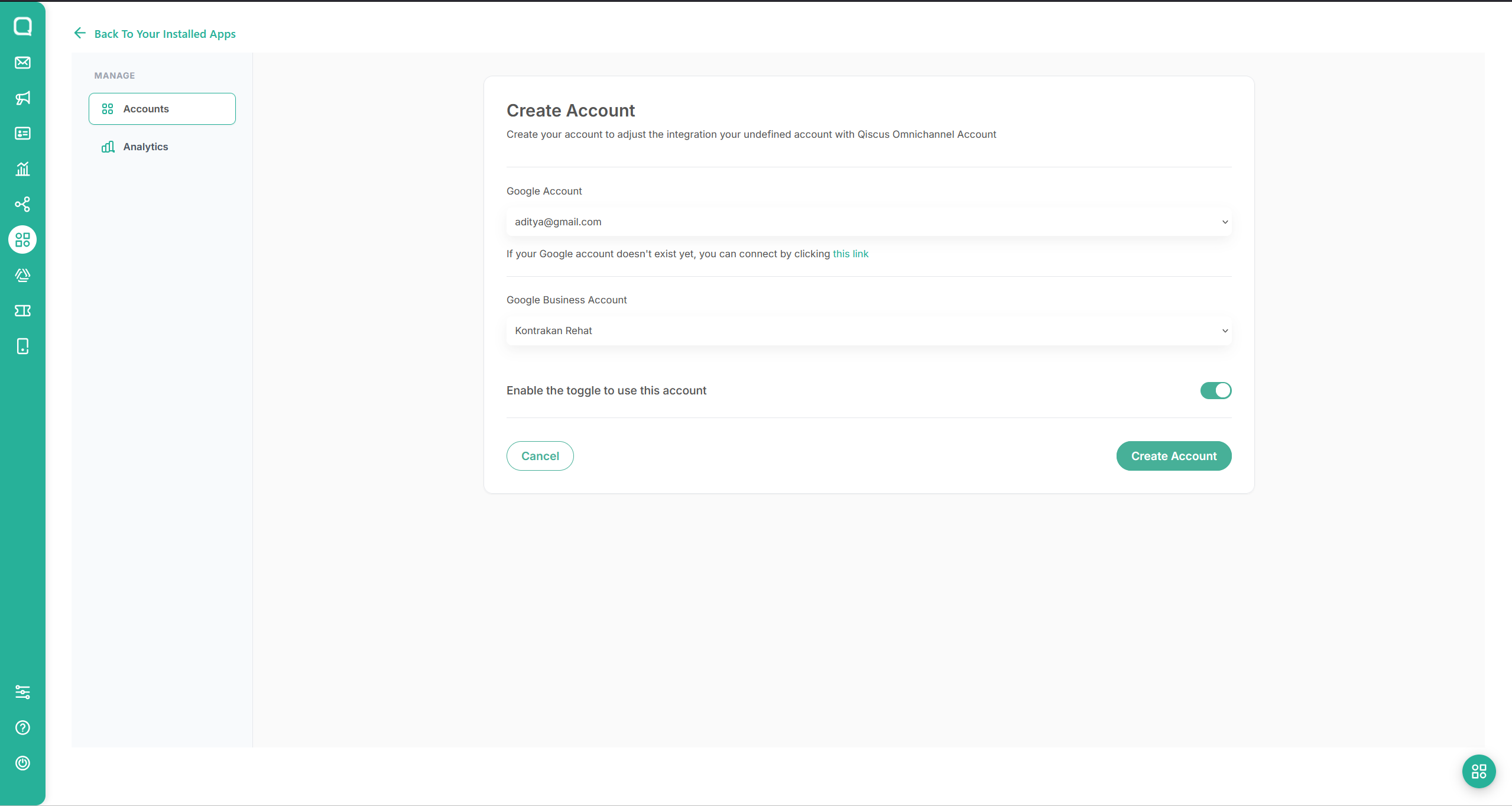
Back on the Create Account form, select your connected Google Account and the Google Business Account you want to integrate.
Make sure Enable the toggle to use this account is turned on, then click Create Account.
Your integration is now ready. The connected account appears on the settings page with an active toggle — reviews from all locations under this Google Business Account will start flowing into Qiscus Omnichannel as a Custom Channel.
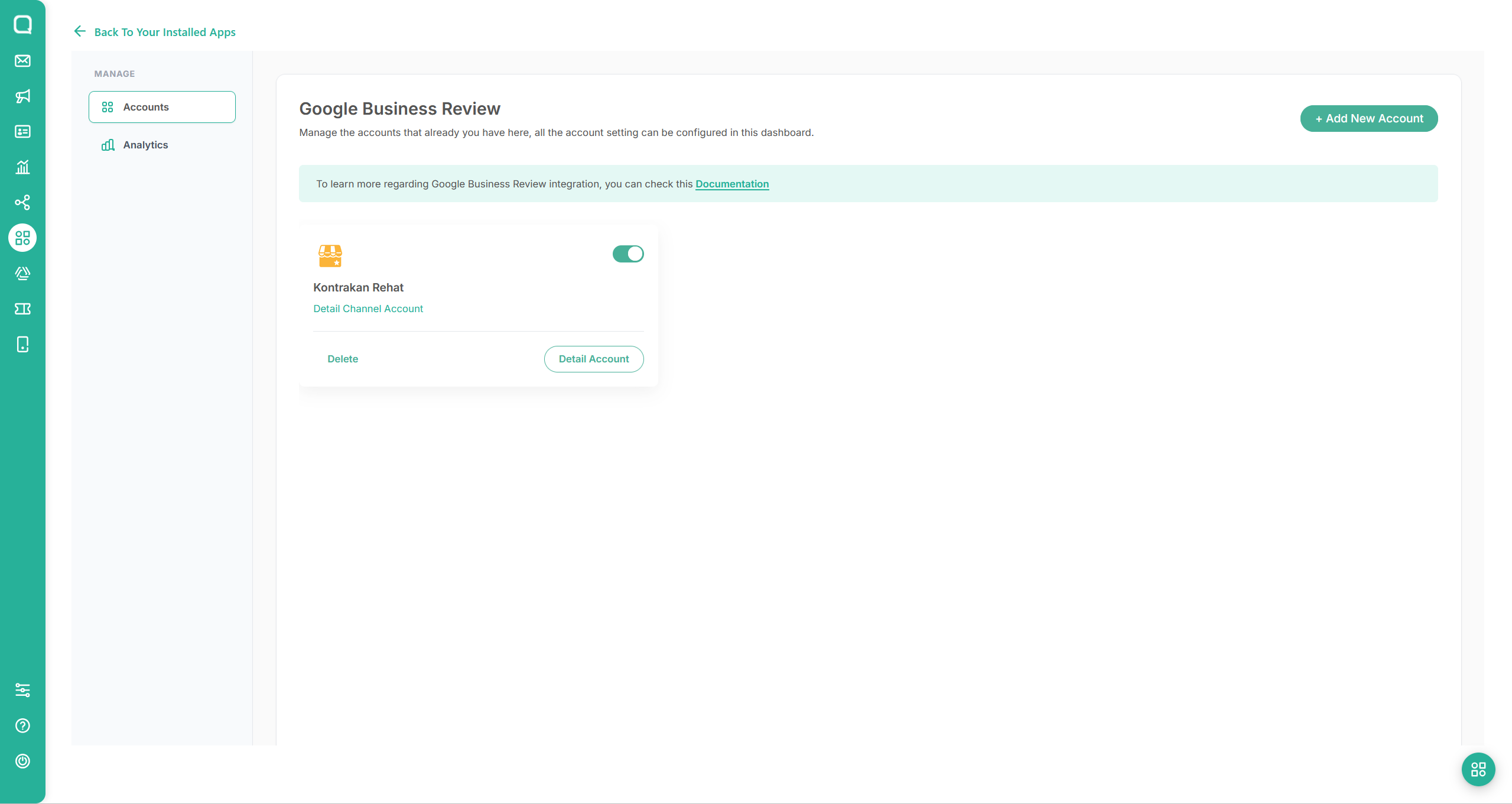
Integration Result
Once connected, new reviews on your Google Business Profile will appear as conversations in the Qiscus Omnichannel Chat menu, under a channel named Custom Channel - Google Review <your account name>.
New reviews are delivered through Google's push notification (Pub/Sub). A review may take a few minutes — in some cases up to 30 minutes — to appear in Omnichannel; this delay comes from the time Google takes to publish the notification event after a review is posted. Once Qiscus receives the event, the review is forwarded to your inbox immediately.
Each review arrives as a message containing:
The reviewer's name and profile photo (if the reviewer's Google account has one).
The star rating (1–5) and the review text.
An automatic translation by Google when the review is written in a different language, marked with (Translated by Google).
The Location name and a Location URL that opens your business listing on Google Maps — useful for identifying which branch the review belongs to when your Google Business Account has multiple locations.
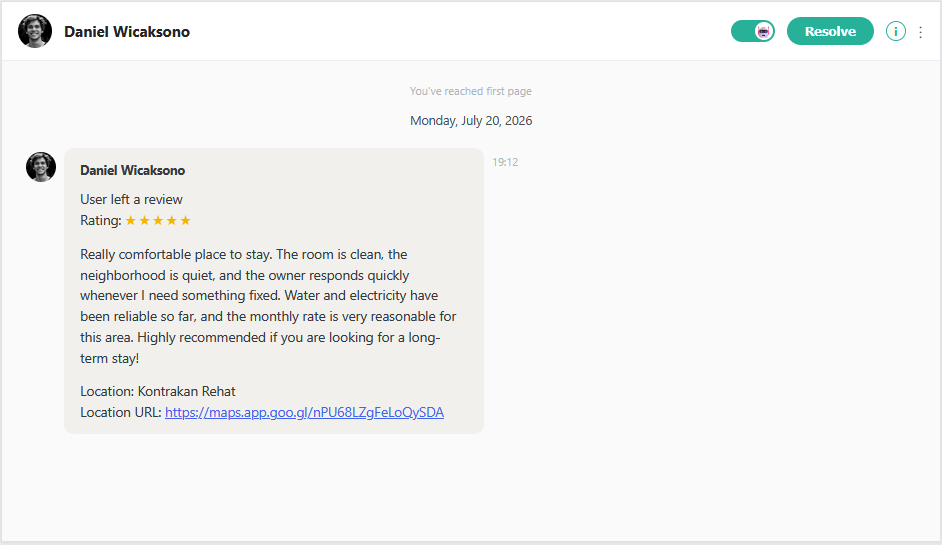
Other behaviors:
Ratings-only reviews (a star rating without any text) are also received, and agents can reply to them just like regular reviews.
If a reviewer updates their review, the update appears as a new "User updated their review" message in the same room — or in a new room if the previous conversation has already been resolved.
Review conversations follow your existing agent allocation and bot handover rules, just like any other channel. You can also set up an autoresponder to reply to incoming reviews automatically.
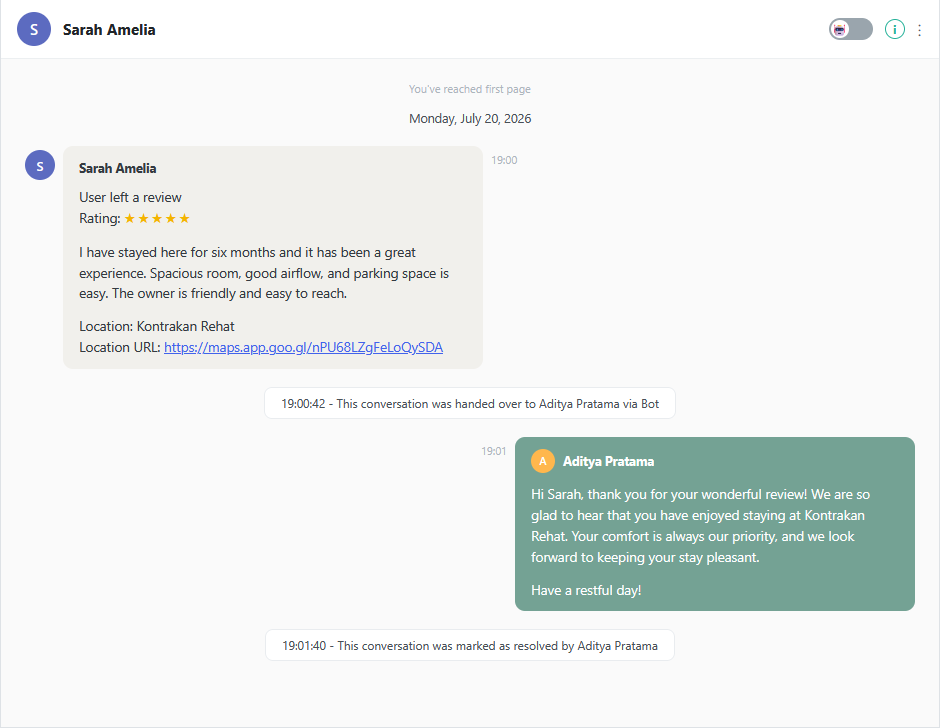
The Omnichannel user (Admin, Supervisor, or Agent) can reply directly from the chat room. The reply is published as the owner's reply on the review in Google and is publicly visible.
Below is an example of a review being replied to by an agent and the conversation marked as resolved:
Analytics
The add-on includes a built-in Analytics dashboard, accessible from the Analytics menu on the add-on settings page. Use the Date filter to narrow the reporting period. The dashboard provides two reports:
List Review — all incoming reviews with their Review ID, Account Name, Created At, Reviewer Name, Rating, review text (Caption), and Location.
List Replies — all replies sent by your team with the Room ID, Channel ID, Review ID, Account Name, Agent Name, Agent Email, the reply content, and Created At.
Supported Message
User Persona | Action | Text | Star Rating | Image | Video |
|---|---|---|---|---|---|
Customer | Review | ✔️ | ✔️ | ❌ | ❌ |
Omnichannel User | Reply to review | ✔️ | — | ❌ | ❌ |
Note:
Google only supports one text reply per review from the business owner. Images, videos, and other media cannot be sent as a reply.
Replies are public and visible to anyone viewing your business listing on Google.
Limitations
Each review supports only one owner's reply. Sending another reply from Omnichannel will replace the existing reply on Google.
Photos attached by reviewers to their review are not delivered to Omnichannel — only the star rating and review text are received. To see attached photos, open your business listing via the Location URL.
Reconnect
Sometimes the Google OAuth token may become invalid (for example, after a password change or permission revocation), requiring you to reconnect your Google account. This can cause failures in delivering your replies or retrieving new reviews. To resolve this:
Open the Google Business Review Add-on settings and click + Add New Account.
On the Create Account form, click this link under the Google Account field to sign in with Google again.
Repeat the sign-in steps as described in Connect Your Google Account: choose your Google account, click Continue, and confirm the business listings permission. Your connection is now renewed.
FAQ
Q: Will my reply be visible to everyone?
A: Yes. Replies sent from Omnichannel are published as the official owner's reply on your Google Business Profile and are publicly visible on Google Search and Google Maps.
Q: Will the reviewer be notified when I reply?
A: Yes. Google notifies the reviewer directly (for example, via email) when the business owner replies to their review, so your response reaches the customer even though the reply is posted publicly.
Q: Can I reply to reviews automatically?
A: Yes. Since reviews arrive as regular conversations, you can use an autoresponder or bot to send an automatic reply. Keep in mind the one-reply-per-review behavior: if an agent later sends a manual reply, it will replace the automatic one on Google.
Q: Can I receive reviews that only contain a star rating without text?
A: Yes. Ratings-only reviews are delivered to Omnichannel, and agents can reply to them just like regular reviews.
Q: Why is a new review not appearing in Omnichannel?
A: Check the following: (1) a review may take a few minutes — in some cases up to 30 minutes — to be delivered, depending on when Google publishes the notification event, (2) the account toggle is on — reviews posted while the toggle is off will not be delivered, and (3) the Google account connection is still valid — if not, follow the Reconnect steps.
Q: Can I integrate more than one business location?
A: Yes. All locations under the Google Business Account you select are integrated into the same channel. Each review message includes the Location name and Location URL, so agents always know which branch the review belongs to.
Q: What happens if the reviewer edits or deletes their review?
A: If the reviewer updates their review, the update appears as a "User updated their review" message in the same room — or in a new room if the previous conversation has already been resolved. Deletions are not synced — the room keeps showing the review as received. If an agent replies to a review that has already been deleted, the reply fails and a system message informs the agent that the user has deleted their review.
Q: Why does the review appear in a different language?
A: When a review is written in a language different from your listing's, Google provides an automatic translation, which is included in the message and marked with (Translated by Google). The original text is always shown as well.