
'WhatsApp Call is a feature that allows businesses to receive and make WhatsApp voice calls directly through Qiscus Omnichannel Chat. With this feature, businesses can communicate not only through text messages but also via voice calls, enhancing the customer experience and supporting faster and more effective communication.
Benefits of the WhatsApp Call Feature
Ease of communication: Allows businesses to speak directly with customers.
Improved agent efficiency: Agents can handle calls according to their available capacity.
Better call management: Call logs help businesses manage calls more effectively.
Customer privacy protection: Calls can only be made with the customer's consent.
Target Users
This feature is designed to be used by various roles in a business:
Admin: Manages feature settings and agent management.
Supervisor (SPV): Oversee call activities and ensure smooth operations.
Agent: Send an interactive WhatsApp call message and makes calls with customers during customer service window.
WhatsApp Call Features
User Initiated Call
When a customer calls via WhatsApp, the system will search for an available agent and send a User Initiated Call notification. The agent who answers the call can directly interact with the customer through the call window in Qiscus Omnichannel Chat. During the call, the agent can manage the conversation, mute the microphone, or end the call as needed. If no agent is available, the system will automatically decline the call and send an autoresponder message to the customer. Learn more.
To receive incoming user-initiated WhatsApp voice calls from customers, agents must stay in the Inbox tab or keep the Inbox open and active.
WhatsApp Calls are currently limited to a maximum of 30 minutes per call.
The system gives priority to the eligible WAC agent assigned in the room when routing user-initiated calls.
Business Initiated Call
Agents can make business initiated calls to customers after obtaining permission through an interactive WhatsApp message. If the customer agrees, the agent can initiate the call directly from Qiscus Omnichannel Chat. During the call, the agent can manage the conversation, mute the microphone, or end the call as needed.
User Initiated Call - Handle by bot and handover to agent
The bot call feature lets businesses automate how user-initiated WhatsApp calls are handled. Instead of routing a call directly to a human agent, the system sends it to a bot first. The bot can answer the call and hand it over to a live agent when needed.
This is useful when:
Initial screening is needed: The bot handles the call first and routes it to the right team.
Agents are unavailable: The bot can hold the call and notify the customer while waiting for a handoverable agent.
24/7 coverage is required: Calls outside business hours can still be answered by the bot before escalating.
The bot call feature requires developer setup. Your technical team will need to register a webhook URL and integrate with the WAC Bot API before this feature is active. Please follow WhatsApp Call Bot API Configuration section for the setup steps.
Managing a Connected Call
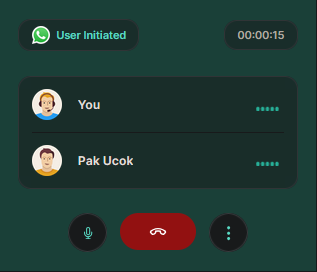
During a call, agents can perform several actions:
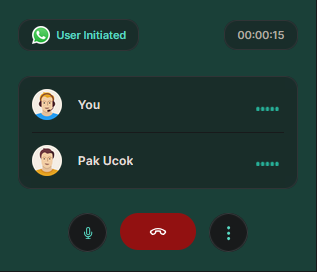
View the call duration while the conversation is ongoing.
Use the mute/unmute feature to control audio.
Select connected microphone device.
End the call if necessary.
Call History Tracking
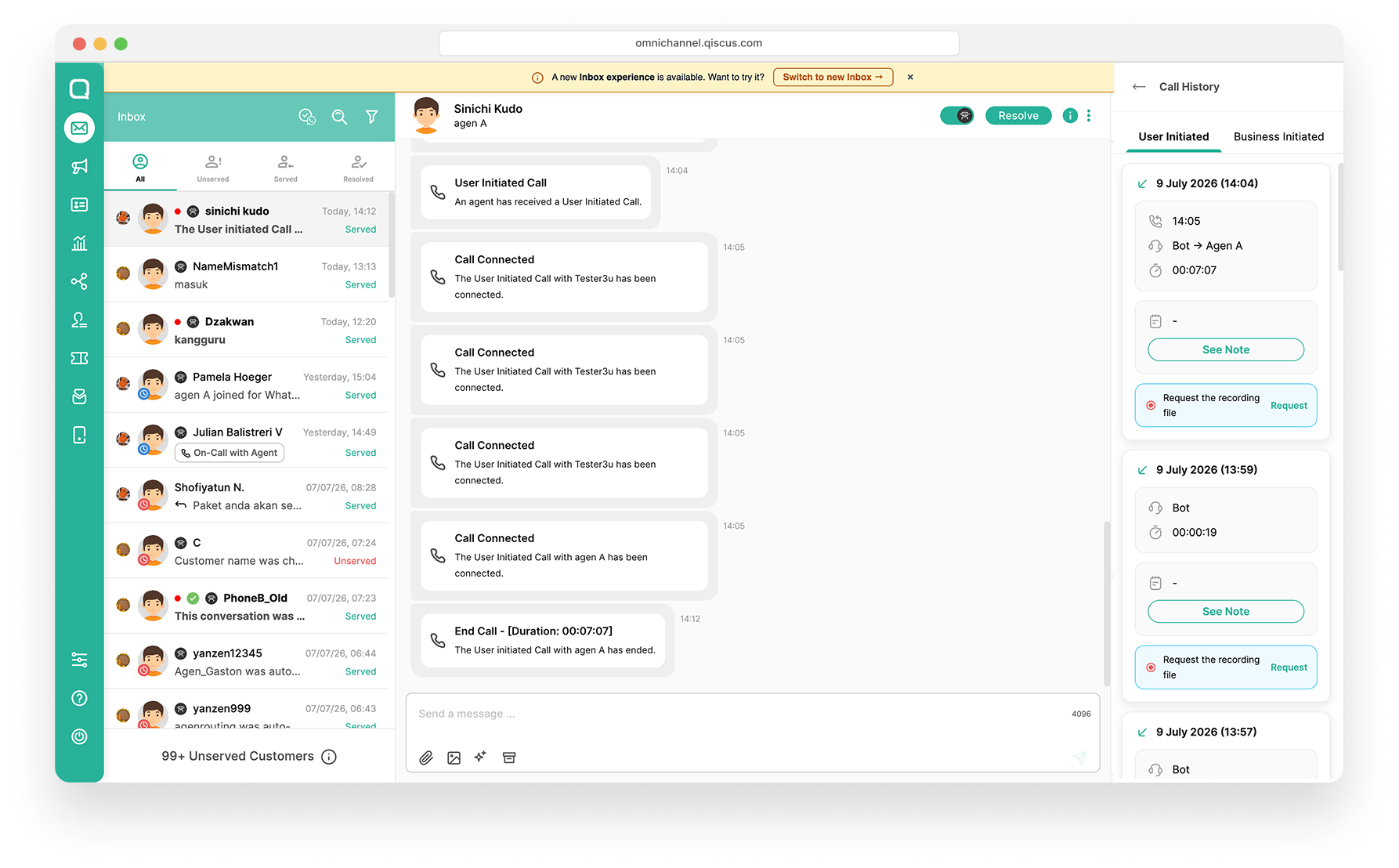
Admins and supervisors can monitor call activities comprehensively. All calls, including received, missed, and declined calls, are recorded in the system log. The call history includes the following information:
Call duration
Call status
calling = The call has been initiated and is currently ringing on the agent or customer side.
on call = The call is active and in progress between the customer and the agent.
completed = The call was successfully connected and ended.
rejected = The call was rejected by customer or agent.
outside office hour = The call was rejected due received outside the configured business/office hours.
all agents busy = The call was rejected due no available agents, every agent is already handling an active call.
all agents offline = The call was rejected due All assigned agents are offline.
not answered or missed call = The call rang until timeout (no agent or customer answered within the allowed ringing duration).
The agent handling the call
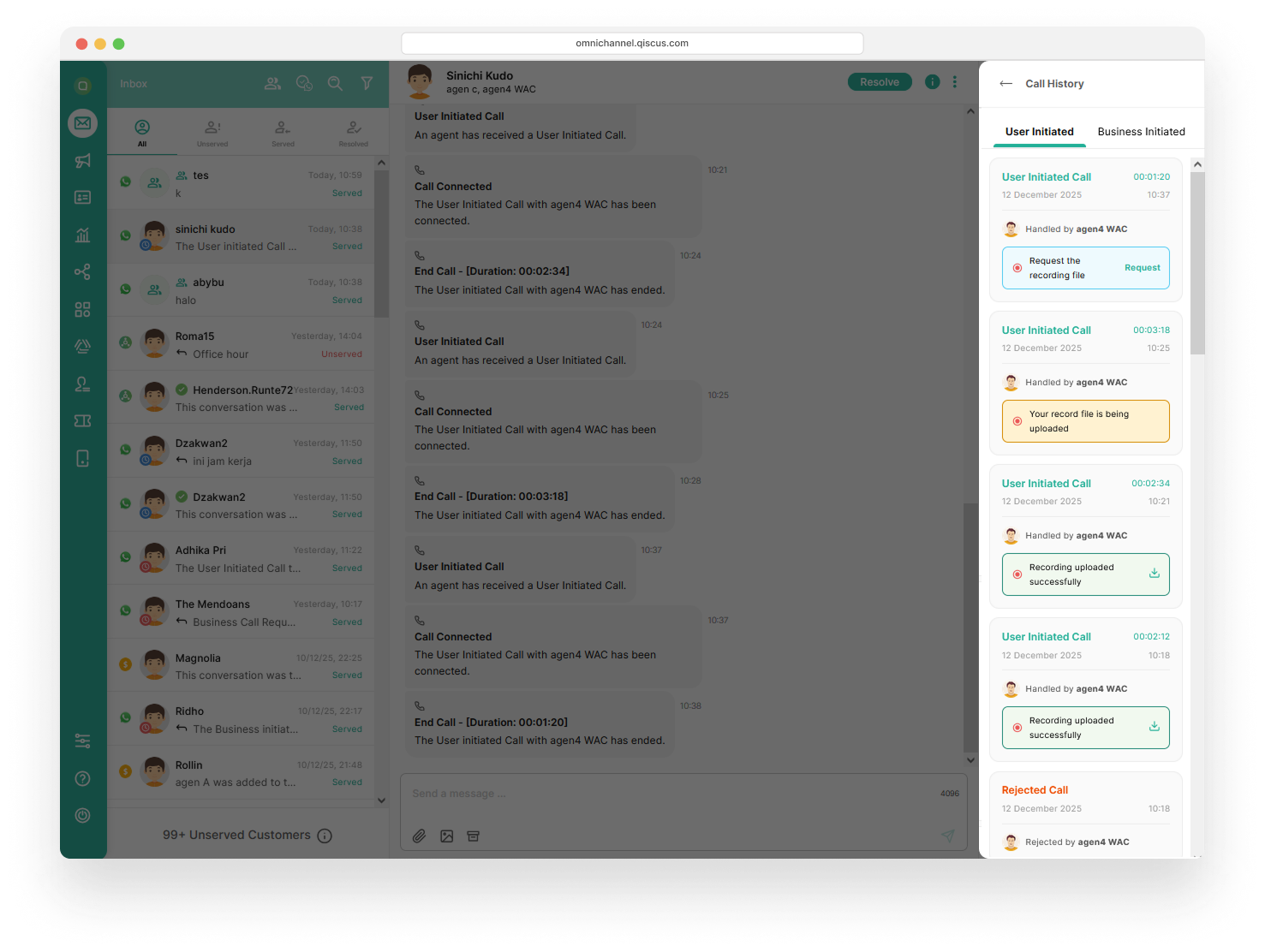
You can view the call history in the Chat & Customer Info panel by clicking Call History, where a complete list of call activities is displayed.
Add Call Note
Call Notes help you capture and keep track of important information discussed during customer calls. Whether you need to record follow-up actions, customer requests, or key conversation points, Call Notes make it easier to keep your team aligned and maintain a complete call history.
To use the Call Notes feature, implement the required API endpoints provided below.
Endpoint: POST {call_url}/api/call_notes/
call_id(string, required) = wacid of the callauthor_id(integer, required) = ID of the agent or bot writing the notebody(string, required) = note content (minimum 1 character)
The following is an example of how call notes are displayed.
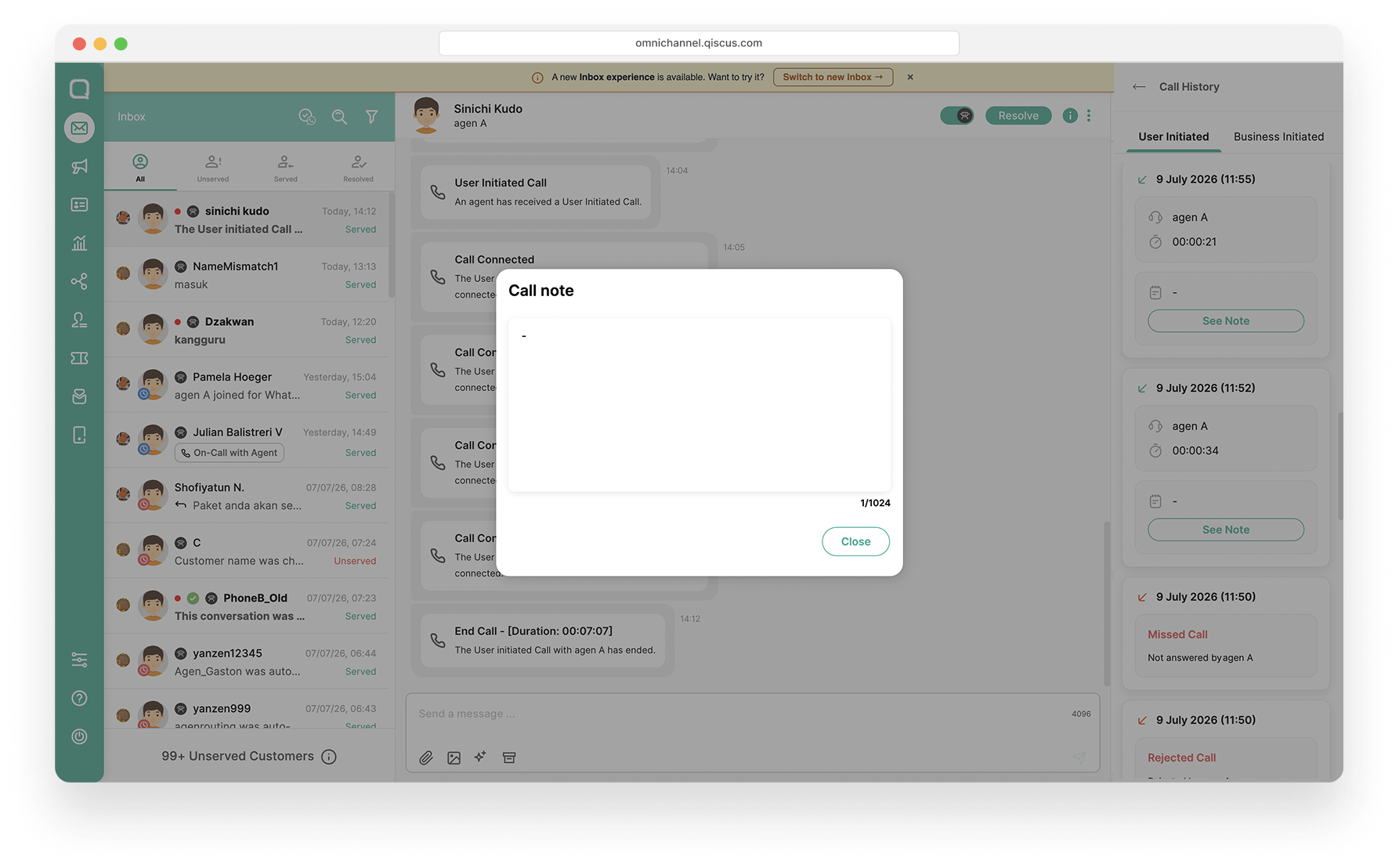
After integrating the Call Notes API, your dashboard will appear as shown below.
To add Call Notes to your application, implement the API endpoints provided below
CURL:
Response:
Update Call Note
Updates the note for a call. Each update creates a new note entry while retaining previous notes as history. The latest note is returned as the current note.
Endpoint: PUT {call_url}/api/call_notes/:call_id
call_id(string, required) = wacid passed as a URL path parameterauthor_id(integer, required) = ID of the agent or bot updating the notebody(string, required) = updated note content (minimum 1 character)
The call must already have at least one note before it can be updated. Use the Add Call Note endpoint first if no note exists yet.
CURL:
Response:
Error Responses
Supported Platform
Supported Browsers for Business Side
WhatsApp Call via Qiscus Omnichannel Chat is currently supported on the following desktop browsers:
Google Chrome
Mozilla Firefox
Microsoft Edge
Note: Other browsers (e.g., Safari, Opera) may not fully support WhatsApp Call features in the current implementation.
Supported Devices for User Side
Customers must have WhatsApp installed on their mobile device (Android or iOS) to receive the call.
To use the WhatsApp Call feature, please make sure to allow microphone access in your browser. If permission is not granted, the call function may not work properly.
How to Set Up WhatsApp Call
As an admin, you can configure the initial settings to activate the WhatsApp Call feature:
Enabling WhatsApp Call
To allow agents to use the WhatsApp Call feature, the admin must enable it first. By activating this feature, businesses can start receiving and making WhatsApp calls through Qiscus Omnichannel Chat.
Go to Integration, select WhatsApp, and choose the WhatsApp Channel you want to enable. Please note that the WhatsApp Call is only available in the cloud.
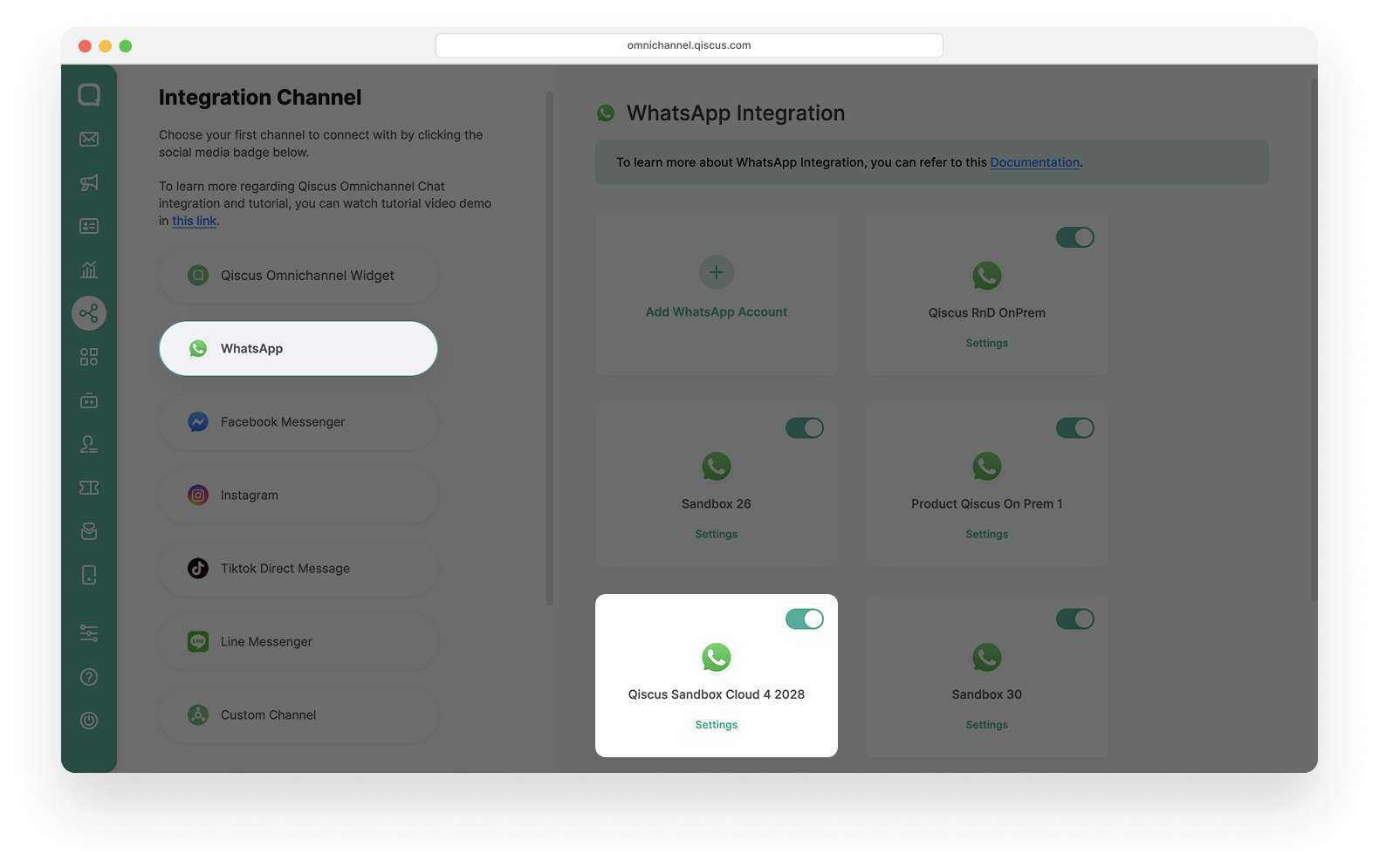
Navigate to the Settings tab, then enable the Eligible WhatsApp Call toggle.
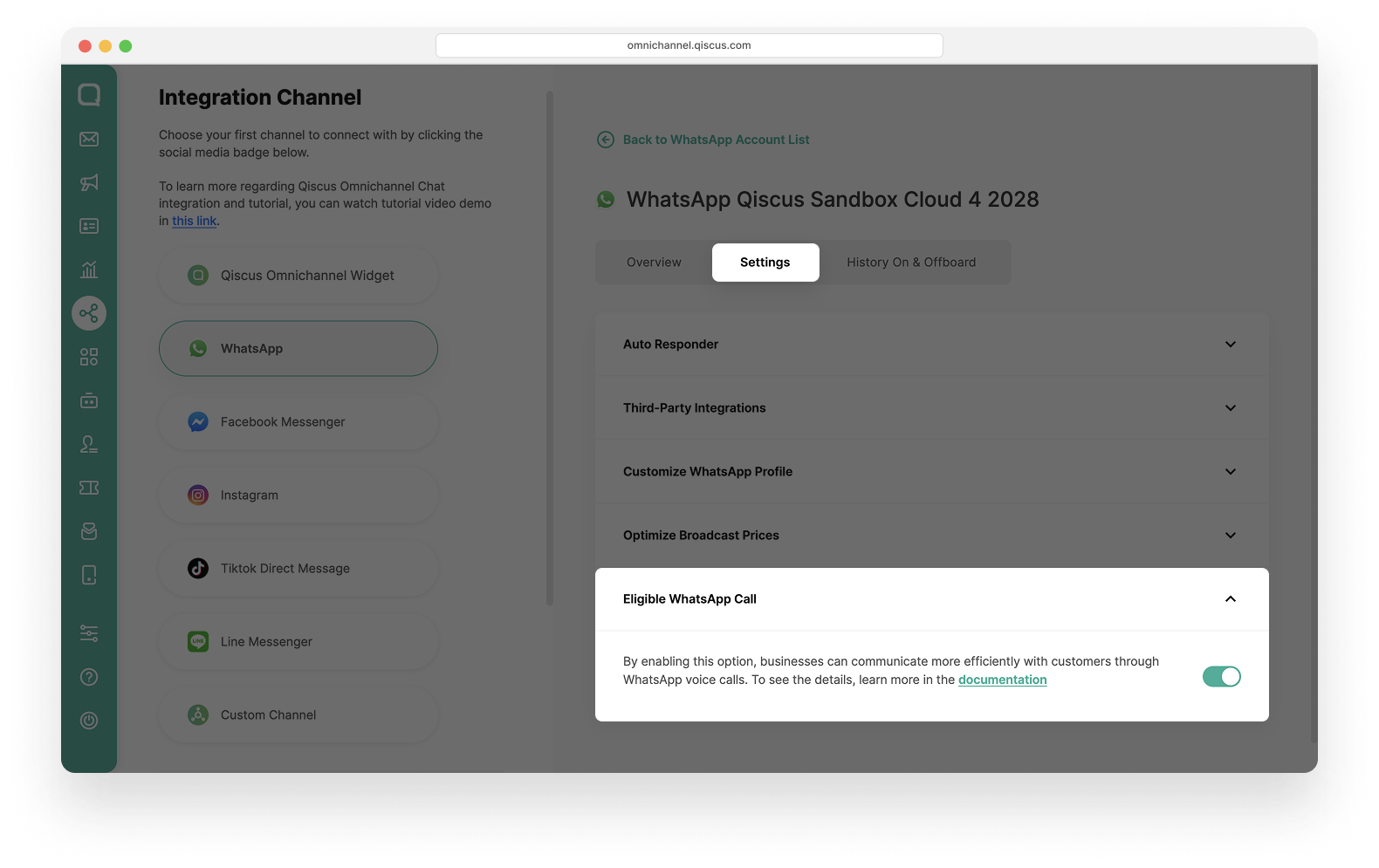
WhatsApp Call is only available for WhatsApp accounts that are on the cloud. WhatsApp accounts that are non the cloud will not be able to use this feature.
WhatsApp Call can only be used in personal chat, meaning it does not support group chats.
WhatsApp Call is not supported for WhatsApp Coexistence account.
WhatsApp account must be verified and should be in the Messaging Tier of at-least 2,000 (2K) messages.
Enabling WhatsApp Call Record
Businesses can automatically record voice calls between agents and customers on WhatsApp. All recordings are securely saved and can be accessed anytime.
Go to Integration, select WhatsApp, and choose the WhatsApp Channel you want to enable. Please note that the WhatsApp Call is only available in the cloud.
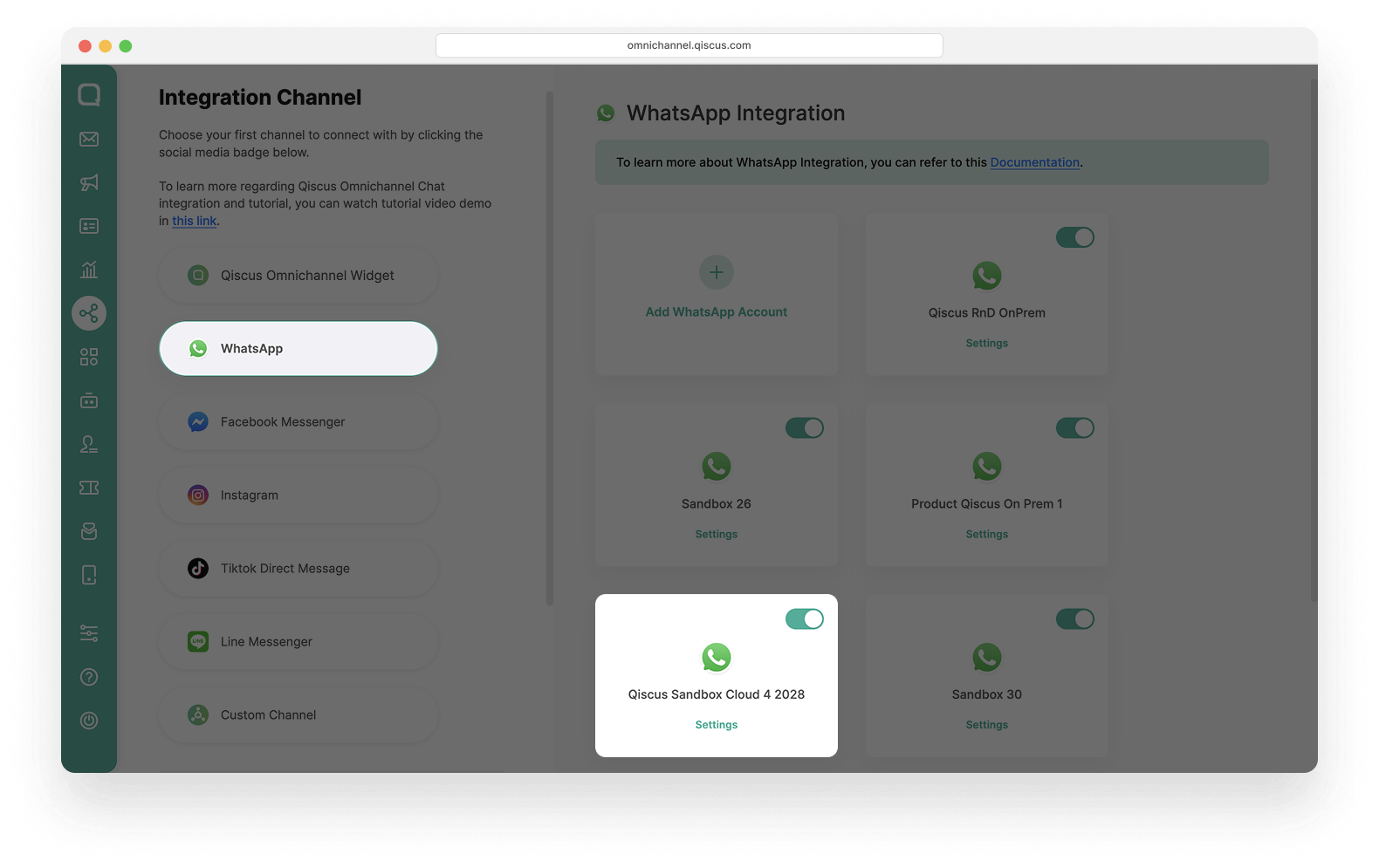
Navigate to the Settings tab, then enable the Eligible WhatsApp Call Record toggle.

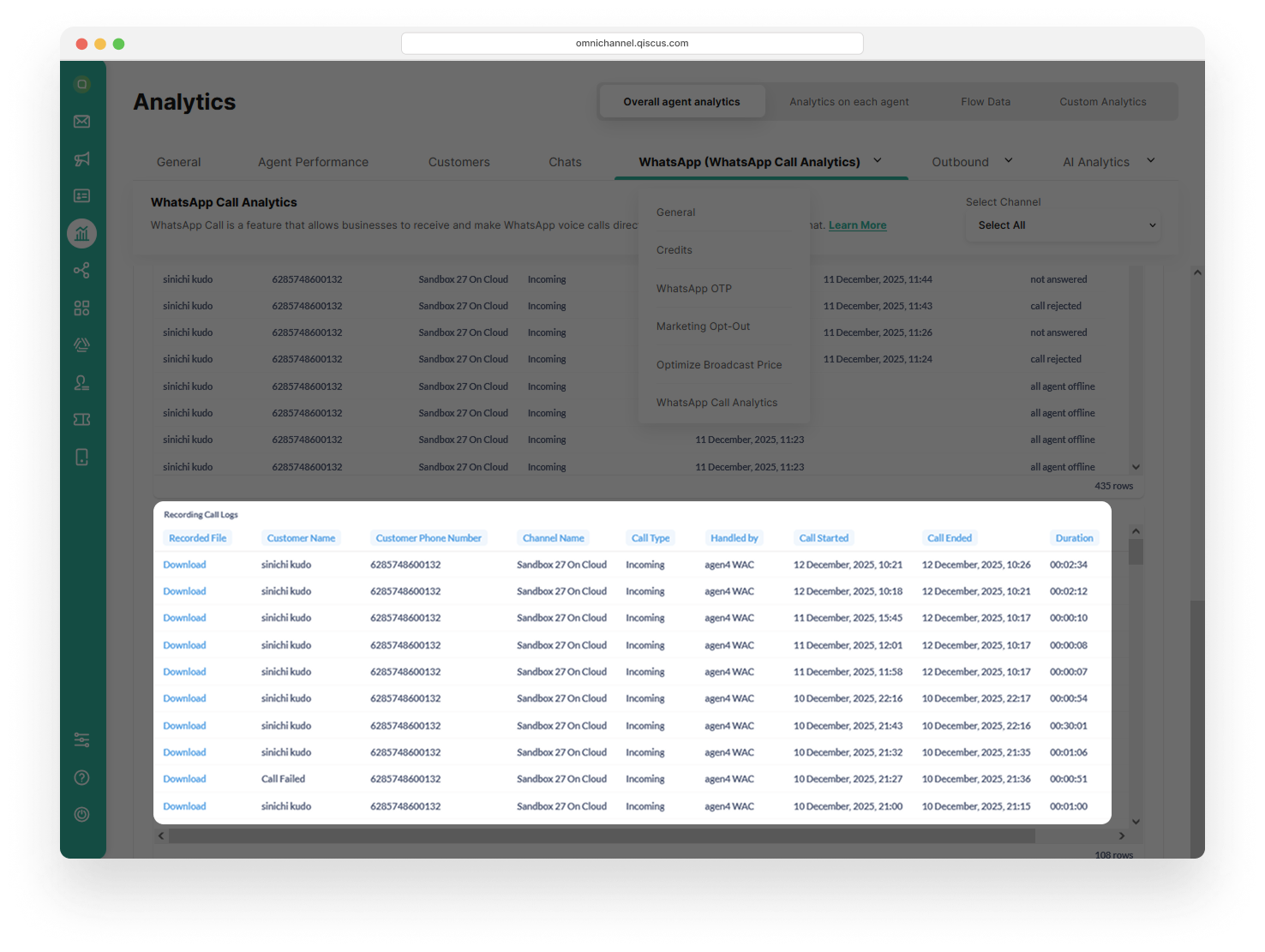
You can access WhatsApp call recordings directly from the call history in the inbox or through WA Call Analytics
Agent Management Settings
After completing the enabling of WhatsApp Call, the next step as an admin is to grant agents permission to send interactive WhatsApp Calls in the Agent Management menu. Follow these steps:
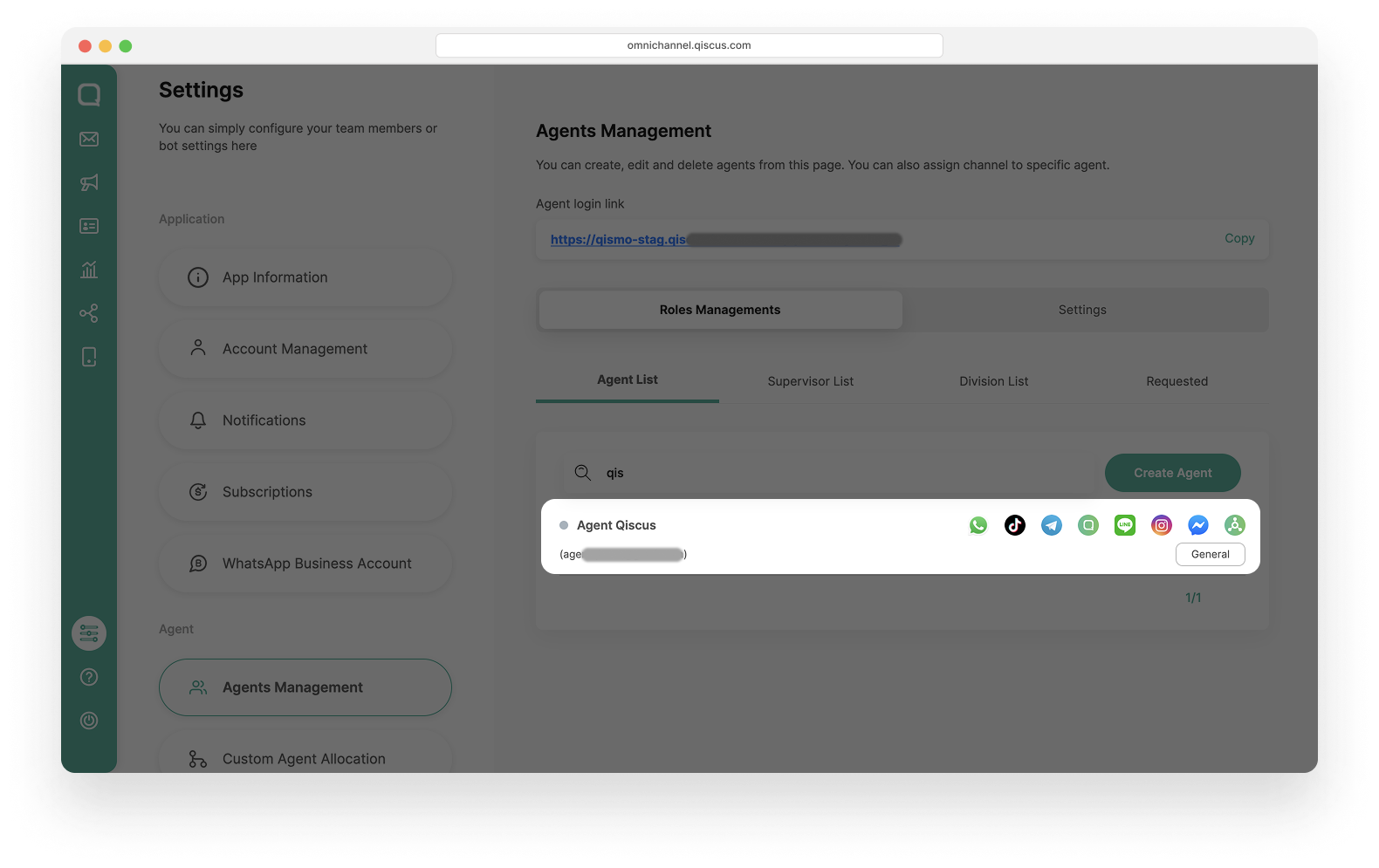
Role Management Tab
Select an agent assigned to a channel that has been set up for WhatsApp Call.
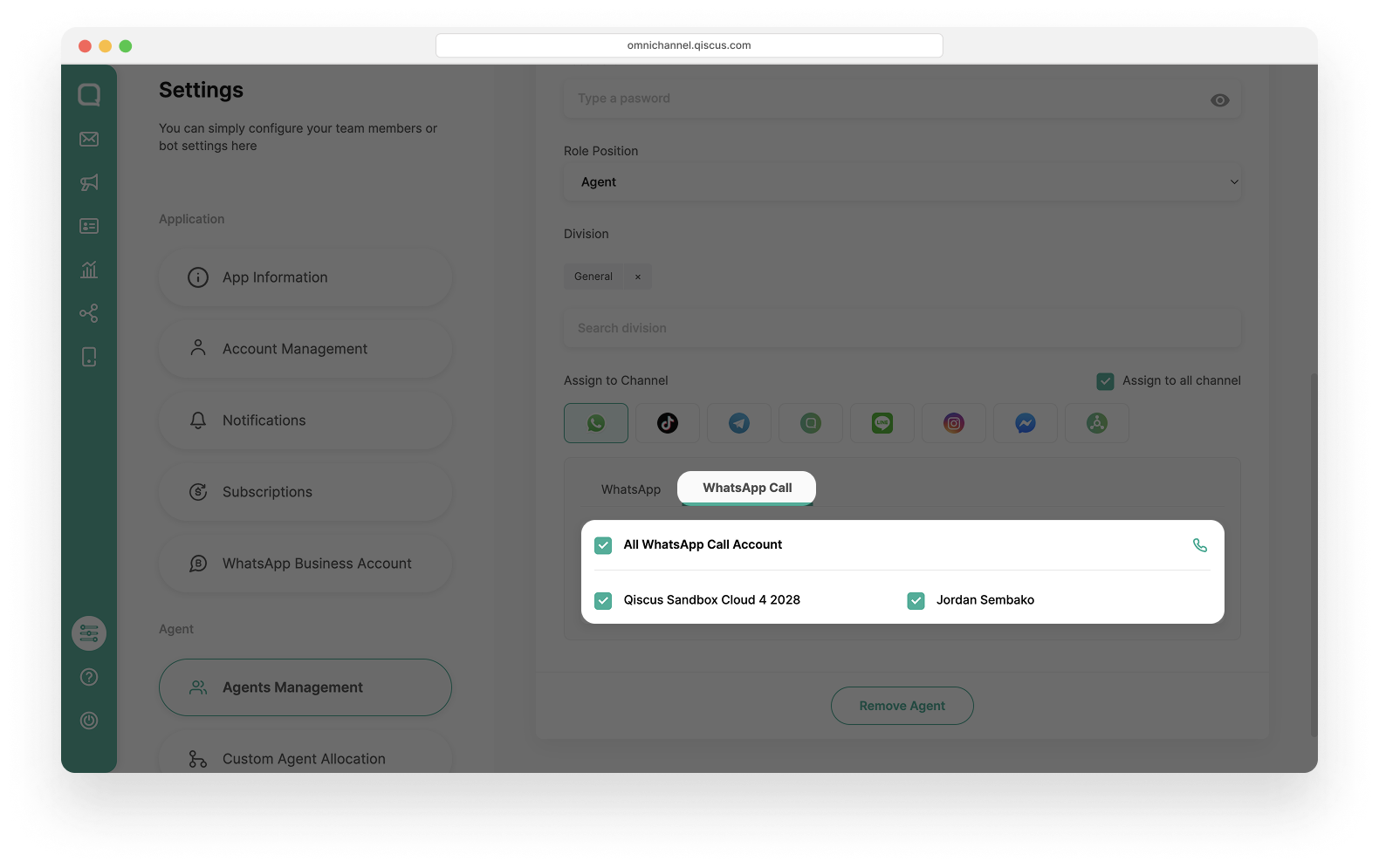
Open the agent’s details, go to the WhatsApp Calls tab, and check the designated WhatsApp channel.
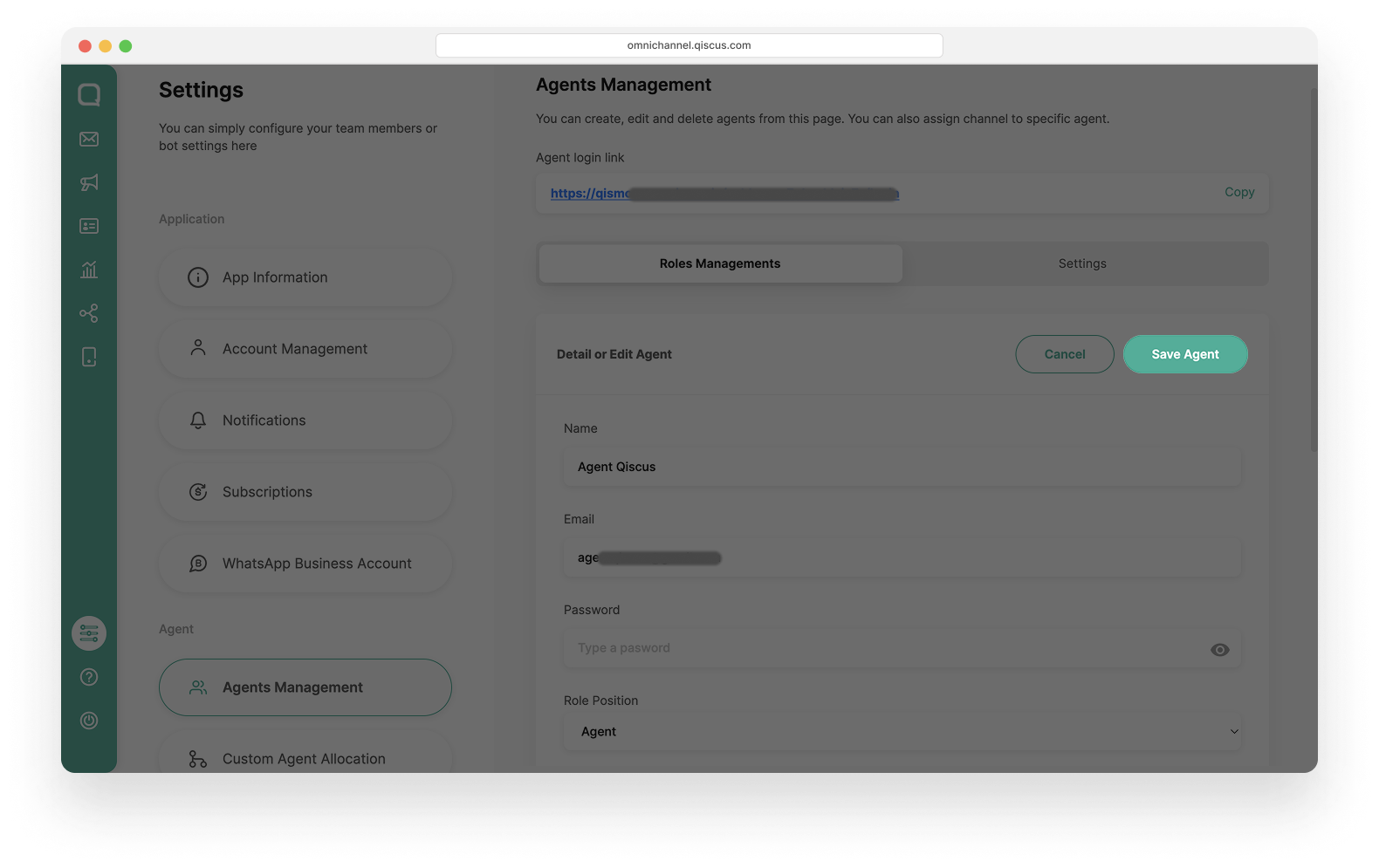
Save the changes by clicking the Save Agent button.
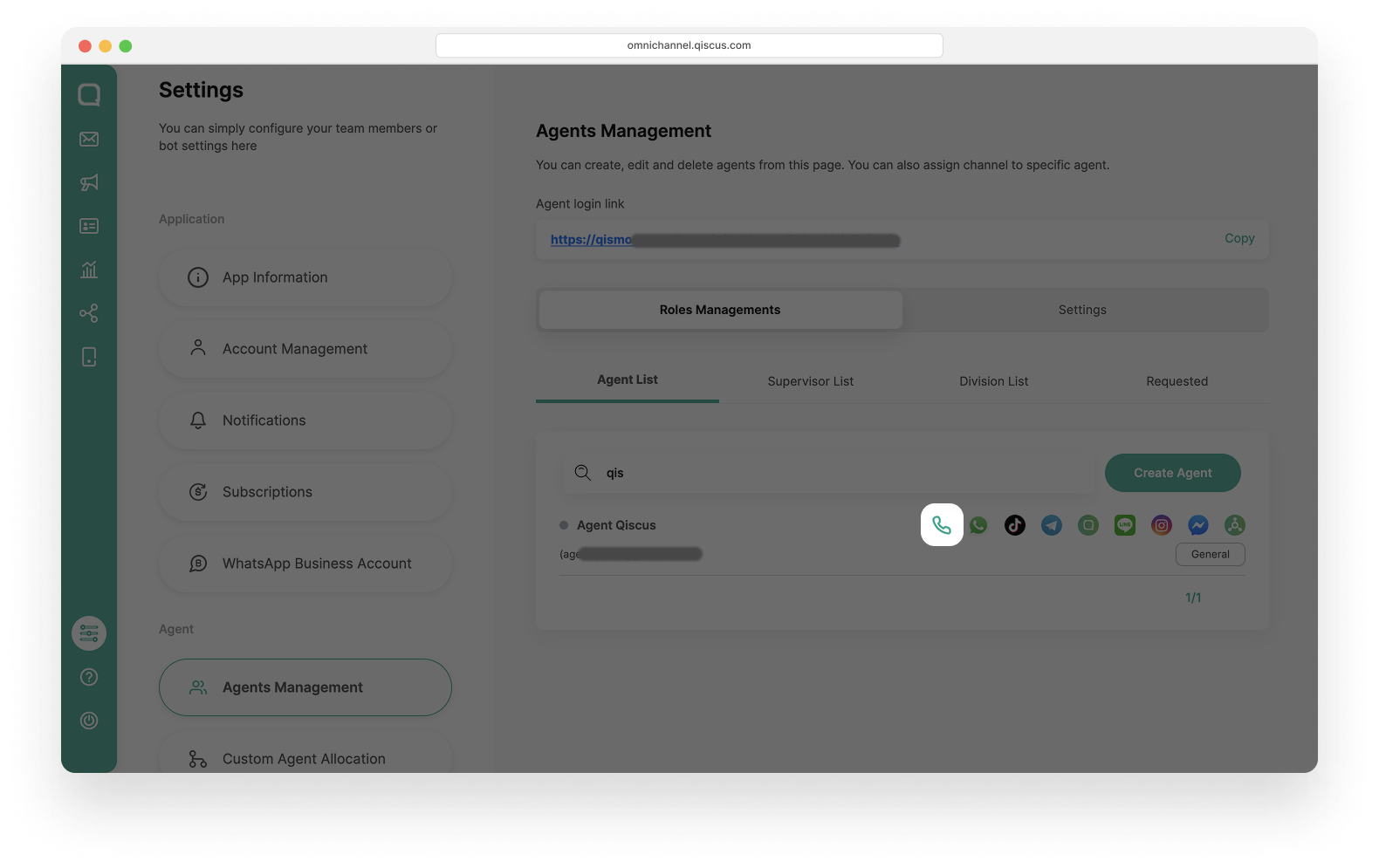
Once completed, the Call icon will appear for that agent, indicating they have been assigned to receive and make WhatsApp Calls
How To Use WhatsApp Call
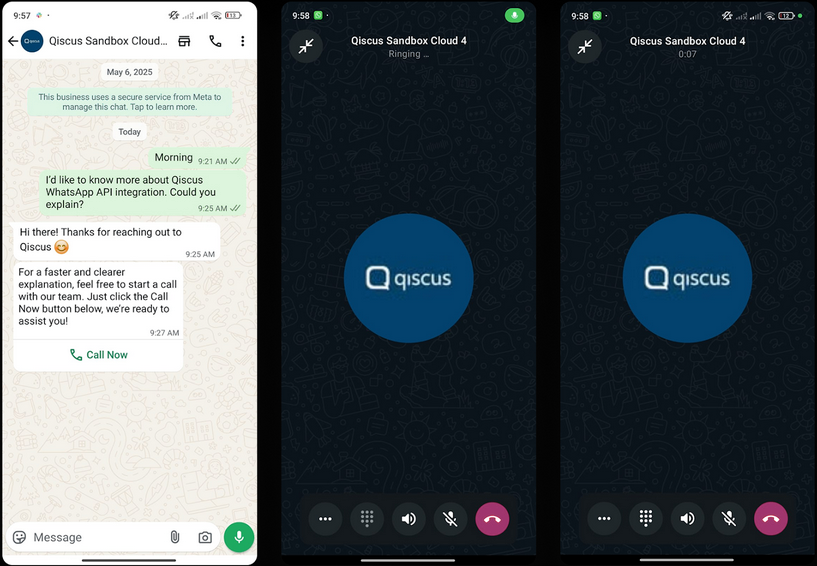
Sending an Interactive WhatsApp Call for a User Initiated Call
Agents can send an interactive message to customers to initiate a User Initiated Call by following these steps:
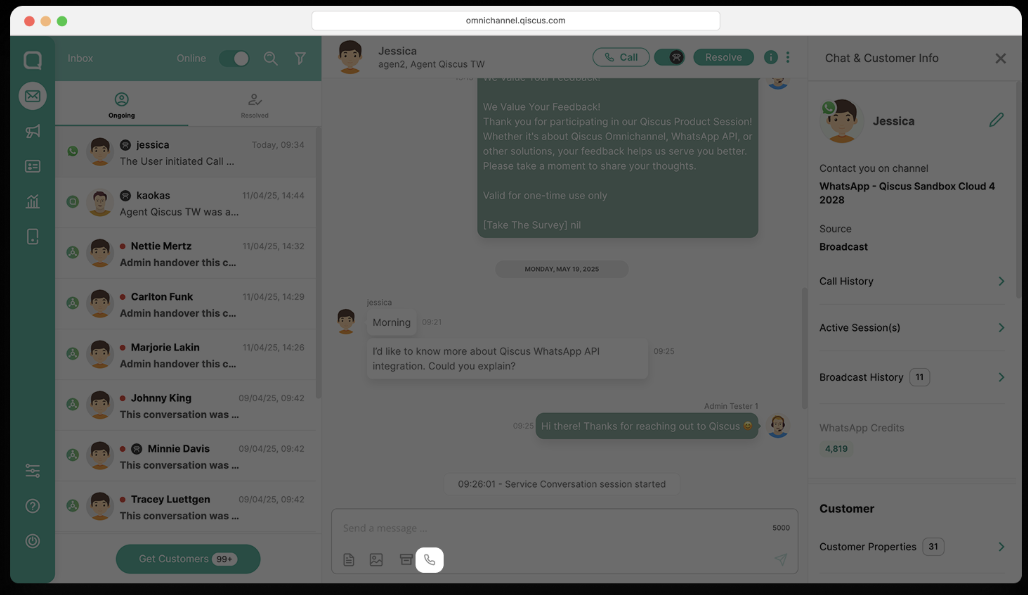
Click the Call icon available in the text chat room.
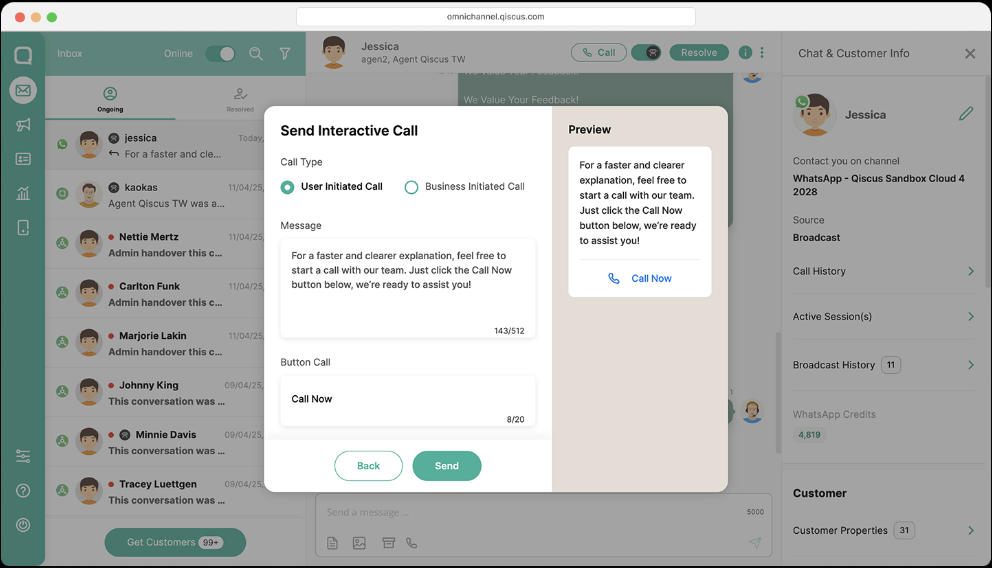
Select User Initiated Call, enter the message and call button to be sent to the customer, then click Send.
The interactive WhatsApp Call message will be sent to the customer.
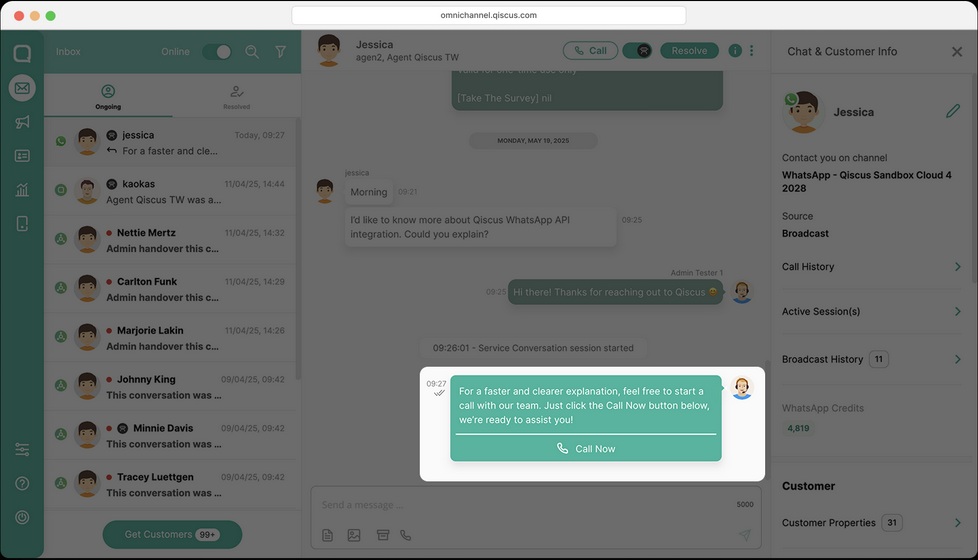
Wait for the customer's response to see if they will make the call.
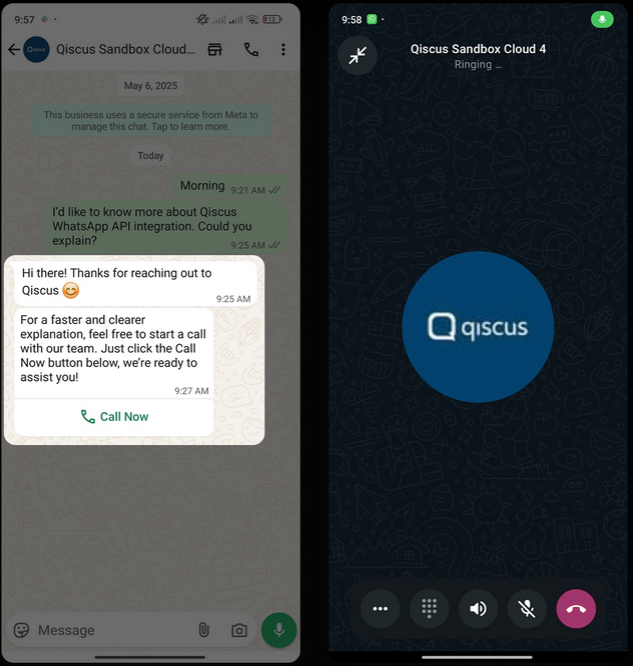
If the customer clicks the call button, the call will be identified as an User Initiated Call.
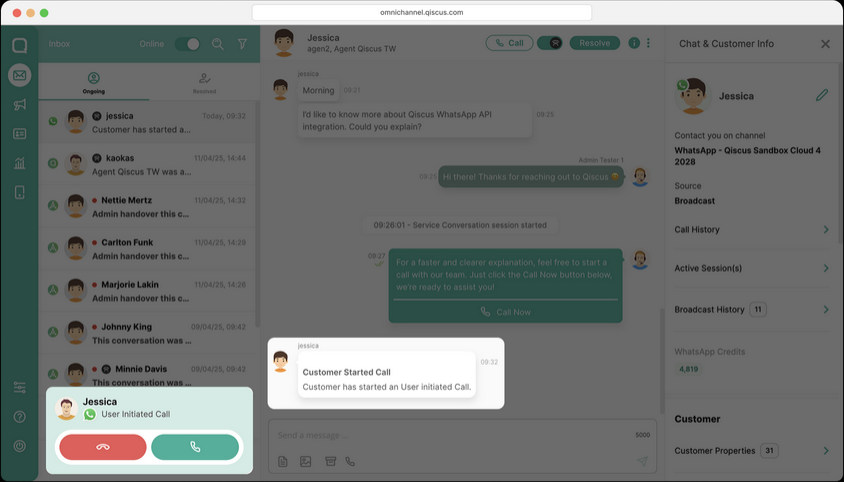
Business Side:
Customer Side:
A customer’s call may be declined if:
No agents are online.
All agents are on other calls.
The call is made outside business hours.
Business is blocked the customer
To receive incoming user-initiated WhatsApp voice calls from customers, agents must stay in the Inbox tab or keep the Inbox open and active.
Using WhatsApp Call Auto Responder
A WhatsApp auto-responder setting is now available to automatically send a message to customers when a call cannot be answered due to one of the following conditions:
No agents are online
All agents are on other calls
The call is made outside business hours.
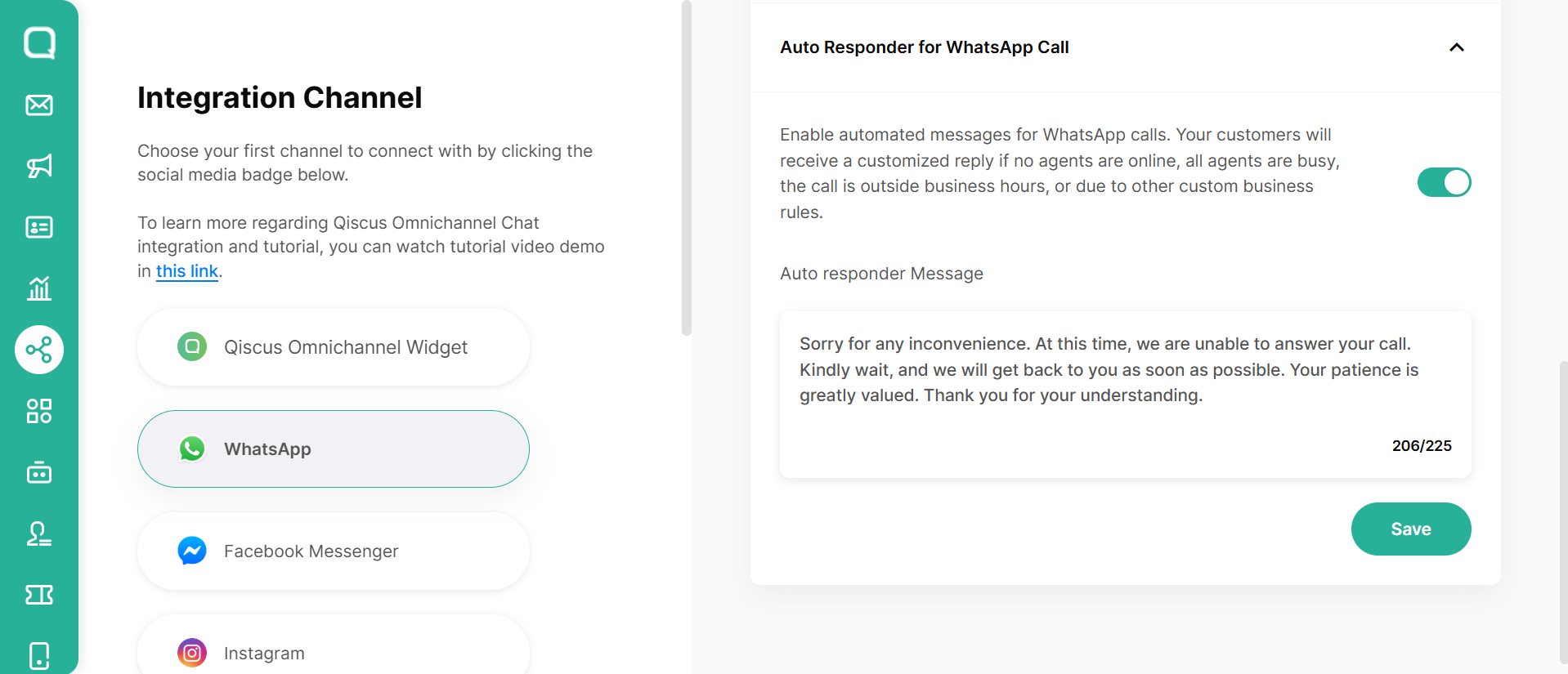
To use this feature, follow this steps below:
Click Settings on your WhatsApp Channel
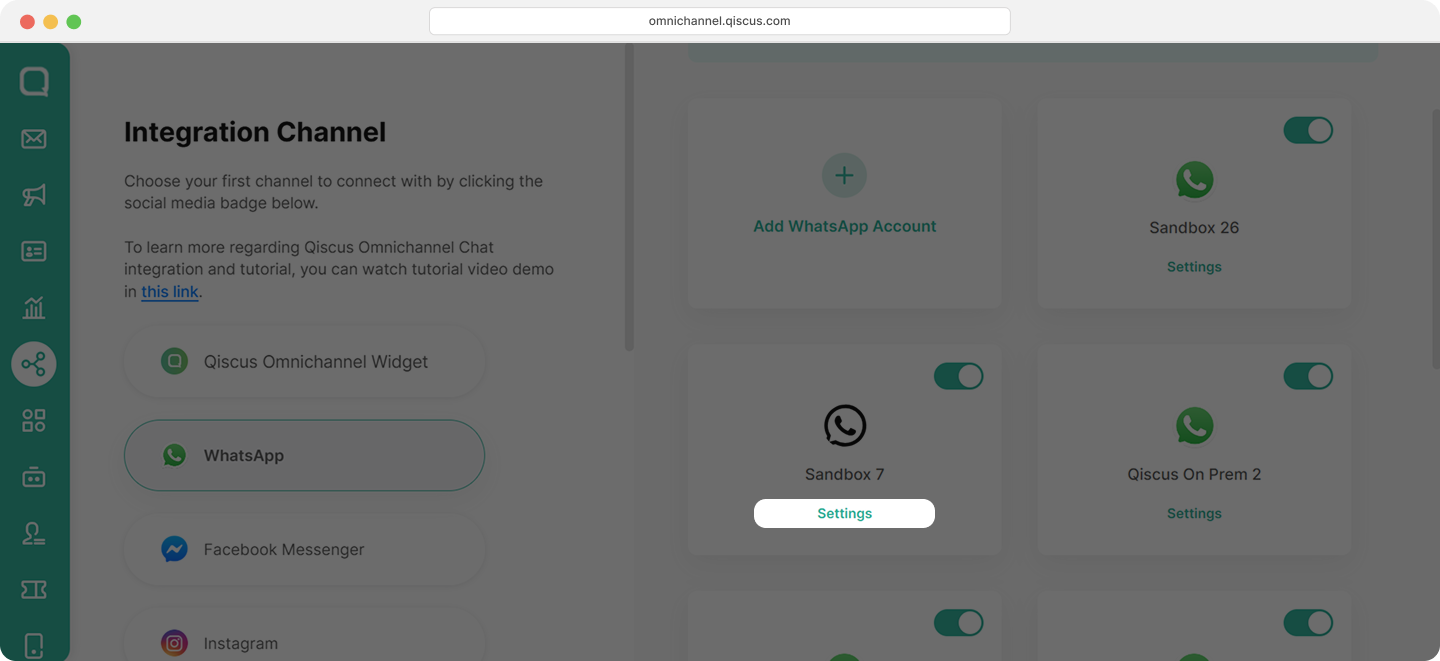
Click Settings tab
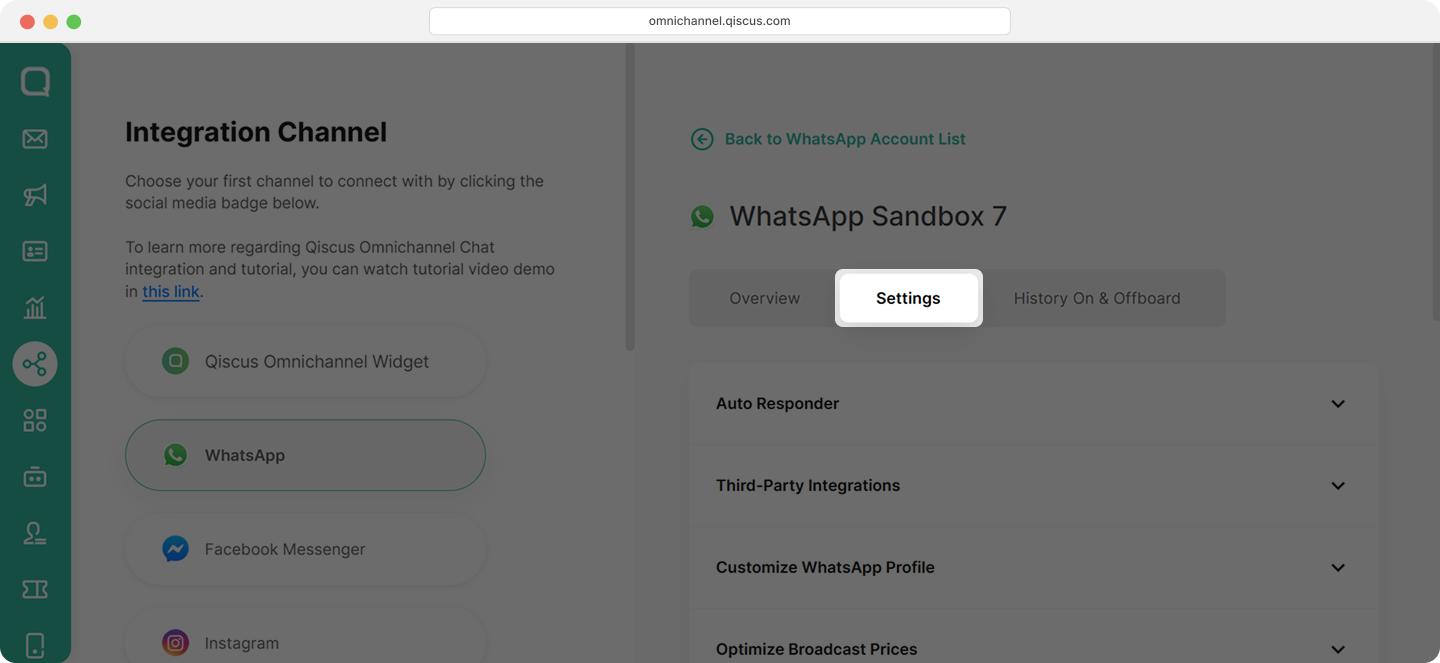
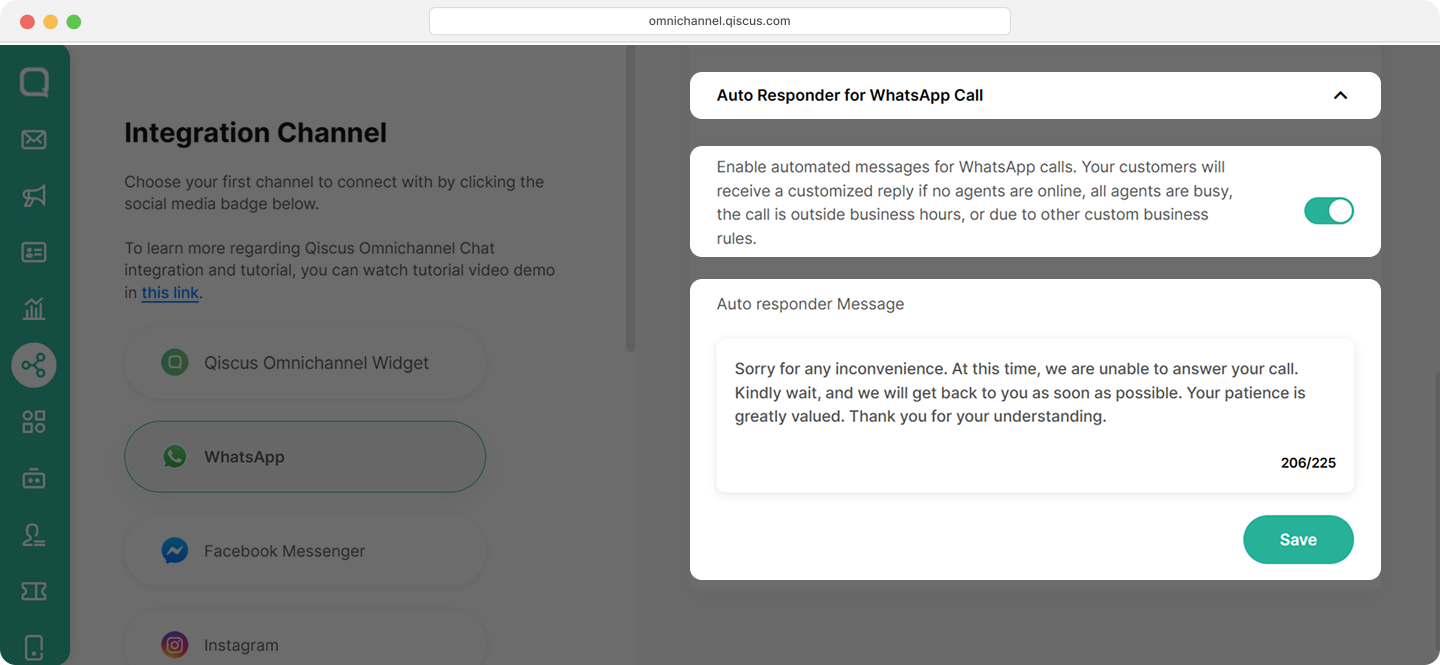
Scroll down slightly, choose Click Auto Responder for WhatsApp Call
Activate the toggle button. Then enter the message for customer
Click Save button
Sending an Interactive WhatsApp Call for a Business Initiated Call
Only agents can send a call permission request to customers before making a business initiated call, you can follow these steps:
Click the Call icon available in the text chat room.
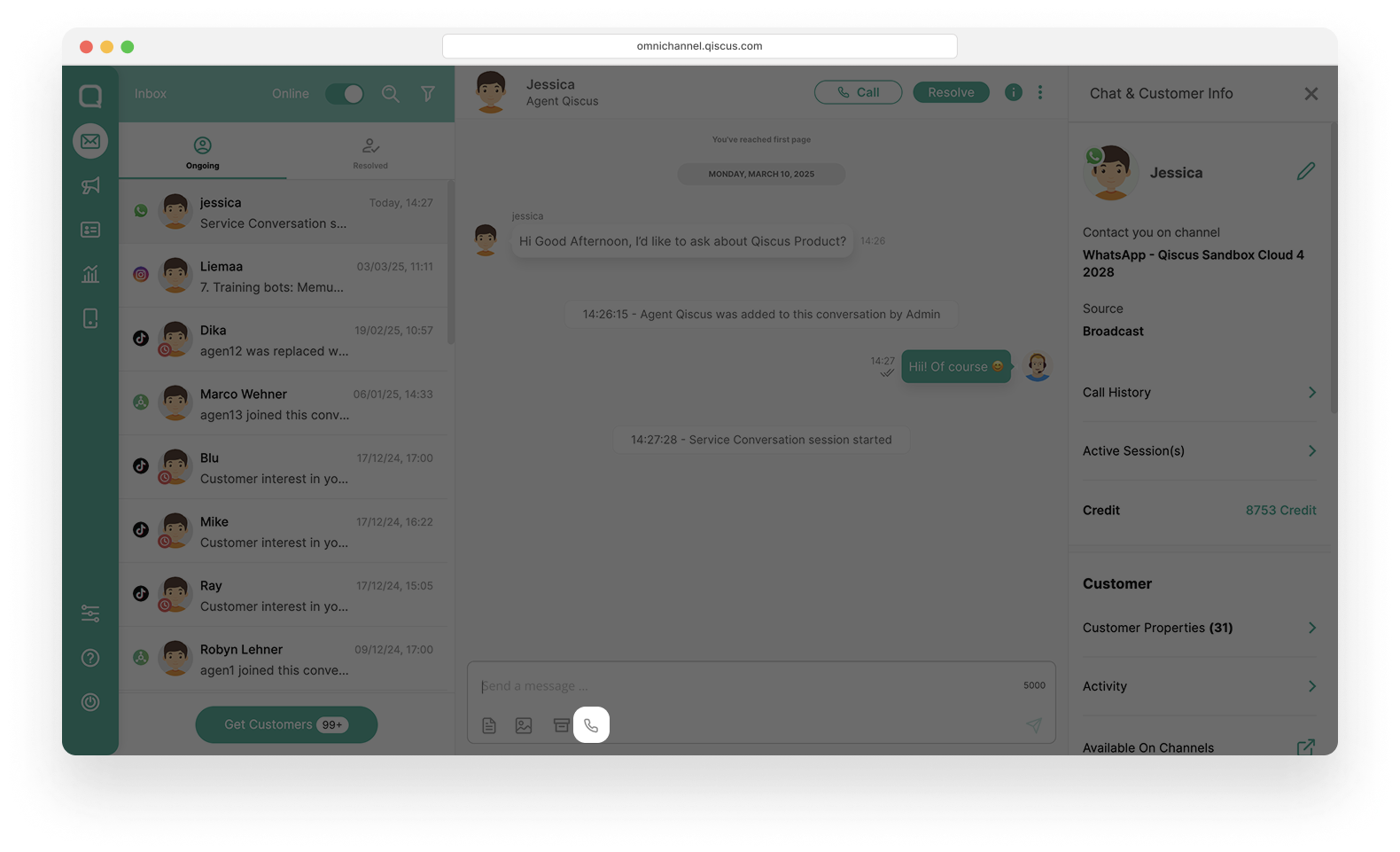
Select Business Initiated Call, The message requests permission to make a call, then click Send.
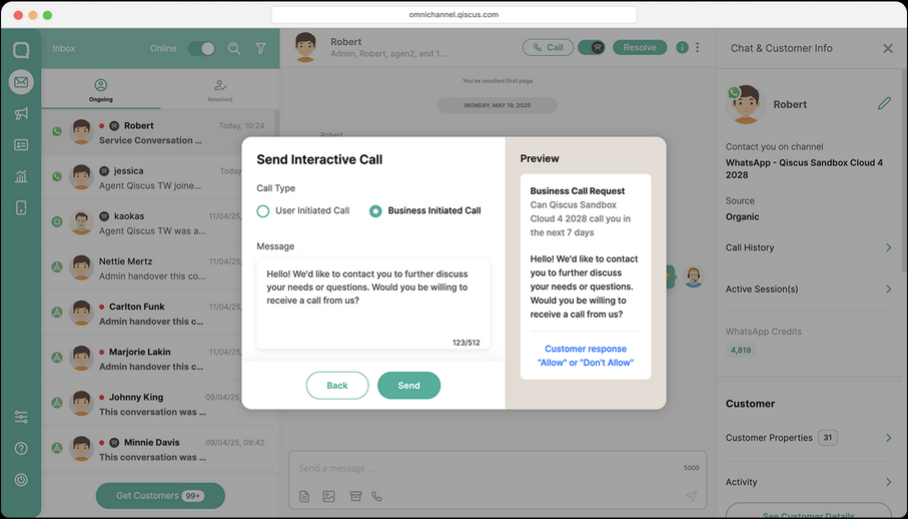
The interactive WhatsApp Call message will be sent to the customer.
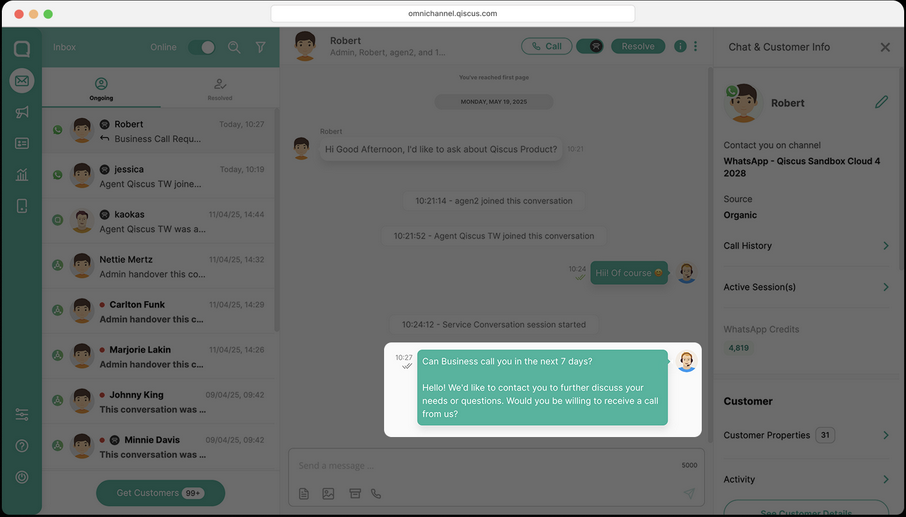
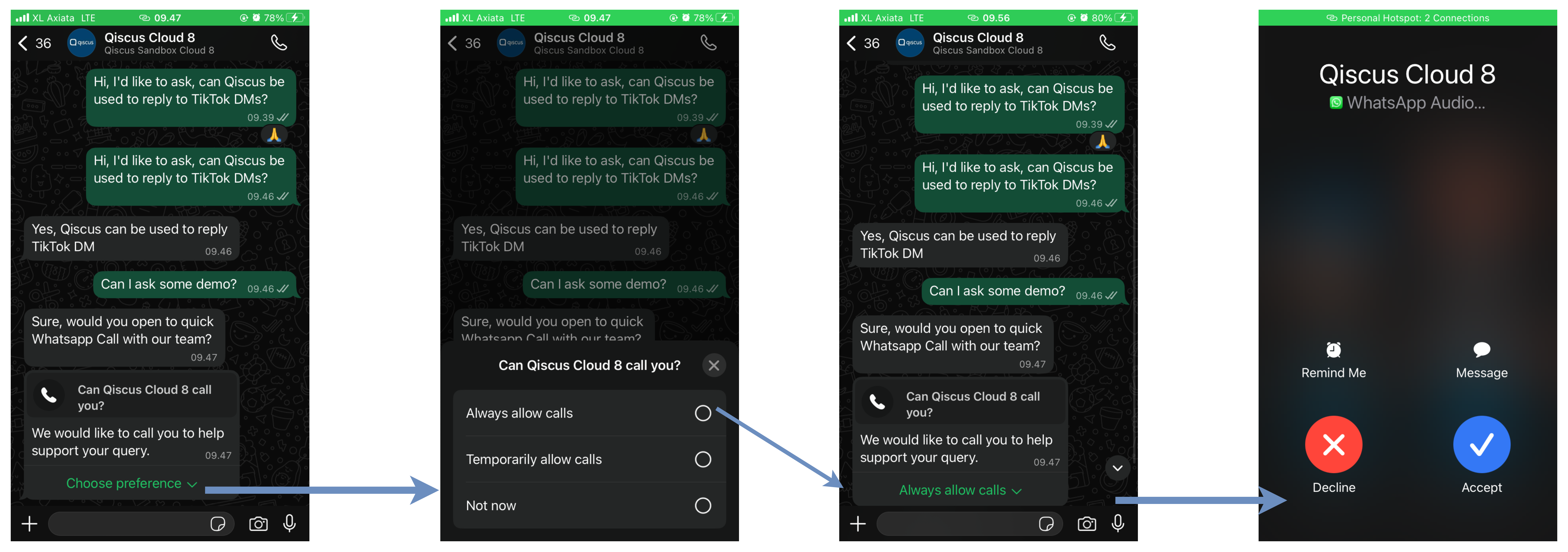
Call Permission Request
The Call Permission Request is an explicit request sent by a business to a user to obtain consent before initiating a call via WhatsApp. This is an important step to protect user privacy and ensure a comfortable experience, while also preventing unwanted calls.
Currently, call permission request in WhatsApp Call has options to choose, such as:
Always allow calls: The customer has granted permanent permission, so no further call permission is needed.
Temporarily allow calls: The customer has granted permission to receive calls for a limited time, as per the set duration or policy. Once it expires, you will need to request permission again.
Not now: The customer has not granted permission to receive calls.
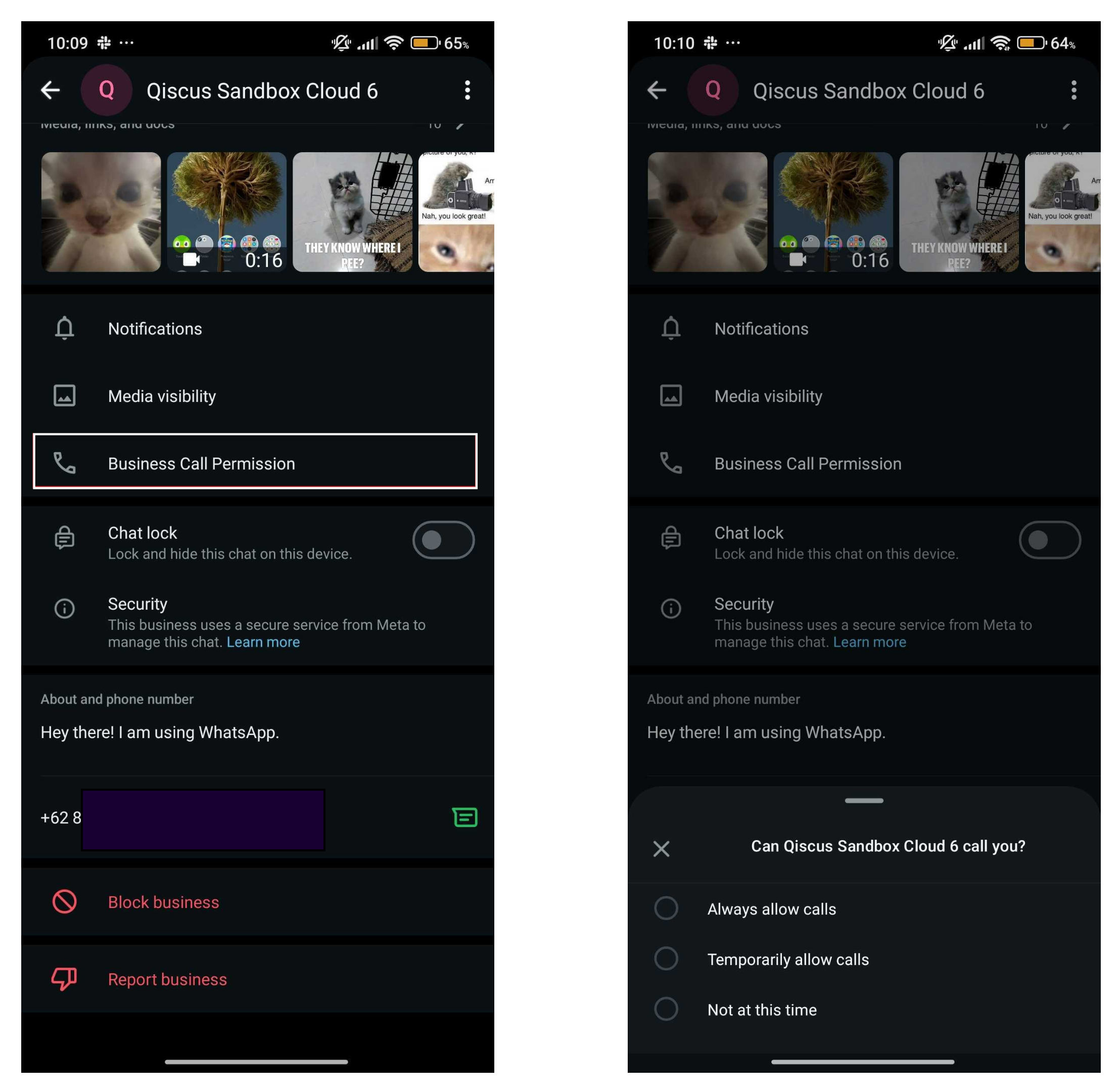
You can update your WhatsApp Call permissions at any time by navigating to the Business Info > Business Call Permission section within the WhatsApp profile.
Limitations
The following limitations apply to each user's phone number:
Item | Description | Limit | Example |
|---|---|---|---|
Call Permission Request | A request sent by the business to obtain the user's permission before initiating a WhatsApp call. |
|
|
Unanswered Call Limits | When a business initiated call goes unanswered i.e. call is rejected or missed by the user |
|
|
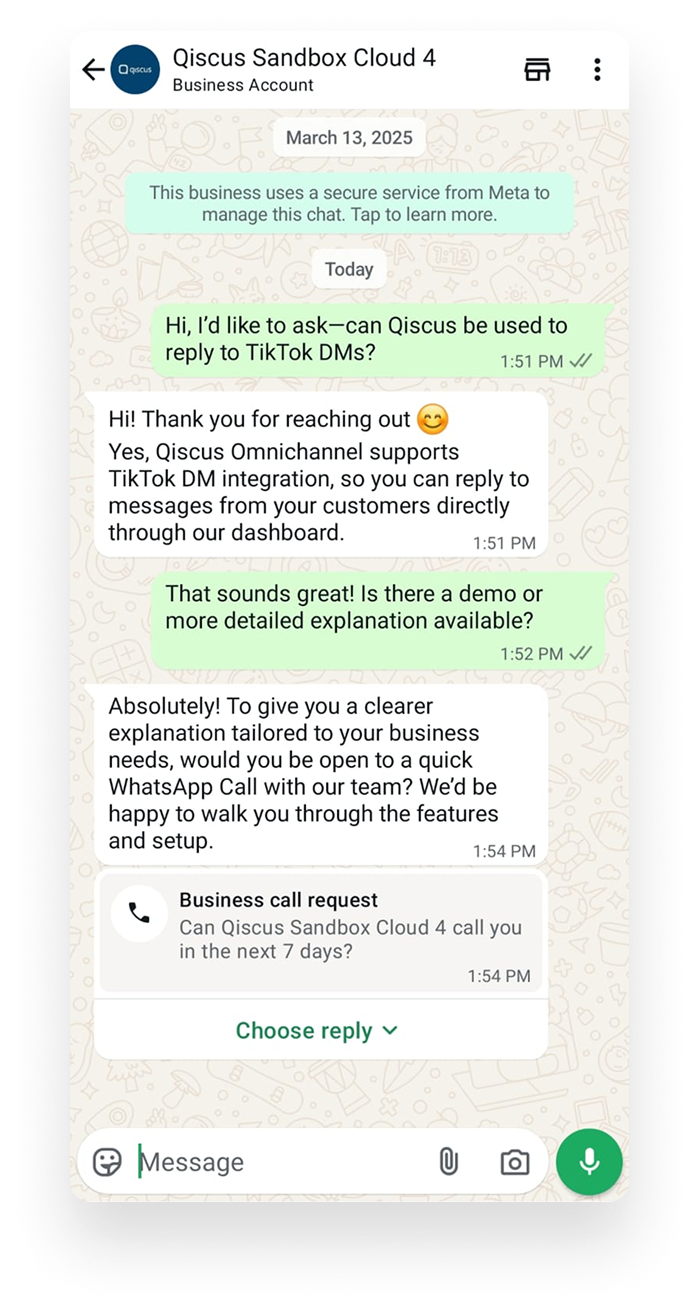
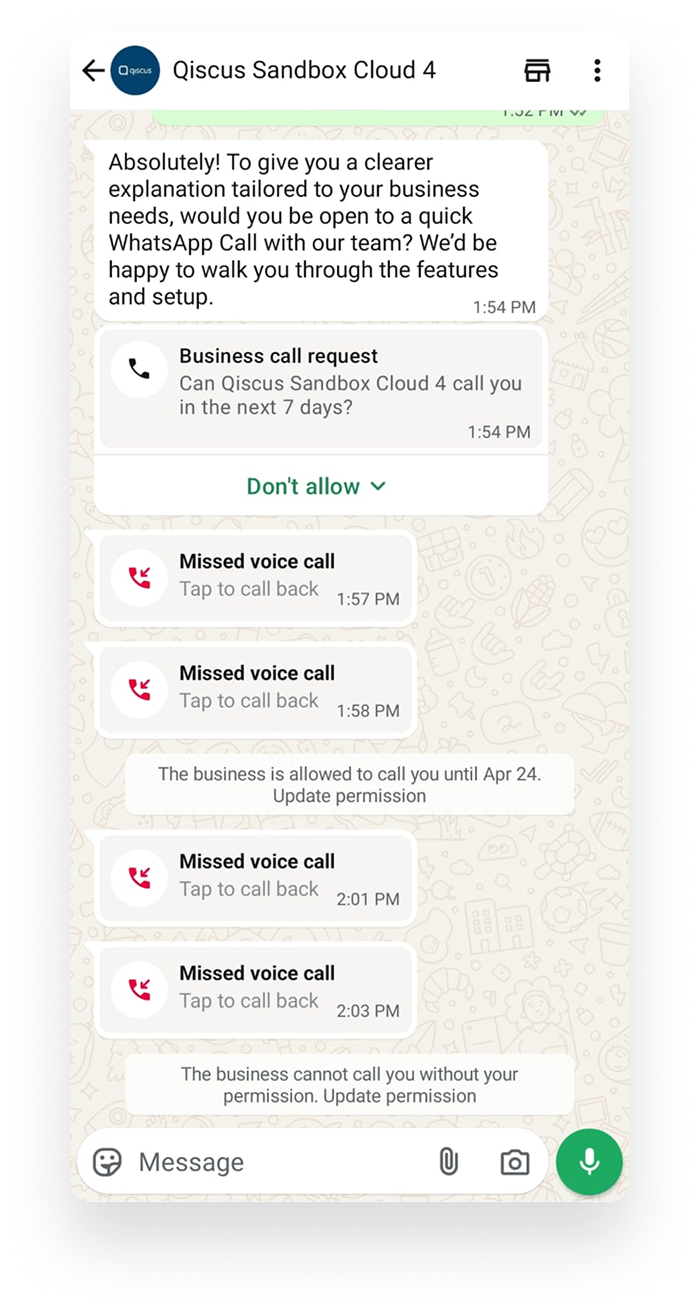
Customer Response
A customer can respond to a call permission request in three ways:
Accept (Allow) → The agent can place a call within 7 days after permission is granted.
Always Allow → The agent can call the customer anytime without requesting permission again.
Decline (Don't Allow) → The agent cannot place a call without sending a new permission request.
No Response → If the customer does not respond within 7 days, the request will expire.
If the customer responds to a new call permission request → The previous request automatically becomes invalid.
Note: The customer can change their response at any time before the permission expires (e.g., from decline to accept or vice versa). You can explore the details of Call Permission Requests directly from the Chat & Customer Info.
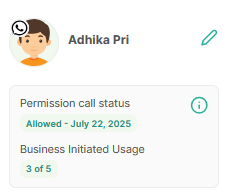
Business Initiated Call Use Case
If Customer Accepted
Once the customer accepts the call request, the agent can directly click the phone icon to initiate the call. If the call is successfully connected, the agent can manage the conversation.
Businesses are allowed to call a user’s phone number up to 5 times within 24 hours, after the customer grants permission to be called.
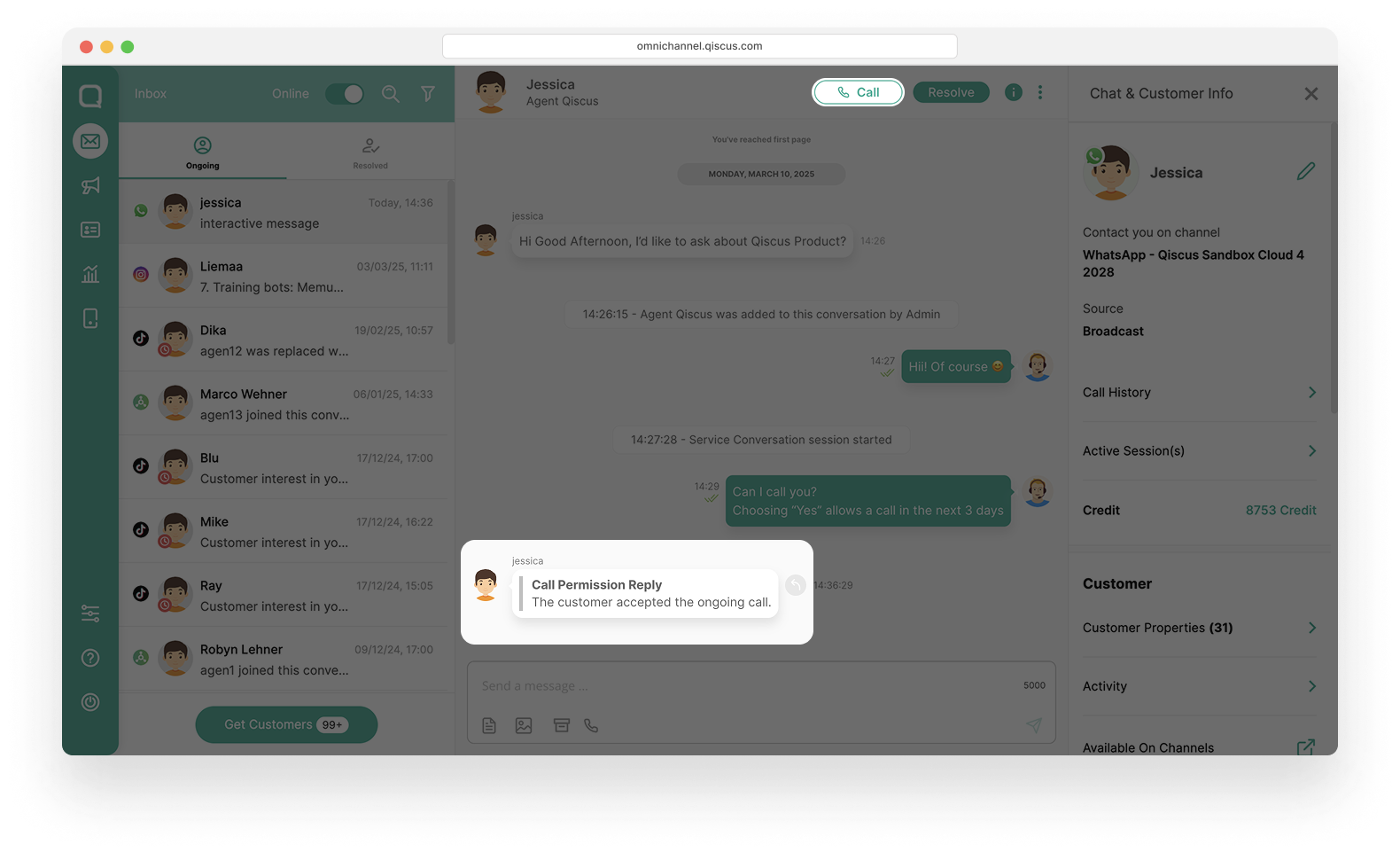
If Customer Accepted but Missed Call
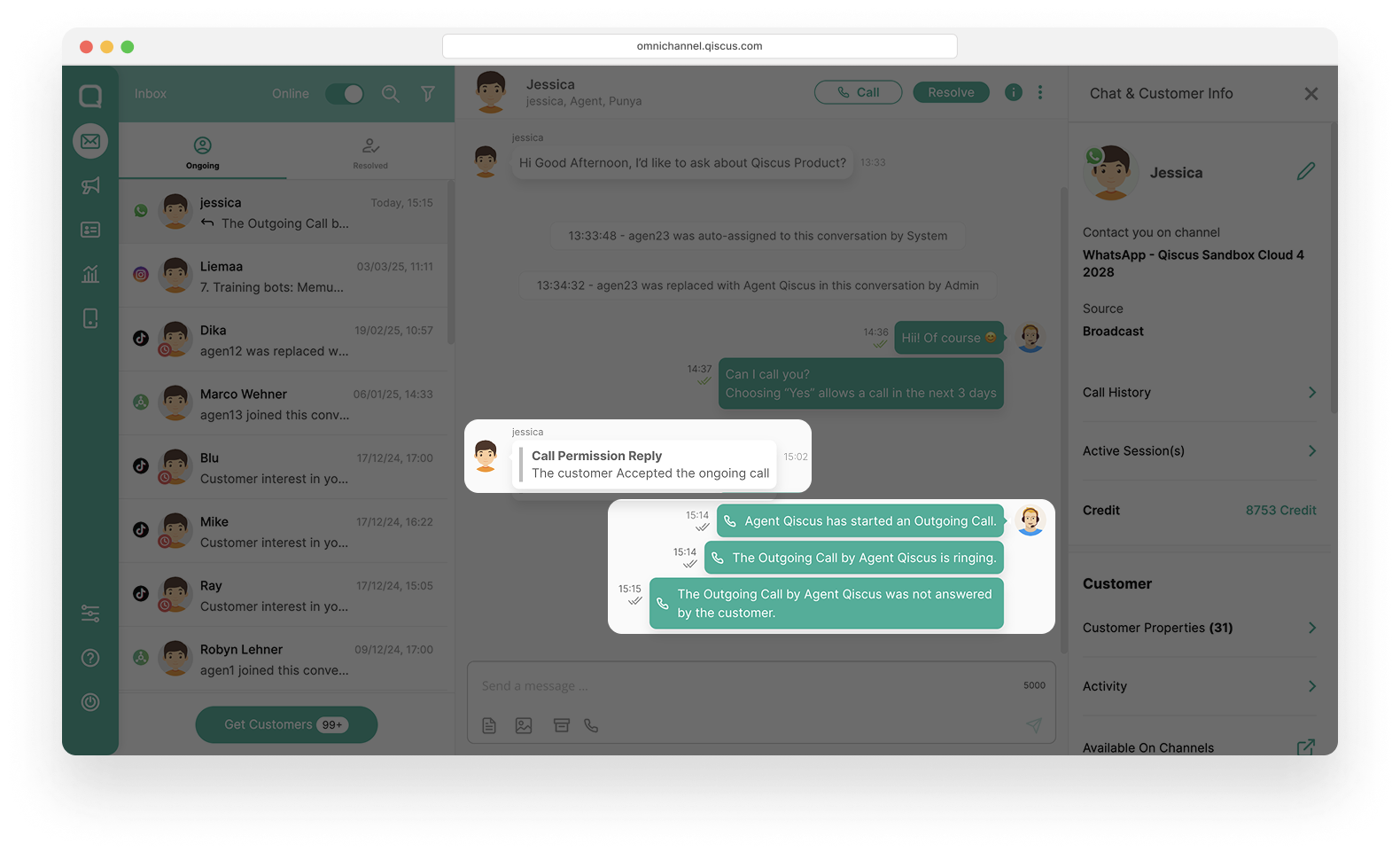
If the customer has accepted the call request but does not answer when the agent calls, it will be considered a missed call. In this case, the agent can:
Send a message to check the customer's availability.
Try calling again within the valid permission window (7 days after approval).
If the customer remains unresponsive, the permission will expire, and the agent must submit a new request.
If Customer Declined
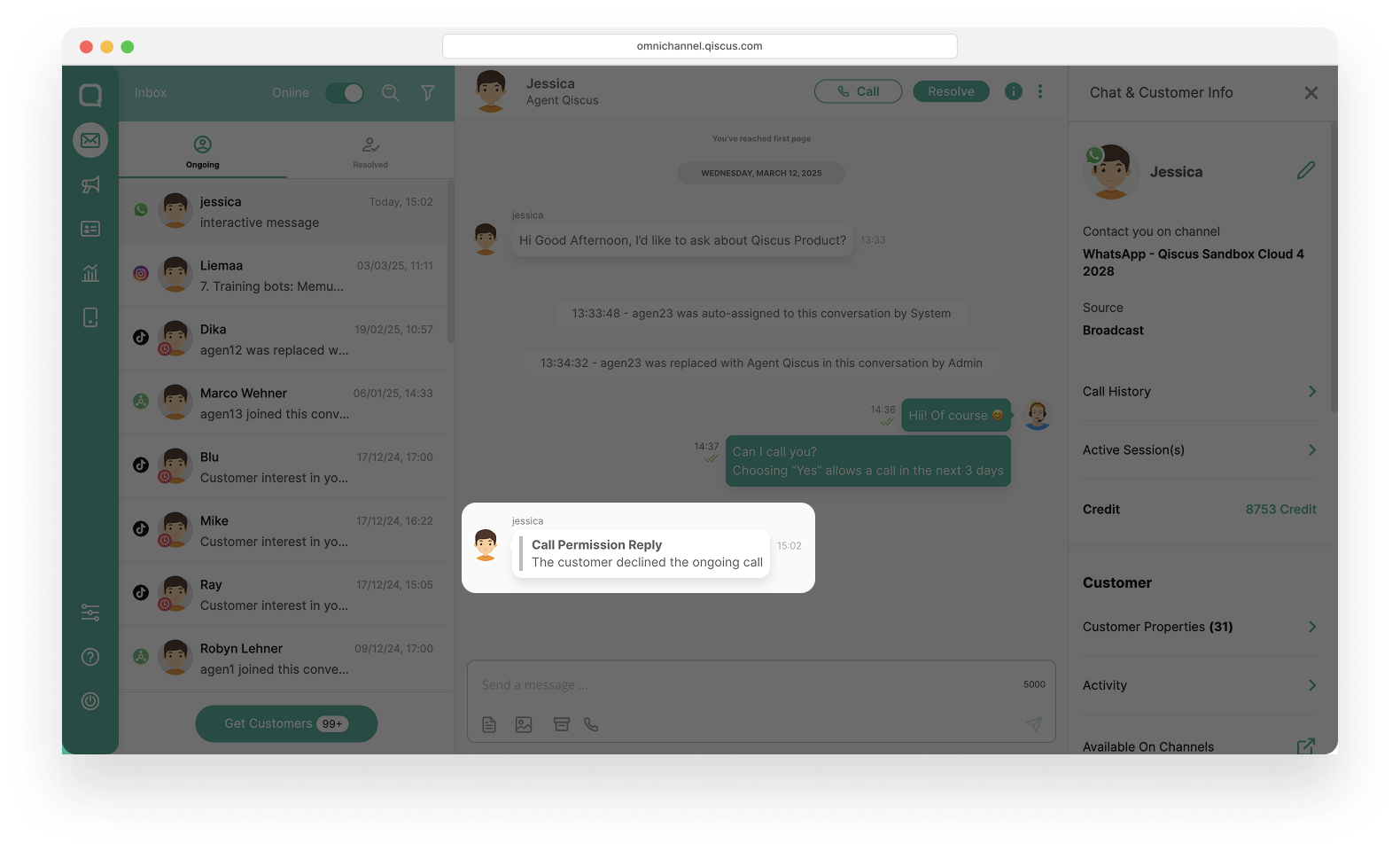
If the customer declines the call request, the system will notify the agent. In this case:
The agent is not allowed to place a call without obtaining new permission from the customer.
If necessary, the agent may send a new request within the permissible limits (1 request per 24 hours, 2 requests per 7 days).
If Agent Call without Permission
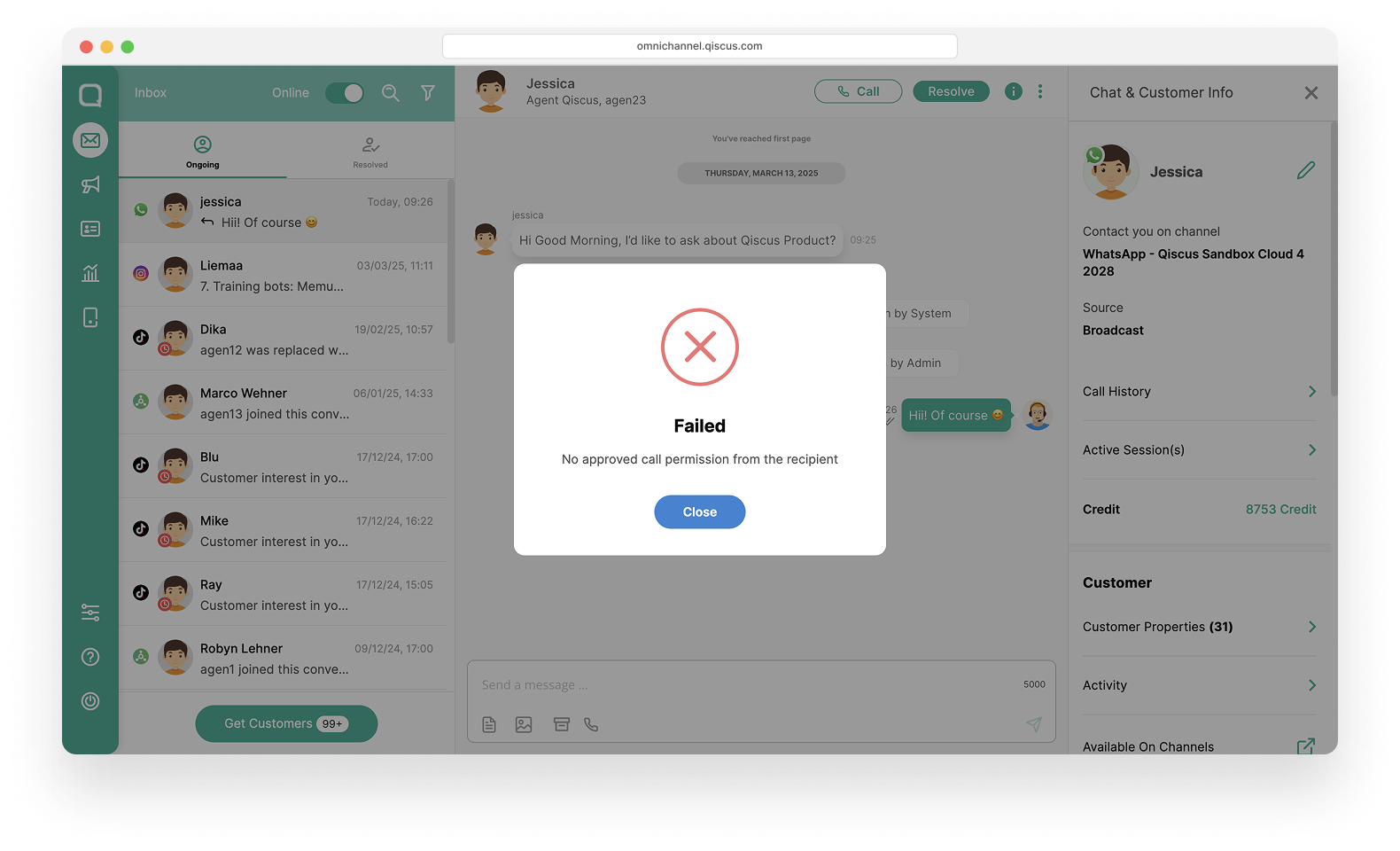
If the agent attempts to place a call without first obtaining permission, the system will display a pop-up stating that the call cannot be made due to a lack of permission.
Solution:
The agent must first send a Call Permission Request and wait for the customer’s response.
If permission has been granted and remains valid within 7 days, the agent may proceed with the call.
WhatsApp Call Bot API Configuration
This section covers the API integration required to build a webhook server that handles, answers, and hands over user-initiated.
Prerequisites
Before enabling Bot Mode, make sure the following requirements are met:
Your development team has prepared and deployed a webhook server capable of receiving WhatsApp call events.
WhatsApp Call has been enabled on the selected channel. For more information, refer to Enabling WhatsApp Call.
How It Works
When Bot Mode is enabled, all incoming calls initiated by users on the selected channel are automatically forwarded to your webhook server for processing.
Before Going Live
Before enabling Bot Mode in a production environment:
Ensure your webhook server is running and accessible.
Verify that all call event handling has been properly tested.
Confirm that your webhook responses meet your business requirements and expected call flows.
WhatsApp calls. There are two ways to activate the WhatsApp Call Bot API: through the Settings menu or via API integration
Follow the instructions below based on your preferred activation method:
Go to Integration and select WhatsApp.
From the channel list, select the channel on which you want to enable WhatsApp Bot API Call.
Open the Settings section.
Enable Eligible WhatsApp Call and Handover Bot Call.
Enter the Handover Bot URL, then click Save.
For advanced configuration settings, please refer to the WhatsApp Call Bot sample repositories for further details.
Generate Bot Token
Generate a bot token for authenticating against the Omnichannel API.
A bot token is used to authenticate your bot against the Omnichannel API. Follow these steps to generate one:
Go to Settings and open your Account settings.
Locate your App ID and Secret Key. These credentials identify your account when requesting a token.
Send an authentication request to the Omnichannel API using your App ID and Secret Key.
The API returns a bot token in its response.
Include this token in the request header for all subsequent bot API calls to authorize each request.
Please follow this page to get your App ID, Channel ID and Qiscus Secret Key.
token= Bot token — use as theAuthorizationheader for Qiscus Call API requestsexpired_at= Expiry timestamp (ISO 8601). Rotate before this date. The token is valid for 1 month and can be reused until it expires.call_url= Base URL for all Qiscus Call API calls
Register WhatsApp Call Bot Webhook
To activate the WhatsApp Call Bot through API integration, register your webhook URL and enable bot mode for the desired WhatsApp channel.
Request Parameters
wa_channel_id (integer, required) – The WhatsApp channel ID obtained from the Omnichannel dashboard.
webhook_urls (array, required) – A list of webhook URLs that will receive user-initiated WhatsApp call events.
use_bot (boolean, required) – Controls whether bot mode is enabled for the channel:
true– Enable WhatsApp Call Bot.false– Disable WhatsApp Call Bot.
To receive and handle WhatsApp call events through your webhook server, the use_bot parameter must be set to true.
You can also do this via the UI (Integration → WhatsApp Channel → Settings → WhatsApp Call). Make sure WhatsApp Call is enabled
Webhook User Initiation Call
When a customer initiates a WhatsApp call, Omnichannel sends a webhook event to your server. The webhook payload contains important call information, including:
call.id (wacid) – A unique identifier for the call session.
call.direction – Indicates the direction of the call.
call.server_url – The server URL that must be used for subsequent call-related API requests.
After receiving the webhook, your server must decide whether to:
Answer the call using the Answer Call API, or
Reject the call using the Reject Call API
This response must be sent before the ringing timeout expires; otherwise, the call session may end automatically. Make sure to store both values, as they will be used in the next API calls to manage and process the call.
Bot Answer Call
Bot Answer Call allows your bot to handle incoming customer calls before transferring them to an agent, helping create a smoother handover experience.
With Call Notes implemented, key information gathered during the bot interaction is automatically saved as call notes. This helps agents quickly understand the customer's needs and continue the call without asking the same questions again.
For more information about implementing Call Notes, refer to the Call Notes documentation.
To answer a WhatsApp call, the request must include:
Authorization Token – Used to authenticate the request.
Call ID – Obtained from the incoming call webhook (
call.id).Server URL – Obtained from the incoming call webhook (
call.server_url).Agent name – Displays the name of the bot that handled the interaction or call before it was transferred to a human agent. (
string, optional)Local SDP – Generated by the client application's WebRTC peer connection.
After the Answer Call API is executed, the response returns a remote SDP. The client application must apply this remote SDP to its local WebRTC connection to complete the SDP negotiation process and establish the call connection.
Bot Reject Call
Use this API when you want to decline an incoming WhatsApp call.
To reject a call, provide:
A valid Authorization Token
The Call ID received from the incoming call webhook
The Server URL received from the incoming call webhook
Once the request is successfully processed, the call will end on the customer's WhatsApp application.
call_id(string, required) = Call ID from the user-initiated call webhook event
Bot End Call
Use this API to end an active WhatsApp call.
Requirements
Authorization Token (required) – A valid API token used to authenticate the request.
Call ID (required) – The unique call identifier (
call.idorwacid) received from the incoming call webhook.Server URL (required) – The dynamic server URL (
call.server_url) received from the incoming call webhook. This URL must be used when calling the End Call API.
The Call ID and Server URL are provided in the initial webhook event and must be included in the request to identify the active call session.
List Handoverable Agents
Use this API to retrieve agents who are currently online and available to receive a call handover.
The response includes a list of eligible agents along with their corresponding Agent ID values. Use the returned **agent_id** when calling the Handover Call API to transfer the active call to a specific agent.
Bot Handover Call to Agent
Initiate a handover request to a specific agent.
Requirements
Authorization Token (required) – A valid API bot token used to authenticate the request.
Call ID (required) – The unique call identifier (
call.idorwacid) received from the incoming call webhook.Server URL (required) – The dynamic server URL (
call.server_url) received from the incoming call webhook.Agent ID (required) – The unique identifier of the target agent. This value can be obtained from the List Handoverable Agents API response in the
agent_idfield.
Accept Call Handover
Once your bot receives a call handover, you can accept the call by sending a POST request to the /api/calls/handover_accept endpoint. Include your session token in the Authorization header, along with the call_id from the webhook payload and the agent_id of the agent who will handle the call. After the request is accepted, the call is assigned to the designated agent.
Reject Call Handover
Use this API to decline a handover request for an active call.
This endpoint is typically called by the target agent when they are unable to accept the handover request.
Requirements:
Authorization Token (required) – A valid API token used to authenticate the request.
Call ID (required) – The unique call identifier associated with the active call.
Reason (optional) – A brief explanation for declining the handover request.
Other Webhook Events (Bot Handover Call to Agent)
Your webhook server should handle all handover-related events. At a minimum, make sure to handle the following events:
handover_reject – Triggered when the target agent rejects the handover request.
handover_expired – Triggered when the handover request expires before being accepted.
These events allow your application to perform a fallback action, such as:
Retrying the handover with another available agent.
Routing the call to a different queue or workflow.
Ending the call if no agents are available.
Handling these events helps ensure a smoother experience and prevents calls from being left unattended.