
Self Top Up Credit
We have two kinds of balance that you can use to initiate a conversation, i.e Credit, and Free Session.
Credit
Amount of balance that you can use to start a conversation on Qiscus Omnichannel Chat Qiscus. Each initiate conversation category has different price depend on country code of customer's phone number.
You can top up your credit via Qiscus Omnichannel Chat dashboard on Self Top Up menu. If you have an unpaid transaction and you want to create a new transaction. Your unpaid transaction before is automatically canceled by our system. You must complete your transaction a maximum of three days after your transaction has been created. Follow the steps below to access Self Top Up menu:
Via Outbound Message page:
Go to Outbound Message page
Choose WhatsApp Channel Credit
Choose your WhatsApp Channel
Click Top Up Credit button.
Via Inbox page:
Go to Inbox page
Choose your room chat
Look for Chat & Customer Info
Click Top Up Credit button
Follow the steps below to do Self Top Up:
Click Top Up Credit
Choose your preference currency, IDR or USD
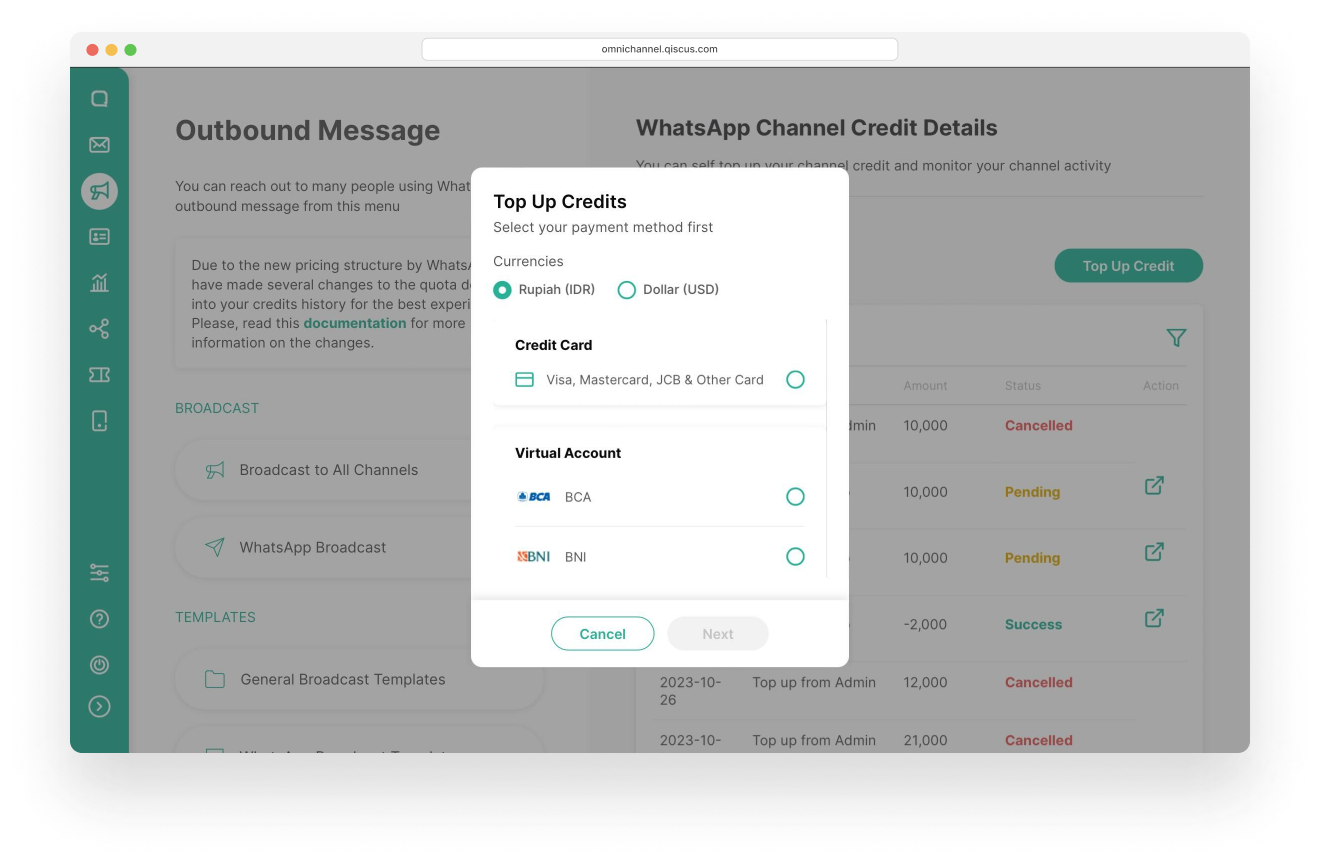
IDR
We offer two payment method when you choose to use IDR currency, Credit Card and Virtual Account.
Credit Cards
We accept payment from various cards, including four options, if you choose to pay with credit cards. There are Visa, Mastercard, and JCB.
Fill in the amount of credit after selecting a credit card.
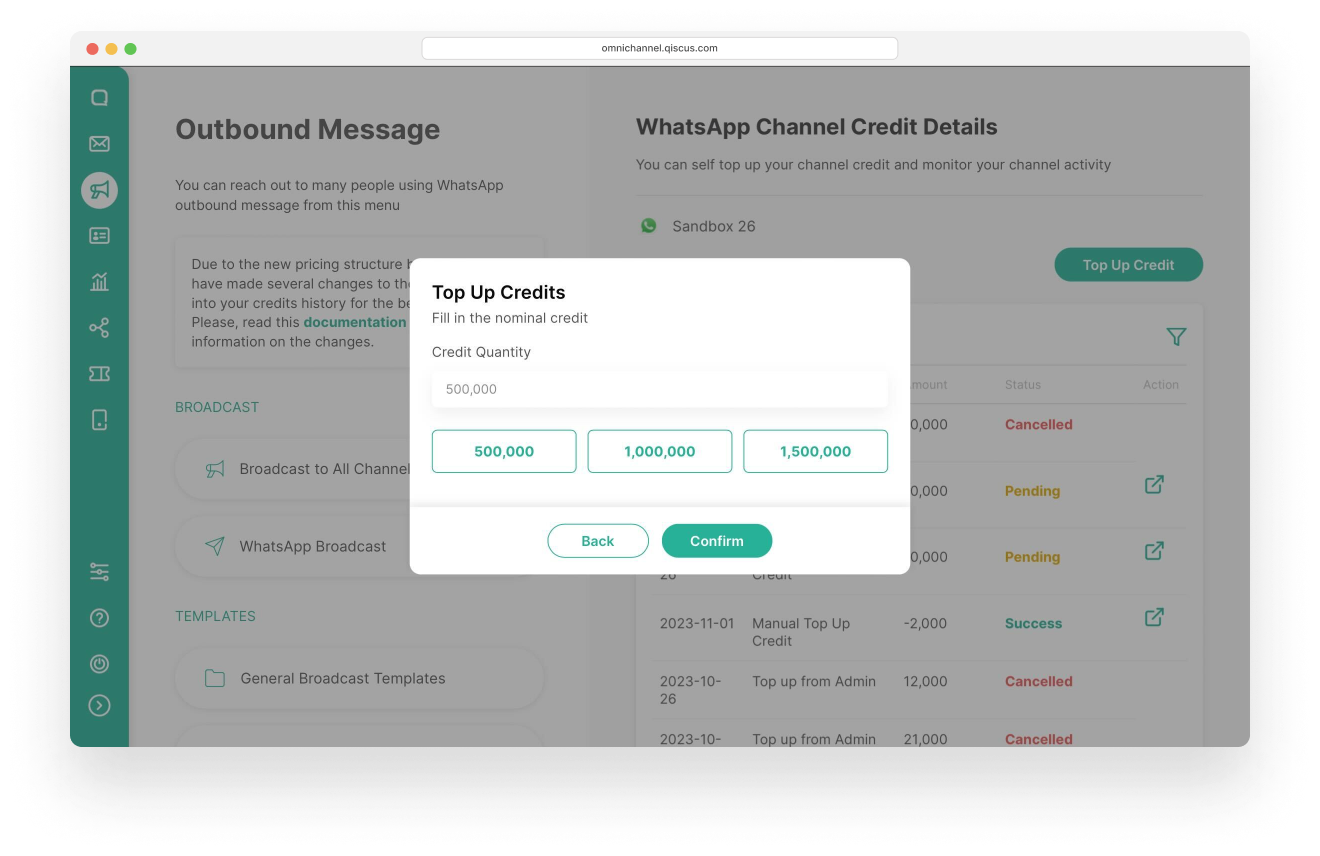
Click Confirm
Check your transaction
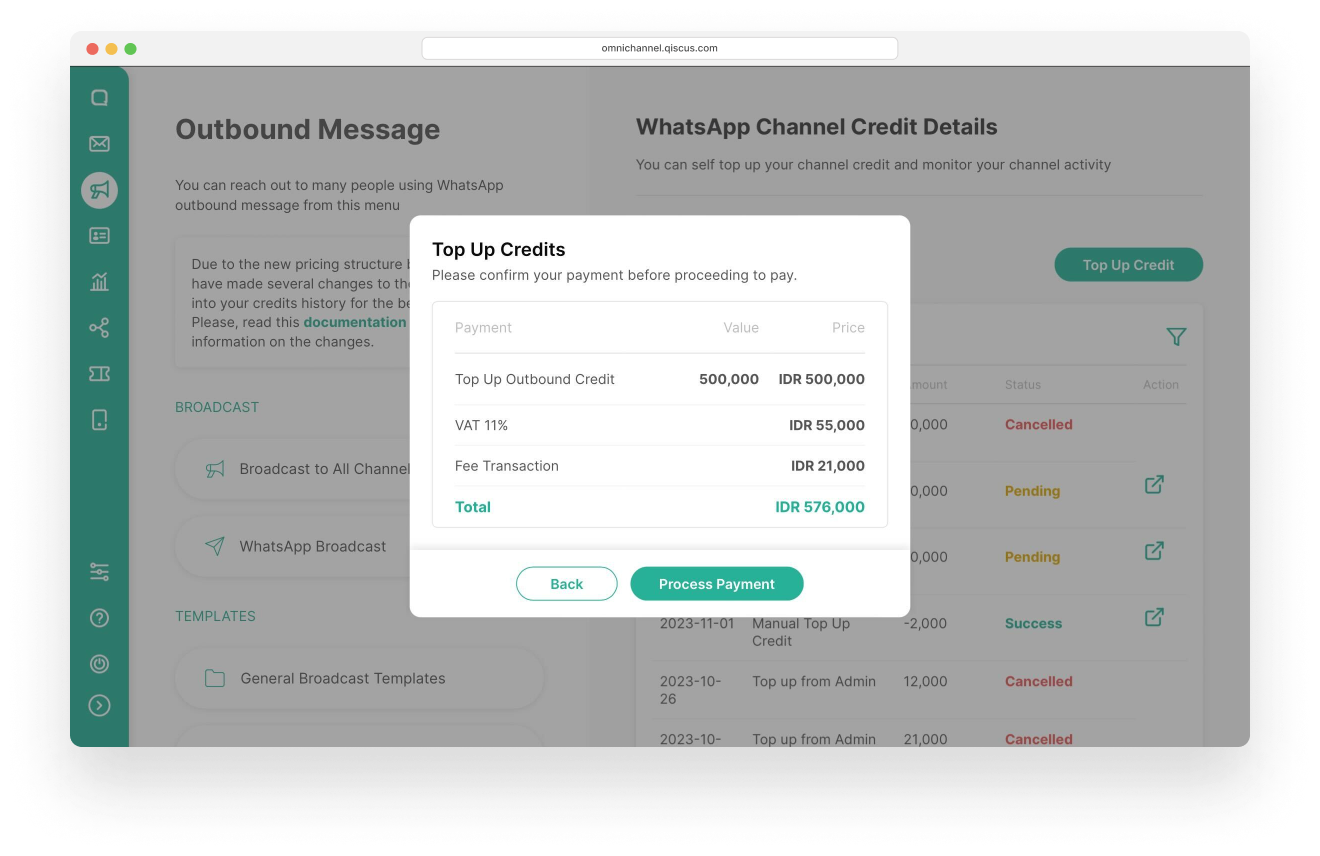
Click Process Payment
You can input your credit card credentials at this step.
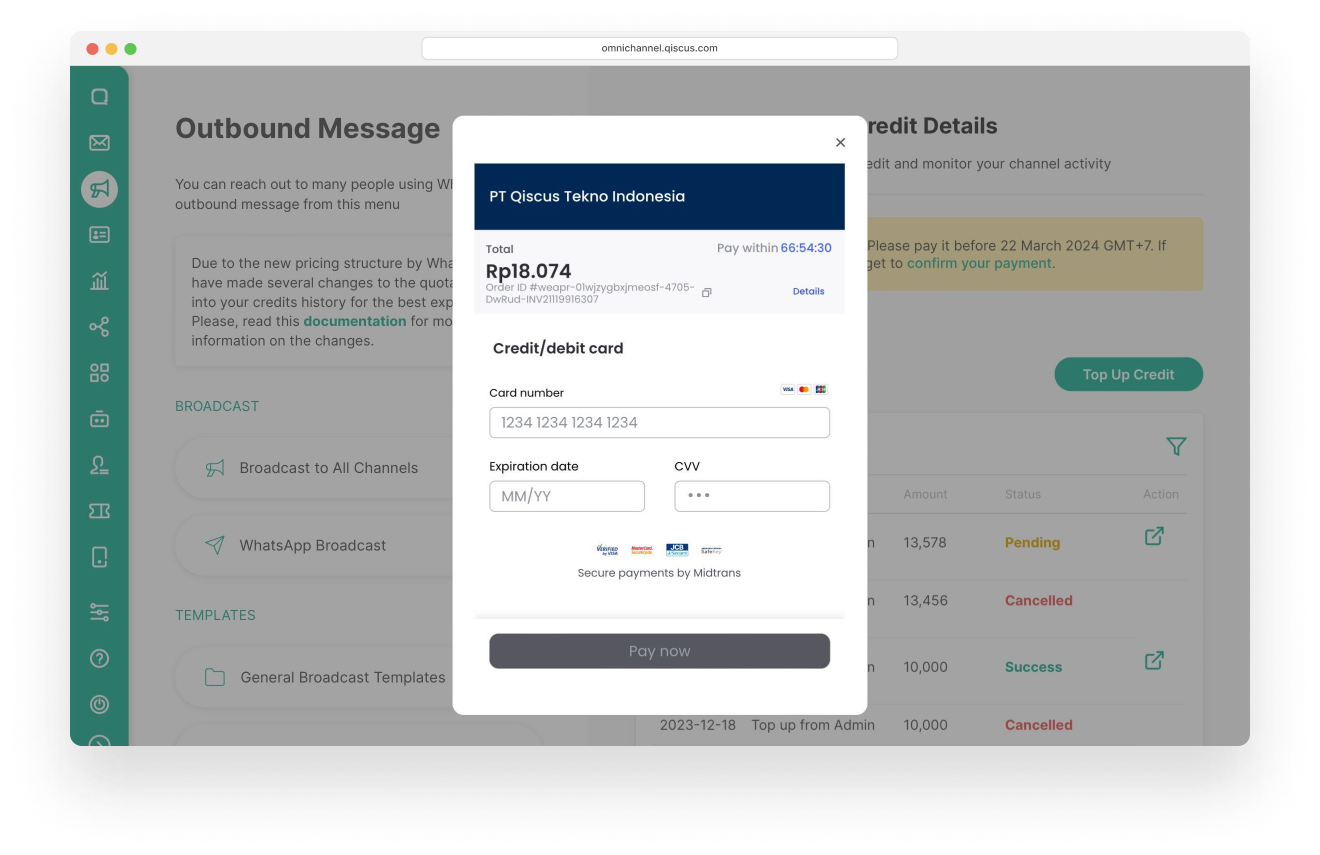
Virtual Account
When selecting virtual account payment method, you have the option to choose from various banks, such as : BNI, BRI, Mandiri, Permata, CIMB, BCA (coming soon) and many more.
Choose bank options
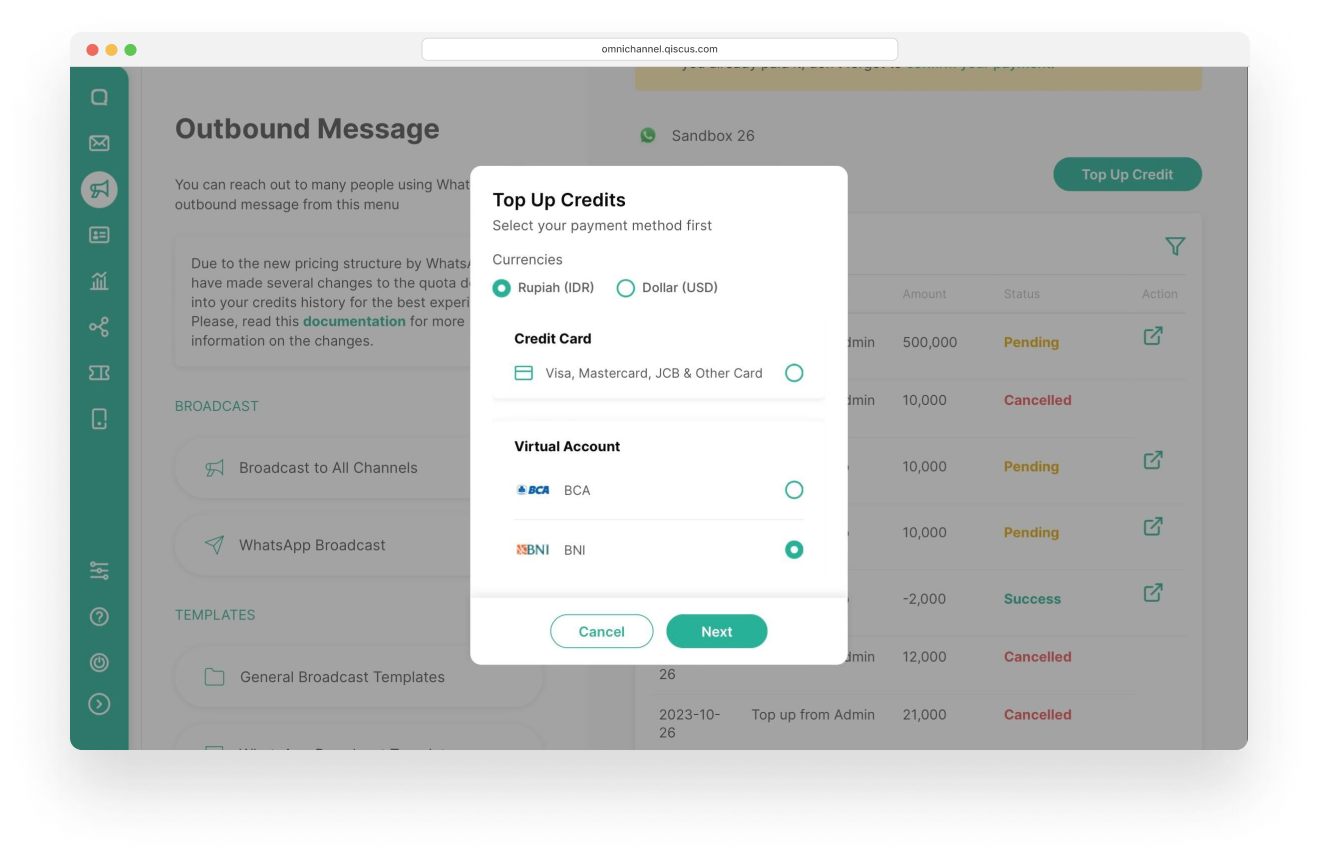
Click Next
Fill amount of credit
You can choose our suggestion or input it manually to fill amount of credit. The minimal amount of credit that is allowed is 10K
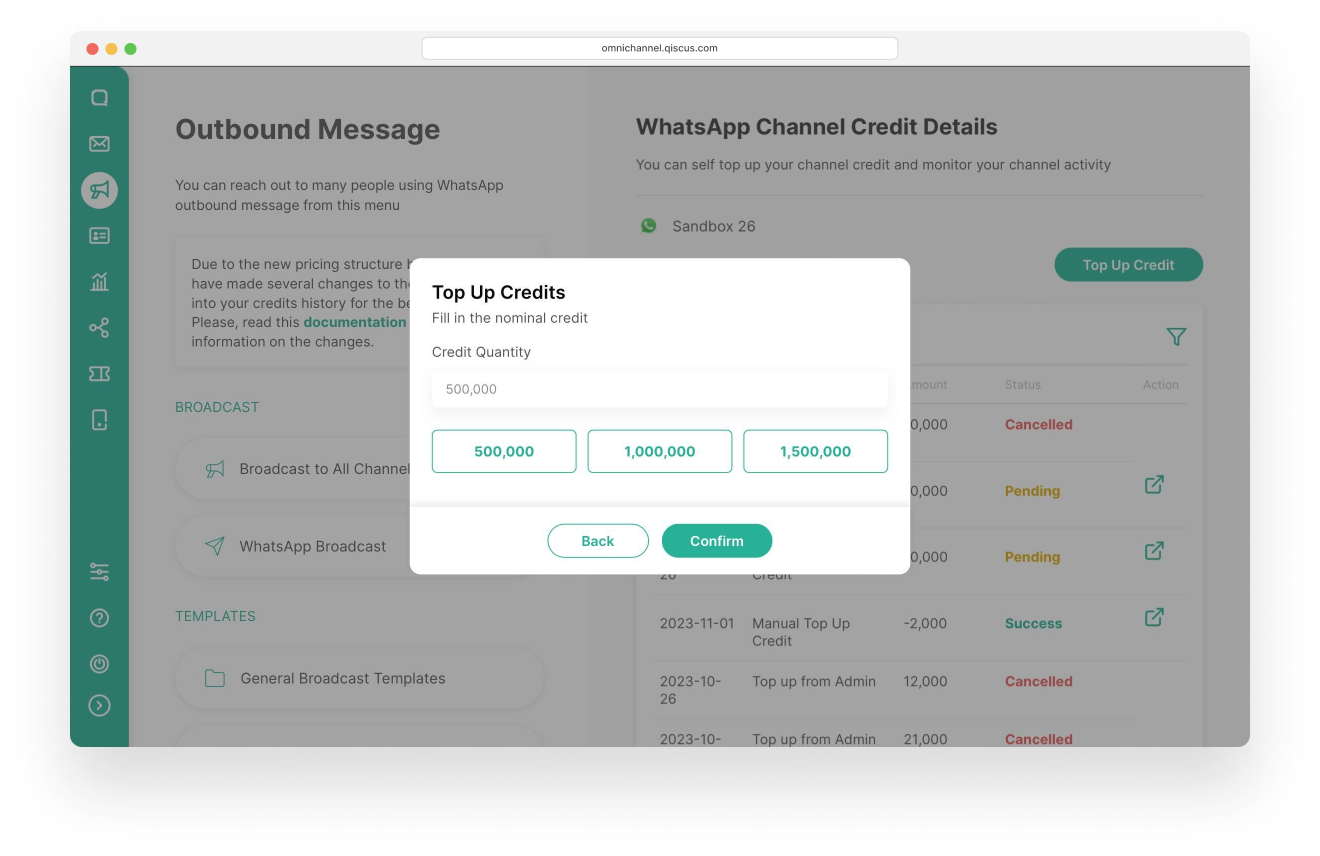
Clik Confirm
Check Your Transaction
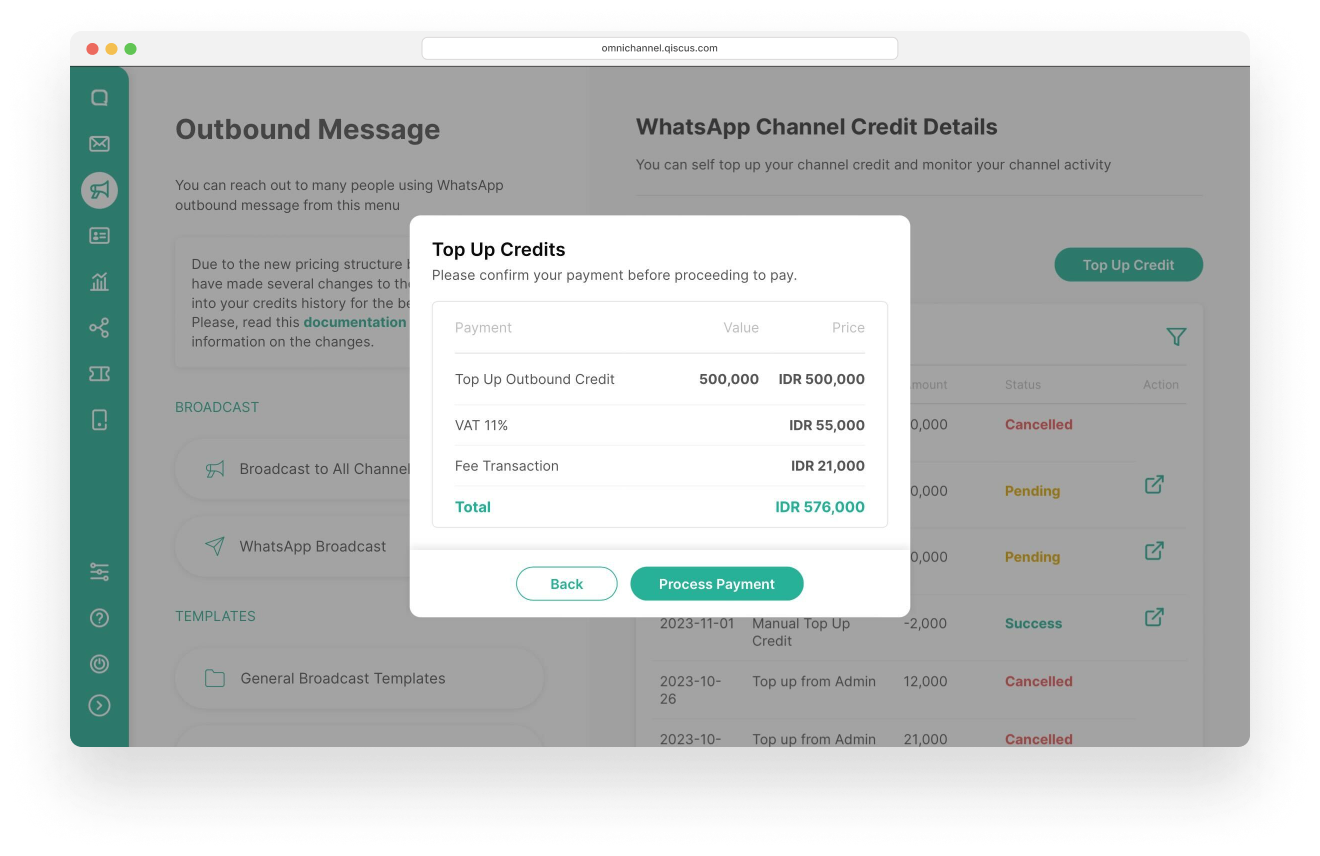
Click Process Payment
You will be provided with the virtual account number based on the selected bank, along with payment instructions.
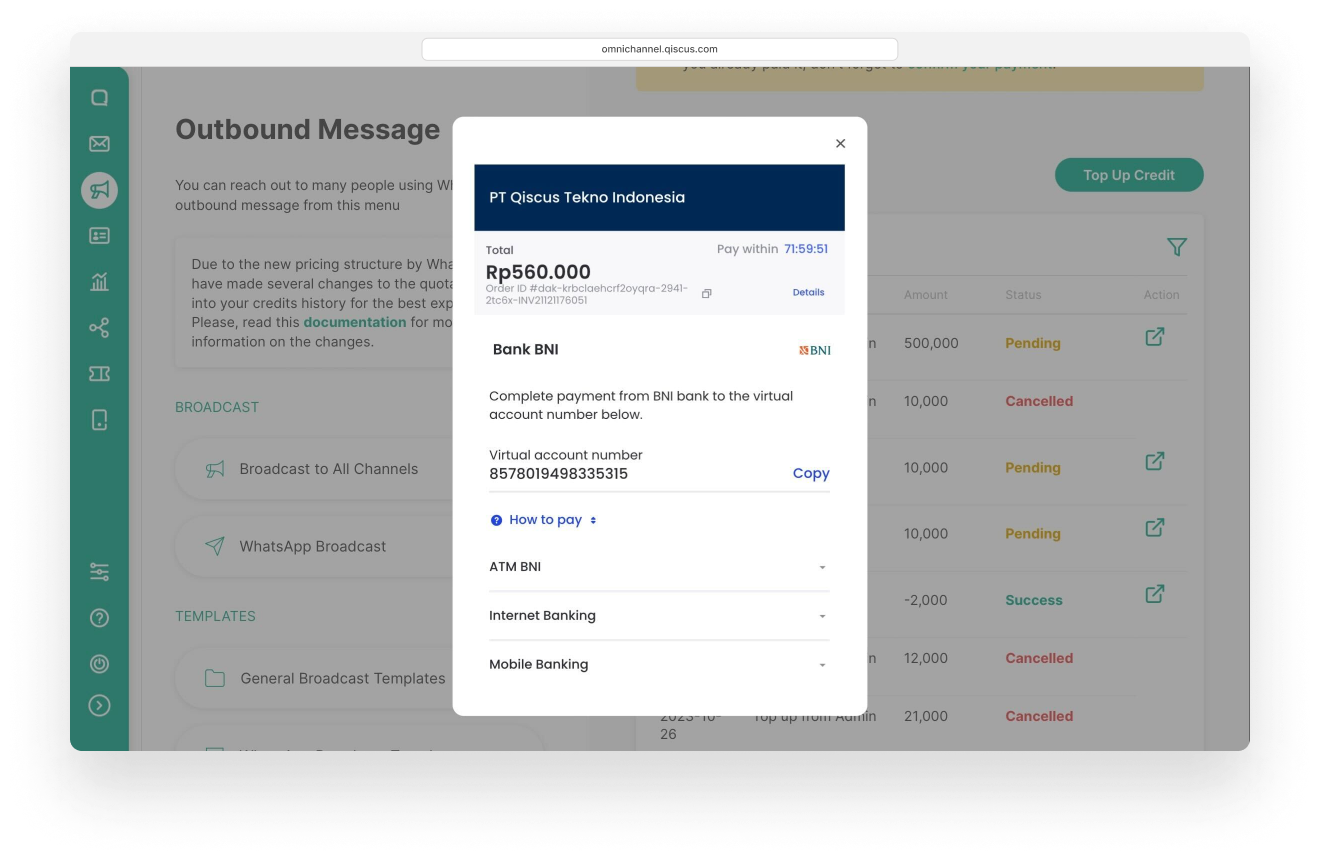
You can complete the payment process later, within three days. When you wish to view the virtual account number, simply click 'Confirm Your Payment'.
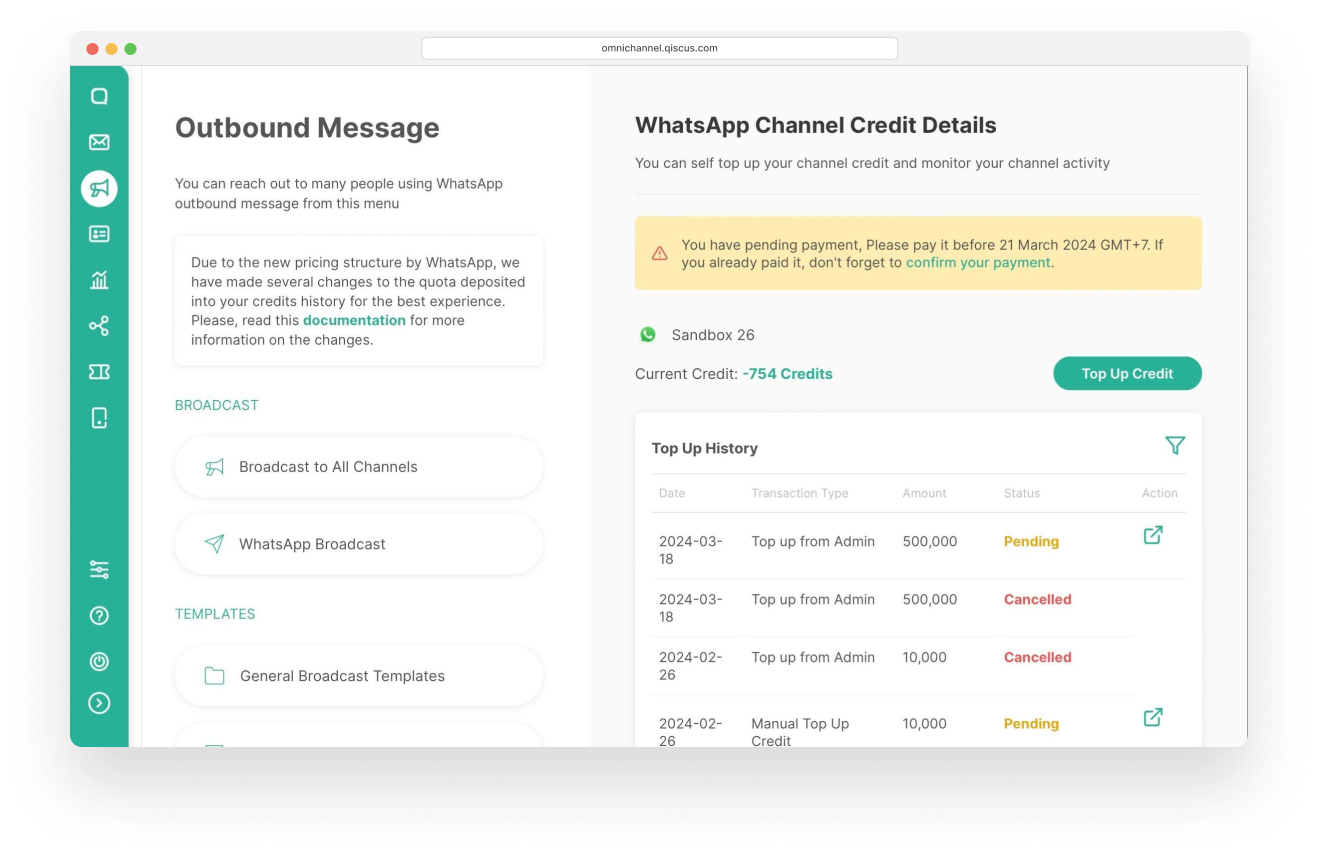
USD
When you prefer to pay in USD currency, you can use a credit card for payment.
Fill the information of your Credit Card
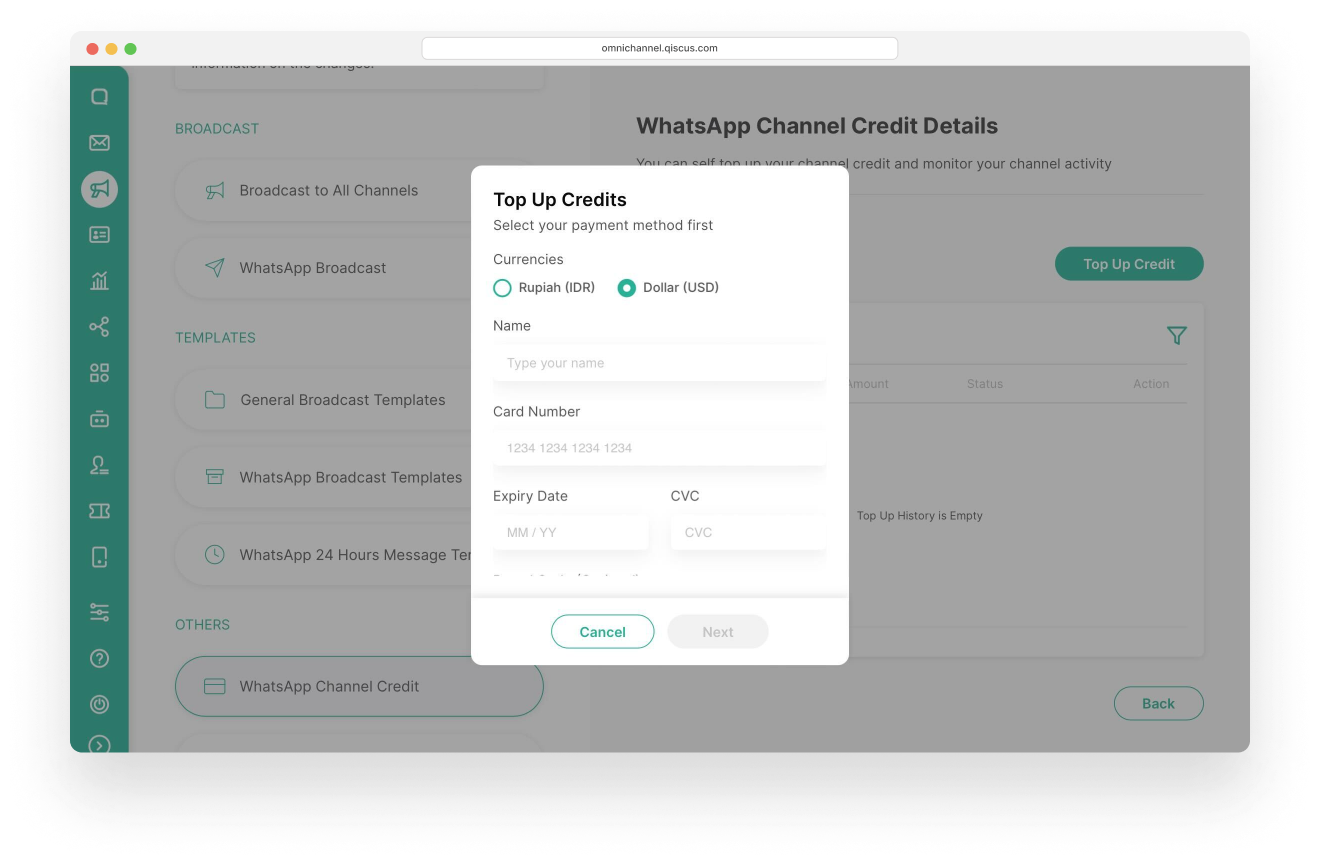
Click Next
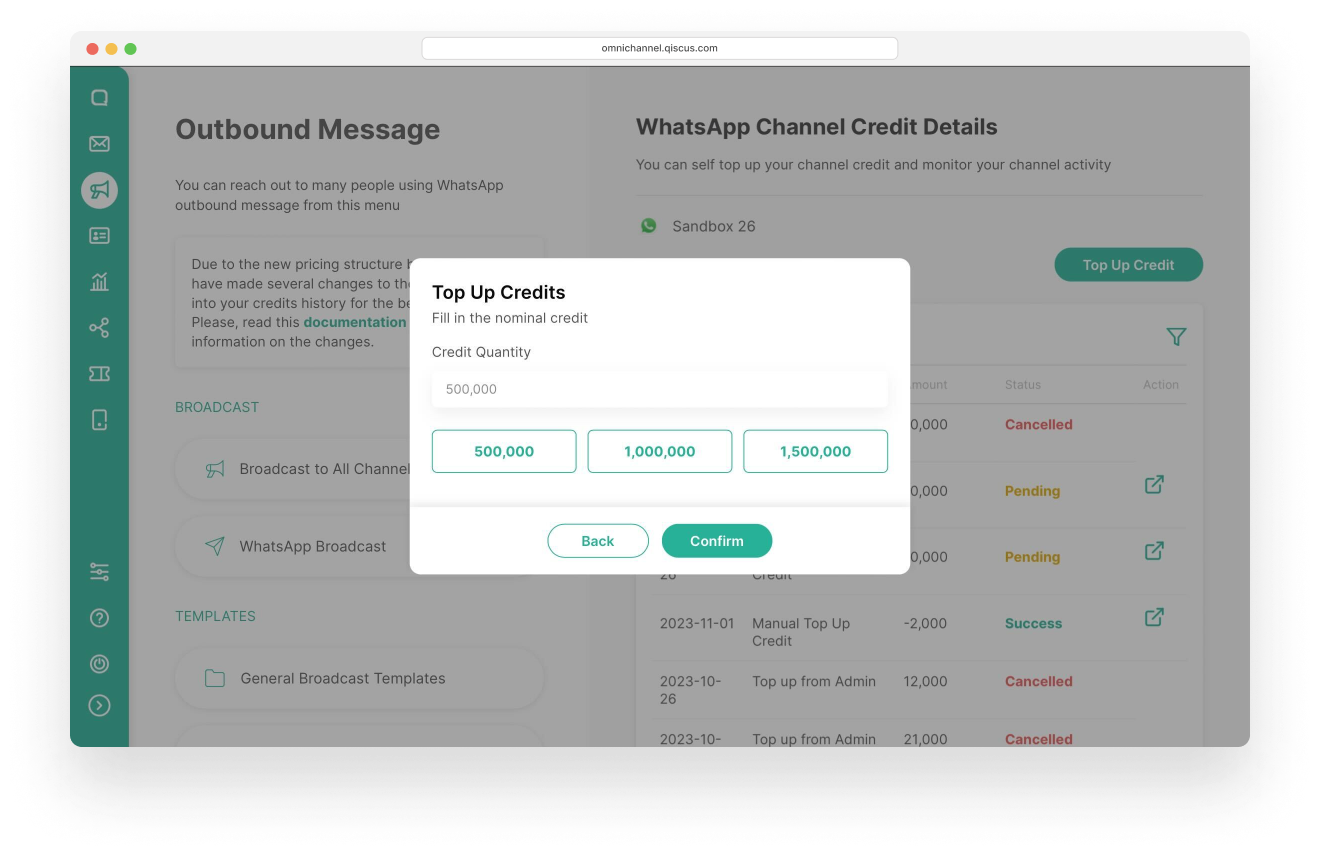
Fill amount of Credit
If your information of Credit Card is valid, than you can continue the process with fill amount of credit. The minimal amount of credit that is allowed is 10K.
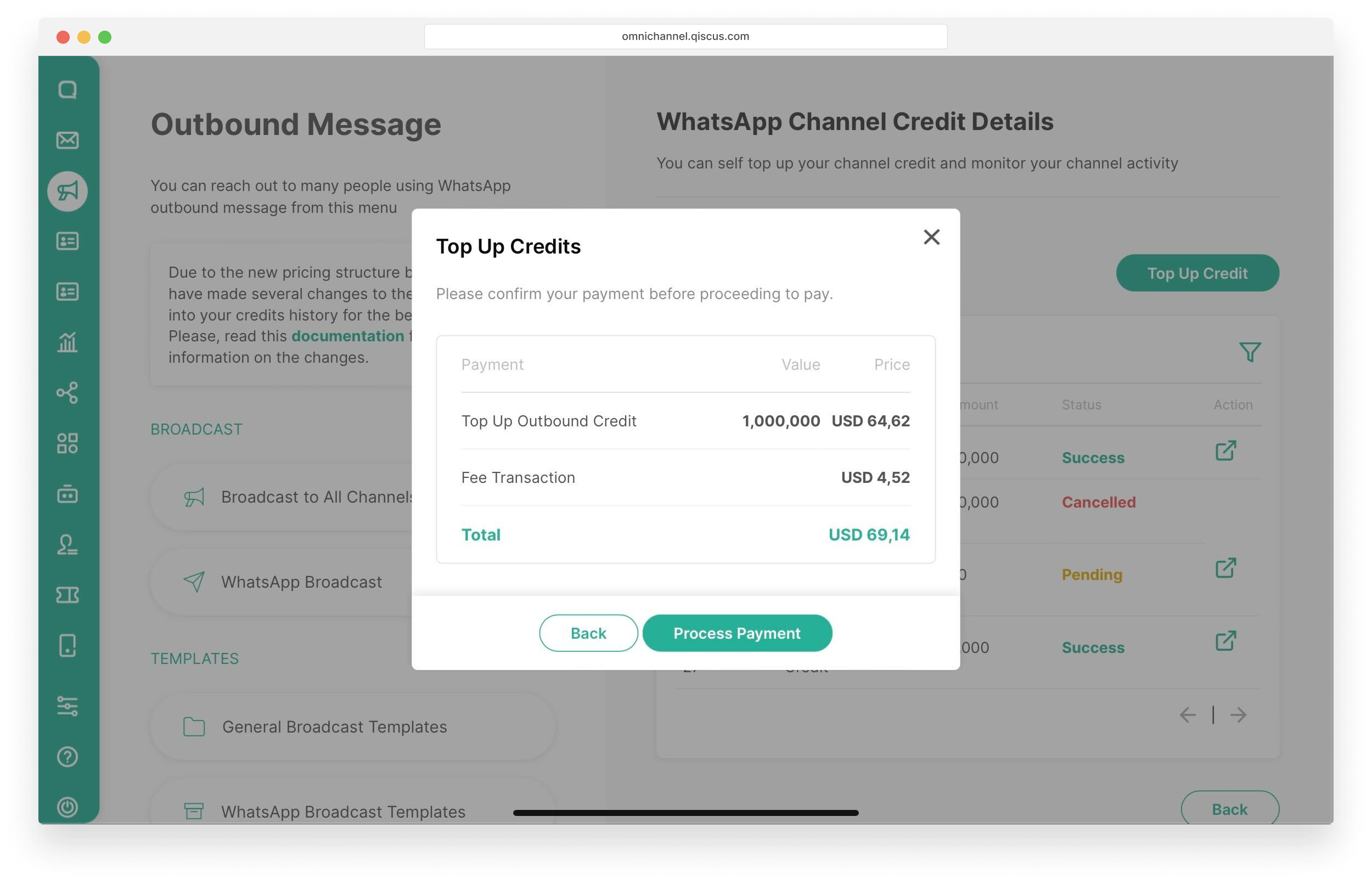
Next, you can review total amount for payment process
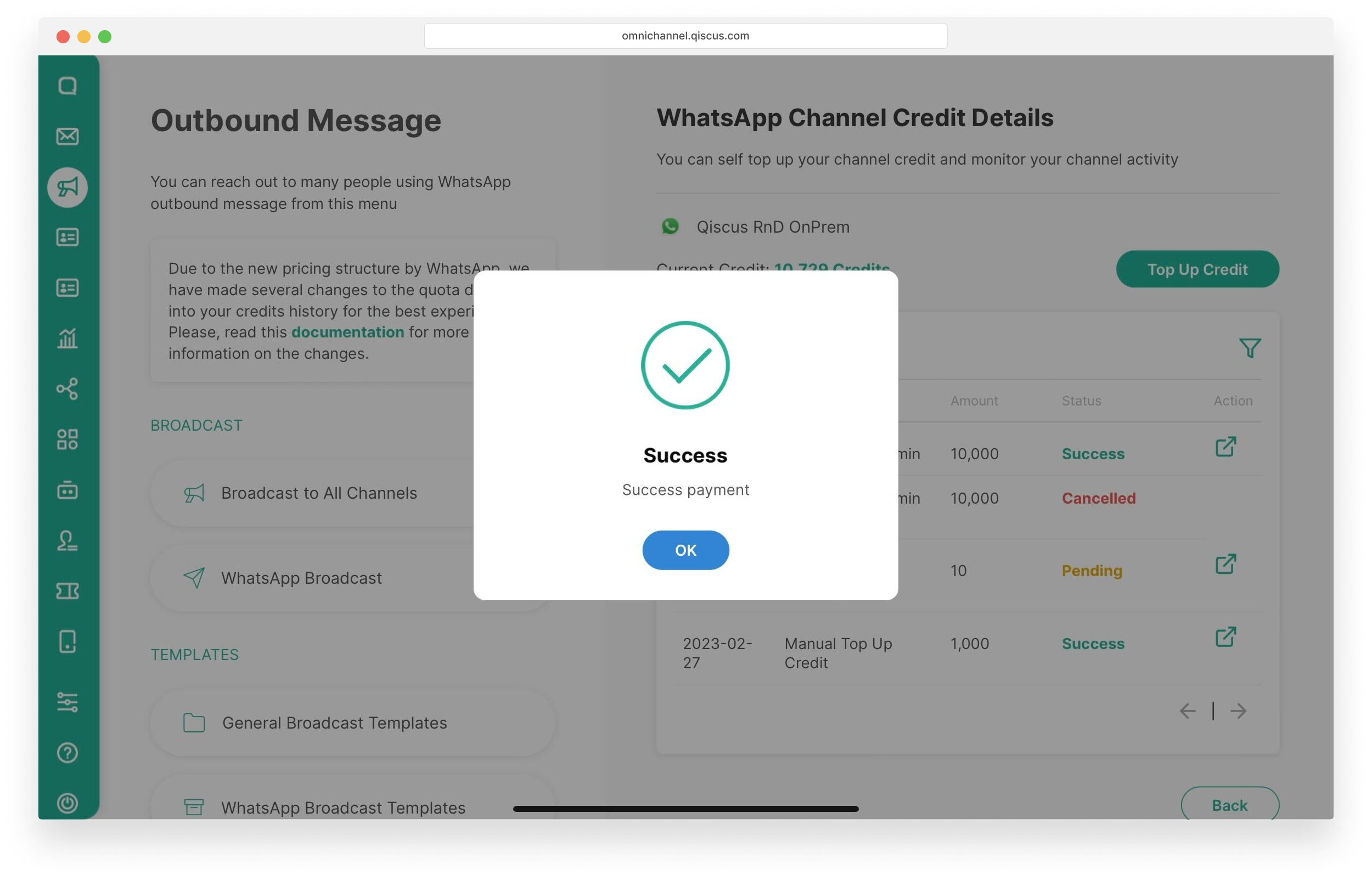
The success dialog popup will show and your credit automatically added, if your process payment is successful.
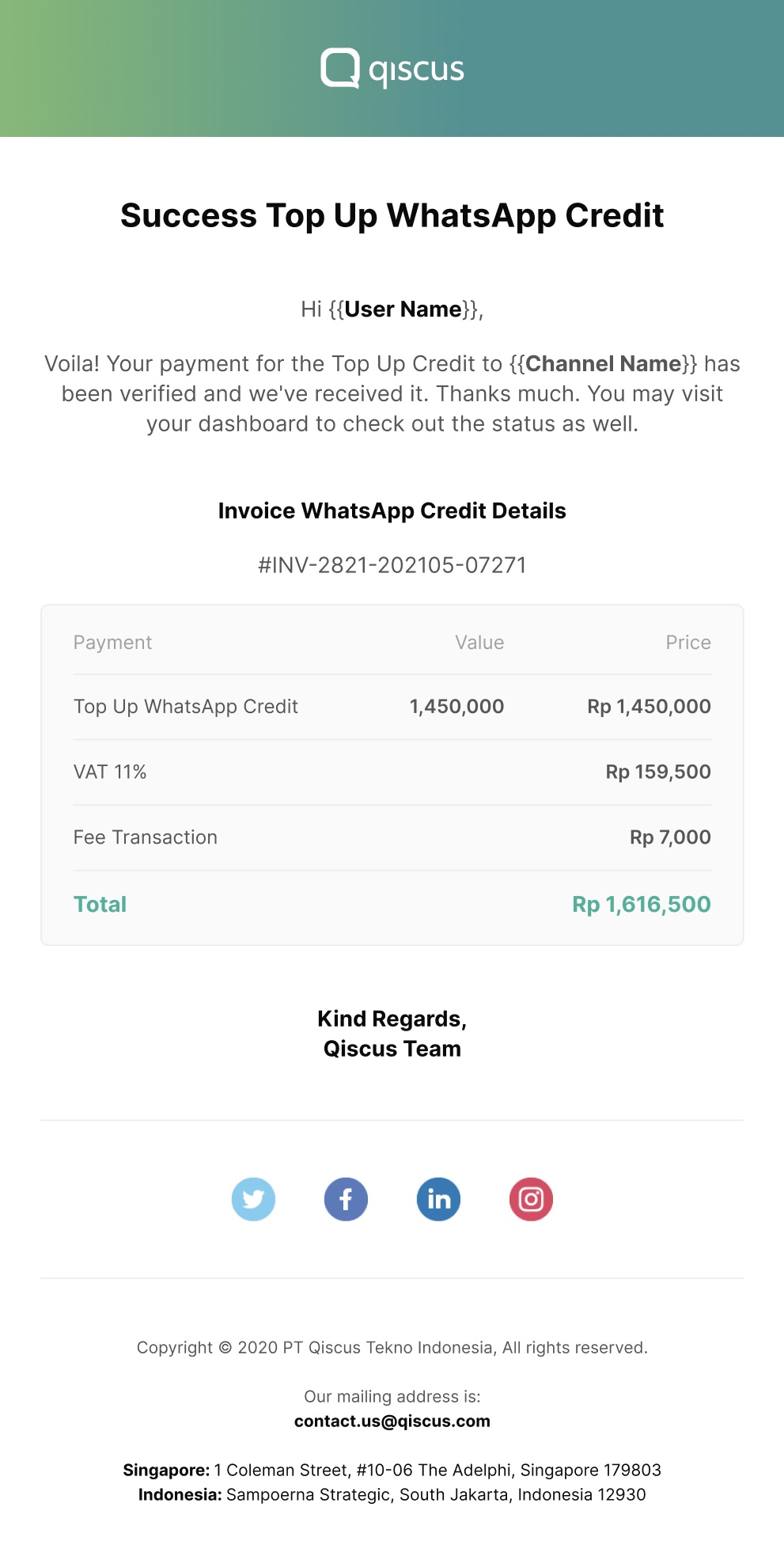
You will receive a confirmation email for every successful credit top-up transaction, both in IDR and USD.
Self top up credit can be paid with various virtual bank options and credit cards, but it has some limitations.
Currency | Payment Method | Available in | Min Credit | |
|---|---|---|---|---|
1 | IDR | Credit Card | Visa, Mastercard, JCB | 10K |
Virtual Account | BNI, BRI, Mandiri, Permata, CIMB | 10K | ||
2 | USD | Credit Card | Visa, Mastercard, JCB, American Express | 10K |
Service Message Cost in the Inbox
From 1 October 2026, each service message (a reply sent inside the 24-hour customer service window) is charged separately. See WhatsApp Pricing Update 2026 for the full list of what's charged.
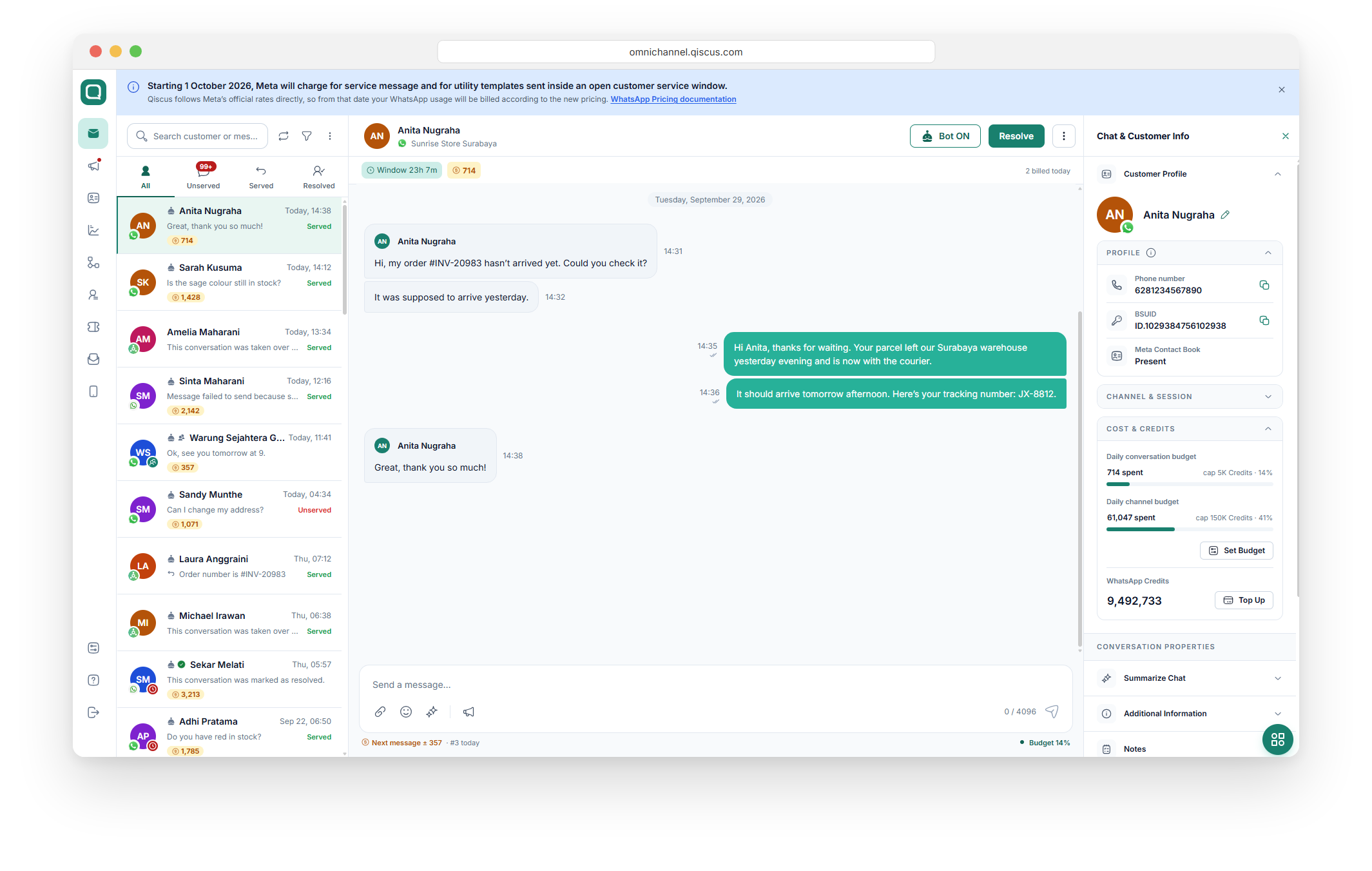
Agents can see what their WhatsApp messages cost while they reply. The Inbox shows it in these places:
Where | What you'll see |
|---|---|
Room list | Each WhatsApp room in the list shows what the conversation has cost so far. Supervisors can spot expensive conversations without opening them. |
Chat header | Time left in the 24-hour window, time left in a Free Entry Point window (for example, Free entry · 51h left), the cost so far, and how many messages have been billed. |
Chat room | The cost of each message you send, with a total under each group of replies. Customer messages are free, so they show no cost. |
Reply box | The estimated cost of your next message, where it falls in the conversation's message count, and how much of the budget is used. Postpaid accounts see a billing note instead. |
Cost & Credits panel (right sidebar) | The conversation and channel budgets, each shown against its limit, plus your WhatsApp Credits balance. |
Daily Budget
Daily Budget limits how much a WhatsApp channel or a single conversation can spend on service messages each day.
Role | What they can do |
|---|---|
Admin | Turn budgets on or off, set the budget amount, lift a limit with Unlimit today, and turn it back on with Re-apply limit. |
Supervisor | On channels they're assigned to, lift a limit with Unlimit today and turn it back on with Re-apply limit. They can't change budget settings. |
Agent | Ask for more budget when a limit is reached. |
Each of the two budgets has its own toggle, so a channel can use either one, both, or neither.
Budget | When it's reached |
|---|---|
Daily channel budget | Service messages stop on that channel for the rest of the day. |
Daily conversation budget | Service messages stop in that conversation only, and the rest of the channel carries on as normal. |
How To Enable (Admin only):
Go to the Outbound Message page.
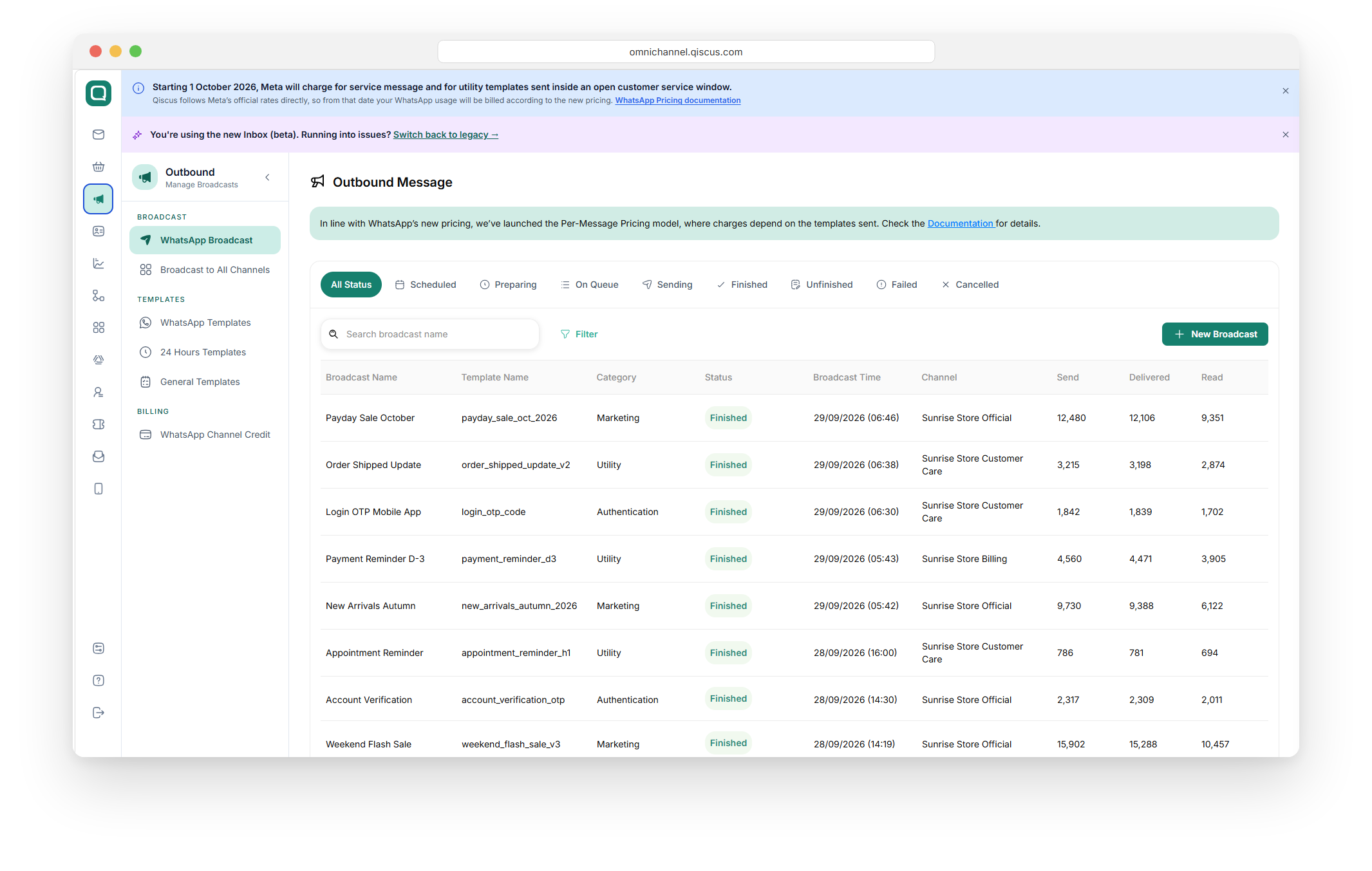
Go to the WhatsApp Channel Credit page.
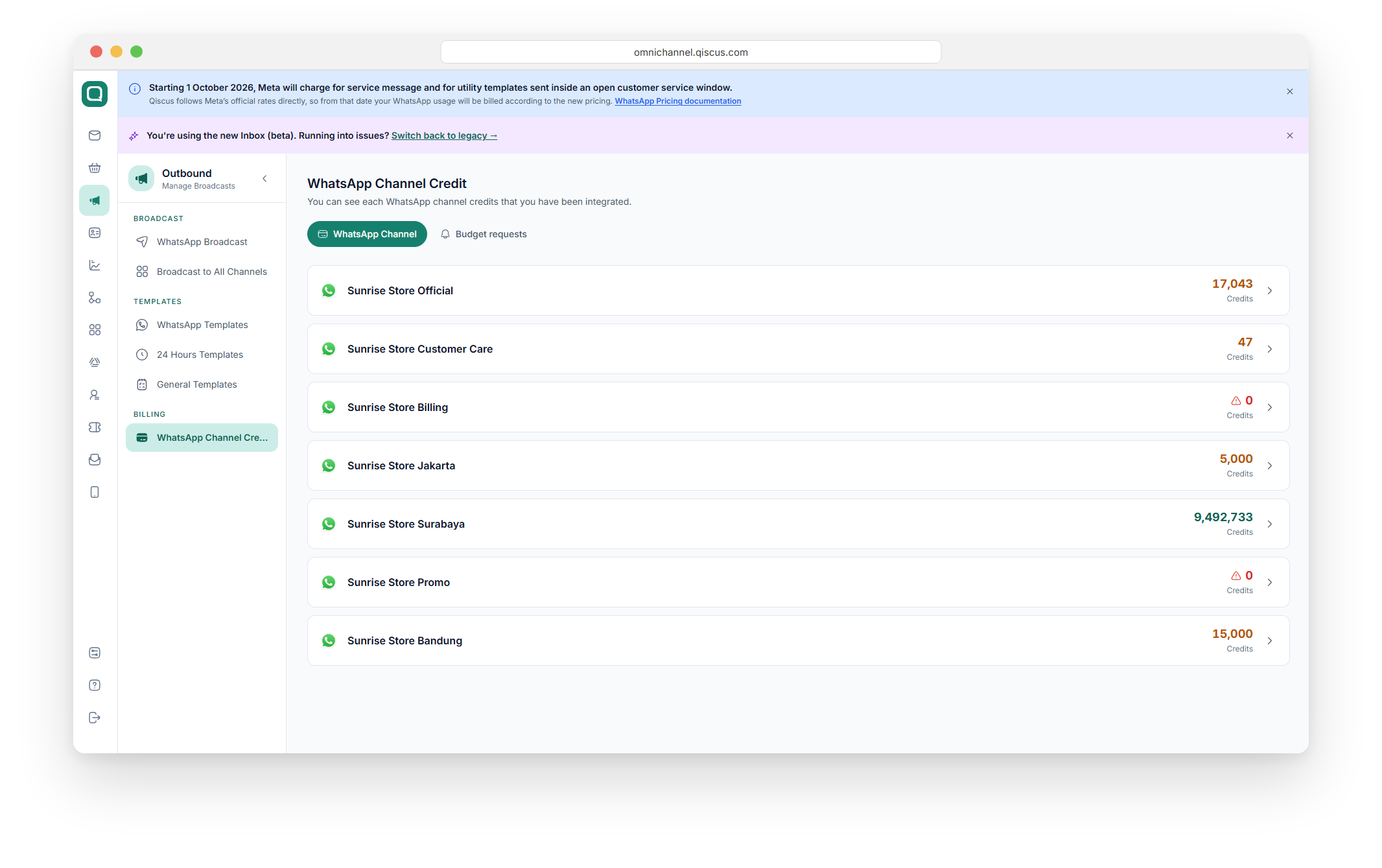
Select your WhatsApp channel. The WhatsApp Channel Credit Details page opens.
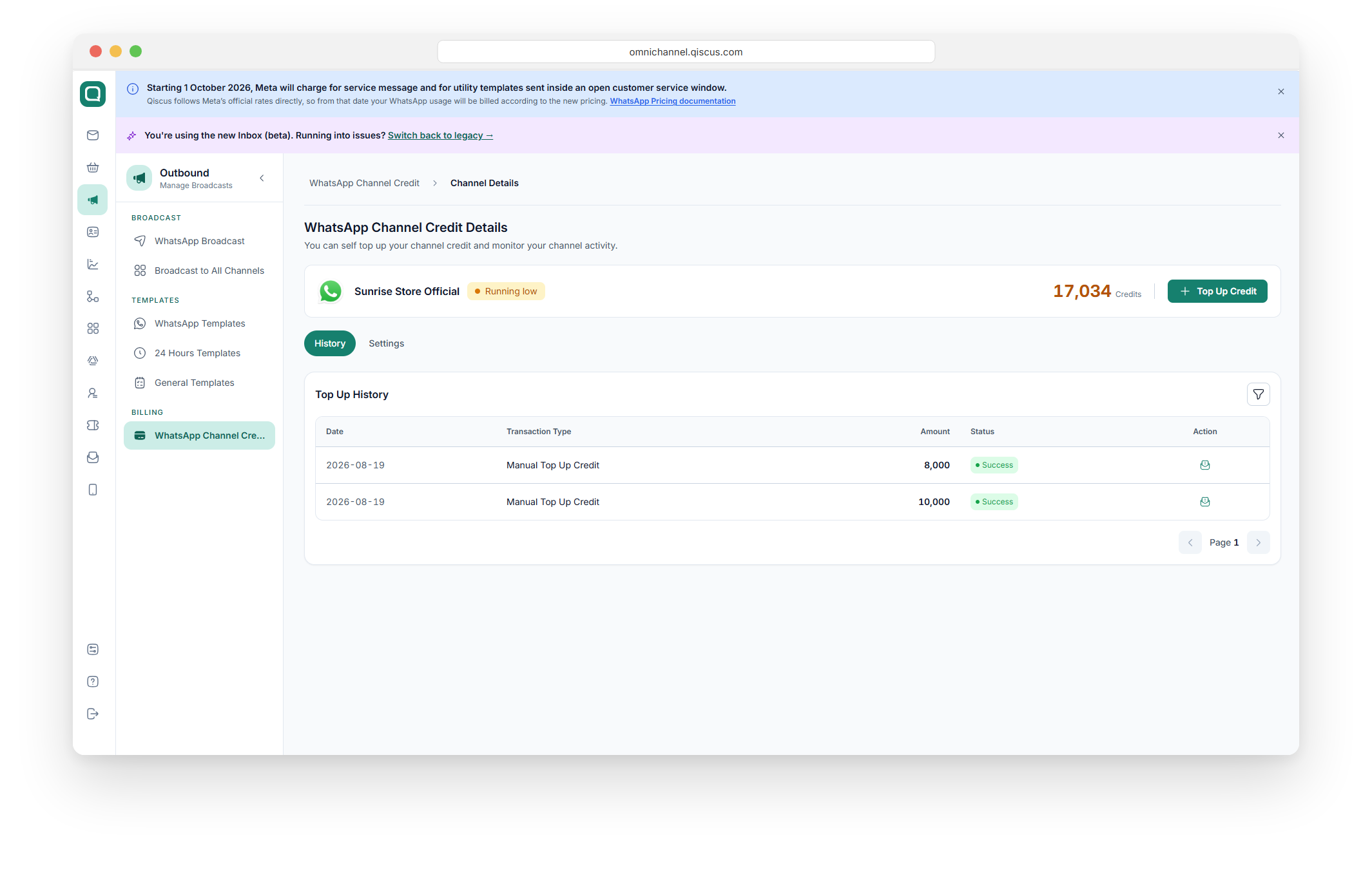
Open the Settings tab.
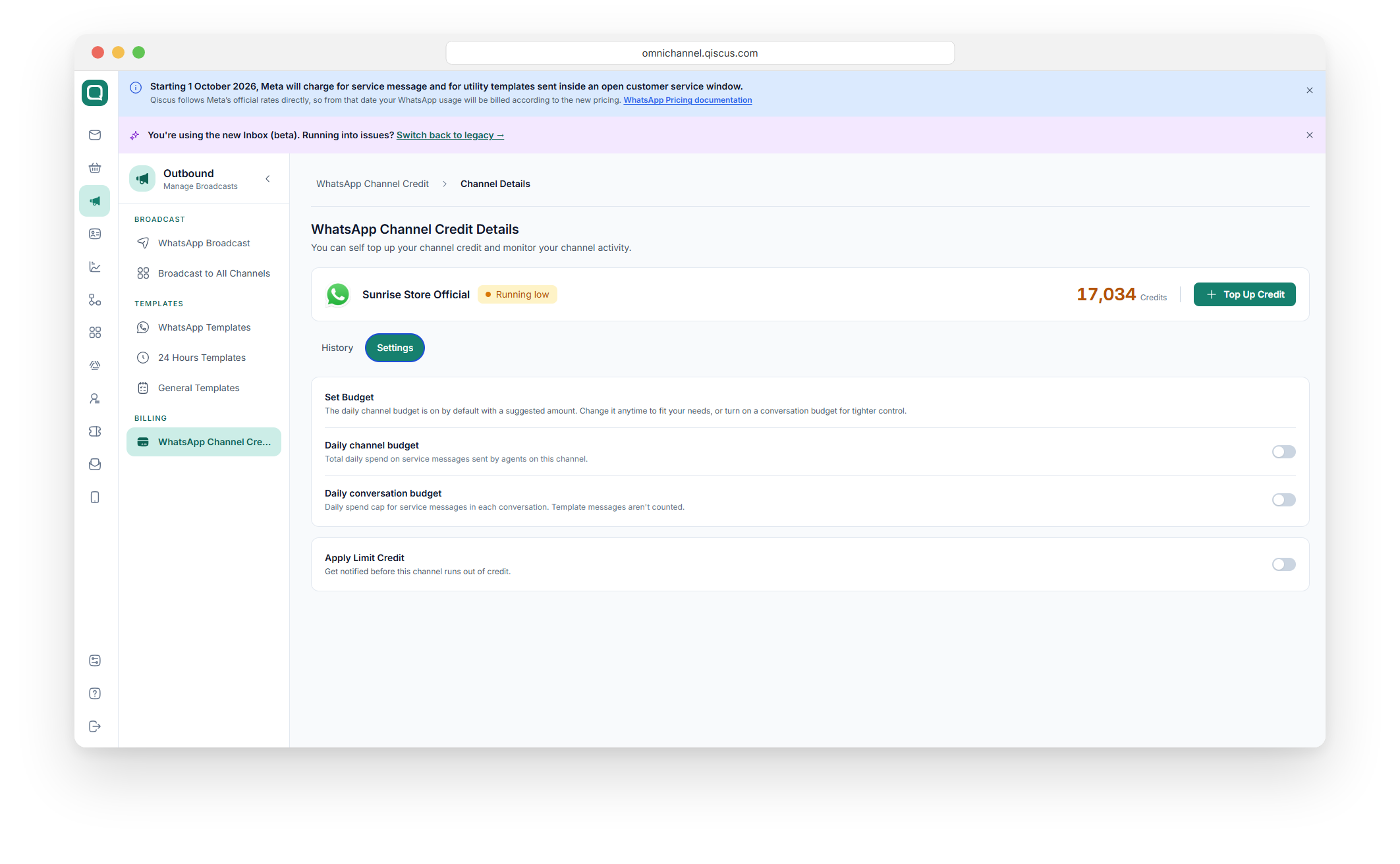
Under Set Budget, turn on Daily channel budget, Daily conversation budget, or both.
Fill in Limit Credits for each budget you turned on.
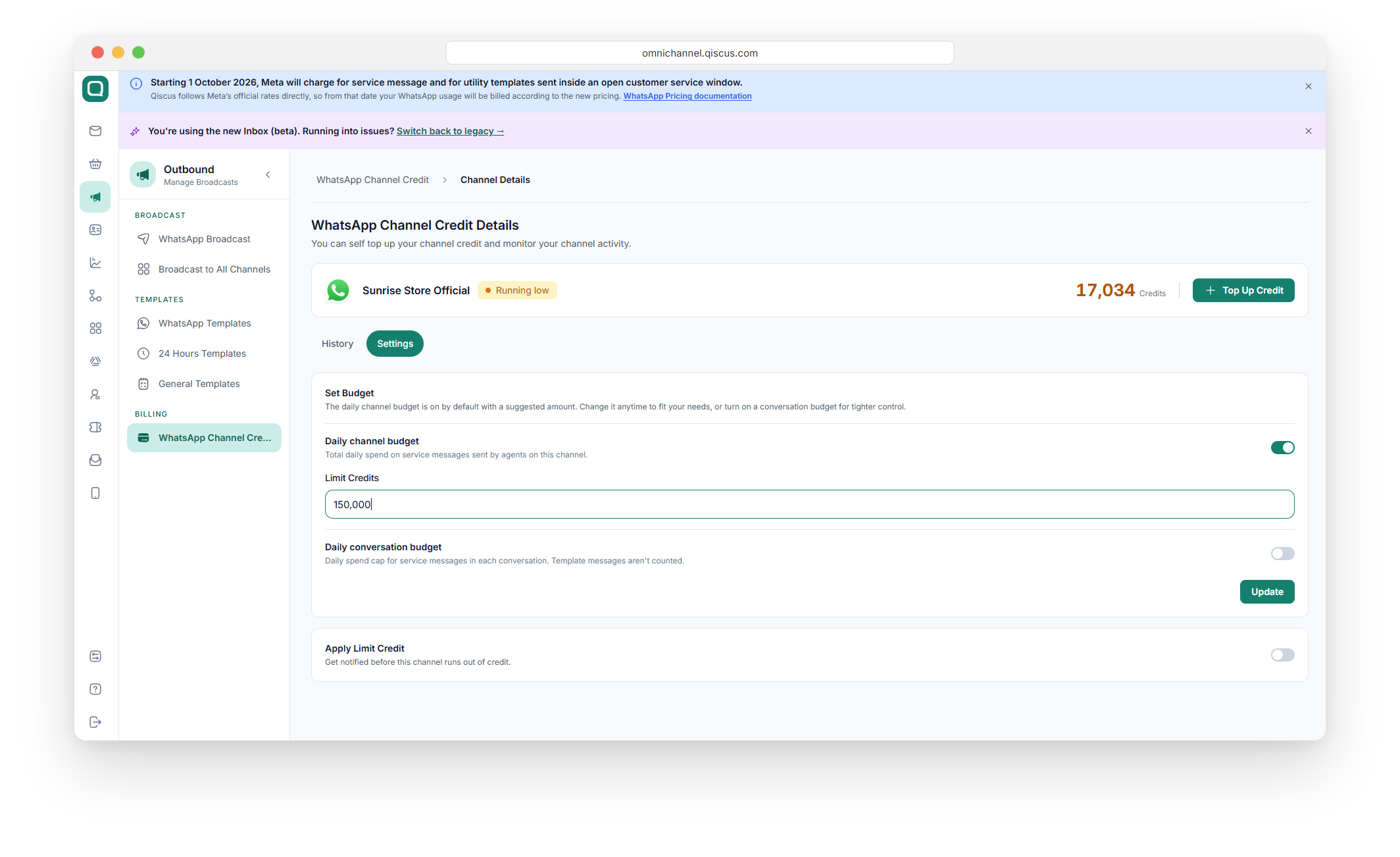
Click Update.
Good to know
Daily Budget counts and stops service messages only. Templates and broadcasts don't count toward a budget, and they keep sending even after it's reached.
Daily Budget works on postpaid channels too. It stops service messages the same way, but no credit is deducted and usage goes on your monthly invoice.
Budgets reset at the end of each day, UTC+7.
Every change to a budget is logged.
There's no budget per agent. Agent costs appear in reports only.
When a budget is reached
Agents see a Daily budget limit reached banner in the room, explaining which budget has run out. In the Cost & Credits panel, that budget shows 100%.
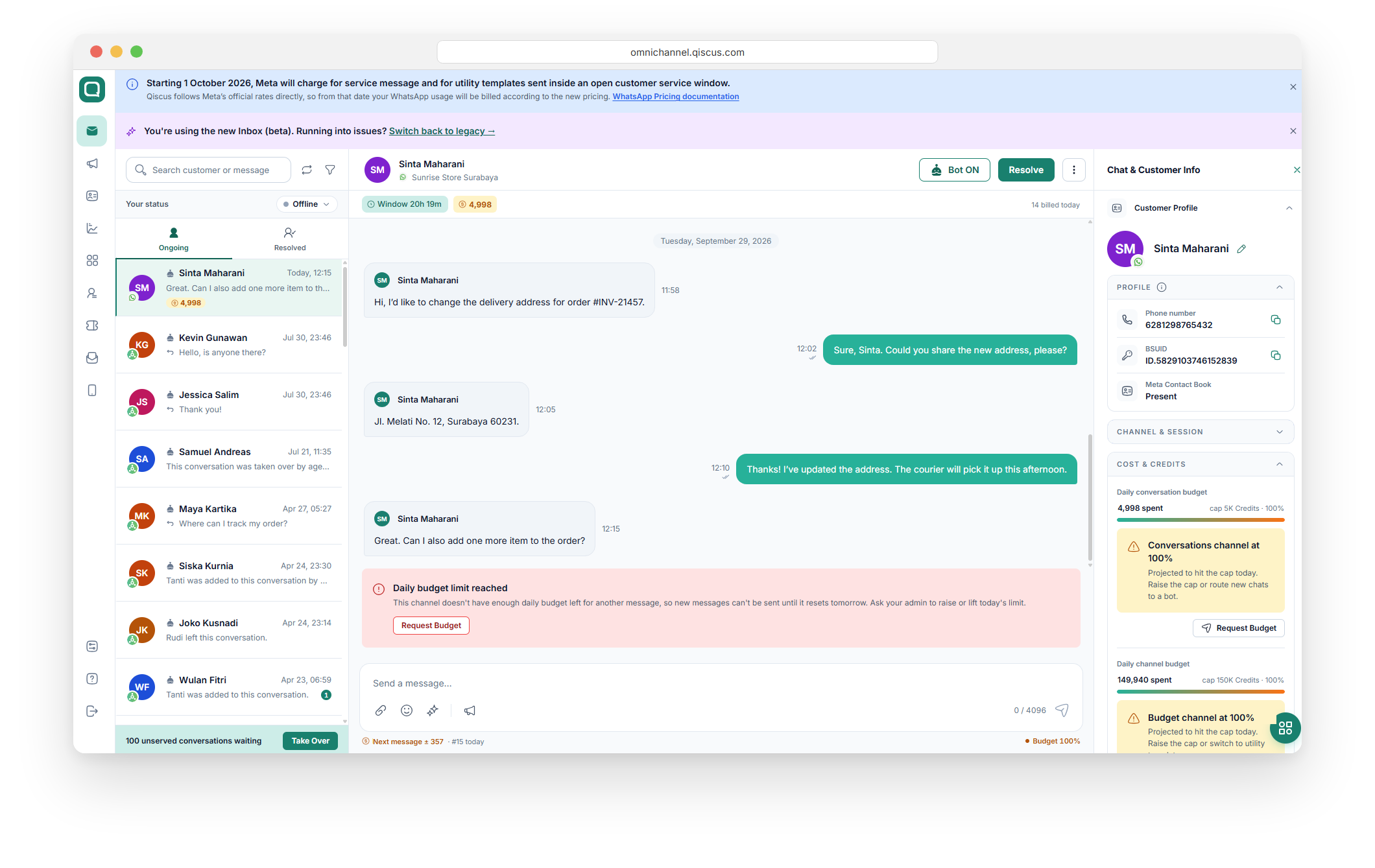
Request more budget (Agent)
In the room, click Request Budget. The request goes out in one click, and the button changes to Request sent.
Lift the limit for today (Admin or Supervisor)
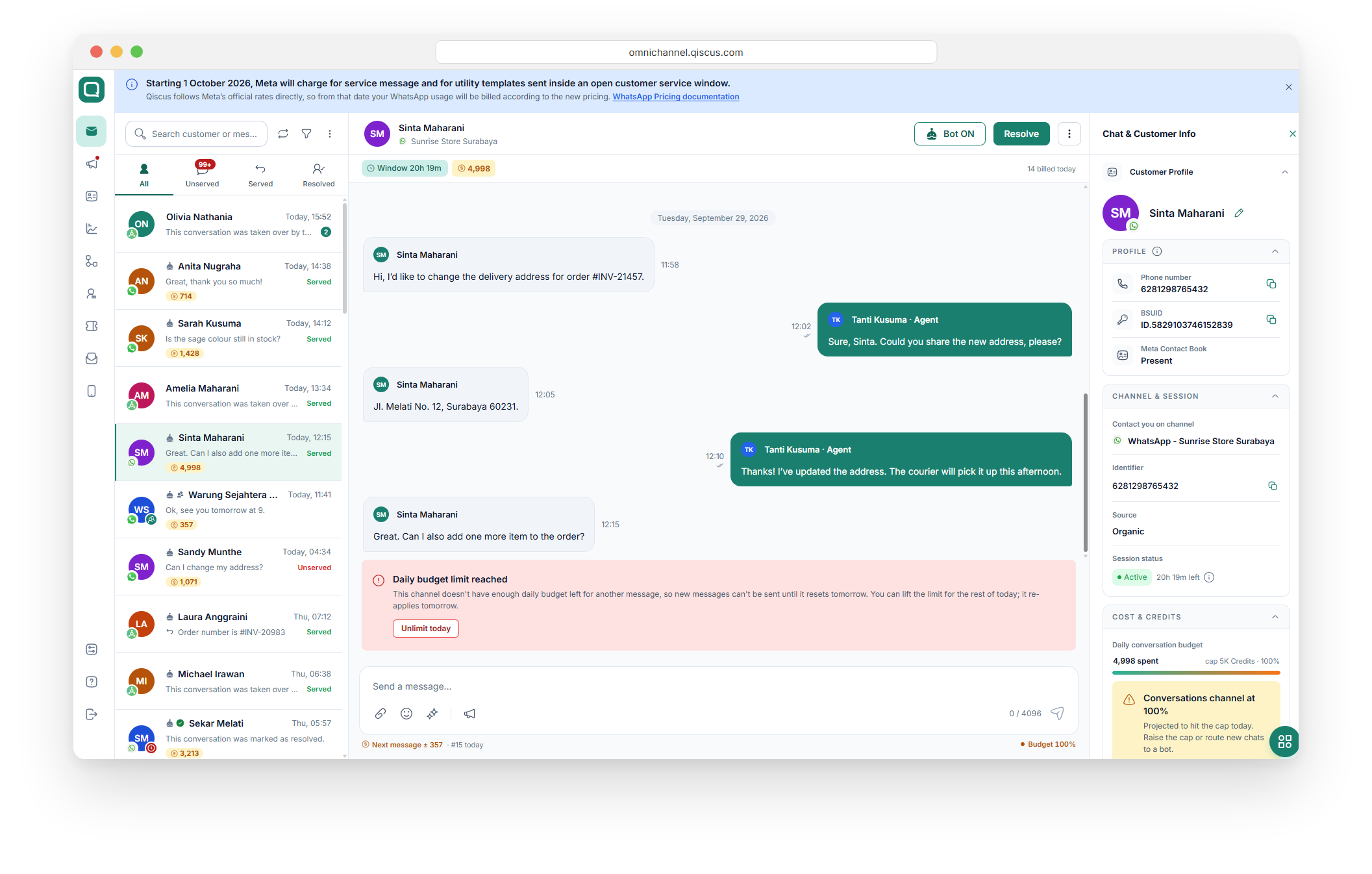
You can lift a limit from the room or from the requests list.
From the room
Open the conversation in the Inbox.
On the Daily budget limit reached banner, click Unlimit today.
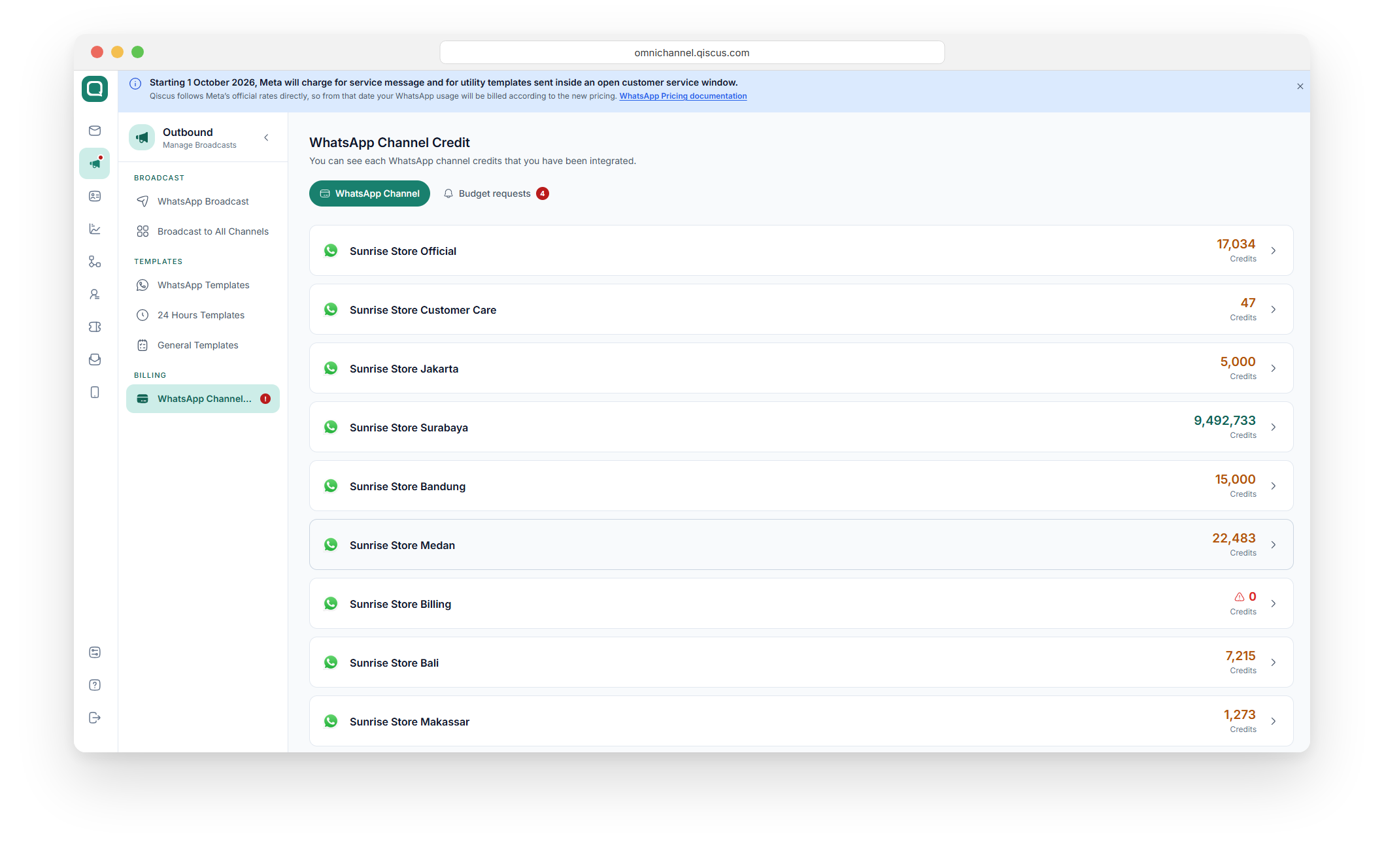
From the requests list
Go to the WhatsApp Channel Credit page. The number on Budget requests shows how many requests are waiting.
Open the Budget requests tab.
Under Pending requests, find the request. Each request shows who asked, which budget they hit, and on which channel.
Click Unlimit today to lift the limit or Decline to keep it.
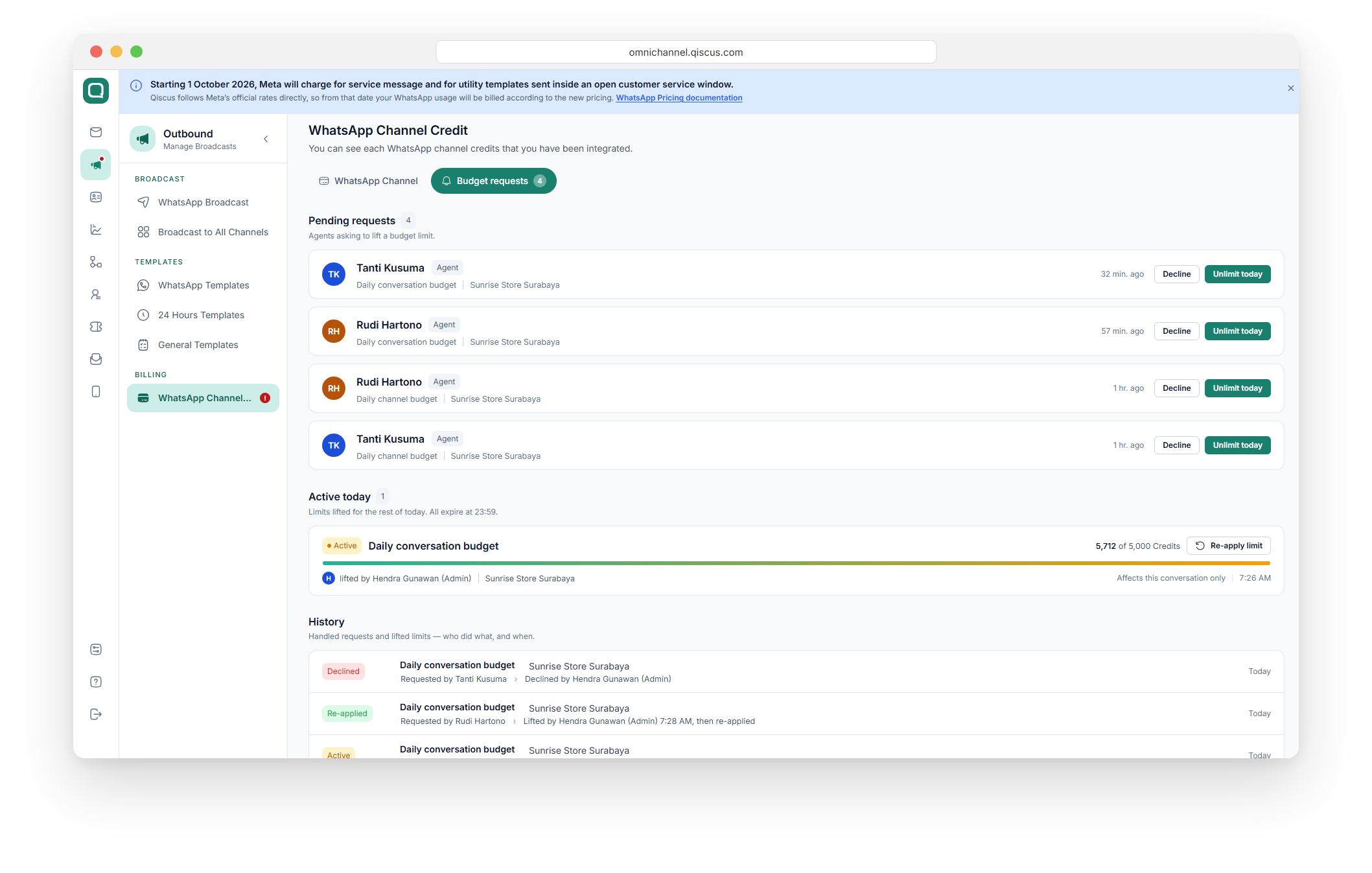
Unlimit today lifts only the budget in the request: a channel request frees that channel, and a conversation request frees that conversation. Supervisors can lift limits only on channels they're assigned to.
After you lift a limit
The lifted budget moves to Active today. It stays lifted until 23:59, and the limit applies again automatically the next day.
To bring the limit back sooner, click Re-apply limit under Active today. It takes effect right away with the same budget amount.
History lists every request and action, with who did what and when.
Service Message Spend in Analytics
Analytics shows how much your account spends on service messages over time, per agent, per division, and per channel. Use it to see where spend comes from and to decide what Daily Budget to set.
Data is available from 1 October 2026, when service messages started being charged per message. Only service messages are counted. Templates and broadcasts are not included, and messages sent inside a Free Entry Point window add nothing because they're free.
To open it, go to Analytics, then choose the tab below.
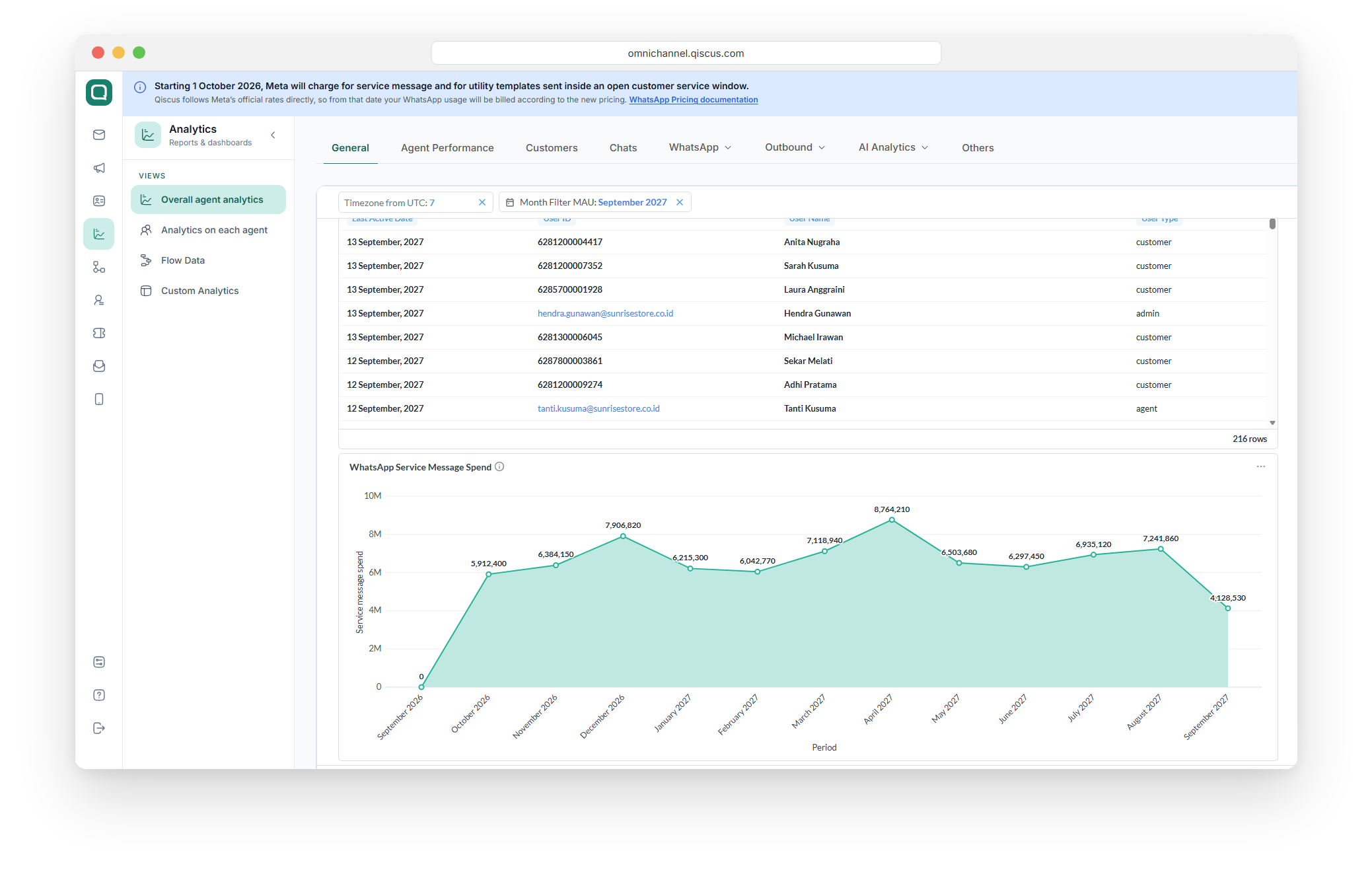
General Tab: Monthly Spend
WhatsApp Service Message Spend shows your monthly spend on service messages over the past year. The figure for the current month keeps growing until the month ends.
Agent Performance tab: Spend per agent and per division
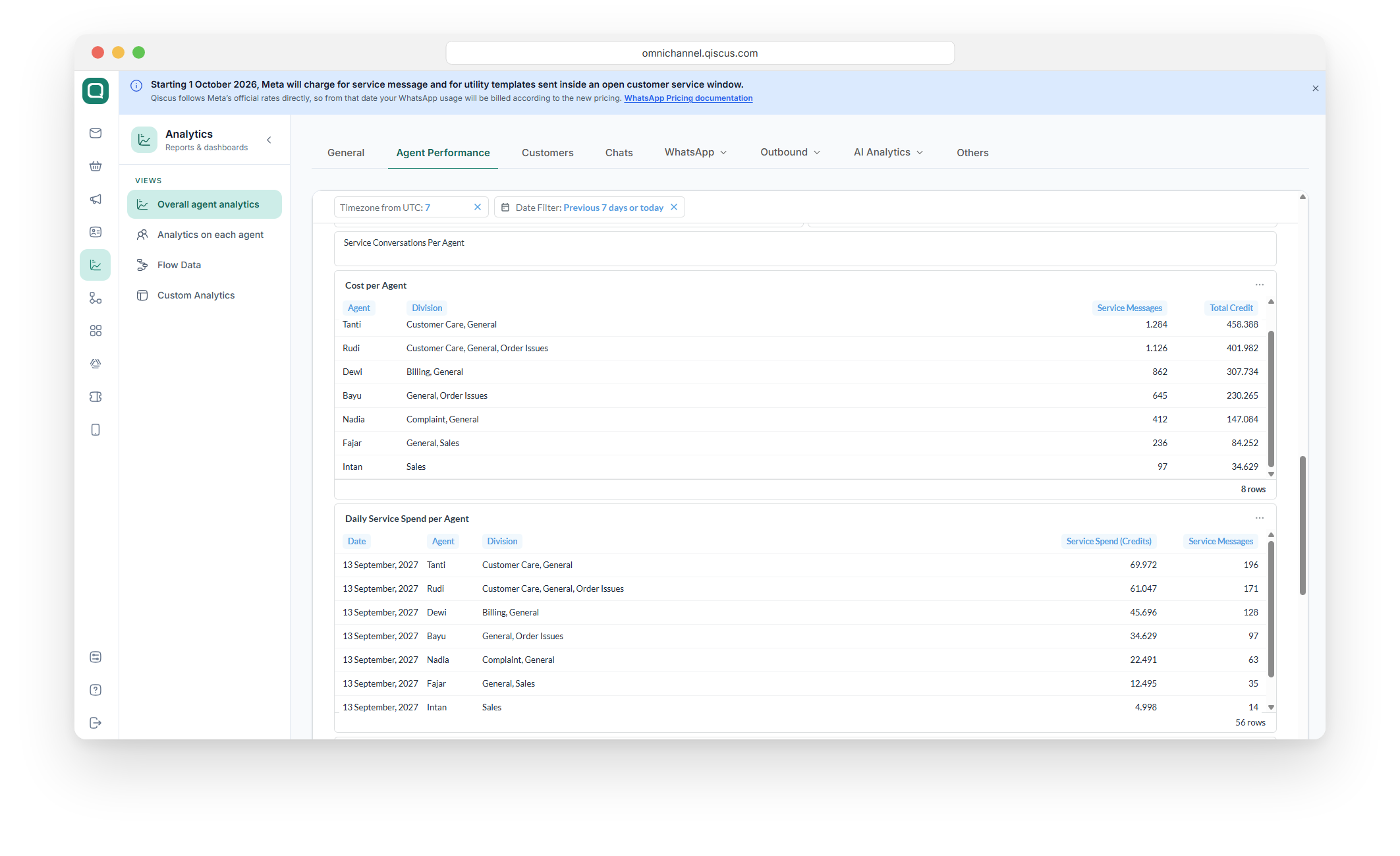
Report | What it shows |
|---|---|
Cost per Agent | Each agent's name, divisions, the number of service messages they sent, and the total credits for the selected period. |
Daily Service Spend per Agent | The same figures broken down by day: date, agent, divisions, service spend in credits, and the number of service messages. |
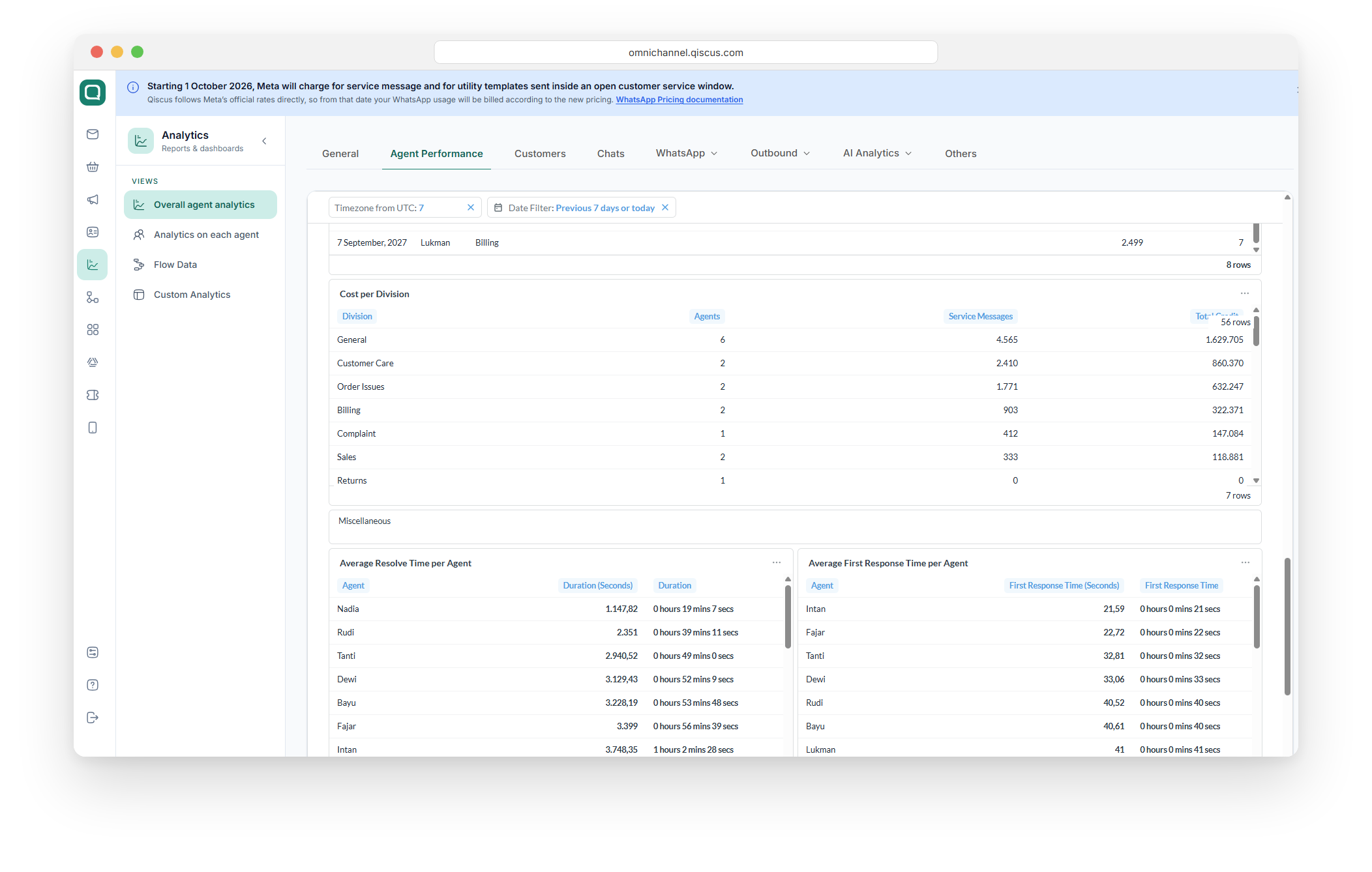
Cost per Division | For each division: the number of agents, the service messages they sent, and the total credits. A division's spend is the total of its agents' spend. |
An agent who belongs to more than one division is counted in each of those divisions, so the division totals can add up to more than the total across all agents.
Note: A high cost doesn't always mean an agent is wasteful. Agents who handle more or harder conversations send more messages. Compare it with New Conversations per Agent on the same tab before drawing conclusions.
Cost per Agent & Daily Service Spend per Agent
Cost per Division
WhatsApp (Credit) tab: Spend per message and per channel
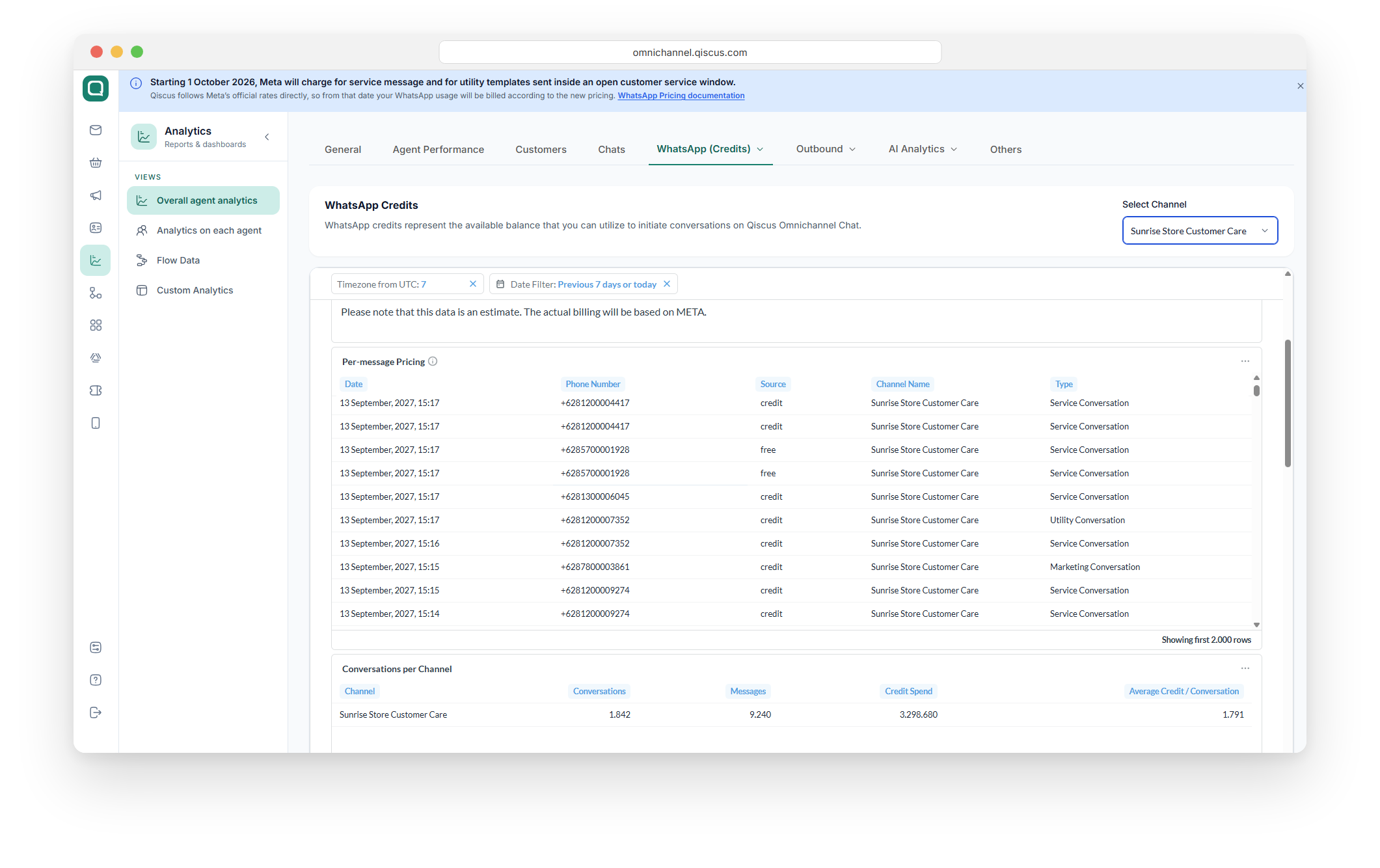
Open the WhatsApp menu in the tab bar and choose Credits. Pick a channel in Select Channel; everything on this tab shows data for that channel. Use Date Filter to change the period.
Summary Credits from channel shows a count for each category. Service Conversation counts the service messages that were charged, and Free Service Conversation counts the ones sent inside a free window.
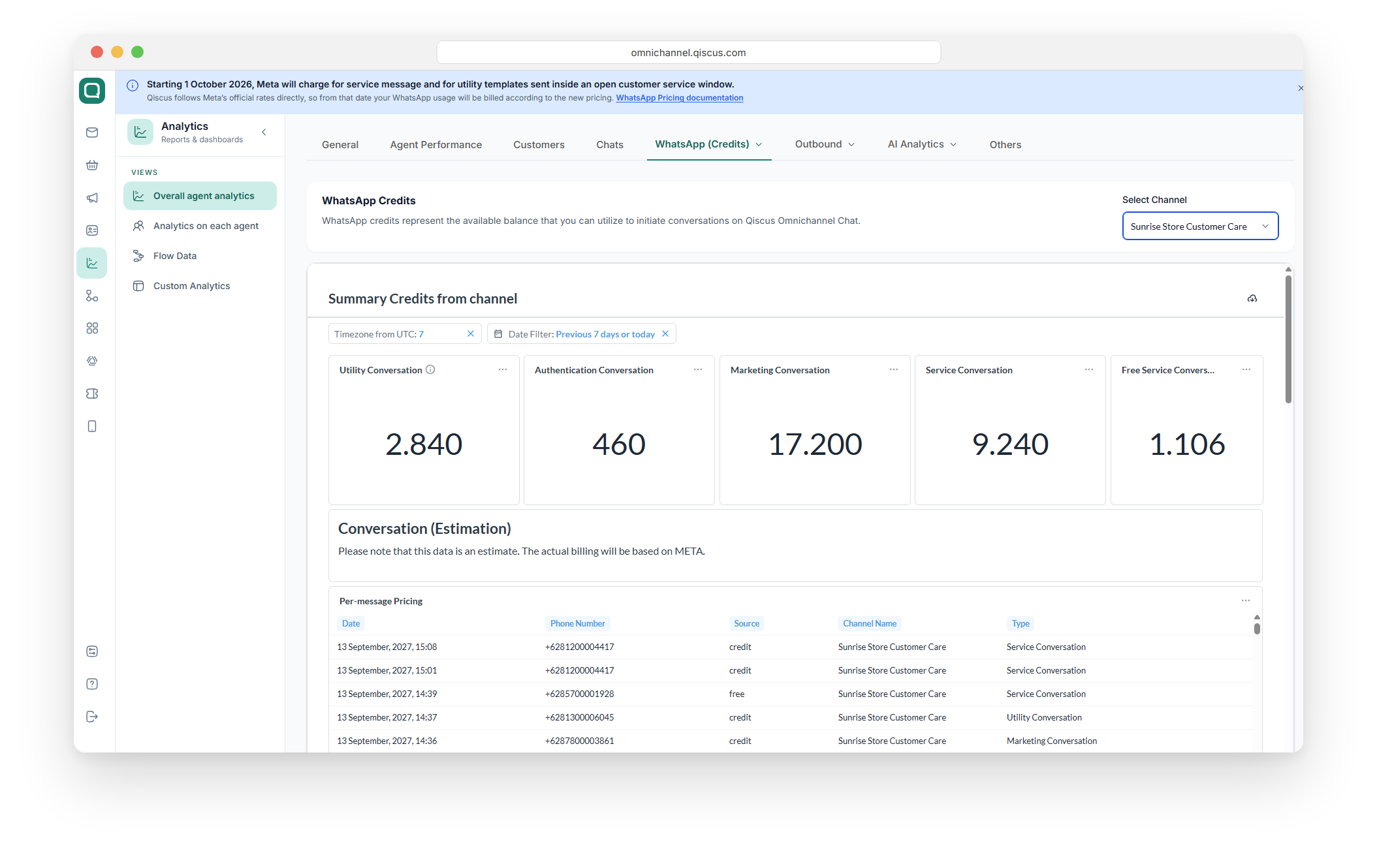
Per-message Pricing lists each message with its date, customer phone number, source, channel name, and type. Source shows credit for a charged message and free for a message sent inside a free window. These figures are an estimate. Your actual billing follows Meta's calculation.
Conversations per Channel shows the number of conversations, the number of service messages, the total Credit Spend, and the Average Credit / Conversation for the selected channel. A high average can mean agents are splitting answers into many short messages.
Email Reminder WhatsApp Credit
Reminder WhatsApp Credit allows you to receive reminder emails if your WhatsApp channel credit is running low and close to depletion. By enabling this setting, you can ensure uninterrupted service and continuing convenience.
How To Enable :
Go to the Outbound Message page
Go to the WhatsApp Channel Credit page
Select your WhatsApp Channel
Slide to the Setting tab
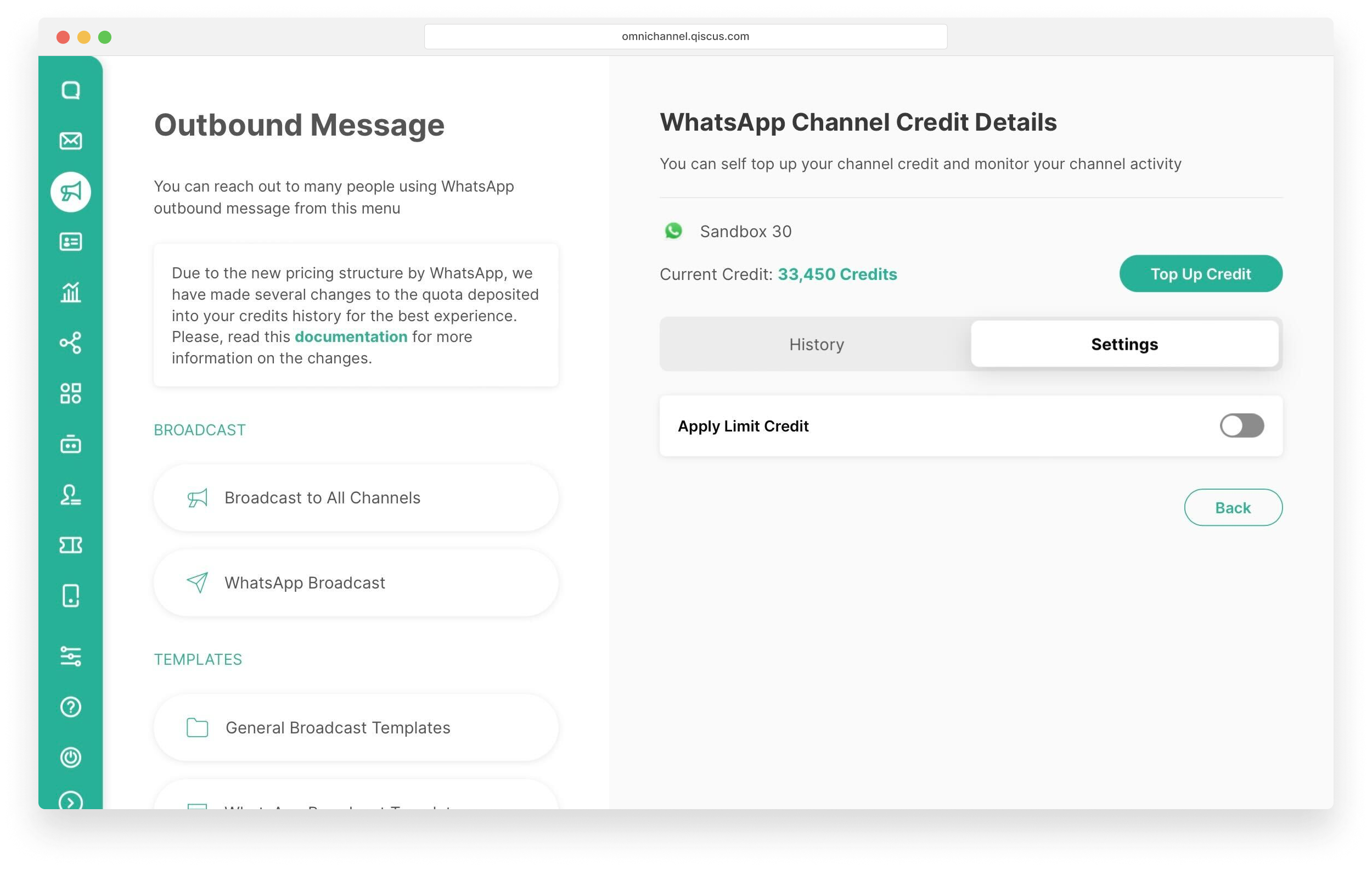
Enable the toggle for “Apply Limit Credit”
Fill in the “Limit Credits”, this is required. we will remind you if your channel credit is under or equal with this limit
Fill in the Additional Email Reminder, this is optional. If you want your team recieve the email reminders, you can add their email addresses to this field
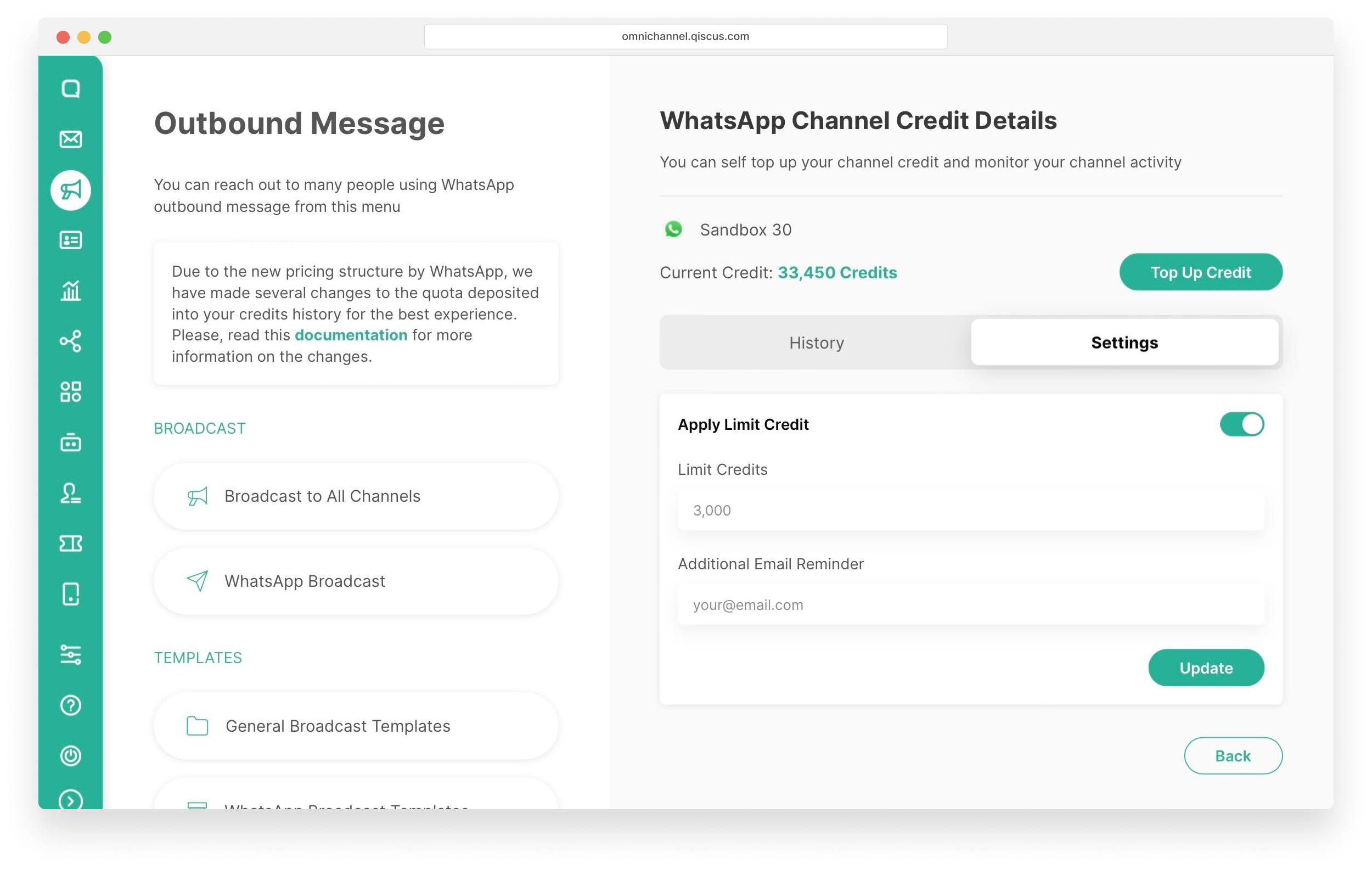
Click Update.
WhatsApp Credit Reset
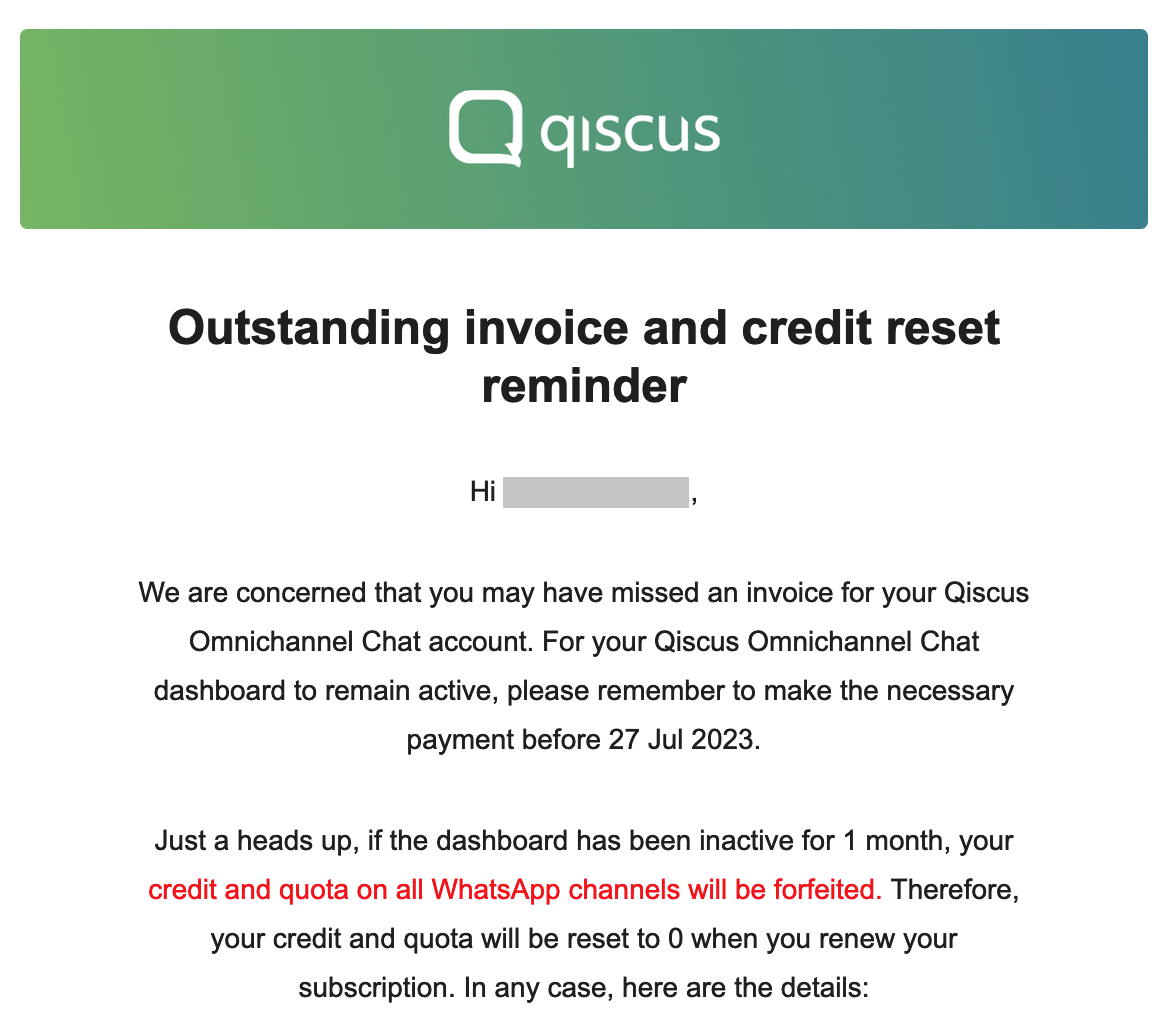
Qiscus system will automatically send a series of emails related to the subscription period of your account. These emails include notification emails for subscription expirations and the results of not renewing a subscription and what will happen if you still have WhatsApp credits at the time the subscription ends.
The first email reminder will be sent on the same day your subscription ends. For example, if the subscription ends on June 20, the email will be sent the same day. This email includes information regarding an outstanding invoice and the deadline for the renewal subscription. Additionally, you will be notified that your existing credit will be forfeited if the account remains inactive for one month.
7 days later, or June 27, you will get an email notification that your App ID will be disabled if you don't renew your subscription.
Failure to renew your subscription within the next 30 days or by July 27 will result in the loss of your remaining WhatsApp credits. Consequently, should you decide to reactivate your App ID at a later date, your WhatsApp credits will be reset to 0.
Free Session (Deprecated)
A number of first conversations each month that will be given for free. You can use free session for service conversation only. Free session will be reset on 1st date every month.