
Supervisor Analytics is analytics that supervisors can access. The data is only based on the channel handled by the supervisor and can only access performance data for agent within the channel. Dashboards in Supervisor Analytics including General, Chats, Agent Performance, Whatsapp, and Others;
Overall Agent Analytic
Overall Agent Analytics provides a comprehensive overview of general information, total chat rooms, and the performance of all your agents. Raw data is also available for download for deeper analysis.
General Analytic
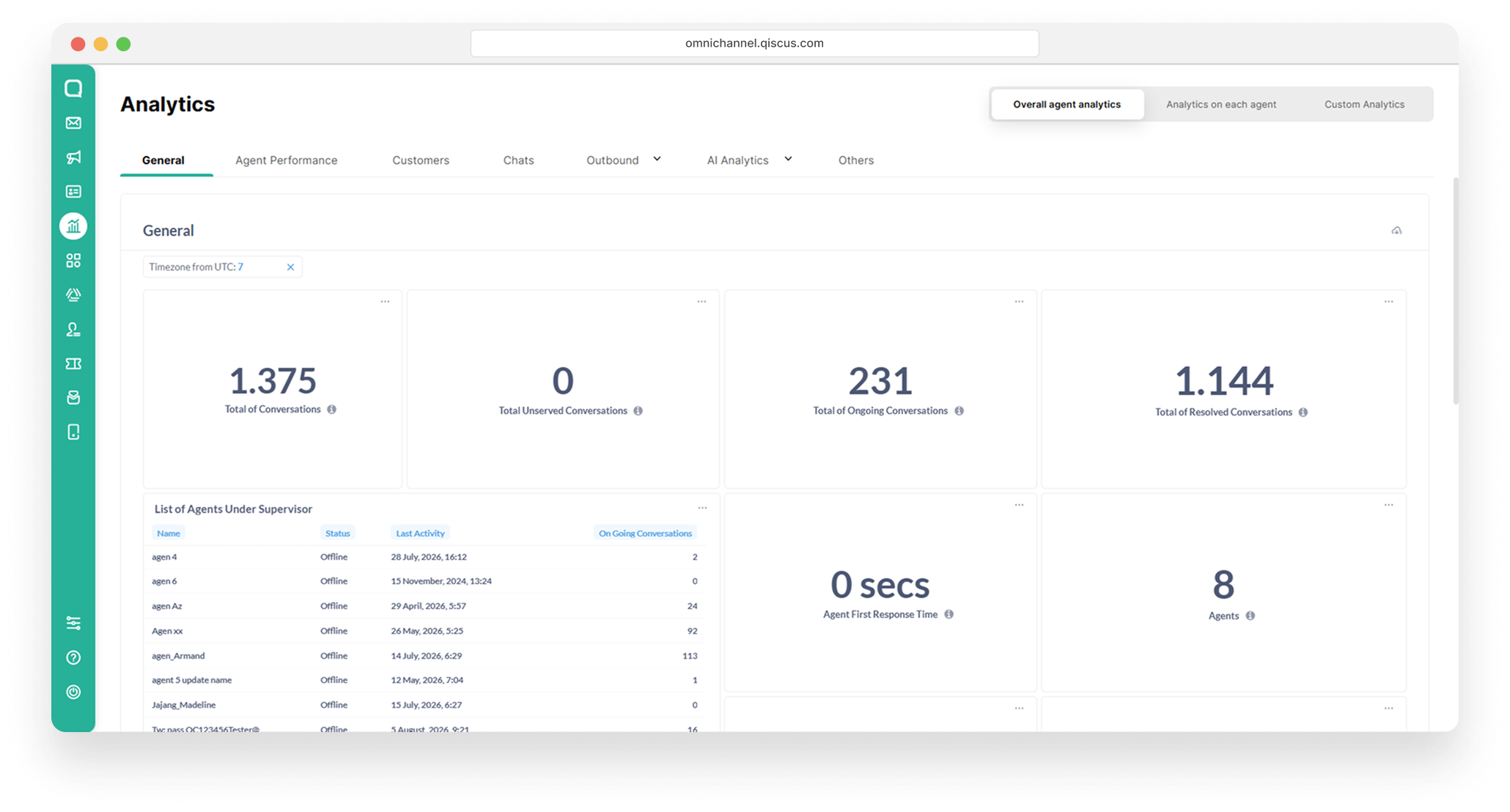
Total Conversations is the total number of all rooms that contains a message from the channel handled by the supervisor (one room ID is only counted once), whether it has been assigned to an agent or not. The number is the number of rooms, not the number of sessions. If the room has more than one session, then the number of rooms created is only counted as one.
Total Unserved Conversations is the part of ongoing conversations, the number displayed is the total number of conversations initiated by the client but not yet assigned to an agent. Note that this only counts rooms that contains messages and are in the waiting process from the channel handled by the supervisor.
Total Served Conversations is the part of ongoing conversations, in which the number displayed is the total number of conversations initiated by the client and have been assigned to an agent. Note that this only counts the rooms from the channel handled by the supervisor that contains messages and which are not in the process of waiting or not yet resolved.
Total Resolved Conversations is the total number of all rooms that contain messages taken based on the channel under each supervisor and are resolved, whether assigned to the agent or not. The number displayed is the number of rooms, not the number of sessions. If the room has more than one session, then the number of rooms created will only count as one.
Monthly Active Users (MAU) shows the MAU from the current app. MAU is counted starting from the date of enrolment within a period of one month. For example, if a user registers on 10th January, then the MAU calculation is only considers those that are within the range between 10th January and 9th February. The count will reset to 0 on 10th February onwards.
Monthly Active Users (MAU) Limit shows the MAU Limit from the App ID. MAU limits are determined based on plans subscribed to by the app ID.
Average Agent First Response Time calculates the average time taken by the agent under a supervisor to respond to the newly assigned room. This does not count agents who have been deleted. By default, the value displayed is the average of the rooms formed in the last 30 days.
Total Agents shows the overall number of agents which are registered under supervisors. It does not include names of agents who have been deleted.
Enrolment Date shows the date when the Apps started subscribing to a plan.
Bot Status shows the status of the bot.
List of Agents shows the list of agents available under the supervisor. Note that this does not display agents who have been deleted. The displayed attributes include:
Name → The agent’s name
Online Status → The agent’s current availability status.
Last Activity → Shows the time the agent last logged in.
Ongoing Conversations → Shows the number of conversations that the agent has not set as resolved
Last 1 Year Historical MAU shows the number of MAU calculated based on the app register date for the past 12 months. This feature is unable to display MAU History for App IDs that are not live.
Agent Performance Analytic
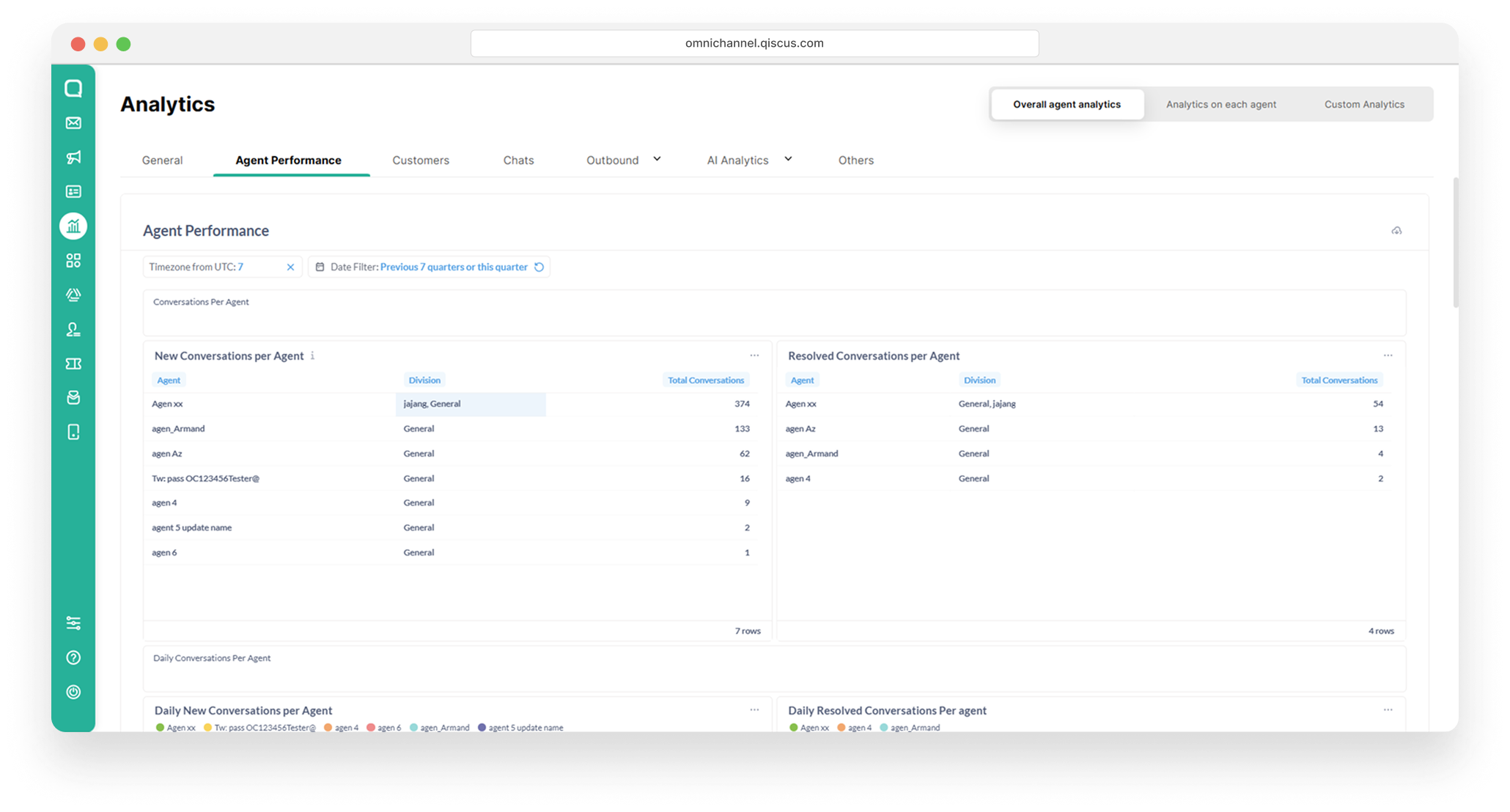
New Conversations per Agent counts the number of different rooms that have been assigned to each agent. One room can be assigned to more than one agent. Rooms are considered based on the channel under the supervisor. Note that the room only counts once for each agent. The date filter used is the timestamp when the agent gets the room.
Resolved Conversation per Agent counts the number of different rooms resolved by each agent. The number of rooms displayed does not include rooms owned by an agent but have been handed over to another agent. Rooms are counted based on the channel under the supervisor. Note that it is possible to display more data from New Conversations per Agent due to different Date Filters. The date filter used is the timestamp when the agent resolves the room.
Daily New Conversations per Agent counts the number of different rooms assigned to each agent in one day. A room can be assigned to more than one agent. Rooms are counted based on the channel under the supervisor. The date filter used is the timestamp when the agent receives the room.
Daily Resolved Conversations per Agent counts the number of different rooms resolved in one day. The number of rooms displayed does not include rooms owned by an agent but have been handed over to another agent. Rooms are counted based on the channel under the supervisor. Note that it is possible to display more data than Daily New Conversations per Agent due to different Date Filters. The date filter used is the timestamp when the agent resolves the room.
Conversation Assigned per Division counts the number of different rooms assigned to an agent for each division the agent belongs to. Rooms are counted based on the channel under the supervisor. Note that there is a possibility that the results may not match because every agent can have more than one division. The date filter used is the timestamp when the agent gets the room.
Assigned Conversation Resolved by Agent per Division counts the number of different resolved rooms assigned to the agent for each division of the agent. The number of rooms displayed does not include rooms owned by an agent which have been handed over to another agent. Rooms are counted based on the channel under the supervisor. Note that there is a possibility that the results may not match because every agent can have more than one division. The date filter used is the timestamp when the agent resolves the room.
Expired Conversations per Division counts the number of different expired rooms assigned to the agent based on each agent's division. A room expires when the last chat from customers is left for more than one day while the room status has not been resolved. Rooms are counted based on the channel under the supervisor. Note that the room will also count as expired if the agent has not changed the room status to Resolved. The date filter used is the timestamp when the customer's last chat is left for more than 24 hours.
Average Resolve Time per Agent counts the average time taken by agents to resolve each room. Time is calculated when the room is assigned to the agent until the agent resolves the room. Rooms are counted based on the channel under the supervisor. The date Filter used is the timestamp when the agent resolves the room.
Average First Response Time per Agent calculates the average time the agent responds to a room assigned to each agent. The time is calculated when the agent is assigned to a room and sends the first message after which an average is calculated for each agent. Rooms are counted based on the channel under the supervisor. The date filter used is the timestamp when the agent gets the room.
Average Response Time per Agent in the Last 7 Days shows the average time taken by each agent and another supervisor to respond to every customer message in the last seven days. Note that if there is an agent or supervisor message that was previously a message from the system, and before the system receives a message from the customer, then the agent (or supervisor)'s message is not considered. Rooms are counted based on the channels under all supervisors.
Customer Analytic
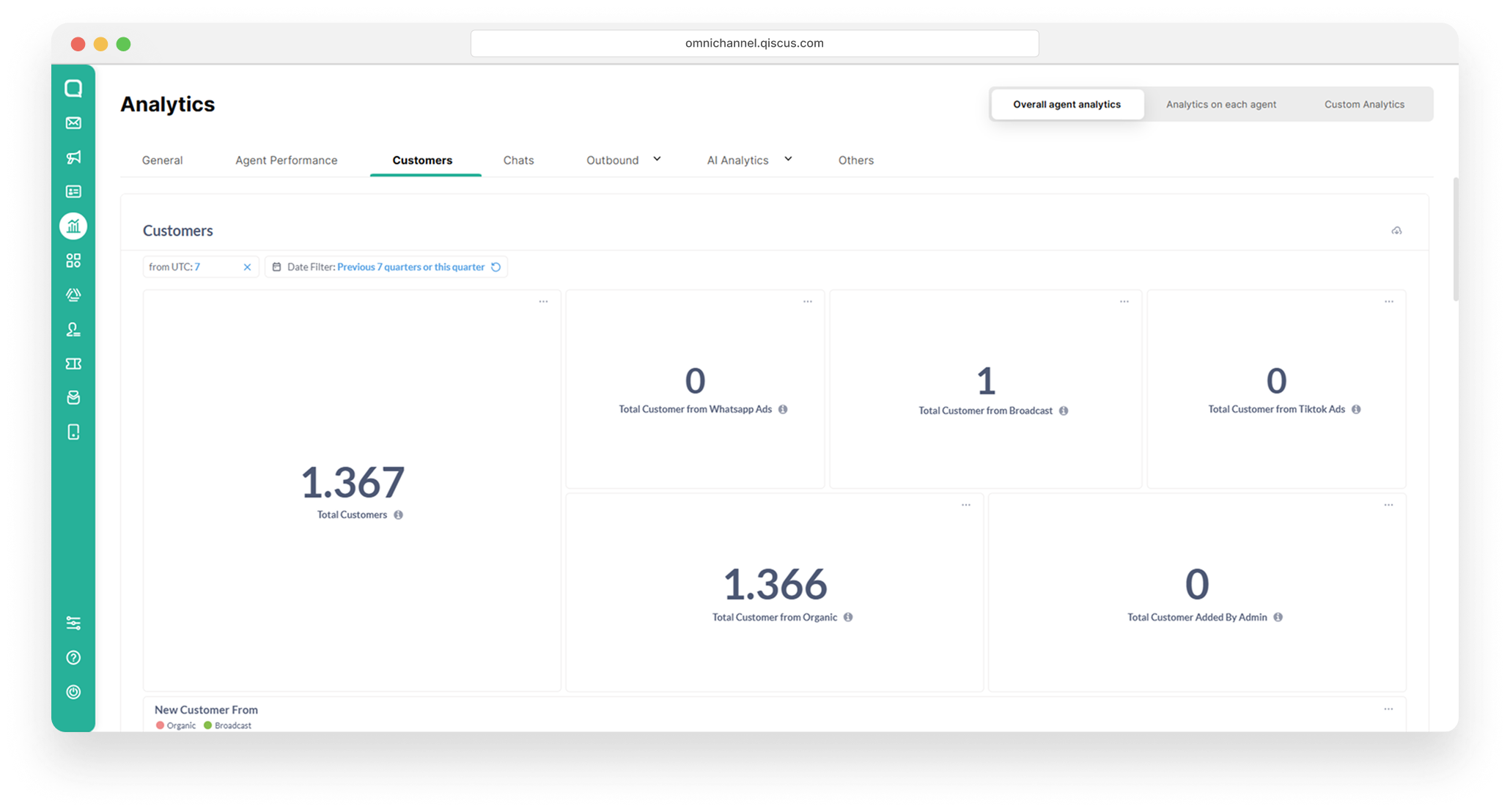
Total Customer: Shows the total number of customers recorded in the system, originating from all communication channels used by the business, including customers from ads, organic sources, broadcasts, or those added manually.
Total Customer from WhatsApp Ad: Shows the number of customers who came from WhatsApp ads, specifically from “Click to WhatsApp” campaigns that directly open a conversation session with the business.
Total Customer from Broadcast: Shows the number of new customers recorded after receiving and responding to broadcast messages sent by the business through Qiscus Omnichannel Chat.
Total Customer from TikTok Ads: Shows the number of customers who entered the system as a result of interactions through TikTok ads created by the business.
Total Customer from Organic: Shows the number of customers identified without using ads or broadcasts, such as customers who initiated a chat directly with the business.
Total Customer Added by Admin: Shows the number of customers manually added by an admin through the Customer Data Platform (CDP).
New Customer From: Shows the growth in the number of new customers based on the communication channel used.
New Customer Trend by Channel: Shows the growth trend of new customers from each communication channel.
New Customer Trend Daily: Shows the number of new customers per day.
New Customer Trend Hourly: Shows the number of new customers by hour.
Last 1 Year Historical New Customer: Shows the trend in the number of new customers over the past year from all communication channels.
Customer List:
Merge Status →Shows whether a customer's data has been merged with other duplicate data. If the customer has been merged with another, the status will be marked as "merged".
Linked ID→ A unique ID that links a customer’s identity across multiple communication channels.
Customer Name→ The name of the customer registered.
Channel Name→ The name of the channel or platform where the customer first connected (e.g., WhatsApp, TikTok, Instagram, etc.).
Main Channel Status→ Shows whether the channel is the customer’s main channel. If it is, the status will be marked as "main".
Phone Number→ The customer’s registered phone number.
Email→ The customer’s email address, if available.
Created At→ The timestamp showing when the customer’s data was first created in the system.
Source→ The source or origin of the customer, such as Organic, Broadcast, TikTok Ads, WhatsApp Ad, or Added by Admin.
Customer Properties→ Additional information related to the customer, such as location, preferences, or other customized data.
Chats Analytic
Daily New Conversations shows the number of different new rooms created each day. If the 'session room' setting is disabled, then even though a new room goes into the inbox, it may be an old room that has been complete, and which the customer sends a new message. Rooms which are counted include rooms that have been created but which are still waiting to be assigned or do not contain any messages yet. The rooms which are counted are those where the channel lies in a room under the supervisor. The date filter used is timestamp when the room receives the first message from the customer.
Daily Resolved Conversations shows the number of different rooms that have been successfully resolved each day. If the 'session room' setting is disabled and the room has been resolved on another day, it will be counted as two separate rooms. If the room is resolved more than once a day, it will be estimated as one room only. The calculated room is a room where the channel of the room is under the supervisor. The date filter used is the timestamp when the room is resolved.
Hourly New Conversations shows the number of different new rooms created every hour. If the 'session room' setting is disabled, then even though a new room enters the inbox, it may still be a resolved older room and the customer sends a new message. The calculated room includes rooms that have been created but are still waiting to be assigned to an agent or do not contain any messages yet. The calculated room is a room where the channel of the room is under the supervisor. The date filter used is the timestamp when the room receives the first message from the customer.
Hourly Resolved Conversations shows the number of different rooms which have been successfully resolved every hour. If the 'session room' setting is disabled and the room has been resolved at different hours, it will be counted as two separate rooms. For example, the room is resolved more than once in an hour, and it will be estimated as one room only. The calculated room is a room where the channel of the room is under the supervisor. The date filter used is the timestamp when the room is resolved.
New Conversations per Channel shows the number of different new rooms for each channel where the channel of that room is under the supervisor. The date filter used is the timestamp when the room receives the first message from a customer.
Ongoing Conversations per Channel shows the number of rooms with still On Going / Unserved status for each channel under the supervisor.
Resolved Conversations per Channel shows the number of different rooms that have been resolved for each channel under the supervisor. The date filter used is the timestamp when the room is resolved.
Average Conversation Duration shows the average duration taken for all agents under the supervisor to resolve a room. It does not display the conversation period that has not been resolved and is not applicable to WhatsApp Group which does not have a "Resolve" feature. The date filter used is the timestamp when an agent resolves a room.
Tags of Conversations shows the tag name and the number of rooms for each tag. A room may or may not have name tags. Rooms are considered based on the channel under the supervisor. The date filter used is the time the tag was added to a room.
DIPERTIMBANGKAN
WhatsApp Analytic
General
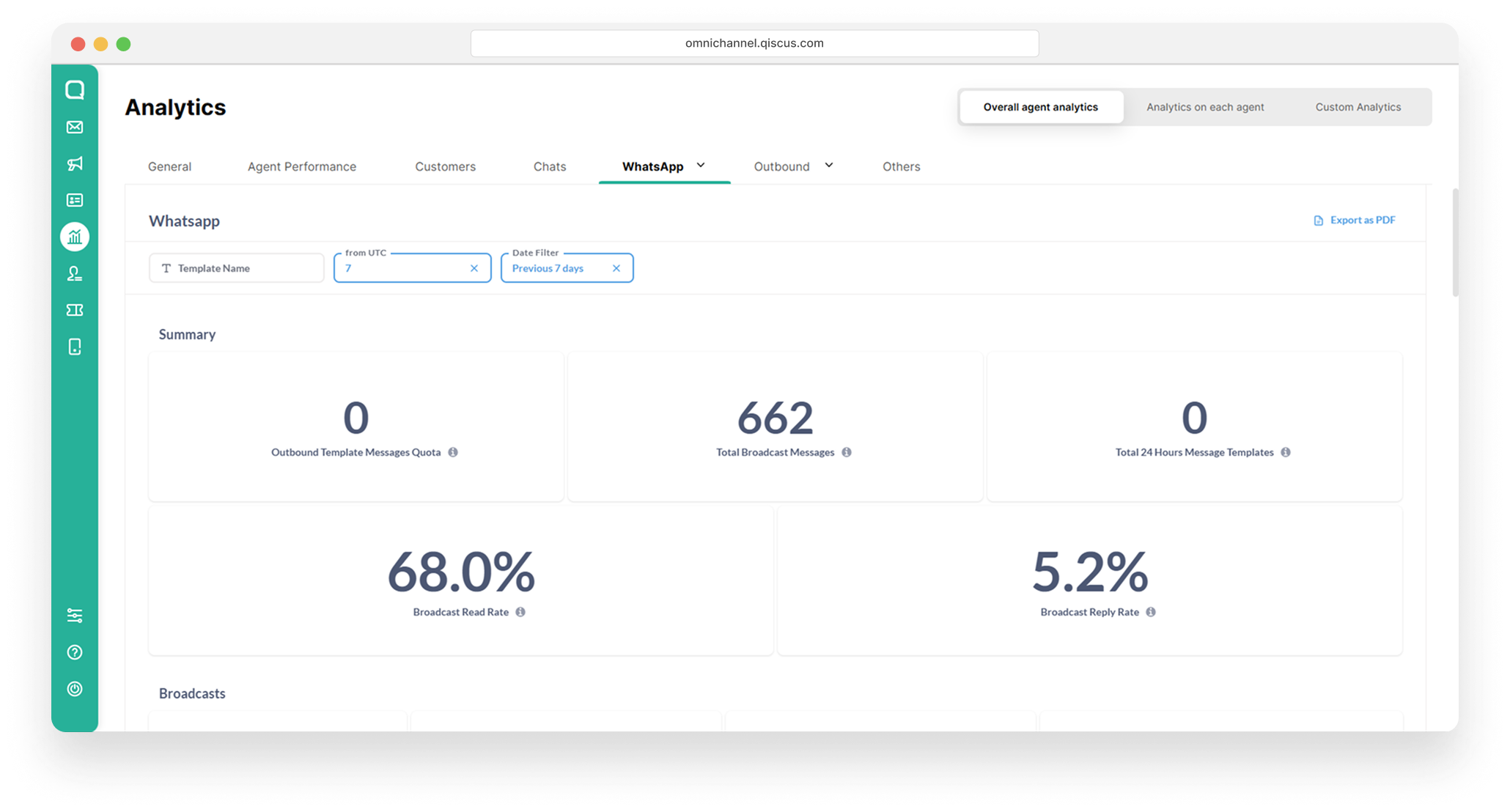
Summary
Outbound Template Messages Quota shows the remaining HSM quota. Broadcast types that consume the HSM Quota are all broadcasts other than those with Failed Status.
Total Broadcast Messages shows the number of broadcasts sent in the channels under the supervisor other than those messages with Failed Status. Date Filter: Timestamp when the broadcast was sent.
Total 24 Hours Message Templates shows the number of 24 Hours Message Templates sent in the channels under the supervisor other than those messages with Failed Status. The date filter used is the timestamp when the 24 Hours Message Templates were created.
Broadcast Read Rate shows the percentage of the number of broadcasts read by the customer as compared to all broadcasts successfully sent by the client in the channels under the supervisor. The date filter used is the timestamp when the broadcast was sent.
Broadcast Reply Rate shows the percentage of the number of broadcasts replied by the customer as compared to all broadcasts successfully sent by the client (i.e. the customer service agent) in the channels under the supervisor. The date filter used is the timestamp when the broadcast was sent.
You can see more details on which broadcasts have been replied to by customers in the Replied column in the Broadcast Log analytics.
The Replied column will show true if a customer has responded to a business broadcast and does not refer to any specific broadcast message.
Broadcasts
Broadcasts Pending shows the number of HSMs sent but which are still in "Pending" or "In Queue" status in the channels under the supervisor.
Broadcasts Sent shows the number of HSMs categorised as "Sent" in the channels under the supervisor.
Broadcasts Delivered shows the number of HSMs that have been sent and has the status "Delivered", "Read", or "Delivered but Failed" in the channels under the supervisor.
Broadcasts Failed shows the number of HSMs sent but have received a "Failed" status in the channels under the supervisor.
Broadcasts Log shows a list of all broadcasts that have been submitted in the channels under the supervisor. It contains the delivery date, WhatsApp channel name, Platform, Template Name, Broadcast Name, Room ID, destination number, Message ID, delivery status, Replied, and error notes. The date filter used is the timestamp when the broadcast was sent.
24 Hours Message Template
Pending shows the number of 24 Hours Message Templates sent which have a "Pending" or "In Queue" status in the channels under the supervisor.
Sent shows the number of 24 Hours Message Templates that have a "Sent" status in the channels under the supervisor.
Delivered shows the number of 24 Hours Message Templates that have been sent with the status "Delivered", "Read", or "Delivered but Failed" status in the channels under the supervisor.
Failed shows the number of 24 Hours Message Templates sent with the status "Failed" in the channels under the supervisor.
24 Hours Message Template Log shows a list of 24 Hours Message Templates delivery logs in the channels under the supervisor. It contains the WhatsApp channel name, delivery date, Platform, Template Name, Room ID, destination number, Sender ID, Sender Name, Message ID, delivery status, and error notes. The date filter used is the timestamp when the 24 Hours Message Templates were created.
Expired Rooms
Expired Rooms refer to all expired rooms in channels under the supervisor. A room is categorized as expired if the last reply from the customer exceeds 24 hours and the room is unresolved. The date filter used is the timestamp of the customer's last message.
Customer Block Lists
Customer Block List shows a list of customers currently blocked by the client.
Credits
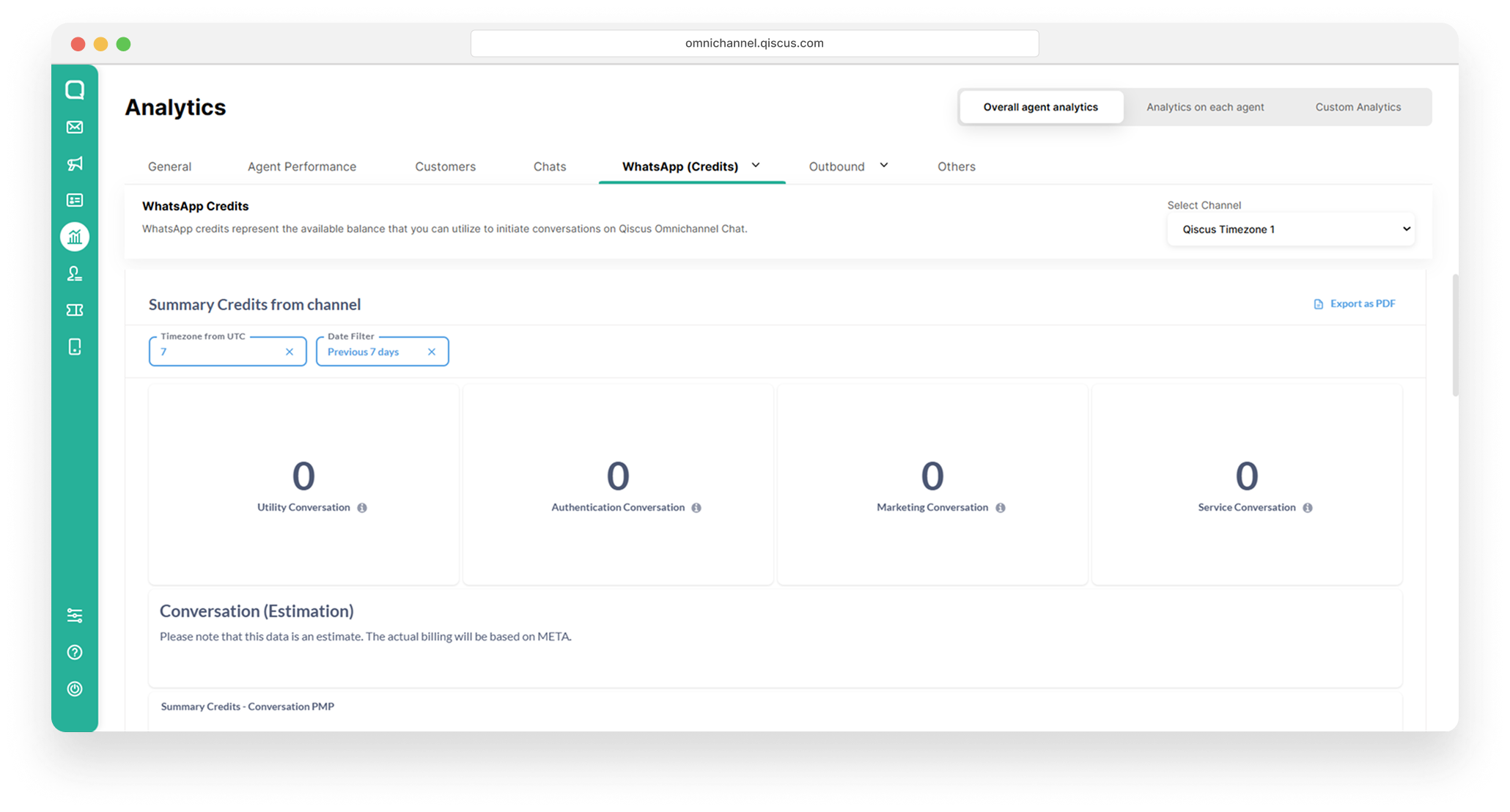
Summary Credits from Channel
This section displays a summary of the number of conversations by WhatsApp category:
Utility Conversation → Conversations related to transactions or updates (e.g., order confirmations).
Authentication Conversation → Conversations for verification or login (e.g., OTP).
Marketing Conversation → Promotional or product/service offer conversations.
Service Conversation → Customer service conversations (e.g., support or complaints).
Conversation (Estimation)
This section shows an estimated list of conversations that occurred in the selected WhatsApp channel, including details such as date, customer phone number, conversation source, channel name, and conversation type (Utility, Authentication, Marketing, or Service). The data shown is only an estimation to help monitor credit usage, while the actual billing will follow Meta’s official calculation.
WhatsApp Mutation
The WhatsApp Mutation section records changes (mutations) in the number of conversations based on WhatsApp’s official categories: Utility, Authentication, Marketing, and Service. This feature helps you track credit usage movement—whether conversations have increased or decreased—ensuring transparency in credit consumption for each type of conversation.
Conversation Session (Estimation)
This section provides an estimate of the number of conversation sessions that took place in the selected WhatsApp channel. A session is calculated according to WhatsApp’s billing rules (typically per 24 hours from the first message sent). The displayed data is an estimation, and the actual cost will always follow Meta’s official calculation. This feature helps you monitor session usage trends and anticipate credit consumption in advance.
Customer Initiated & Business Initiated (CI/BI) Data (Estimation)
The CI/BI Data section displays estimated conversation sessions initiated either by customers or by the business. There are two key indicators: Total Customer Sessions Reached (Estimation) for conversations initiated by customers, and Total Business Sessions Reached (Estimation) for conversations initiated by the business. This data helps distinguish interaction patterns on who starts the conversation more frequently. However, the numbers remain estimations, as the final billing will follow Meta’s official report.
Total Customers Session Reached: Shows total session initiated by the customer. The date filter used is timestamp when the session is initiated.
Total Business Session Reached: Shows total session initiated by the business. The date filter used is timestamp when the session is initiated.
Customer Initiate: Shows a list of session logs initiated by the customer containing the initiated date, phone number of the customer, and the source used (Free Session, Credit, or Quota). The date filter used is timestamp when the session is initiated.
Business Initiate: Shows a list of session logs initiated by the user/business containing the initiated date, phone number of the customer, and the source used (Free Session, Credit, or Quota). The date filter used is timestamp when the session is initiated.
WhatsApp OTP
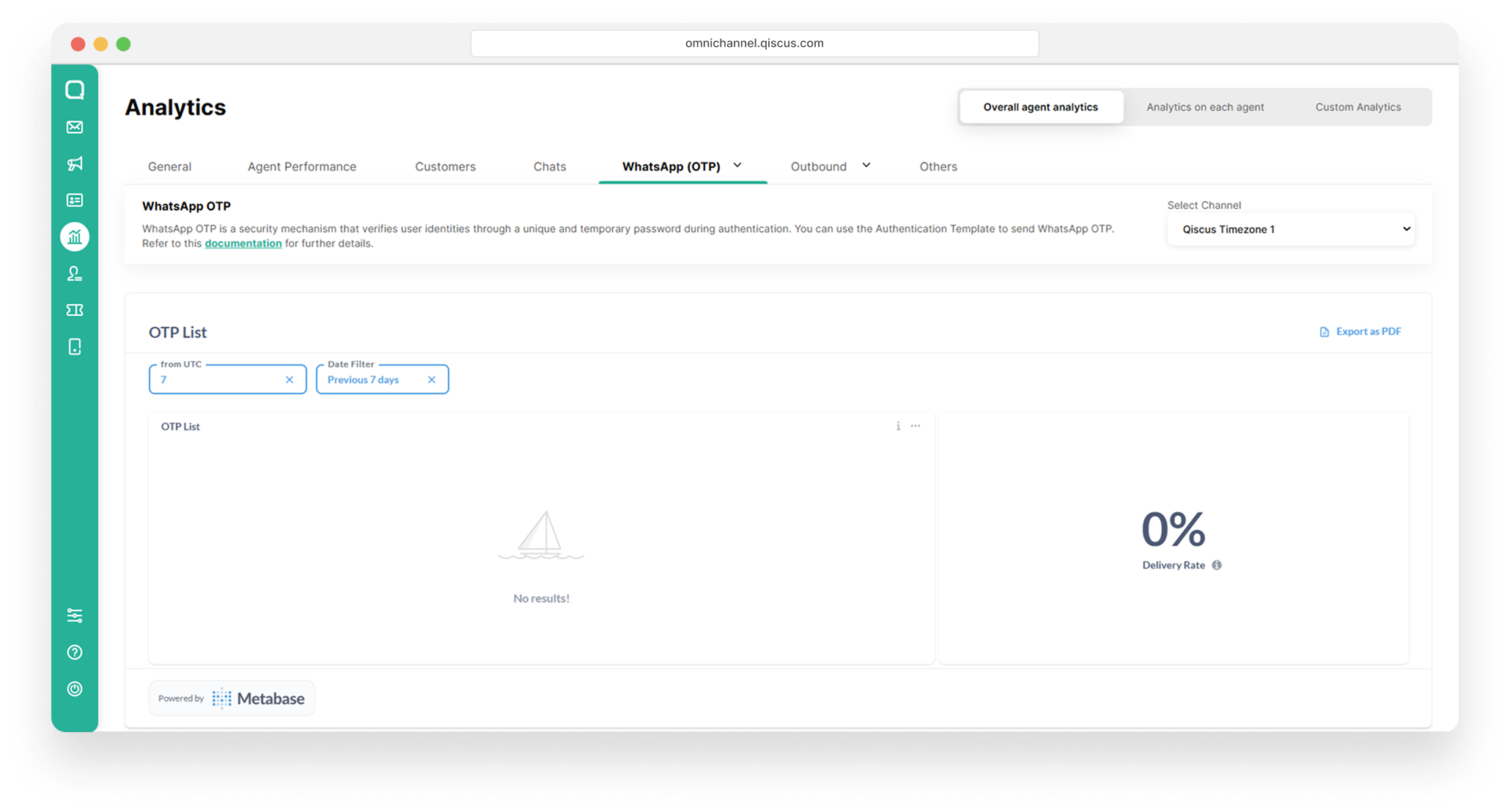
Broadcast Name: The title of the broadcast campaign.
Channel Name: WhatsApp channel used to send the message.
Phone Number: Recipient's phone number (the person receiving the OTP message).
OTP Sent on: The exact date and time when the OTP message was sent to the recipient.
Delivery Rate: shows the percentage of OTP messages that were successfully delivered to the recipient’s WhatsApp number.
Marketing Opt-Out
Customer Name: The name of the customer who opted out of marketing messages.
Channel Name: The WhatsApp channel used to communicate with the customer, it's helps to identify which WA Business Account the opt-out applies to.
Phone Number: The customer's phone number that opted out. All opt-out actions are tied to this number.
Last Opt-Out Template Sent On: The last time the system sent an opt-out message template to the customer.
Opt-Out On: The actual date and time when the customer completed the opt-out action**.**
Optimize Broadcast Price
Total Saving Cost: Total estimated savings (in Rupiah) from optimized broadcasts across the selected period.
Total Broadcast Optimized: Number of broadcast messages that have been optimized for cost.
List of Optimized Broadcast: Shows detailed logs of all broadcast messages that have been optimized to reduce cost. Each row represents a broadcast message that used a more cost-efficient message template, typically chosen based on WhatsApp’s category pricing model.
Sent At → Timestamp when the optimized message was sent to the user.
Channel Name →The specific WhatsApp Business channel used to send the message
Platform → Indicates the environment or origin of the broadcast.
Template Name → The name of the WhatsApp message template used. This is usually selected for cost-efficiency
Room ID → Room identifier.
Phone Number → The customer’s WhatsApp phone number that received the broadcast message.
Message ID → Sent message identifier.
Broadcast Price → Indicates whether the message was cost-optimized (show as
Optimized).Status →The delivery status of the message, such as Sent,
Delivered,Read, orFailed.Category →The template category used for the broadcast.
Replied → Indicates whether the customer replied to the broadcast message (
YesorNo).Notes → Any additional information or error reasons if a message failed.
Broadcasted By → The name of the sender.
Cost → The cost charged for the message.
WhatsApp Call Analytics
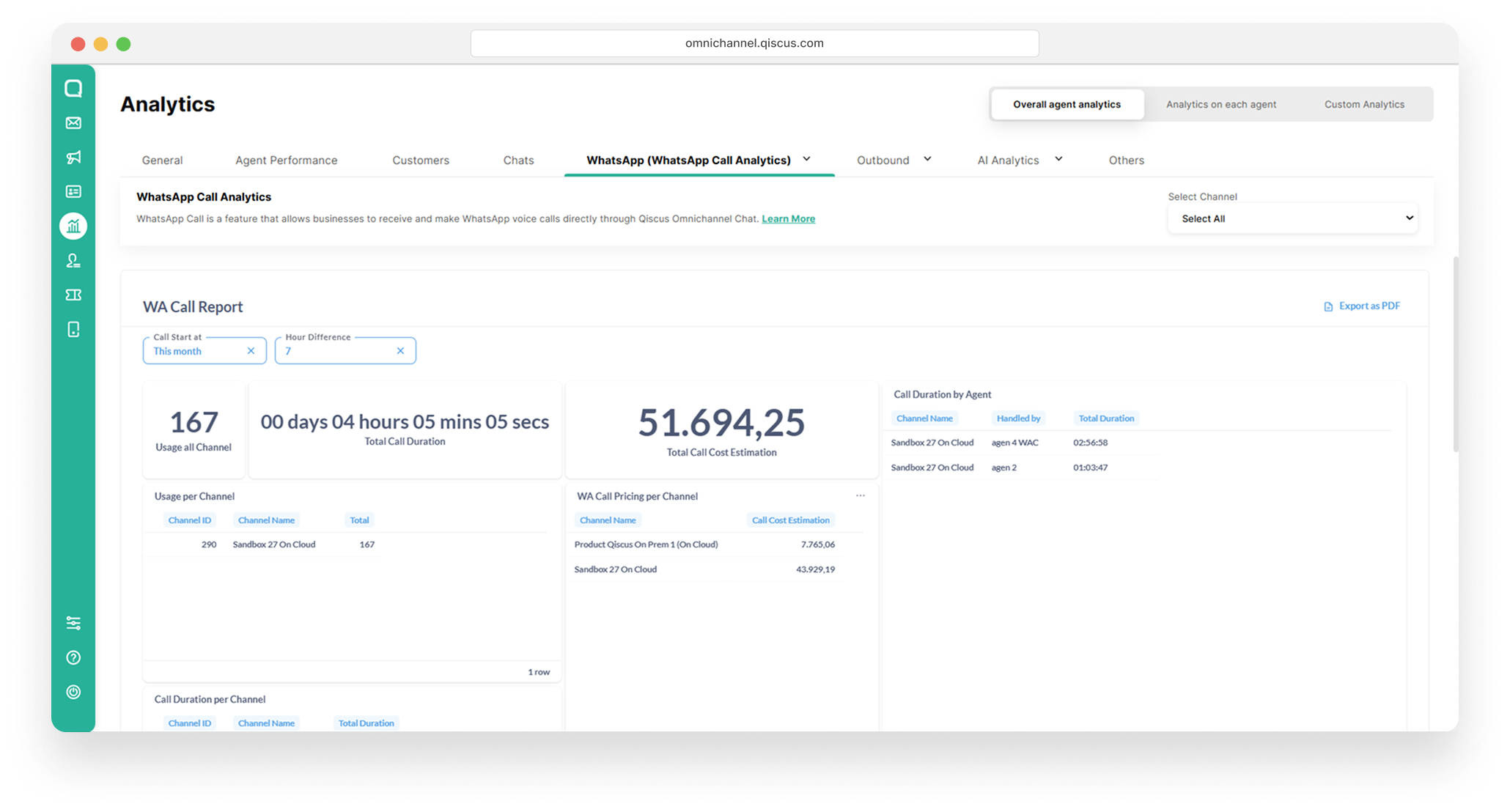
Usage All Channel
Outbound Analytic
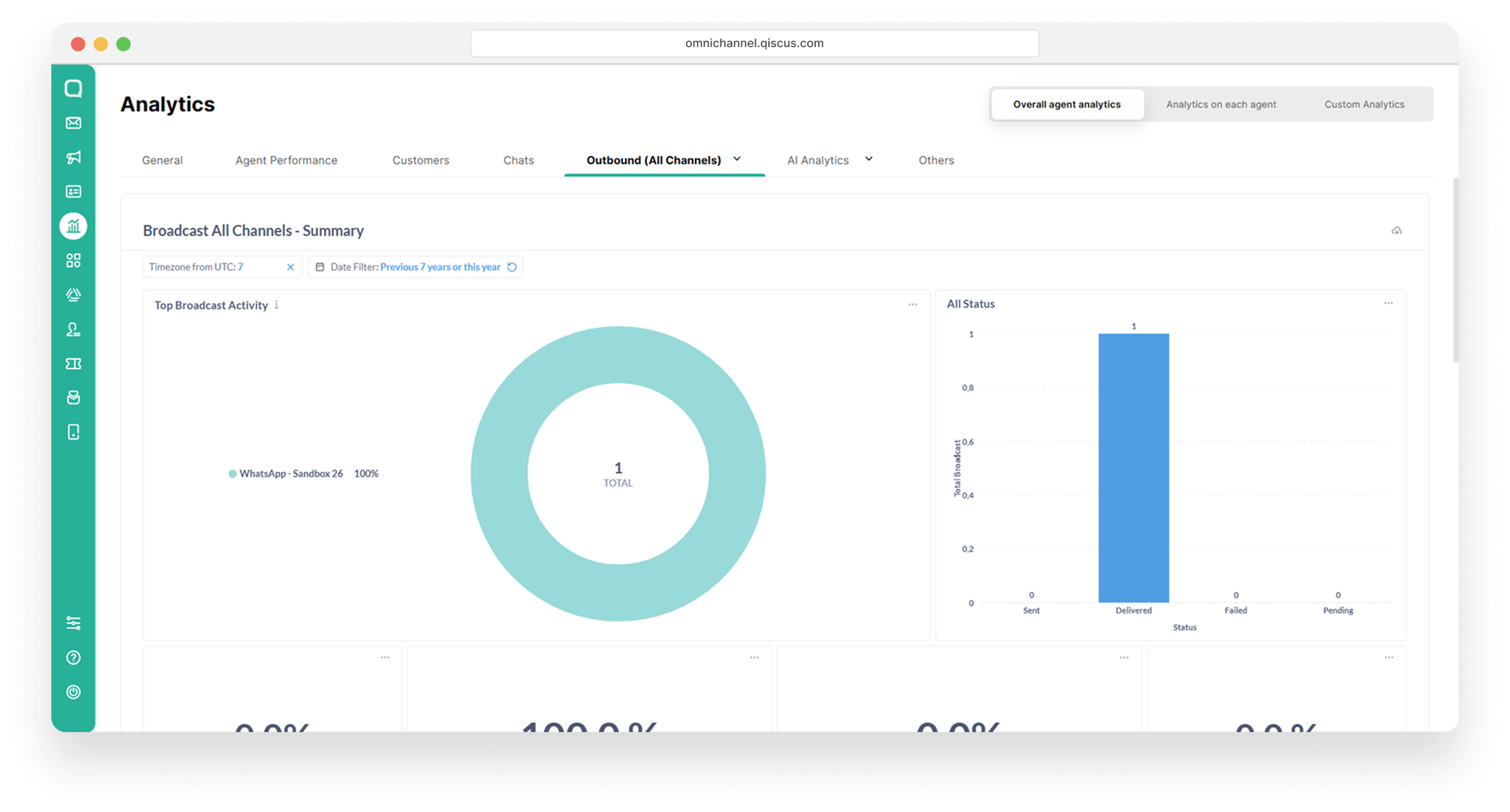
Top Broadcast Activity: This section highlights the most active or successful broadcast campaigns across all channels.
All Status: Shows the overall message delivery status across all broadcasts within a specific time range. It provides cumulative totals for each message status category:
Pending → Messages that are queued and waiting to be sent.
Sent → Messages that have been successfully dispatched to the respective messaging platform.
Delivered → Messages that have been successfully received by the end-user.
Failed → Messages that could not be delivered due to reasons like invalid numbers, service issues, or other errors.
Percentage Status: shows the percentage distribution of message statuses (Pending, Sent, Delivered, Failed) from the total number of messages sent through all broadcasts.
Summary per Broadcast:
Broadcast Name → The title of the broadcast campaign.
Id → Broadcast identifier.
Pending → Number of messages that haven’t been sent yet
Sent → Number of messages that have been successfully sent
Delivered → Number of messages that reached the recipients
Failed → Number of messages that failed to deliver
Channel → The channel or platform used for the broadcast.
Create By → The user who created the broadcast
Create At → The timestamp indicating when the broadcast was created
Log Broadcast: Provides detailed logs of each message sent through broadcasts.
Broadcast Name → This is the name of the broadcast campaign under which the message was sent.
Customer Name → The name of the customer or recipient of the broadcast message.
Channel → The specific channel/platform used to send the broadcast
Identifier → A unique identifier for the recipient
Status → The current status of the broadcast message delivery (Pending, Sent, Delivered, Failed).
Notes → Additional information, such as reasons for failure or delivery notes.
Create By → The user who created the broadcast.
Send At → The timestamp indicating when the broadcast was actually sent out.
AI Analytics
AI Conversation
The AI Conversation menu on the Analytics page is used to display reports and visualizations of conversation performance involving the AI (bot) in Qiscus Omnichannel Chat.
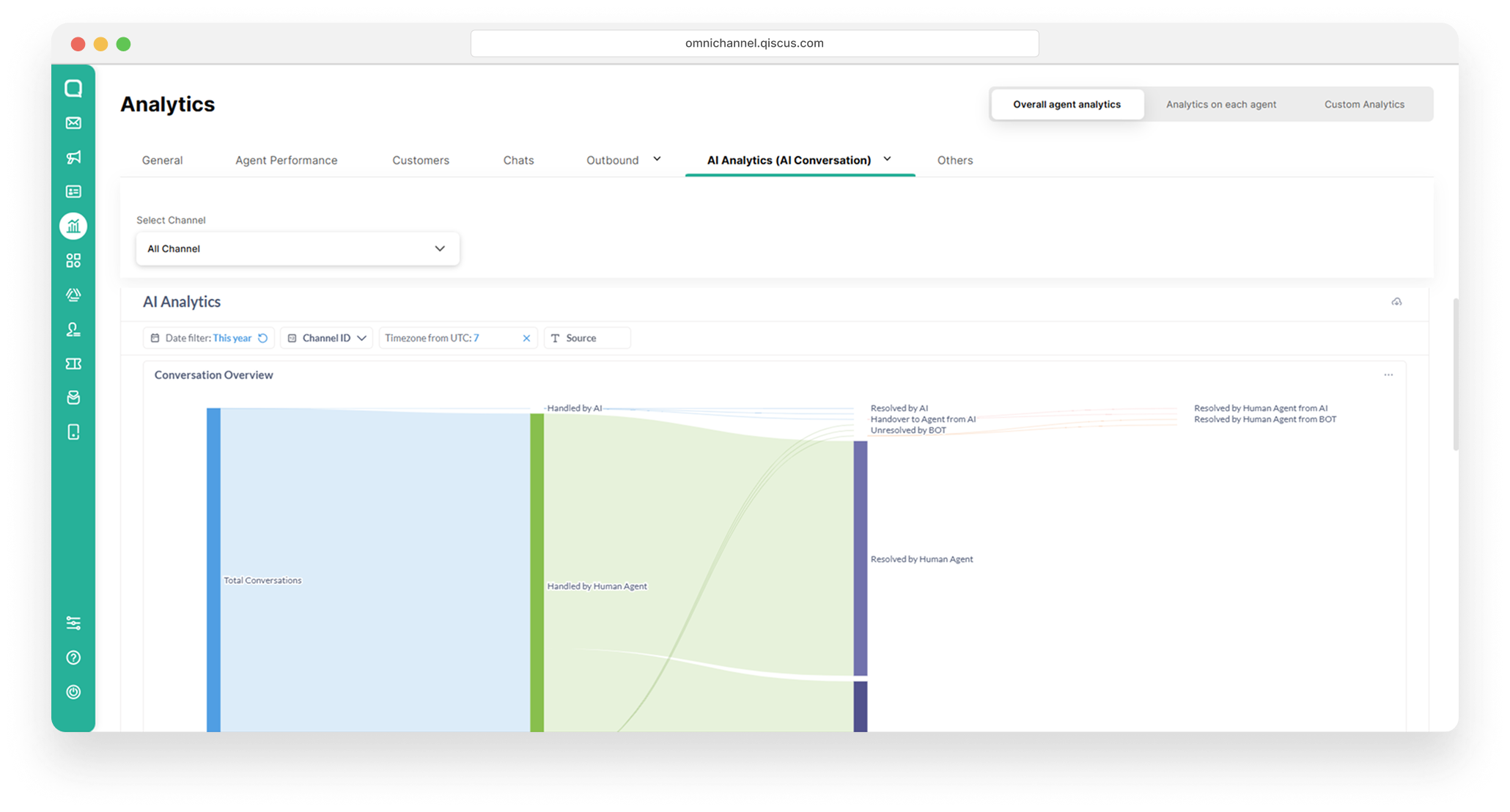
Conversation Overview
The Conversation Overview section displays the conversation flow in a diagram format. This diagram visualizes the total conversations handled by the AI and indicates which conversations were:
Fully resolved by the AI.
Transferred (handed over) to a human agent.
Resolved or left unresolved by a human agent after being handed over from the AI.
Resolution Rate Comparison
Resolution Rate Comparison section provides key metrics to evaluate how effectively conversations are being resolved by AI versus human agents.
Average AI's First Response Time
Shows how long, on average, the AI takes to send its first reply after receiving a customer message. This metric reflects the AI’s responsiveness.
Average AI's Resolution Time
Displays the average duration required for the AI to fully resolve a conversation, from the first customer message to the final resolution.
Conversation Handled by LLM
Indicates the total number of conversations that were managed (handled) by the AI/LLM, regardless of whether they were resolved by the AI or handed over to a human agent.
Conversation Resolved by LLM
Shows the number of conversations that were completely resolved by the AI without any human intervention.
Details Conversation
Provides a row-by-row breakdown per application or company, including:
app_code / company_name: Identifies the app and company.
Total Conversations: Total number of conversations in the selected period.
Handled by AI: How many were managed by the AI.
Resolved by AI: How many were fully resolved by the AI.
Unresolved by AI: Conversations the AI could not resolve.
Handover to Agent: Cases transferred to a human agent.
Resolved by Human from AI: Conversations resolved by a human after being handed over from the AI.
Unresolved by Human from AI: Conversations that remained unresolved even after being handed over.
Agent Co-Pilot
AI Analytics (Agent Co-Pilot) is a dashboard that shows how the Agent Co-Pilot feature uses or leaves unused the paid AI credits linked to your account.
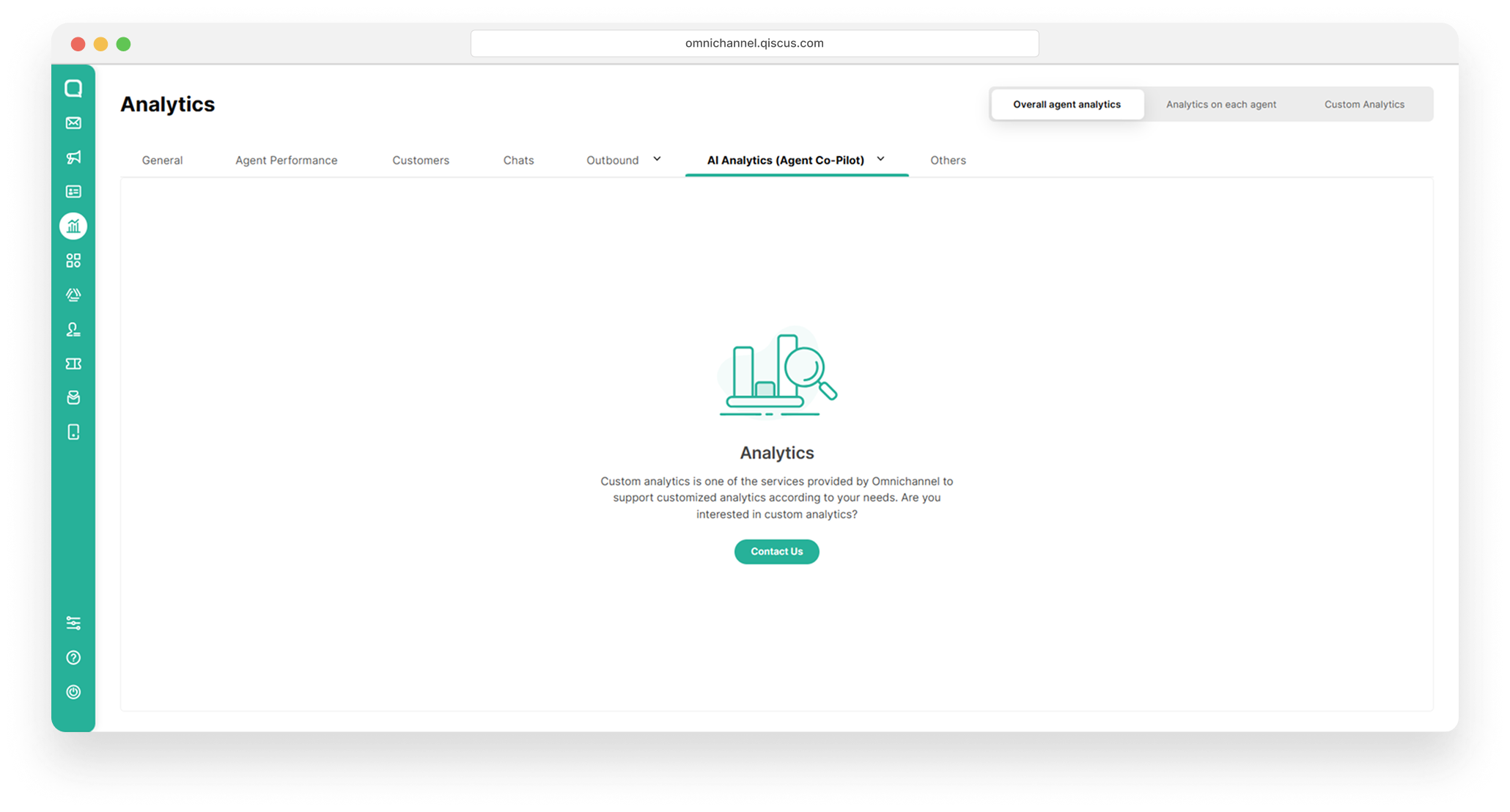
Credit Currency: The total remaining credit balance (in USD) currently available in the account. This balance represents the amount of credit that can be used to access Qiscus AI services.
Credit Usage This Month: The total amount of credit used during the selected month for utilizing Qiscus AI services.
Credit Usages Analytic Chart: Presents a daily trend chart of credit usage in terms of daily costs (USD) throughout the selected month, helping to monitor and analyze usage patterns more effectively.
Others
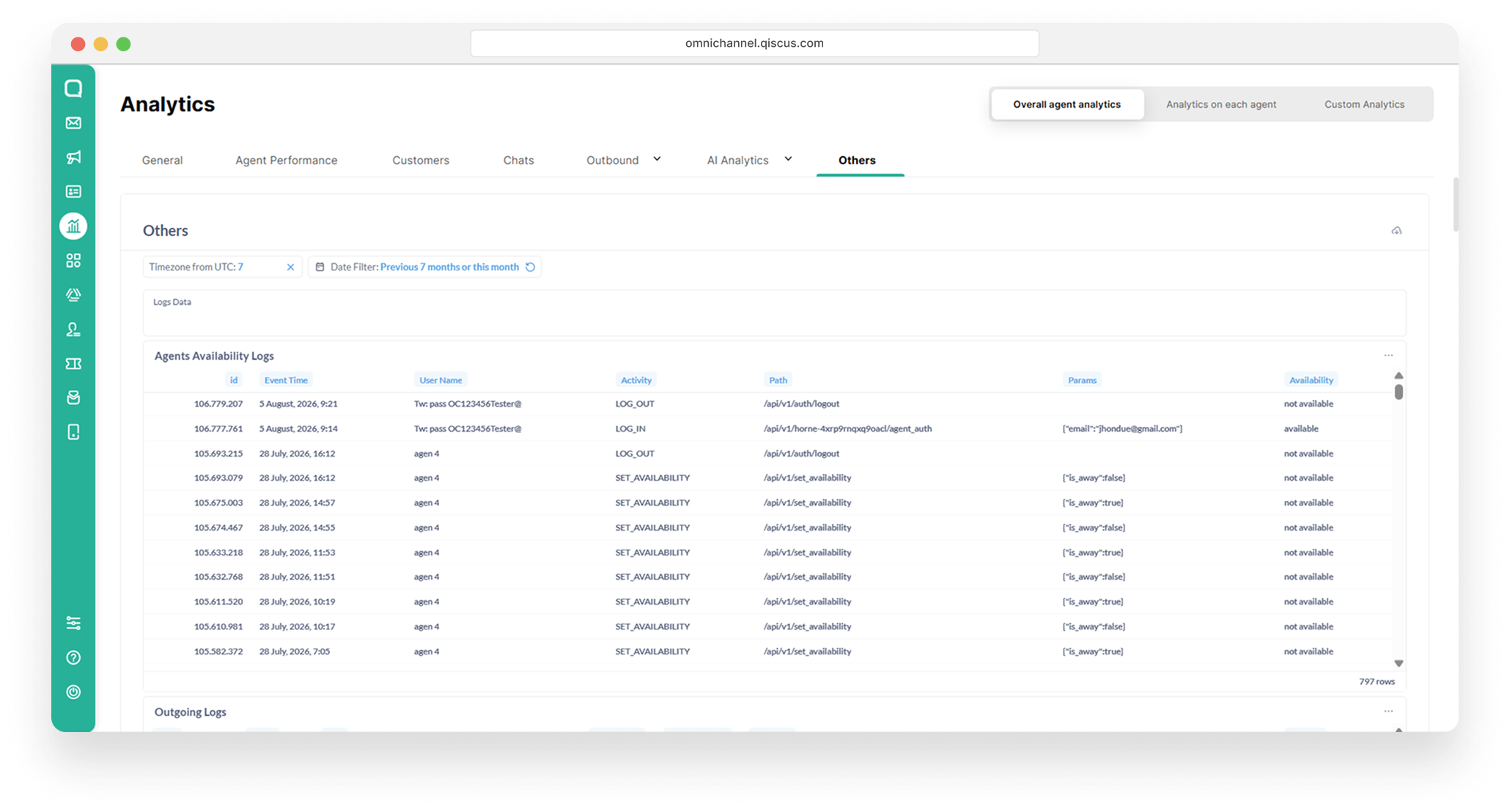
Agent Availability Logs show agent activity such as login and logout details plus Set Availability for agent under the supervisor. The date filter used is the timestamp when the log is created. The attributes shown include:
Event Time → The time when the activity was performed
User Name → Agent username
Activity →Type of activity performed
Path
Params
Availability → Availability status
Outgoing Logs shows the outgoing log from the app to external customer services. The date filter used is the timestamp when the log of the app is created. The displayed attributes include:
Time → Timestamp when the log is created
Intent
URL
Status Code
Response Time
Response
Request
Failed Message Logs show the error log of messages sent or received from integrated channels. Data is considered based on the channels under the supervisor. The date filter used is the timestamp when the log of the message is created. The displayed attributes include:
Channel → Channel from the room that has an error
Channel Name → Shows the channel name
Created At → Timestamp when an error occurs
Error Source → Source of the error message
Payload → Response from the webhook or HTTP call
Agent shows a list of agents under the supervisor that have not been deleted. Note that this is not affected by the Date Filter. The attributes displayed include:
ID → Agent identifier
Name → Registered agent’s name
Email → Agent's email address that is used for login
Division → Division of each agent
Avatar URL → Link to agent's avatar
Is Available → Agent Availability
Last Login → Timestamp of agent's Last Login to the app
Created At → Timestamp when the agent is registered to the system
Updated At → Timestamp when agent information changes
Agent Assignments shows a list of agents and rooms that have been assigned to agents. Data is considered based on the channels under the supervisor. The date filter used is the timestamp when the agent is assigned the room. The displayed attributes include:
ID →The identifier of the activity "Agent Assigned to a Room."
Room ID → Room identifier assigned to the agent
Customer ID → Customer identifier who created the room
Customer Name → Customer’s username who created the room
Agent ID → Agent identifier
Agent Name → The name of the agent
Agent Division →The agent’s division
Channel Name → Shows the channel name and source where a room is created
Assigned At → Timestamp when the agent joins the room
First Agent's Message Timestamp → Timestamp of the first message sent by the agent
Session Status → Status, which indicates whether the session has been resolved by the agent or is still ongoing
Resolved At → Timestamp when the agent resolves a room
Updated At → Timestamp when an attribute has changed
Deleted At → Timestamp when the agent is no longer in the room due to handover or the room is resolved by another agent
Conversations show data conversations along with the customers in them. Data is considered based on the channels under the supervisor. The date filter used is the timestamp when the room receives the first message from the customer. The displayed attributes include:
Room ID → Room identifier
Customer ID → Customer identifier
Customer Name → The name of the room, usually in the form of the customer’s username
Channel Name → Shows the channel name and source where a room is created
Handled By Bot → An indicator of whether the room can be handled by bots or not
Extras → Additional information regarding the room
Status → Status of the room (Ongoing/Resolved)
Resolved At → Shows timestamp when the room is resolved
Created At → Timestamp when the room receives the first message from a customer
Last Message Sent At → Timestamp when the last message is sent into the room
Last Message Sender → Name of the sender who sent the last message
Last Message Sender Type → The user type of the last message sender
Updated At → Timestamp when one of the room attributes is changed
Customers show data for customers who started conversations in the date filter range. Data is considered based on the channels of all supervisors. The date filter used is the timestamp when the room is created. The displayed attributes include:
Customer ID → Customer identifier
Name → Customer username
Channel Name → Shows the channel source where a room is created
Extras → Additional information
Avatar → Link to the customer profile picture
Room Created At → Timestamp when the room is created
Created At → Timestamp when customer data is created
Updated At → Timestamp when customer data is changed
Messages Last 7 Days shows data messages and the message type, sender, room, and date the message was sent. The date filter used is the timestamp when the message is created (only taken from the last seven days). The displayed attributes include:
ID → Message identifier
Conversation ID → Room identifier
User ID → Sender’s identifier
Sender Name → Shows name of the sender
Message → Message content
Message Mime Type → Message type
Created At → Timestamp when a message is sent
Updated At → Timestamp when message data changes
Deleted At → Timestamp when a message is deleted
Chat Templates refers to all the chat templates which are created on the selected date filter. The date filter used is the timestamp when a chat template is created.
Template ID → Template identifier
Template Command → Command of the chat template
Message → Message content
Created By → Shows the name of individual who created the chat template
Created At → Timestamp when a chat template is created
Updated At → Timestamp when chat template data is changed
Notes on Conversations show the room and additional information including notes from the agent, supervisor, or admin. Data is considered based on the channels of all supervisors. The date filter used is the timestamp when the room is updated.
Room ID → Room identifier
Customer ID → Customer’s identifier
Customer Name → Customer’s username
Channel → Shows the channel source where a room is created
Notes → Notes left in a room, whether resolved or not.
Status → Shows the status of the room (On-Going / Resolved)
Room Created At → Timestamp when the room is updated
Tags on Conversations show all the tags pf the conversation in the channels under a supervisor that the tags are added based on the selected Date Filter. Note that a room can have more than one tag. The date filter used is the timestamp when a tag is added to a room. The displayed attributes include:
Room ID → Room identifier
Customer ID → Customer’s identifier
Customer Name → Customer’s username.
Channel Name → Displays the channel name where a room is created.
Tag → The name tag pinned to a room
Conversation Started At → Timestamp when a customer sends their first message to a room
Tag Added At →Timestamp when a customer sends the first message to a room
Customer’s Additional Information shows the Title and Description added via each room’s “Additional Information” feature. The date filter used is the timestamp when the room receives the first message from a customer. The displayed attributes include:
Room ID → Room identifier
Customer ID → Customer’s identifier
Customer Name → Customer’s username
Channel → Shows the channel name where a room is created
Title → The title in the “Additional Information” feature
Description → Text entered in the “Additional Information” feature as a description
Conversation Started At → Timestamp when a customer sends their first message to a room
Analytics On Each Agent
This page provides analytics on each agent’s individual performance based on conversation data. To use this feature, enter the agent’s name in the search field and click the name to view detailed metrics.
Agent Performance
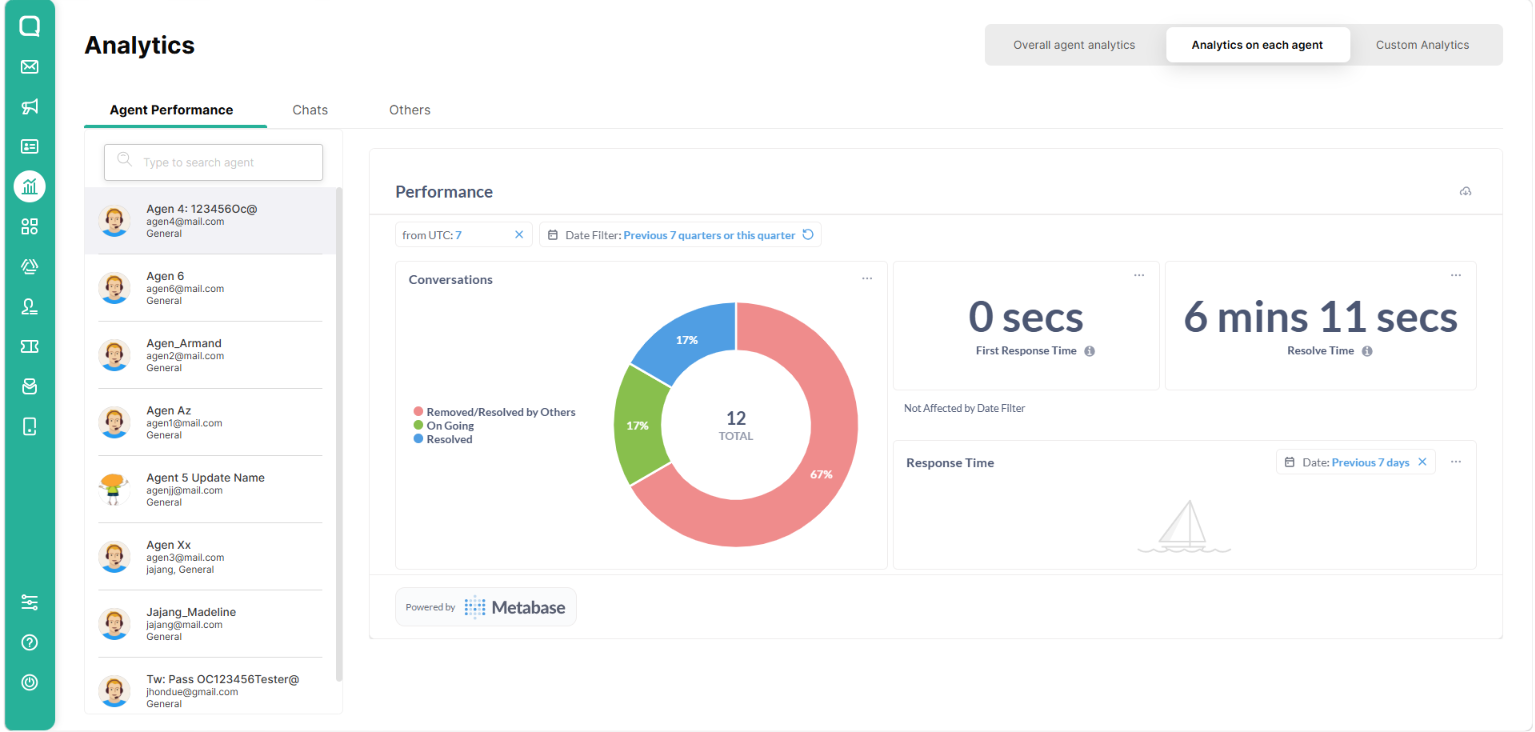
After selecting an agent, you will see the following performance metrics:
Performance Section – Displays the agent’s key metrics for the selected period, including:
First Response Time – Average time the agent takes to reply to a customer’s first message.
Resolve Time – Average time the agent takes to close a conversation.
Conversations Chart – Shows the number of conversations handled by the agent.
Date Filter & Timezone (UTC) – Filters data by a specific date range and timezone.
Export as PDF – Saves the agent’s performance report as a PDF file.
In short, this feature helps you evaluate each agent’s performance in detail to improve overall customer service quality.
Chats
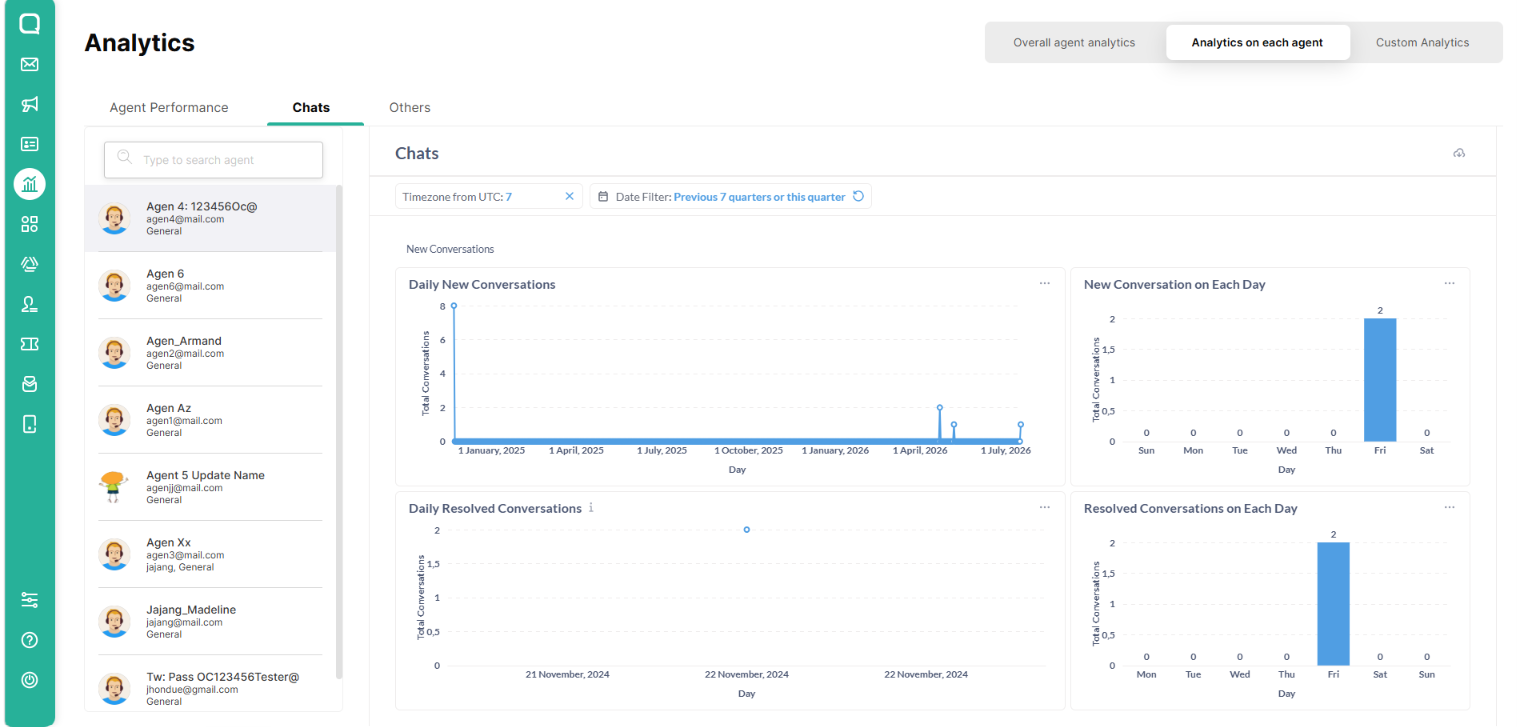
Daily New Conversation
Shows the number of new conversations received and handled by the agent each day within the selected date range. This helps Admins monitor daily conversation volume, identify spikes or drops in activity, and plan workloads effectively.
New Conversation on Each Day
Displays the count of unique new conversations initiated on each individual day during the chosen period. It highlights trends in customer engagement on a day-by-day basis, allowing teams to spot patterns such as peak contact days.
Daily Resolved Conversation
Presents the number of conversations that the agent successfully resolved each day. This chart is useful for evaluating how consistently agents close conversations and for measuring daily productivity.
Resolved Conversations on Each Day
Shows the total of unique conversations resolved per day, giving insight into the overall resolution trend and helping identify days when resolution rates are higher or lower.
Resolve Time per Channel
Displays the average time it takes the agent to resolve conversations for each channel (e.g., WhatsApp, Instagram, Live Chat). It helps compare resolution efficiency across different communication channels.
Conversations per Channel
Indicates the number of conversations the agent handled on each channel. This reveals which channels generate the highest workload and can guide resource allocation.
Resolve Time per Tag
Shows the average resolution time grouped by conversation tags (for example, “Sales,” “Support,” or custom tags). It highlights which types of inquiries take longer to resolve.
Conversations per Tag
Displays the total number of conversations categorized under each tag. This helps identify the most common conversation topics or issues customers contact about.
Others
Designed for Admins to audit an agent’s detailed activities such as customer interactions, availability changes, and conversation notes, over a chosen date range and timezone.
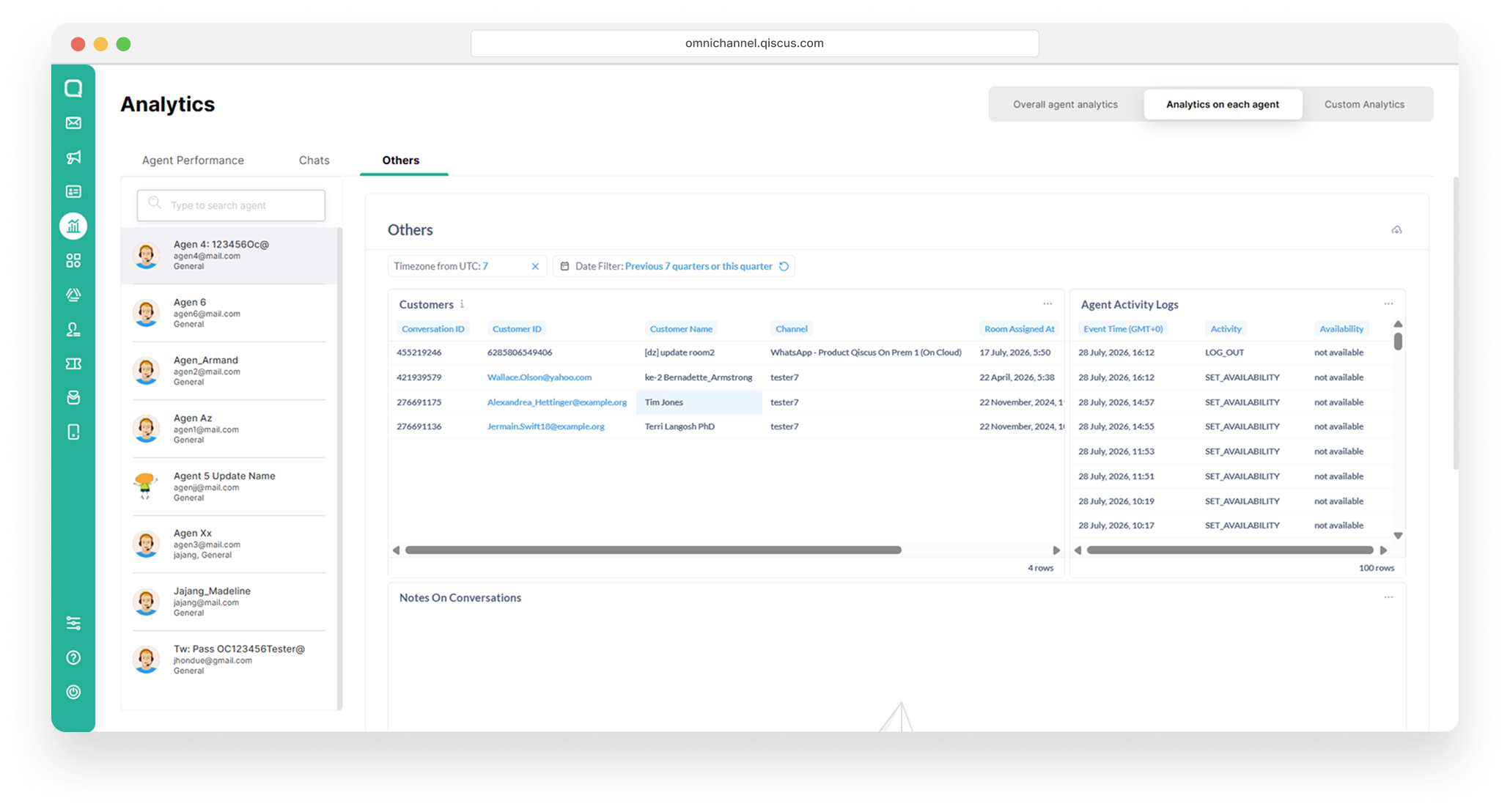
Customers Table
Lists the customers who interacted with this agent within the selected time frame. Columns include:
Conversation ID: Unique ID of the chat.
Customer ID / Name: Identifiers for the customer.
Channel: Channel used (e.g., Qiscus Widget).
Agent Activity Logs
Displays a timestamped log of the agent’s actions such as logging in/out or changing availability status. Columns include:
Event Time (GMT+7)
Activity (e.g., SET_AVAILABILITY, LOG_OUT)
Availability Status
Notes on Conversation
Shows any notes the agent added to customer conversations. Columns include:
Conversation ID and Customer Name
Channel where the chat occurred
Notes entered by the agent
Room Status and Created At time
Custom Analytics
Custom Analytics displays analytics data tailored to your specific needs. Typically, you submits a request to us about which metrics should appear, and then we will configures the dashboard accordingly.