
An Omniform form can also be filled in by the customer, from a link sent in the chat. The answers go to the same webhook as agent submissions, together with the room data you chose for the form.
This page is for admins. It explains how links work, and how to set up the two things they need: an API token for your system, and the Customer Page settings.
How it works
You create an API token in Omniform and give it to the team that builds your chatbot or integration.
Your system creates a link with the Form Links API, for one form and one Omnichannel room, and sends the link to the customer. For example, your chatbot sends a WhatsApp message with a button that opens the link.
The customer opens the link on their phone, fills in the form, and sends it.
Omniform sends the submission to the form's webhook, marked as coming from a customer link.
Omniform does not send links to customers by itself. Your system decides when to send a link and sends it in the chat.
The API is described in the Public API Documentation: open API Tokens and click the link at the top of the page. Share it with whoever builds your integration.
What a link does
A link belongs to one form and one room. Answers are sent with that room's data.
A link can be submitted once. After a successful submission, opening it again shows the Already filled message.
A link expires, by default after 72 hours. Your system can choose a time between 5 minutes and 30 days when it creates the link.
Your system can revoke a link, or replace it with a new one, at any time.
Every active form can be shared. There is no setting per form. Who can create links is controlled by who holds an API token.
What the customer sees
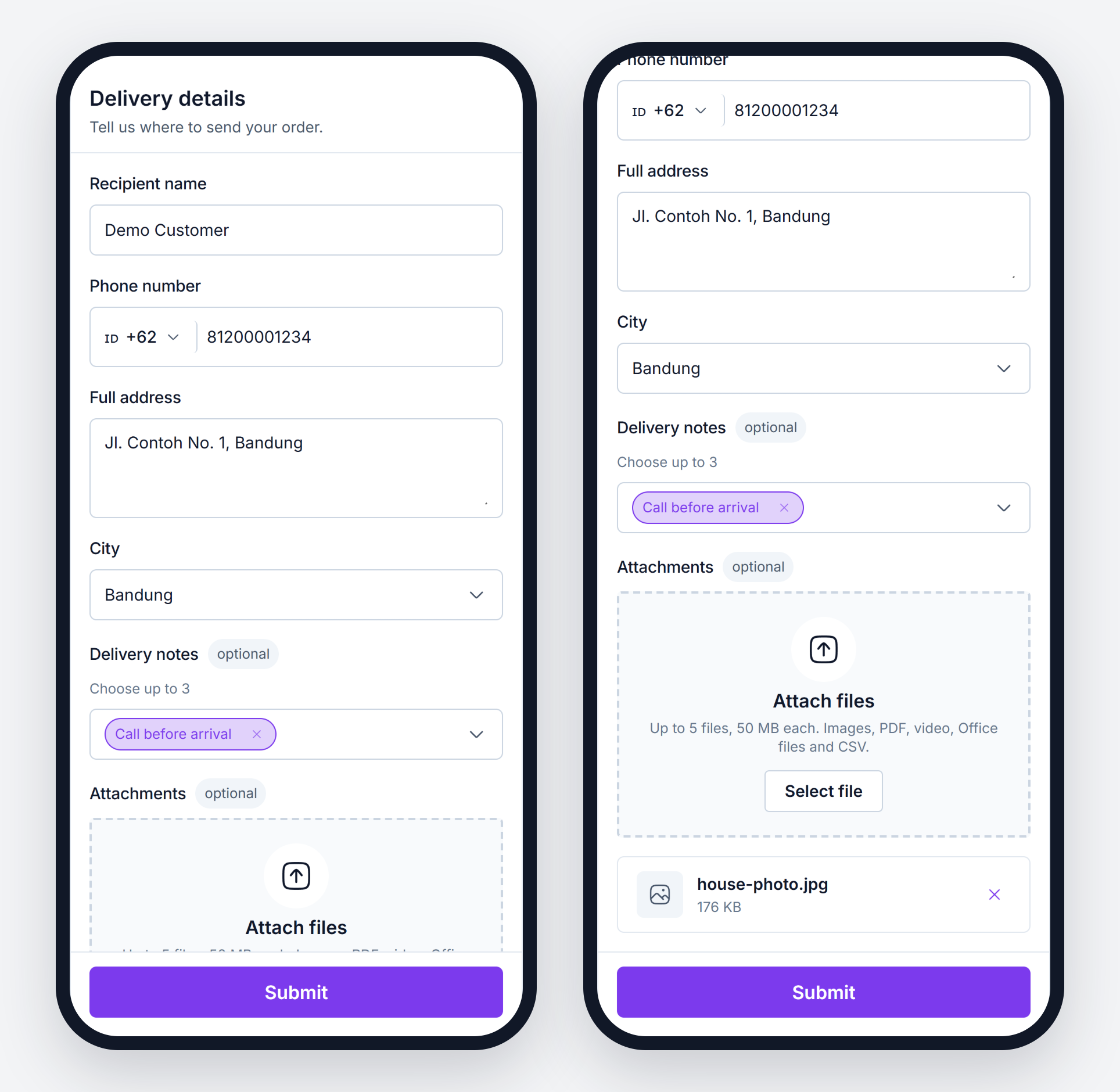
The customer sees the form name, its description, the fields, the attachment area if Attachment is on, and the submit button. The page is made for phones.
The customer never sees the room information, customer properties, or additional information you send to your webhook, nor your webhook or API settings. If the form appends additional information to a Multi-line Text field, that field starts empty on the customer page.
Texts written by Omniform on the page, such as error messages and upload status, are in English. Your form name, description, field labels, and button text are shown as you wrote them.
When a link can't be used
Instead of the form, the customer sees one of these messages:
Message | When |
|---|---|
Thank you | Right after the form is sent successfully |
Already filled | The link was already used to send the form |
Link expired | The link is past its expiry time |
Link unavailable | The link was revoked or replaced, or the form was deactivated or deleted |
You can change the title and text of each message in Customer Page.
Deactivating a form stops all its links at once, including links already sent to customers, and hides the form from agents. Activating the form again makes links that have not expired work again. To stop customer links but keep the form for agents, ask your integration team to revoke the links instead.
API tokens
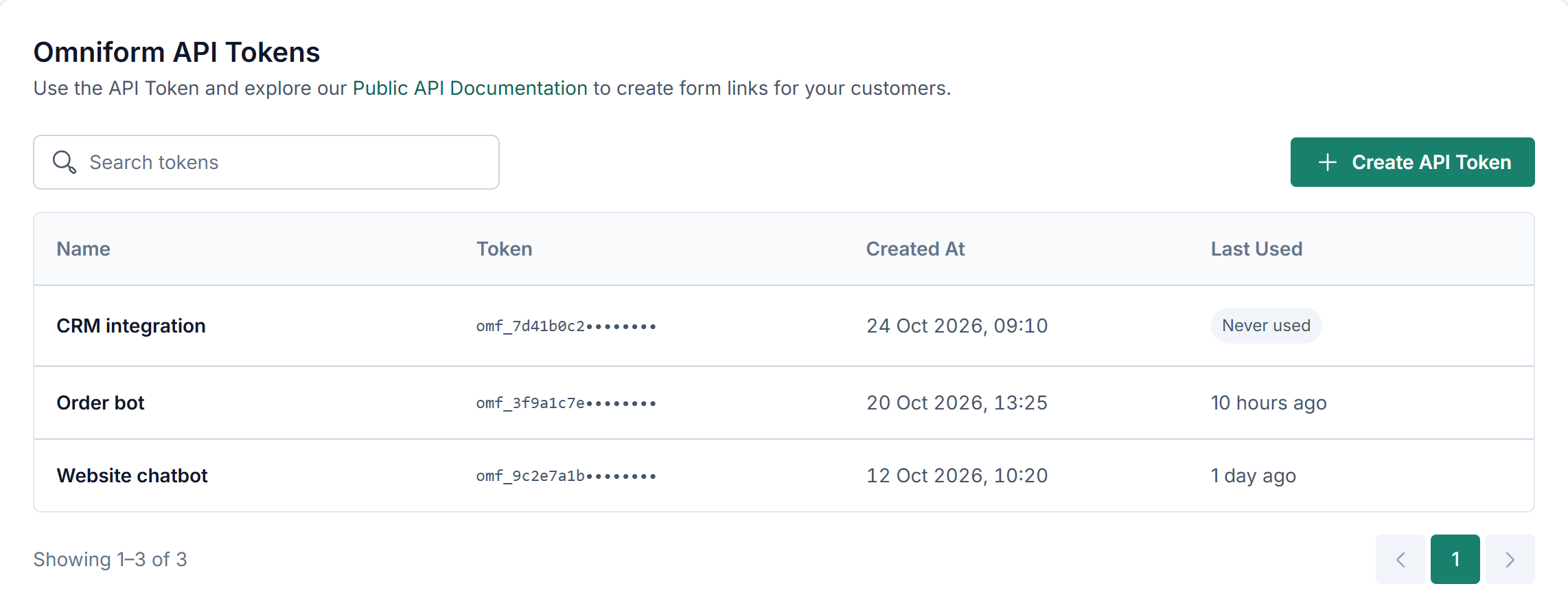
Your system needs an API token to create links. Open Omniform settings and click API Tokens.
Create a token
Click Create API Token.
Enter a Token Name (up to 25 characters), for example the name of the system that will use it.
Click Generate Token.
Copy the token and store it safely. It is shown only once. If you lose it, create a new token.
Manage tokens
The list shows each token's name, the first characters of the token, when it was created, and when it was last used (Never used if it has not been used yet). Use the search box to find a token by name.
Click a row to open its menu:
Edit: changes the token name. Links created earlier keep the old name in their webhook data.
Delete: blocks the token immediately, after you confirm. Every system that uses it stops working. Links already created with it keep working until they expire or are filled in.
To replace a token without downtime, create a new token, switch your system to it, then delete the old one.
A token can only create and check links, and list your forms. It cannot change forms or read submissions. Still, anyone who holds a token can send any active form of your app to a customer, so share tokens only with the systems that need them.
Customer Page
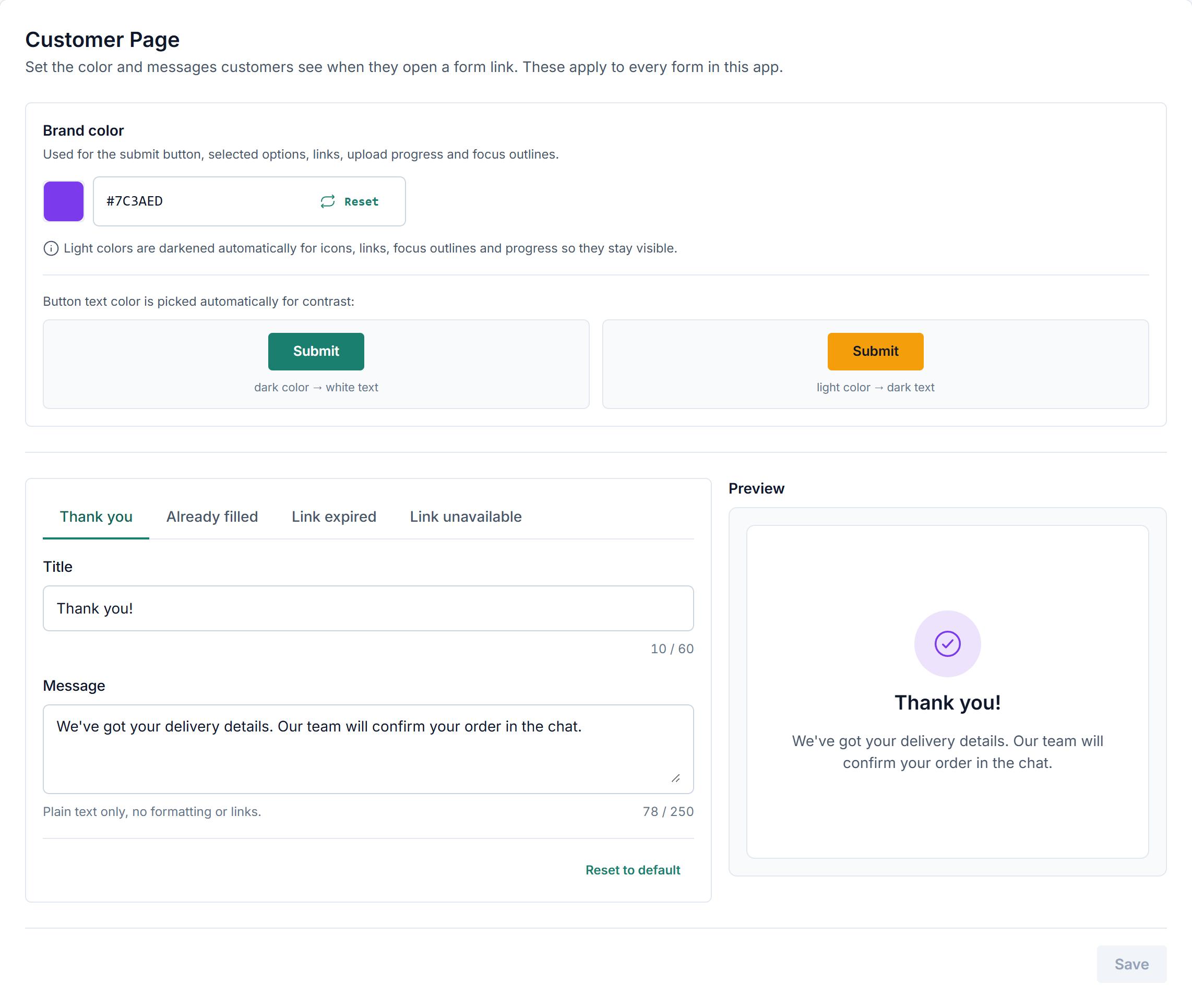
Open Omniform settings and click Customer Page to set how the customer page looks. These settings apply to every form in your app, and to links already sent.
Brand color
The color of the submit button, selected options, links, upload progress, and focus outlines on the customer page.
Pick a color, or type a 6-digit hex code such as
#1A7F6F(with or without#). Other formats are refused.Reset returns to the default Omniform green.
The button text is set to white or dark automatically, whichever is easier to read on your color.
If your color is very light, Omniform darkens it automatically for icons, links, and outlines so they stay visible. The submit button keeps your exact color.
Messages
Set the Title (up to 60 characters) and Message (up to 250 characters) of each message the customer can see: Thank you, Already filled, Link expired, and Link unavailable. Use plain text; formatting and links are not supported.
Reset to default restores the original English text of the selected message:
Message | Default title | Default message |
|---|---|---|
Thank you | Thank you | Your response has been sent. You can close this page and go back to the chat. |
Already filled | This form has already been filled in | If anything needs to change, let us know in the chat. |
Link expired | This link has expired | Ask for a new link in the chat to fill in this form. |
Link unavailable | This link is no longer available | Ask for a new link in the chat. |
The preview shows the selected message with your brand color.
Save
Click Save to apply your changes. Customers keep seeing the saved version until you save. If you leave the page with unsaved changes, Omniform asks you to confirm.
Limits and good to know
Attachments on the customer page follow the same limits as for agents: up to 5 files, 50 MB each, in the accepted types listed in Attachment.
Choices loaded from your API are requested by Omniform's servers on the customer page, so the API must be reachable from the internet. See How the request is sent.
Conversation file: customers usually fill the form while the chat is open, and the conversation file is only available for resolved rooms. Submissions from a link usually arrive without it.
Anyone who has the link can fill in the form, for example if the customer forwards it. A link is limited to one room, one submission, and its expiry time.
Who submitted the form: in the webhook,
authoris the customer for submissions from a link. Your integration team can find the details in Submissions from a customer link.