
TikTok is enhancing the way businesses connect with their customers through Tokopedia and TikTok Shop Chat (TTSC) Integration. This feature enables brands to receive and manage customer messages from Tokopedia and TikTok Shop directly within Qiscus Omnichannel Chat, ensuring a seamless communication experience. Through this integration, you can continue to engage with your customers in real time, manage inquiries efficiently, and centralize communication within a single platform.
By connecting your Tokopedia or TikTok Shop account to Qiscus Omnichannel Chat(OC), you gain full control over customer interactions, while ensuring your team never misses a message from your Tokopedia and TikTok audience.
Integration Guide
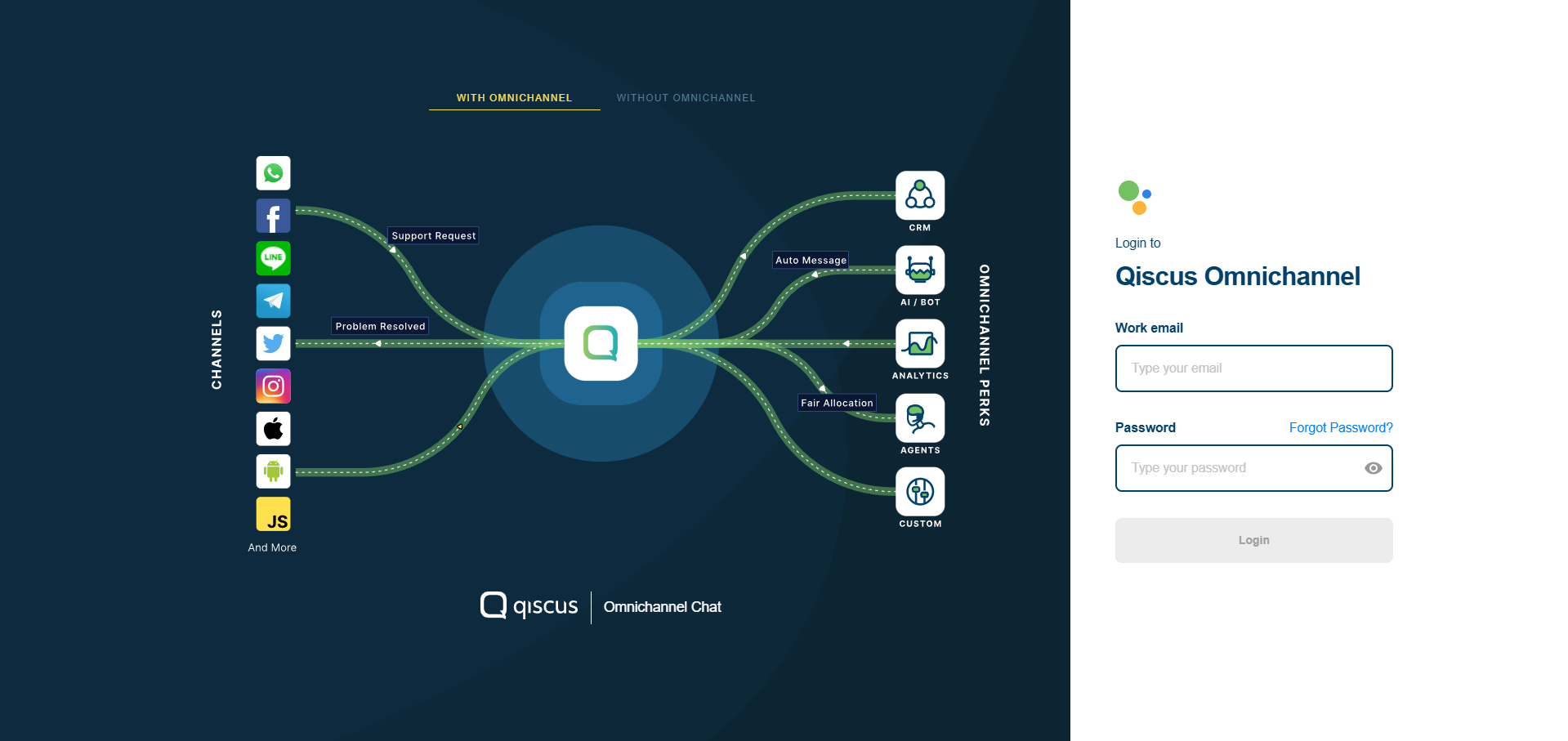
Log in to Qiscus
Open omnichannel.qiscus.com in your browser, then log in using your Qiscus account credentials.
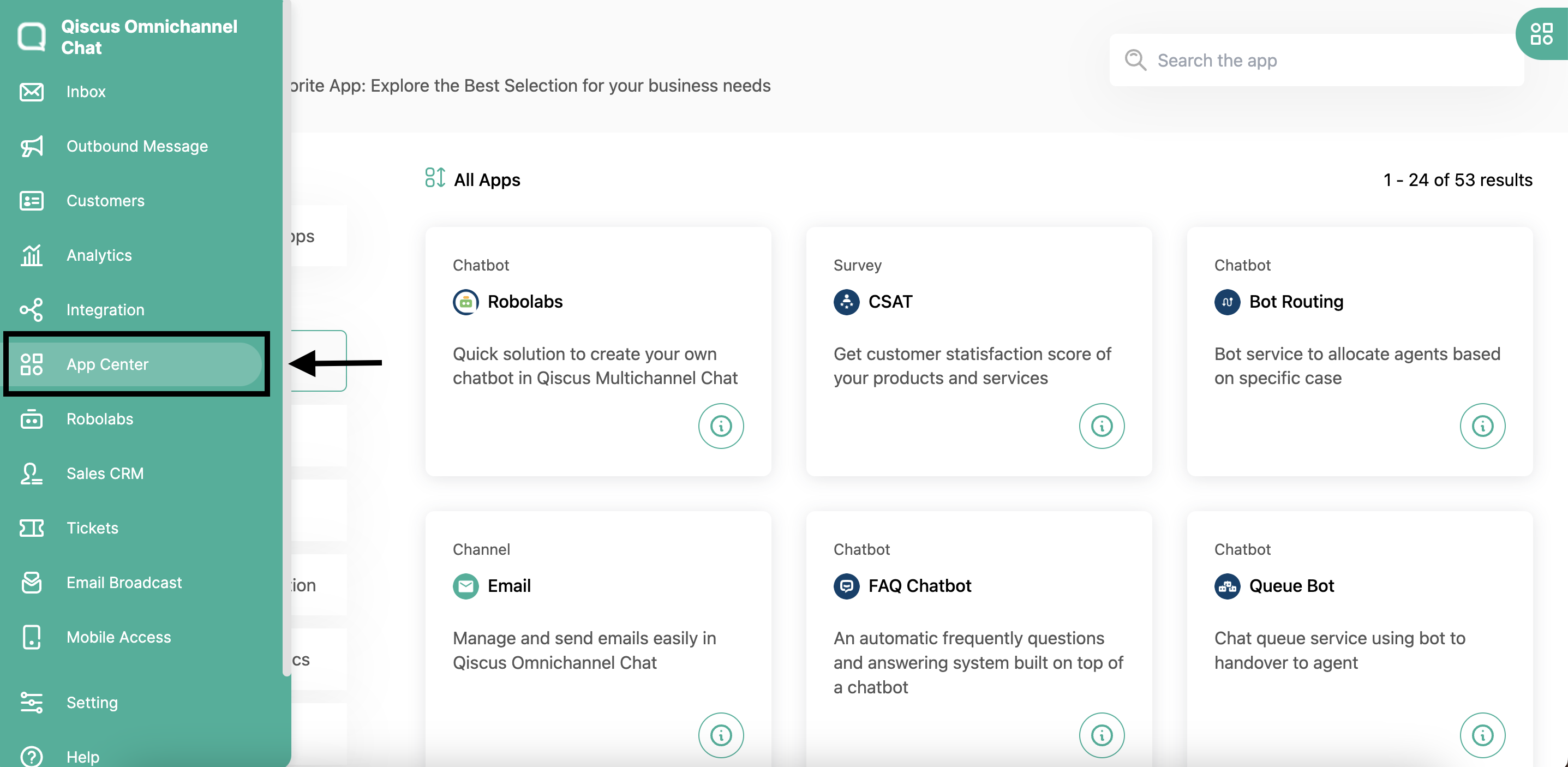
Access the App Center
Once logged in, locate the App Center on the sidebar menu and click on it.
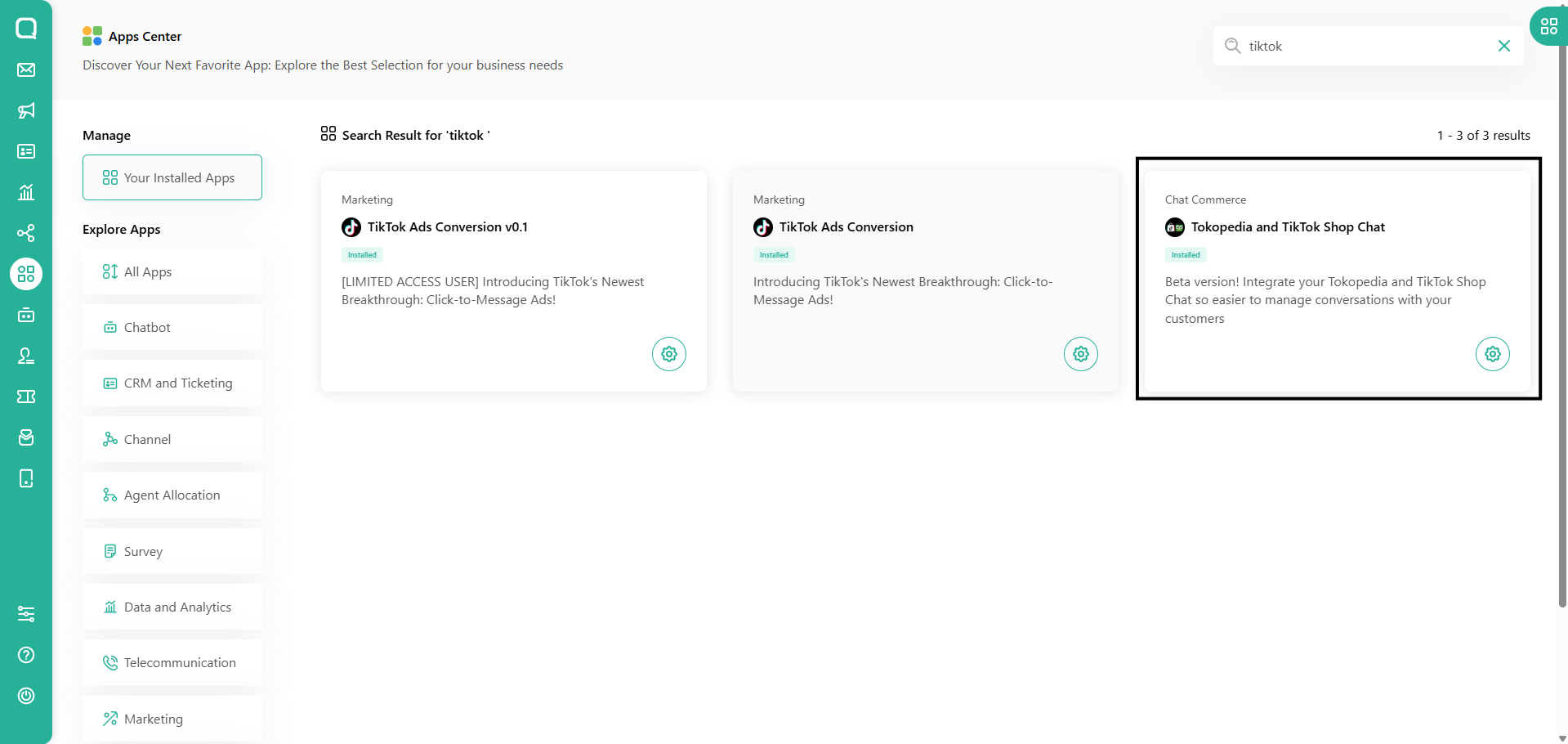
Locate Tokopedia and TikTok Shop Chat
In the App Center, use the search bar to search for Tokopedia and TikTok Shop Chat. Click the Configure button in the Tokopedia and TikTok Shop Chat add-on to begin setup.
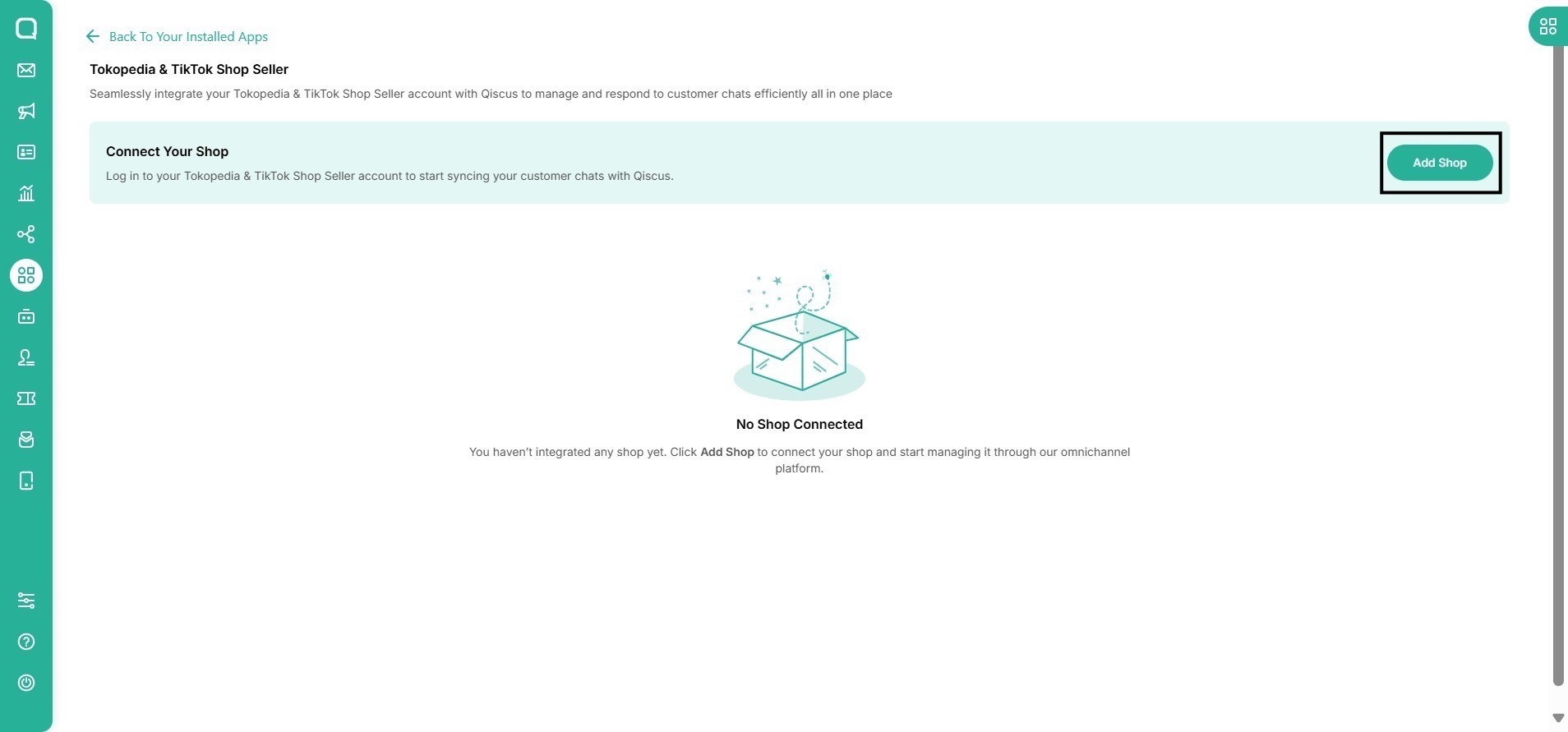
Connect your shop
Click the Add Shop to connect your Tokopedia account or TikTok account.
As of the latest integration update, creating a separate developer account is no longer required. The developer portals for both TikTok Shop and Tokopedia have been consolidated under TikTok Shop Partner Center (TTSPC). All integration processes can now be managed directly through TTSPC using your existing seller account, no separate platform accounts are needed.
Authorize Tokopedia Shop or TikTok Shop
A modal window for login to Tokopedia Shop account will appear and login to your Tokopedia shop account.
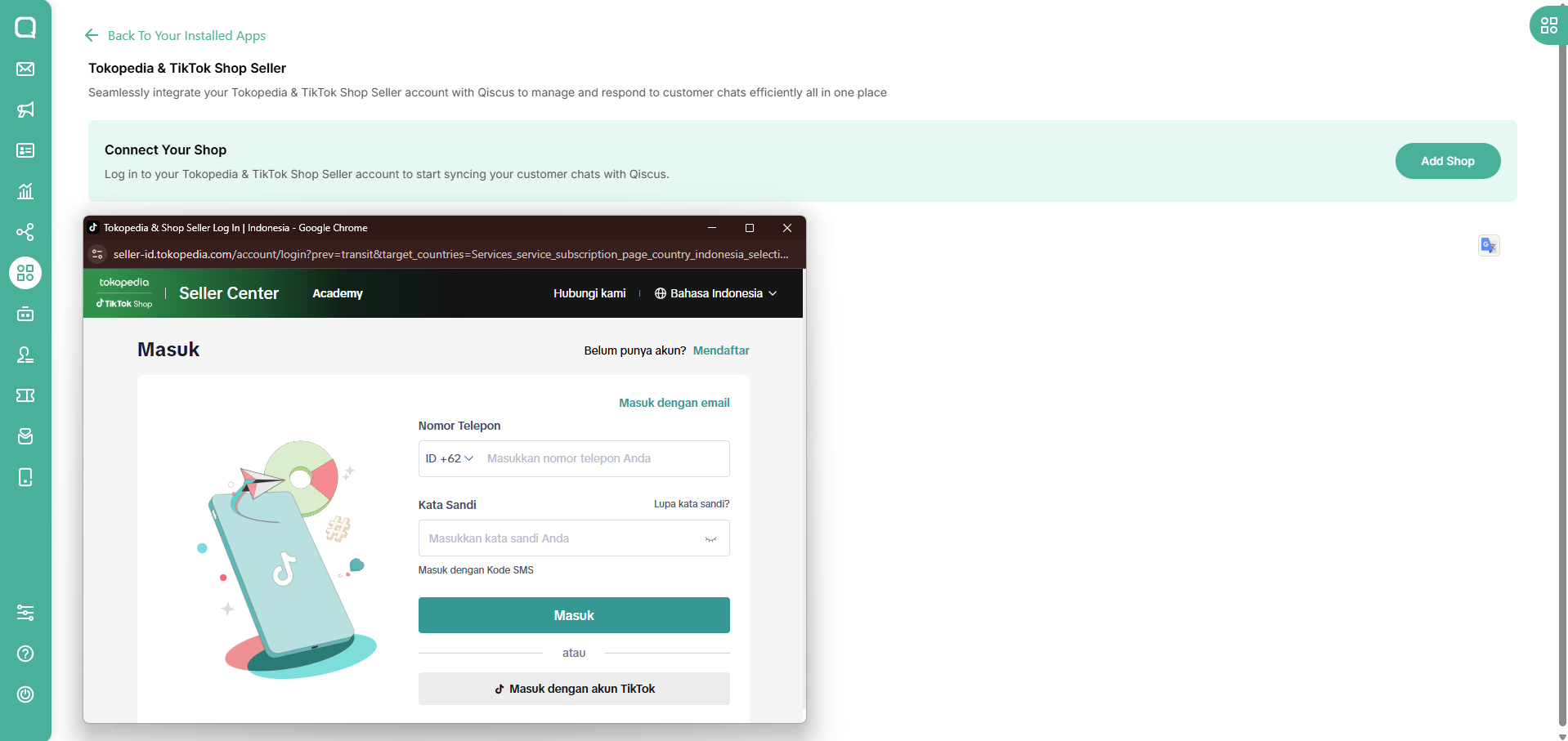
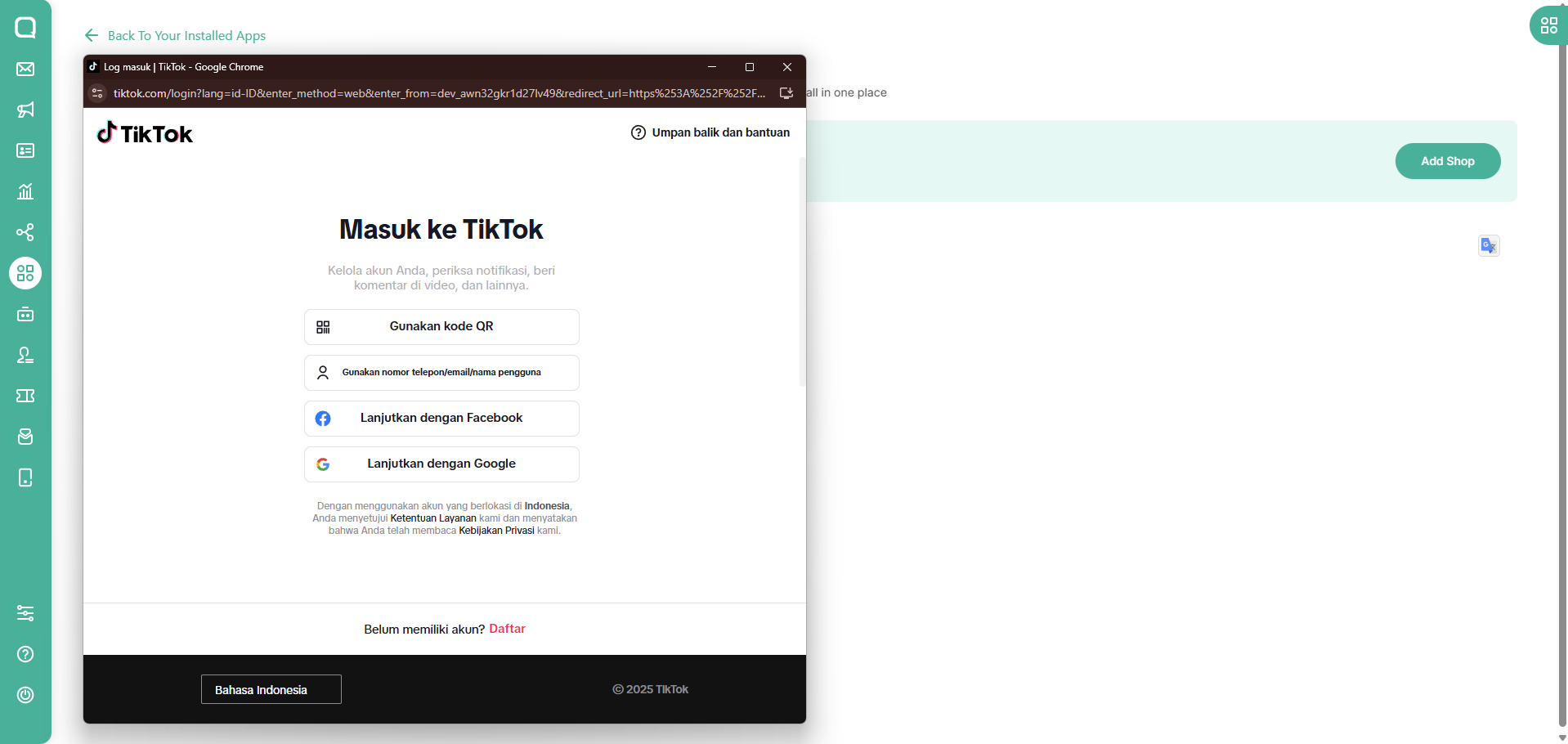
Or if you want to connect with your TikTok account, click the button “Masuk dengan akun TikTok ” and login with your TikTok Account.
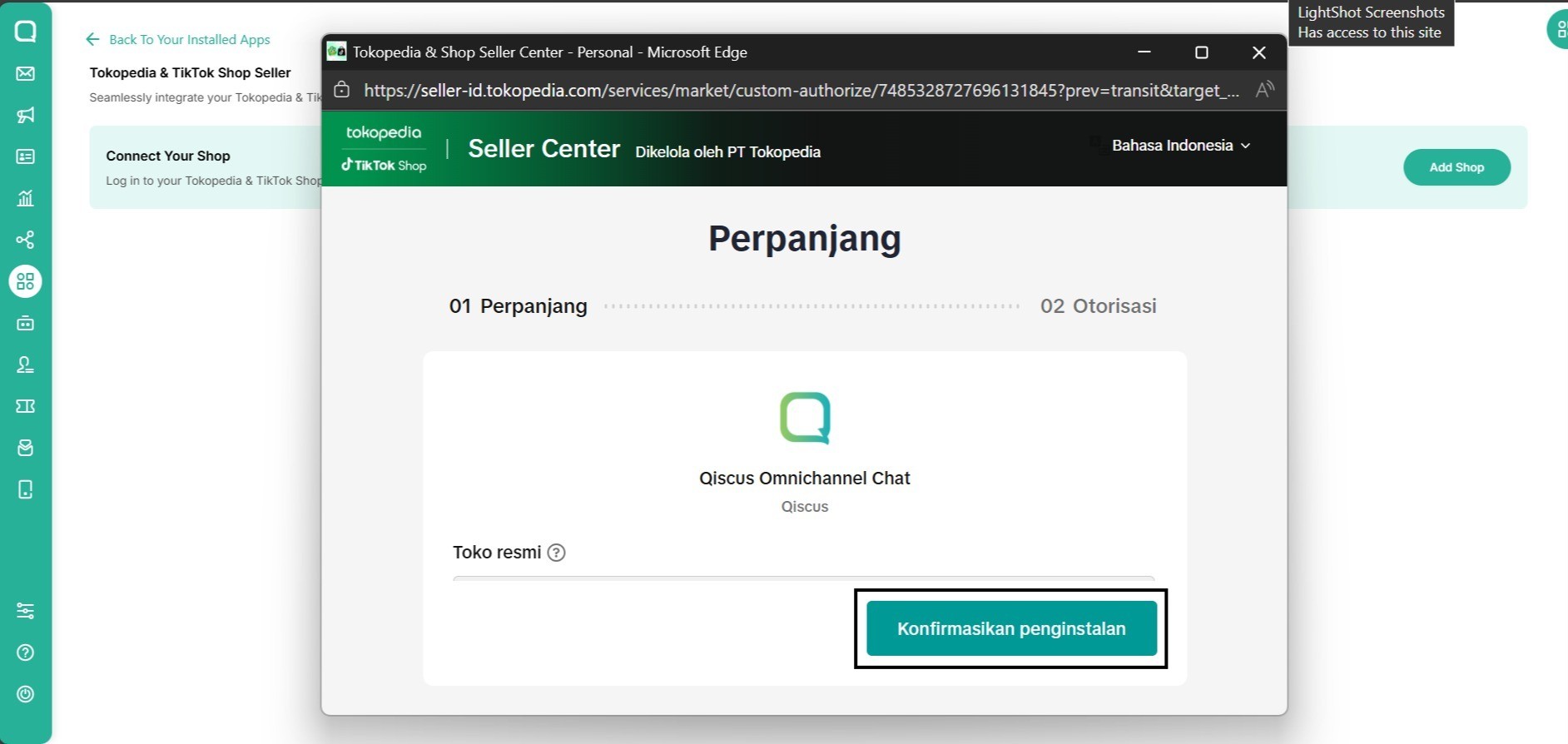
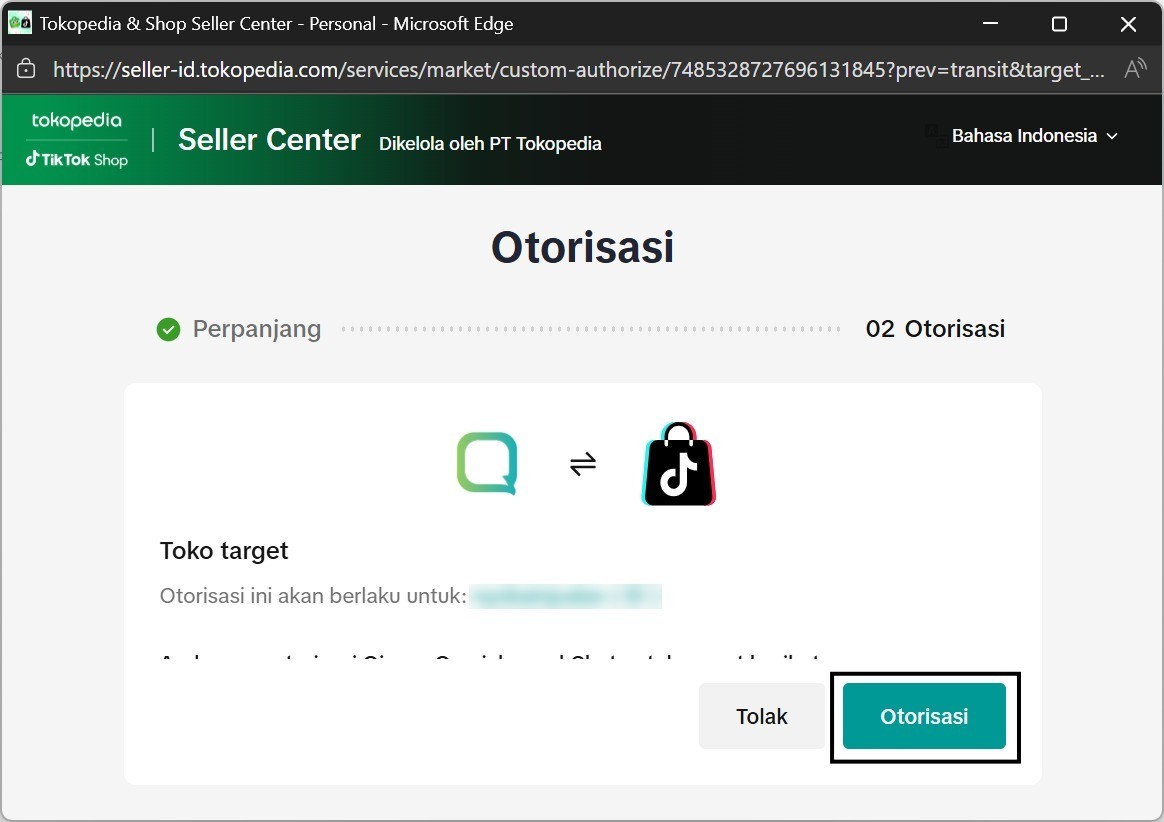
After you login with your Tokopedia account or TikTok account, you will see this window pop-up.
- This is the window when you login with your Tokopedia account. Click “Konfirmasikan penginstalan” button.
- This is the window when you login with your TikTok account. Click “Otorisasi” button.
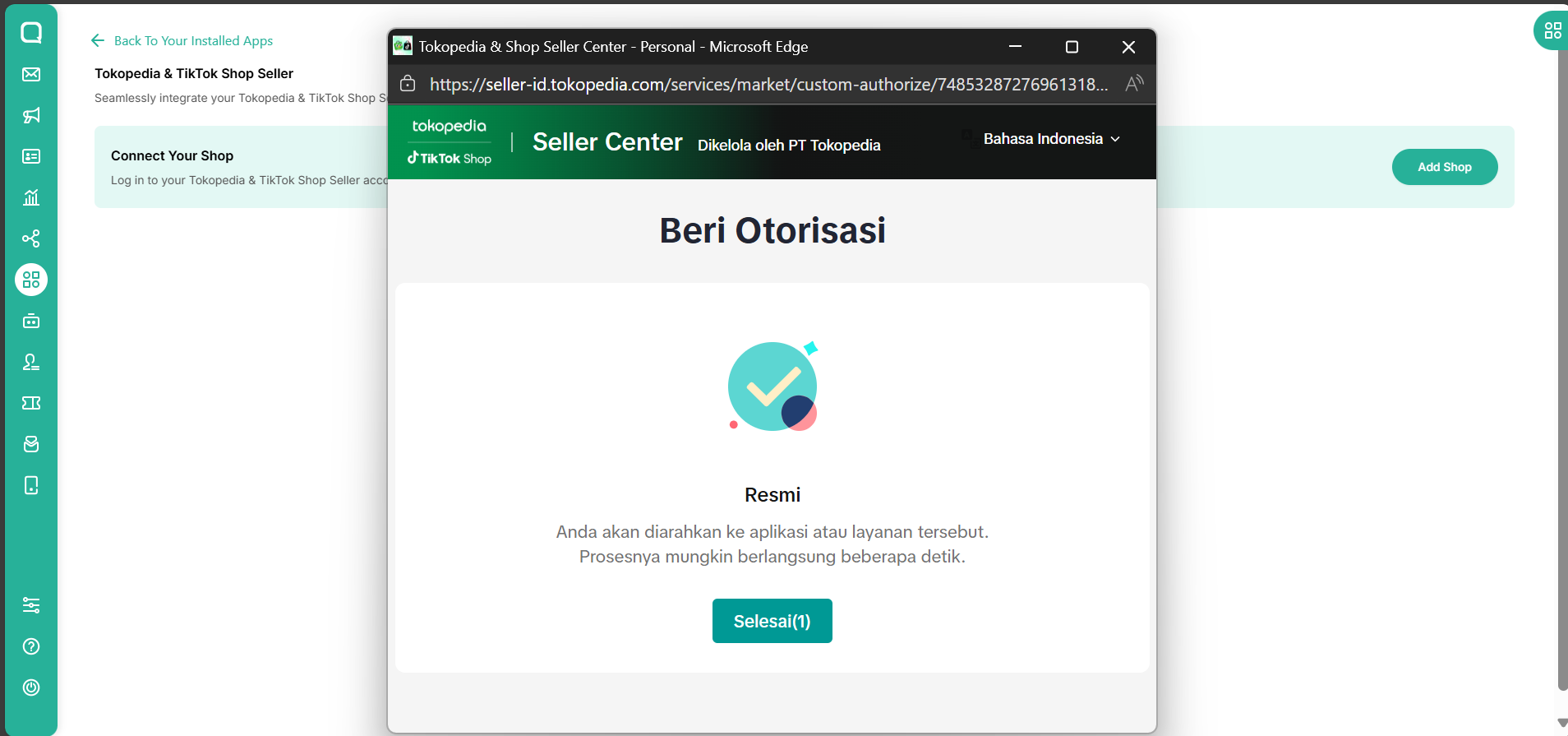
After you success login into your account, you will see this window, click “Selesai” to give authorization your app integration.
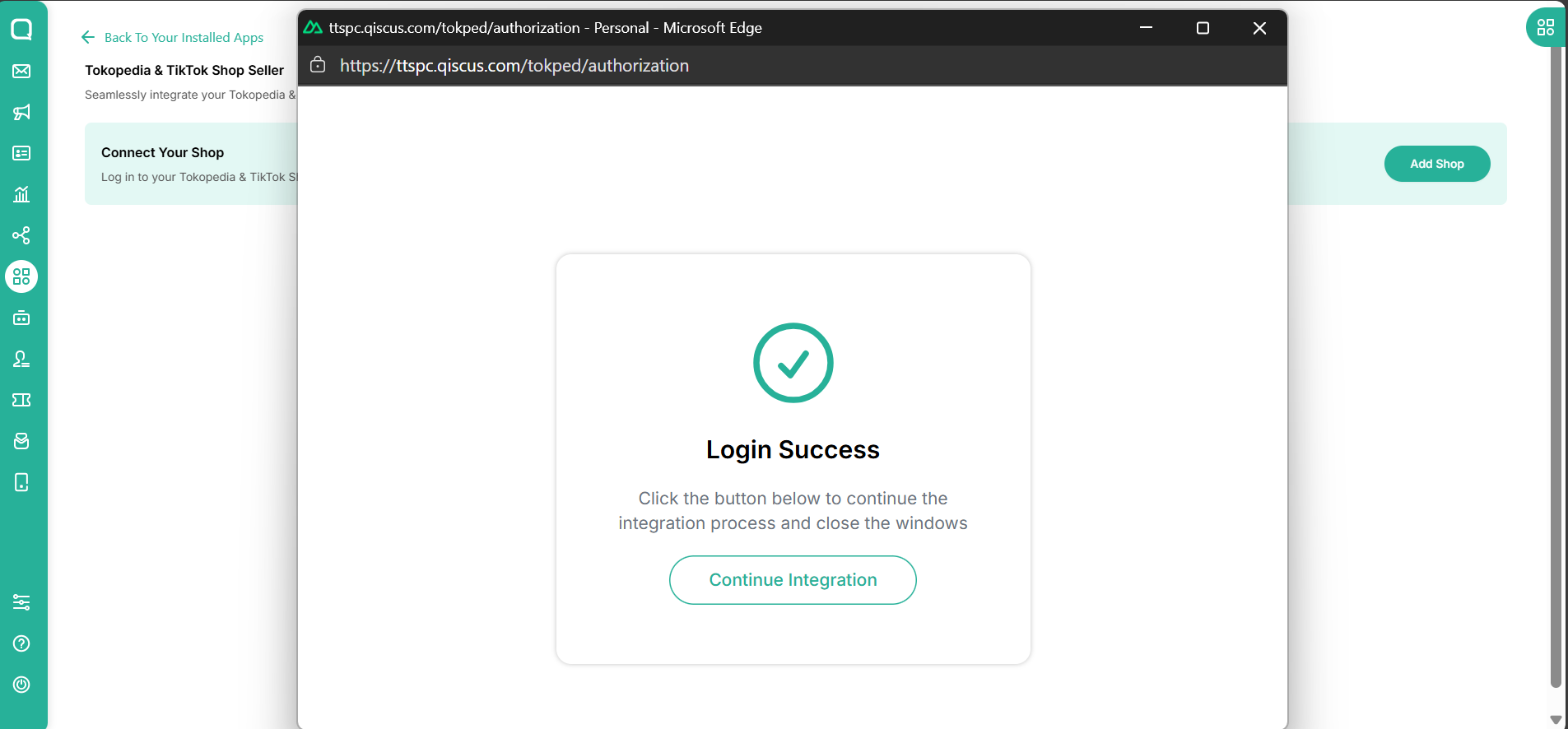
Once you are done with those steps, this window will appear in your pop-up, click the “Continue integration” button to finish the integration process.
You have successfully integrated the Tokopedia and TikTok Shop Chat with your account!
Tiktok and Tokopedia App Center Widget
The Tiktok and Tokopedia App Center Widget aims to allow agents to quickly search and send product, order, or voucher details directly from the Omnichannel chat interface, enhancing response efficiency and customer satisfaction.
Add a Tiktok and Tokopedia App Center Widget on the top right panel of the Omnichannel chat interface.
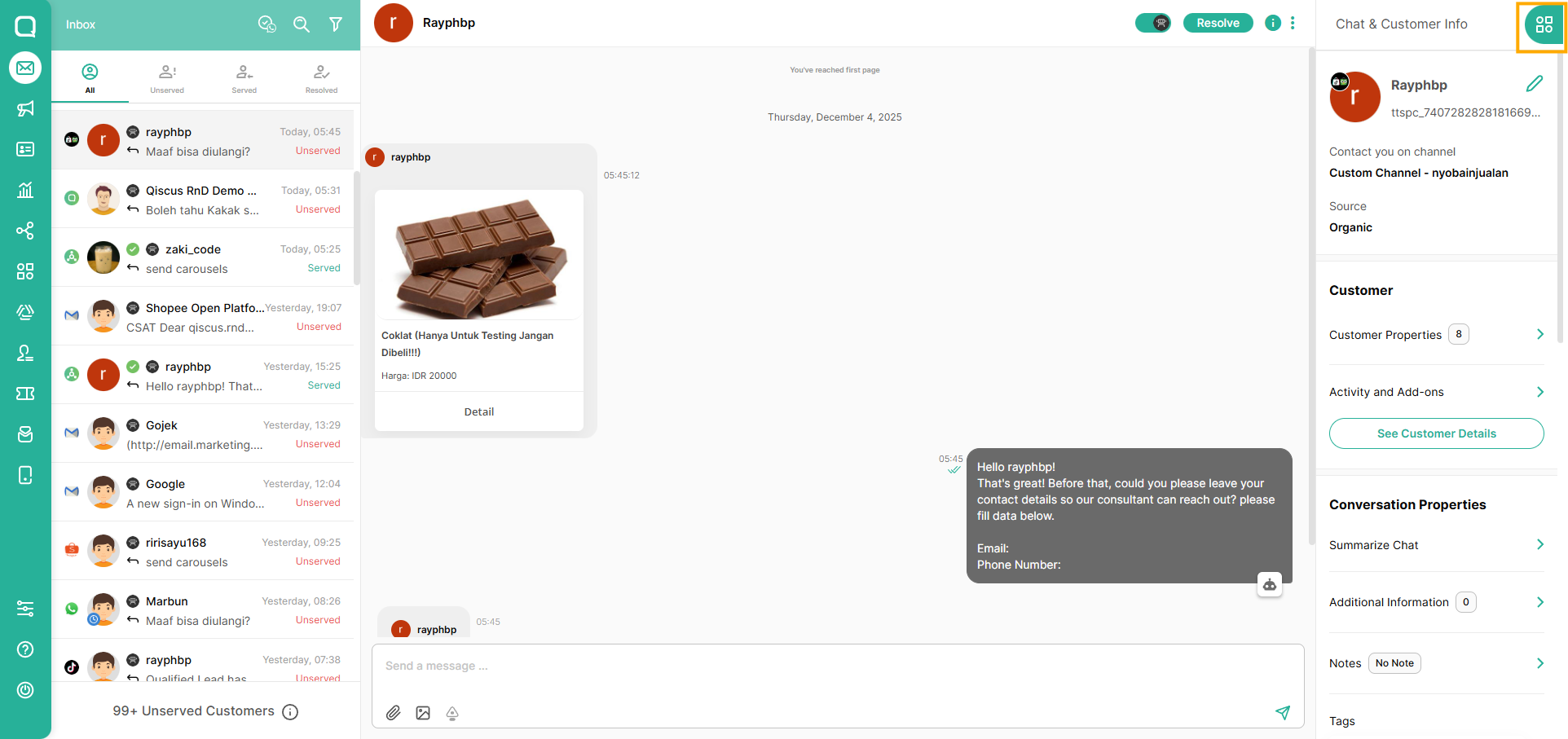
The widget consists of three main tabs:
- Product
- Order
- Voucher
Send Product Message
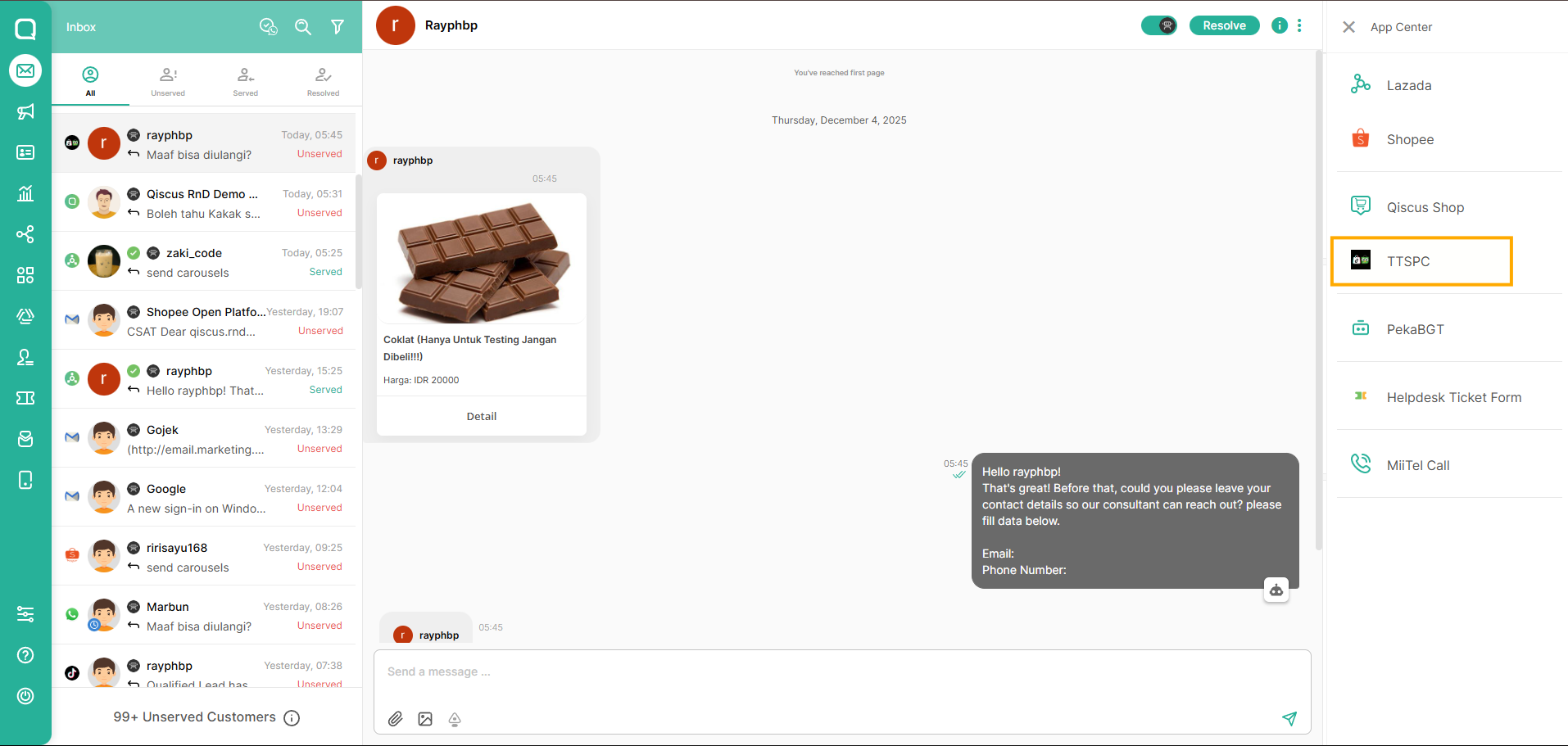
Open a TTSPC chat session in Omnichannel and click the App Center Widget button
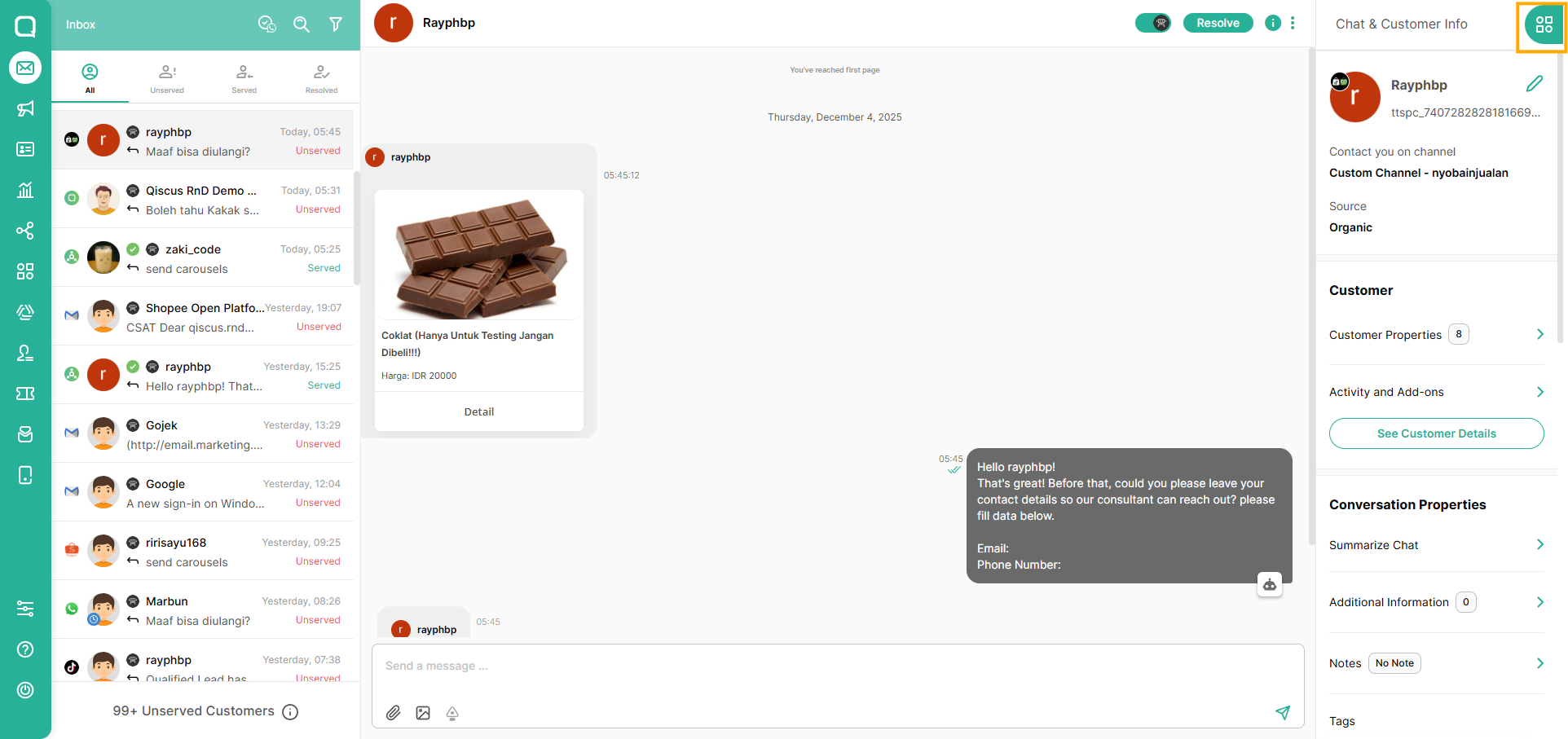
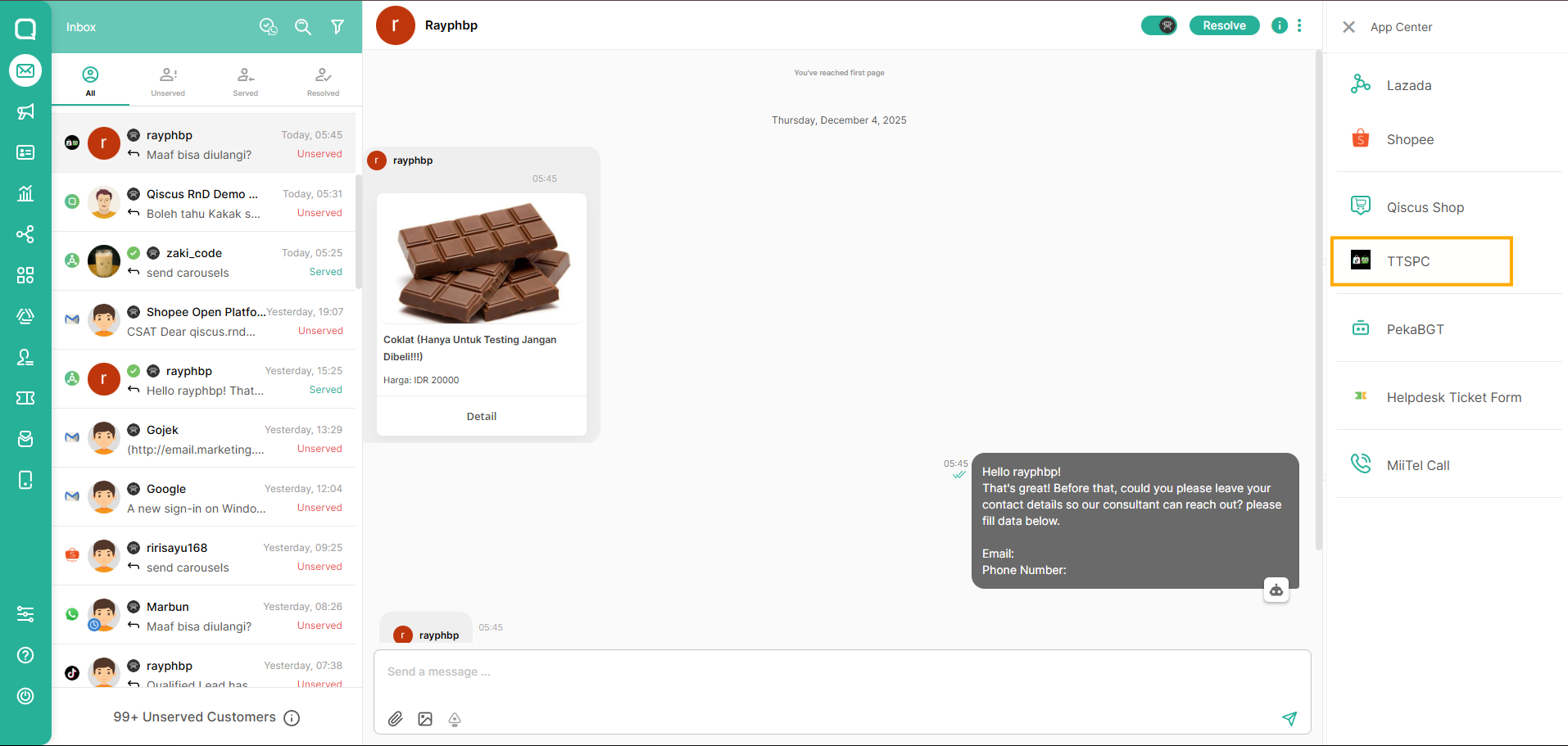
Click TTSPC button on the ACW
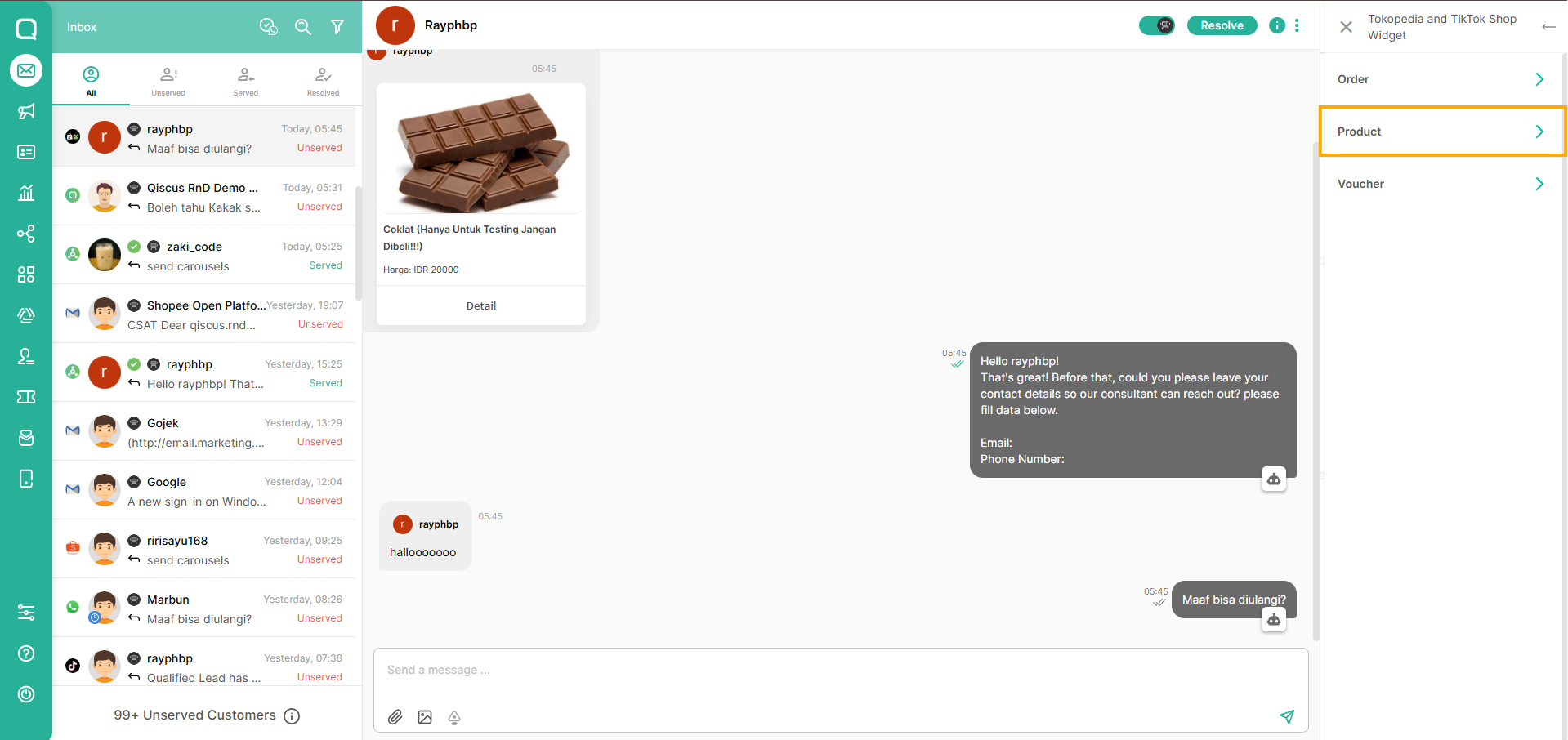
Select Product
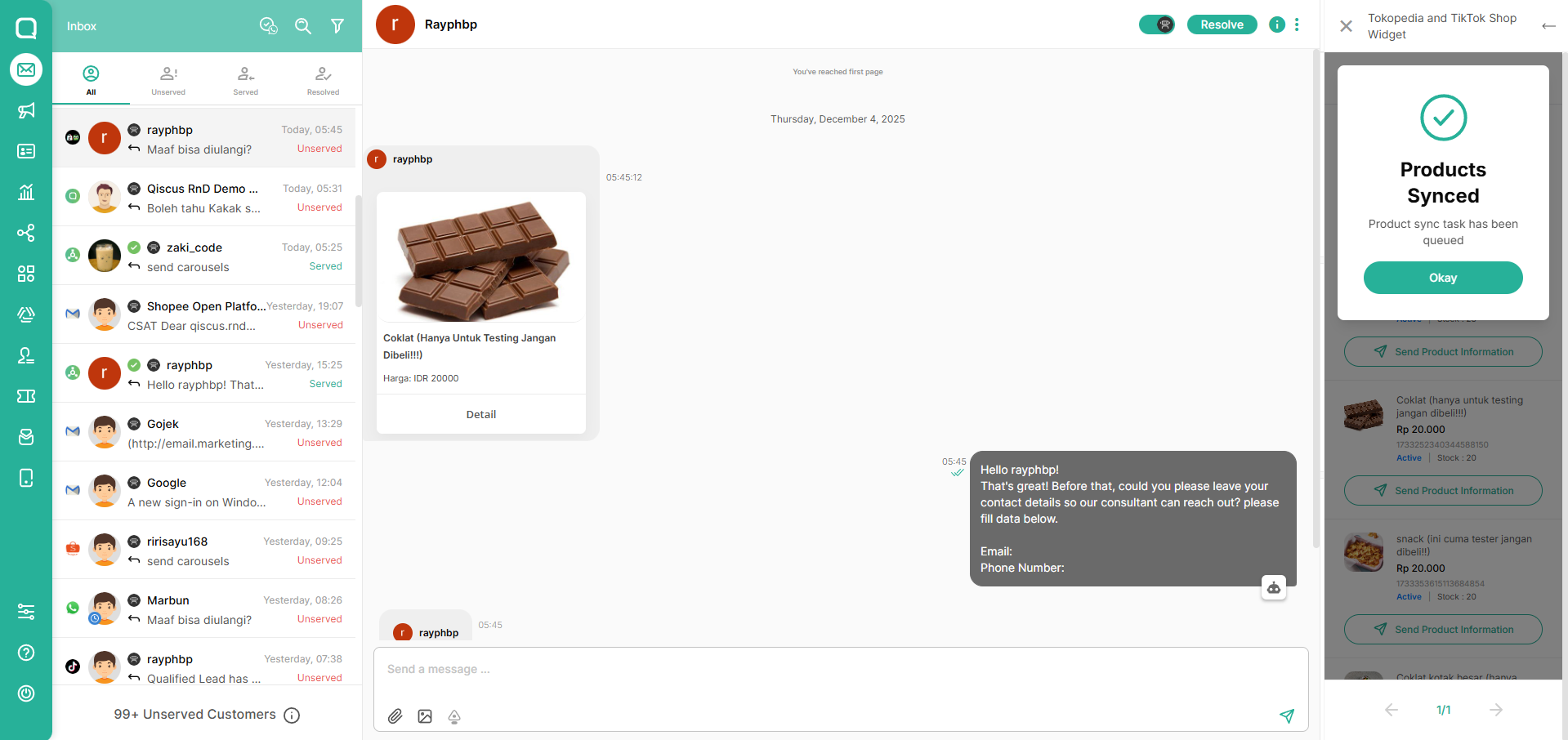
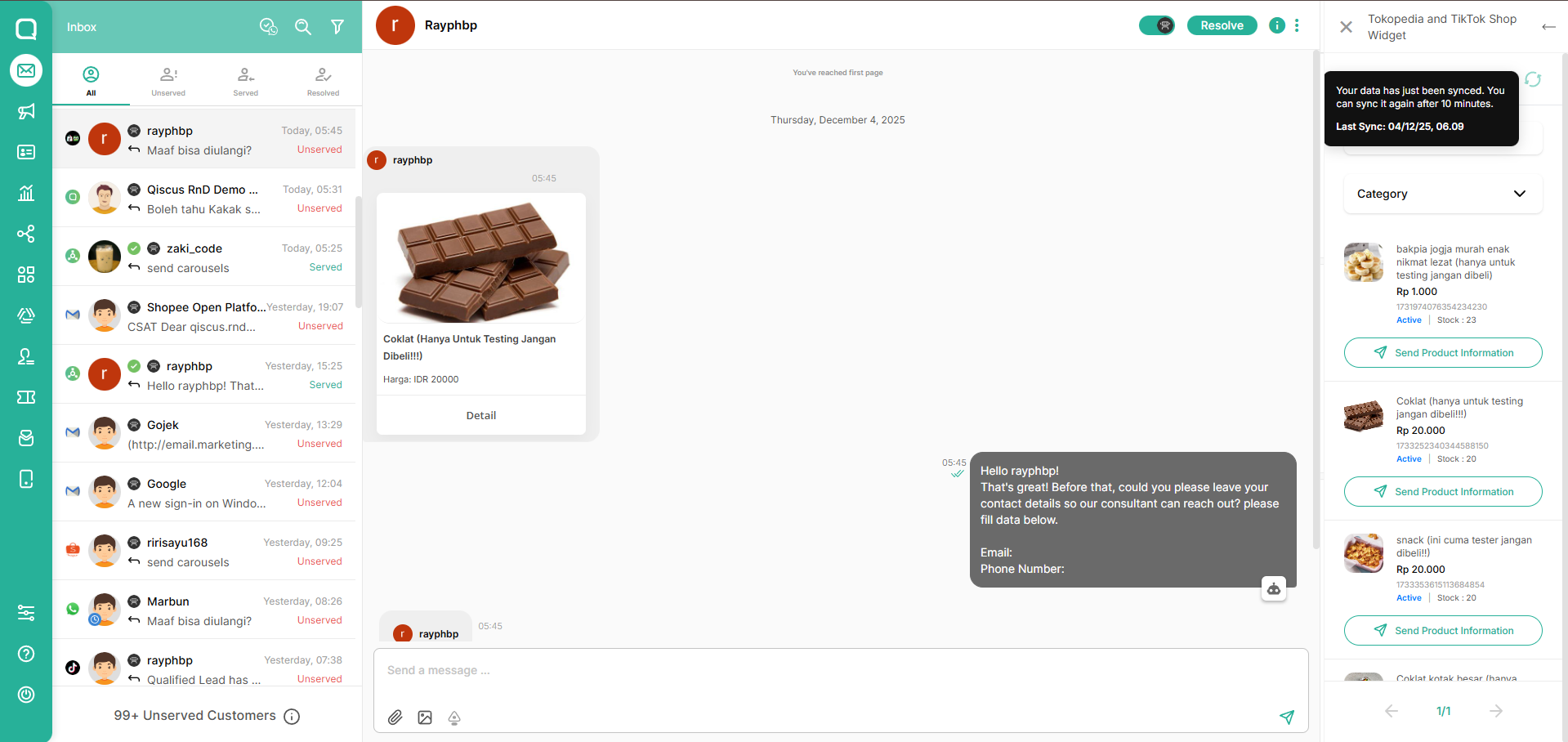
In the Product section, you can sync your products by clicking this button. Product synchronization can be performed once every 10 minutes to avoid API limitations from third-party platforms.
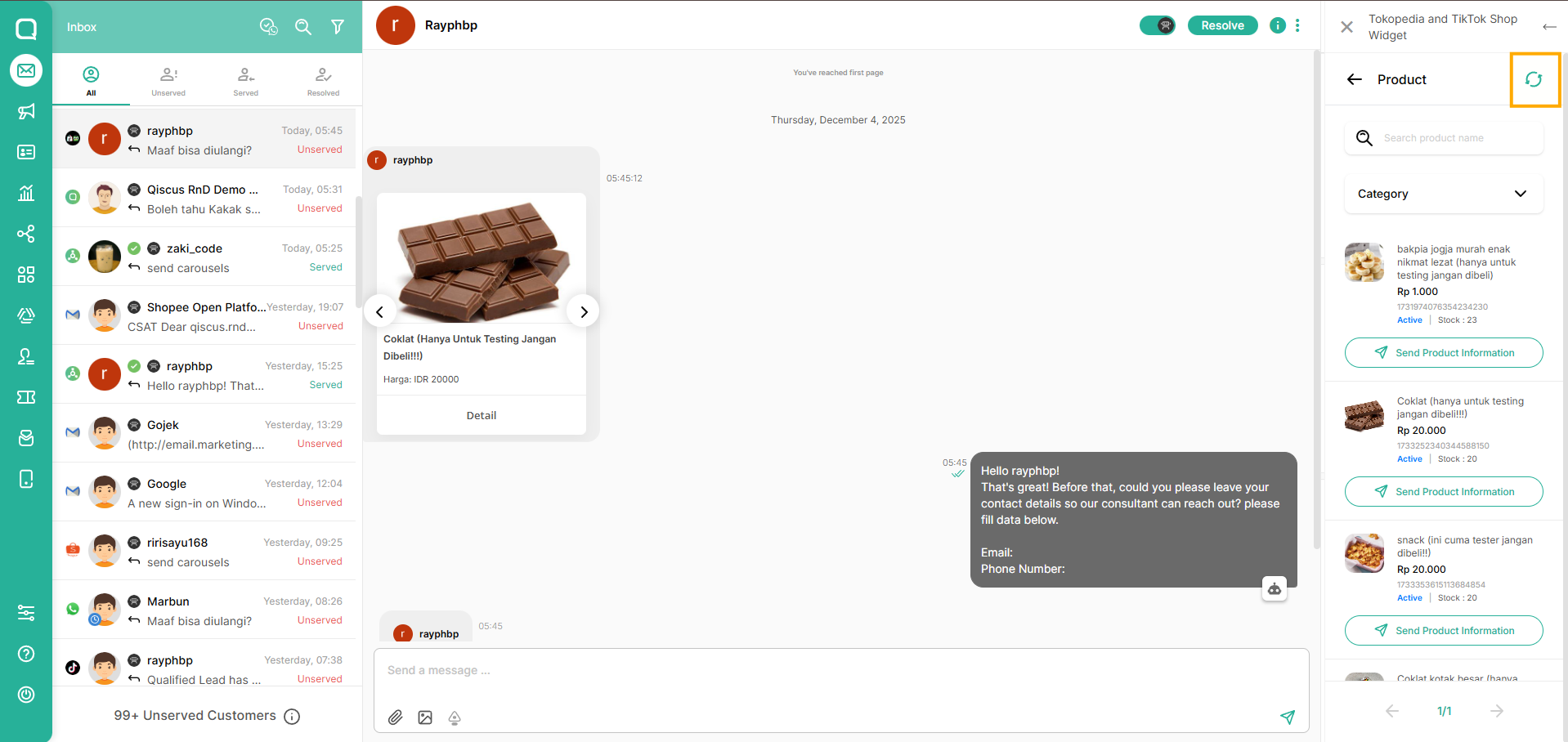
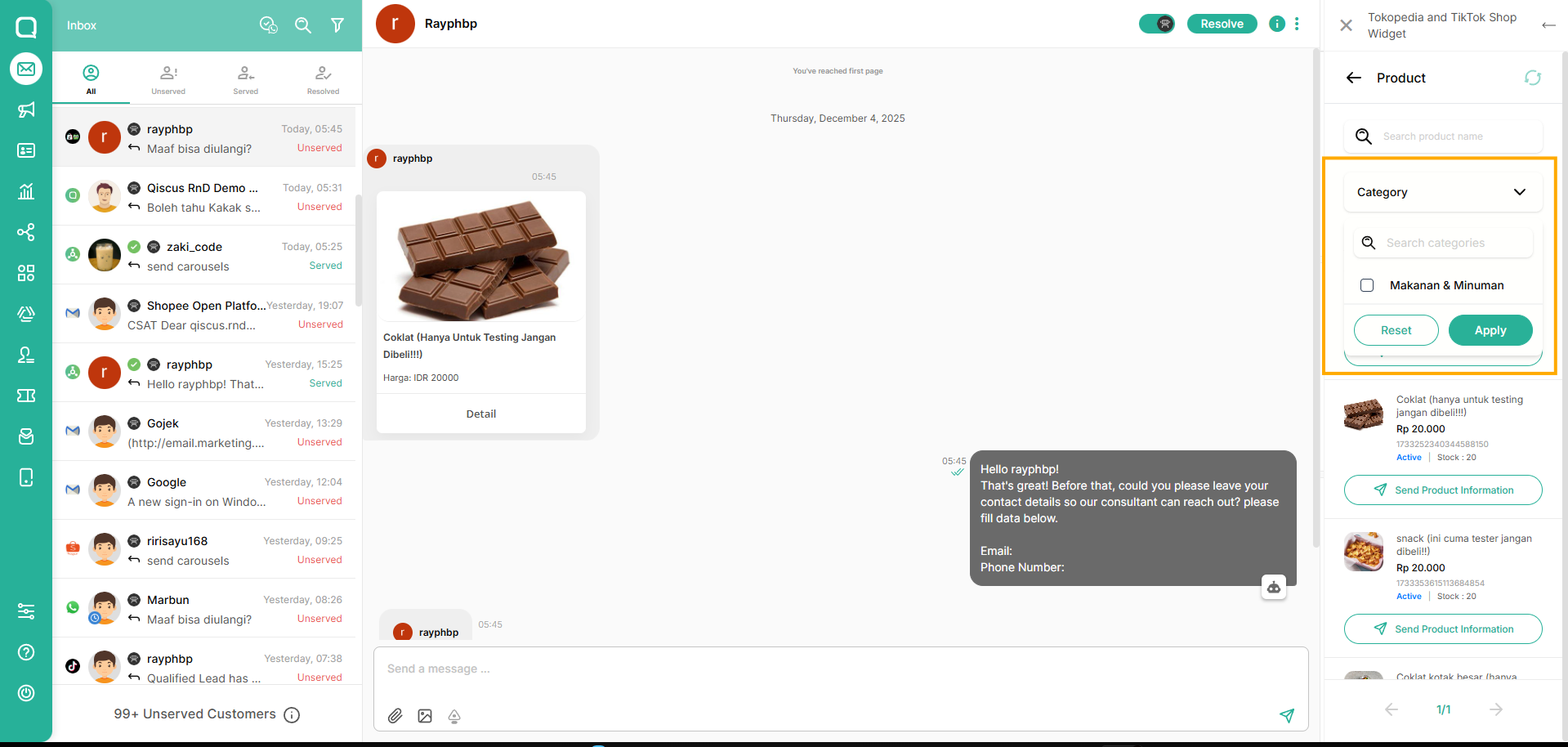
You also can Filter the Product by category list
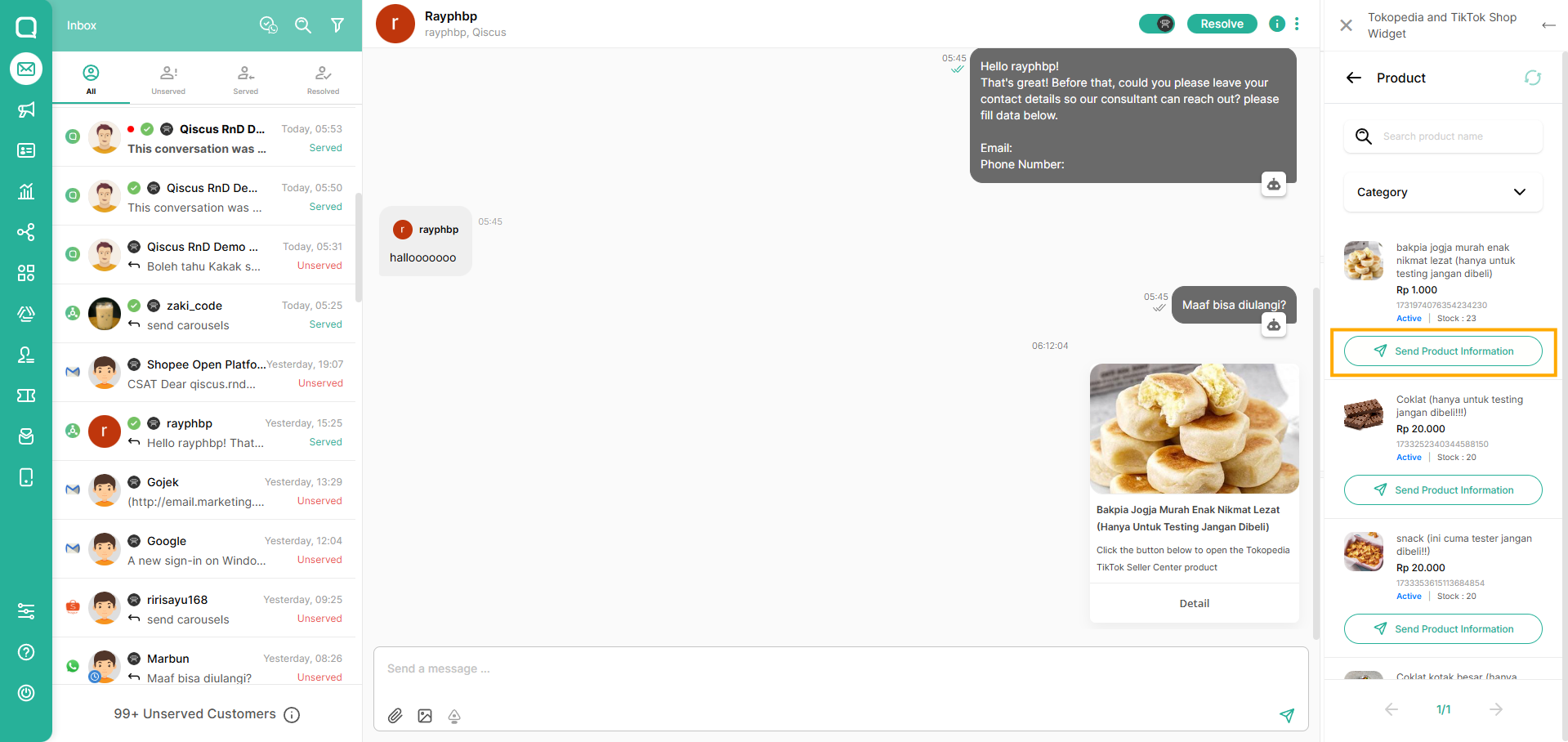
To send the product, select product you want to send to customer and click button "Send Product Information"
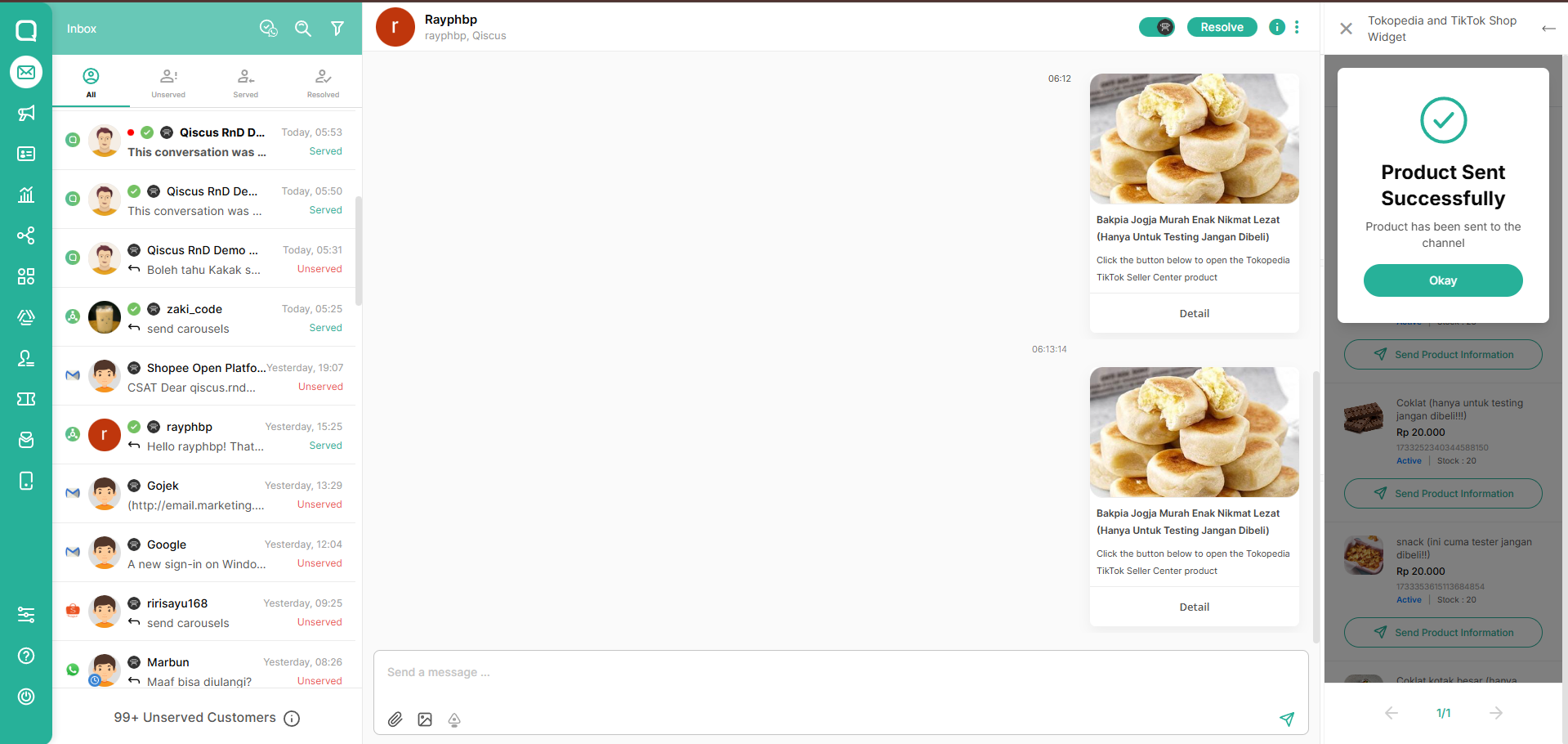
Send Order Message
Due to a limitation in the TTSPC Get Order API, filtering orders by user_id is not supported. As a result, we must manually search by order number to obtain the specific order we need.
In TTSPC ACW section, select Order
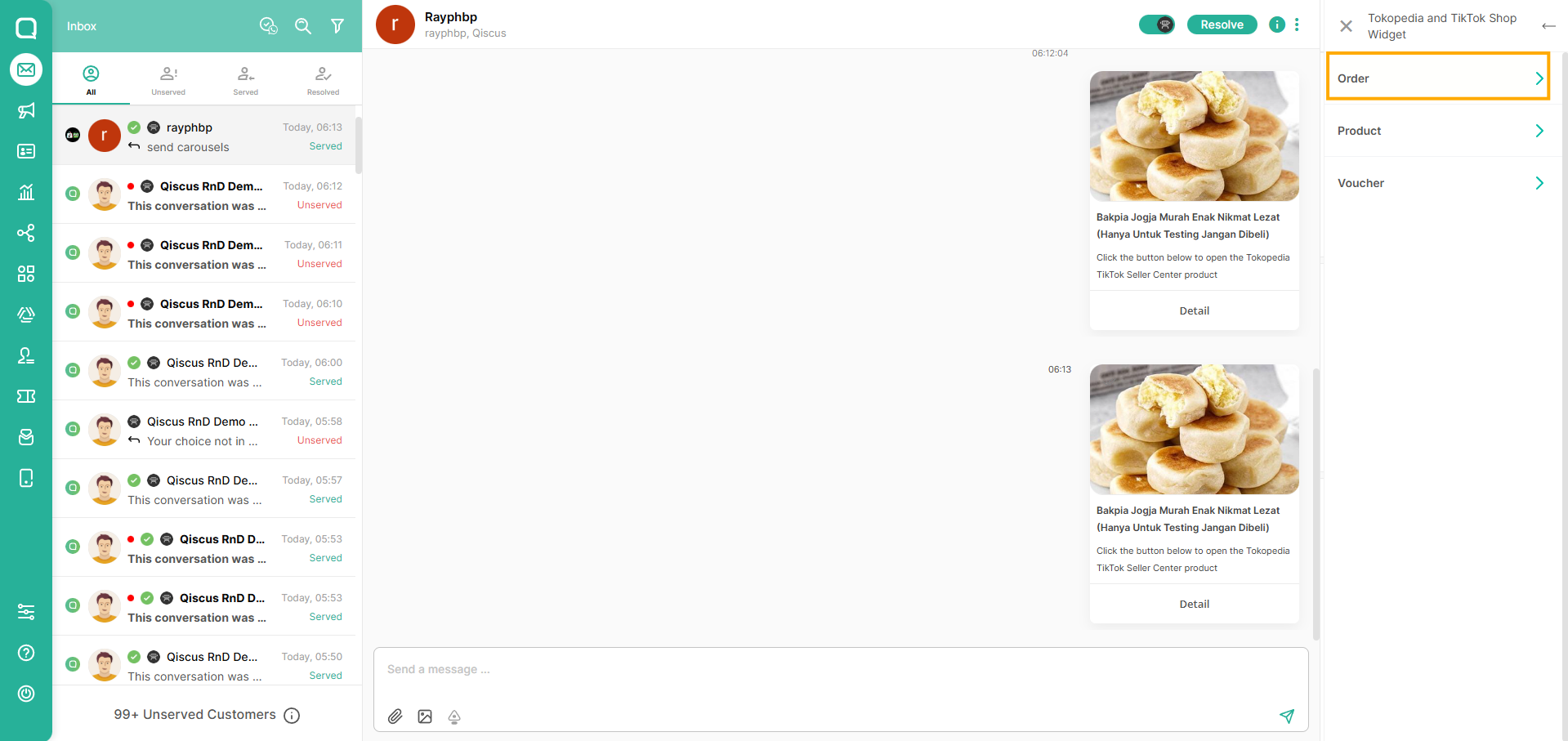
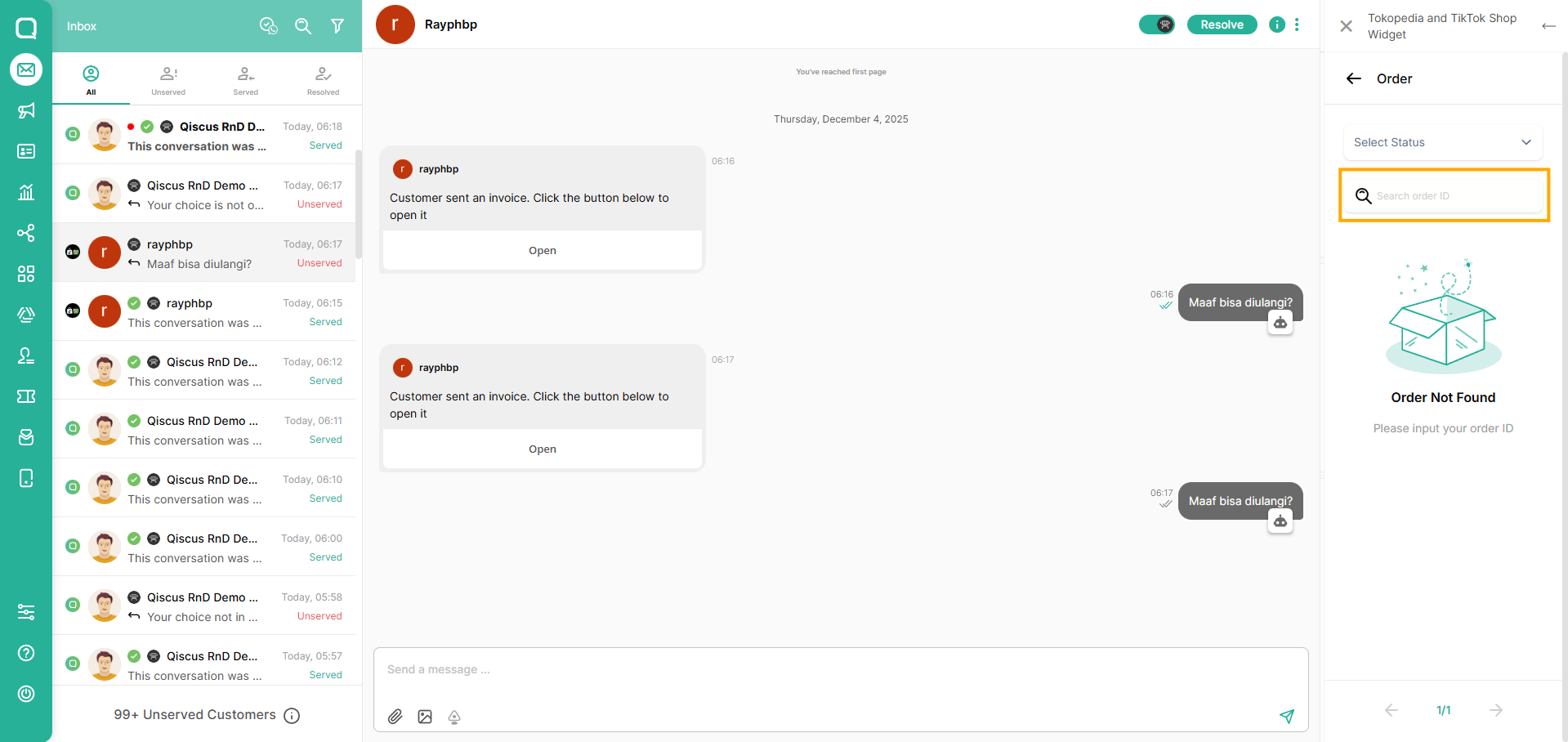
Due the limitations from TTSPC Get Order API, you have to search the order by order number first to see the order you want.
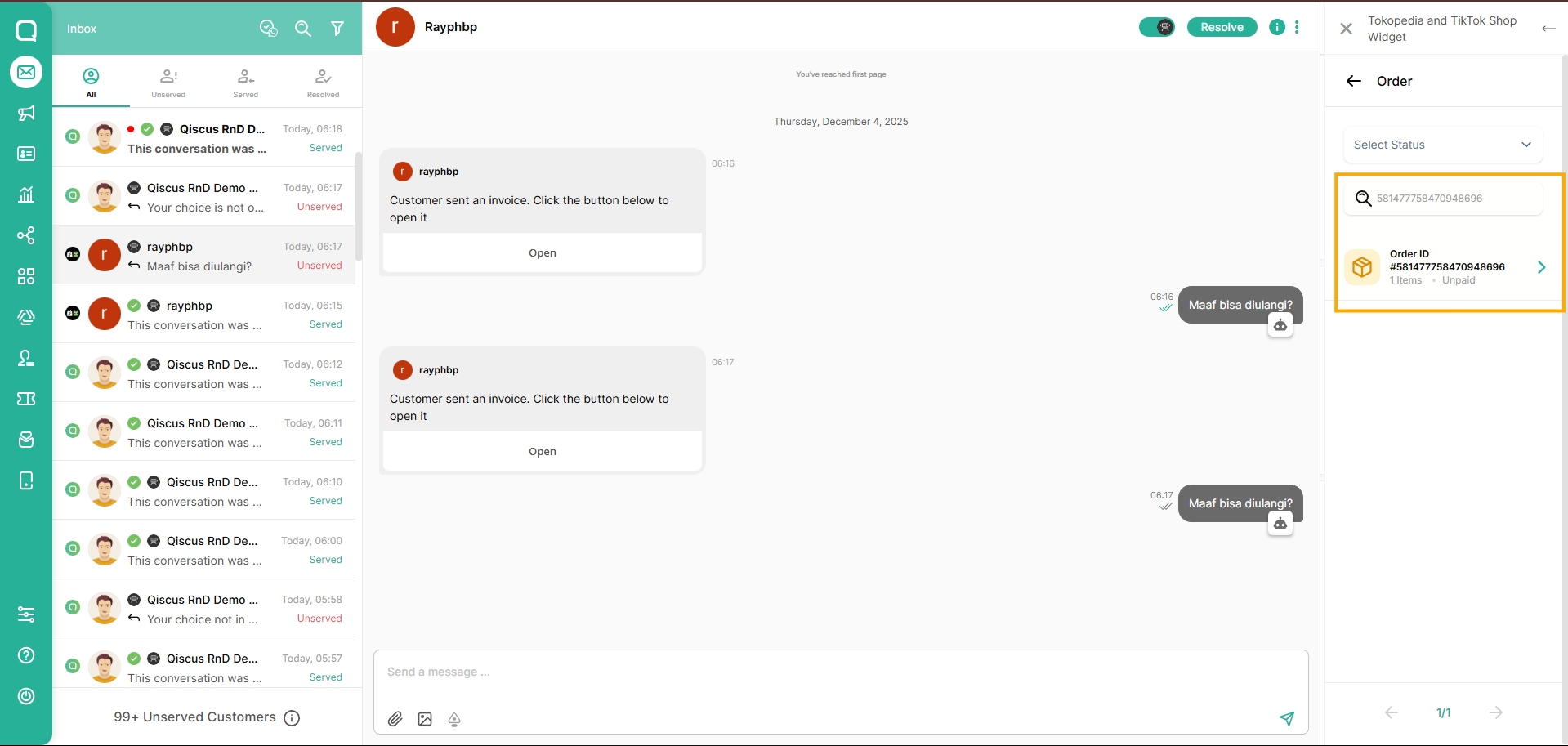
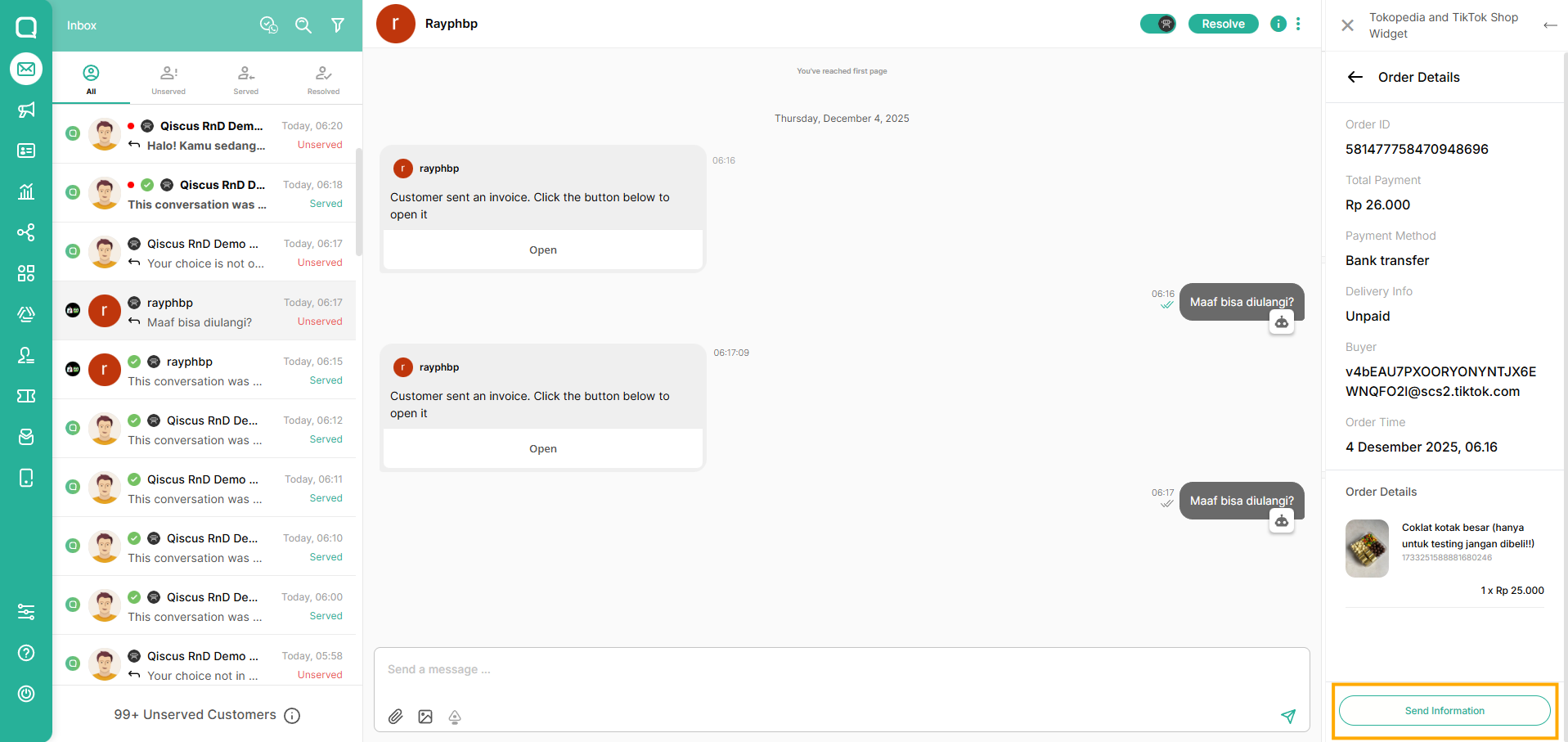
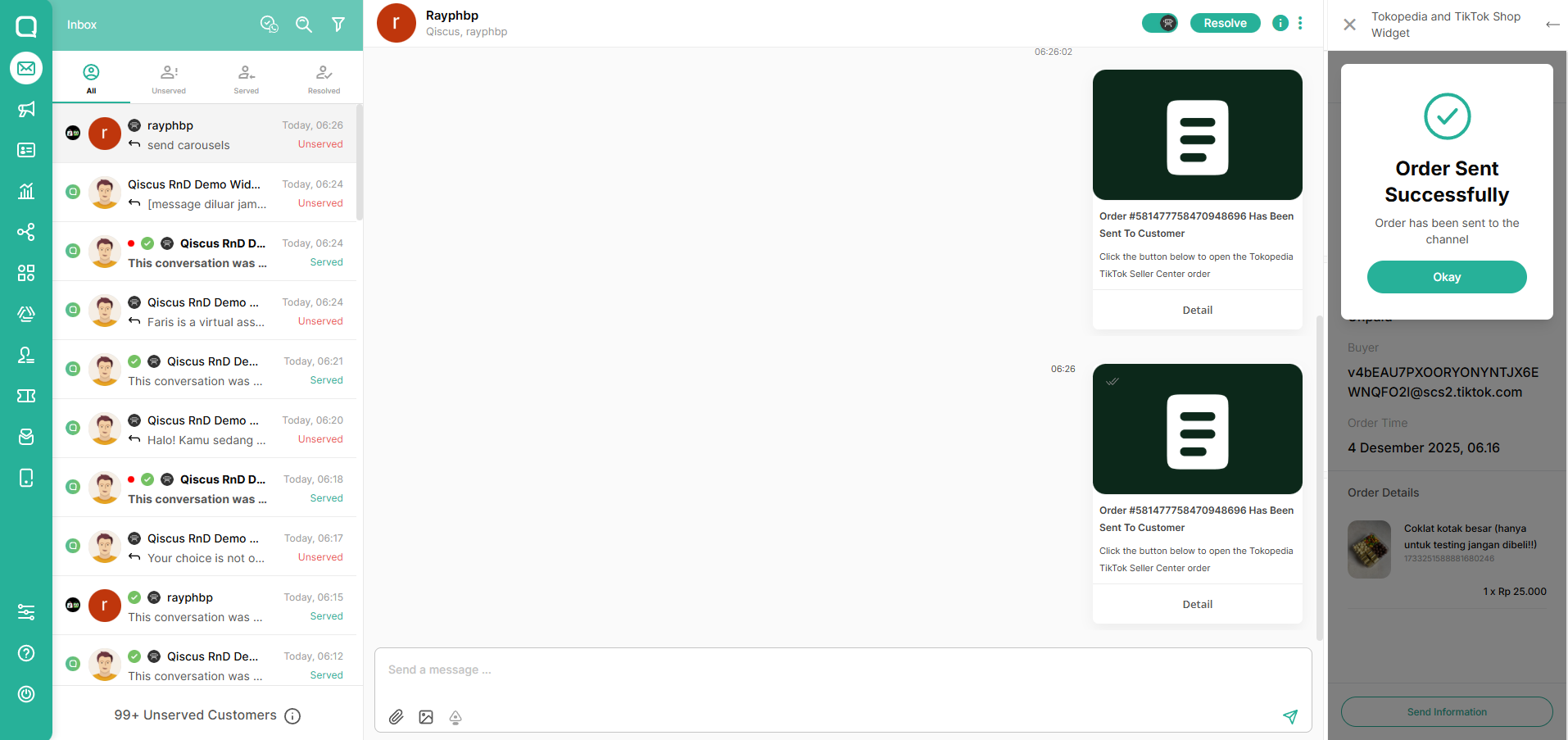
After you search it, you can view and send the order details to customer by selecting an order.
Send Voucher Message
Due to a limitation in the TTSPC Voucher API, we are only able to submit voucher information for voucher types categorized as Chat Coupons and Regular Coupons.
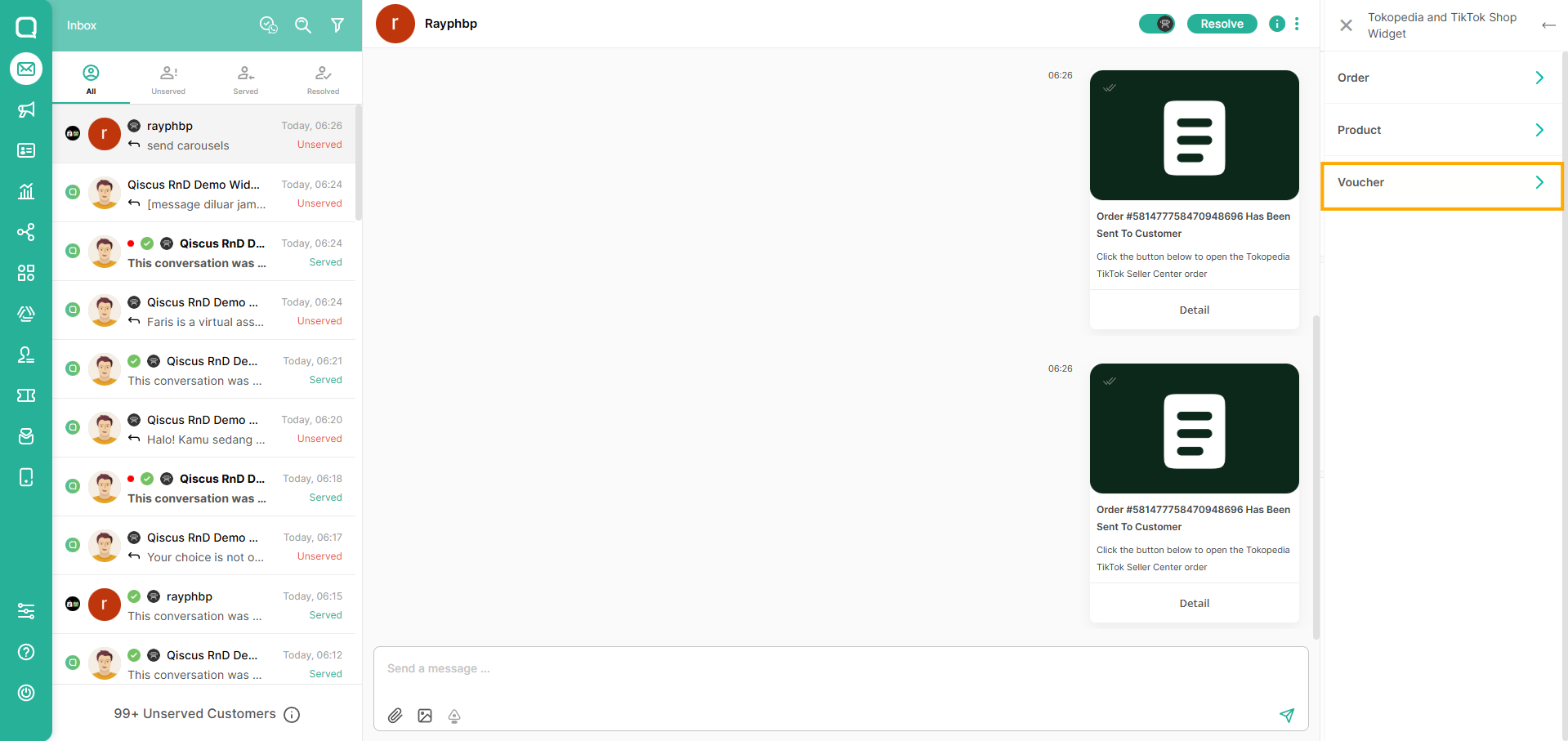
In TTSPC ACW section, select Voucher
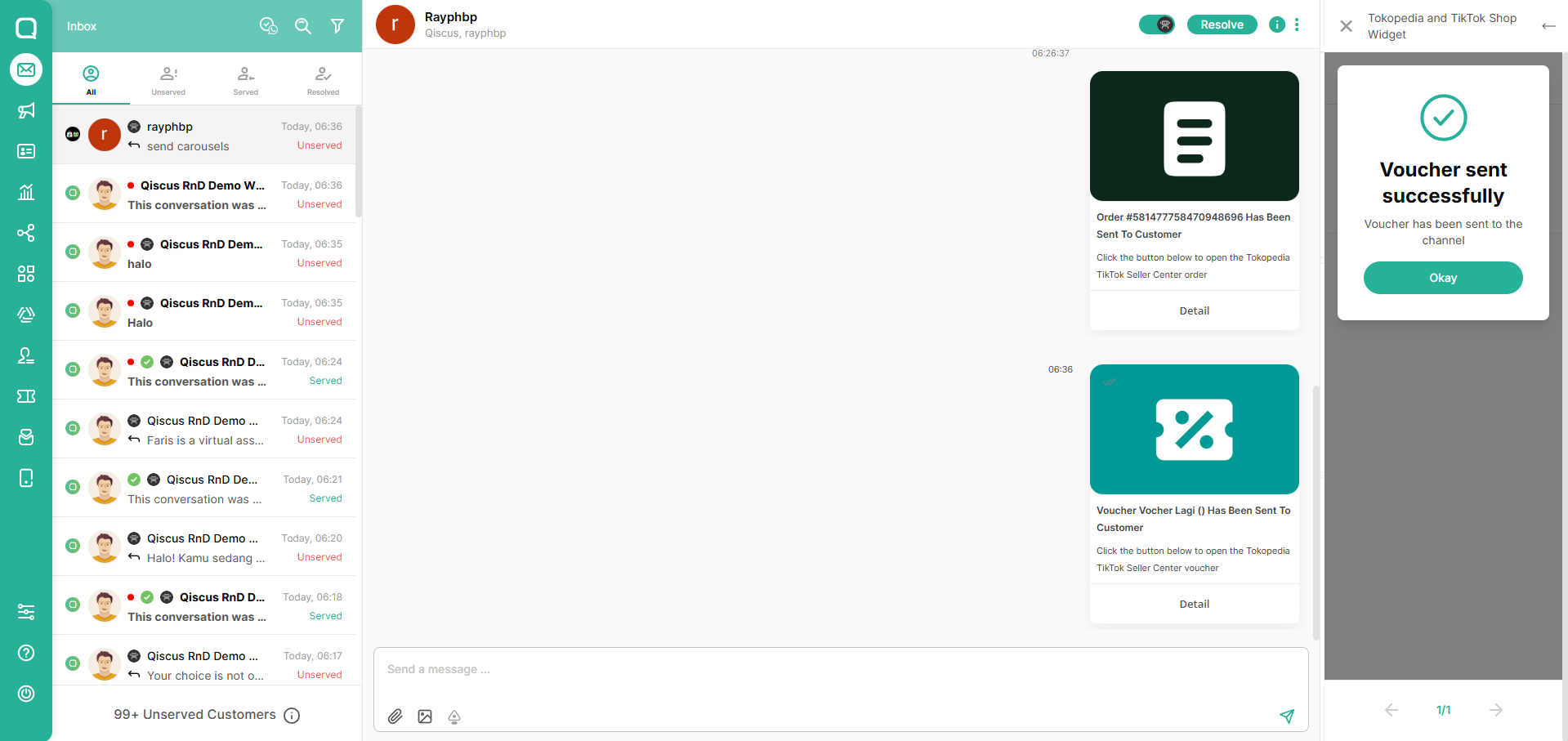
Click "Kirim Voucher" to send it to customer
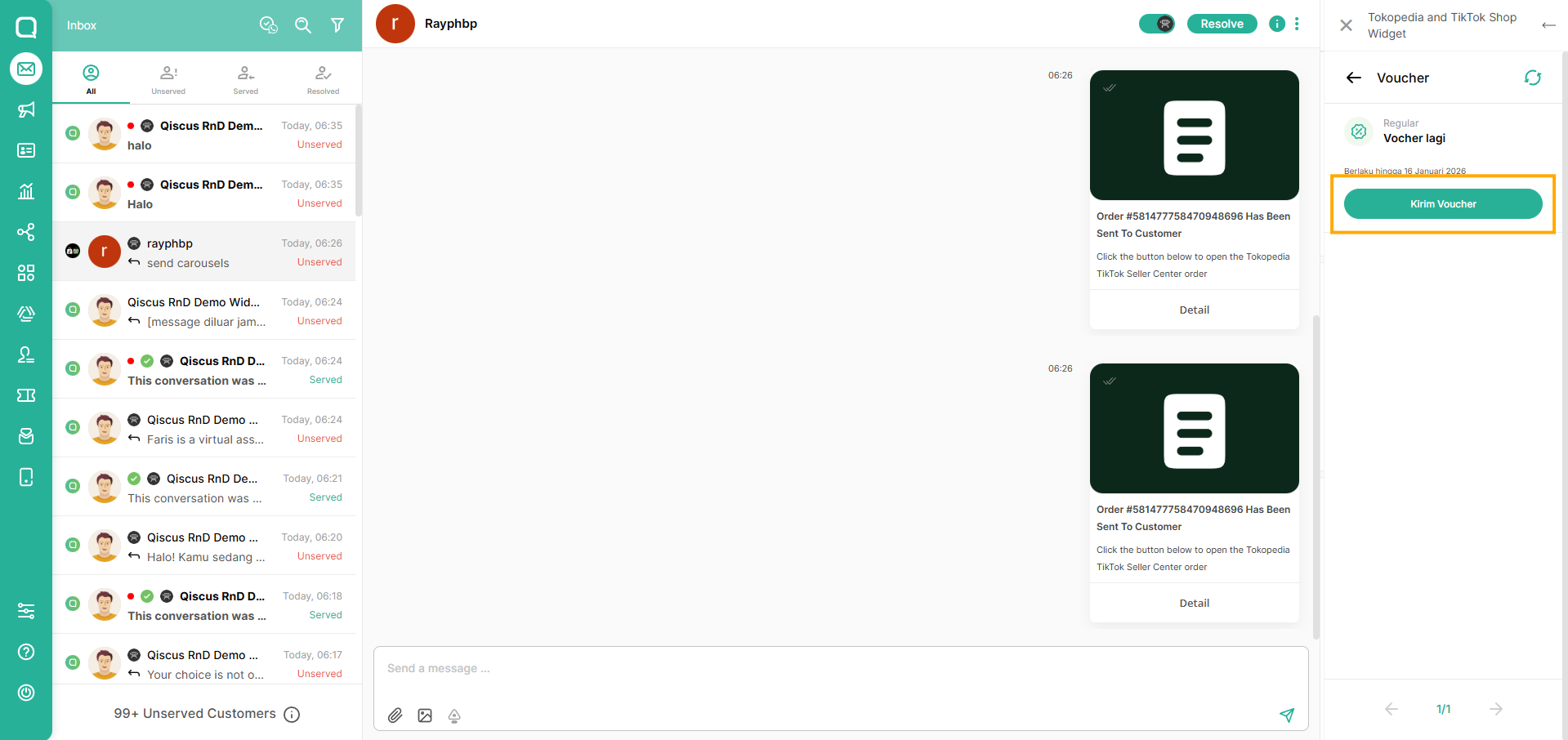
In the Voucher section, you can sync your products by clicking this button.
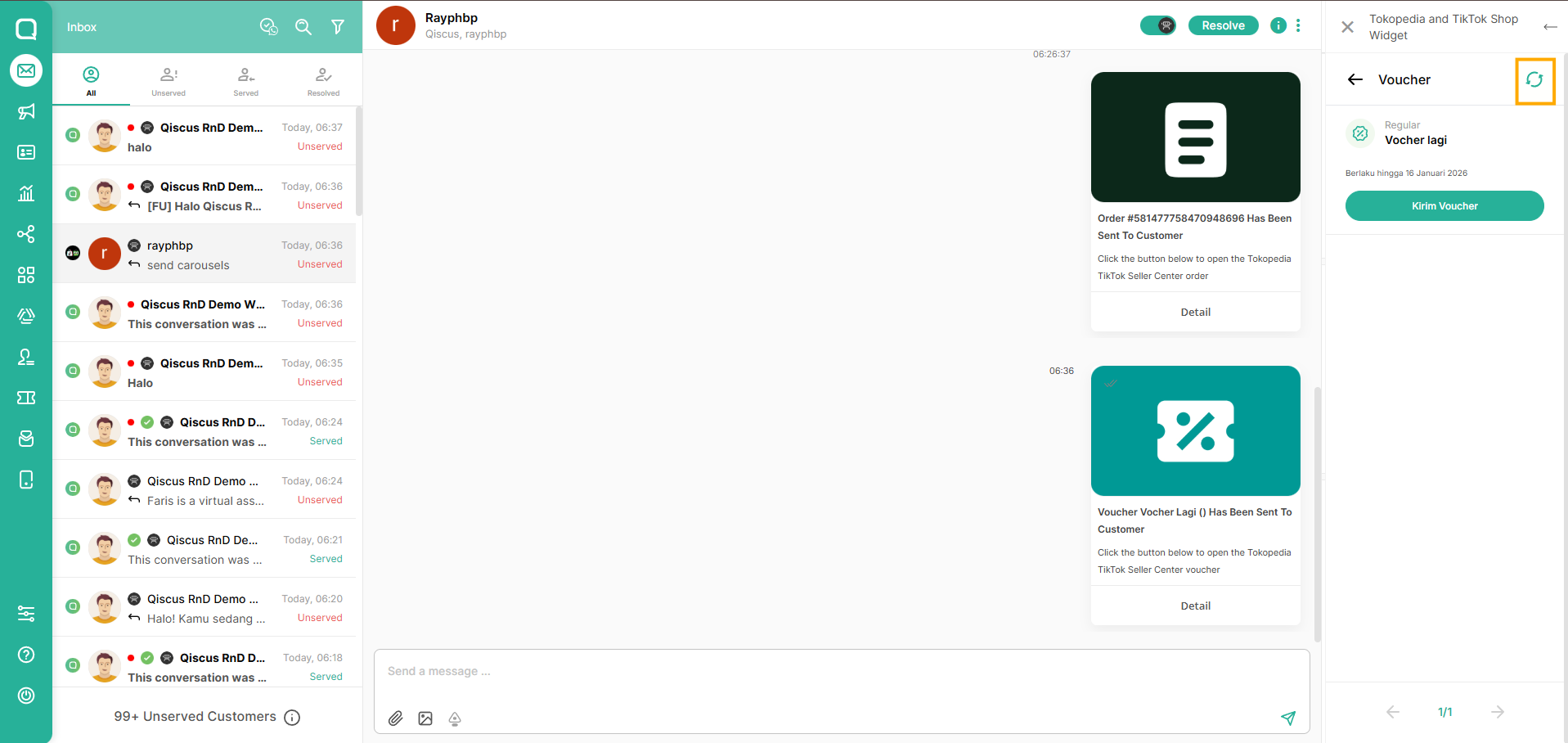
Voucher synchronization can be performed once every 10 minutes to avoid API limitations from third-party platforms.